HOW TO A/B TEST TRUST BADGE PLACEMENT ON YOUR SHOPIFY STORE

Introduction
Adding trust badges to your Shopify store is one way to communicate important information about shipping, returns, payment security, and product guarantees. However, simply adding trust badges does not mean they will automatically improve conversions.
Where you display these badges can influence how customers notice and interact with them.
For example, a Secure Checkout badge displayed below the Add to Cart button may attract more attention than the same badge placed at the bottom of a long product description. Similarly, Free Shipping and Easy Returns badges may be more useful when customers can see them before deciding to purchase.
But how can Shopify merchants determine which placement works best?
The answer is A/B testing.
A/B testing allows merchants to compare different versions of a product page and measure which one performs better.
In this guide, we’ll explain how to A/B test trust badge placement on Shopify, which metrics to monitor, common mistakes to avoid, and how to create customizable trust badges using the SA Trust Badges Shopify app.
Why Trust Badge Placement Matters
Trust badges are designed to make important purchasing information easier to find.
However, their effectiveness can depend on several factors, including their position, size, design, wording, and relevance to the product.
For example, customers purchasing expensive electronics may want clear warranty information, while customers shopping for clothing may be more interested in shipping charges and return conditions.
If these messages are difficult to find, customers may overlook them.
On the other hand, displaying too many badges near the purchasing buttons can make a product page feel crowded.
The goal is to find a placement that improves clarity without distracting customers from the shopping experience.
Common Problems Shopify Merchants Face
1. Trust badges are placed too far from purchasing buttons
Customers may never notice badges located at the bottom of a product page.
2. Product pages contain too many trust icons
An excessive number of badges can overwhelm shoppers and make important messages harder to identify.
3. Merchants rely on assumptions
A badge position that looks attractive may not necessarily lead to better purchasing behavior.
4. Mobile layouts are overlooked
A placement that works well on desktop may look crowded or become difficult to notice on smaller screens.
5. Conversion performance is not measured
Without comparing results, merchants cannot confidently determine whether a particular badge placement improves sales.
What Is A/B Testing in Shopify?
A/B testing is a method of comparing two versions of a webpage to determine which performs better against a specific goal.
For example, you might compare two versions of the same Shopify product page.
Version A
Badges below price
Product Name
$49.00
Free Shipping
Easy Returns
Add to Cart
Version B
Badges below Add to Cart
Product Name
$49.00
Add to Cart
Free Shipping
Easy Returns
Illustrative A/B test comparing two product-page badge placements.
In this example, both versions contain the same badges, product information, and purchasing buttons. The only difference is where the trust badges appear.
Visitors are randomly assigned to one of the two versions, and their purchasing behavior is measured.
This helps merchants evaluate whether the badge placement itself contributes to a difference in performance.
Benefits of A/B Testing Trust Badge Placement
Better understanding of customer behavior: Testing reveals how visitors respond to different page layouts.
More informed design decisions: Merchants can make changes based on observed results rather than personal preferences.
Improved product-page clarity: Testing may help identify where shipping, return, and guarantee information is easiest to notice.
Potential conversion improvements: A better placement may reduce uncertainty and support purchasing decisions.
Mobile optimization: Separate analysis of mobile and desktop results can reveal differences in customer behavior.
A/B testing does not guarantee higher sales, but it provides a more reliable approach to evaluating storefront changes.
Introducing SA Trust Badges for Shopify
Creating multiple trust badge designs manually can require additional theme editing and customization work.
For Shopify merchants looking for a simpler solution, SA Trust Badges provides tools for creating and customizing trust badges for product and cart pages.
The app supports badge layouts, icons, custom headings, supporting descriptions, styling options, and storefront integration.
Merchants can create badges highlighting genuine benefits such as Free Shipping, Easy Returns, Secure Checkout, and Product Guarantees.
These customization options make it easier to prepare consistent badge designs for different placement experiments.
Shopify App: https://apps.shopify.com/trust-badges-7
It’s important to understand that SA Trust Badges is used to create and display badges. A controlled A/B test requires a separate testing method or compatible experimentation tool that can randomly assign visitors and measure results.
How to Add Trust Badges Before Running an A/B Test
Before testing badge placement, you need to create and publish the trust badges you want to compare.
Follow these steps using SA Trust Badges.
Step 1: Open the Shopify App Store
Open your browser and search for Shopify App Store on Google.
Select the official Shopify App Store website from the results.
Once the store opens, locate the search bar to find the trust badge application.
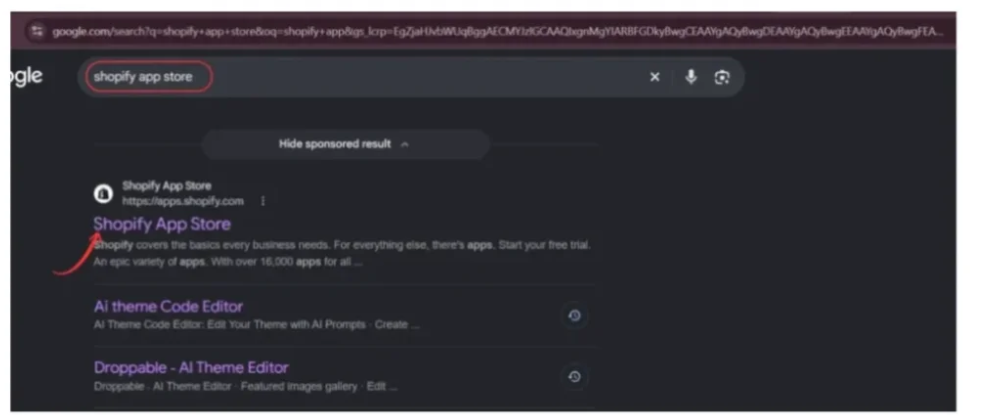
Image 1: Find the official Shopify App Store using Google.
Step 2: Search for SA Trust Badges
In the Shopify App Store search bar, enter SA Trust Badges.
Find the application in the search results and click it to open the listing.
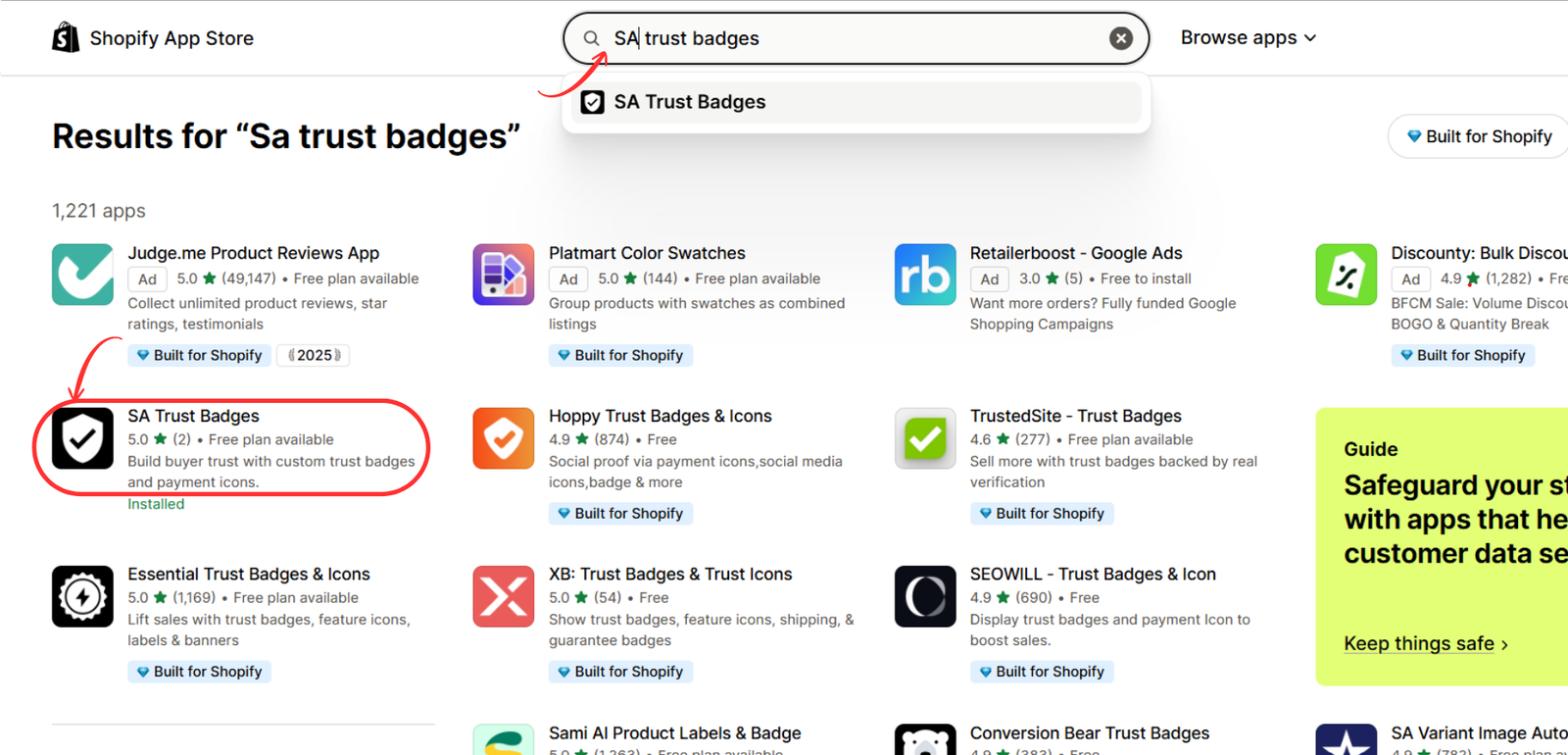
The app provides customizable badge layouts, icons, and styling options for Shopify storefronts. Shopify App Store
Image 2 – Search for SA Trust Badges
Image 2: Locate SA Trust Badges in the Shopify App Store.
Step 3: Install SA Trust Badges
On the application listing page, review its features and available plans.
Click Install and follow Shopify’s installation instructions.
After completing installation, open the application from your Shopify admin dashboard.
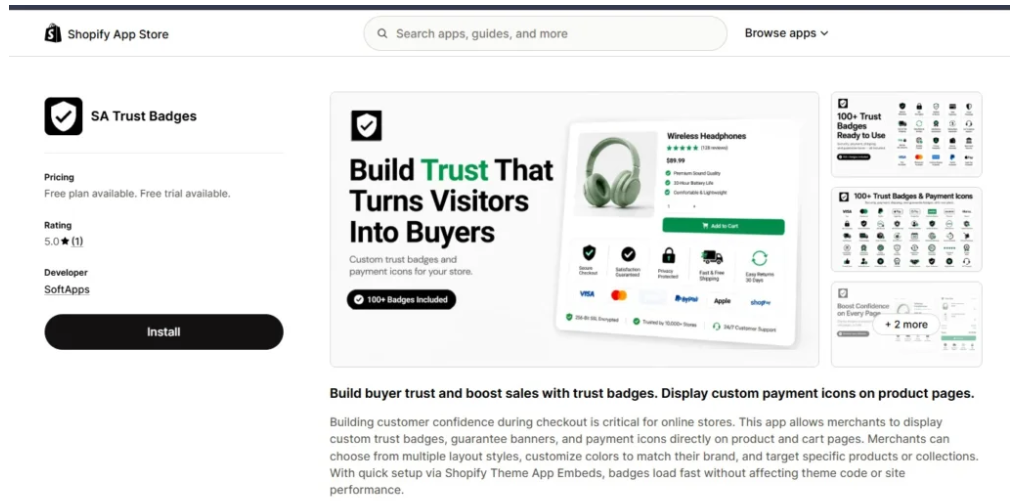
Image 3: Install SA Trust Badges on your Shopify store.
Step 4: Create Your Trust Badges
Open the SA Trust Badges dashboard and select Create Product Badge for product-page badges.
Choose a suitable layout and add the messages you want to test.
For example, you can create badges for:
- Free Shipping
- Easy Returns
- Secure Checkout
- Product Guarantee
Customize the headings, descriptions, icons, colors, and other available design settings.
Keep the wording consistent across both test versions so that placement remains the only intended difference.
Use the live preview to review the design, then click Publish.
The image below demonstrates the badge editor’s layout and customization options using a cart badge example.
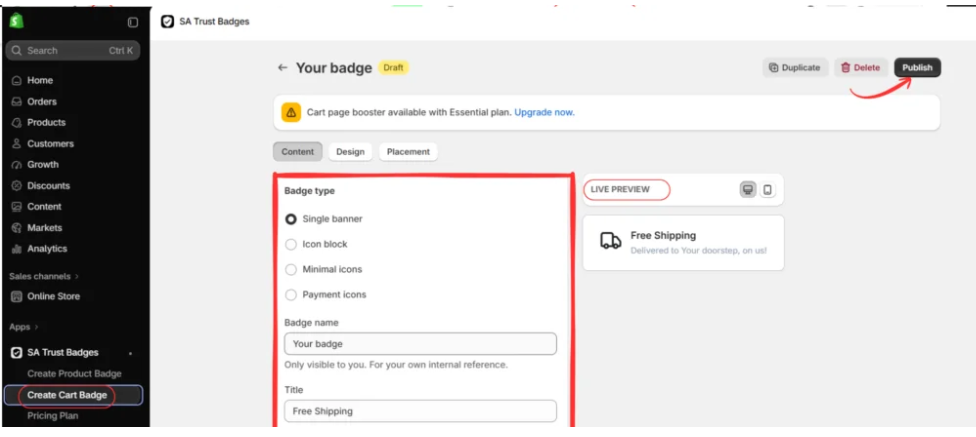
Image 4: Customize trust badge content, layout, and appearance using the SA Trust Badges editor.
Step 5: Open Your Shopify Theme Editor
Return to Shopify Admin and navigate to Online Store → Themes.
Select Customize or Edit theme to open your storefront editor.
Open the product template where you want to display your badges.
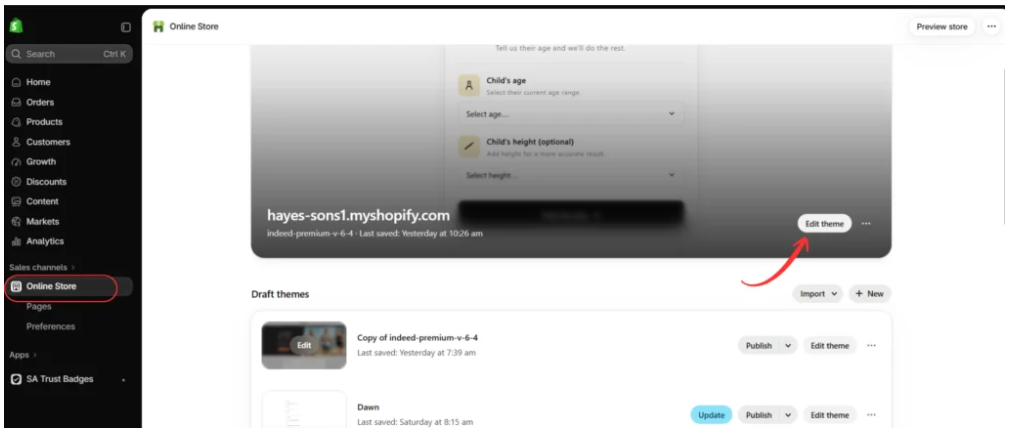
Image 5: Open the Shopify theme editor to configure your product-page trust badges.
Step 6: Enable Trust Badges on Your Storefront
Inside the theme editor, select App embeds.
Locate Trust Badges Embed — SA Trust Badges and enable the toggle.
Review the product page preview to confirm that your published badges are visible.
The image shows an example of badges for Guarantee, Free Shipping, Easy Returns, and Secure Checkout near the purchasing area.
Click Save to apply the changes.
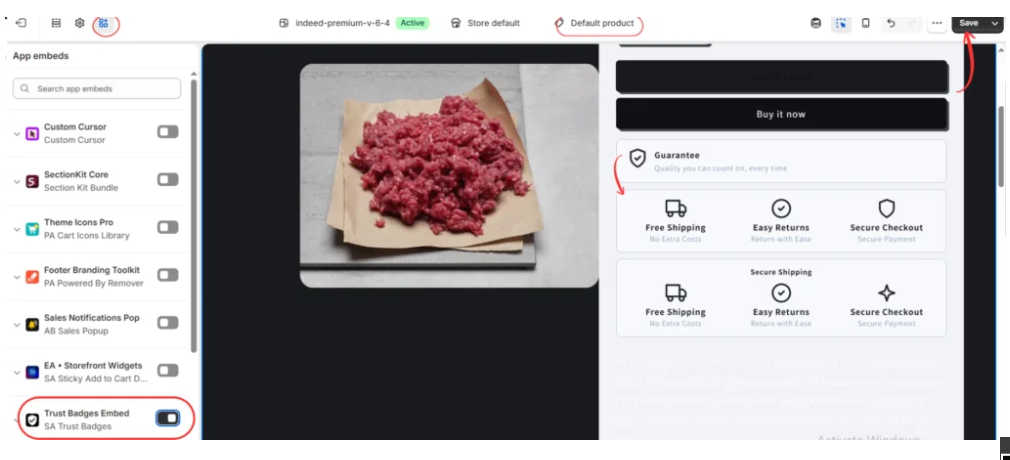
Image 6: Enable the SA Trust Badges app embed and preview trust badges on a product page.
Step 7: Create a Product Guarantee Badge
Return to the SA Trust Badges dashboard and select Create Product Badge.
Choose Single banner as the badge layout.
Enter Guarantee in the Title field and add a supporting description, such as Quality you can count on, every time, if it accurately reflects your store’s commitments.
Select a suitable shield or checkmark icon and customize the colors, text, and styling.
Review the live preview and click Publish.
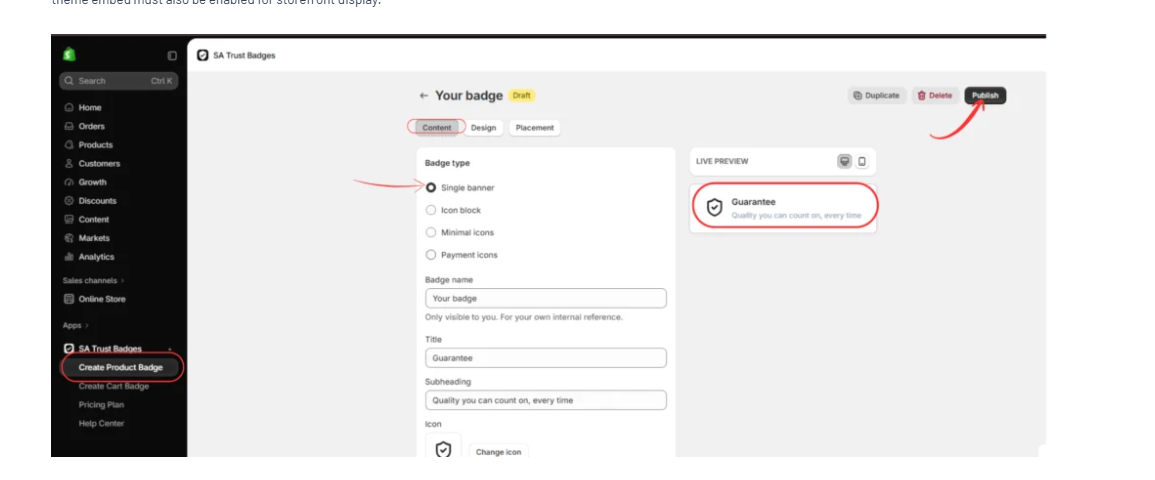
Image 7: Create and customize a Guarantee Badge for your Shopify product page.
Step 8: Preview Your Trust Badge Placement
Return to the Shopify theme editor and open your product page template.
Confirm that the SA Trust Badges app embed is enabled.
Check the position of your Guarantee Badge and other published badges near the purchasing buttons.
Review the appearance on desktop and mobile, then save your changes.
This provides a starting layout for your A/B testing experiment.

Image 8: Preview the published Guarantee Badge and other trust badges on your Shopify product page.
Step 9: Prepare Two Badge Placement Variations
After creating your badges, define the two layouts you want to compare.
For example:
| Test version | Badge placement |
|---|---|
| Version A | Below the product price |
| Version B | Below the Add to Cart button |
Keep the badge text, icon design, colors, and other product-page elements identical between the two versions.
This makes it easier to attribute performance differences to placement rather than unrelated design changes.
Step 10: Run a Controlled A/B Test
Use a compatible A/B testing tool to randomly assign eligible visitors to Version A or Version B.
Shopify also offers Rollouts Experiments for supported theme changes on stores using the Grow plan or higher. These experiments support control and treatment groups, with a default 50/50 traffic split. Rollout analytics+1
For a trust badge placement test, confirm that the chosen testing method can actually isolate the badge position. Some app-controlled placements may not be independently configurable through theme experiments.
Avoid manually switching the live badge position every few days and calling the result an A/B test. Different traffic sources, promotions, and shopping patterns can make such comparisons unreliable.
Step 11: Measure Your A/B Testing Results
Once the experiment is running, monitor the metrics most relevant to your goal.
| Metric | What it measures |
|---|---|
| Add-to-cart rate | Percentage of eligible sessions resulting in an add-to-cart action |
| Conversion rate | Percentage of sessions resulting in a purchase |
| Reached-checkout rate | Percentage of sessions progressing to checkout |
| Revenue per session | Revenue generated relative to sessions |
| Bounce rate | Sessions that leave without further meaningful engagement, according to the analytics definition |
For example, suppose you receive the following hypothetical results:
Example: Product page conversion rate

Version B has a higher observed conversion rate, but that alone does not prove it is the better placement. Evaluate statistical uncertainty, the planned sample size, and other relevant business metrics before deciding.
Best Trust Badge Placements to A/B Test
Here are several useful placement experiments for Shopify stores.
| Experiment | Version A | Version B |
|---|---|---|
| Product page | Below price | Below Add to Cart |
| Product details | Above description | Below description |
| Guarantee badge | Near product title | Near purchase buttons |
| Shipping badge | Under price | Near variant selector |
| Cart page | Above checkout button | Below checkout button |
Test one placement difference at a time and ensure the badges remain visible and accurate in both versions.
Common A/B Testing Mistakes to Avoid
Changing multiple elements simultaneously: If you modify the badge color, text, size, and placement together, it becomes difficult to determine what caused the performance difference.
Ending the experiment too early: Small samples can produce misleading results.
Ignoring mobile visitors: Mobile and desktop shoppers may interact differently with product-page layouts.
Running tests during major promotions: Sudden discounts, advertising changes, or seasonal events may distort comparisons.
Selecting a winner based only on add-to-cart rate: Higher add-to-cart activity does not necessarily mean more completed purchases or revenue.
Assuming SA Trust Badges performs the experiment: The app creates and displays badges; traffic allocation and statistical analysis require a compatible testing solution.
Frequently Asked Questions
1. Can trust badge placement affect Shopify conversions?
Yes, placement may influence whether customers notice important purchasing information. The size and direction of the effect should be tested rather than assumed.
2. What is the best place to display trust badges?
Below the Add to Cart button and near the product price are useful starting points, but the best placement depends on your store and customers.
3. Can I use SA Trust Badges for A/B testing?
You can use SA Trust Badges to create the visual elements for your experiments. A separate compatible testing method is needed to randomly assign visitors and compare performance.
4. How long should an A/B test run?
The duration depends on traffic, baseline conversion rate, and the effect size you want to detect. Plan the required sample size before starting and cover normal shopping cycles.
5. Should I test trust badges on mobile devices?
Yes. Mobile shoppers often experience different layouts, so mobile performance deserves particular attention.
Conclusion
Trust badges can help Shopify merchants communicate shipping information, return policies, payment-related details, and product guarantees.
However, their effectiveness depends on more than appearance. Placement can influence how easily customers notice the information.
A/B testing allows merchants to compare alternative placements and evaluate their impact using actual customer behavior.
With SA Trust Badges, merchants can create professional, customizable badges that complement their Shopify themes. Combined with a suitable A/B testing solution, these badges can be evaluated systematically rather than positioned through guesswork.
Explore SA Trust Badges: View on the Shopify App Store




