HOW TO ADD CUSTOM COPYRIGHT TEXT TO A SHOPIFY FOOTER

Introduction
Your Shopify store’s footer may be one of the last things customers see, but it plays an important role in your store’s branding and professional appearance.
By default, many Shopify themes display copyright information alongside the familiar “Powered by Shopify” credit. While this is standard for new stores, you might want to replace it with a custom copyright message that reflects your business identity.
For example, instead of displaying:
© 2026, Your Store Powered by Shopify
You can display:
© 2026, Your Brand Name. All Rights Reserved.
In this guide, we’ll explain how to add custom copyright text to your Shopify footer using PA Powered By Remover, without manually editing Liquid code.
Why Custom Copyright Text Matters
A customized footer helps establish your brand identity and makes your website feel more complete. It also allows you to display relevant information, such as your business name and copyright year.
For Shopify merchants, custom copyright text offers several advantages:
- Professional branding: Replace generic footer text with your business name.
- Consistent identity: Match your footer with the rest of your storefront.
- Easy customization: Update your copyright message when your branding changes.
- Cleaner presentation: Remove unnecessary platform attribution where appropriate.
- Better control: Choose exactly which copyright wording visitors see.
Custom copyright text does not create copyright protection by itself, but it can clearly communicate your ownership claim over original store content.
How PA Powered By Remover Helps
PA Powered By Remover is a Shopify app designed to simplify footer branding.
Instead of searching through theme files or manually editing code, you can manage your footer text from the app’s dashboard.
The app provides options to remove the default Shopify attribution, enter custom copyright text, and enable the changes through Shopify’s theme editor.
You can find it here: PA Powered By Remover on the Shopify App Store.
Step-by-Step Guide: Add Custom Copyright Text to Your Shopify Footer
The following tutorial uses the actual app dashboard and Shopify theme editor shown in your screenshots.
Step 1: Open the Shopify App Store
Start by opening Google and searching for Shopify App Store.
Click the official Shopify App Store result to explore apps that can help customize your storefront.
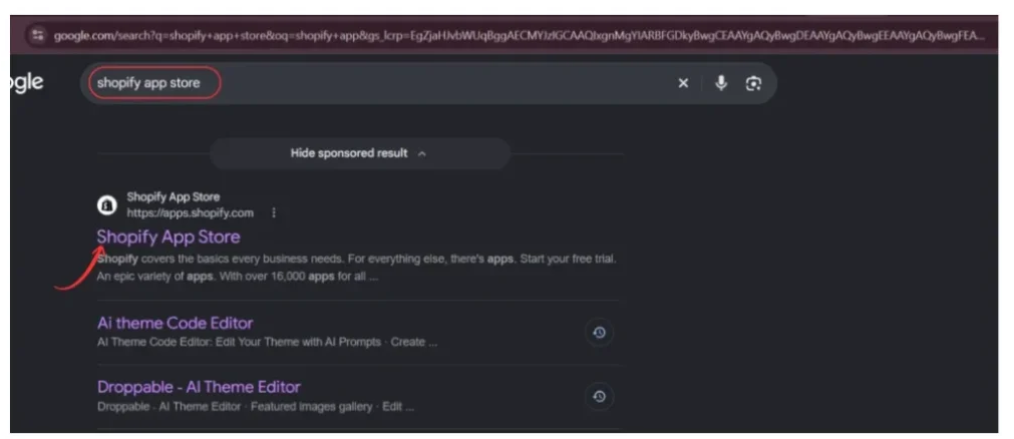
Image 1: Find the official Shopify App Store through Google.
Step 2: Search for PA Powered By Remover
Once you’re inside the Shopify App Store, use the search bar and enter PA powered by remover.
Look for the app named PA Powered By Remover in the search results and select it.

Image 2: Search for PA Powered By Remover and select the highlighted app.
Step 3: Install and Open the App
On the app listing page, review the app information and click Install if you haven’t installed it yet.
Approve the requested permissions in Shopify. Once installation is complete, open the app from your Shopify admin.

Image 3: Open PA Powered By Remover to begin customizing your footer.
Step 4: Enter Your Custom Copyright Text
This is the most important step.
Inside the PA Powered By Remover dashboard:
- Select Remove Branding from the left sidebar.
- Find the Store Attribution Settings section.
- Enable Remove “Powered by Shopify” credit if you want to hide the default attribution.
- Locate the Custom Copyright Text field.
- Enter your preferred copyright message.
- Click Save & Publish.
For example, you can enter:
© 2026, Your Brand Name. All Rights Reserved.
The dashboard also shows quick-insert tags such as {year} and {shop_name}, which you can use for dynamic copyright information.
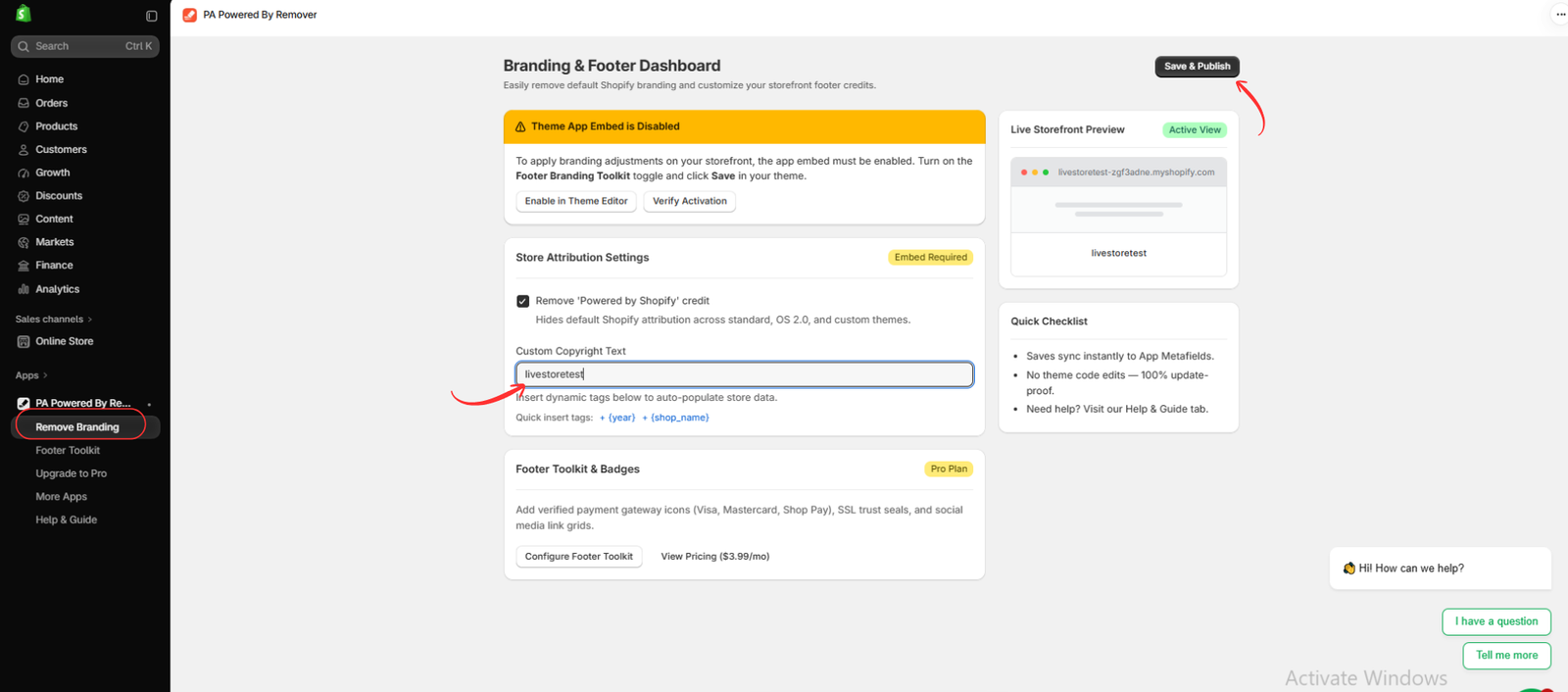
Image 4: Enter your custom copyright text in the highlighted field and click Save & Publish.
Tip: Use your actual business or brand name. If you have a registered company, make sure your copyright wording is consistent with your business identity.
Step 5: Enable the Footer Branding Toolkit
After saving your copyright text, you need to activate the app embed in your Shopify theme.
Follow these steps:
- Go to Shopify Admin → Online Store → Themes.
- Open the theme editor by clicking Customize.
- Select the App embeds icon.
- Find Footer Branding Toolkit — PA Powered By Remover.
- Turn on the toggle.
Your theme editor may still display the original “Powered by Shopify” text until the app embed is enabled and the changes are saved.
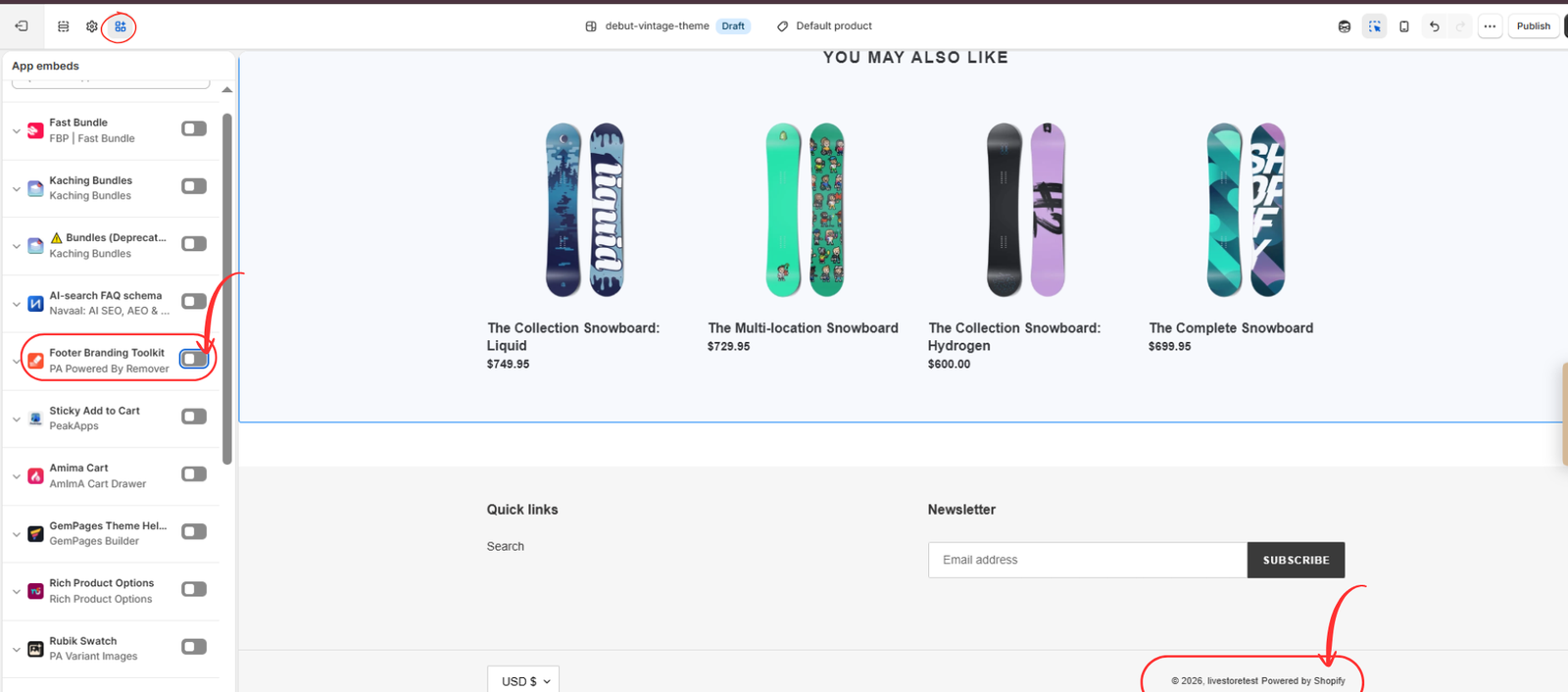
Image 5: Find Footer Branding Toolkit in App embeds and enable the toggle.
Step 6: Save Your Changes and Check the Footer
After enabling the Footer Branding Toolkit, click Save in the upper-right corner of the Shopify theme editor.
Open your storefront and scroll down to the footer.
You should now see your customized copyright message instead of the default Shopify attribution, provided the app settings and embed are active.

Image 6: The footer preview after the default “Powered by Shopify” attribution has been removed. Your own custom copyright text will depend on what you entered in Step 4.
If the footer doesn’t update immediately, check that you’re previewing the correct theme, the app embed is enabled, and both the app settings and theme editor changes have been saved.
Best Practices for Writing Shopify Copyright Text
Your footer copyright message should be short, clear, and professional.
Here are a few examples:
| Store type | Example copyright text |
|---|---|
| Fashion store | © 2026, Urban Fashion. All Rights Reserved. |
| Beauty store | © 2026, Glow Beauty Co. |
| Electronics store | © 2026, TechWorld. All Rights Reserved. |
| Jewelry store | © 2026, Elegant Gems. |
| General ecommerce store | © 2026, Your Store Name. |
Avoid unnecessarily long footer messages. A simple copyright statement with your brand name and year is usually sufficient.
Frequently Asked Questions
Can I change the copyright text without editing Shopify code?
Yes. PA Powered By Remover provides a dashboard where you can enter custom copyright text without manually modifying Liquid files.
Can I remove “Powered by Shopify” and add my brand name?
Yes. The app provides controls for removing the default attribution and entering custom copyright information.
Can I use a dynamic copyright year?
The app dashboard includes a {year} quick-insert tag. You can use it to avoid manually updating the year, subject to the app’s supported formatting.
Will this work on every Shopify theme?
Compatibility can depend on the theme and its footer structure. Test the result on your active theme before publishing changes.
Does changing copyright text improve SEO?
Custom copyright text is primarily a branding improvement. It should not be treated as a direct search-ranking strategy.
Conclusion
Adding custom copyright text to your Shopify footer is a simple way to make your store look more professional and reinforce your brand identity.
Instead of displaying generic platform attribution, you can show your business name, copyright year, and a personalized message that matches your storefront.
With PA Powered By Remover, you can manage footer branding without editing theme code, making the process easier for merchants who want a clean and customized website.
Ready to personalize your Shopify footer?
Explore PA Powered By Remover on the Shopify App Store and customize your footer today.




