HOW TO ADD A CUSTOM FONT TO YOUR SHOPIFY THEME USING AN AI PROMPT

Shopify Tutorial | AI Theme Code Editor by SectionKit | Custom Fonts | No Manual Coding
Introduction
Typography is an essential part of creating a professional Shopify storefront. The fonts you use influence how customers perceive your brand, read product descriptions, and interact with your website.
Although Shopify themes include built-in font options, you may want to use a specific Google Font or custom typeface that isn’t available through your theme’s standard settings.
Traditionally, adding a custom font required editing CSS, Liquid, and other theme files manually. For merchants without development experience, this process can be confusing and time-consuming.
Fortunately, AI Theme Code Editor by SectionKit makes it easier to request custom font changes using simple, natural-language instructions.
Instead of manually finding the correct code file and writing CSS, you can describe the font you want, where it should appear, and how it should be styled.
In this tutorial, you’ll learn how to add a custom font to your Shopify theme using an AI prompt, with step-by-step instructions and real screenshots from AI Theme Code Editor.
The Merchant’s Challenge: Why Adding Custom Fonts to Shopify Can Be Difficult
Limited built-in font selection
Shopify themes provide typography settings, but merchants may want fonts or variations that are not available in their theme’s existing controls.
Editing theme code manually
Adding an externally hosted font can require modifying CSS and Liquid files.
Finding the correct section
A Shopify theme contains numerous files responsible for product pages, collections, navigation, and other storefront components.
Merchants may struggle to identify which file should be modified.
Maintaining a consistent design
Applying a font globally can unintentionally change headings, navigation menus, buttons, and other elements.
Mobile compatibility
A font may appear attractive on desktop but reduce readability on mobile devices if sizes, line heights, and spacing are not properly configured.
Avoiding unnecessary changes
Merchants often want to update the typography of just one page or section while preserving the rest of their storefront.
These challenges make targeted AI-assisted font customization particularly useful.
Why Custom Fonts Matter for Shopify Stores
Typography helps establish your store’s visual identity.
A fashion brand might prefer elegant serif typography, while a technology store may use a clean, modern sans-serif font.
Choosing the right font can improve brand consistency, establish visual hierarchy, and make information easier to read.
Custom fonts can also help distinguish your Shopify store from others using similar default theme designs.
However, readability, licensing, accessibility, and performance should always be considered when choosing a font.
Introducing AI Theme Code Editor by SectionKit
AI Theme Code Editor is a Shopify app that helps merchants customize their theme code using AI-powered natural-language instructions.
Instead of manually editing every line of Liquid, HTML, CSS, or JavaScript, merchants can explain what they want to change and ask the AI assistant to assist with implementation.
For custom typography, this means you can specify a font family, weight, style, and the exact page or section where it should appear.
Key Features
- Natural-language theme editing: Describe customization requests in plain English.
- AI-generated code: Request targeted CSS and Liquid modifications.
- Section-specific customization: Ask AI to change only the selected theme section.
- Theme file explorer: Review relevant code files.
- Sandbox workflow: Save proposed edits before applying them to a live theme.
- Live Preview: Inspect supported theme changes.
- Theme customization: Modify fonts, layouts, spacing, sections, and styling.
App Link: https://apps.shopify.com/ai-code-fixer
Step-by-Step Guide: How to Debug Shopify Liquid Errors Using AI
Follow these eight steps using the original screenshots from your AI Theme Code Editor app.
Step 1: Search for the Shopify App Store
First, open your browser and search Google for Shopify App Store.
Locate the official Shopify App Store result and click it.
You can also visit https://apps.shopify.com directly.
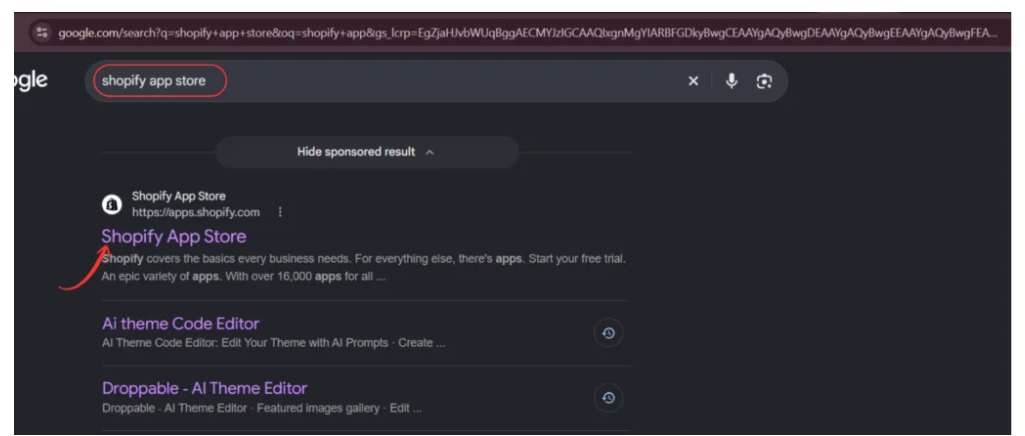
Image 1: Search for the official Shopify App Store on Google.
The Shopify App Store provides applications for store customization, marketing, design, automation, and theme development.
Step 2: Search for AI Theme Code Editor
Once you open the Shopify App Store, locate the search bar at the top.
Type AI Theme Code Editor and search.
Find the app named AI theme Code Editor, featuring a code-editor icon.
Select the app to open its listing.

Image 2: Search for AI Theme Code Editor and select the correct app from the results.
This application is designed to help merchants customize and troubleshoot their Shopify themes using AI-powered code editing.
Step 3: Install AI Theme Code Editor
After opening the app listing, review its description, functionality, and pricing information.
Click Install to begin adding the application to your Shopify store.
Follow the Shopify authorization process to complete installation.
If you have already installed the app, you may see an Open button instead.

Image 3: Review the app listing and click Install to add AI Theme Code Editor to Shopify.
Once installed, the application becomes accessible through your Shopify admin dashboard.
Step 4: Connect Your Shopify Theme
Open AI Theme Code Editor from your Shopify admin.
Navigate to Connected Themes from the app’s sidebar.
This page displays your connected themes and allows you to connect another theme.
Click Connect theme to choose the Shopify theme you want to inspect.
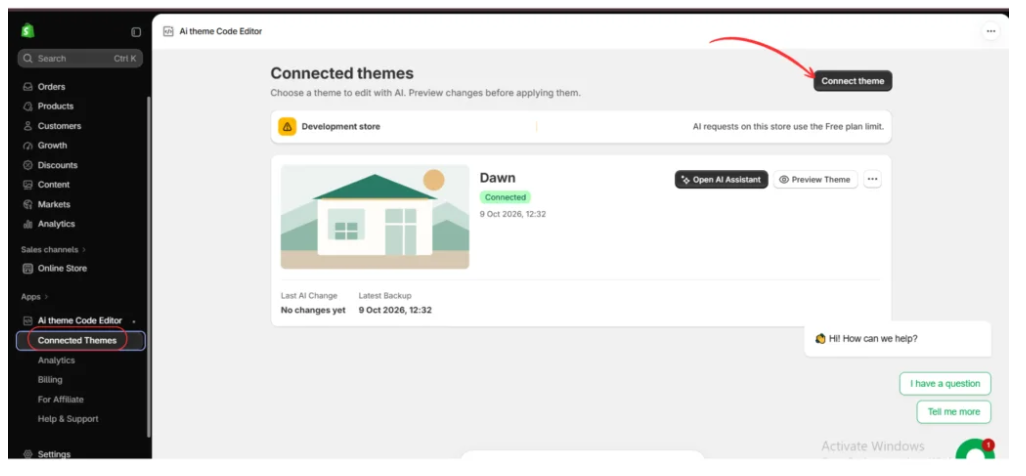
Image 4: Open Connected Themes and connect the Shopify theme you want to debug.
In the example screenshot, the Dawn theme is already connected.
Before making modifications, confirm you are working on the intended theme.
For important changes, consider duplicating your Shopify theme first so you have a backup available.
Step 5: Open the AI Assistant
Once your Shopify theme is connected, locate it on the Connected Themes page.
The theme card provides an Open AI Assistant button.
Click this button to launch the AI editing workspace.

Image 5: Click Open AI Assistant on the connected Dawn theme.
Step 6: Enter a Custom Font Prompt in AI Theme Code Editor
After installing AI Theme Code Editor by SectionKit and connecting your Shopify theme, click Open AI Assistant to access the editing workspace.
Inside the workspace, you will see three main areas: the theme file explorer on the left, the code editor in the center, and the AI Assistant on the right.
To add a custom font, you do not need to search through theme files or manually write CSS. Simply describe the font you want and tell the AI where it should be applied.
For this example, we want to add the Inter Google Font with weight 400 and italic styling to the Shopify product page, without affecting the rest of the store.
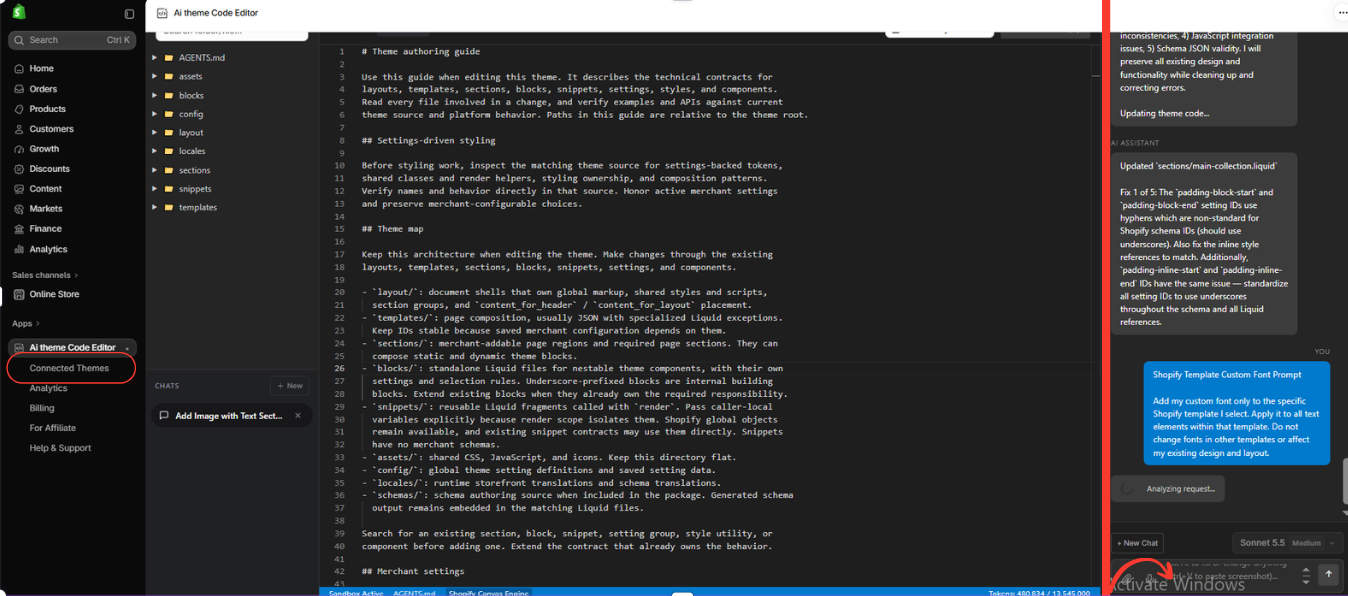
Image 1: AI Theme Code Editor workspace showing the custom font prompt in the AI Assistant panel on the right.
What is happening in Image 1?
The screenshot highlights the AI Assistant panel, where the merchant has submitted a custom font request.
The prompt instructs AI to add a specific font only to the selected Shopify product page template and avoid changing other pages or existing design elements.
After receiving the prompt, the AI Assistant displays Analyzing request…, indicating that it is processing the instruction.
The theme file explorer remains visible on the left, allowing merchants to see the Shopify theme’s folders, including assets, sections, snippets, and templates.
Exact AI Prompt to Copy
Custom Font Prompt Copy
Add the Google Font Inter with font weight 400 and italic styling to my Shopify product information section only. Apply it to the relevant text elements without changing the font on other pages, sections, or templates. Preserve my existing design, spacing, responsiveness, and functionality. Make only the necessary code changes.
Why this step matters: A clear prompt helps the AI understand which font to use, which section to modify, and which parts of the storefront should remain unchanged.
Step 6: Let AI Generate and Apply the Custom Font Code
After submitting your prompt, AI Theme Code Editor begins inspecting the relevant Shopify theme code.
The AI Assistant identifies the file responsible for the product information section and generates the necessary CSS.
In the example, the target file is:
sections/product-information.liquid
The AI Assistant adds a Google Fonts import and introduces styling for the product information section.
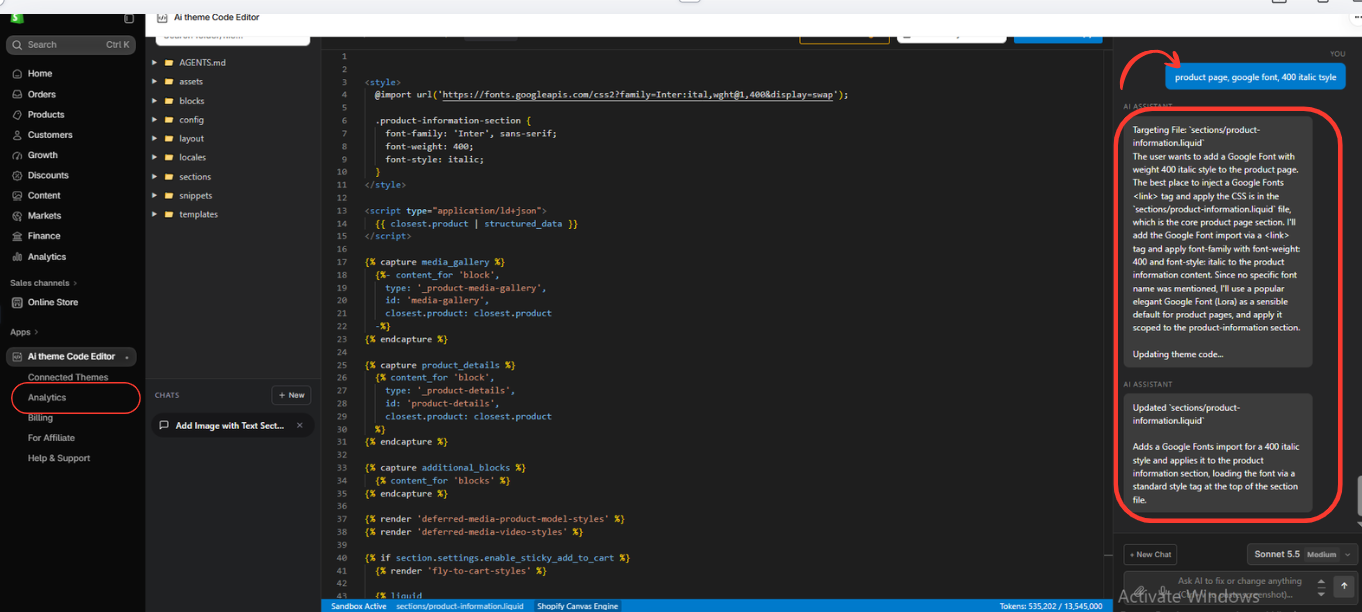
Image 2: AI Theme Code Editor showing the updated product-information.liquid file, Google Fonts import, and AI Assistant explanation.
What is happening in Image 2?
The screenshot highlights two important areas.
1. The code editor in the center
The generated code contains a Google Fonts import that requests the Inter font in its italic, 400-weight variation.
It also includes CSS for the .product-information-section selector.
The relevant changes look like this:
@import url('https://fonts.googleapis.com/css2?family=Inter:ital,wght@1,400&display=swap');

.product-information-section {
  font-family: 'Inter', sans-serif;
  font-weight: 400;
  font-style: italic;
}
The font-family property selects Inter, font-weight: 400 applies regular weight, and font-style: italic requests italic text.
2. The AI Assistant on the right
The AI Assistant explains that it targeted sections/product-information.liquid because the request concerned the product page.
It also displays a message confirming that the file was updated.
The AI response indicates that the changes were intended to remain scoped to the product information section rather than changing typography across the entire storefront.
This is useful because merchants may want different typography on their homepage, collections, navigation, and product pages.
Why this step matters
AI Theme Code Editor generates and displays the proposed code, allowing merchants to inspect the modification rather than manually writing it.
Note: The generated CSS is visible in the screenshot, but the final font appearance still needs to be checked in the storefront preview. Existing theme styles may affect which elements inherit the font.
Step 8: Review the Code and Click Save Sandbox
Once the AI Assistant has generated the custom font code, review the modifications before proceeding.
In the screenshot, the file product-information.liquid is open in the central code editor.
The AI Assistant shows a summary explaining that it added the Inter Google Fonts import and applied the requested italic styling.
At the top of the editor, you will find the Save Sandbox (1) button.

Image 3: Review the custom font code and click the highlighted Save Sandbox (1) button to save the proposed changes.
What is happening in Image 3?
The screenshot shows the changes ready for review and saving.
1. Updated Shopify theme file
The editor displays sections/product-information.liquid, showing the Google Fonts import and styling added for the product information section.
2. AI Assistant’s explanation
On the right, the AI Assistant explains the modifications and confirms that the requested font styling was added to the targeted section file.
3. Save Sandbox button
The blue Save Sandbox (1) button is highlighted at the top.
The number indicates one pending sandbox change in this example.
Clicking this button saves the available modification through the app’s sandbox workflow.
This lets you retain the proposed changes for further review without treating the action itself as confirmation that the font is already published on the live storefront.
What should you do after saving?
Open the app’s available Live Preview option and navigate to your Shopify product page.
Check the typography of the product information section and confirm that the Inter font appears with the requested styling.
Also inspect the homepage and collection pages to ensure their typography remains unchanged.
Once you have verified the result, use the appropriate publishing controls to apply the approved changes to your intended theme.
Final Result: Custom Shopify Font Added With an AI Prompt
By following these steps, merchants can request a custom Google Font without manually creating the entire CSS modification.
In your screenshots, the AI Assistant receives a natural-language font instruction, generates code in the relevant Shopify Liquid file, and presents the changes for sandbox saving.
The process demonstrates how AI Theme Code Editor can help merchants make targeted typography changes while retaining visibility into the generated code.
The screenshots confirm that the font code was generated; they do not independently show the font rendered on the live product page. Previewing and testing are therefore the final checks before publication.
With AI Theme Code Editor by SectionKit, merchants can use the same approach for other theme typography and design customizations.
Frequently Asked Questions (FAQs)
1. Can I add a custom font to Shopify without coding?
Yes. AI Theme Code Editor lets you describe your font customization in natural language and request the necessary code changes.
2. Can AI add Google Fonts to my Shopify theme?
Yes. The screenshots demonstrate the AI Assistant generating a Google Fonts import and CSS for the Inter font.
3. Can I apply a custom font only to product pages?
You can request a targeted font change. In the demonstrated example, AI modifies product-information.liquid and uses section-specific CSS.
4. Can I change the font weight and style?
Yes. You can specify properties such as regular, bold, italic, and supported numeric font weights in your prompt.
5. Will adding a custom font affect my entire store?
Not necessarily. Properly scoped CSS can limit a font change to selected sections, although you should verify that other styles are unaffected.
6. Can I preview font changes before publishing?
AI Theme Code Editor provides sandbox and preview functionality that you can use to review changes before applying them to a published theme.
7. Can custom fonts slow down Shopify?
External font files can introduce additional network requests and affect rendering performance. Limit font variants and choose an appropriate font-loading approach.
8. Does AI Theme Code Editor work with Shopify Dawn?
The app’s previously provided screenshots demonstrate its use with a connected Dawn theme.
9. Is AI Theme Code Editor free?
The app offers a free installation option and paid plans. Check its current Shopify App Store listing for pricing and usage limits.
10. Can I change fonts again later?
Yes. You can request another font modification or use your theme’s available editing and recovery controls.
Conclusion
Adding a custom font to your Shopify theme is an effective way to improve your storefront’s typography and create a more distinctive brand identity.
However, manually editing Liquid and CSS files can be challenging for merchants without development experience.
With AI Theme Code Editor by SectionKit, you can describe your preferred font, specify where it should appear, and ask AI to generate the necessary theme code.
The example in this tutorial demonstrates a Google Fonts import for Inter, applied to a Shopify product information section using targeted CSS.
By reviewing the generated code, saving changes in the sandbox, and testing your storefront before publishing, you can customize your typography more confidently.
Ready to customize your Shopify theme with AI?
Install AI Theme Code Editor: https://apps.shopify.com/ai-code-fixer




