HOW TO ADD FREE SHIPPING AND EASY RETURNS BADGES TO SHOPIFY PRODUCT PAGES
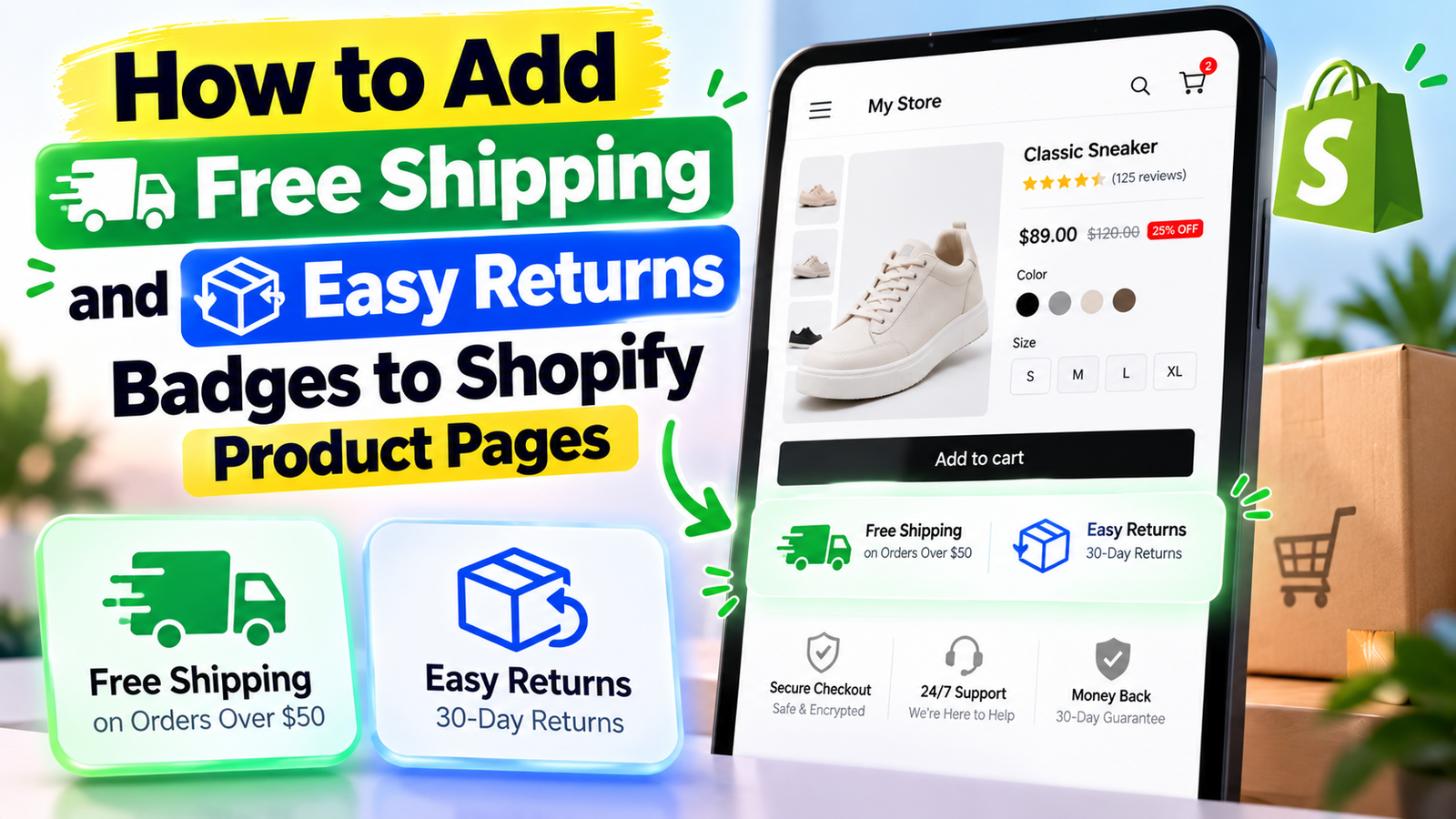
Introduction
When customers shop online, they want to know more than just the product’s price and features. They also want clear information about shipping charges, delivery options, and return policies before making a purchase.
Unexpected shipping costs and unclear return conditions can create hesitation, especially when customers are shopping from a new or unfamiliar Shopify store.
One effective way to communicate this information is by displaying Free Shipping and Easy Returns badges directly on product pages.
These small visual elements help customers identify important store benefits without searching through multiple policy pages.
In this guide, we’ll explain why shipping and return badges matter, how they can improve the shopping experience, and how to create and display them using the SA Trust Badges Shopify app.
Why Shopify Merchants Need Free Shipping and Easy Returns Badges
A well-designed product page should answer important customer questions before they reach checkout.
However, many Shopify merchants focus primarily on product images, descriptions, and pricing while leaving shipping and return information hidden in footer links.
This can create uncertainty for potential buyers.
For example, customers may wonder whether they will be charged extra for delivery or whether they can return a product that doesn’t meet their expectations.
Displaying clear shipping and return information near the purchasing area helps customers make more informed decisions.
Common Problems Shopify Merchants Face
1. Customers are uncertain about shipping costs
When shipping charges aren’t clearly explained, customers may hesitate to proceed with their orders.
2. Return policies are difficult to find
Customers may leave a store if they cannot easily understand whether returns are accepted.
3. Product pages lack visible reassurance
A product page without clear delivery or return information may leave important questions unanswered.
4. Important policies are hidden in the footer
Even when merchants have reasonable shipping and return policies, customers may never notice them.
5. Mobile shoppers have limited screen space
On mobile devices, customers often prefer concise, easy-to-read information rather than long policy paragraphs.
What Are Free Shipping and Easy Returns Badges?
Free Shipping and Easy Returns badges are visual elements that highlight a store’s delivery and return policies.
They commonly combine an icon with a short heading and supporting description.
Free Shipping
On orders over $50
Easy Returns
30-day eligible returns
Illustrative examples of shipping and return badges. Use wording that matches your store’s actual policies.
A Free Shipping badge communicates that customers can receive delivery without additional shipping charges under the advertised conditions.
An Easy Returns badge explains that customers can request returns according to the store’s return policy.
These badges are especially useful when placed near the Add to Cart button, where shoppers are actively considering a purchase.
Why Free Shipping Badges Matter
Shipping charges are an important part of the total cost of an online purchase.
When customers discover unexpected shipping fees during checkout, they may reconsider their orders.
A clearly displayed Free Shipping badge helps communicate shipping eligibility earlier in the shopping journey.
For example, a merchant offering free delivery on orders above $50 can display Free Shipping on Orders Over $50.
This gives customers a clear understanding of the offer and may encourage them to consider additional products to qualify.
However, merchants should avoid displaying unconditional Free Shipping badges when delivery charges still apply to some orders.
Why Easy Returns Badges Matter
Customers sometimes hesitate to purchase products online because they cannot physically inspect them before ordering.
This concern can be especially important for clothing, footwear, electronics, and other products where sizing, compatibility, or expectations may vary.
An Easy Returns badge makes the return policy more visible.
For example, a store offering returns within 30 days for eligible products can display 30-Day Returns on Eligible Items.
Clear return information may help customers feel more comfortable making a purchasing decision.
However, a badge should not imply free returns or unrestricted refunds unless those benefits are genuinely available.
Introducing SA Trust Badges for Shopify
Creating attractive trust badges manually can require theme customization, icon selection, and additional design work.
For merchants looking for a simpler approach, SA Trust Badges provides tools to create and display custom trust badges on Shopify product and cart pages.
The app supports different badge layouts, custom text, icon styling, colors, and placement options. It also supports Shopify theme app embeds and product-specific badge targeting. Shopify App Store
Merchants can use it to highlight genuine shipping benefits, return policies, product guarantees, and other important storefront information.
App link: Install SA Trust Badges from the Shopify App Store
How to Add Free Shipping and Easy Returns Badges to Shopify Product Pages
Follow this step-by-step tutorial to install SA Trust Badges, create shipping and return badges, and display them on your Shopify storefront.
Step 1: Open the Shopify App Store
Open your browser and search for Shopify App Store using Google.
Select the official Shopify App Store website from the search results.
The Shopify App Store contains applications designed to help merchants customize their storefronts and manage different ecommerce features.
Once the website opens, locate the search bar to find the trust badge application.

Image 1: Search for the official Shopify App Store on Google.
Step 2: Search for SA Trust Badges
In the Shopify App Store search bar, enter SA Trust Badges.
Locate the SA Trust Badges application in the search results and open its listing.
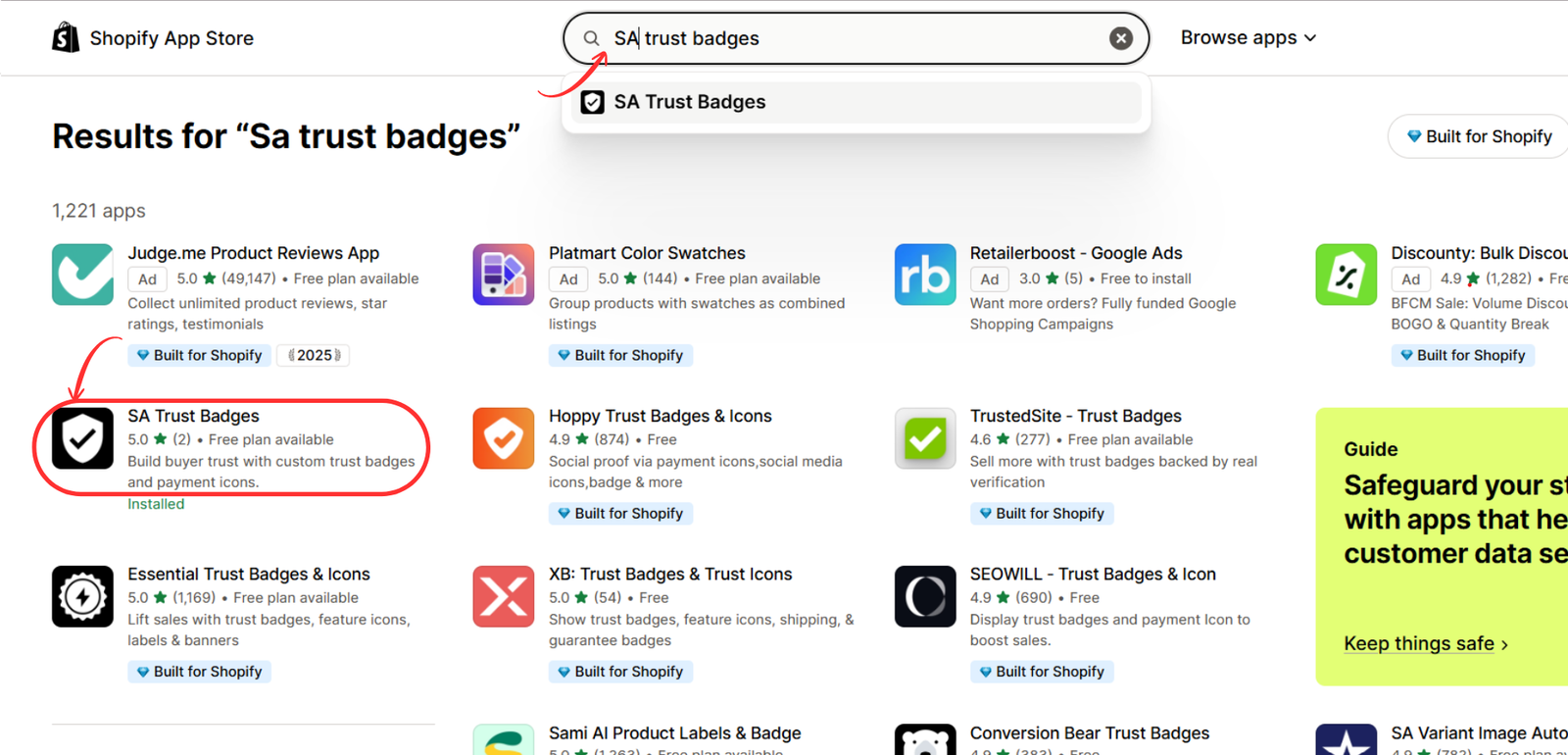
The application allows merchants to create customizable badges for shipping, guarantees, payments, and other storefront messages.
Image 2 – Search for SA Trust Badges
Step 3: Install SA Trust Badges
On the application listing page, review the available features and plans.
Click Install to add the app to your Shopify store.
Follow the installation instructions and approve the required permissions.
Once installation is complete, open the app from your Shopify admin dashboard to begin creating trust badges.
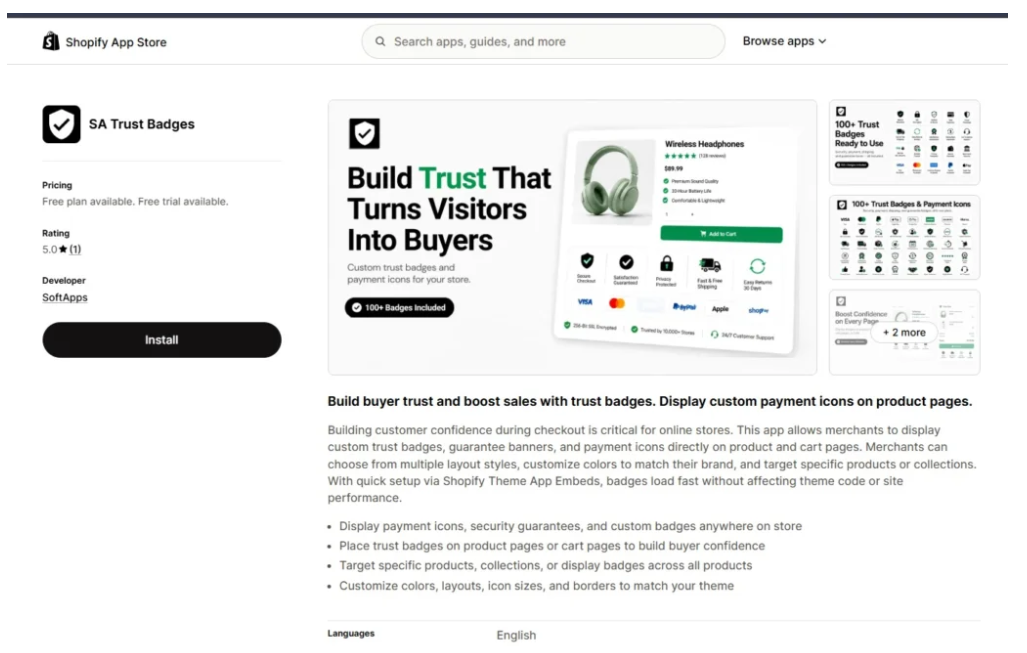
Image 3: Open the SA Trust Badges app listing and select Install.
Step 4: Choose the badge layout and content
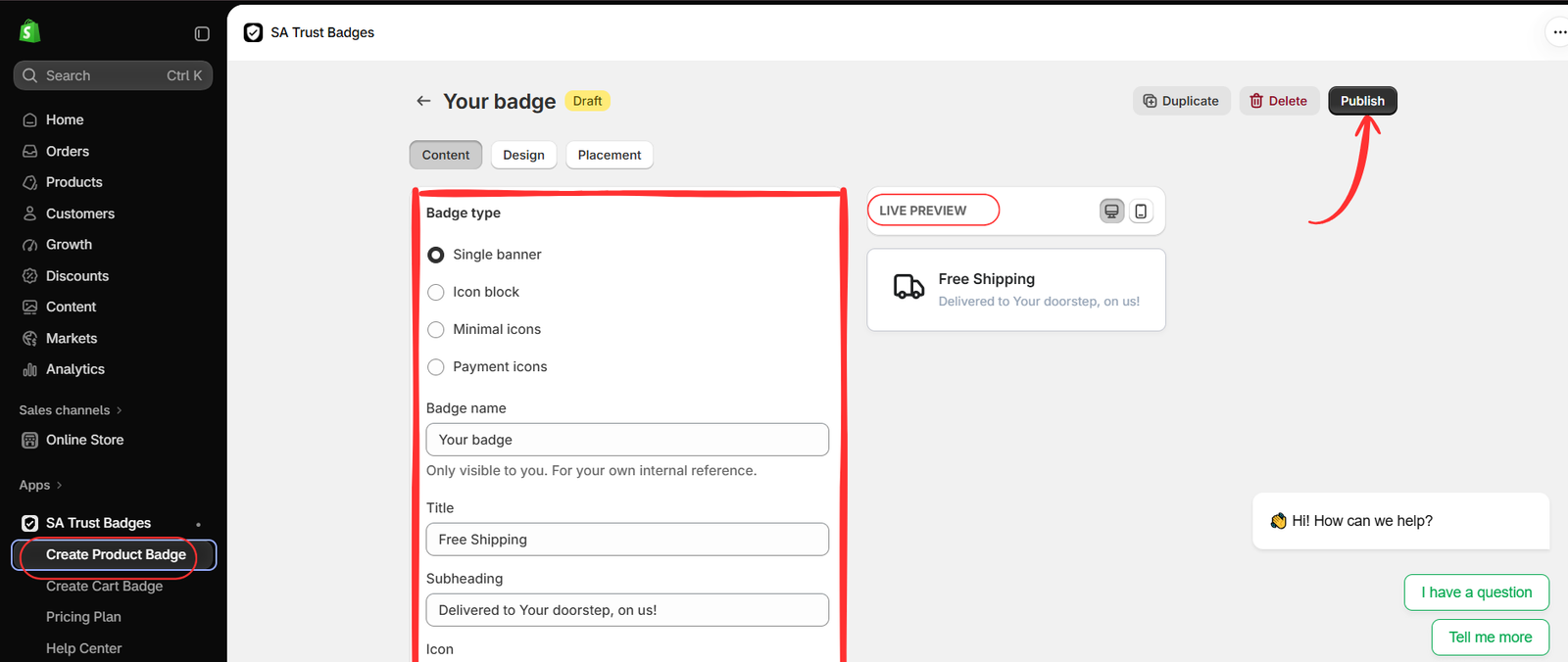
Select Create Product Badge to follow the example. If you are updating an existing badge, open its editor instead. In Content, choose the appropriate Badge type.
- Single banner: highlight one message with an icon, title, and supporting line.
- Icon block: group several short trust messages.
- Minimal icons: choose a compact icon-focused presentation and inspect its preview.
- Payment icons: show relevant payment methods that your store accepts.
The second image uses Single banner for Free Shipping. Enter a descriptive internal Badge name, then configure the customer-facing title, subheading, and icon. Keep the wording short and accurate. Review placement before publishing, even though the Publish button is already visible.
Step 5: Customize colors, card styling, and fonts
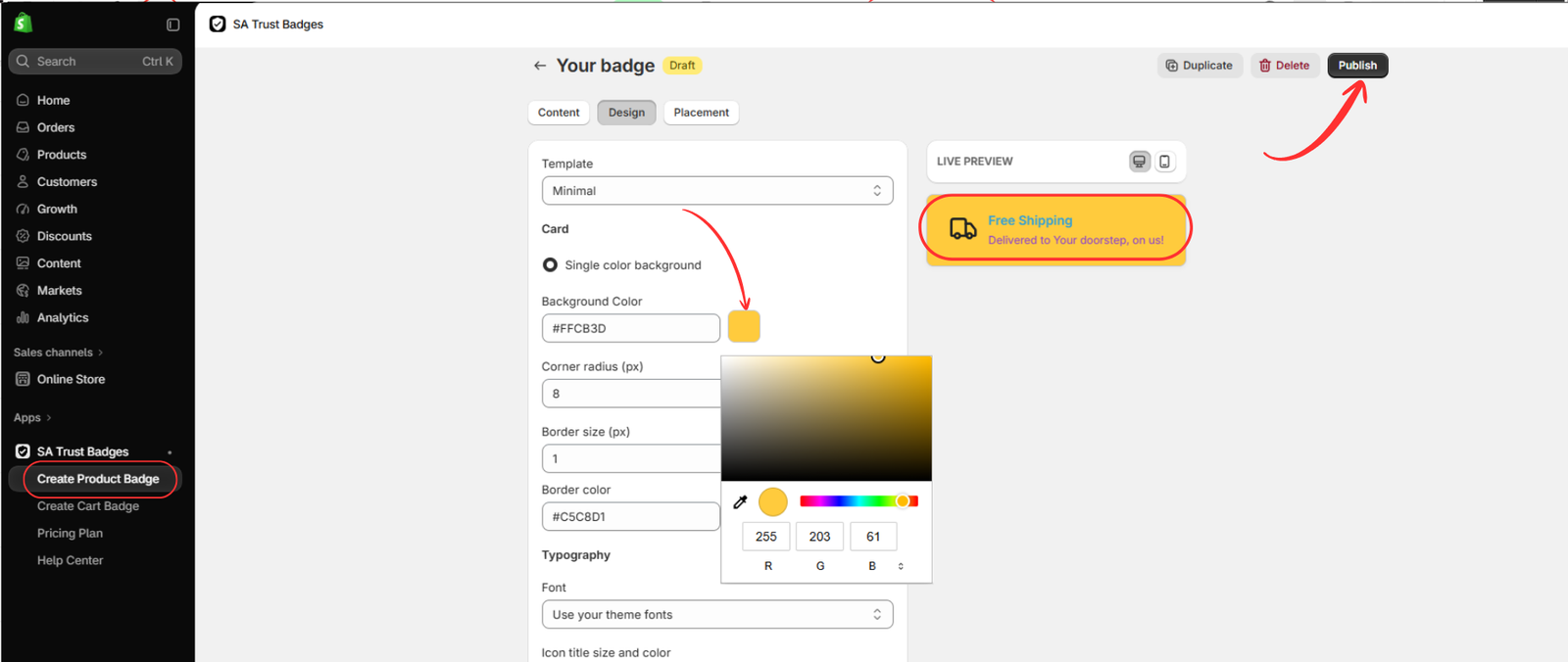
Open Design. The third image shows the Minimal template and Single color background selected. Use the Template dropdown to review the available styles, then choose the one that fits your theme. The badge type controls the content format; the template and card controls refine its appearance.
Click the Background Color swatch to open the color picker, or enter the desired hexadecimal value in the field. To reproduce the yellow background in the image, use #FFCB3D. The visible picker also shows RGB values 255, 203, and 61 for that color.
| Control | Value shown in the image | Purpose |
|---|---|---|
| Template | Minimal | Choose the available visual style. |
| Background Color | #FFCB3D | Set the card background. |
| Corner radius | 8 px | Adjust corner rounding. |
| Border size | 1 px | Set border thickness. |
| Border color | #C5C8D1 | Choose the border color. |
| Font | Use your theme fonts | Keep typography consistent with the theme. |
These values reproduce the example, but you can adapt them to your brand. Match the corner radius to nearby cards or buttons, and use a subtle border when a heavy outline would distract from the message.
In Typography, select Use your theme fonts if you want the badge to follow your store’s type style. Review the title-size and color controls visible further down the panel, together with any supporting-text settings available for your selected format. Choose readable text colors rather than copying a low-contrast combination simply because it appears in the example.
Use the desktop and mobile preview controls while making changes. Confirm that the title and subheading remain clear, then review Placement and click Publish when the badge is ready.
Step 6: Open the theme editor
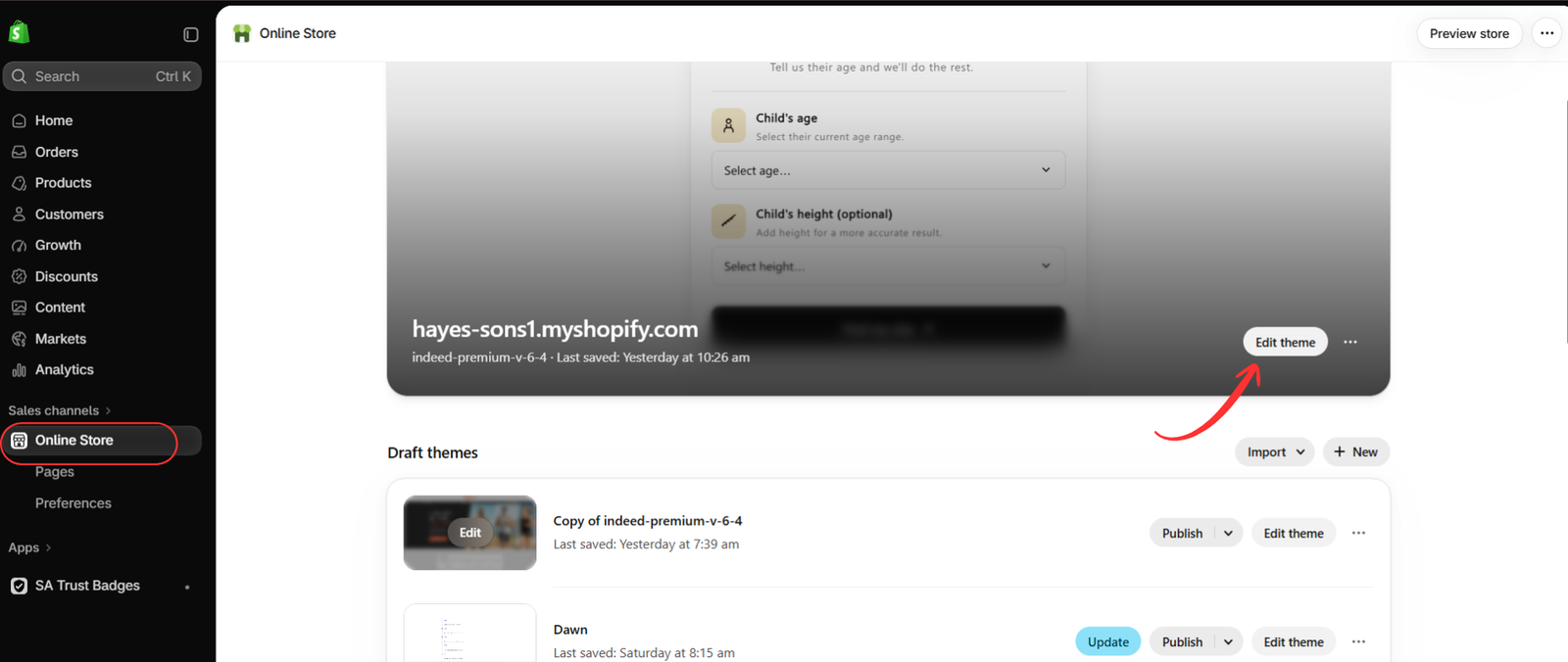
Go to Online Store → Themes. Find the intended theme and click Edit theme, as shown in the fourth image. Your admin may label this action Customize.
If you configure a draft theme, review its preview before expecting the changes on your live store. The badge must be published in the app and its integration enabled in the theme you are viewing.
Step 7: Enable the embed and check your customized badge
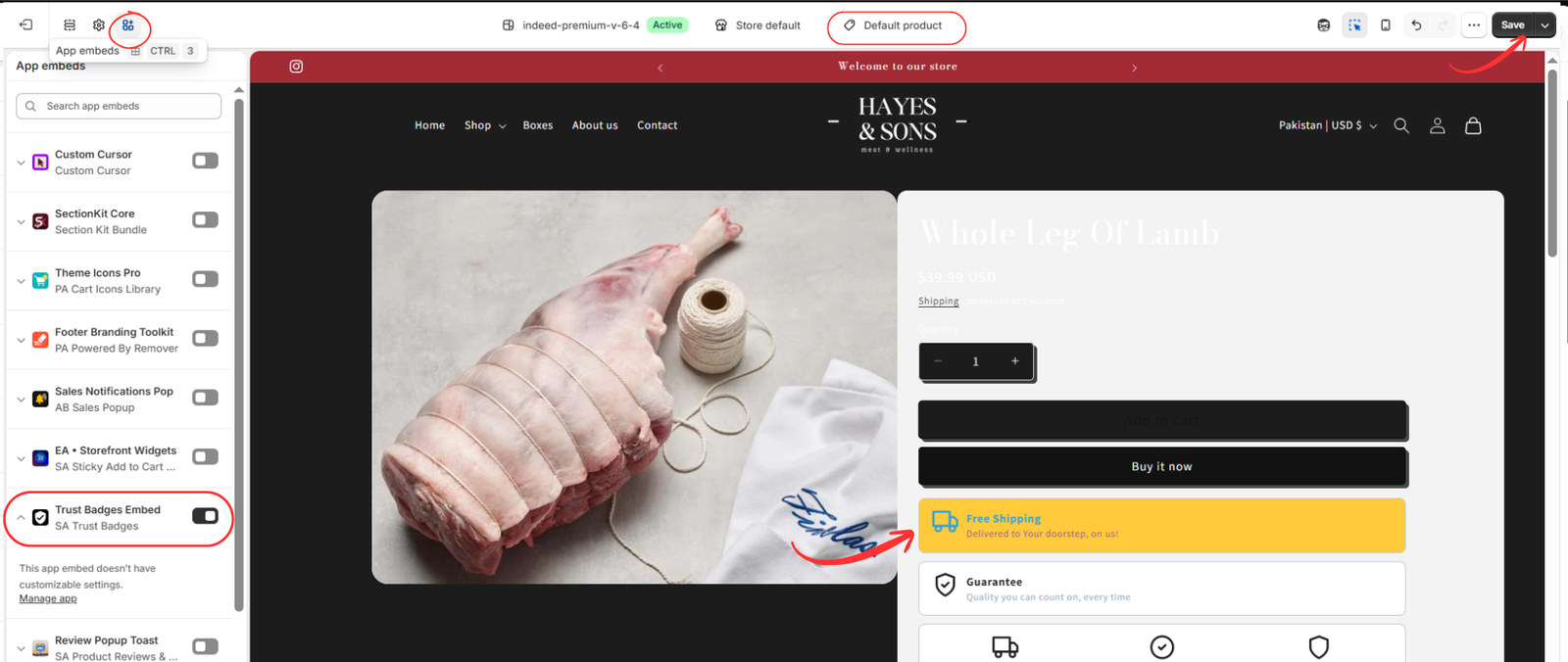
Open App embeds in the theme editor. Locate Trust Badges Embed under SA Trust Badges, turn it on, and click Save. Open a relevant product template to inspect the finished design.
The fifth image shows the yellow Free Shipping banner beneath the purchase buttons. Compare its colors, typography, width, and corner shape with the surrounding theme. Check mobile layout as well as desktop, and save any theme changes.
The embed panel states that it does not have customizable settings. Use the app’s Design tab to adjust badge styling; the embed control enables the integration. The Manage app link can help you return to the app.
Frequently Asked Questions
1. Can I add Free Shipping badges to Shopify product pages?
Yes. You can display Free Shipping badges on product pages using a compatible Shopify trust badge application such as SA Trust Badges.
2. Can I display Free Shipping and Easy Returns badges together?
Yes. You can use an appropriate badge layout to present multiple store benefits together, subject to the app’s available features and plan limits.
3. Do I need coding knowledge to add trust badges?
No. SA Trust Badges provides customization tools and Shopify theme app embed integration, allowing merchants to create and display badges without manually writing theme code.
4. Where should I place Free Shipping and Easy Returns badges?
A common placement is near the Add to Cart button, where customers can easily review shipping and return information before purchasing.
5. Can I customize badge colors and icons?
Yes. SA Trust Badges supports customization options for icons, colors, layouts, and other design elements.
6. Will adding trust badges automatically increase sales?
Not necessarily. Trust badges may help communicate important information and reduce customer uncertainty, but conversion improvements depend on many factors, including pricing, product quality, delivery experience, and overall store design.
Conclusion
Free Shipping and Easy Returns badges are useful additions to Shopify product pages because they make important purchasing information easier to find.
Customers can quickly understand shipping benefits and return conditions without searching through multiple store policy pages.
For merchants, displaying these details clearly can create a more transparent and professional shopping experience.
With SA Trust Badges, Shopify store owners can create customizable shipping, return, and guarantee badges, adjust their appearance, and display them in relevant storefront locations.
The most effective badges are those that accurately communicate genuine benefits while maintaining a clean, consistent design.
Get started with SA Trust Badges: View the app on the Shopify App Store




