HOW TO ADD MANUAL PRODUCT REVIEWS TO A SHOPIFY STORE WITH AN XLSX FILE
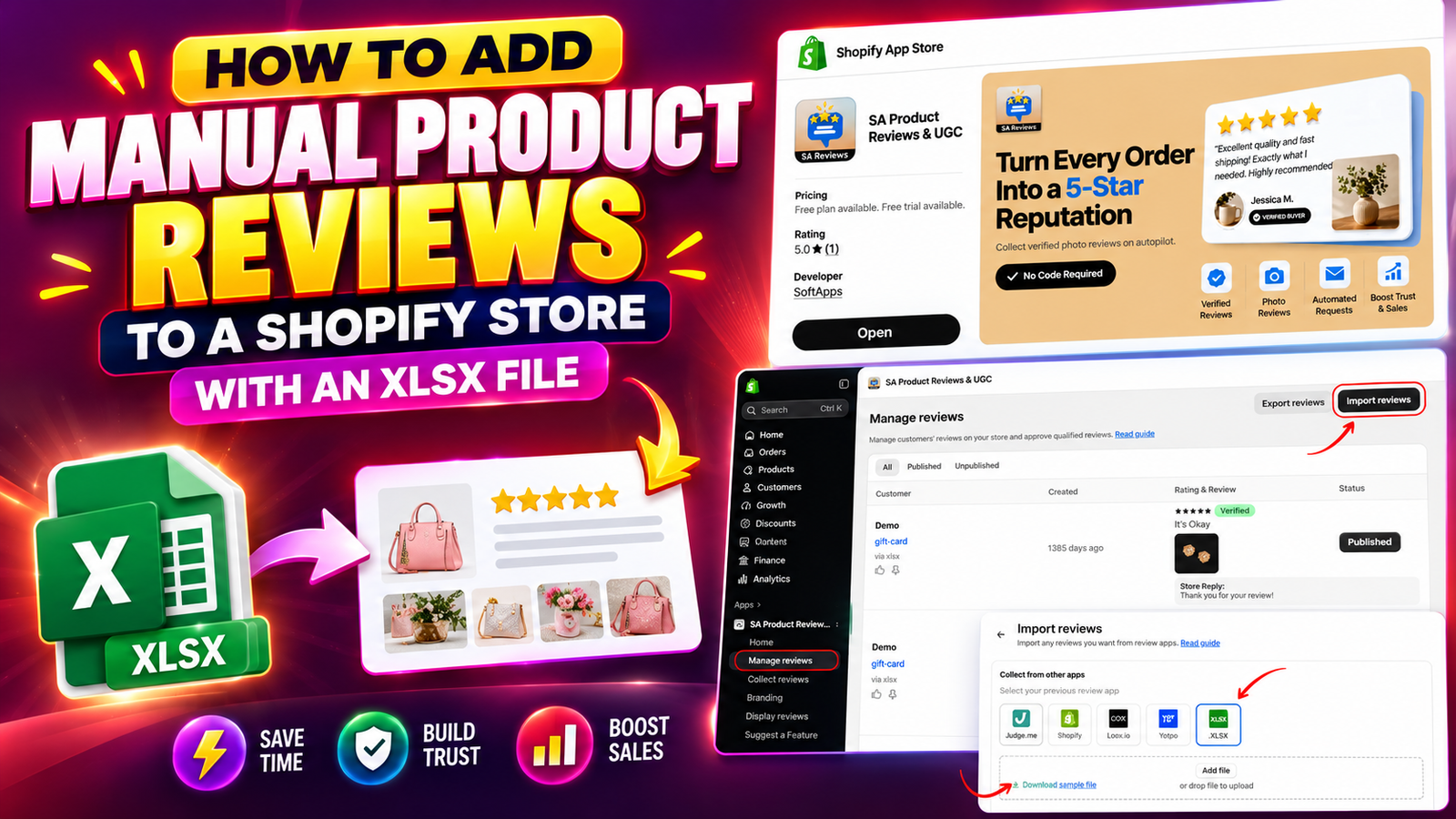
Customer reviews play an important role in building trust and helping shoppers make confident purchasing decisions. When customers see genuine feedback, star ratings, and product images from previous buyers, they can better understand the quality of a product before placing an order.
However, adding existing customer reviews to a Shopify store can become challenging, especially when merchants have collected feedback through spreadsheets, previous review applications, or other sales channels.
Fortunately, SA Product Reviews & UGC provides a simple way to import existing product reviews using an XLSX file without manually creating each review.
In this guide, we’ll explain how to add manual product reviews to Shopify, prepare an XLSX file, import reviews, manage their visibility, and display them on your storefront.
Why Is Adding Manual Product Reviews to Shopify Challenging?
Many Shopify merchants already have valuable customer feedback before installing a product review application.
These reviews may come from previous eCommerce platforms, customer emails, offline purchases, or another review management system.
The challenge begins when merchants want to display those reviews on their Shopify product pages.
Common difficulties include:
- Manually entering hundreds of customer reviews takes significant time.
- Moving reviews from another platform can be complicated.
- Matching reviews with the correct Shopify products requires attention.
- Importing customer names, ratings, dates, and product images can be difficult.
- Displaying imported reviews on the storefront may require additional configuration.
Without an efficient import process, merchants risk losing valuable customer feedback during store migrations or app changes.
Why Are Product Reviews Important for Shopify Stores?
Product reviews help customers evaluate products using feedback from people who have already purchased or experienced them.
Displaying authentic customer reviews can offer several advantages.
Build customer trust: Genuine reviews provide social proof and help new visitors feel more confident about your products.
Improve purchasing confidence: Star ratings, customer experiences, and product images help shoppers make informed decisions.
Preserve existing feedback: Importing reviews allows merchants to retain valuable customer feedback when switching platforms or review applications.
Enhance the shopping experience: Customers can review product feedback without leaving the product page.
Support conversions: Relevant and trustworthy product reviews can reduce uncertainty during the buying process.
Introducing SA Product Reviews & UGC for Shopify
SA Product Reviews & UGC is a Shopify product review application designed to help merchants collect, import, manage, and display customer reviews.
The app offers features such as:
- Manual product review imports using XLSX files.
- Review imports from supported review platforms.
- Customer photo reviews and star ratings.
- Automated post-purchase review request emails.
- QR codes for collecting customer feedback.
- Discount rewards for customer reviews.
- Customizable review widgets and storefront display options.
- Review management and publication controls.
Instead of adding existing reviews individually, merchants can prepare a spreadsheet and import multiple reviews through the app.
Step-by-Step Guide to Import Manual Product Reviews Using XLSX
Follow the instructions below to add existing product reviews to your Shopify store.
Step 1: Open the Shopify App Store
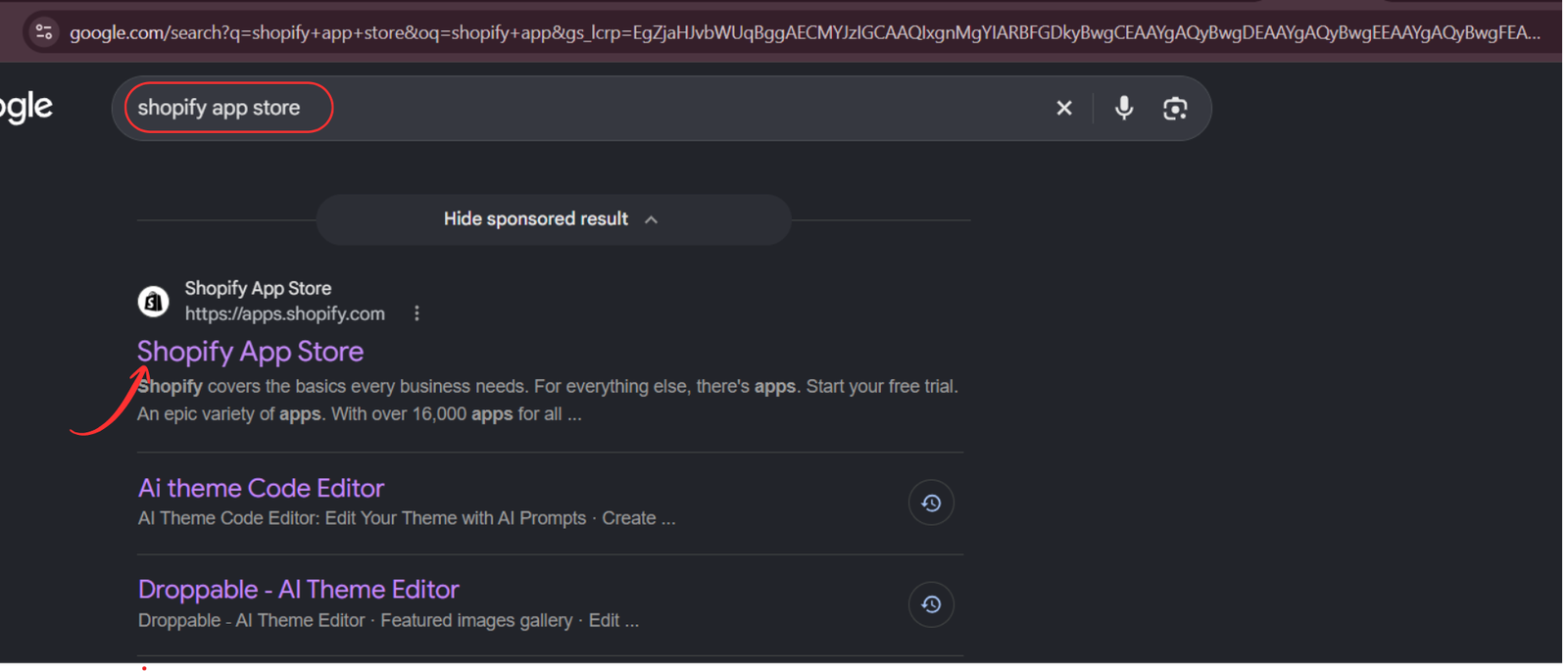
Visit Google and search for Shopify App Store, or open the official Shopify App Store directly.
This is where you can find applications designed to extend your Shopify store’s functionality.
Step 2: Search for SA Product Reviews & UGC

Once you’re inside the Shopify App Store, use the search bar to find SA Product Reviews & UGC.
Locate the app in the search results and select it to view its details.
Step 3: Install SA Product Reviews & UGC
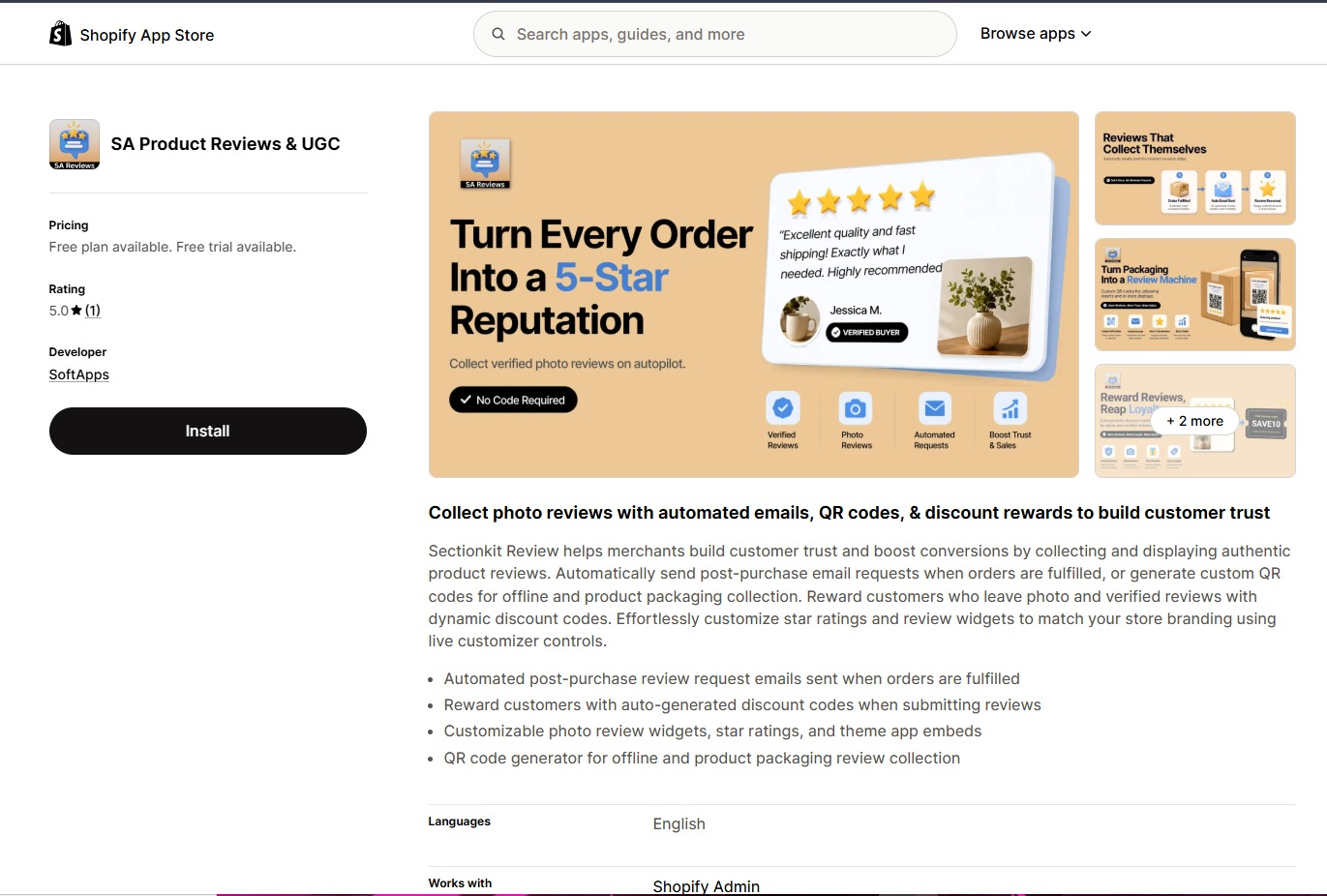
Open the app listing to review its features, pricing information, and supported functionality.
Click Install and follow Shopify’s installation instructions to add the application to your store.
Step 4: Open the Installed Application
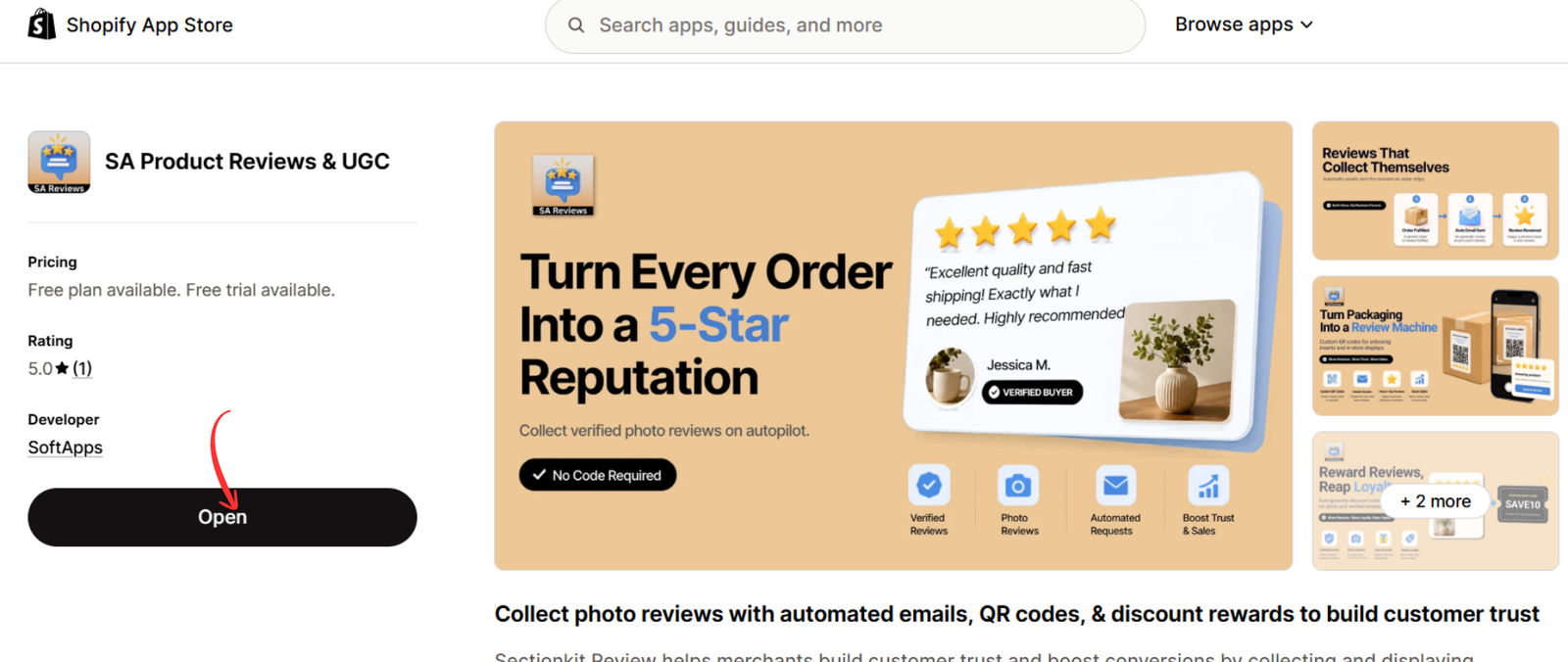
After installing the app, return to its Shopify App Store listing or access it through your Shopify admin.
Click Open to launch the application.
Step 5: Navigate to Manage Reviews
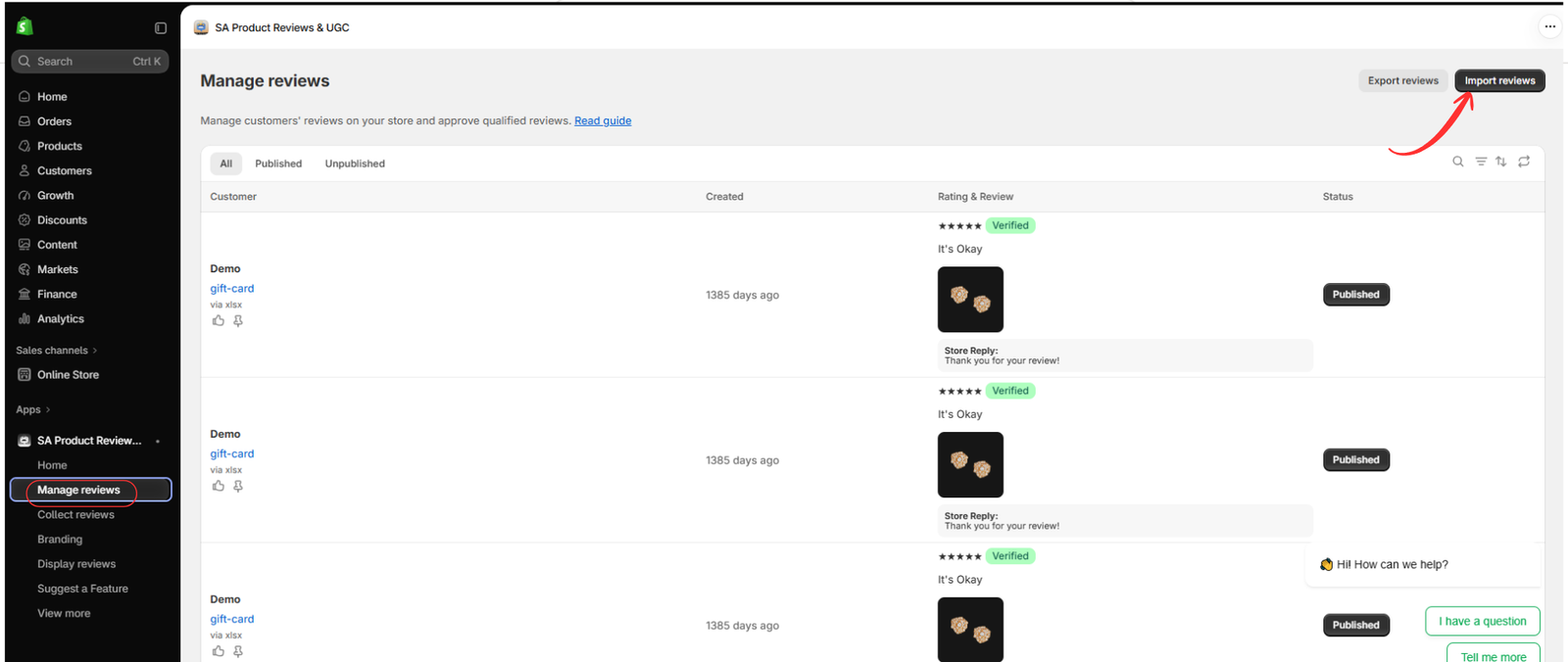
Inside the application, locate Manage reviews in the left navigation menu.
This section allows you to view existing customer reviews, check their publication status, and access review import options.
Click Import reviews in the upper-right corner.
Step 6: Select the XLSX Import Option
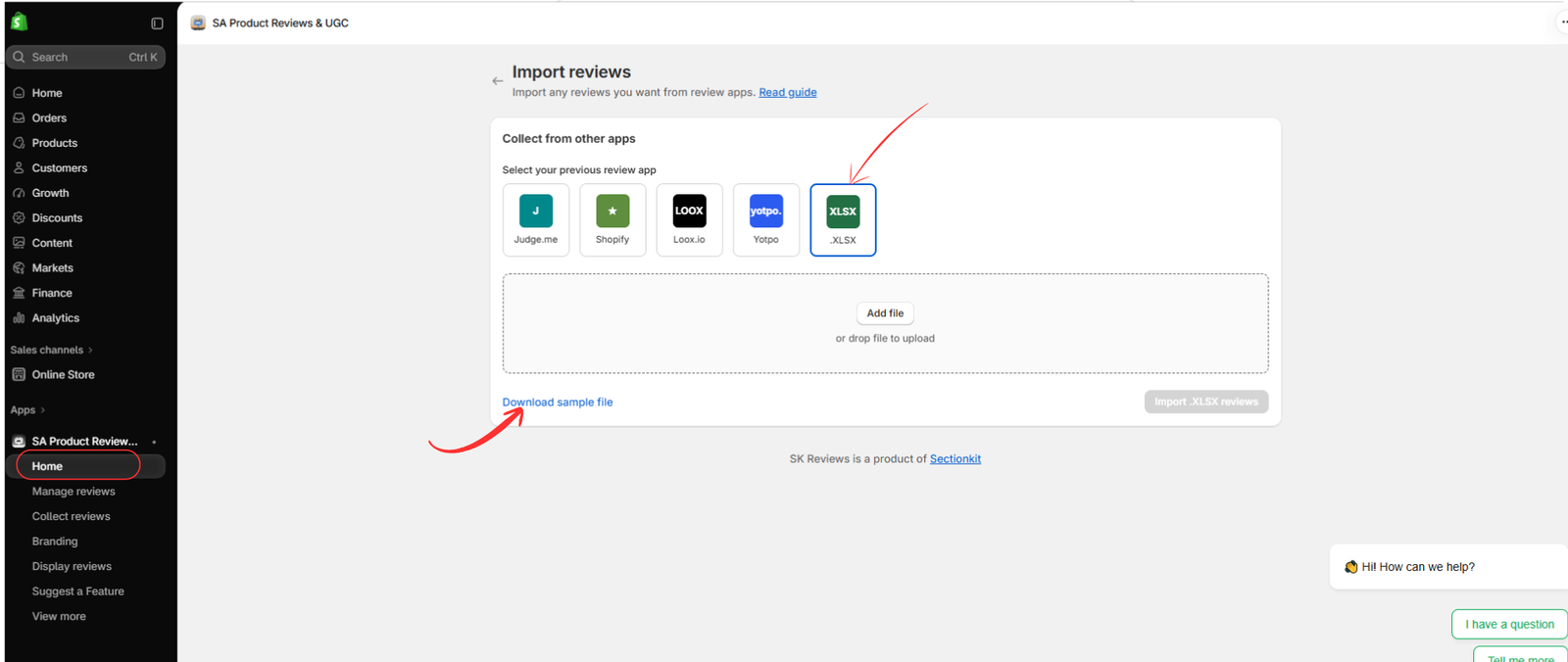
The application provides several review import options, including supported review platforms and spreadsheet uploads.
To manually import product reviews, select the .XLSX option.
Next, click Download sample file to obtain the spreadsheet template.
Step 7: Prepare Your Product Review XLSX File
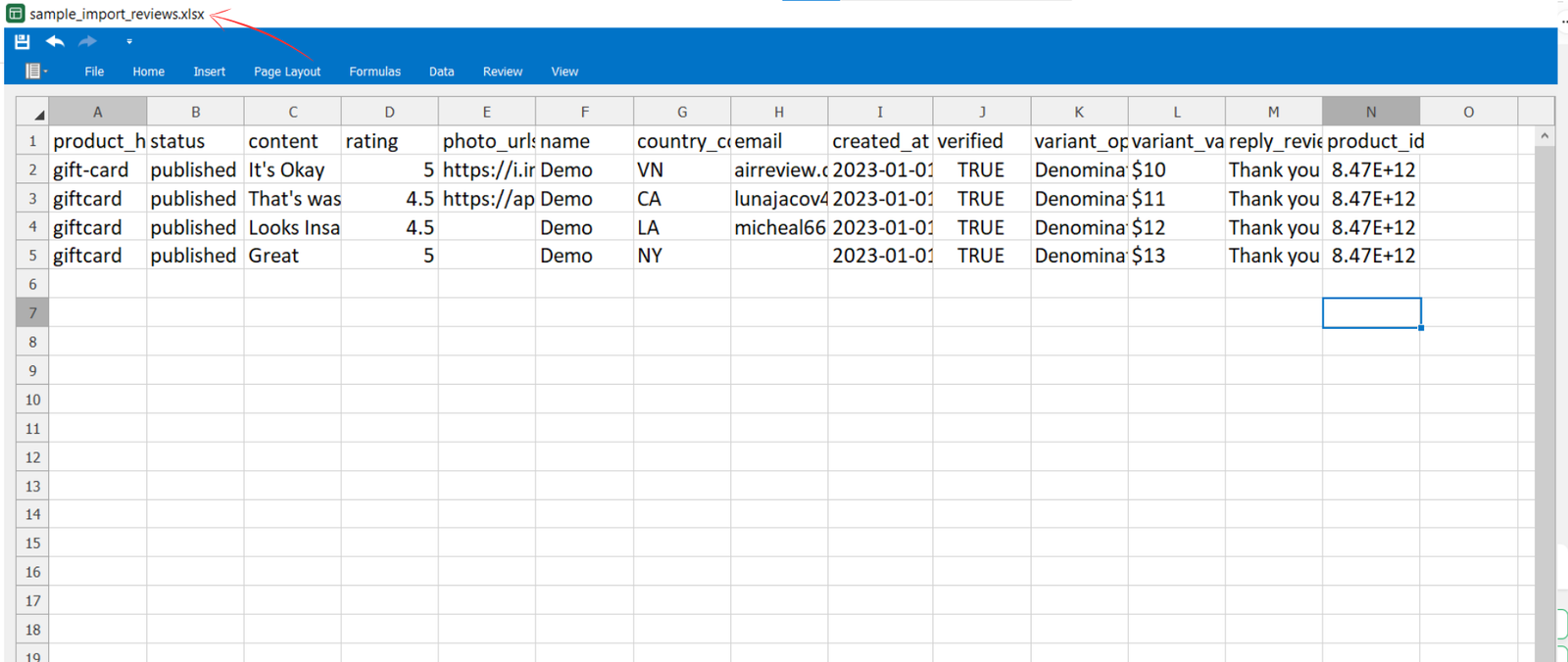
Open the downloaded sample XLSX file using Microsoft Excel or another compatible spreadsheet editor.
The sample template contains columns for product information, customer details, review content, ratings, and additional attributes.
Depending on the template, these fields include:
| Column | Purpose |
|---|---|
| product_handle | Identifies the Shopify product |
| status | Sets the review publication status |
| content | Contains the customer’s review |
| rating | Stores the product rating |
| photo_urls | Includes review image URLs |
| name | Customer’s display name |
| country_code | Customer country information |
| Customer email address | |
| created_at | Original review date |
| verified | Indicates verified review status |
| variant_option | Product variant option |
| variant_value | Product variant value |
| reply_review | Store owner’s response |
| product_id | Shopify product identifier |
Enter your existing customer review data into the appropriate columns.
Important: Keep the original column headers unchanged and follow the sample file’s formatting requirements. Use accurate product identifiers, genuine review content, and verified status only where verification is supported by actual purchase evidence.
Save the completed spreadsheet :
Step 8: Upload Your XLSX File
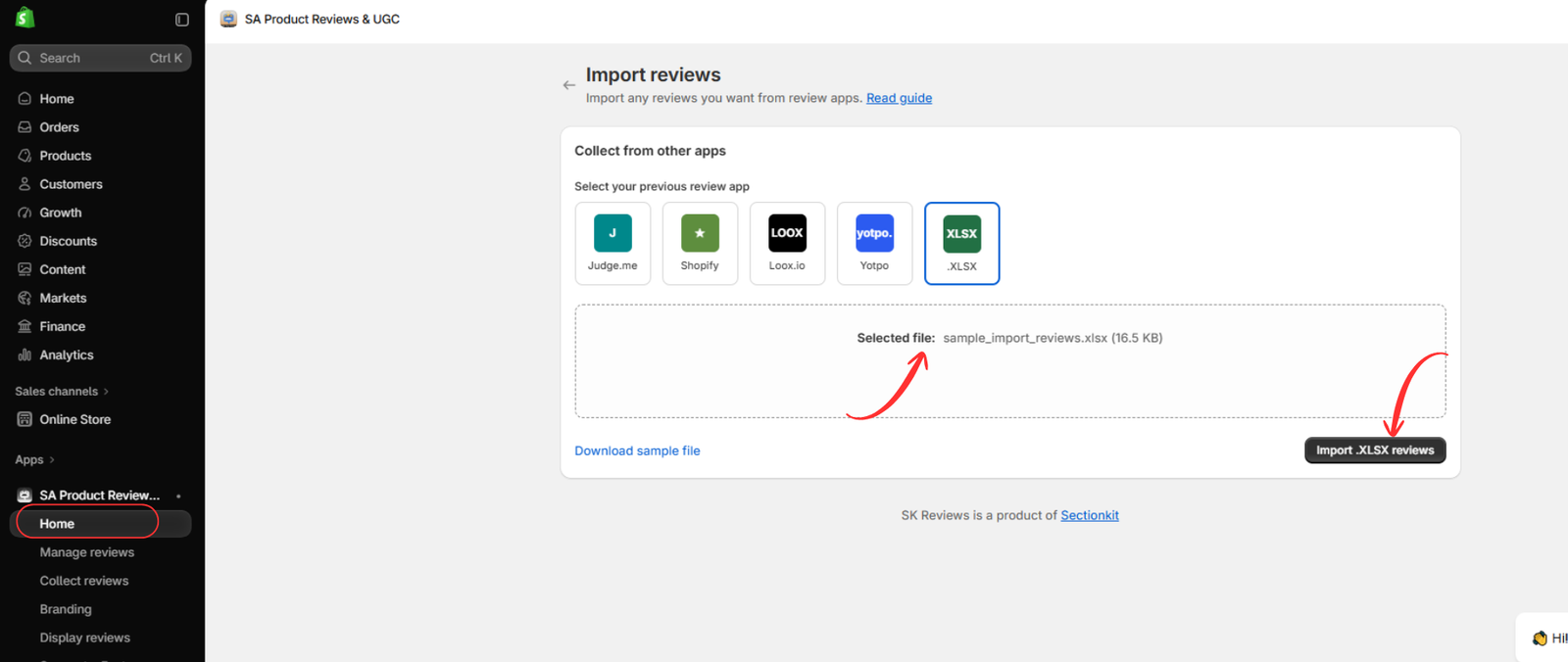
Return to the Import reviews page in SA Product Reviews & UGC.
Make sure the XLSX import option is selected.
Click Add file and choose your completed spreadsheet from your computer. Alternatively, drag and drop the file into the upload area.
After selecting the file, its name will appear in the upload section.
Click Import .XLSX reviews to start the import process.
Step 9: Verify and Manage Imported Reviews
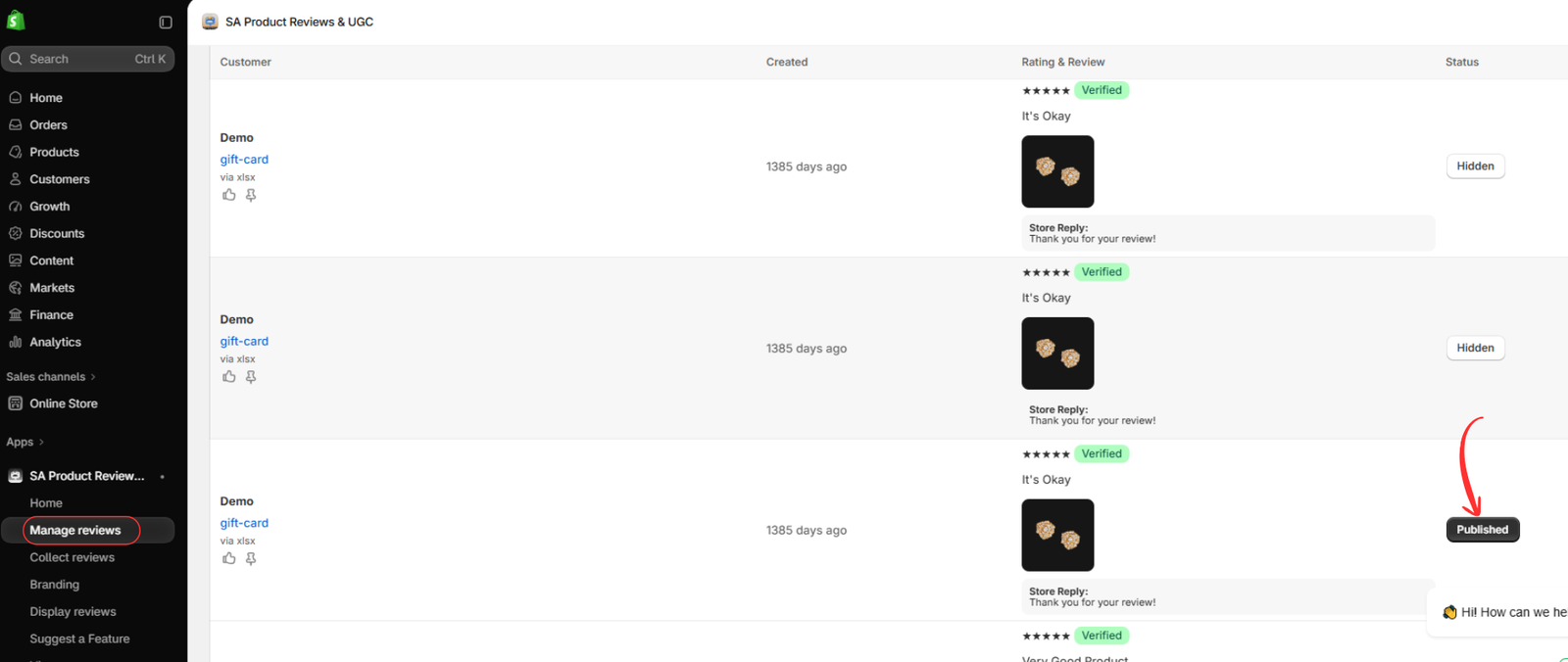
After the import completes, navigate back to Manage reviews.
Review the imported entries and confirm that their customer information, ratings, review content, and associated products are correct.
Use the available publication controls to manage which reviews appear on your storefront.
The dashboard allows you to distinguish between published and hidden or unpublished reviews.
Before publishing, check that the imported reviews are authentic and accurately associated with the relevant products.
Step 10: Enable the Review App Embed in Shopify
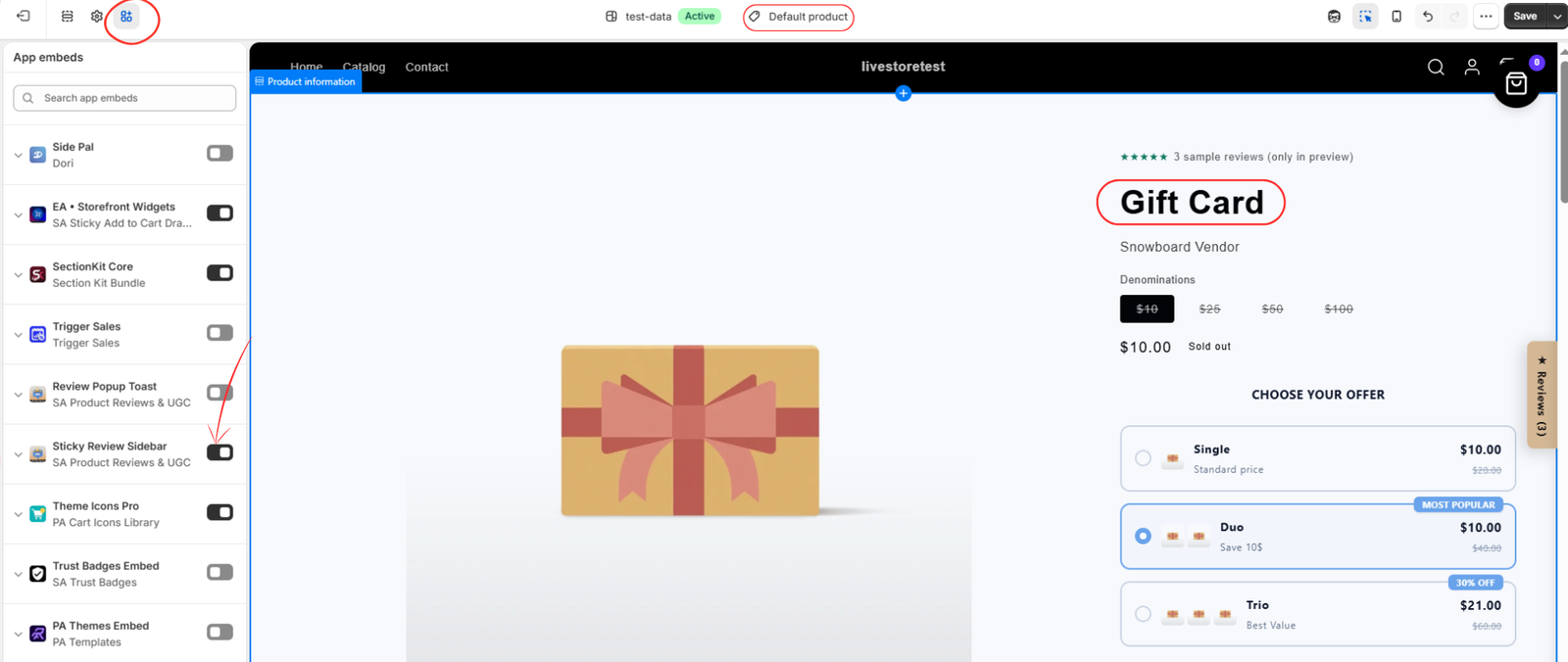
To display supported review widgets on your storefront, open the Shopify theme editor.
Navigate to:
Shopify Admin → Online Store → Themes → Customize
Inside the theme editor:
- Open the App embeds section.
- Find the SA Product Reviews & UGC app embeds.
- Enable the desired review display option, such as Sticky Review Sidebar.
- Click Save.
This activates the selected app embed in your Shopify theme.
Step 11: Display Product Reviews on Your Storefront
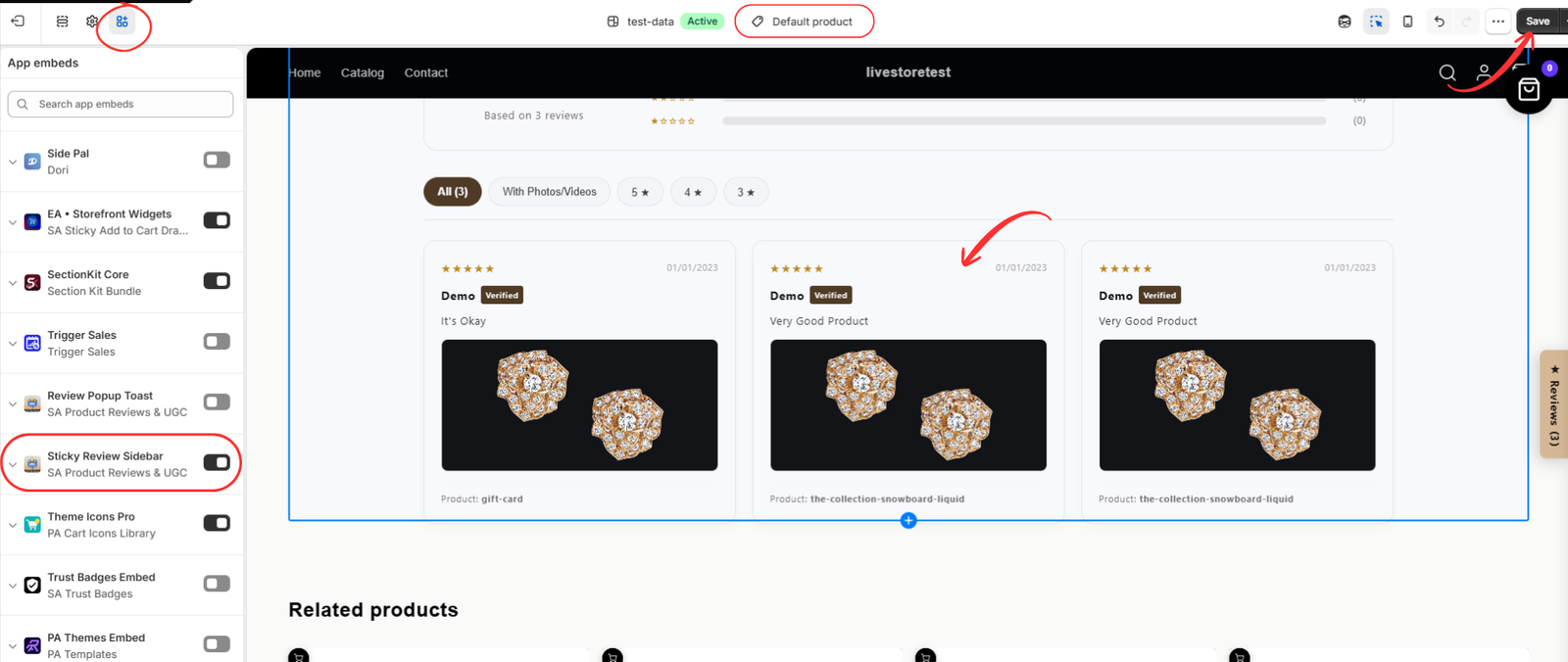
Once the review display option is enabled, preview your Shopify storefront.
Navigate to a product page containing imported customer reviews.
Confirm that the relevant review widget displays the customer feedback correctly.
Depending on the configured widget, customers may see:
- Customer star ratings.
- Written product reviews.
- Customer-uploaded product images.
- Review dates and customer names.
- Verified review indicators where applicable.
- Review filters and review counts.
Check the display on desktop and mobile devices to ensure the review section fits your store design.
Finally, save your theme changes and verify the published storefront.
Best Practices When Importing Product Reviews
To maintain an accurate and trustworthy review experience, follow these recommendations.
Use authentic customer feedback: Import reviews from real customers rather than generating misleading testimonials.
Match product identifiers correctly: Verify product handles and IDs to prevent reviews from appearing on unrelated products.
Keep review details accurate: Preserve genuine customer ratings, dates, and review content.
Check review images: Make sure the supplied image URLs are accessible and belong to the appropriate reviews.
Test with a small file first: Import a few reviews before uploading a larger spreadsheet to identify potential formatting issues.
Review imported data: Check publication status, product associations, and customer information before displaying reviews publicly.
Frequently Asked Questions
Can I import multiple product reviews into Shopify at once?
Yes. SA Product Reviews & UGC provides an XLSX import option that allows merchants to upload multiple existing reviews through a spreadsheet.
Can I import reviews from another Shopify review app?
The application provides import options for supported sources, including Judge.me, Loox.io, Yotpo, and Shopify, as shown in its import interface.
Can I include customer images in imported reviews?
The XLSX sample file includes a photo URL field for associating review images with customer feedback. Use valid, accessible image URLs in the required format.
Can I control which imported reviews are published?
Yes. The Manage reviews section provides publication controls for managing the visibility of customer reviews.
Do I need coding knowledge to import product reviews?
No. The XLSX import workflow uses the app dashboard and spreadsheet upload interface, so merchants can follow the process without writing code.
Conclusion
Adding manual product reviews to Shopify doesn’t have to involve hours of repetitive data entry.
With an XLSX file and SA Product Reviews & UGC, merchants can organize existing customer feedback, import multiple reviews, manage publication settings, and display authentic customer experiences on their storefront.
Whether you’re migrating from another platform, switching review applications, or transferring customer feedback from an existing spreadsheet, the XLSX import process provides a practical way to preserve your reviews.
Maintaining genuine, well-organized product reviews can help build customer trust and create a more informative shopping experience.
Start Importing Your Product Reviews Today
Ready to add manual product reviews to your Shopify store?
Install SA Product Reviews & UGC on the Shopify App Store
Import existing customer feedback, manage product reviews, and showcase authentic customer experiences with a customizable Shopify review solution.




