HOW TO ADD A SIDE CART DRAWER TO A SHOPIFY STORE

Introduction
A smooth shopping experience is essential for any successful Shopify store. Customers expect to browse products, add items to their carts, and complete purchases without unnecessary interruptions. However, traditional shopping carts can create friction by requiring customers to navigate away from the product page.
A side cart drawer offers a more convenient solution. Instead of redirecting customers to a separate cart page, it displays their selected products in a sliding panel on the side of the screen. Customers can review their items, adjust quantities, discover recommended products, and proceed to checkout while remaining on the same page.
In this guide, you’ll learn how to add a side cart drawer to a Shopify store using the SA Sticky Add to Cart Drawer app, with detailed setup instructions and images for every major step.
The common problem Shopify merchants face
One of the biggest challenges for Shopify merchants is keeping customers engaged throughout the shopping journey.
When shoppers click the Add to Cart button, some stores redirect them to a separate cart page. This interrupts product browsing and creates an additional step before checkout.
Other common issues include customers struggling to review their selected items, difficulty updating quantities, limited visibility of complementary products, and an inconvenient shopping experience on mobile devices.
These problems may increase friction during the buying process. Even when customers are interested in a product, an unnecessarily complicated cart experience can discourage them from completing their purchases.
Why your Shopify store needs a side cart drawer
A side cart drawer provides customers with a convenient way to manage their shopping carts without leaving the current page.
With a well-designed cart drawer, customers can immediately see which products they have added, review pricing, update quantities, remove unwanted items, and continue shopping.
Merchants can also display relevant product recommendations inside the cart, creating additional opportunities for cross-selling.
The objective is simple: make the journey from product discovery to checkout as convenient as possible.
Introducing SA Sticky Add to Cart Drawer
SA Sticky Add to Cart Drawer
SA Sticky Add to Cart Drawer is designed to help Shopify merchants improve the storefront shopping experience with a customizable side cart, sticky add-to-cart functionality, and product upsell opportunities.
The app allows merchants to configure the cart drawer’s appearance, position, content, and product recommendations from a centralized settings interface.
Instead of manually developing a custom cart drawer with Liquid, CSS, and JavaScript, merchants can use the app to configure the experience through its dashboard.
App link: SA Sticky Add to Cart Drawer on Shopify App Store
How to add a side cart drawer to a Shopify store: Step-by-step guide
Follow the instructions below to install the app, configure the side cart drawer, and enable it on your storefront.
Step 1: Open the Shopify App Store
Begin by opening your preferred web browser and searching for Shopify App Store on Google.
Select the official Shopify App Store website from the search results. This is where Shopify merchants can discover and install applications that add functionality to their online stores.
Alternatively, you can visit Shopify App Store directly.
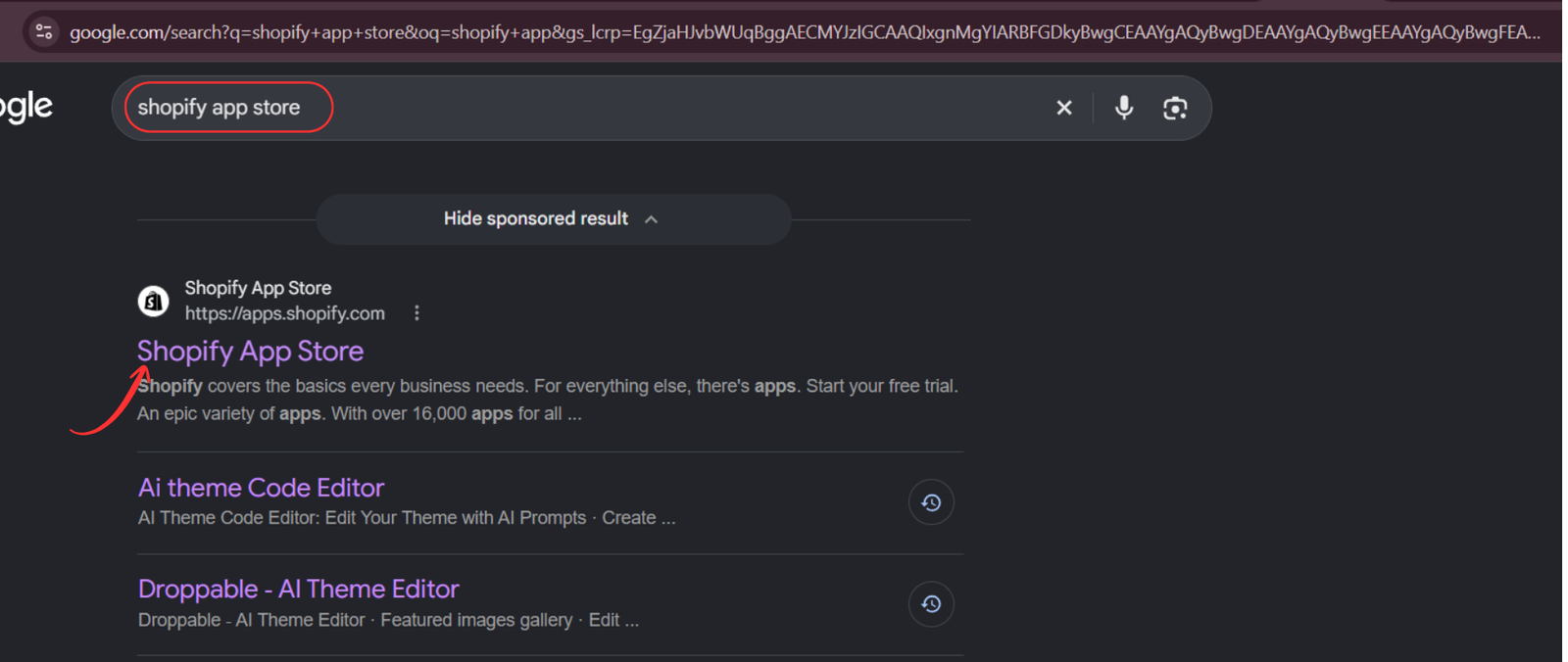
Once the Shopify App Store opens, you can search for applications that provide cart drawers, sticky add-to-cart buttons, and other conversion-focused features.
Step 2: Search for SA Sticky Add to Cart Drawer
Inside the Shopify App Store, locate the search bar and enter Sticky add to cart drawer.
The search results will display various cart-related applications. Find SA Sticky Add to Cart Drawer, identifiable by its blue shopping cart icon, and select the app listing.
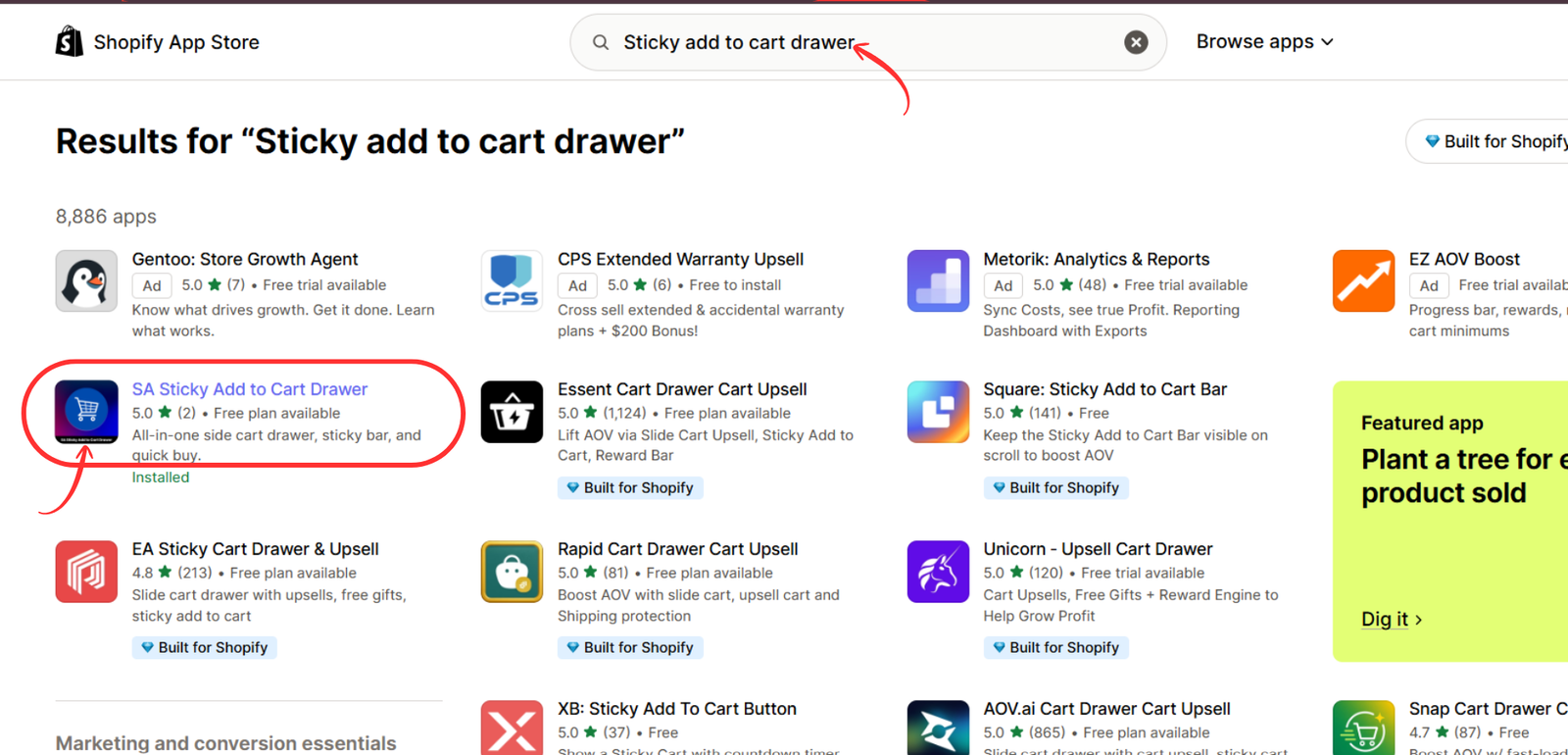
Make sure you select the correct app before continuing. Opening its listing will allow you to review the available functionality and begin installation.
Step 3: Install the app on your Shopify store
After opening the app listing, locate the Install button.
Click Install to begin connecting the application to your Shopify store. Shopify may ask you to sign in, select your store, and approve the permissions required for installation.
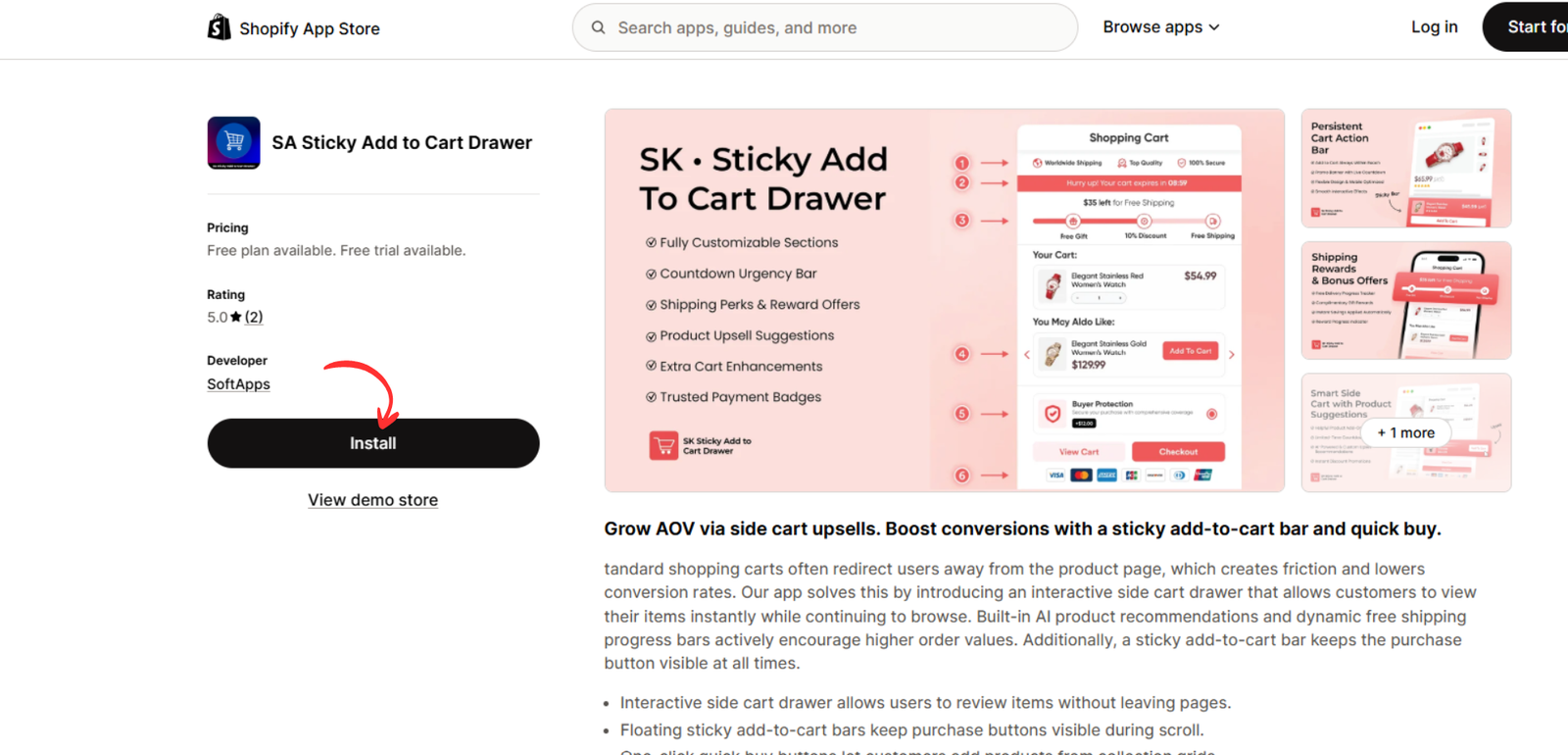
Review the permissions and any applicable pricing details before confirming the installation.
Once the installation process is complete, the app will become accessible from your Shopify admin dashboard.
Step 4: Open the installed application
Return to the app listing or navigate to the Apps section of your Shopify admin.
Click Open to launch SA Sticky Add to Cart Drawer.
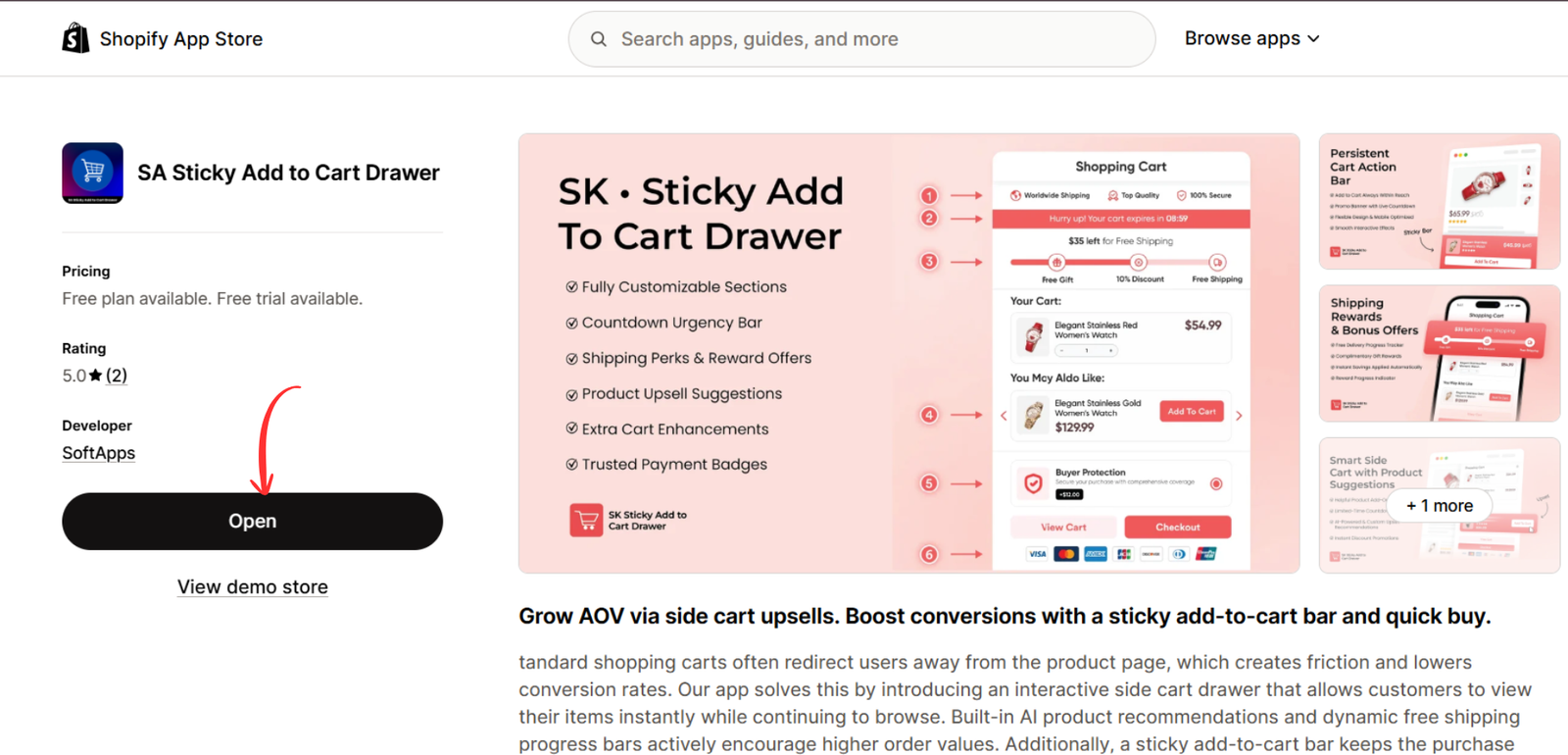
The application dashboard provides access to its configuration options. From here, you can manage the cart drawer, adjust its design, and configure additional shopping features.
Step 5: Configure the side cart drawer
In the application’s navigation menu, select Setups.
At the top of the setup interface, locate the Side Cart & Upsell tab and open it. This section contains the main settings for customizing the slide-out cart experience.
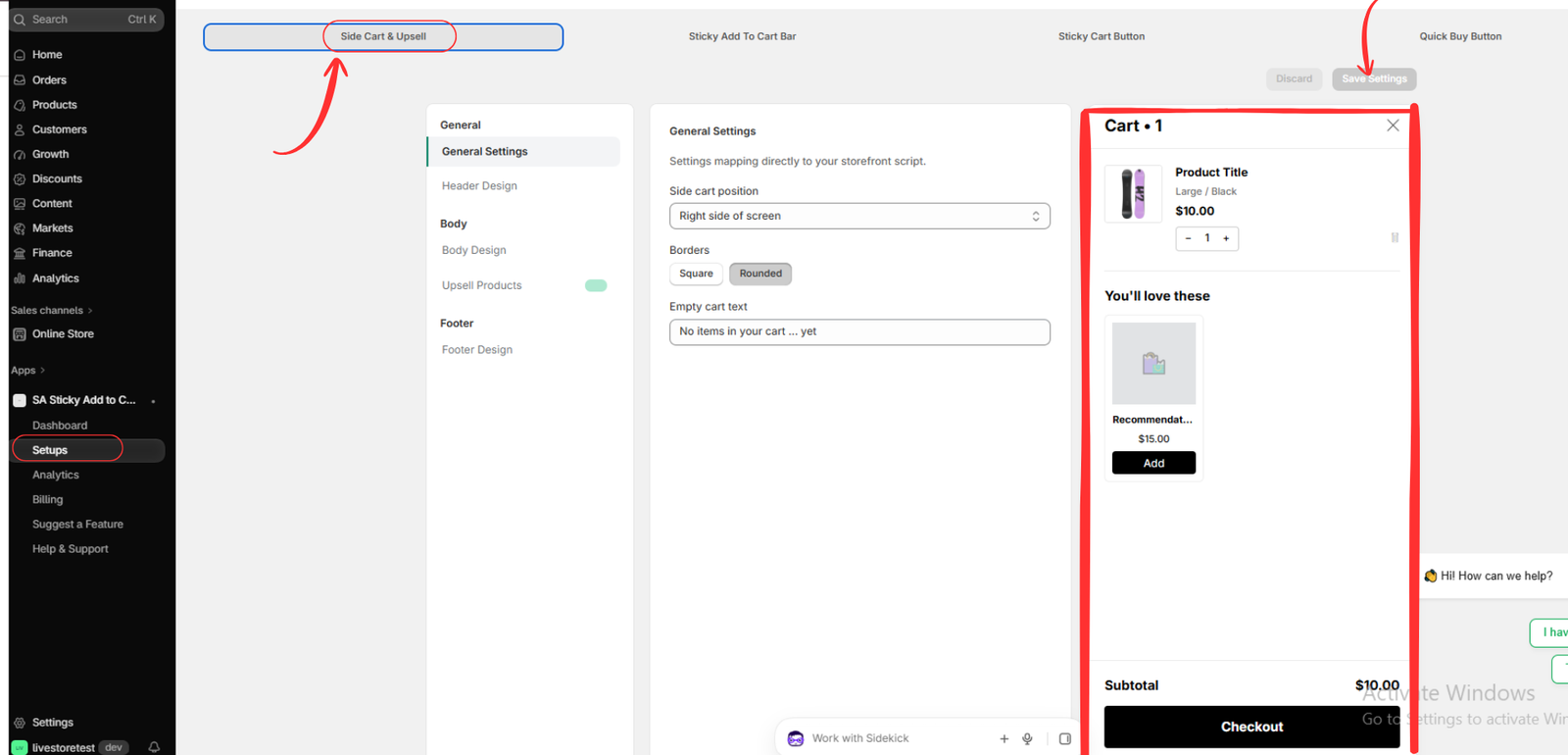
You can configure several important elements from this section.
Cart position: Choose whether the drawer appears on the right or left side of the screen, depending on the available settings and your storefront design.
Drawer appearance: Select border styles and adjust the design to complement your store’s branding.
Empty cart message: Customize the text displayed when a customer has not added any products.
Product recommendations: Configure upsell products so customers can discover additional items while reviewing their cart.
Cart content: Review the preview to understand how product information, quantities, prices, subtotal, and the checkout button will appear.
After making your changes, click Save Settings.
A well-configured side cart should remain visually consistent with your storefront while keeping important purchasing actions easy to find
.
Step 6: Enable the app embed in the Shopify theme editor
Configuring the cart drawer inside the application is only part of the process. You must also ensure that the relevant app embed is enabled in your Shopify theme.
From your Shopify admin, navigate to Online Store → Themes.
Select the theme you want to modify and click Customize to open the Shopify theme editor.
Inside the editor, select the App embeds icon from the left-side toolbar.
Find EA • Storefront Widgets, associated with SA Sticky Add to Cart Drawer, and enable its toggle.
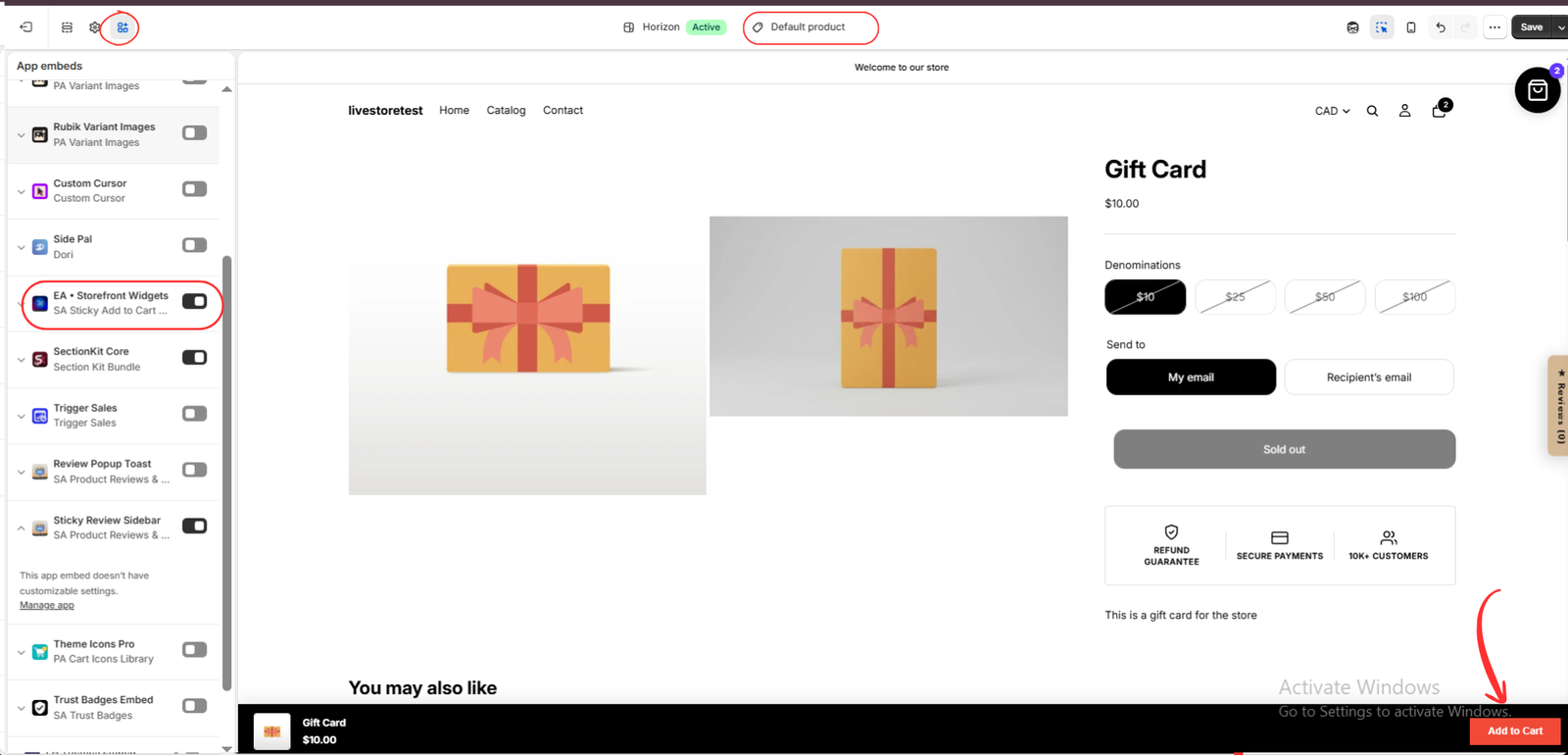
The app embed allows the application’s storefront functionality to load within your selected theme.
Before continuing, verify that the toggle is enabled and that you are editing the intended theme, especially if your store contains multiple unpublished themes.
Step 7: Save your changes and test the side cart drawer
After enabling the app embed, click Save in the upper-right corner of the Shopify theme editor.
Next, preview your storefront and open a product page. Select an available product and click Add to Cart.
If the cart drawer has been configured correctly, a side panel should appear, displaying the products currently in the c

Check that the drawer displays the expected product details, quantities, prices, subtotal, recommended products, and checkout button.
You should also test whether customers can increase or decrease product quantities, remove products, and proceed to checkout successfully.
Finally, preview the experience on both desktop and mobile devices. Confirm that the drawer fits the screen properly, remains easy to navigate, and does not obstruct important storefront elements.
Your Shopify side cart drawer is now ready to use once these checks pass.
Best practices for an effective Shopify side cart drawer
Installing a side cart drawer is a useful starting point, but thoughtful configuration is equally important.
Keep the cart design simple and consistent with your store’s branding. Product names, images, prices, and checkout buttons should be easy to identify.
Avoid displaying too many recommended products. Instead, prioritize relevant complementary items that genuinely improve the shopping experience.
Ensure the checkout button remains clearly visible and test the cart on smaller screens. Mobile usability is especially important because customers should be able to review their orders without struggling with navigation.
You can also evaluate your cart’s performance through Shopify analytics, comparing metrics such as add-to-cart rate, checkout initiation, and conversion rate before and after implementation.
Conclusion
A side cart drawer can make shopping more convenient by allowing customers to manage their carts without leaving the product page.
With SA Sticky Add to Cart Drawer, Shopify merchants can configure a customizable slide-out cart, display product recommendations, and provide a more streamlined route to checkout.
By following the steps in this guide, you can add a side cart drawer to your Shopify store without building the entire experience from scratch.
Explore the SA Sticky Add to Cart Drawer app to get started.




