HOW TO CREATE AI PRODUCT BACKGROUNDS THAT MATCH YOUR WIX STORE BRANDING
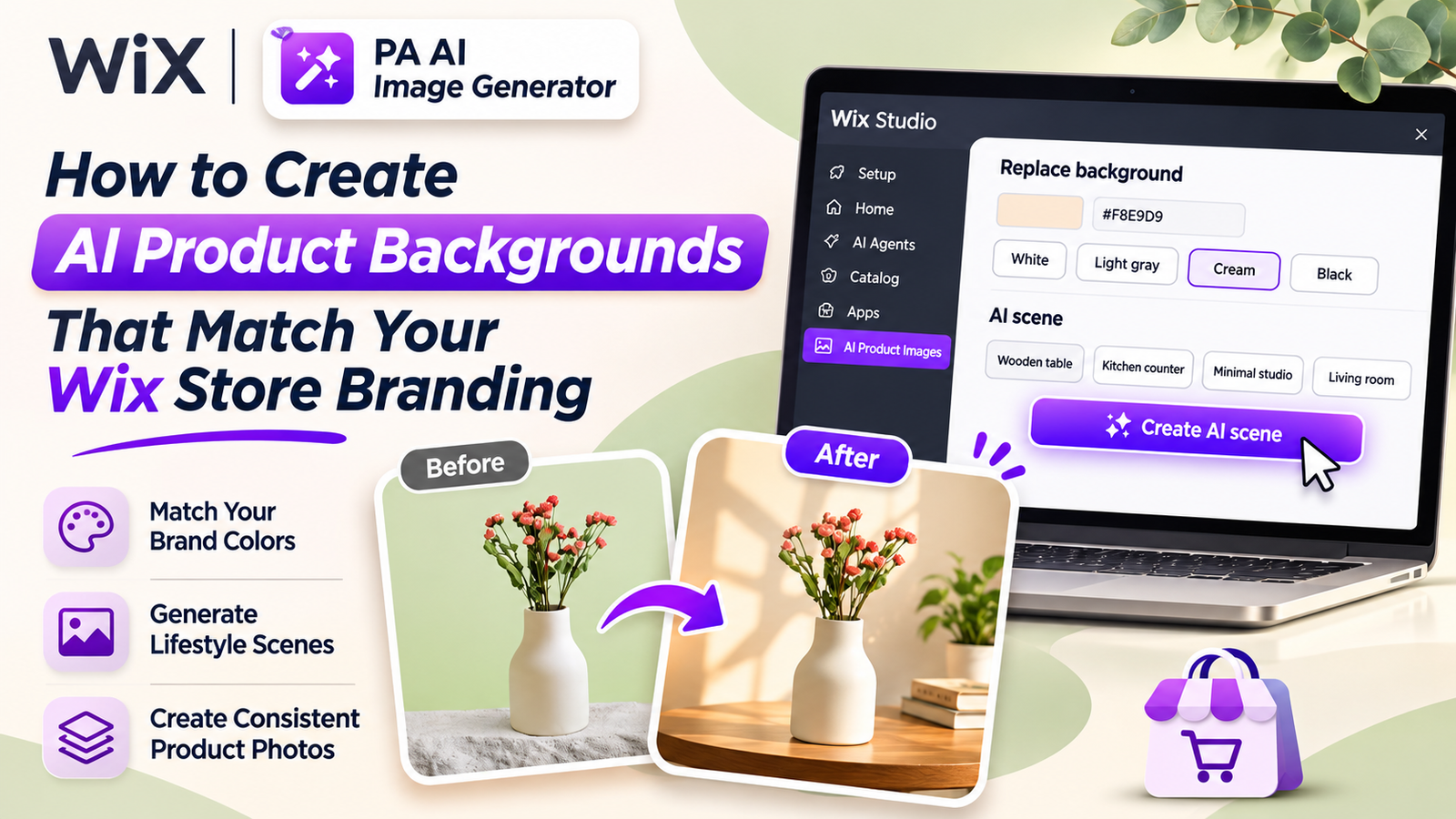
Introduction
Your product images are an important part of your Wix store’s visual identity. When customers browse your website, consistent colors, backgrounds, and photography styles can make your products appear more professional and help shoppers recognize your brand.
However, many Wix merchants struggle with inconsistent product photography. Some products have white backgrounds, others have colorful scenes, and others feature distracting objects that do not match the store’s design.
Creating consistent product photography traditionally requires professional editing software, photography equipment, and significant time.
With PA AI Image Generator, you can create AI product backgrounds that complement your Wix store’s branding without arranging expensive photoshoots.
In this guide, you’ll learn how to select background colors, generate branded lifestyle scenes, and improve your Wix product images using AI.
Why Product Backgrounds Matter for Wix Store Branding
Your product images should complement your website’s colors, typography, and overall design style.
For example, a luxury jewelry brand might use dark backgrounds and sophisticated lighting, while an organic skincare brand may prefer cream tones, natural materials, and soft daylight.
Consistent product backgrounds can help you:
-
Create a recognizable brand identity.
-
Maintain a professional product catalog.
-
Improve visual consistency.
-
Highlight product features.
-
Create attractive marketing content.
-
Reduce unnecessary visual distractions.
-
Support customer confidence.
Common Branding Problems Wix Merchants Face
Inconsistent product backgrounds
Different background colors and photography styles can make your store feel disorganized.
Product photos that clash with website colors
Photographs may look out of place when their backgrounds do not complement your store’s brand palette.
Limited photography budgets
Creating separate professional images for every product and campaign can be expensive.
Time-consuming editing
Manually changing backgrounds requires additional effort, particularly when managing a large catalog.
Difficulty creating lifestyle photos
Merchants may want products displayed in realistic environments but lack the equipment or locations needed for photography.
What Are AI Product Backgrounds?
AI product backgrounds are digitally generated or edited environments created around an existing product photograph.
They allow merchants to change how a product is presented without physically photographing it in multiple locations.
Two useful approaches are:
Solid-color backgrounds: Replace the original background with white, cream, gray, black, or a custom brand color.
AI lifestyle backgrounds: Generate realistic environments with decorative elements, natural lighting, and surfaces that match your brand’s personality.
Introducing PA AI Image Generator for Wix
PA AI Image Generator is an AI-powered photography app for Wix merchants.
It provides background removal, solid-color replacement, AI lifestyle scene generation, custom prompts, and before-and-after image previews.
The app also supports working directly with products in your Wix store and publishing edited photos as main product images.
HOW TO CREATE BRANDED AI PRODUCT BACKGROUNDS IN WIX: STEP-BY-STEP GUIDE
Follow these steps to create product backgrounds that complement your Wix store’s branding.
Step 1: Open the Wix App Market
Open Google and search for Wix App Store.
Select the official Wix App Market result.
Image 1: Search for the Wix App Market on Google and open the official marketplace.You can also visit Wix App Market directly.
Step 2: Search for PA AI Image Generator
Once inside the Wix App Market, locate the search field.
Type PA AI Image Generator and press Enter.
Image 2: Enter PA AI Image Generator into the Wix App Market search bar.
Step 3: Select the Correct App
Locate PA AI Image Generator in the search results.
Look for the application published by TheScriptFlow with the description about turning product photographs into studio-quality images.
Image 3: Find PA AI Image Generator in the search results and open its listing.
Step 4: Install PA AI Image Generator
On the application’s listing page, click Add to Site.
Choose your Wix website if prompted and complete the installation process.
Image 4: Click Add to Site to install PA AI Image Generator on your Wix website.Direct app link: Install PA AI Image Generator
Step 5: Open the App From Your Wix Dashboard
After installing the application, open your Wix website dashboard.
Navigate to the Apps section and select AI Product Images.
Image 5: Access AI Product Images from the Apps section in your Wix dashboard.The application displays the products available in your store.
Step 6: Choose the Product You Want to Edit
Browse the product list or use the search field to find a specific item.
For this tutorial, we’ll use a Ceramic Flower Vase.
Image 6: Select a product whose background you want to customize.Open the product to access its photography options.
Step 7: Open Photo Studio and Explore the Editing Tools
Select the photograph you want to edit.
The Photo Studio provides background removal, background replacement, and AI scene generation tools.
Image 7: Explore the Photo Studio tools and select the product photograph you want to customize.Choose the editing method according to your brand requirements.
For exact brand colors, use Replace background. For realistic branded environments, use AI scene.
Step 8: Write an AI Prompt That Matches Your Brand Style
Scroll to the AI scene section.
Here, you can describe the environment you want to create around your existing product.
For our ceramic flower vase, we’ll use the following prompt:
Image 8: Enter a detailed AI prompt that specifies the photography style, lighting, props, and desired visual appearance.You can also choose from predefined scenes such as Wooden table, outdoors; Kitchen counter; Minimal studio; Living room; and Marble surface.
For stronger branding consistency, modify your prompt to include your store’s actual brand colors, preferred materials, and photographic style.
Step 9: Generate and Review Your Branded Product Scene
Click Create AI scene.
The app processes the selected product photograph and generates a new environment.
After processing, scroll down to Result to compare the original image with the new scene.
Image 9: Compare the original ceramic vase photograph with the AI-generated lifestyle scene and preview the final appearance.In your screenshot, the original vase appears against a light green background.
The AI-generated version places the vase in a warm, modern interior with soft lighting, neutral-colored decorative objects, and a natural wooden surface.
This is an example of using AI to create a consistent lifestyle aesthetic for a home decor brand.
Step 10: Publish Your Updated Product Photo
Once you’re satisfied with the generated background, click Publish to product (becomes main photo).
The new image becomes the main product photograph, while the original photographs remain in the product gallery, according to the app’s interface.
Before publishing, verify that the product’s colors, proportions, design, and important details remain accurate.
Solid-Color Backgrounds vs. AI Lifestyle Backgrounds
Both options can support a consistent Wix store design, but they serve different purposes.
| Feature | Solid-color background | AI lifestyle background |
|---|---|---|
| Main purpose | Consistent product presentation | Realistic product storytelling |
| Brand color matching | Precise with HEX colors | Approximate through prompts |
| Visual complexity | Simple | More detailed |
| Best placement | Product catalogs | Product pages, banners, campaigns |
| Creative flexibility | Color variations | Scenes, props, lighting, environments |
| Product accuracy | Requires review | Requires careful review |
If you need an exact brand color, Replace background is usually the better option. If you want a scene reflecting your brand’s personality, use AI scene.
How to Maintain Consistent Product Photography Across Wix
Create a brand photography guide. Define your preferred backgrounds, lighting, shadows, and product positioning.
Reuse successful AI prompts. Keep a collection of prompts that produce visually consistent results.
Use a limited color palette. Avoid introducing unrelated background colors across the same product collection.
Keep product dimensions consistent. Use similar image proportions so product grids look organized.
Review your product catalog regularly. Identify images that no longer match your store’s visual identity.
Common AI Product Background Mistakes to Avoid
Using too many background styles: Excessive visual variation can weaken brand consistency.
Ignoring your brand colors: Choose scenes and surfaces that complement your storefront.
Overcomplicating AI prompts: Keep instructions specific, realistic, and relevant to your products.
Changing product details: Always check that AI has not altered the product’s actual color, design, packaging, or features.
Publishing without previewing: Compare the generated result with the original photograph before making it live.
Frequently Asked Questions
Can I create AI product backgrounds for Wix without Photoshop?
Yes. PA AI Image Generator provides background editing and AI scene generation directly within your Wix dashboard.
Can I match product backgrounds to my Wix brand colors?
Yes. The background replacement feature supports custom HEX colors, while AI scene prompts allow you to describe your preferred visual style.
Can I generate lifestyle backgrounds for my products?
Yes. You can generate realistic product environments using custom text prompts or predefined scene options.
How many credits does AI scene generation use?
The supplied app interface indicates that AI scene generation uses two credits and background replacement uses one credit.
Can I keep my original product photographs?
Yes. The app’s publishing interface indicates that original product photographs remain in the product gallery when an edited image becomes the main photo.
Does the app offer free credits?
The Wix App Market listing currently states that new sites receive five free credits to try the features.
wix.com
Will consistent product backgrounds increase sales?
Consistent product photography can support a professional brand image and customer confidence, but it does not guarantee higher conversion rates.
Conclusion
Creating AI product backgrounds that match your Wix store branding is an effective way to establish a more consistent and professional visual identity.
Instead of arranging expensive photoshoots or manually editing every photograph, you can use PA AI Image Generator to customize background colors, generate lifestyle environments, and create visually cohesive product collections.
Whether your brand is minimalist, luxurious, organic, or colorful, AI-powered editing can help you present products in a style that complements your business.