AI PRODUCT PHOTOGRAPHY FOR JEWELRY AND ACCESSORIES
Shopify AI Photography Guide | Jewelry & Accessories | 2026

Introduction
Professional product photography is essential for jewelry and accessories businesses. When customers shop online, they cannot physically examine a necklace, ring, handbag, bracelet, or pair of sunglasses. Instead, they depend on high-quality images to understand the product’s appearance, design, and details.
For Shopify merchants, creating attractive jewelry photography can be challenging. Traditional photography often requires professional cameras, lighting equipment, models, photographers, and carefully arranged backgrounds.
Fortunately, artificial intelligence offers a more flexible way to produce additional ecommerce product visuals.
With PA AI Image Generator, Shopify merchants can create professional-looking jewelry and accessory photographs using existing product images as references.
One of the biggest advantages is flexibility. Merchants can choose the photography style they want based on their products, branding, and marketing goals. They are not limited to one fixed design.
In this guide, we’ll explain how AI product photography works for jewelry and accessories, explore the available photography styles, and show how to use PA AI Image Generator with actual screenshots.
Why High-Quality Photography Matters for Jewelry and Accessories
Jewelry and accessory products often depend on small visual details. Customers want to see the product’s design, surface, material appearance, colors, and proportions before purchasing.
1. Highlights important product details
Close-up photography helps customers examine gemstone settings, necklace chains, ring designs, watch details, and handbag finishes.
2. Creates a premium brand appearance
Consistent lighting, clean compositions, and attractive backgrounds can make jewelry and accessory collections appear more professional.
3. Helps customers visualize products
On-model photographs can show how necklaces, bracelets, sunglasses, and handbags look when worn or carried.
4. Supports different marketing campaigns
Merchants can create visual content for product pages, social media, advertisements, email campaigns, and seasonal promotions.
5. Improves catalog consistency
A consistent photography style can make products from different suppliers feel like part of one coordinated brand.
The Merchant’s Challenge: Traditional Jewelry Photography
Photographing jewelry is not always straightforward.
Small objects, reflective metals, transparent gemstones, and intricate designs require careful lighting and composition.
Merchants may face difficulties such as:
- Expensive photography equipment and studio arrangements.
- Multiple photoshoots for different products.
- Challenges capturing small product details.
- Hiring models to demonstrate accessories.
- Creating consistent imagery across collections.
- Preparing seasonal images for marketing campaigns.
For businesses adding new products frequently, repeating this process can consume considerable time and resources.
AI-powered image generation can help merchants create additional visual variations without arranging a separate physical photoshoot for every composition.
What Is AI Product Photography for Jewelry?
AI product photography uses artificial intelligence to generate new product photographs based on existing product images and selected photography styles.
For example, a basic photograph of a handbag may be used to create a studio-style product image or a lifestyle composition.
Similarly, a necklace may be presented in a close-up shot, a styled jewelry arrangement, or an on-model composition.
The generated image should still be checked against the real product because AI can sometimes alter small details, materials, or branding.
Introducing PA AI Image Generator for Shopify
PA AI Image Generator helps Shopify merchants create AI-powered product photography using images already associated with their Shopify catalog.
The app provides photography presets for different product industries, including Jewelry & Accessories.
Merchants can choose from multiple photographic styles rather than relying on a single automatic format.
Features for jewelry and accessory merchants
- Studio photography: Clean, simple product presentations.
- On-model photography: Visuals featuring people and accessories.
- Detail and macro photography: Close-up product compositions.
- Lifestyle photography: Products presented in styled environments.
- Seasonal photography: Creative imagery for promotional campaigns.
- Customizable generation settings: Options for backgrounds, image dimensions, and output formats.
- Gallery management: Review generated images and decide which to publish.
App link: PA AI Image Generator on the Shopify App Store
Different AI Photography Styles for Jewelry and Accessories
The ideal photography style depends on what you sell and how you want to present it.
| Product | Suggested photography style | Main purpose |
|---|---|---|
| Rings | Studio Clean, Jewelry Hands Detail | Highlight gemstone and ring details |
| Necklaces | Lifestyle Jewelry Styled, On-Model | Show design and styling |
| Handbags | Studio Clean, Accessories Focus | Present product structure and appearance |
| Sunglasses | Sunglasses Profile, On-Model | Show how the frames look |
| Watches | Detail / Macro, Lifestyle | Emphasize the dial, strap, and finish |
| Bracelets | Jewelry Hands Detail, Studio | Show size, styling, and details |
| Wallets | Detail / Macro | Highlight material and texture |
These are recommendations, not fixed requirements. A merchant can select whichever available preset best suits their products.
Why Choosing Your Own Photography Style Is Important
Every jewelry business has a different brand identity.
A luxury jewelry store may prefer dark backgrounds, soft lighting, and elegant compositions.
A colorful fashion accessories store may prefer bright lifestyle photographs.
A minimalist handbag store may choose neutral studio photography with simple backgrounds.
Rather than giving every product the same generic appearance, PA AI Image Generator allows merchants to choose presets that better align with their desired visual direction.
This flexibility is especially useful for stores selling multiple product categories.
Step-by-Step Guide: How to Create AI Jewelry and Accessories Photography on Shopify
The following tutorial uses your two actual PA AI Image Generator screenshots in their original order.
Step 1: Install PA AI Image Generator
Visit the Shopify App Store and search for PA AI Image Generator.

Open the app listing, review its features, and install it on your Shopify store.
Once the installation is complete, open the app from your Shopify Admin.Open PA AI Image Generator

Step 2: Open Generate Images
Inside Shopify Admin, navigate to Apps → PA AI Image Generator → Generate Images.

The application allows you to choose existing Shopify products or collections.
For jewelry photography, select the ring, necklace, handbag, sunglasses, or accessory you want to improve.
If you have multiple products, you can also select a collection for batch image generation.
Click Continue after confirming your selection.
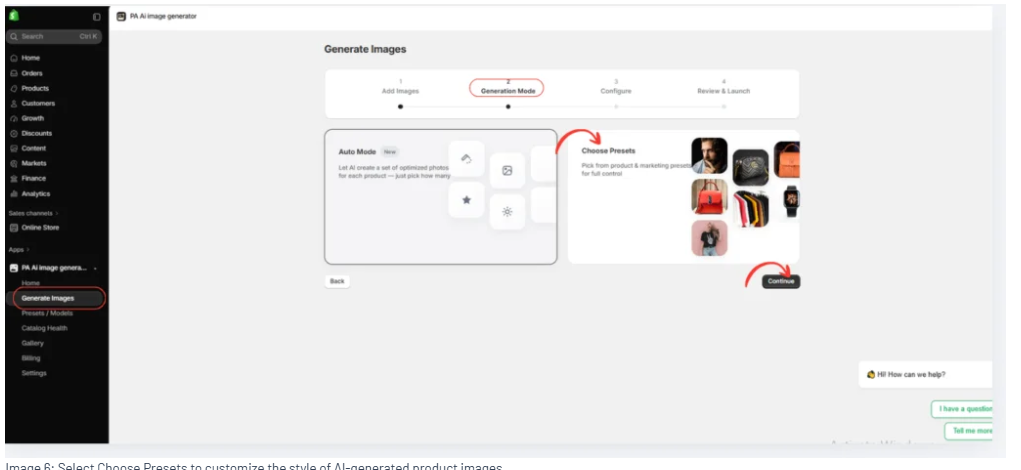
Step 3: Choose Your Image Generation Mode
After choosing the products, proceed to the Generation Mode screen.
The application offers two approaches:
Auto Mode: Allows AI to select photography styles automatically.
Choose Presets: Allows merchants to choose specific visual styles and compositions.
For jewelry and accessories, Choose Presets provides greater control over the appearance of the generated photographs.
Select Choose Presets and continue.
Step 4: Select the Jewelry & Accessories Category
Image 1 — Actual PA AI Image Generator screenshot
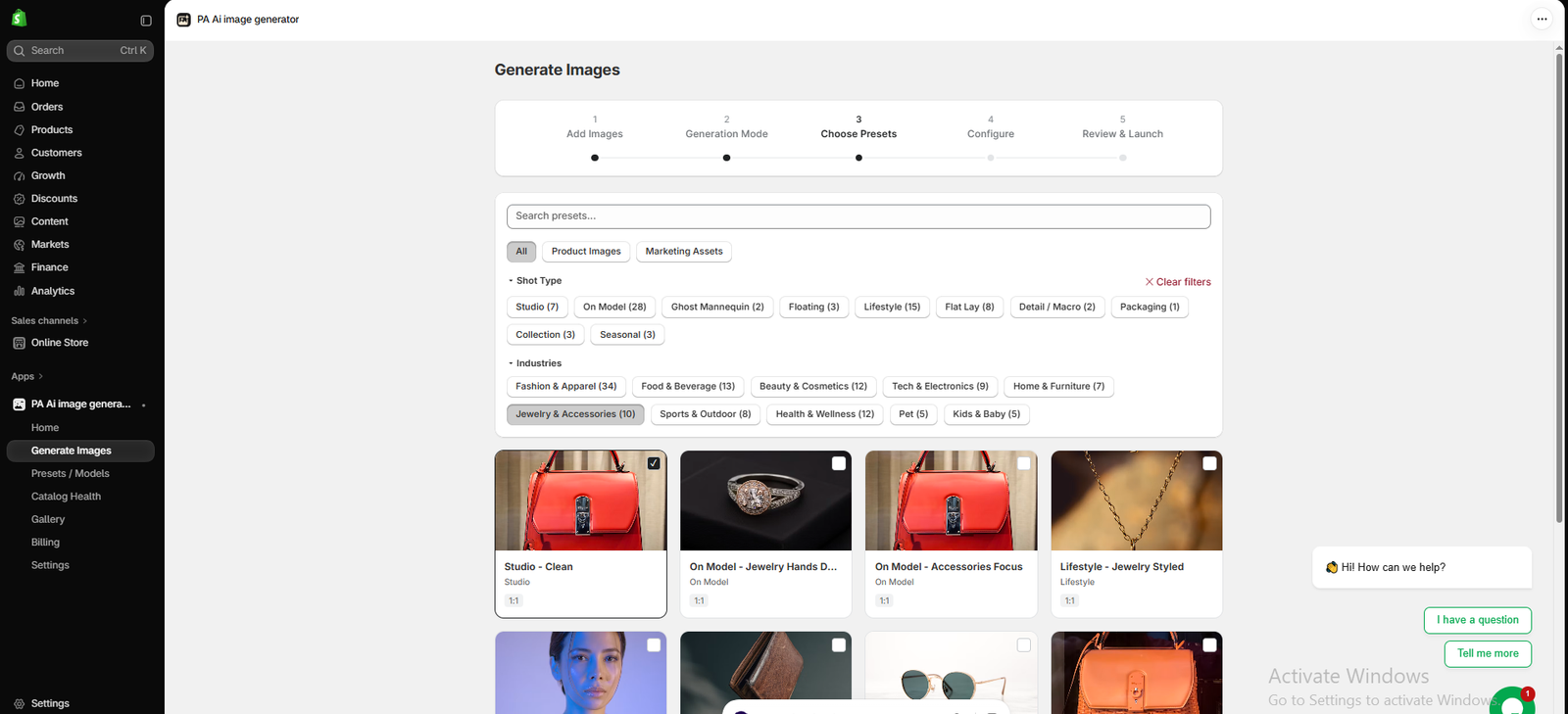
Image 1: The PA AI Image Generator preset library with the Jewelry & Accessories industry filter selected.
Image explanation
The screenshot shows the Choose Presets stage inside PA AI Image Generator.
At the top, you can see the preset search bar and photography filters.
Under Industries, the Jewelry & Accessories (10) category is selected.
The screenshot also displays different photography preset cards, including:
- Studio – Clean
- On Model – Jewelry Hands Detail
- On Model – Accessories Focus
- Lifestyle – Jewelry Styled
The first preset, Studio – Clean, is already selected, indicated by the checked box.
What should merchants do?
If you sell handbags, for example, you can choose Studio – Clean to create a simple professional product photograph.
If you sell rings or bracelets, you can choose a jewelry-detail preset.
If you sell necklaces, you may prefer a lifestyle or on-model composition.
The selected preset determines the visual direction that the AI will attempt to create.
Step 5: Explore More Jewelry Photography Presets
Image 2 — Actual PA AI Image Generator screenshot

Image 2: Additional jewelry and accessory photography presets, including jewelry portraits, macro details, sunglasses, and seasonal images.
Image explanation
Your second screenshot shows additional options available as the merchant scrolls through the preset library.
The visible preset styles include:
Studio – Clean: Suitable for minimalist product photography, especially handbags and other accessories.
On Model – Jewelry Hands Detail: A useful composition for showing rings, bracelets, or jewelry worn on the hands.
On Model – Accessories Focus: Designed for accessory-oriented visual presentation.
Lifestyle – Jewelry Styled: Suitable for jewelry shown in an elegant or styled setting.
On Model – Jewelry Portrait: A portrait-oriented visual style, useful for fashion and jewelry campaigns.
Detail – Macro: Intended for close-up product imagery that highlights texture, design, and fine details.
On Model – Sunglasses Profile: A composition suited to displaying sunglasses.
Studio – Side View: Useful for presenting an accessory from an alternative angle.
Seasonal – Valentine’s: A themed option for Valentine’s Day marketing content.
What should merchants do?
Merchants can scroll through the library and choose one or more available presets based on their requirements.
For example, a merchant selling sunglasses might combine a studio shot with a model-oriented composition.
A merchant selling rings might prefer close-up detail photography and jewelry styling.
Once the desired presets are selected, click Continue, as shown at the bottom-right corner of your second screenshot.
Step 6: Configure Your Jewelry Image Generation Settings
After selecting your presets, proceed to the configuration screen.
Depending on the chosen workflow, you can adjust the output settings, including image format, aspect ratio, background preferences, and custom instructions.

You can use a prompt such as:
Create a premium ecommerce product photograph using my selected jewelry product as a reference. Preserve its original design, gemstone color, metal appearance, and proportions. Use elegant professional lighting and a clean composition. Do not add or remove product details.
For jewelry photography, accurate colors and realistic reflections are particularly important.
Review the image-generation settings before continuing.
Step 7: Generate Your AI Jewelry Product Images
After configuring the settings, continue to the review stage and launch the generation job.
PA AI Image Generator will process the selected products using your chosen presets.
For example, if you select two relevant photography styles for a handbag, the app can attempt to generate multiple visual compositions based on those styles.

The number of images depends on your selections and applicable generation limits.
Step 8: Review the Generated Images in Gallery
Once the generation job finishes, open Gallery from the left navigation panel.
The Gallery allows merchants to review their generated product photographs and previous generation jobs.
For each image, carefully inspect the product’s appearance.
For jewelry, check the gemstone shape, number of stones, metal color, clasp design, chain length, engraving, and other important characteristics.
For handbags, inspect the straps, handles, stitching, shape, and hardware.
AI-generated images can look attractive while still containing inaccurate details, so this review is essential.
Step 9: Download or Publish Your Product Images
After reviewing the generated photographs, choose the images that accurately represent your products.
The app’s Gallery provides options to download generated images and publish approved results to Shopify products.
You can use selected images for product pages, collection imagery, social media, email campaigns, and other visual marketing materials.
Retain accurate original product photography alongside generated lifestyle images where customers need to verify real product details.
How Jewelry Brands Can Use AI Product Images in Marketing
Shopify product pages
Use studio images as clear product visuals and supplementary close-up or lifestyle photographs to show additional perspectives.
Instagram and Pinterest
Create styled visuals suited to social platforms where photography plays a major role in product discovery.
Seasonal promotions
Use seasonal styles for Valentine’s Day, Mother’s Day, holiday gifting, and other relevant campaigns.
Collection banners
Develop coordinated imagery for jewelry, handbag, or sunglasses collections.
Email campaigns
Use attractive product photographs when promoting new collections, special offers, or product launches.
Best Practices for AI Jewelry and Accessory Photography
Preserve product accuracy. Jewelry customers care about fine details. Do not publish images that misrepresent gemstones, metals, dimensions, or designs.
Maintain visual consistency. Use similar lighting and backgrounds across related products to create a professional catalog.
Choose styles based on the product. A ring may benefit from macro photography, while a handbag might be better presented in a studio or lifestyle scene.
Check reflections and small details. AI-generated jewelry images may contain unrealistic reflections, stones, clasps, or other features.
Use AI images alongside original photography. Real photographs help customers assess the actual item, while AI-generated compositions can provide additional styling inspiration.
Frequently Asked Questions
1. Can AI create professional jewelry product photographs?
Yes. AI image-generation tools can produce studio-style, lifestyle, and close-up compositions using existing product photographs as references.
2. Can merchants choose their own photography style?
Yes. PA AI Image Generator includes a preset library that allows merchants to select styles based on their products and preferred appearance.
3. Can I generate images for rings and necklaces?
Yes. Jewelry-related presets include close-up and on-model compositions suitable for these categories.
4. Can I create images for handbags and sunglasses?
Yes. The preset library includes accessory-focused, studio, and sunglasses-oriented options.
5. Can I select multiple photography presets?
Yes. The app supports selecting multiple presets for a generation workflow, subject to available limits.
6. Do I need professional photography equipment?
No professional studio is required for AI-generated compositions, although clear and accurate reference images are recommended.
7. Can I publish generated images to Shopify?
Yes. The app provides options for publishing approved images to Shopify products.
8. Can AI-generated jewelry images contain mistakes?
Yes. Gemstone settings, metallic reflections, small details, and product proportions can sometimes be inaccurate. Always verify the result.
Conclusion
Professional jewelry and accessories photography no longer has to depend entirely on arranging expensive studio photoshoots.
With AI-powered tools, Shopify merchants can create additional product imagery using existing photographs and selected visual styles.
PA AI Image Generator provides a flexible photography preset library that includes Studio, On Model, Lifestyle, Detail / Macro, and seasonal options.
The most valuable aspect is that merchants can choose photography styles according to their own needs.
A luxury jewelry brand can select elegant detail shots, a handbag store can choose clean studio photography, and a sunglasses retailer can explore on-model compositions.
By combining suitable photography presets with accurate product references and careful image review, merchants can create a more consistent and engaging Shopify catalog.
Create jewelry and accessory product photos that match your brand’s style.Explore PA AI Image Generator on Shopify




