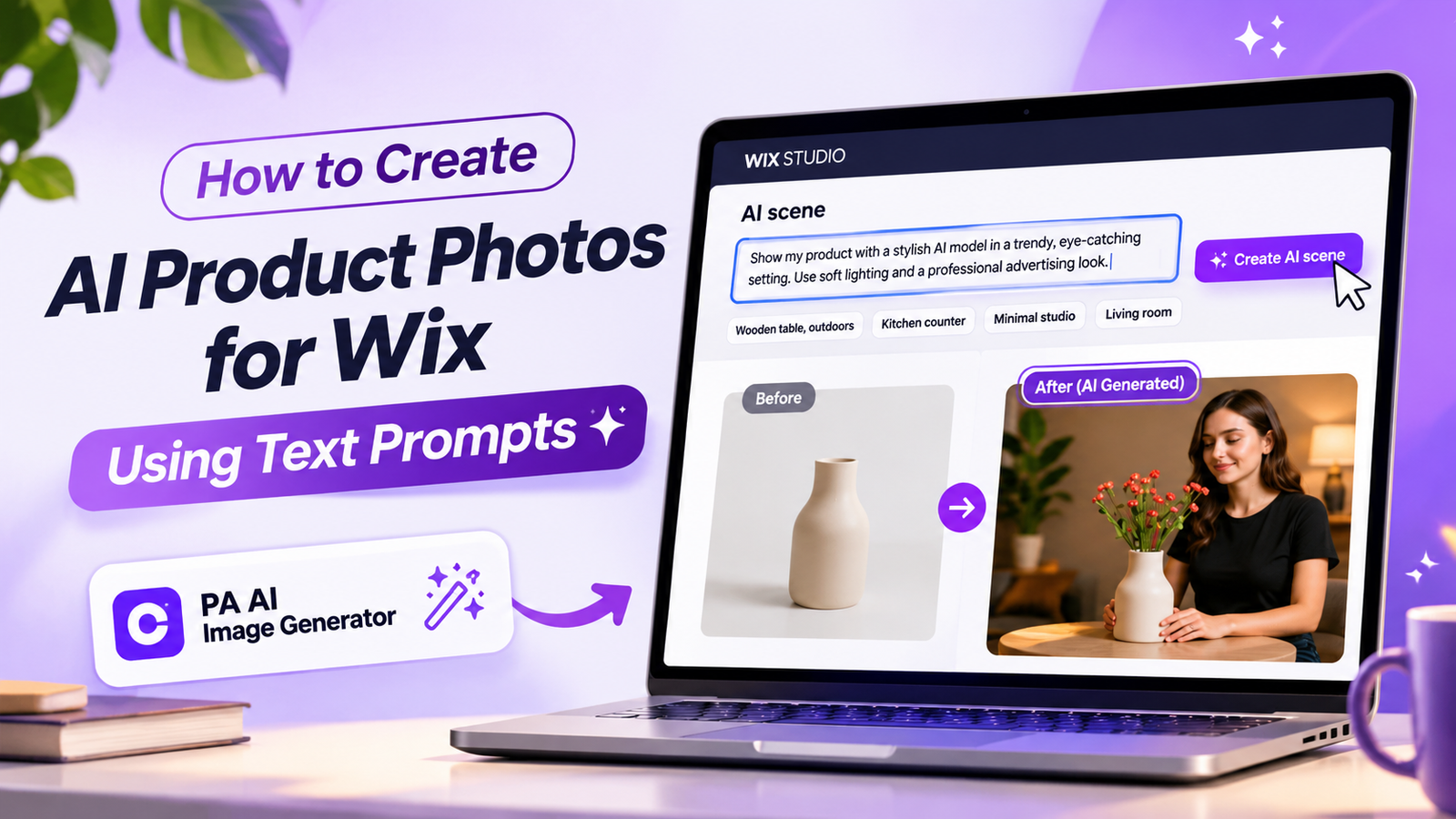
HOW TO CREATE AI PRODUCT PHOTOS FOR WIX USING TEXT PROMPTS
Introduction
Creating professional product photographs is one of the biggest challenges for Wix store owners. High-quality images help customers understand products, evaluate their appearance, and feel more confident about purchasing.
However, arranging professional photoshoots can be expensive and time-consuming. Merchants often need cameras, studio lighting, models, decorative props, and editing software to produce attractive ecommerce photographs.
Fortunately, AI-powered image editing provides another option.
With PA AI Image Generator, you can transform existing product photographs into professional-looking images by simply describing your preferred photography style, lighting, background, and environment.
In this guide, you’ll learn how to create AI product photos for Wix using text prompts, with step-by-step instructions and screenshots.
Why Use Text Prompts for Wix Product Photography?
Text prompts allow merchants to communicate their desired photography style to an AI image editing tool.
For example, you can describe a luxury studio, a modern living room, or a person holding your product.
Instead of manually building the entire scene, AI attempts to generate the requested environment around your existing photograph.
Text prompts can help you:
-
Create professional-looking product images.
-
Experiment with different lifestyle scenes.
-
Change lighting and background styles.
-
Generate creative advertising visuals.
-
Maintain consistent photography aesthetics.
-
Reduce additional photography expenses.
-
Save time on manual image editing.
Common Product Photography Problems Wix Merchants Face
Expensive professional photoshoots: Hiring photographers, renting studios, and arranging models can increase business costs.
Unprofessional backgrounds: Distracting or poorly lit environments can make products look less appealing.
Limited creative photography options: Merchants may want lifestyle photographs but lack access to suitable locations.
Inconsistent visual branding: Different image styles and lighting can make product collections appear disorganized.
Complicated editing software: Professional editing programs often require technical skills and additional time.
What Are AI Product Photography Text Prompts?
AI product photography text prompts are written instructions that describe how an image should look.
A good prompt explains the subject, environment, lighting, style, composition, and any product characteristics that must remain unchanged.
For example:
Create a realistic commercial product photograph in a modern interior with soft natural lighting. Preserve the product’s original shape, colors, and details.
AI uses these instructions to generate a new scene based on the selected photograph.
Introducing PA AI Image Generator for Wix
PA AI Image Generator is a product photography application available on the Wix App Market.
The app includes:
-
AI background removal.
-
Custom background color replacement.
-
AI scene generation using text prompts.
-
Predefined scene options.
-
Before-and-after product image previews.
-
Publishing edited images to Wix products.
For this tutorial, we’ll focus on its AI scene feature.
How to Create AI Product Photos for Wix Using Text Prompts: Step-by-Step Guide
Step 1: Open the Wix App Market
Open your browser and search for Wix App Store on Google.
Select the official Wix App Market website.

Image 1: Search for the official Wix App Market using Google.
Step 2: Search for PA AI Image Generator
Inside the Wix App Market, locate the search field.
Type PA AI Image Generator and press Enter.

Image 2: Search for PA AI Image Generator in the Wix App Market.
Step 3: Select PA AI Image Generator
Find PA AI Image Generator by TheScriptFlow in the search results.
Click the application to open its listing page.

Image 3: Locate PA AI Image Generator in the search results.
Step 4: Install PA AI Image Generator
On the application’s listing page, click Add to Site.
Follow the instructions to install the app on your Wix website.

Image 4: Click Add to Site to install PA AI Image Generator.
You can also access the app directly:
Step 5: Open the App in Your Wix Dashboard
After installation, open your Wix website dashboard.
Navigate to Apps → AI Product Images.

Image 5: Open AI Product Images from the Apps menu in Wix.
The application displays the products available in your store.
Step 6: Select the Product You Want to Edit
Browse your product catalog and select a product whose photograph you want to improve.
For this example, we’ll use the Ceramic Flower Vase.

Image 6: Select the product you want to use for AI photography.
Step 7: Open Photo Studio
After selecting your product, open its Photo Studio.
Choose the existing product photograph you want AI to edit.

Image 7: Explore the available photo editing features, including AI scene generation.
The Photo Studio offers background removal, background replacement, and AI scene editing.
Step 8: Select the Photograph and Review Your AI Scene Options
Scroll to the AI scene section.
Here, you can enter a custom prompt or choose from predefined environments, including a minimal studio, kitchen counter, living room, marble surface, and outdoor wooden table.
Your first new screenshot shows a selected photograph featuring a person holding the ceramic vase, alongside a short studio-style prompt.

Image 8: Review the selected product photograph and the AI scene text field.
The sample prompt is:
In a bright modern studio with soft natural light.
This is a simple starting point. More detailed prompts can provide better guidance about the intended visual result.
Step 9: Write a Detailed AI Product Photography Prompt
In the AI scene field, describe your preferred product photograph.
Your second screenshot shows a longer request for a luxury designer-style vase photograph featuring a female model.

Image 9: Enter a descriptive AI prompt and review the luxury lifestyle scene shown in the Result section.
For a premium product photograph, you can use this refined prompt:
After entering the prompt, click Create AI scene.
The screenshot displays a before-and-after result featuring a person holding the vase in a warmer, more sophisticated interior.
Step 10: Review Another AI Product Photography Example
Your third screenshot demonstrates another AI-generated product scene.
In this example, an original photograph of a ceramic vase containing flowers is transformed into a lifestyle image showing a woman beside the vase.
When reviewing generated images, pay attention to whether the product itself remains accurate.
Step 11: Publish the AI-Generated Product Photograph
Once you’re satisfied with the result, click Publish to product (becomes main photo).
According to the application interface, your edited photograph becomes the main product image while the original photographs remain in the product gallery.
Before publishing, confirm that AI has not changed important product details such as shape, color, texture, labels, or packaging.
How to Write Better AI Product Photography Prompts
A useful AI product photography prompt generally includes five elements.
| Element | What to describe |
|---|---|
| Product | The item and its important features |
| Environment | Studio, bedroom, kitchen, living room, or outdoor setting |
| Lighting | Soft daylight, dramatic studio lighting, warm ambient lighting |
| Composition | Close-up, centered, editorial, or lifestyle presentation |
| Product accuracy | Preserve original colors, proportions, materials, and design |
For example, instead of writing “Make my photo professional,” describe a modern living room, a natural wooden surface, soft window lighting, and the precise product details that must remain unchanged.
10 AI Product Photography Prompts for Wix
1. Minimal studio
Create a clean studio product photograph with an ivory background, soft shadows, and professional diffused lighting. Preserve the product’s appearance.
2. Luxury campaign
Place my product on a dark stone pedestal with elegant directional lighting and a premium commercial photography aesthetic.
3. Living room
Display my product in a modern living room with tasteful furnishings, natural sunlight, and a warm neutral palette.
4. AI model lifestyle
Create a realistic lifestyle scene featuring an AI-generated person naturally holding my product. Keep its original design unchanged.
5. Skincare
Showcase the skincare product on white marble with botanical elements, soft daylight, and a clean luxury aesthetic.
6. Jewelry
Display the jewelry on a velvet surface with realistic reflections and carefully controlled studio lighting.
7. Home decor
Place my decorative product on a wooden table in a stylish contemporary interior with soft natural lighting.
8. Electronics
Present my product in a minimalist technology studio with subtle reflections and a graphite-gray background.
9. Outdoor campaign
Place my product on a wooden table outdoors with natural greenery, gentle sunlight, and realistic shadows.
10. Seasonal marketing
Create a tasteful festive product photograph with elegant seasonal decorations, warm lighting, and a clean composition.
Best AI Prompt Styles for Different Wix Stores
| Store category | Recommended photography style |
|---|---|
| Fashion accessories | Editorial lifestyle photography |
| Skincare and cosmetics | Minimalist commercial studio |
| Jewelry | Luxury close-ups and elegant lighting |
| Home decor | Natural interior lifestyle scenes |
| Electronics | Modern technical studio photography |
| Handmade products | Natural materials and warm daylight |
| Perfumes | Dramatic luxury advertising |
Common AI Prompt Mistakes to Avoid
Using vague descriptions: A prompt such as “Make this look amazing” provides little direction about the desired result.
Adding too many unrelated instructions: Conflicting settings, styles, and lighting directions can produce unpredictable images.
Ignoring product accuracy: AI-generated images may alter colors, shapes, materials, or details.
Using unrealistic environments: Choose scenes that complement the product and its intended use.
Publishing without inspection: Always compare the generated result with the original product photograph.
Benefits of Creating AI Product Photos With Text Prompts
AI text prompts can help Wix merchants create additional product photography variations without arranging separate photoshoots.
They also provide creative flexibility. You can experiment with different lighting, backgrounds, environments, and compositions while starting from the same existing product photograph.
Reusing successful prompts can help maintain a consistent visual style across product collections. However, output quality and consistency may vary between generations.
Frequently Asked Questions
Can I create AI product photos for Wix using text prompts?
Yes. PA AI Image Generator provides an AI scene feature that accepts custom text instructions for generating product environments.
Do I need photography or editing experience?
No advanced editing experience is required to enter prompts, although understanding basic lighting, composition, and product presentation can improve your results.
Can I generate photos featuring people?
Your screenshots demonstrate AI-generated scenes featuring people holding or presenting products. Results depend on the original image and prompt.
Can AI completely change my product’s appearance?
AI may unintentionally change product details. For ecommerce photography, it’s best to preserve the actual product’s shape, colors, materials, and features.
Does AI scene generation use credits?
The supplied app interface indicates that an AI scene generation uses two credits per operation.
Can I publish AI-generated images to my Wix products?
Yes. The application includes a Publish to product (becomes main photo) action.
Are AI-generated product photos guaranteed to improve sales?
No. Professional-looking photography can support customer confidence and improve visual presentation, but it does not guarantee increased conversions.
Conclusion
Creating AI product photos for Wix using text prompts provides an accessible way to experiment with professional photography styles without arranging additional photoshoots.
With PA AI Image Generator, merchants can describe the environments they want, generate lifestyle scenes, review before-and-after images, and publish edited photographs directly to Wix products.
Whether you sell home decor, jewelry, beauty products, or fashion accessories, descriptive AI prompts can help you create more attractive product imagery while reducing repetitive editing work.