HOW TO CREATE SEASONAL AND HOLIDAY PRODUCT IMAGES WITH AI
Shopify AI Photography Guide | Holiday Product Photography | Christmas, Valentine’s Day & Black Friday | 2026
Introduction
Seasonal promotions are an important part of ecommerce marketing. Throughout the year, Shopify merchants prepare special campaigns for Christmas, Valentine’s Day, Black Friday, New Year, and other shopping occasions.
During these campaigns, product photography plays an important role in attracting attention and communicating promotional offers.
Customers shopping for holiday gifts or seasonal products often expect visuals that match the occasion. A Christmas promotion may feature festive decorations and warm lighting, while Valentine’s Day marketing may use romantic colors and gift-inspired compositions.
However, arranging professional seasonal photoshoots can be expensive and time-consuming.
Merchants may need special backgrounds, decorations, photographers, props, and editing services every time a new holiday approaches.
Fortunately, AI seasonal product photography provides another way to create holiday-themed marketing images.
With PA AI Image Generator, Shopify merchants can use existing product photographs and select seasonal photography presets to create professional-looking promotional visuals without arranging a separate photoshoot for every occasion.
In this guide, we’ll explain how to create seasonal and holiday product images with AI, discuss the benefits for Shopify merchants, and demonstrate the process using PA AI Image Generator.
What Is Seasonal Product Photography?
Seasonal product photography involves presenting products using backgrounds, colors, decorations, and compositions associated with a particular season or holiday.
For example, Christmas photography may feature holiday decorations, ornaments, gift boxes, and winter lighting.
Valentine’s Day photography might feature pink or red backgrounds, hearts, flowers, or romantic gift packaging.
Black Friday photography often uses bold backgrounds, high contrast, and promotional compositions designed to attract attention.
The goal is to make product imagery relevant to the current marketing campaign while keeping the product clearly visible.
Why Seasonal Product Photography Matters for Shopify Stores
1. Makes holiday campaigns more relevant
Customers often expect promotional content to match the occasion they are shopping for.
Seasonal photographs can help create a recognizable holiday theme across your store.
2. Helps products stand out
A product photographed against an appropriate seasonal background may attract more attention than the same item shown in a generic composition.
3. Creates a consistent campaign appearance
Using similar colors, backgrounds, and photographic styles across a campaign helps create a coordinated visual identity.
4. Supports gift-focused marketing
Seasonal imagery can help present suitable products as gift ideas for special occasions.
5. Provides content for multiple marketing channels
Holiday product photographs can be used for Shopify collection pages, homepage banners, social media campaigns, email marketing, and advertisements.
Challenges of Traditional Holiday Product Photography
Creating professional holiday photographs traditionally involves several production requirements.
Merchants may need to purchase seasonal decorations, prepare special backgrounds, arrange photography equipment, hire photographers, and edit the images afterward.
For a Shopify store with many products, creating separate Christmas, Valentine’s Day, and Black Friday images can require repeated photoshoots.
This becomes even more challenging when merchants frequently add new products or run multiple promotional campaigns throughout the year.
AI image generation can help create supplementary seasonal visuals using existing product references.
Introducing PA AI Image Generator for Shopify
PA AI Image Generator is a Shopify application that helps merchants create product imagery using their existing catalog photographs.
The application provides different photography presets, including studio, lifestyle, on-model, collection, and seasonal styles.
For seasonal campaigns, merchants can select photography presets relevant to the occasion and customize the generated image settings.
Key Features
- Seasonal Photography Presets: Create Christmas, Valentine’s Day, and Black Friday-themed visual concepts.
- Studio Product Photography: Generate clean product-focused images.
- Lifestyle Photography: Create products in realistic-looking environments.
- Custom Instructions: Describe the preferred decorations, lighting, and backgrounds.
- Product and Collection Selection: Generate images for individual products or multiple selected products.
- Image Configuration: Adjust aspect ratios, backgrounds, resolution, and output formats.
- Gallery Management: Review generation jobs and completed images.
- Shopify Publishing: Add approved generated images to your Shopify products.
App Link: PA AI Image Generator — Shopify App Store
Popular Seasonal Photography Styles for Shopify
Christmas Product Photography
Christmas photography often uses festive decorations, warm lights, ornaments, snow-inspired details, and gift packaging.

It can be suitable for jewelry, skincare, home decor, gift products, clothing, electronics, and accessories.
red and golden christmas gift box and decorationExample: Christmas-inspired product styling with festive decorations, gift packaging, and warm lighting.
Valentine’s Day Product Photography
Valentine’s Day photography often features romantic colors, soft lighting, hearts, flowers, and gift-inspired compositions.
This style can be useful for jewelry, perfumes, cosmetics, gift boxes, and fashion accessories.

pixnio.comExample: Valentine’s Day product styling with pink tones and romantic decorations.
Black Friday Product Photography
Black Friday campaigns often use bold backgrounds, dramatic contrast, and attention-grabbing promotional designs.
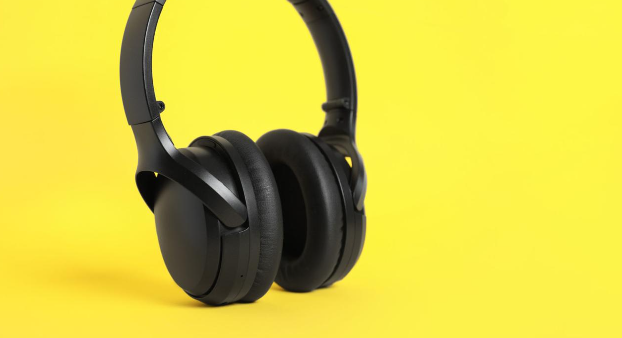
This style can be useful for electronics, footwear, fashion, beauty products, and many other retail categories
.
Modern wireless headphones on color background. Space for textExample: High-contrast promotional product photography suitable for a Black Friday campaign.
These are visual examples of seasonal styling, not verified outputs from the app.
Why AI Is Useful for Seasonal Marketing Campaigns
Create new visuals for different holidays
Merchants can experiment with multiple seasonal compositions without arranging physical photoshoots for each campaign.
Reduce additional photography expenses
AI can reduce certain costs associated with creating supplementary seasonal marketing photographs.
Prepare promotional content more efficiently
Instead of manually arranging new product photography scenes, merchants can generate variations using their existing product references.
Create multiple photography styles
The same product category can be presented in Christmas, Valentine’s Day, and Black Friday-themed compositions.
Keep seasonal branding consistent
Using related presets, colors, and generation instructions can help maintain a recognizable campaign appearance.
Step-by-Step Guide: How to Create Studio-Quality Product Photos on Shopify Using PA AI Image Generator
Follow these steps to generate product photography using the actual PA AI Image Generator interface.
Step 1: Search for PA AI Image Generator in the Shopify App Store
First, open the Shopify App Store.
Use the search bar to search for PA AI Image Generator.
The search results will display the app alongside other image generation and ecommerce photography applications.

Image 1: Search for PA AI Image Generator in the Shopify App Store.
Image explanation: The screenshot shows the Shopify App Store search results, with PA AI Image Generator highlighted. Its listing describes the app as a tool for creating studio and on-model AI product photography.
Click the app to open its listing.
Step 2: Install and Open PA AI Image Generator
On the app listing, review the description, available features, and pricing information.
Click Install if the app has not yet been installed, then approve the requested Shopify permissions.
Once installation is complete, select Open to launch the application.
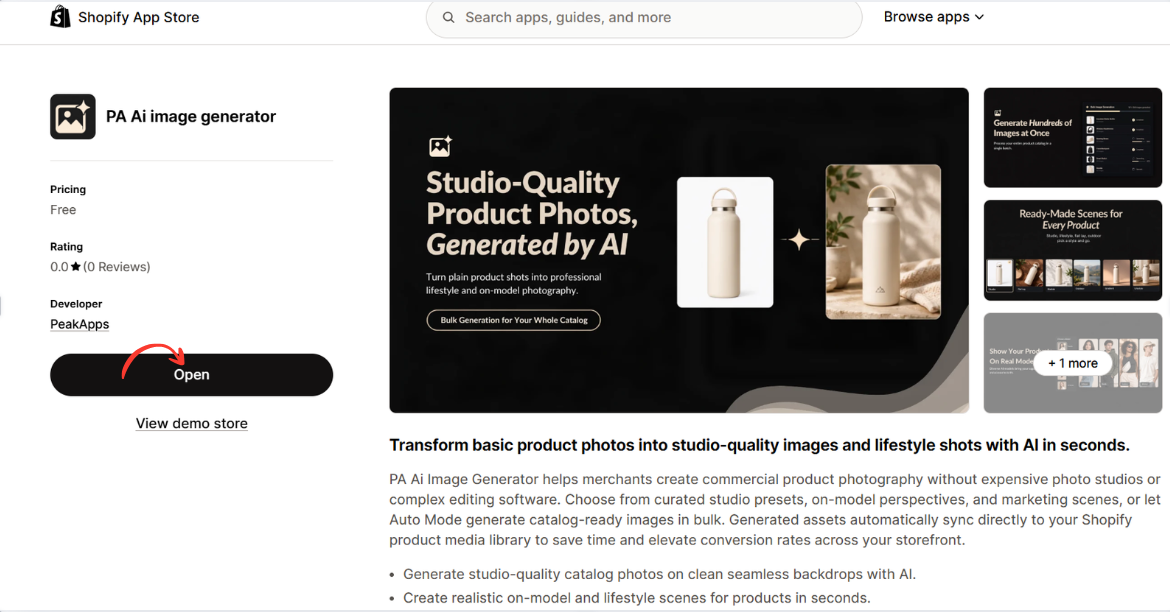
Image 2: Open PA AI Image Generator from its Shopify App Store listing.
Image explanation: The screenshot displays the app listing, including an illustration demonstrating how an ordinary product image can become a lifestyle-style photograph.
The Open button is highlighted, showing how merchants can access the installed app.
Step 3: Open the Generate Images Dashboard
After opening the app, locate Generate Images in the left navigation menu.
The image-generation workflow begins with selecting the products you want to use.
Click Browse Products to choose individual products from your Shopify catalog.
Alternatively, you can use Browse Collections to work with a collection.
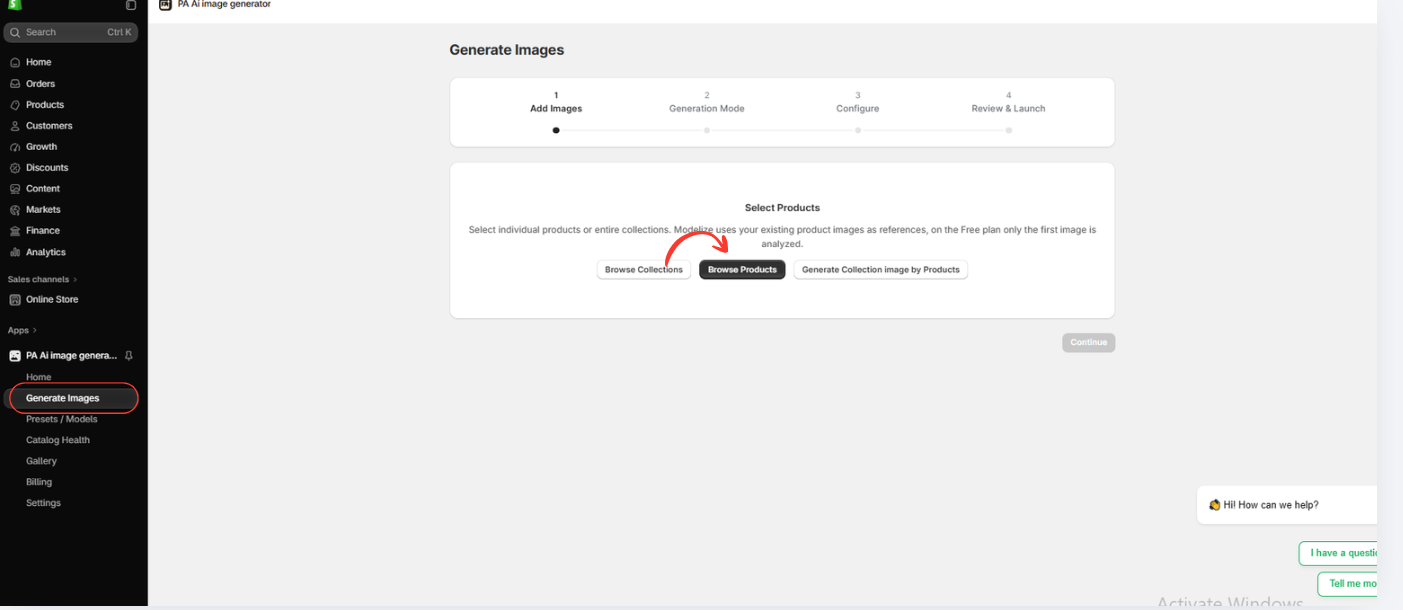
Image 3: Open Generate Images and select Browse Products.
Image explanation: The screenshot displays the image-generation interface with a progress indicator for selecting images, choosing a generation mode, configuring settings, and reviewing the generation request.
The Browse Products option allows merchants to use images already stored in Shopify.
The following steps use your actual Shopify inventory screenshot and previously shared PA AI Image Generator screenshots, displayed in the order of the workflow.
Step 4: Review Your Imported Products in Shopify Inventory
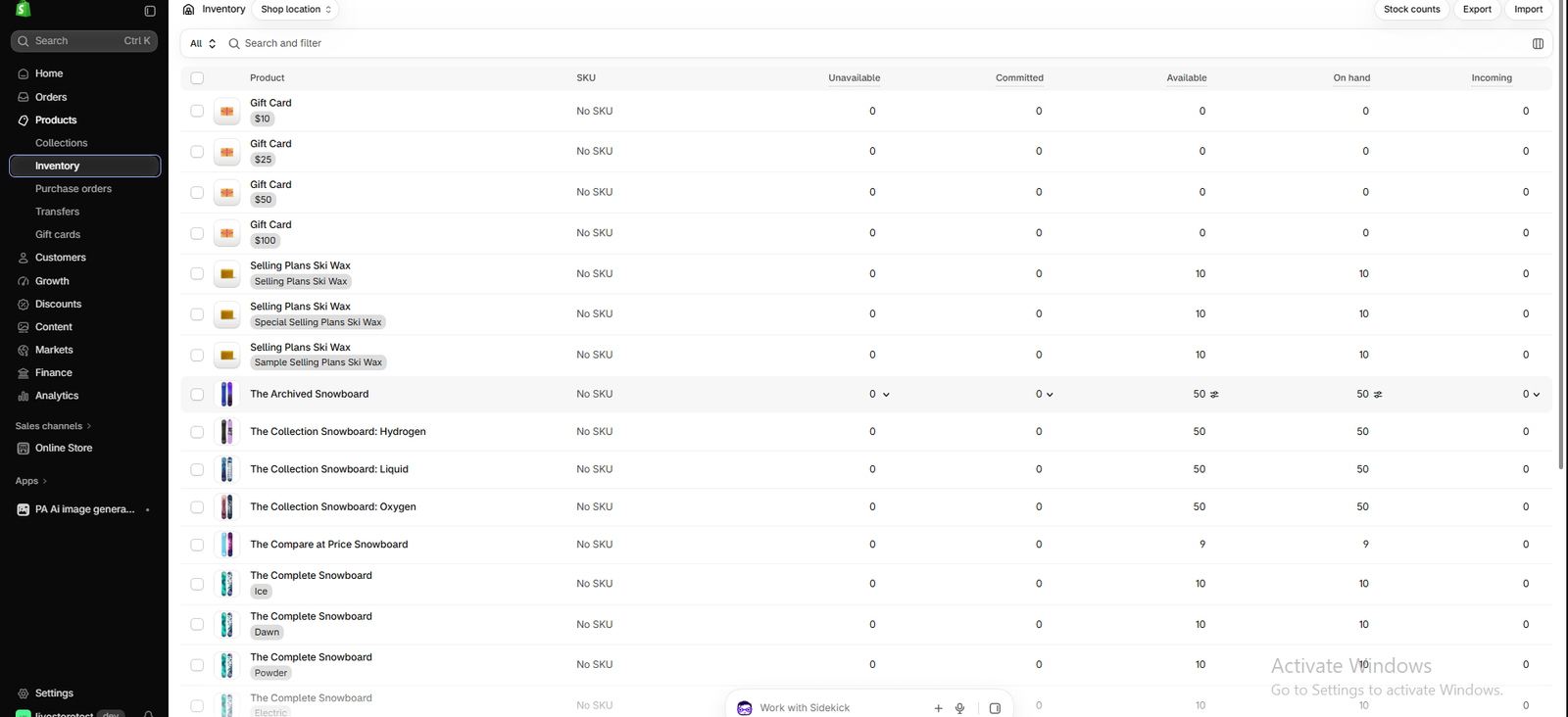
Image 1: Shopify Inventory dashboard showing products, variants, available stock, and inventory quantities.
Before upgrading supplier images, open Shopify Admin and navigate to Products → Inventory.
Your screenshot shows several catalog products, including Gift Card, Selling Plans Ski Wax, The Collection Snowboard: Hydrogen, The Collection Snowboard: Liquid, and The Compare at Price Snowboard.
The inventory dashboard also provides product and variant information, including SKU, available quantity, on-hand stock, and incoming inventory.
What this image explains: This is the starting point for checking which products already exist in the Shopify catalog. It is not an image editing screen, but it helps merchants identify the products they want to work on.
You can open the product details to review its existing supplier photographs before creating new visual variations.
Step 5: Open PA AI Image Generator
Once your products are available in Shopify, open Apps → PA AI Image Generator and click Generate Images.
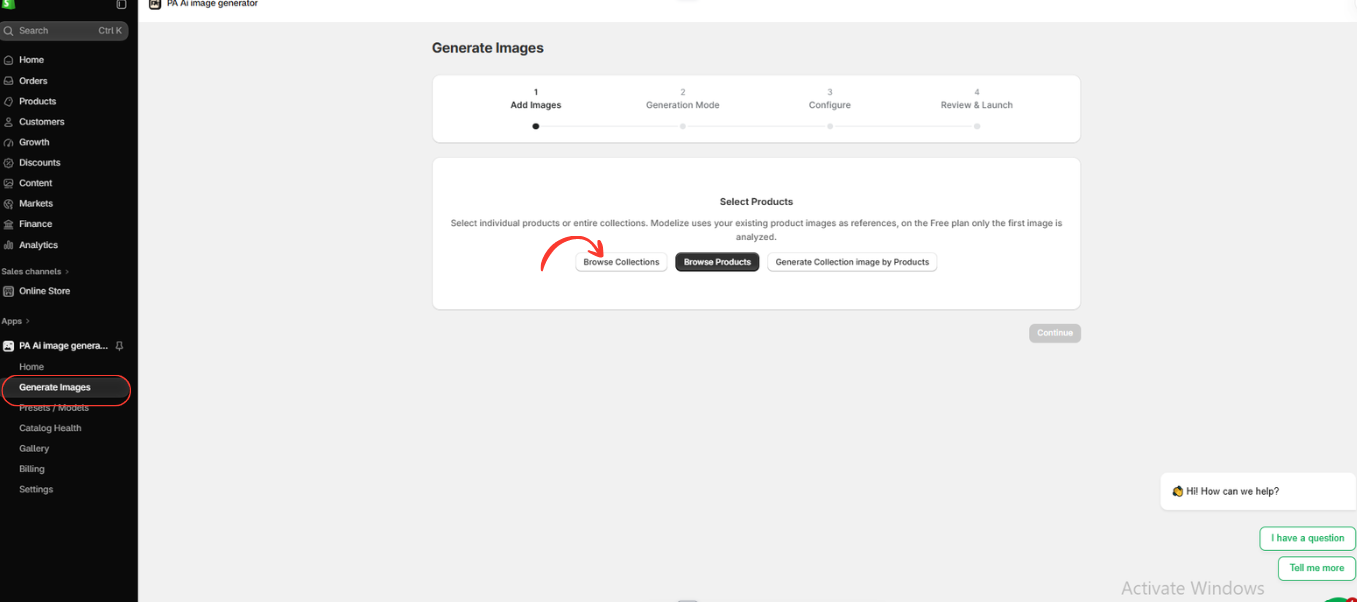
Image 2: The Generate Images section, where merchants can select individual products or collections.
Image explanation: The application displays a product selection screen with Browse Collections, Browse Products, and Generate Collection Image by Products.
For a single dropshipping product, choose Browse Products. To improve multiple supplier images in one workflow, choose Browse Collections.
This allows the app to use existing Shopify product images as references.
Step 6: Choose the Products You Want to Improve

Image 3: Select products from your Shopify catalog before starting AI image generation.
Image explanation: The screenshot shows the selection interface used to choose items from your store.
Find the appropriate product or collection, select it, and confirm your choice.
If you are a dropshipper selling clothing, jewelry, home decor, or accessories, select the products whose supplier photographs need improvement.
Step 7: Confirm Your Selected Products
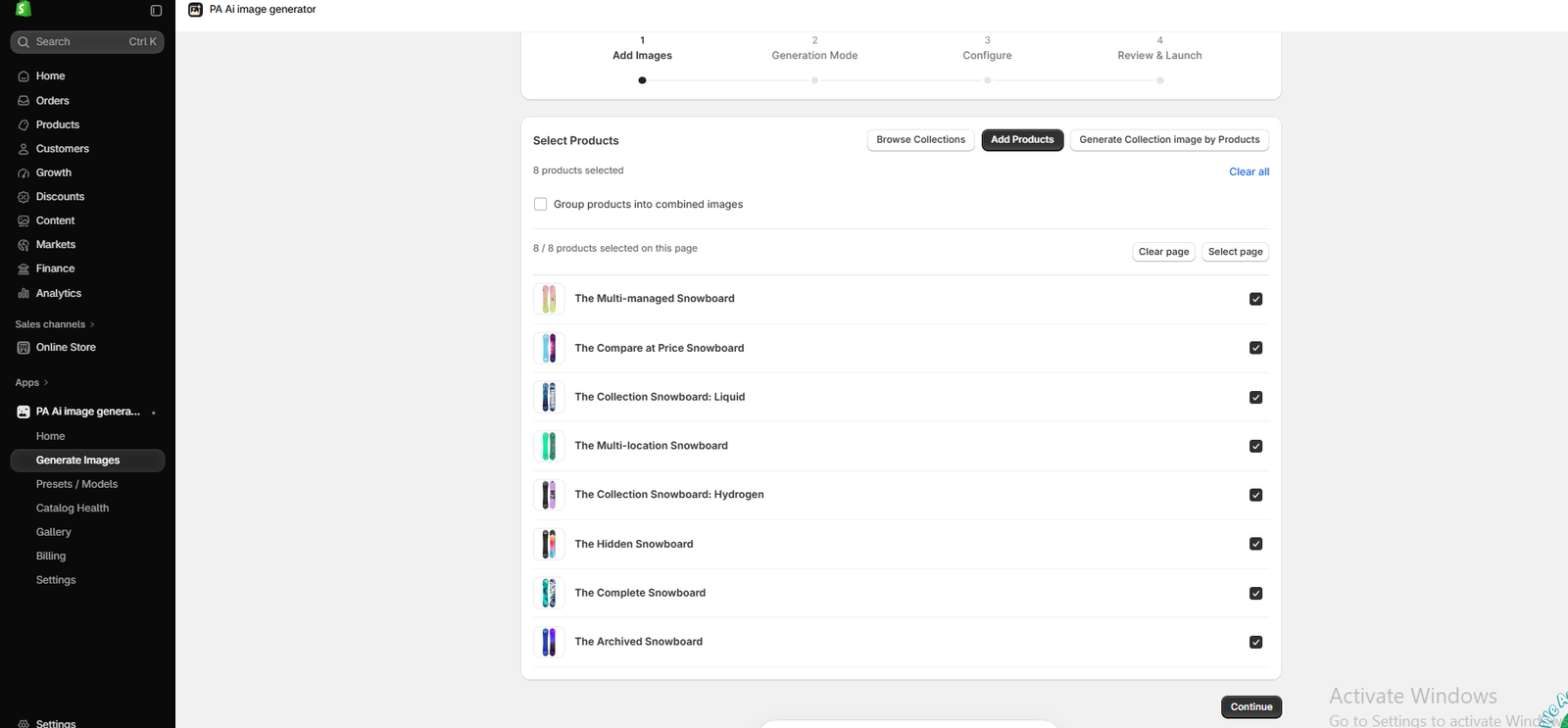
Image 4: Review the selected products in PA AI Image Generator before proceeding.
Image explanation: This screenshot shows the confirmation stage after product selection.
Review the products you have added to ensure the correct catalog images will be used.
You can also select multiple products to prepare a batch of images rather than repeating the same workflow individually.
Click Continue when your selection is complete.
Step 8: Choose AI Image Generation Mode

Image 5: Choose Auto Mode or a preset-based photography workflow.
Image explanation: The application offers Auto Mode and Choose Presets.
Auto Mode lets AI select a visual direction, while Choose Presets gives you more control over the style of the finished photographs.
For dropshipping stores that want a consistent branded catalog, Choose Presets is particularly useful.
Step 9: Select Professional Photography Presets

Image 6: Browse different photography presets for Shopify products.
Image explanation: The preset library includes categories for different photography compositions and product industries.
For example, a merchant might choose studio images for product listings, lifestyle images for advertising, or on-model photographs for apparel.
Choose styles that match your store’s brand identity and the real product.
Step 10: Configure Your Image Generation Settings

Image 7: Configure background settings, aspect ratio, image format, and publishing preferences.
Image explanation: The settings screen gives merchants control over the output format and other generation options.
For dropshipping products, consider adding this custom instruction:
Create a professional ecommerce product photograph using the existing product image as a reference. Preserve the product’s exact shape, color, branding, and important details. Use realistic studio lighting, a clean background, and a premium composition. Do not invent features or modify the product design.
Choose an appropriate aspect ratio, review the resolution settings, and preserve existing product images where possible.
Step 11: Monitor the Image Generation Process

Image 8: Gallery dashboard showing image generation jobs and their processing status.
Image explanation: The Gallery lists generation jobs, their status, and the number of completed images.
The example screenshot shows a job requesting 32 images, along with earlier completed and failed jobs.
Merchants can use this screen to track bulk image generation and locate the results once processing is complete.
AI Outdoor Product Photography
Snowboards photographed in snowy mountain landscapeImage 3: An outdoor product composition featuring two snowboards against an alpine landscape.
Image Explanation: This image presents snowboards in a dramatic winter setting with mountains, snow, and outdoor equipment.
It demonstrates how AI can create product-focused marketing imagery with scenic backgrounds.

Natural Lifestyle Photography

Snowboards against wooden fence in snowy forestImage 4: A winter lifestyle scene featuring colorful snowboards, natural surroundings, and people preparing their equipment.
Image Explanation: This image demonstrates another photography style, with pastel-colored snowboards leaning against a wooden fence.
The natural setting provides a more authentic-looking outdoor aesthetic than a plain studio background.
Merchants can use similar compositions for lifestyle marketing, seasonal promotions, and visually engaging collection pages.
How to Maintain Consistency Across Seasonal Campaigns
Use a consistent campaign color palette
Christmas campaigns might use green, red, and gold. Valentine’s Day promotions may feature pink, red, and cream. Black Friday campaigns may use darker backgrounds and bold accents.
Choose similar lighting styles
Use coordinated lighting across products within the same campaign.
Keep product positioning consistent
Maintain similar framing and product visibility across promotional imagery.
Avoid excessive decorations
Holiday backgrounds should complement the product rather than overwhelm it.
Verify promotional accuracy
Never display discounts, features, or included accessories that do not match the actual offer.
Where Can Shopify Merchants Use Seasonal Product Images?
Shopify homepage banners
Use seasonal photography to introduce holiday collections and promotions.
Product pages
Add relevant lifestyle images alongside accurate original product photographs.
Collection pages
Create coordinated visual themes for Christmas gifts, Valentine’s presents, or Black Friday offers.
Social media campaigns
Prepare seasonal imagery for Instagram, Facebook, Pinterest, and other marketing channels.
Email marketing
Use holiday visuals in gift guides, product launches, and promotional newsletters.
Paid advertising
Use approved product imagery in campaigns targeting shoppers interested in seasonal offers.
Frequently Asked Questions
1. Can AI create Christmas product photography for Shopify?
Yes. AI image-generation tools can create Christmas-themed product compositions using existing product photographs as references.
2. Does PA AI Image Generator have seasonal photography presets?
Yes. The app’s preset library includes Christmas, Valentine’s Day, and Black Friday options.
3. Can I generate holiday photos without a photographer?
Yes. AI can create supplementary seasonal product imagery without requiring a separate physical photoshoot for each scene.
4. Can I create seasonal images for multiple Shopify products?
Yes. PA AI Image Generator supports selecting multiple products and collections.
5. Can I customize the holiday background?
The app provides presets and custom generation instructions for describing your preferred visual composition.
6. Can I use generated images for social media marketing?
Yes, subject to the applicable rights and platform requirements, and provided the images do not misrepresent the products or offers.
7. Can I publish AI holiday photographs directly to Shopify?
The app provides publishing controls for approved generated images.
8. Will AI preserve my product’s original design?
Not always. AI can alter product details, colors, labels, and logos, so review every image before publishing.
Conclusion
Seasonal product photography helps Shopify merchants create relevant, visually attractive marketing campaigns throughout the year.
Whether you’re preparing for Christmas, Valentine’s Day, Black Friday, or another shopping occasion, high-quality promotional images can help communicate your seasonal theme and showcase products.
However, arranging separate traditional photoshoots for every campaign can require significant time, money, and preparation.
With PA AI Image Generator, Shopify merchants can use existing product references and seasonal presets to create additional holiday-themed visuals.
The app’s Christmas, Valentine’s Day, and Black Friday photography styles provide different creative directions, while custom instructions allow merchants to refine their images further.
The key is to choose seasonal photography that supports your brand while preserving accurate product details.
By combining original product photographs with carefully reviewed AI-generated seasonal imagery, Shopify merchants can prepare engaging product presentations and promotional content more efficiently.
Ready to create seasonal product photos for your Shopify store?Explore PA AI Image Generator on Shopify




