HOW TO DRAFT SHOPIFY PRODUCT DESCRIPTIONS WITH AN AI ASSISTANT
Introduction
Writing compelling product descriptions is one of the most important tasks for Shopify merchants. A well-written product description helps customers understand what they are buying, highlights meaningful benefits, and provides the information needed to make a purchasing decision.
However, creating unique, engaging descriptions for every product can be challenging, especially for stores managing large catalogs.
Many merchants struggle with repetitive product descriptions, inconsistent brand messaging, limited writing experience, and the time required to create search-friendly product content.
Traditionally, store owners had to write descriptions manually or hire copywriters to produce professional content.
Today, AI-powered writing tools make it easier to prepare product copy while keeping merchants involved in reviewing and approving the results.
With PA Claude Connector, Shopify merchants can draft product descriptions, select different brand voice profiles, and prepare SEO titles and meta descriptions from within their Shopify admin.
In this tutorial, you’ll learn how to draft Shopify product descriptions with an AI assistant, using real screenshots of PA Claude Connector.
The Merchant’s Challenge: Why Writing Shopify Product Descriptions Is Difficult
1. Time-consuming content creation
Writing descriptions for dozens or hundreds of Shopify products requires significant time and effort.
2. Repetitive or generic descriptions
Merchants may unintentionally use similar descriptions across multiple products, making it harder to communicate what makes each item distinctive.
3. Inconsistent brand voice
Product descriptions written by different team members may use different styles and tones.
A luxury brand, for example, should communicate differently from a technology or sports equipment store.
4. Difficulty explaining product benefits
A good description should do more than list features. It should explain why those features matter to the customer.
5. Missing SEO information
Some merchants prepare product descriptions but forget to write dedicated SEO titles and meta descriptions.
6. High copywriting costs
Hiring a professional copywriter for every product can become expensive for stores with frequently changing catalogs.
These challenges make AI-assisted product description drafting useful for Shopify merchants.
Why Are High-Quality Shopify Product Descriptions Important?
Product descriptions play an important role in the shopping experience.
Clear and accurate descriptions help customers understand product features, materials, specifications, benefits, and intended uses.
They can also answer common questions before customers contact support.
For search engines, original and useful product content provides context about what a product page offers.
However, AI-generated descriptions should always be checked for accuracy. A persuasive description is only valuable when its claims match the actual product.
Introducing PA Claude Connector by PeakApps
PA Claude Connector is a Shopify application that supports AI-assisted store management and content creation.
Its Claude Description Studio helps merchants prepare product descriptions using different writing styles and brand voice settings.
The app also includes SEO tools for reviewing and generating metadata, alongside other store management features.
Key Features
- AI product description drafting: Generate product copy with Claude assistance.
- Brand voice profiles: Choose writing styles suitable for different brands.
- Shopify product selection: Select products from the store catalog.
- Custom writing instructions: Add specific requirements and product selling points.
- Visual preview: Review generated descriptions before publishing.
- SEO metadata: Prepare product meta titles and descriptions.
- Shopify publishing workflow: Review content and use the available publishing controls.
App Link: Install PA Claude Connector on Shopify
Step-by-Step Guide: How to Draft Shopify Product Descriptions With AI
Follow these six steps using your original screenshots. Each screenshot appears directly below its corresponding instructions.
Step 1: Open the Official Shopify App Store
First, open your web browser and visit Google.
Type Shopify App Store into the search field and press Enter.
Find the official Shopify App Store result and click it.
You can also visit https://apps.shopify.com directly.
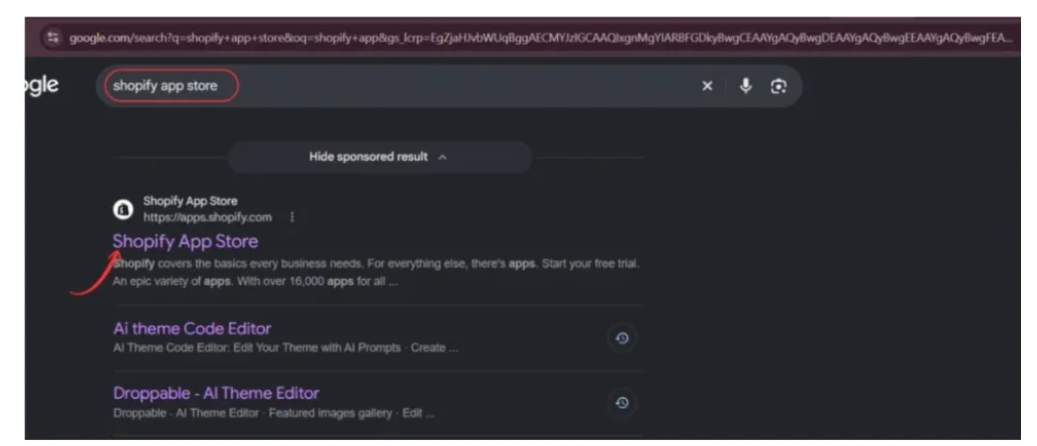
Image 1: Search for Shopify App Store on Google and click the official result highlighted by the red arrow.
Image explanation
The screenshot shows Google search results in dark mode.
At the top, the search phrase “shopify app store” is highlighted. A red arrow points toward the official Shopify App Store result.
Clicking this link opens Shopify’s app marketplace, where merchants can find applications for product content generation, marketing, store customization, and other tasks.
This is the starting point for installing PA Claude Connector.
Step 2: Search for PA Claude Connector
Once you are inside the Shopify App Store, locate the search bar at the top of the page.
Type PA Claude Connector and search.
Find the application named PA Claude Connector with its orange-and-white icon.
Click the application name to open its listing.

Image 2: Search for PA Claude Connector and select the application highlighted by the red circle.
Image explanation
The screenshot shows the PA Claude Connector app among the Shopify App Store search results.
The red circle highlights the correct application.
Below the app name, the description identifies it as an AI copilot for store tasks, SEO audits, and content creation.
An Installed label is visible, indicating that this example Shopify store already has the app installed.
For merchants who have not installed it yet, the next step is to open the app listing and complete installation.
Step 3: Install or Open PA Claude Connector
After selecting PA Claude Connector, its official Shopify App Store listing will open.
Review the application description, available features, and pricing details.
Click Install if you are using the app for the first time.
If PA Claude Connector is already installed, Shopify may display an Open button instead.
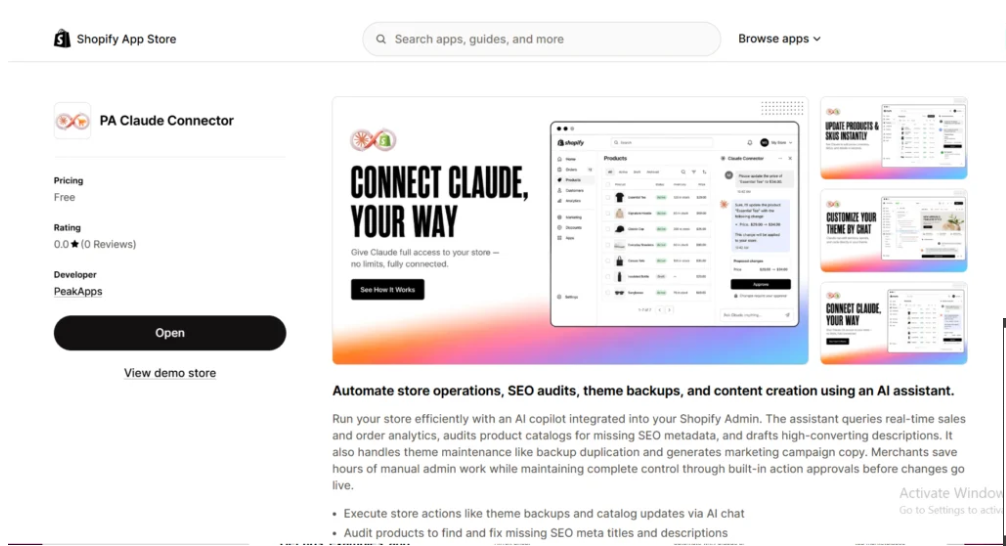
Image 3: Review the PA Claude Connector listing and click Install or Open to access the application.
Image explanation
The screenshot displays the PA Claude Connector listing.
On the left, you can see the app’s name, pricing information, developer name, and a large black Open button.
The screenshot identifies PeakApps as the developer.
On the right, the featured gallery introduces the app’s AI integration with Shopify.
Below the featured image, the app description discusses store management, SEO audits, content creation, and Claude-powered assistance.
Once you open the application, you can access its tools from your Shopify admin sidebar.
Step 4: Open Claude Description Studio and Select Your Brand Voice
After opening PA Claude Connector, locate the app’s navigation menu in your Shopify admin.
Click Description Studio.
This opens the Claude Description Studio, where you can create AI-assisted product descriptions and prepare search engine metadata.
Before generating content, choose a Brand Voice Profile that matches your business.
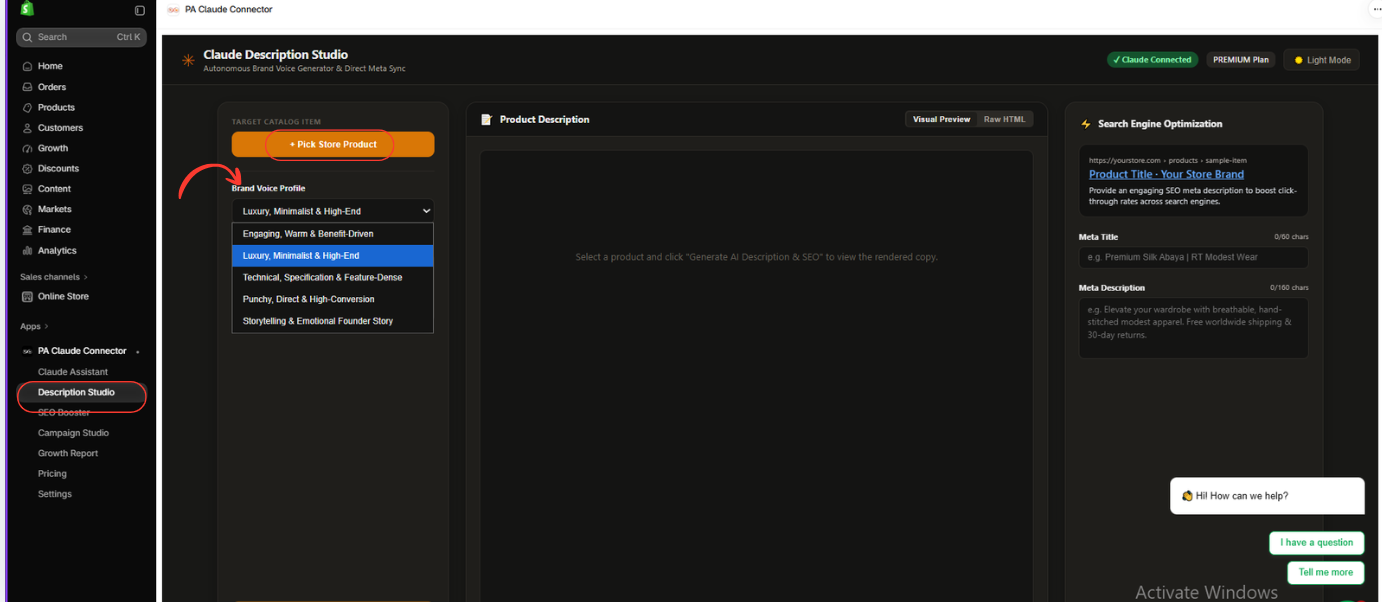
Image 4: Open Description Studio and choose a writing style using the Brand Voice Profile dropdown.
Image explanation
The screenshot shows three main areas inside Description Studio.
Left panel — Product and brand settings
The orange Pick Store Product button allows you to select a Shopify product.
Below it, the Brand Voice Profile dropdown is expanded, displaying options such as:
- Engaging, Warm & Benefit-Driven
- Luxury, Minimalist & High-End
- Technical, Specification & Feature-Dense
- Punchy, Direct & High-Conversion
- Storytelling & Emotional Founder Story
In the example, Luxury, Minimalist & High-End is selected.
Center panel — Product Description
This area displays the AI-generated description. You can preview the formatted content or inspect its HTML using the available tabs.
Right panel — Search Engine Optimization
This area includes the SEO preview, Meta Title, and Meta Description fields.
Why this step matters: Selecting a brand voice helps Claude prepare copy that reflects your store’s tone instead of using the same generic style for every product.
Step 5: Select the Shopify Product You Want to Describe
Next, click the orange Pick Store Product button.
A product selection window will appear, showing products available in your Shopify catalog.
Use the search field to find the product for which you want to create a description.
Select the appropriate product and click Add.
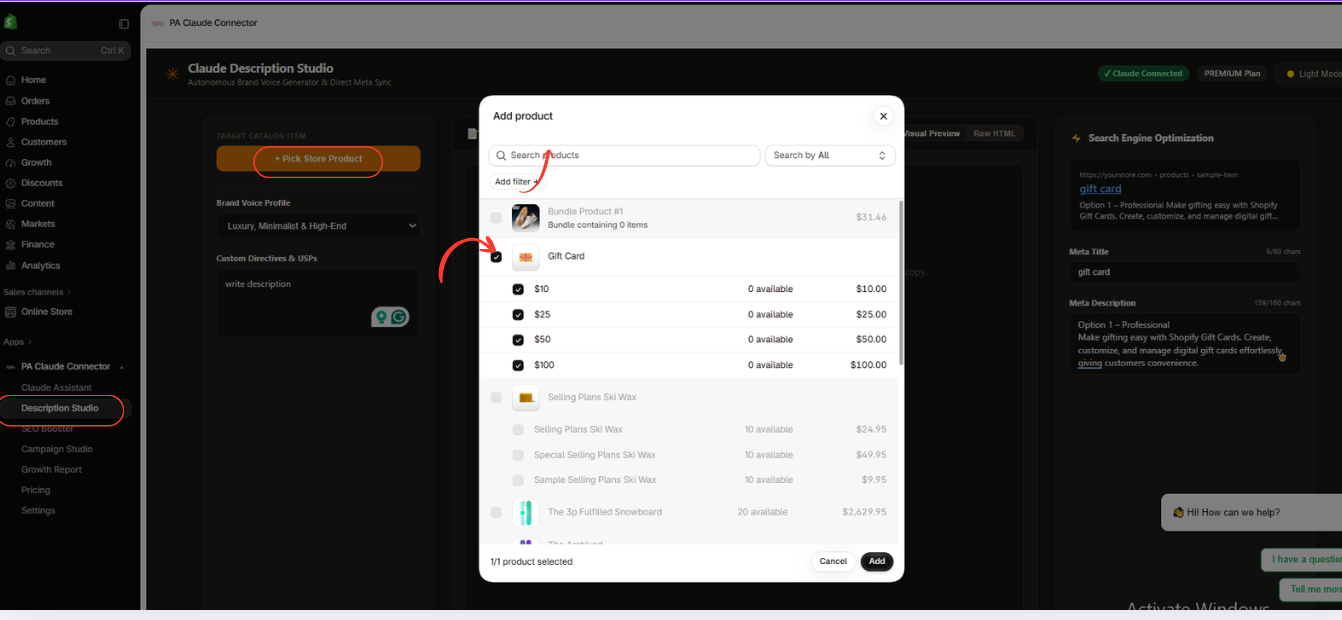
Image 5: Click Pick Store Product, search for your product, select the correct item, and click Add.
Image explanation
The screenshot shows the product selection window inside Description Studio.
At the top is a search field where merchants can find products by name.
The example displays multiple products, including Bundle Product #1, Gift Card, and other catalog items.
The Gift Card product is selected in the screenshot, and its variants are visible underneath.
At the bottom-right corner of the dialog is the Add button.
Once the correct product has been selected, clicking Add loads it into Description Studio.
Why this step matters: Claude needs accurate product context to prepare a relevant description. Selecting the intended product also helps ensure the generated copy corresponds to the correct catalog item.
Step 6: Generate, Review, and Publish Your Product Description
Once the product has been selected, add any important information you want Claude to consider.
Use the Custom Directives & USPs field to specify selling points, tone, target audience, or other requirements.
For example, if you are creating a description for a luxury gift card, you might request elegant, concise writing that emphasizes gifting flexibility and convenience.
Use the studio’s content-generation control to create the draft.
After generation, review the results in the Product Description and Search Engine Optimization panels.

Image 6: Review the AI-generated product description, key highlights, SEO title, and meta description before publishing.
Image explanation
The screenshot shows a completed AI-generated draft for the selected Gift Card product.
Left panel — Selected product and instructions
The product is displayed as Gift Card, with the Brand Voice Profile set to Luxury, Minimalist & High-End.
The Custom Directives & USPs field contains a writing instruction.
Center panel — AI-generated product description
Claude has generated a description beginning with an elegant introduction about gifting.
The copy includes a Key Highlights section, listing selling points in a format customers can scan easily.
This demonstrates how AI can organize product information into a structured description rather than a single long paragraph.
Right panel — SEO content
The Search Engine Optimization panel displays the prepared meta title and meta description.
In the screenshot, the title begins:
Luxury Gift Card | The Perfect Indulgent Gift
The SEO fields include character counters, helping merchants review text length.
Top-right — Push Live to Shopify
The orange Push Live to Shopify button is visible.
Before using it, check the generated content for accuracy. In particular, the example mentions instant delivery, no expiration, and flexible denominations—these claims should only be published if they accurately reflect your store’s gift card policies.
Once the description and SEO content have been reviewed, use Push Live to Shopify to initiate the app’s publishing workflow.
Conclusion
Writing professional, engaging, and SEO-friendly Shopify product descriptions doesn’t have to be complicated or time-consuming. With PA Claude Connector, merchants can simplify product content creation using AI while maintaining their brand’s unique voice.
Through Claude Description Studio, you can select products directly from your Shopify store, choose a suitable brand voice, generate compelling product descriptions, and prepare SEO titles and meta descriptions—all from one convenient dashboard.
Instead of spending hours writing descriptions manually or hiring expensive copywriters for every product, AI can help you create high-quality drafts in less time. You can also review, customize, and approve the generated content before publishing it to your Shopify store.
Whether you’re managing a small Shopify store or a growing product catalog, PA Claude Connector offers a practical way to streamline content creation, improve product presentation, and support your SEO efforts.
Ready to create better Shopify product descriptions with AI?Install PA Claude Connector on Shopify




