ARE CUSTOM CURSORS GOOD FOR UX? WHAT STORE OWNERS SHOULD KNOW
Introduction
User experience (UX) plays an important role in the success of an online store. From product images and navigation menus to buttons and checkout pages, every design element influences how customers interact with your Shopify store.
One small design detail that merchants often overlook is the mouse cursor.
Custom cursors allow Shopify store owners to replace the standard mouse pointer with a personalized design, animated cursor, or interactive effect that reflects their brand’s personality.
But are custom cursors actually good for user experience?
The answer depends on how they are implemented. A thoughtfully designed custom cursor can make a storefront feel distinctive and engaging, while an oversized, distracting, or poorly optimized cursor can make shopping more difficult.
In this guide, we’ll explore the benefits, potential drawbacks, and best practices for using custom cursors on Shopify. We’ll also introduce Custom Cursor, an app that helps merchants personalize their storefronts without manually editing theme code.
The Merchant’s Challenge: Making a Shopify Store Stand Out
Shopify makes it relatively easy to create a professional-looking online store. However, many merchants use similar layouts, navigation styles, buttons, and visual elements.
This creates a challenge: how can a brand build a memorable shopping experience without compromising usability?
Merchants often encounter several problems.
Limited visual differentiation: Stores using similar themes can look alike, especially when merchants rely on default design settings.
Difficulty creating interactive experiences: Adding custom visual effects through theme code can require technical knowledge and ongoing maintenance.
Inconsistent branding: A carefully chosen color palette, logo, and typography may not extend to smaller interface details.
Performance concerns: Merchants may worry that animated cursors and visual effects will affect page loading or responsiveness.
Accessibility challenges: An unusual cursor can make it harder for some visitors to identify clickable elements or follow the pointer.
The goal is not simply to make the cursor look different. It is to create a shopping experience that feels consistent, usable, and appropriate for the brand.
What Is a Custom Cursor?
A custom cursor is a personalized mouse pointer that replaces or enhances the default cursor displayed on a website.
Instead of using the standard arrow, a Shopify merchant can display a branded pointer, a themed icon, or a cursor with subtle animation.
For example, a fashion store might use an elegant pink pointer, while a gaming store might prefer a neon-colored cursor.
Custom cursors can also include visual effects that appear when visitors move their mouse around the page.
These features are primarily relevant to desktop visitors using a mouse or trackpad. Most touchscreen visitors do not interact with a visible mouse pointer.
Are Custom Cursors Good for User Experience?
Custom cursors can improve the visual character of a storefront, but they do not automatically improve usability or conversions.
A well-designed cursor should remain easy to recognize, respond quickly to movement, and avoid interfering with buttons, links, forms, and product selection.
When a custom cursor supports the overall design, it can make the experience feel more polished. When it competes with important shopping actions, it can become distracting.
For Shopify merchants, the best approach is to prioritize clarity and performance before adding decorative effects.
Introducing Custom Cursor for Shopify
Shopify App Metrics and Analytics of Cursor Star: Custom Cursor FX in 2026
Custom Cursor Pro
Custom Cursor helps Shopify merchants personalize their storefronts with ready-made cursor designs, custom uploads, and visual effects.View Custom Cursor on Shopify App Store
Rather than manually editing Liquid, CSS, or JavaScript files, merchants can explore cursor designs inside the app, preview their appearance, and publish their selections.
The app offers a cursor gallery, categories for different styles, cursor-size adjustments, custom uploads, and cursor effects. Some designs and features depend on the selected pricing plan.
How to Use Custom Cursor on Your Shopify Store
The following guide uses the original Custom Cursor app images you shared.
Step 1: Find the Shopify App Store
Open Google and search for Shopify App Store. Select the official Shopify App Store website to explore available apps.
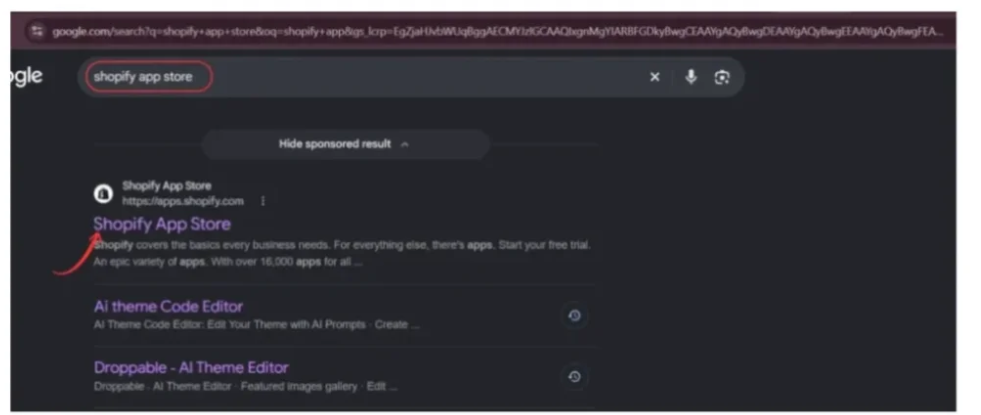
Image 1: Search for the official Shopify App Store.
Step 2: Search for Custom Cursor
In the Shopify App Store search bar, enter custom cursor app. Find the Custom Cursor listing in the results.

Image 2 – Custom Cursor search results
Image 2: Locate the Custom Cursor app in the search results.
Step 3: Install or Open the App
Select the Custom Cursor app to open its listing. Review the available features and pricing, then install it. If the app is already installed, select Open.
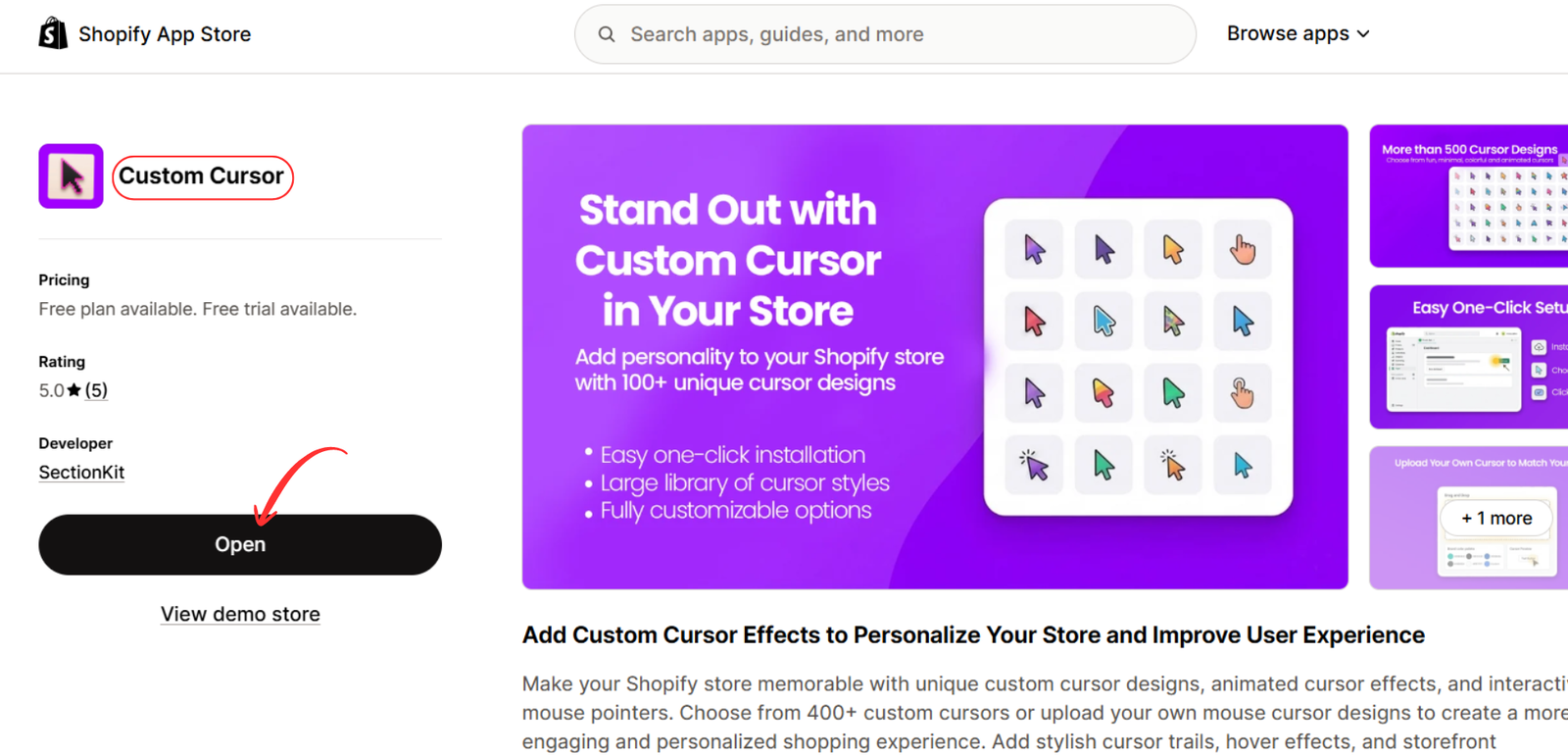
Image 3 – Custom Cursor app listing
Image 3: Open the Custom Cursor app from its Shopify App Store listing.
Step 4: Review the Available Plans
The app offers a free option and paid plans with additional cursor designs, uploads, and features. Select the plan that fits your store’s requirements.
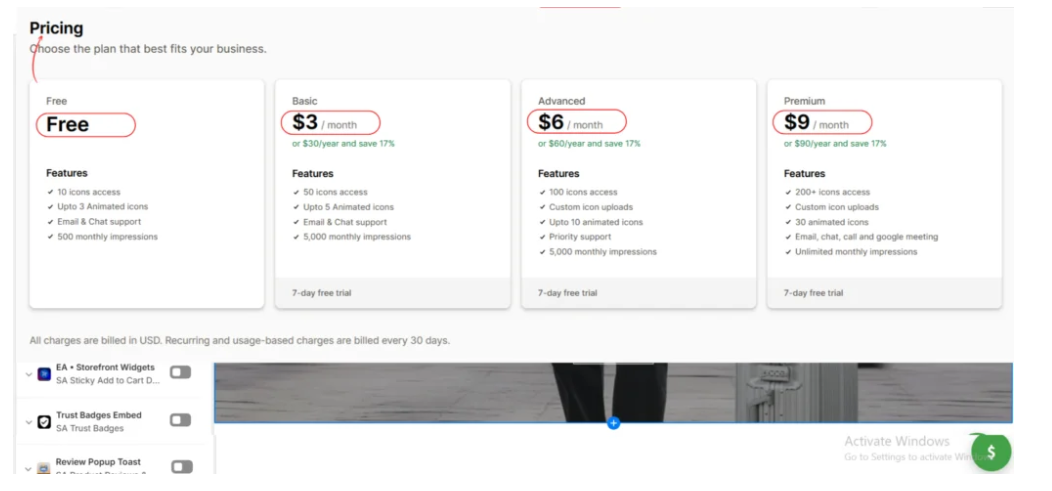
Image 4: Compare the available Custom Cursor plans.
Step 5: Explore the Cursor Gallery
Inside Shopify Admin, open Custom Cursor → Explore All Cursors.
Browse the cursor library and explore categories such as aesthetics, animals, gaming, and other themed designs.
For a better user experience, choose a cursor that matches your brand while remaining recognizable.
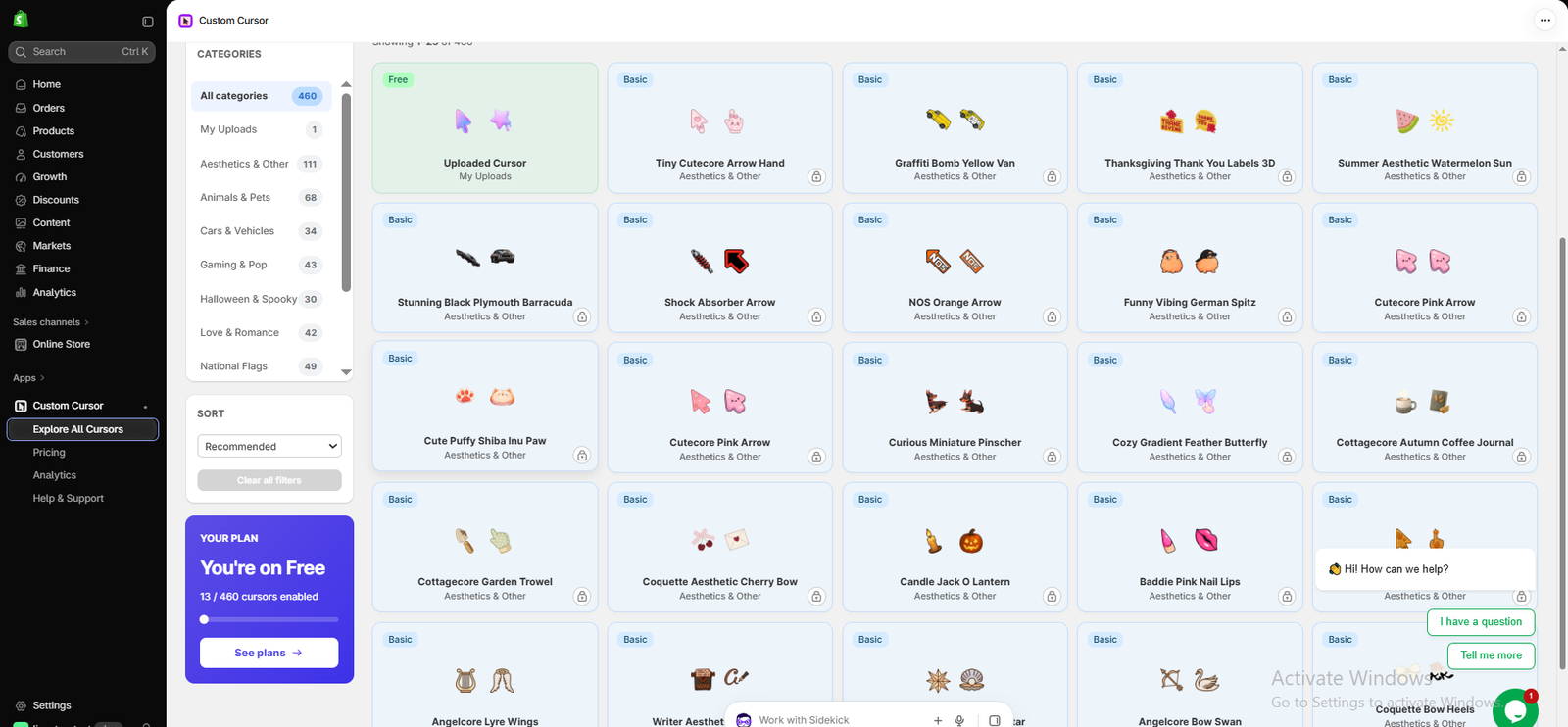
Image 5: Browse cursor designs and categories inside the app.
Step 6: Choose and Preview Your Cursor
Select a cursor design from the available gallery. Use the preview panel to see how it appears and adjust the cursor size if necessary.
Avoid choosing an excessively large pointer that might obscure product details or important buttons.
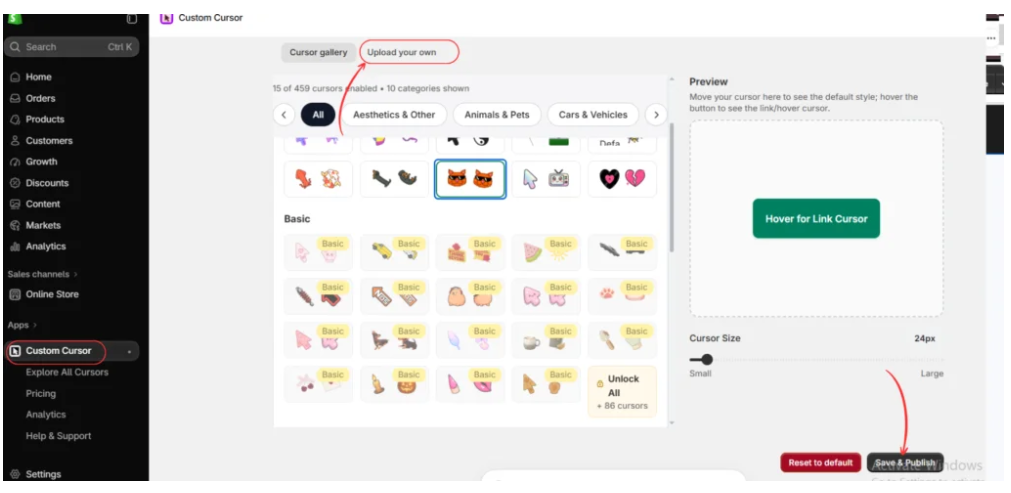
Image 6: Select a cursor, review its appearance, and adjust its size.
Step 7: Save and Publish Your Cursor
Once you’re satisfied with your selected design, click Save & Publish to save the cursor settings.
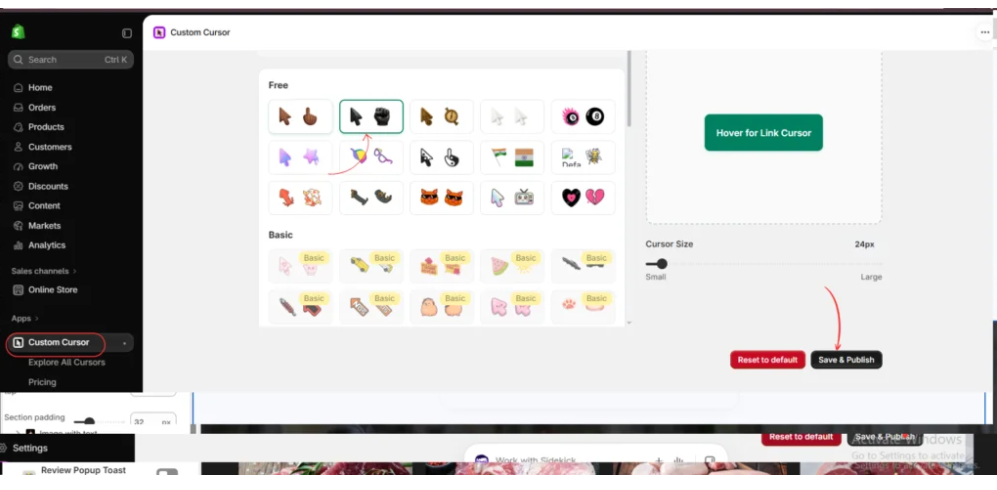
Image 7: Save your custom cursor configuration.
Step 8: Explore Cursor Effects
The app also provides visual cursor effects that can add personality to the storefront.
Choose subtle effects that complement the shopping experience rather than distracting visitors. Preview the effect before publishing it.
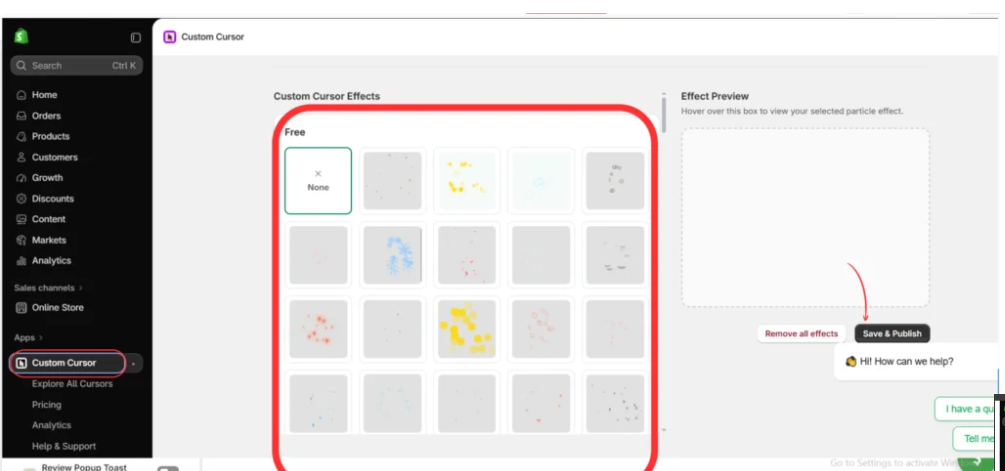
Image 8: Explore cursor effects and save your preferred configuration.
Step 9: Enable the App Embed in Shopify
Go to Online Store → Themes → Customize → App embeds.
Locate Custom Cursor, enable the app embed, and click Save.
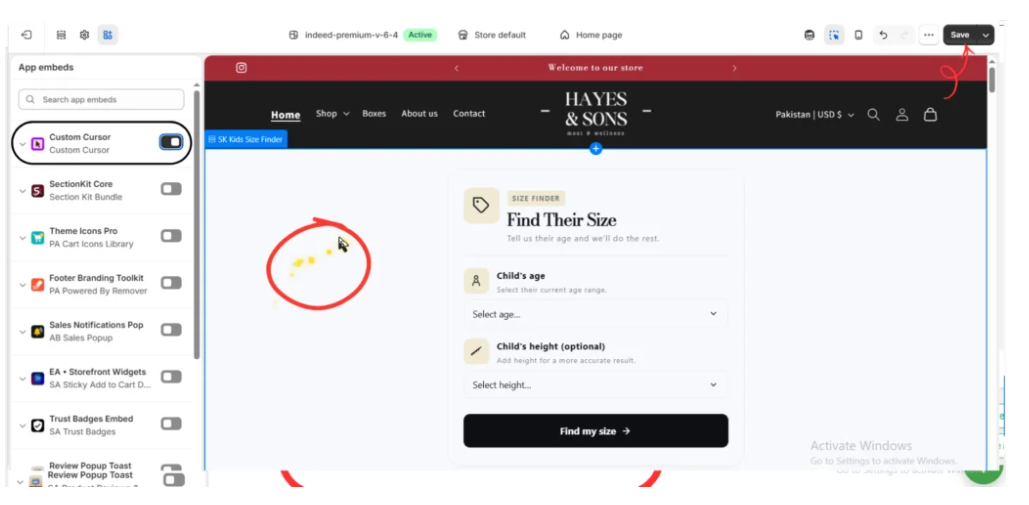
Image 9: Enable the Custom Cursor app embed in your Shopify theme.
After saving, visit your storefront on a desktop browser and test the cursor on product pages, navigation menus, buttons, and forms.
Best Practices for Custom Cursor UX
A custom cursor should enhance the design without making the store harder to use.
Keep the cursor easy to see against your background colors. Maintain a reasonable pointer size, avoid excessive animation, and ensure customers can still recognize clickable links and buttons.
Test the experience on different desktop browsers and respect reduced-motion preferences where possible. If an effect causes lag or interferes with shopping, simplify or disable it.
Remember that a custom cursor is a branding enhancement, not a guaranteed way to increase sales.
Frequently Asked Questions
Are custom cursors good for Shopify stores?
They can be useful for brand personalization when they remain easy to recognize and do not interfere with normal navigation.
Can custom cursors slow down a Shopify store?
They can introduce performance overhead, particularly when animations or effects are resource-intensive. The actual impact depends on implementation, so testing is important.
Do custom cursors work on mobile devices?
Traditional mouse cursors generally do not appear during touchscreen interaction. Their primary benefit is for desktop visitors.
Can I upload my own cursor design?
Yes. Custom Cursor includes an upload option, with availability and limits depending on the selected plan.
Do I need coding knowledge?
The app provides a visual interface for selecting and publishing cursor designs, so routine setup does not require manual theme-code editing.
Conclusion
Custom cursors can be a valuable finishing touch for Shopify stores that want a more distinctive visual identity. However, their effectiveness depends on maintaining a balance between creativity and usability.
With Custom Cursor, merchants can explore designs, customize their pointer, preview effects, and enable the experience through Shopify’s theme editor.
For merchants interested in adding personality to their storefront without manually editing code, the app provides a convenient starting point.
Explore the app: Custom Cursor on the Shopify App Store




