BEST AI PROMPTS FOR CREATING PROFESSIONAL WIX PRODUCT PHOTOGRAPHY
Introduction
Professional product photography helps Wix merchants create attractive product pages, build customer confidence, and present products more effectively.
However, hiring photographers, arranging studio photoshoots, and purchasing professional equipment can become expensive.
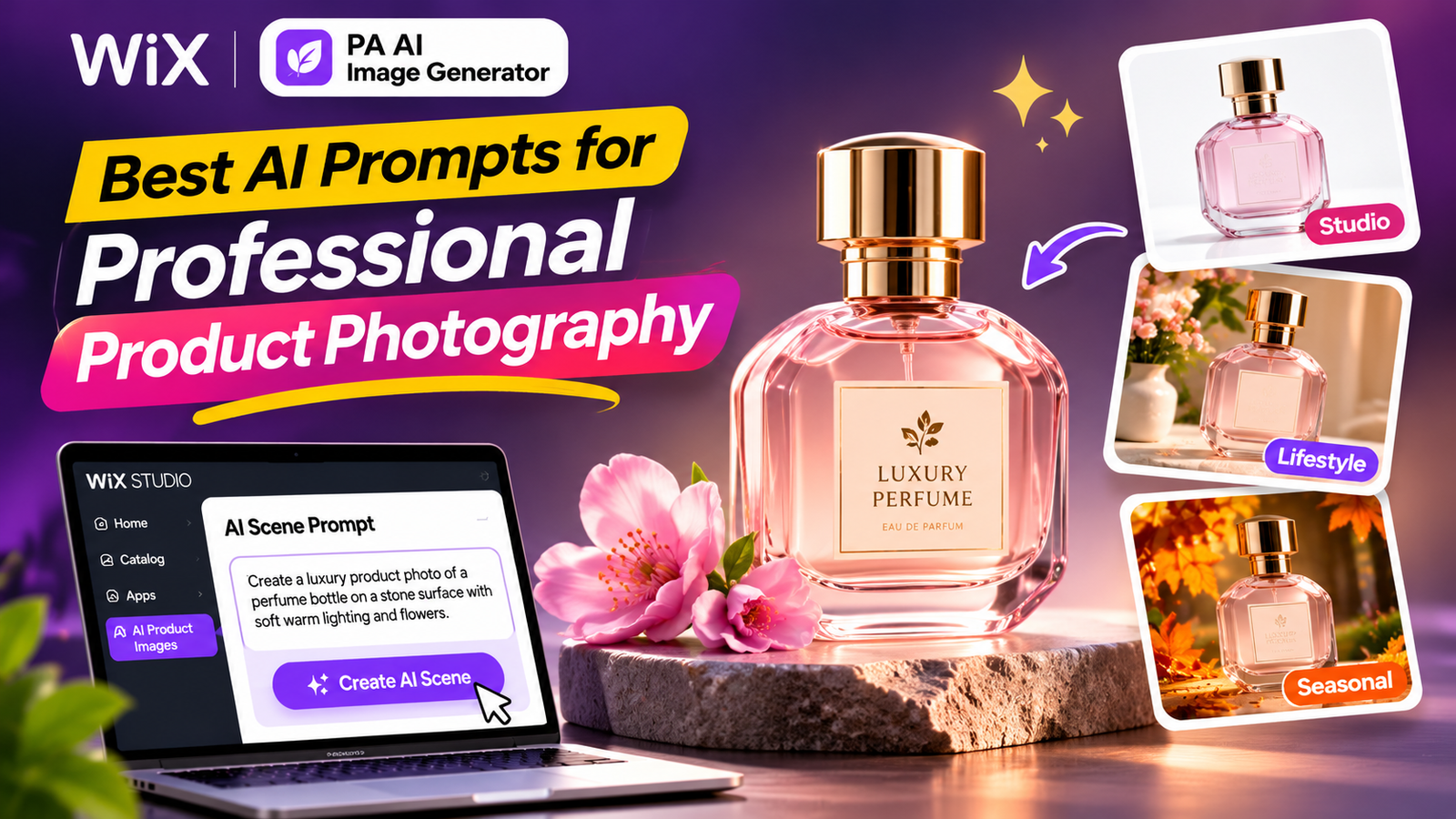
AI-powered product photography provides another option. With the right prompts, Wix merchants can transform existing product photographs into professional studio images, realistic lifestyle scenes, and seasonal advertising visuals.
Using PA AI Image Generator, you can create these images directly from your Wix store dashboard.
In this guide, you’ll discover 15 AI photography prompts and learn how to use them step by step.
Why AI Prompts Matter for Product Photography
An AI prompt tells the image generator what you want to create.
A basic prompt such as “Make my product photo professional” provides limited guidance.
A more specific prompt describes the background, lighting, composition, and style.
For example:
Create a premium studio photograph of my ceramic vase with soft natural lighting, realistic shadows, a minimalist beige background, and professional ecommerce composition. Preserve the vase’s original design and colors.
Detailed prompts help AI produce images closer to your intended result.
15 Best AI Prompts for Wix Product Photography
1. Professional White Studio
Best for: General ecommerce products
Create a professional ecommerce product photograph featuring my product against a clean white background. Use soft studio lighting, realistic shadows, sharp details, and centered composition. Preserve the product’s original design, materials, and colors.
2. Luxury Product Photography
Best for: Jewelry, perfumes, premium products
Transform my product photo into a luxurious commercial studio photograph. Use an elegant dark background, dramatic directional lighting, sophisticated reflections, and a premium advertising composition. Preserve all original product details.
3. Minimalist Product Photography
Best for: Home decor and accessories
Create a minimalist product photograph with a soft cream background, balanced lighting, subtle shadows, and generous negative space. Keep the product’s original appearance unchanged.
4. Natural Lifestyle Scene
Best for: Home and lifestyle brands
Place my product in a realistic lifestyle environment with natural window lighting, warm neutral colors, wooden surfaces, and tasteful greenery. Preserve its original design and colors.
5. AI Model Holding Product
Best for: Accessories and gift products
Create a realistic lifestyle product photograph featuring a stylish adult AI model naturally holding my product. Use elegant clothing, soft lighting, and a professional editorial photography style. Keep the product accurate.
6. Modern Living Room
Best for: Furniture and home decor
Place my product in a beautiful modern living room with natural sunlight, wooden furniture, neutral walls, and elegant interior decorations. Use realistic professional photography.
7. Skincare Product Photography
Best for: Skincare and beauty
Create premium skincare photography on a light marble surface with soft lighting, subtle botanical accents, and a clean luxury aesthetic. Preserve packaging and label details.
8. Jewelry Close-Up
Best for: Jewelry stores
Create a professional close-up jewelry photograph with elegant studio lighting, refined reflections, and sharp product details. Preserve the jewelry’s exact design and proportions.
9. Fashion Editorial
Best for: Fashion products
Create a professional fashion editorial photograph with a modern background, soft commercial lighting, sophisticated composition, and realistic textures. Keep the product’s actual appearance unchanged.
10. Spring Photography
Best for: Spring campaigns
Create a spring lifestyle scene with blooming flowers, pastel colors, fresh greenery, gentle sunlight, and elegant composition. Preserve my product’s original characteristics.
11. Summer Photography
Best for: Summer promotions
Create a premium summer lifestyle photograph in a sunlit Mediterranean setting with warm beige walls, tropical greenery, and golden natural lighting.
12. Autumn Photography
Best for: Autumn campaigns
Create a cozy autumn product photograph featuring dried leaves, pampas grass, warm brown tones, and elegant indoor lighting. Keep my product unchanged.
13. Winter Photography
Best for: Winter and holiday promotions
Create an elegant winter lifestyle photograph with soft white decorations, winter-inspired details, warm ambient lights, and premium commercial photography styling.
14. Branded Background
Best for: Branded product collections
Create a professional product photograph using my brand background color [HEX CODE]. Use balanced studio lighting, realistic shadows, and consistent composition. Preserve the product’s original colors and features
15. Social Media Advertising
Best for: Advertising and social media
Create an eye-catching commercial product photograph with professional lighting, a stylish background, attractive composition, and negative space for advertising text. Preserve the real product.
How to Use AI Photography Prompts in Wix: Step-by-Step Tutorial
Step 1: Open the Wix App Market
Open Google and search for Wix App Store.
Click the official Wix App Market website.

Step 1: Search for the official Wix App Market.
Step 2: Search for PA AI Image Generator
Inside the Wix App Market, locate the search field.
Enter PA AI Image Generator and search.

Step 2: Enter PA AI Image Generator in the search bar.
Step 3: Find the Correct App
Locate PA AI Image Generator by TheScriptFlow in the search results.
Click the app to open its listing page.

Step 3: Select PA AI Image Generator from the search results.
Step 4: Install PA AI Image Generator
On the app listing page, click Add to Site.
Follow the installation instructions to add it to your Wix store.

Step 4: Install PA AI Image Generator on your Wix website.
App link: PA AI Image Generator – Wix App Market
Step 5: Open the App in Your Wix Dashboard
Once installed, open your Wix dashboard.
Navigate to Apps → AI Product Images.

Step 5: Open AI Product Images from the Wix dashboard.
The application displays your Wix products.
Step 6: Select the Product
Choose the product whose photograph you want to improve.
For this tutorial, we’ll use a Ceramic Flower Vase.

Step 6: Choose a product from your Wix catalog.
Step 7: Open Photo Studio
After selecting the product, open Photo Studio.
Choose the photograph you want to edit.

Step 7: Open Photo Studio and locate the AI Scene feature.
The app provides three main editing options: Remove background, Replace background, and AI scene.
For this tutorial, we’ll use AI scene generation.
Step 8: Enter Your AI Photography Prompt
Scroll to the AI scene section.
Enter one of the prompts provided earlier in this article.
For example, use the luxury photography prompt to create a premium studio environment.

Step 8: Enter the desired professional photography prompt. The purple-background result shown in the screenshot is from an earlier edit.
You can specify the background, lighting, photography style, and overall atmosphere.
Step 9: Click Create AI Scene
After entering your prompt, click Create AI scene.
The application starts generating the image.
While processing, the button displays Working….

Step 9: Generate the new product image using the AI Scene feature.
The interface in your earlier screenshots indicates two credits per AI scene generation.
Step 10: Review the Before-and-After Result
Once generation finishes, the app displays the original photograph alongside the new AI-generated image.

Step 10: Compare the original ceramic vase photograph with the AI-generated luxury studio image.
In this example, the AI-generated version uses a dark background and dramatic lighting to create a premium commercial appearance.
Check that the vase’s original characteristics remain accurate.
Step 11: Try an AI Model and Seasonal Photography Prompt
You can also create lifestyle photographs featuring AI-generated people.
For example, your previously shared spring image shows a model holding the ceramic flower vase in a colorful outdoor environment.

Step 11: A separate spring photography example created using an AI lifestyle prompt, featuring a model, greenery, and soft natural lighting.
This demonstrates how changing the prompt can create a completely different image style.
Step 12: Publish Your AI Product Photograph
Once you’re satisfied with the result, click Publish to product (becomes main photo).
The edited photograph becomes your product’s main image.
According to the app interface, the original photographs remain in the product gallery.
Before publishing, make sure the generated photograph accurately represents the real product.
Best AI Prompt Styles for Different Wix Stores
| Store category | Recommended photography prompt |
|---|---|
| Skincare | Clean studio, marble surfaces, soft lighting |
| Jewelry | Luxury close-up, elegant reflections |
| Fashion | Editorial scene with an AI model |
| Home decor | Modern living room, natural lighting |
| Electronics | Minimal technology studio |
| Perfumes | Premium advertising, dramatic lighting |
| Handmade products | Natural textures, warm daylight |
| Seasonal products | Spring, summer, autumn, winter scenes |
Tips for Writing Better AI Photography Prompts
Describe lighting clearly. Specify soft daylight, studio lighting, or dramatic directional lighting rather than simply requesting good lighting.
Choose an appropriate background. Your background should complement the product and match your store’s visual identity.
Maintain consistent compositions. Reusing similar instructions can help create a consistent appearance across a product collection.
Preserve important details. Include instructions to maintain the product’s actual shape, colors, labels, and materials.
Review the final image. AI prompts guide image generation but cannot guarantee perfect product accuracy.
Common Mistakes to Avoid
-
Using vague prompts without describing the desired scene.
-
Combining conflicting lighting or background instructions.
-
Adding unrealistic product features.
-
Allowing AI to change labels or product materials.
-
Using distracting backgrounds.
-
Publishing without comparing the generated image to the original photograph.
Frequently Asked Questions
What are the best AI prompts for Wix product photography?
Prompts that specify product type, lighting, background, composition, and accurate product details generally provide clearer instructions.
Can I use AI photography prompts directly in Wix?
Yes. PA AI Image Generator’s AI Scene feature accepts custom text descriptions for editing existing product photographs.
Can I create images with AI models?
Your shared screenshots demonstrate AI-generated lifestyle scenes featuring models holding products.
Can I create seasonal product photographs?
Yes. You can use spring, summer, autumn, and winter prompts to generate seasonal environments.
Can I create white-background product photographs?
Yes. PA AI Image Generator includes a background replacement feature that supports white and other colors.
Can I publish AI-generated images to Wix products?
Yes. The app provides a Publish to product (becomes main photo) option.
Conclusion
The right AI photography prompts can help Wix merchants create more attractive and consistent product images without arranging additional photoshoots for every visual concept.
From minimalist studios and luxury product photography to seasonal lifestyle scenes featuring AI models, descriptive prompts provide a flexible way to experiment with ecommerce images.
With PA AI Image Generator, you can select an existing photograph, generate an AI scene, review the result, and publish the finished image to your Wix product.