Best Shopify App for Theme Code Editing in 2027
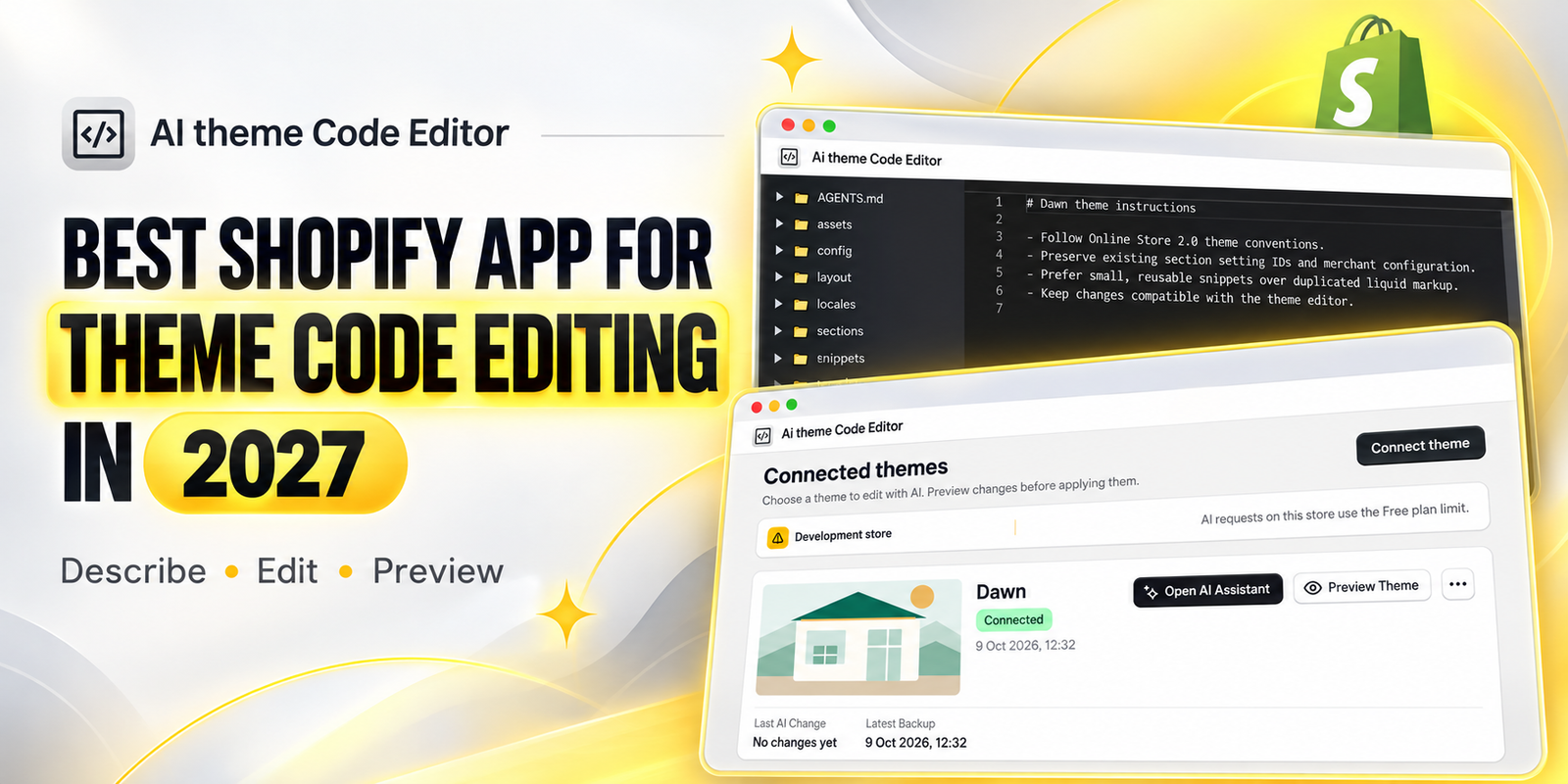
A Shopify theme gives your store a starting point, but it does not always give you every layout, section, or interaction your business needs. You may want clearer product cards, better spacing on mobile, or a homepage section that presents your products in a different way. When the theme editor has no setting for the change, the task often becomes a code-editing job.
For merchants planning their storefront improvements for 2027, AI-assisted theme editing is an option worth evaluating. This guide focuses on AI Theme Code Editor by SectionKit and explains how to move from an idea to a tested theme change using the workflow shown in the supplied images.
About this guide: “Best” means the best fit for your store’s requirements, budget, and editing workflow. This is a focused guide to one app, rather than an independent ranking of all Shopify apps. Features and prices reflect information available in October 2026; check the current listing before making a purchase for 2027.
The Main Headache: A Small Storefront Change Can Become a Technical Project
The problem usually starts with a simple request: make the product price easier to see, reduce a large gap, or add a new content area. You check the theme settings, but the control you need is missing. Now you must decide whether to leave the design as it is, learn how the theme works, or arrange development help.
Manual editing can be difficult because storefront behavior may involve several files. Styling, page structure, and interactive behavior are connected. A change that looks correct on one page may affect another template, and a layout that works on desktop may break on a smaller screen.
- Finding the relevant file can take longer than making the actual adjustment.
- Unclear requirements can lead to repeated revisions and extra work.
- Global styling changes can unintentionally affect other sections.
- A visually correct update may still interfere with product selection or cart behavior.
- Multiple edits made at once can make it difficult to identify the cause of a problem.
These challenges are especially frustrating when you are also managing products, orders, customer service, and marketing. Storefront improvements need a clear, repeatable process so they do not consume the attention your business needs elsewhere.
Why Merchants Need an AI Theme Code Editing App
An AI editing workflow lets you begin with the result you want instead of a file you need to modify. The useful starting point is a precise description: which page needs attention, what should change, and what must stay the same. This helps translate a business requirement into a technical task.
AI Theme Code Editor’s current listing describes natural-language editing of Liquid, CSS, and JavaScript, creation of sections and blocks, layout adjustments, and sandbox previews. Those capabilities make it a candidate for merchants who need custom theme changes beyond standard settings.
The value of this approach depends on the quality of the request and the quality of your review. Treat the generated change as an implementation to inspect and test. A successful response in the assistant is only the beginning; the storefront result is what matters.
Why Theme Editing Matters for Your Shopify Store
Theme editing helps you make your storefront easier to use and more consistent with your brand. Clear spacing can make a page easier to scan. A better product-card layout can help shoppers compare products. Responsive adjustments can make buttons, text, and images more comfortable to use on mobile.
Start with a specific customer problem rather than a decorative change. If customers struggle to read prices, improve price visibility. If a section takes up too much space on mobile, adjust its layout. Connecting each edit to a practical goal makes it easier to judge whether the work was worthwhile.
Design improvements do not automatically produce higher sales. Review their effect through customer feedback, storefront behavior, and your own analytics. Keep changes that solve a clear problem, and refine those that introduce confusion.
What Makes an App the Best Fit for Theme Code Editing?
Before choosing a tool, evaluate how well it fits the work you actually need to do. A merchant making occasional styling changes has different needs from a team rebuilding several templates.
- Theme fit: test a small change on the theme you use before relying on the app for larger work.
- Editing scope: decide whether you need styling adjustments, new sections, or interactive behavior.
- Review process: look for a workflow that lets you inspect the result before applying it to customers.
- Usage budget: compare your expected editing frequency with plan allowances.
- Maintainability: request changes that remain understandable and configurable for future work.
AI Theme Code Editor is worth evaluating if your preferred workflow is to describe a change and review the resulting theme implementation. Begin with a modest task so you can assess both the output and the editing process.
Step-by-Step: How to Get Started with AI Theme Code Editor
The following steps follow the supplied images in their original order. Prepare one clear task before you begin, and keep a backup or duplicate of your theme available for testing.
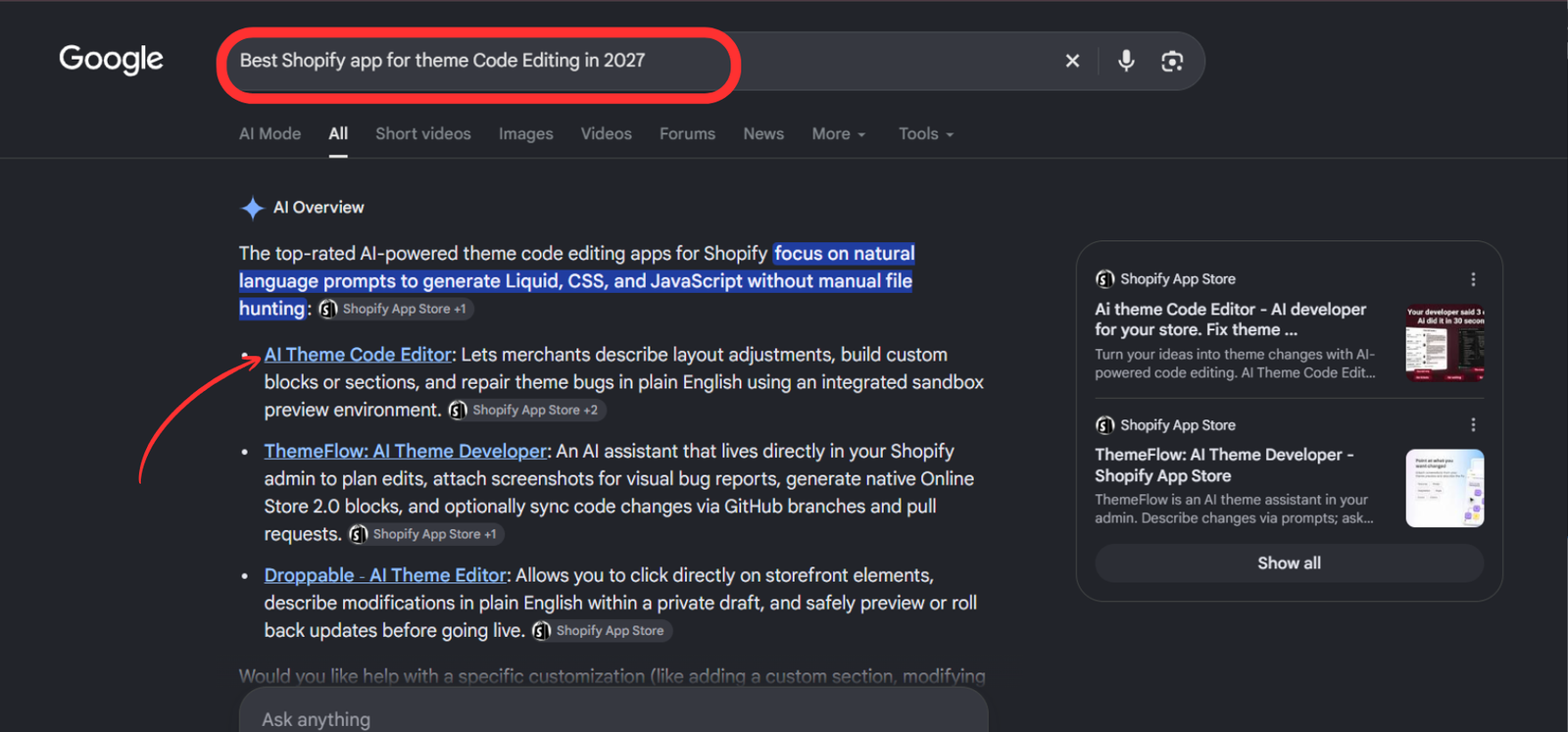
Step 1: Search for a Shopify Theme Code Editing App
The first image shows a search for “Best Shopify app for theme Code Editing in 2027,” with AI Theme Code Editor appearing in the displayed results. Use search to discover an app, then review its official listing to understand what it offers.
Search summaries can change and do not prove that a tool is the best choice for every merchant. Focus on whether the app supports the kind of theme work you need, and whether its editing process suits your store.
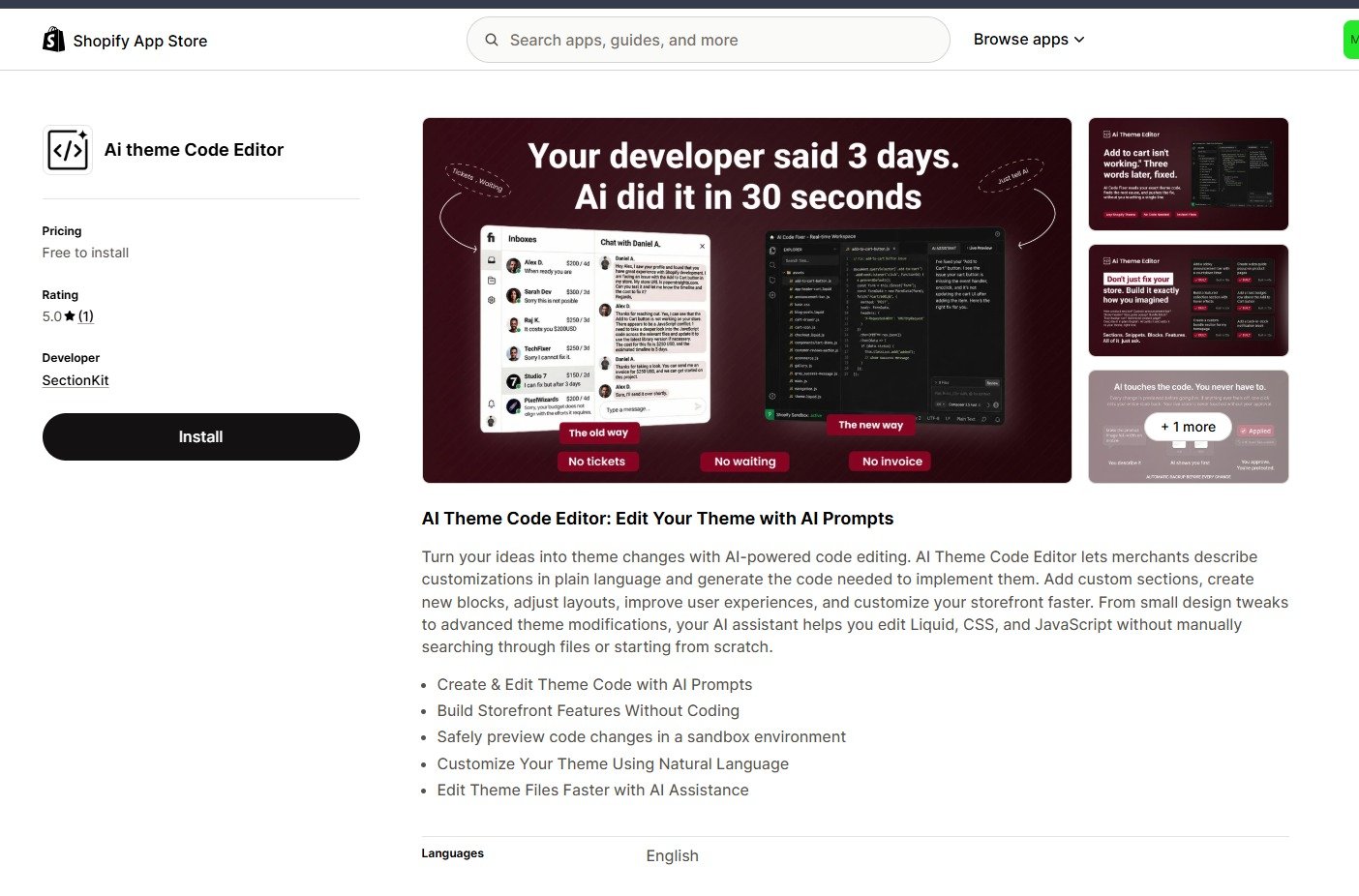
Step 2: Review the App Listing and Install the App
The second image shows the Shopify App Store listing. Review the description, developer information, pricing, and installation details. Confirm that you are choosing the intended app before selecting Install.
Complete Shopify’s installation flow and review the access requested. After installation, open the app from your Shopify admin. If you are working on a client store, make sure your account has the permissions needed for the theme-editing task.
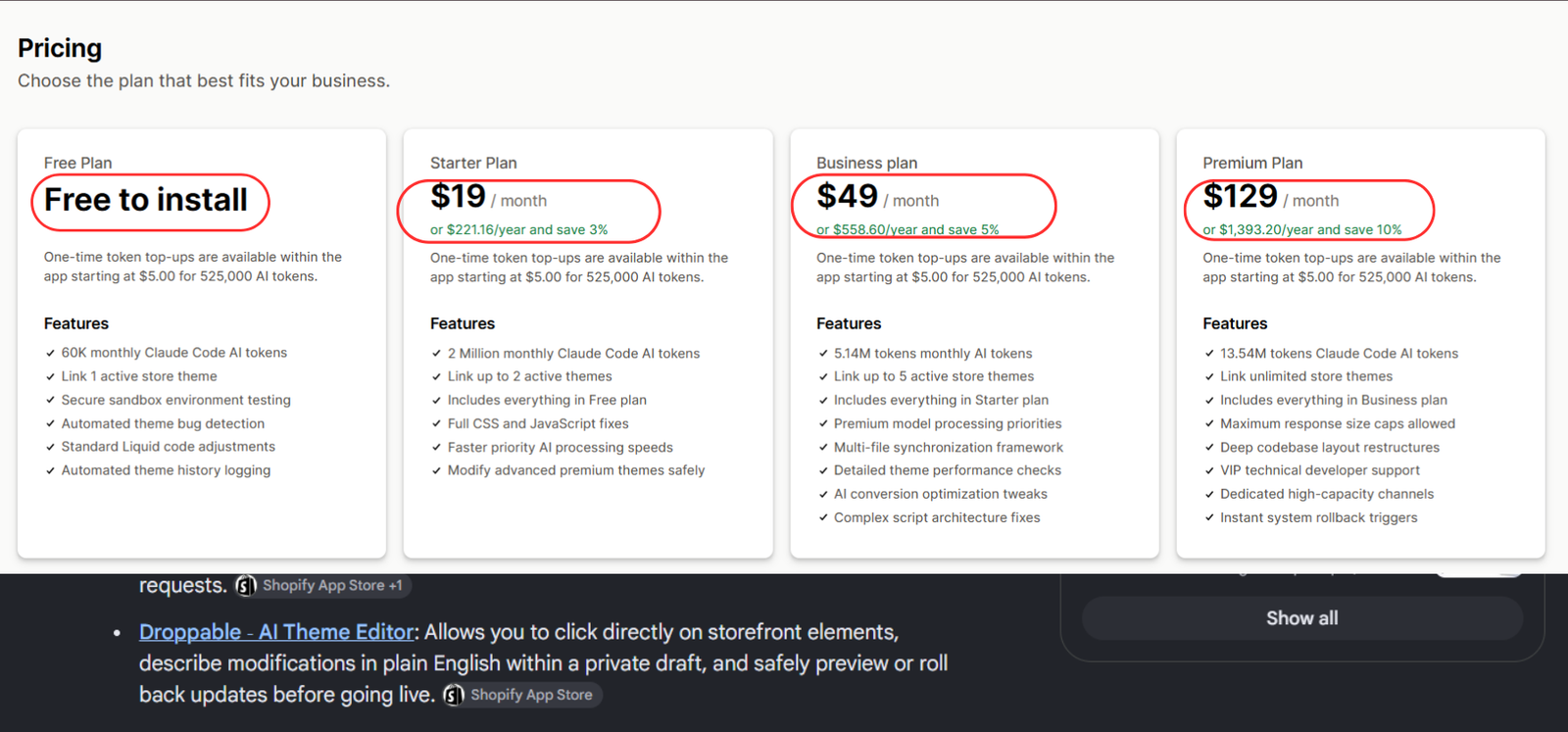
Step 3: Compare the Plans with Your Editing Needs
The third image displays the pricing options. At the time of writing, the listing shows a Free plan and paid monthly plans at $19, $49, and $129. Monthly token allowances and theme limits differ between plans, and optional token top-ups are listed.
Choose based on the work you expect to perform. A small initial task can help you understand the workflow and usage before you commit to a larger editing workload. Check the billing information inside the app because prices and allowances may change before or during 2027.
Token usage is not a fixed number of completed edits. Longer requests, theme context, and repeated revisions can affect consumption. Keep prompts focused and review progress between tasks.
Step 4: Open the Dashboard and Review Your Environment
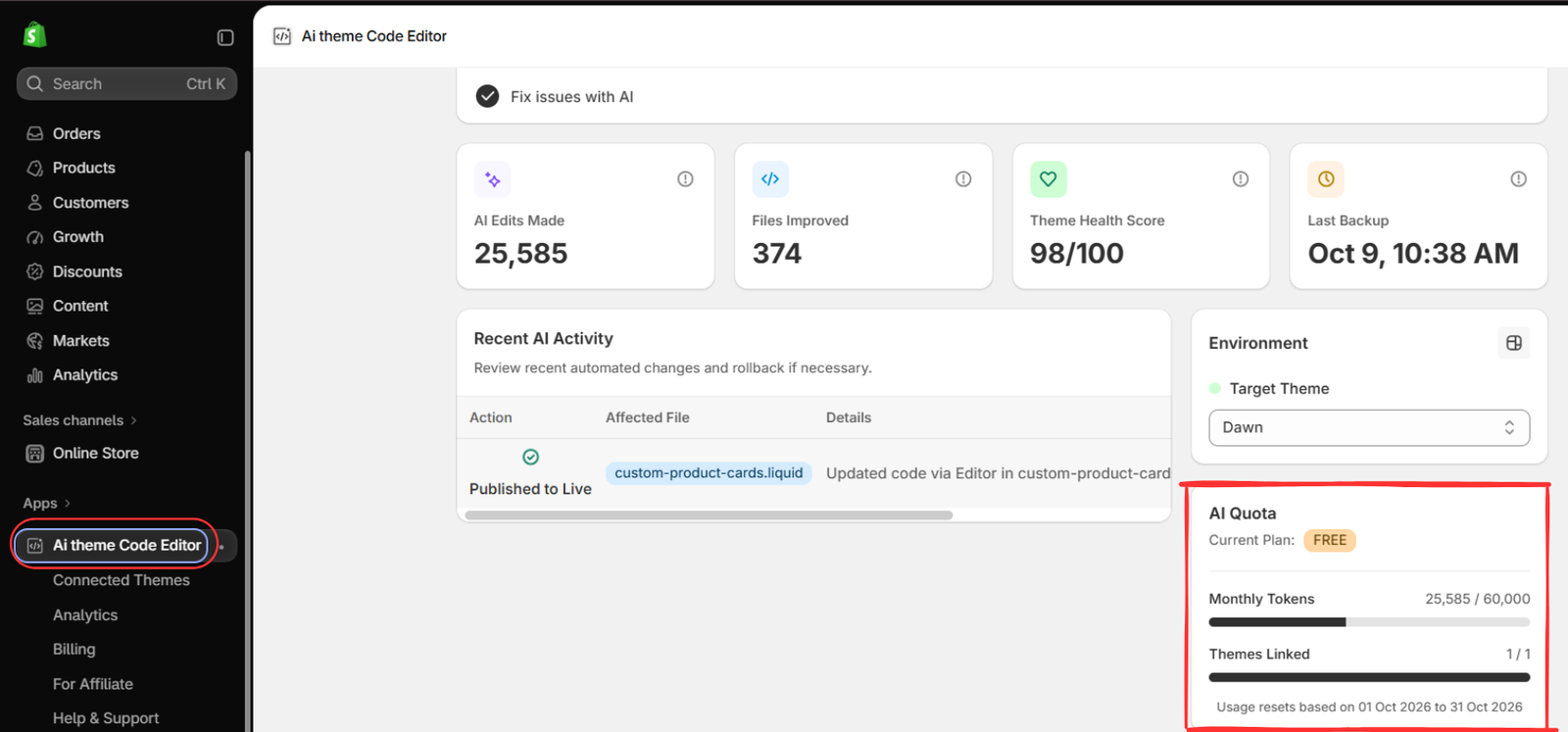
The fourth image shows the app dashboard, including an Environment panel and an AI Quota panel. Check the target theme and your available allowance before starting an edit. The numbers in this image belong to the illustrated store and are not expected results for your store.
Also review the available activity and backup information. Knowing which theme you are editing is essential, especially when your store contains a published theme and several development copies. Do not assume the selected theme is the one you intended to change.
Step 5: Connect Your Theme and Open the AI Assistant
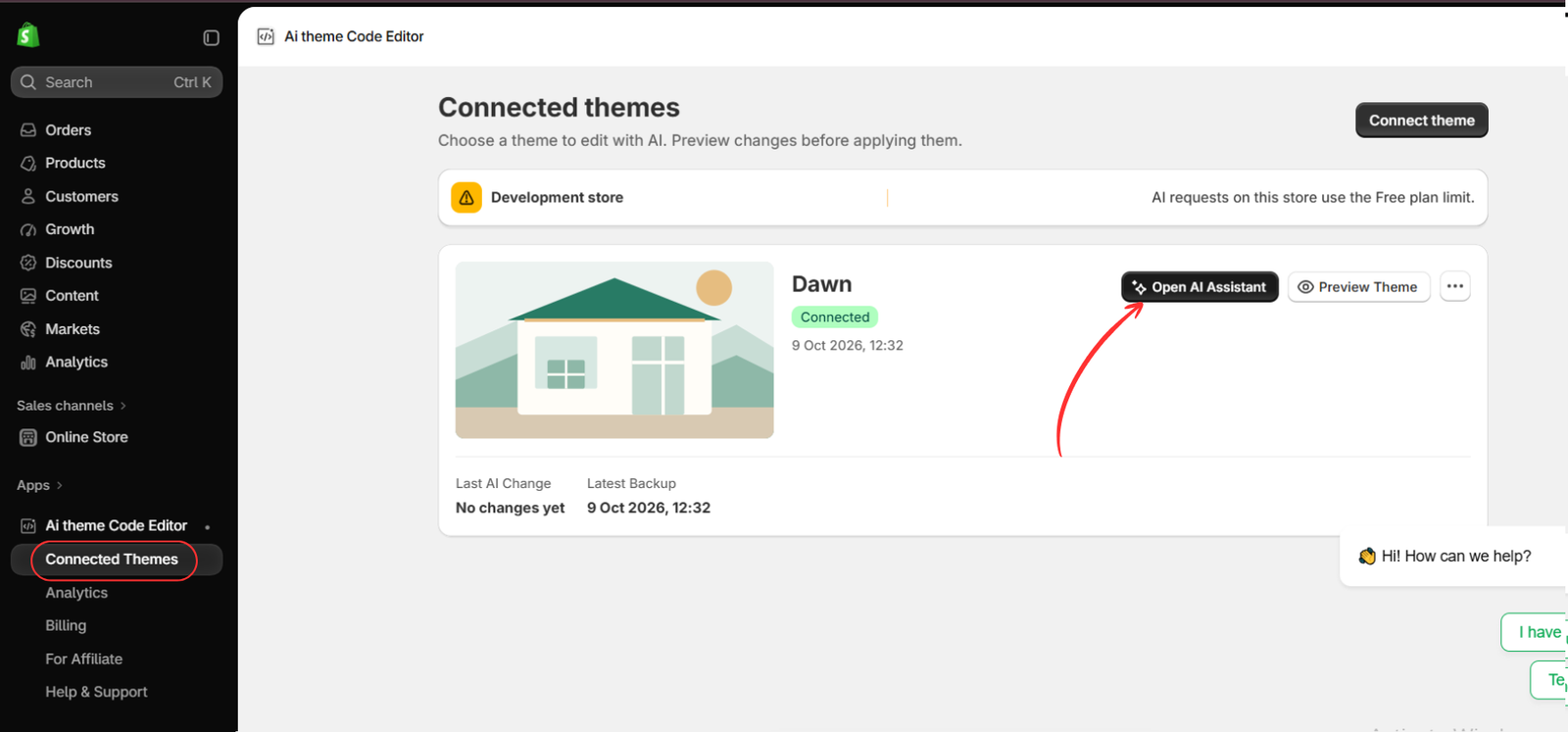
The fifth image shows Connected Themes, a connected Dawn theme, and the Open AI Assistant button. Open Connected Themes, connect the intended theme if needed, and confirm its name before entering the assistant.
Dawn is the example in this image. Your store may use a different theme, with different settings and existing customizations. If you have created a testing copy, check that the workflow is targeting that copy rather than your published storefront.
Step 6: Enter a Clear Prompt for Your Theme Change
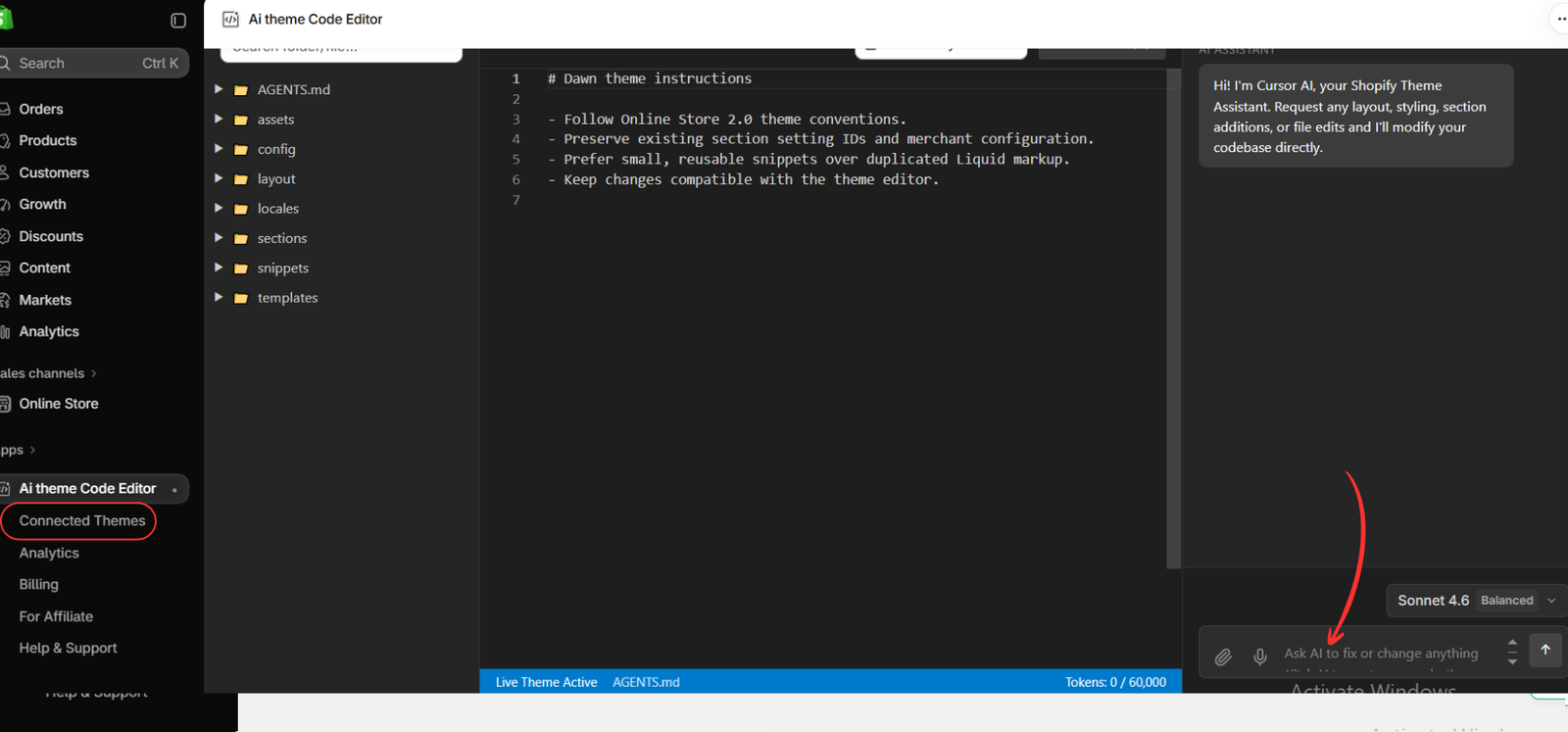
The sixth image shows the editing workspace and the assistant’s input area. Describe one task in plain language. Include the page or section, the desired appearance, mobile behavior, and any existing functionality that must remain intact.
For example, a homepage product-section request could be:
Create a homepage section that displays products from a selected collection. Show each product image, title, and price. Use four columns on desktop and two on mobile. Add settings for the heading, collection, product count, and spacing. Make the section available in the theme editor and keep existing sections unchanged.
For a smaller styling adjustment, you could write:
Reduce the space between the product title and price in this product section. Apply the adjustment only to this section, keep the current fonts and colors, and check the layout on mobile.
Review the assistant’s response and the proposed work. If it misunderstood the request, clarify the requirement before continuing. Avoid combining a homepage redesign, cart changes, and product-template edits into one instruction.
Step 7: Preview, Test, and Apply the Change
After the assistant completes the task, inspect the preview available in your editing workflow. Compare it with the original requirement and test the affected page on desktop and mobile. Follow the app’s current apply or publish controls only after you are satisfied with the result.
- Check headings, prices, images, spacing, and alignment.
- Test relevant buttons and links, including product selection and add-to-cart where affected.
- Look for horizontal scrolling, overlapping content, or text that becomes difficult to read on mobile.
- If you created a section, confirm its settings work in the theme editor.
- Visit other pages that share the edited styling or components.
If something is wrong, describe the specific issue in a follow-up request. For example: “The cards overflow on mobile below 390 pixels. Keep the desktop layout and adjust only the mobile grid.” Specific feedback makes revision easier to evaluate.
How to Write Better AI Theme Editing Prompts
A useful prompt contains four things: location, change, constraints, and success criteria. Instead of writing “make my store professional,” identify the section and explain the result you want. Mention whether settings should be editable and whether the change should apply globally or only to one component.
For a bug report, explain how to reproduce it. State the page, the action you take, what happens, and what should happen instead. If the issue is intermittent, describe when it occurs. The assistant needs observable details, not just a general statement that something is broken.
Work in small increments. Complete one adjustment, test it, and then move to the next. This keeps your review manageable and makes it easier to trace unexpected behavior to a particular change.
When Should You Still Involve a Shopify Developer?
AI-assisted editing can support everyday theme work, but complex requirements may need a developer’s review. Examples include interactions involving several apps, substantial changes to product logic, or a broad rebuild of an established theme.
Ask for technical help when the intended behavior is difficult to define or when repeated revisions do not resolve the issue. A developer can investigate the underlying cause and help determine whether the requirement belongs in theme code or another part of your store’s setup.
Frequently Asked Questions
Do I need to know how to code?
You can begin by describing the change in plain language. You still need to explain what you want and check whether the result behaves correctly. Basic familiarity with your theme settings and storefront makes that review easier.
Should I use an AI prompt for every theme change?
No. Check the existing theme settings first. If a setting already controls the color, spacing, or layout you need, use it. AI editing is useful when the required change goes beyond the available controls.
Can I use the same prompt on different themes?
You can reuse the requirement, but each theme has its own structure and styling. Review and test the implementation separately on each theme rather than assuming the same result.
Will theme editing improve my conversion rate?
It can address usability problems, but no individual edit guarantees a conversion increase. Define the goal of the change and evaluate the result using your store’s own data and customer feedback.
How should I choose a plan for 2027?
Start with your expected editing frequency, number of themes, and budget. Check current pricing and usage rules at the time you subscribe, then reassess after you understand your actual consumption.
Choose a Theme Editing Workflow That Fits Your Store
For merchants considering the best Shopify app for theme code editing in 2027, the key is a practical workflow: define the requirement, select the correct theme, request a focused change, and test the result. AI Theme Code Editor is an option to evaluate if you want to turn plain-language requests into theme updates while keeping review part of the process.
Begin with one useful improvement rather than a complete redesign. A well-scoped first task will help you understand how the app fits your store and whether it is suitable for your ongoing customization needs.
Explore AI Theme Code Editor: https://apps.shopify.com/ai-code-fixer




