BEST SHOPIFY BUNDLE APPS IN 2026: WHAT TO LOOK FOR

Introduction
Product bundling is one of the most effective ways to encourage customers to buy more products from your Shopify store. By offering multiple products together at attractive prices, merchants can increase average order value (AOV) and improve the shopping experience.
In 2026, Shopify bundle apps make it easier to create quantity discounts, BOGO offers, and product bundles without complicated coding.
One app worth considering is Section Kit Bundles, which helps Shopify merchants create attractive promotional offers using ready-made templates and customizable designs.
Why Shopify Stores Need Bundle Apps
A Shopify bundle app allows merchants to create special offers that encourage customers to purchase multiple products together.
For example, a skincare store can offer a cleanser, moisturizer, and serum as a bundle, while a clothing store can offer discounts when customers purchase multiple items.
Bundle apps can help merchants:
- Increase average order value.
- Encourage customers to purchase additional products.
- Promote complementary items.
- Create attractive discounts and promotions.
- Improve the shopping experience.
What to Look for in a Shopify Bundle App
Easy-to-Use Interface
A good bundle app should be simple to use, even for merchants without technical experience.
Ready-made templates and straightforward settings make it easier to create and manage promotional offers.
Multiple Bundle Types
Look for an app that supports different promotional strategies, including volume discounts, BOGO offers, and frequently bought together bundles.
This allows merchants to experiment with different offers.
Customizable Bundle Designs
Your bundle offers should match your store’s branding.
Choose an app that provides customization options for promotional layouts, pricing displays, and offer designs.
Clear Discount Display
Customers should easily understand how much they’re saving.
Displaying original prices, discounted prices, and savings can make bundle offers more attractive.
Mobile-Friendly Design
Bundle offers should look good and work properly on mobile devices.
A clean, responsive design makes it easier for customers to select their preferred offers.
Section Kit Bundles: A Shopify Bundle App Worth Trying
Section Kit Bundles is a Shopify app designed to help merchants create product bundles and promotional discounts.
It provides ready-made templates and visual customization options, allowing merchants to build attractive offers without developing custom bundle layouts.
The app supports different promotional strategies, making it suitable for stores that want to encourage larger purchases and promote related products.
Key Features of Section Kit Bundles
Volume Discounts
Volume discounts encourage customers to purchase more units in exchange for better pricing.
For example:
- Buy 1 — Regular price
- Buy 2 — Save 10%
- Buy 3 — Save 15%
Section Kit Bundles provides quantity-based offer templates that help merchants display these promotions on product pages.
BOGO Offers
Buy One Get One promotions are a popular way to encourage additional purchases.
With Section Kit Bundles, merchants can create BOGO-style offers such as Buy 2 Get 1 Free.
These promotions can be useful during seasonal sales and special campaigns.
Frequently Bought Together
Frequently bought together bundles allow merchants to promote complementary products.
For example, a store selling electronics could offer headphones, a charging cable, and a protective case together.
This makes it easier for customers to discover related products.
Ready-Made Bundle Templates
Section Kit Bundles includes promotional templates that help merchants create offers without starting from scratch.
These templates simplify bundle creation and help maintain an organized product page design.
Customizable Bundle Designs
Merchants can customize the appearance of their bundle offers using the app’s visual editor.
Clear headings, pricing information, and promotional layouts can help customers understand the available deals.
How Section Kit Bundles Can Help Increase Sales
Section Kit Bundles helps merchants present promotional offers that encourage customers to consider purchasing more products.
For example, a customer planning to buy one product may choose a two-product bundle after noticing a quantity discount.
Similarly, frequently bought together offers can introduce customers to complementary products they might otherwise overlook.
Although results vary between stores, well-designed bundle promotions can support higher average order values and a more convenient shopping experience.
Why Choose Section Kit Bundles?
Section Kit Bundles is worth considering because it combines several useful promotional features in one app.
Merchants can create volume discounts, BOGO offers, and frequently bought together bundles using ready-made templates.
Its visual customization options also help merchants present promotional offers in a way that matches their storefront.
For Shopify stores looking for a straightforward way to create and manage bundle promotions, Section Kit Bundles is a practical option.
Step 1: Open the Shopify App Store

Image 1: Search for Shopify App Store on Google and open the official website.
Open your browser and search for Shopify App Store. Select the official result to access Shopify’s app marketplace.
The Shopify App Store contains tools for product bundling, store design, marketing, inventory management, and more.
Step 2: Search for Section Kit Bundles
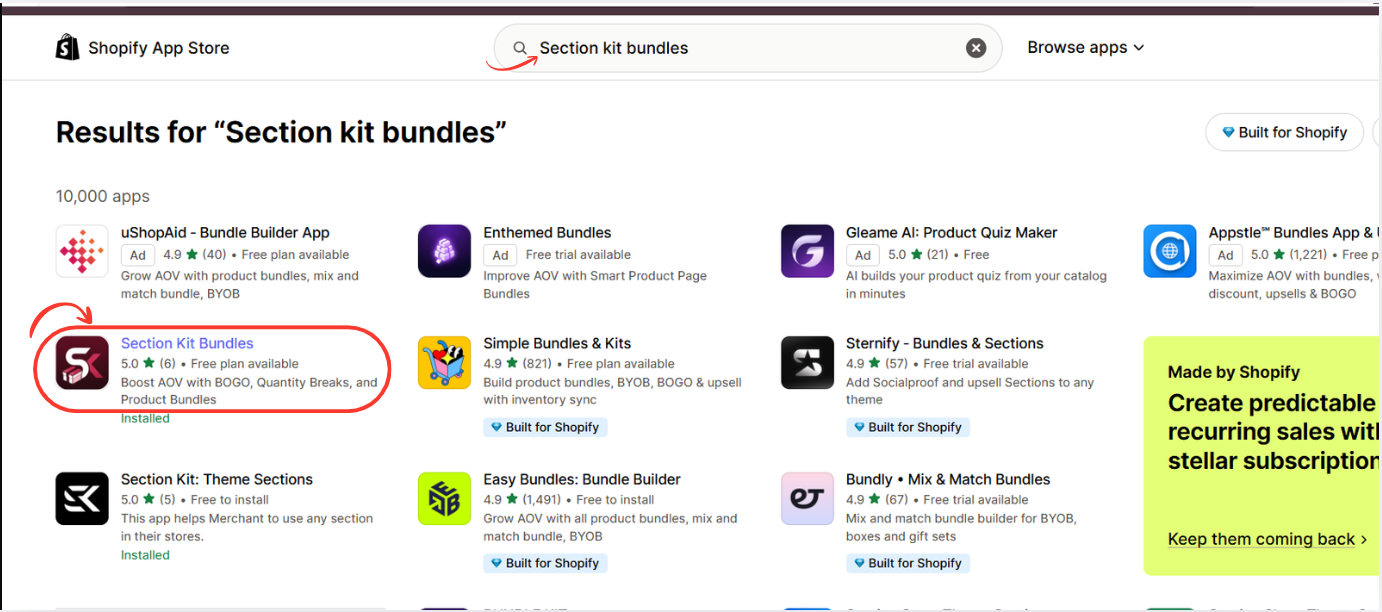
Image 2: Search for Section Kit Bundles and select the highlighted app.
In the Shopify App Store search bar, type Section Kit Bundles.
Find the app in the results and click its listing. The app supports BOGO promotions, quantity breaks, product bundles, and volume discounts. Shopify App Store
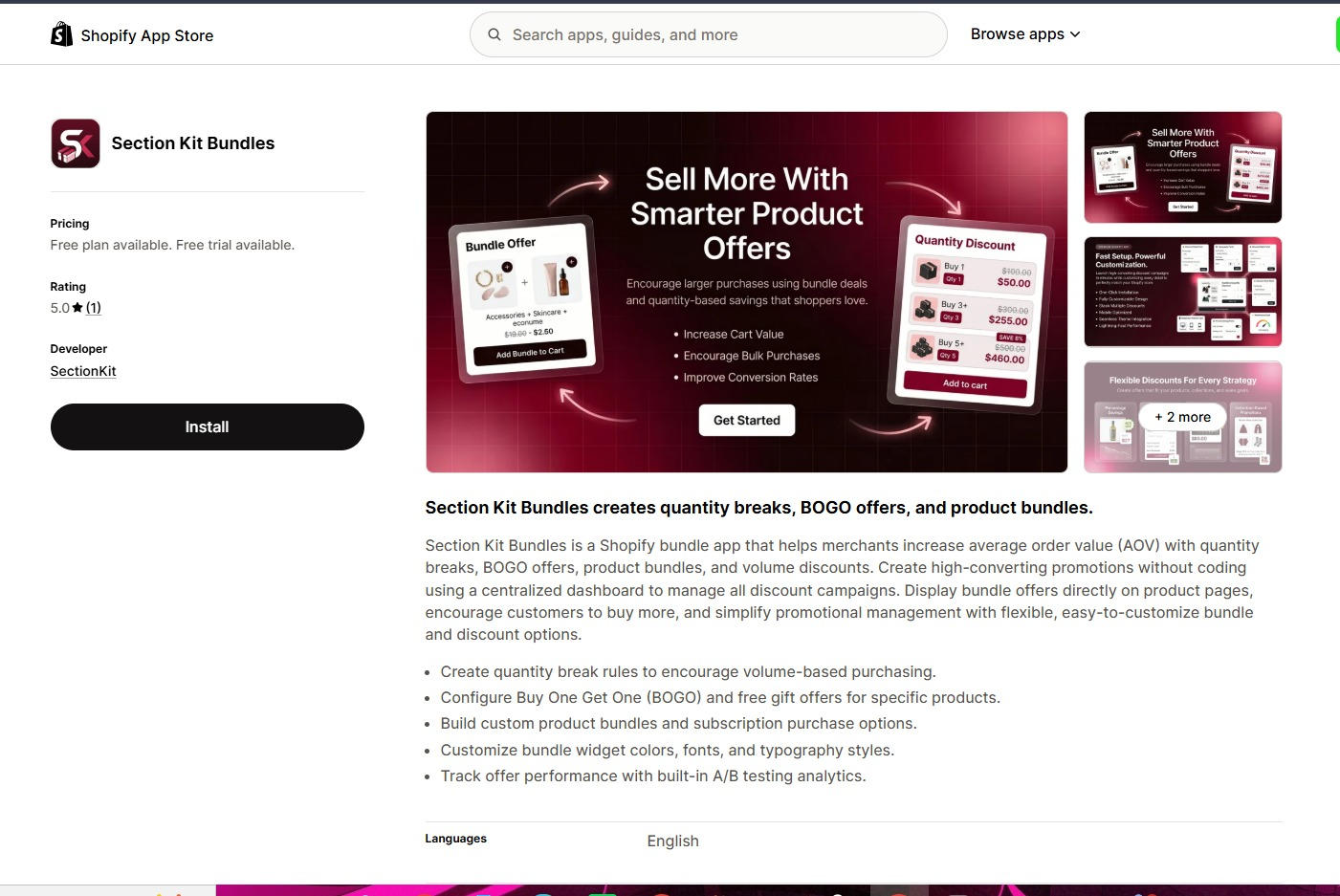
Open the app listing, review the available plans, and click Install. Once installation is complete, open the app from your Shopify admin.
You can also visit the app directly: Section Kit Bundles on the Shopify App Store.
Step 3: Install Section Kit Bundles
Open Section Kit Bundles in the Shopify App Store, click Install, select your store, and review the installation permissions. Once installed, open the app from your Shopify admin.
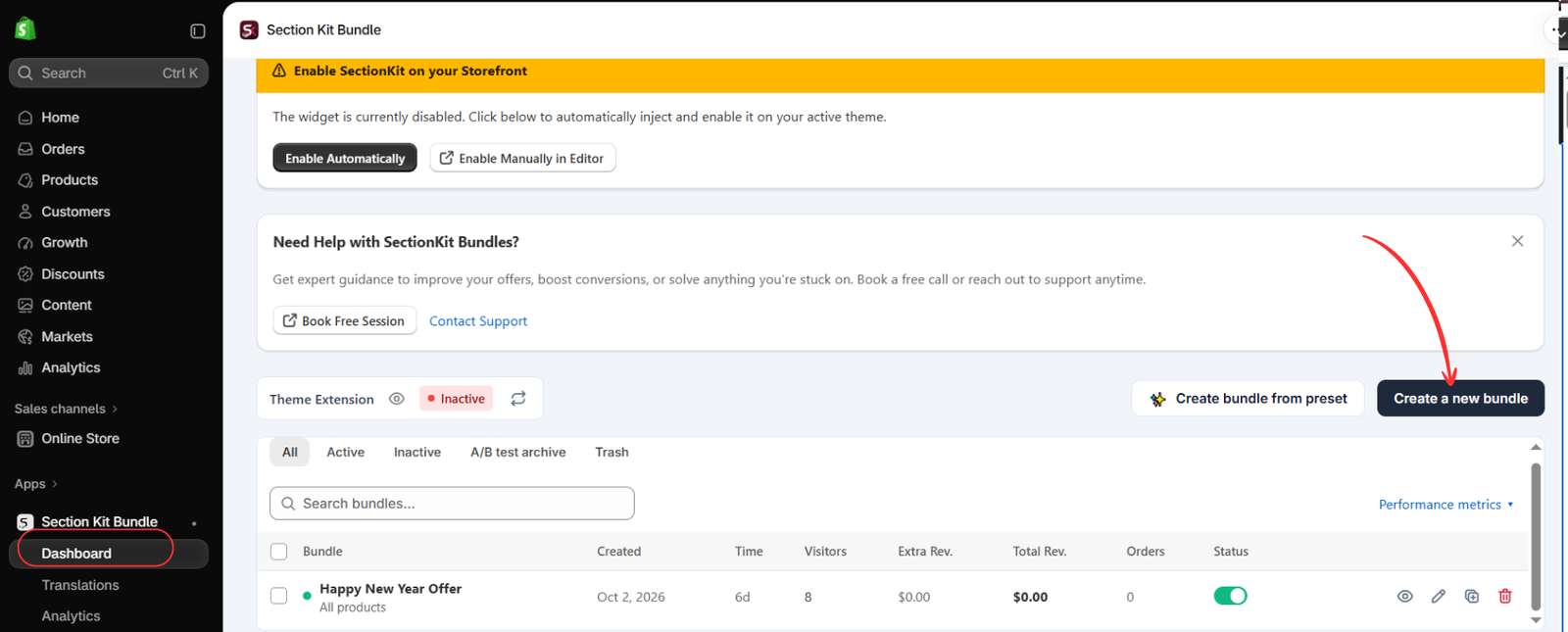
Step 4: Open the Dashboard and Create a New Bundle
Open Apps → Section Kit Bundle → Dashboard. Click Create a new bundle, as highlighted in Image 2. The dashboard also offers a preset option and shows existing promotions.
The image shows the theme extension as inactive. Creating or activating an offer and enabling its storefront integration are separate checks; complete the theme setup before expecting the widget to appear.
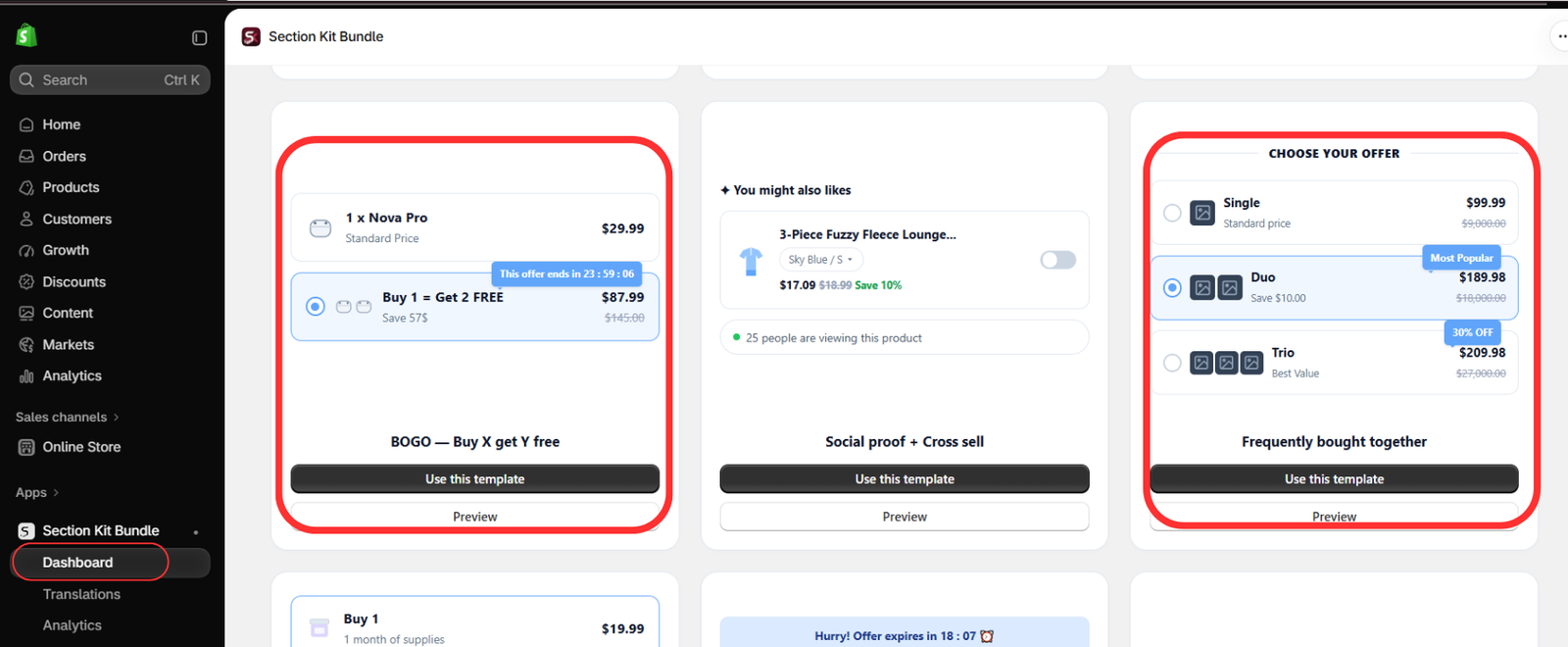
Step 5: Understand the Alternative Offer Templates
Image 4 highlights BOGO — Buy X get Y free and Frequently bought together. Choose BOGO when the benefit is a free item, or a related-product bundle when customers should purchase complementary products together. For the quantity-discount offer in this guide, continue with the classic volume discount template selected in Step 3.
Keep your offer wording consistent with the actual discount. A percentage discount should not be described as a free-item promotion.
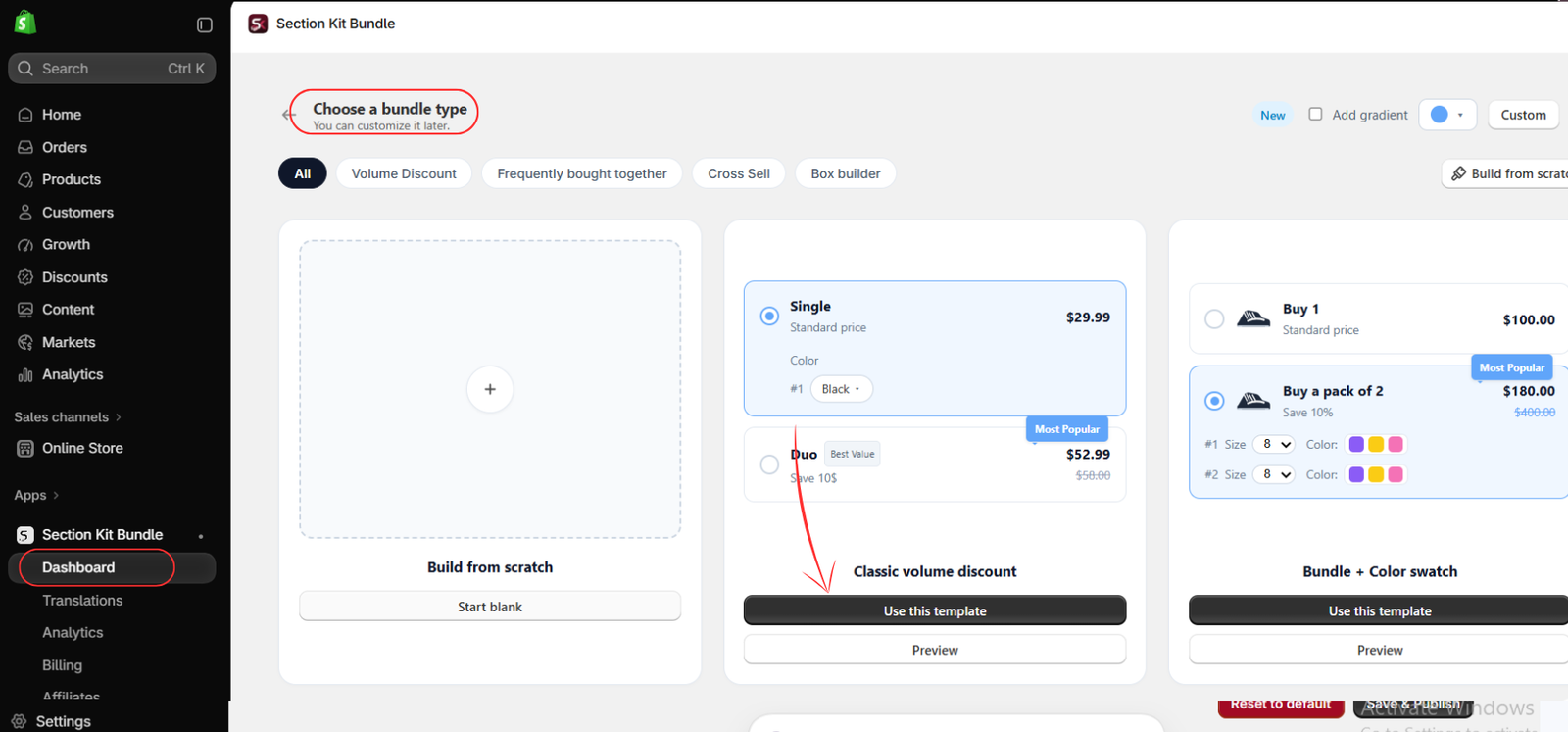
Step 6: Choose a bundle template
On the Choose a bundle type page, select a layout that suits your offer. For the quantity-based setup shown here, choose Classic volume discount and click Use this template. You can also preview a template before choosing it. A volume discount groups different quantities of the same product; a frequently bought together offer is more suitable when you want to recommend complementary products.
Step 7: Configure the Savings and Preview the Widget
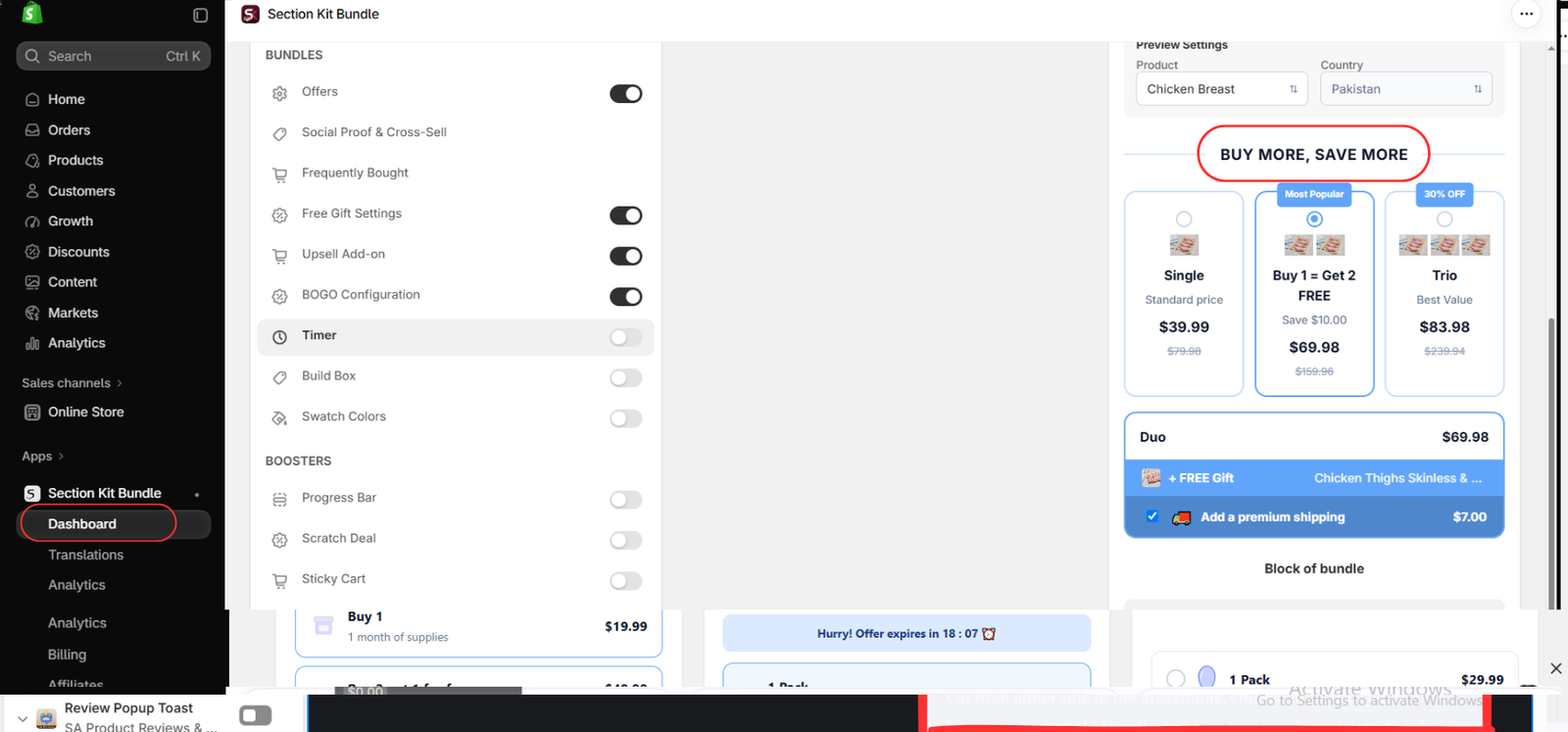
In the offer editor, set the eligible products, quantity choices, and discount values using the available offer controls. Enter a clear heading such as BUY MORE, SAVE MORE, and check the product preview as you adjust the configuration.
For a simple volume discount, use a standard-price single option and discounted choices for larger quantities. Show the total price clearly, and use labels such as “Save 10%” only when the calculation is accurate. Optional free gifts, upsells, or BOGO settings should be enabled only if they are part of your intended promotion.
Image 6 shows the editor’s feature toggles and a mixed example preview. Its free-item wording and prices demonstrate a layout, not a pricing model to copy. The image does not show every quantity or discount input; review those controls in your app before saving. Customize the widget’s colors and typography to fit your store, then save using the editor’s available save control.
Step 8: Select a Volume Discount Template

Step 9: Refine the Widget in Templates & Design and Publish
Inside the offer editor, select Templates & Design. Image 6 shows the Theme Accent & Appearance panel alongside a live product preview. Click the accent swatch and enter your desired color in the HEX Code field.
The image uses #FA7C60, a coral accent. You can see that color reflected in the offer borders, selected controls, badges, and gift strip in the preview. Replace it with your theme’s accent value, then inspect each affected element for readability.
Review the available Offer layout and Block Radius controls. Match the card shape to your theme, and use the radio-control option if it helps customers recognize the selected offer. The panel shows an Add gradient toggle; leave it off if your theme uses solid fills.
Use the preview’s product and country settings to inspect a relevant product and market. The image also shows a Header Text control in the left panel. Review the heading wording and any available typography controls so the offer feels consistent with nearby product information. Keep optional features enabled only when they are part of your promotion.
When the result is ready, click Publish in the top-right corner. If you need to continue later, use Save as draft. The preview includes example BOGO, free-gift, and shipping elements; you do not need to copy those features to customize a simple bundle widget.
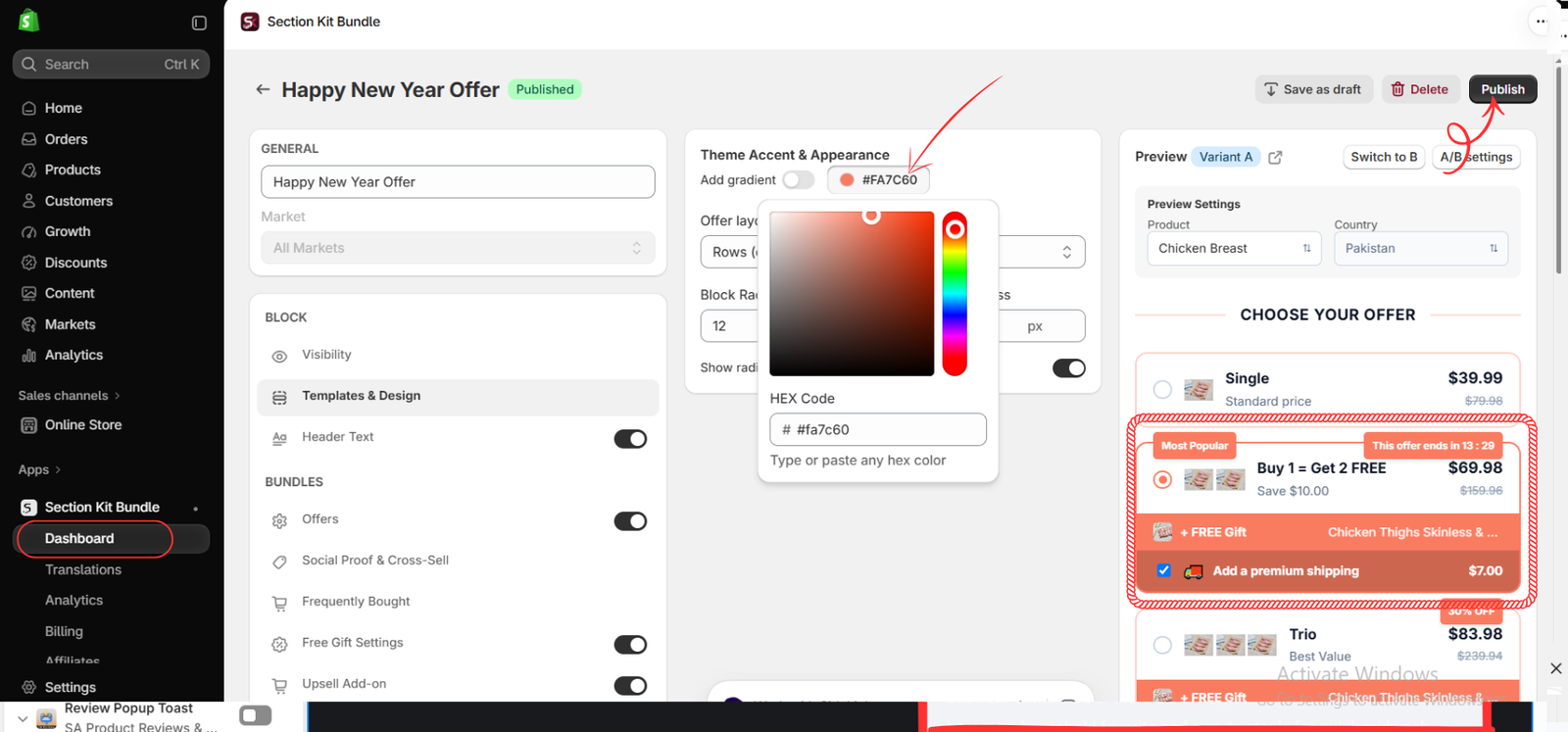
Image 6: Select Volume Discount and compare the Classic Volume Discount and Bundle + Color Swatch templates.
Click Volume Discount to filter the available templates.
Two examples shown in your screenshot are:
Classic Volume Discount: Displays quantity-based purchase options, such as buying one unit at the regular price or two units at a better combined price.
Bundle + Color Swatch: Allows customers to select quantities while choosing product options such as colors or sizes.
These templates can be particularly useful for apparel, accessories, beauty products, and other items customers may want to buy in multiples.
Select the most appropriate template and configure the products, quantities, discounts, and appearance in the bundle editor.
Step 10: Enable the App Embed and Save
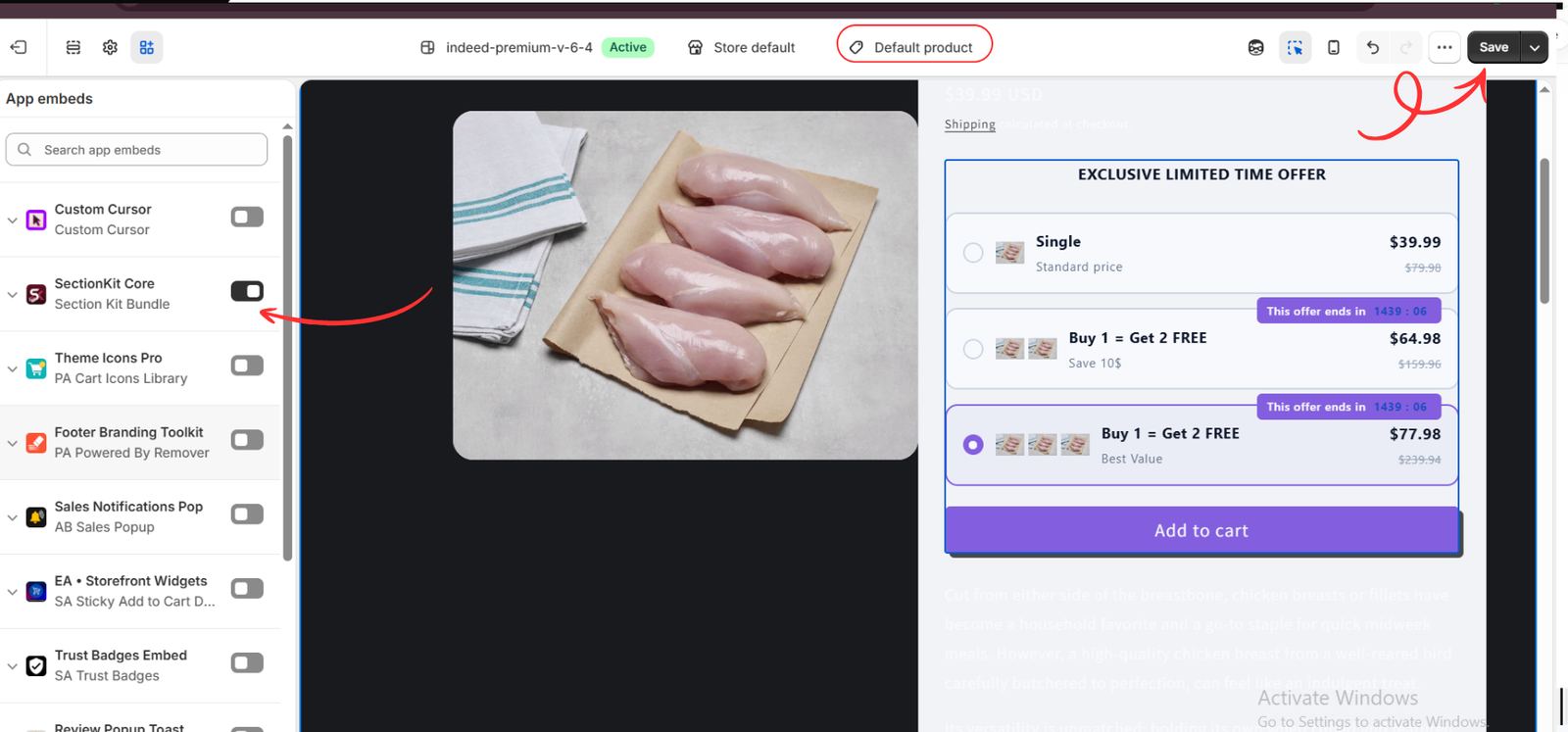
In the theme editor, open App embeds. Locate SectionKit Core — Section Kit Bundle and turn it on. View the relevant product template; the image highlights Default product. Click Save to retain the change.
Check the product-page offer on desktop and mobile. The final image includes BOGO wording in its example tiers and prices that differ from the earlier preview. For a volume-discount campaign, replace unrelated labels with your actual quantity and savings information. Use your configured rules as the reference and confirm the resulting cart and checkout totals.
Frequently Asked Questions
What is a Shopify bundle app?
A Shopify bundle app helps merchants create offers that combine products or provide discounts when customers purchase multiple items.
Can bundle apps increase average order value?
Yes. Bundle offers can encourage customers to purchase additional products, potentially increasing average order value.
Does Section Kit Bundles support BOGO offers?
Yes. Section Kit Bundles supports BOGO-style promotional offers.
Can I create quantity discounts with Section Kit Bundles?
Yes. The app provides volume discount templates for creating quantity-based promotions.
Can I customize bundle designs?
Yes. Section Kit Bundles includes visual customization options for promotional layouts.
Conclusion
Choosing the right Shopify bundle app in 2026 can help merchants create attractive promotions, encourage larger purchases, and improve the shopping experience.
A good bundle app should offer flexible promotional options, simple customization, and clear pricing displays.
Section Kit Bundles provides these capabilities through volume discounts, BOGO promotions, frequently bought together offers, and ready-made templates.
If you’re looking for a Shopify app to create and manage product bundle offers, Section Kit Bundles is worth exploring.
Install Section Kit Bundles: https://apps.shopify.com/sectionkit-bundle




