How to Find and Fix Shopify Conversion Problems Before They Cost You More Sales
You open Shopify Analytics on a Monday morning. Traffic looks healthy, ad spend is steady, and sessions are up. Yet your conversion rate is stuck at 1.1%, cart abandonment is above 80%, and nobody knows why.
That gap can be expensive. Shopify tells you what happened, but not always why. So merchants guess, change buttons, rewrite headlines, install another app, and hope the numbers improve.
This blog explains how conversion problems hide inside Shopify stores, why common fixes often miss them, and how to build a faster loop to find leaks, prioritize fixes, and turn insights into action.
The Real Problem: Your Dashboard Shows Symptoms, Not Causes
Shopify Analytics tells you what happened, but not always why.
- You see the drop, not the reason: You know customers left, but not what stopped them.
- Guessing is expensive: Fixing the wrong problem can cost weeks of work.
- Small bugs go unnoticed: A broken mobile element can quietly cost sales.
- Nothing gets verified: Changes are often made without measuring the impact.
- Everything looks urgent: Without prioritization, teams may fix easy issues instead of high-impact ones.
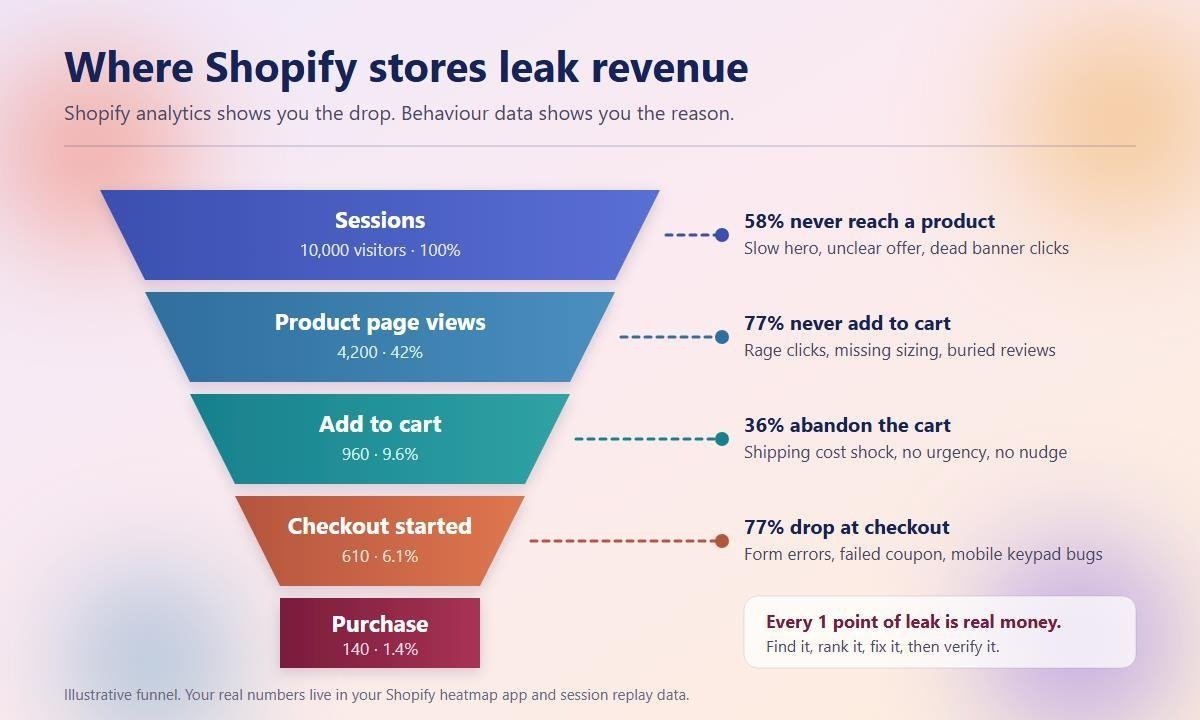
Where Shopify stores leak revenue. Analytics shows the drop, not the reason.
How Most Merchants Handle This Today
Before looking at a better approach, here are the common options and where they fall short:
- Shopify Analytics: Great for trends and orders, but doesn’t show actual visitor behaviour.
- Free audits or communities: Often provide generic advice without access to your store data.
- Free analytics tools: Heatmaps and recordings are useful, but often lack Shopify-specific context.
- CRO agencies: Effective but expensive, with long timelines for audits and implementation.
- Installing multiple apps: More apps can mean slower stores, messy data, and unclear attribution.
The common problem: You either find the problem without knowing how to fix it, or make changes without knowing if the problem actually existed.
The Better Way: See the Behaviour, Rank the Leaks, Then Fix in Order
The loop that actually works has four parts, and they have to be connected: observe, rank, fix, verify. Here is how that runs inside one Shopify native workflow.
Step 1: Install the app on your store
Add it directly from the Shopify App Store: DynoWeb on the Shopify App Store. There is a free tier at 1,500 sessions a month, so you can see real data before spending anything. Tracking starts automatically. No theme code to paste.
Step 2: Watch what shoppers actually do
A proper Shopify heatmap app shows where visitors click, scroll, and lose interest. Session replay adds the missing context by showing what individual shoppers actually experienced.
Start by looking for three signals: rage clicks, where visitors repeatedly click an unresponsive element; low scroll depth, where visitors leave before reaching important content; and mobile friction, where behavior differs significantly between mobile and desktop.
These signals help turn visitor behavior into clear Shopify CRO opportunities.
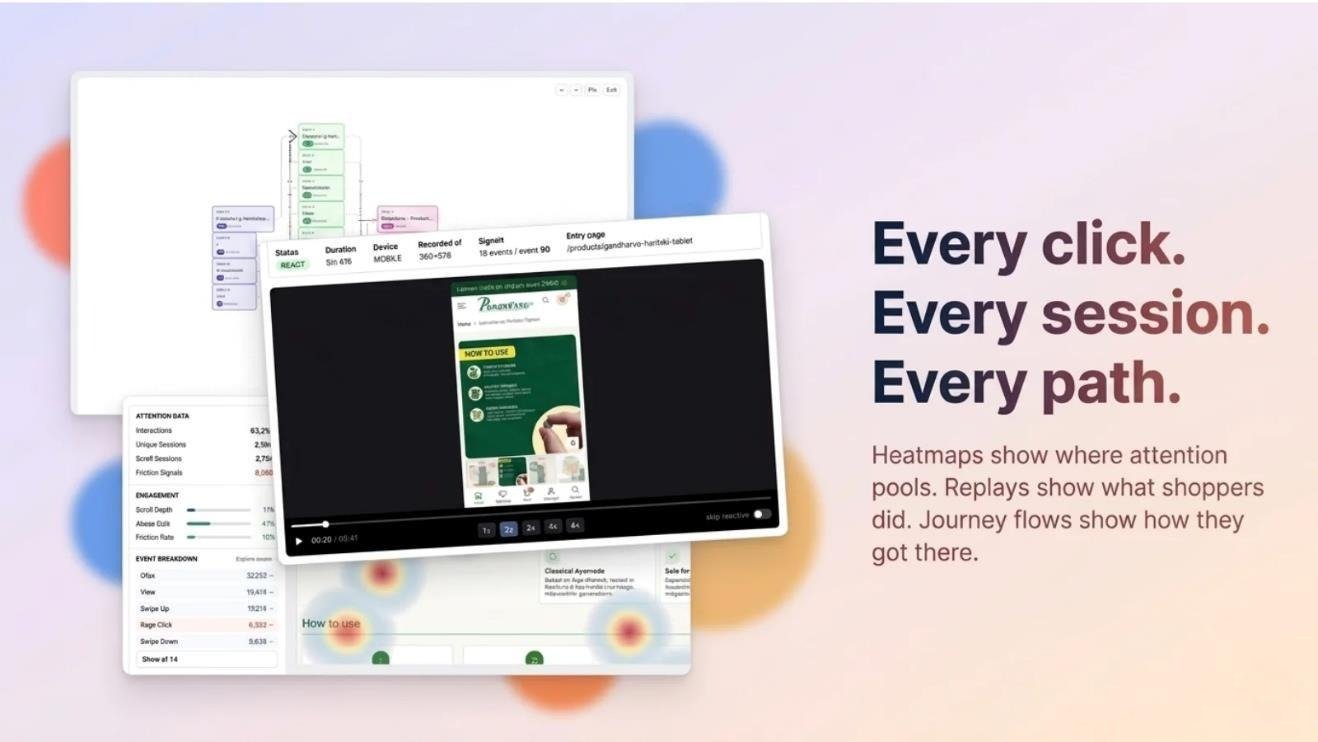
Heatmaps show where attention pools. Session replay shows what shoppers did.
Step 3: Let the audit rank your leaks by money
This is the step most merchants skip, and it is the one that saves the most time. Instead of a list of twenty issues, you get an audit that scores each leak by projected revenue impact and confidence, so the order of work is decided by money rather than by whichever tab you opened first.
You get a store health score, funnel leaks with the drop-off percentage at each stage, journey drop-offs, and a ranked plan of attack. If cart abandonment is 29 points above benchmark and costing an estimated amount per month, that goes first. The font size on your footer does not.
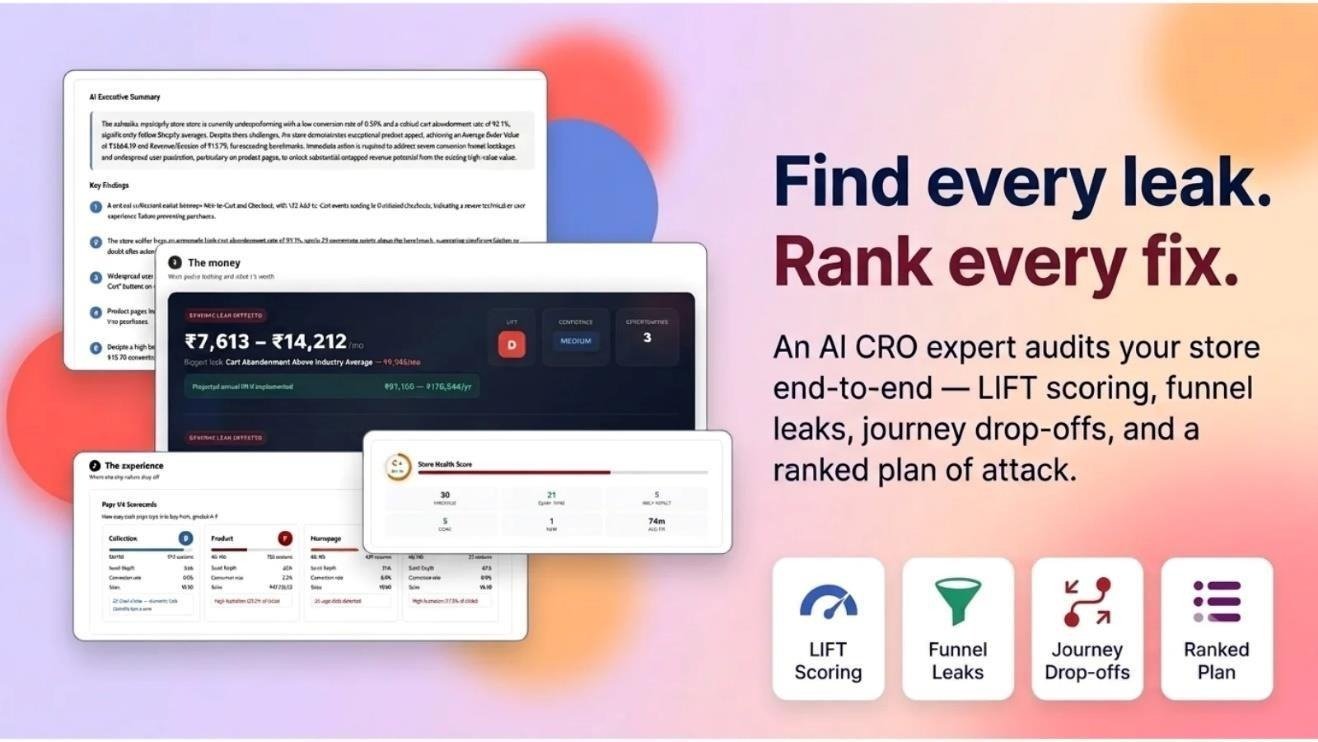
Shopify conversion rate optimization ranked by revenue impact, not gut feel.
Step 4: Follow the guided step by step fix
Finding a problem is only half the job. The reason most Shopify CRO advice never gets implemented is that it stops at “your product pages are slow” and leaves the merchant to figure out the rest.
The guided fix closes that gap. This is worth its own section.
The Step by Step Guided Fix: From Finding to Fixed
Every issue in the ranked plan opens into a clear implementation guide that takes you from evidence to action to verification.
It explains the problem in plain English, shows the evidence behind it, and tells you whether it needs no code or developer support. For no-code issues, you get step by step Theme Editor instructions. For developer fixes, you get a ready-to-share brief with the required changes and reasoning.
Each guide ends with a How to Verify section, showing what to re-check and when. This ensures every fix is measured and confirmed, not simply recommended.
Evidence → Instruction → Verification. That loop turns CRO recommendations into improvements you can actually track.
Step 5: Catch the Shoppers You Cannot Fix Yet
Some conversion leaks take time to fix, but shoppers are leaving today. A behaviour-triggered Shopify popup app can help engage visitors before they leave.
Instead of showing the same popup to everyone, use real behaviour such as exit intent, scroll depth, time on page, pages visited, and idle time to decide when to show an offer.
For example, a Shopify exit intent popup shown to an engaged visitor who has viewed multiple pages and scrolled through a product page can be far more relevant than a generic popup.
Use real behaviour to trigger the right message at the right moment.
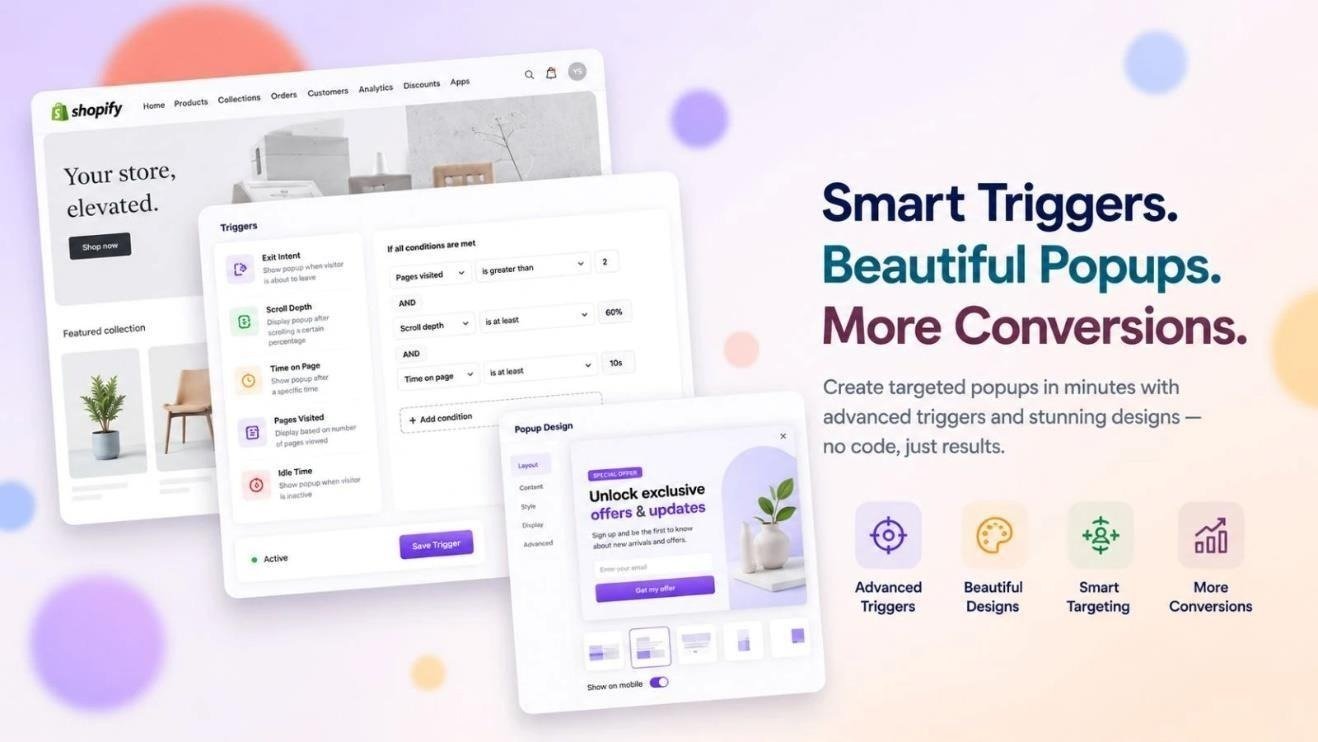
Behaviour triggers beat timers every time.
Step 6: Ask Questions Instead of Digging Through Dashboards
Once your data is collected, you can ask questions instead of building reports.
For example: Which products got cart adds but zero orders in the last 7 days? Which collection has the lowest mobile conversion rate?
DynoWeb gives you the data, visualizes the answer, and suggests an action you can review.
It helps uncover small but important issues that can easily get buried in a dashboard.

Ask anything, get the chart, approve the fix.
Step 7: Fix the Assets, Not Just the Layout
Sometimes the problem isn’t your page layout. It’s the product imagery.
If visitors land on a product page and leave within seconds without scrolling, weak or unclear visuals could be part of the problem.
DynoWeb helps identify these opportunities so you can improve the assets that may be affecting conversion, not just the page structure.
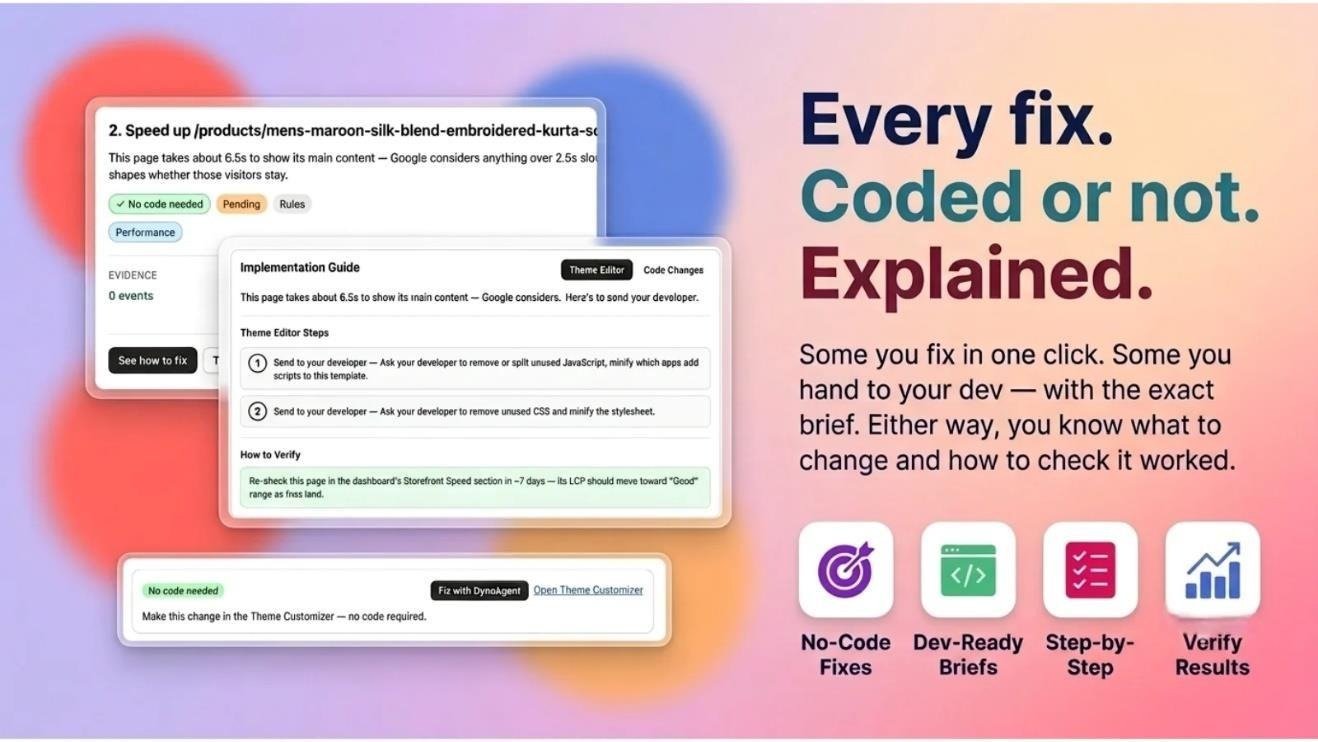
Some fixes are one click. Some go to your dev with the brief.
Step 8: Re-check the Number
Go back to the verification metric and check if it improved. If yes, close the issue and move to the next priority. If not, revisit the diagnosis before making more changes.
Why This Approach Works
DynoWeb connects behavior data → prioritized problems → guided fixes → measurable results. Instead of collecting endless recordings or making random changes, you know what to fix, how to fix it, and whether it worked.
A Quick Checklist
- Find your biggest funnel drop.
- Review relevant visitor sessions.
- Fix the highest-priority issue.
- Use a targeted popup while the fix is in progress.
- Re-check the metric after 7 days.
One verified fix is better than five changes you can’t measure.
Final Thoughts
Conversion problems are often small but costly. The stores that improve consistently are the ones that watch real customer behavior, prioritize the biggest leaks, fix them, and verify the results.
Try it here: https://apps.shopify.com/dynoweb




