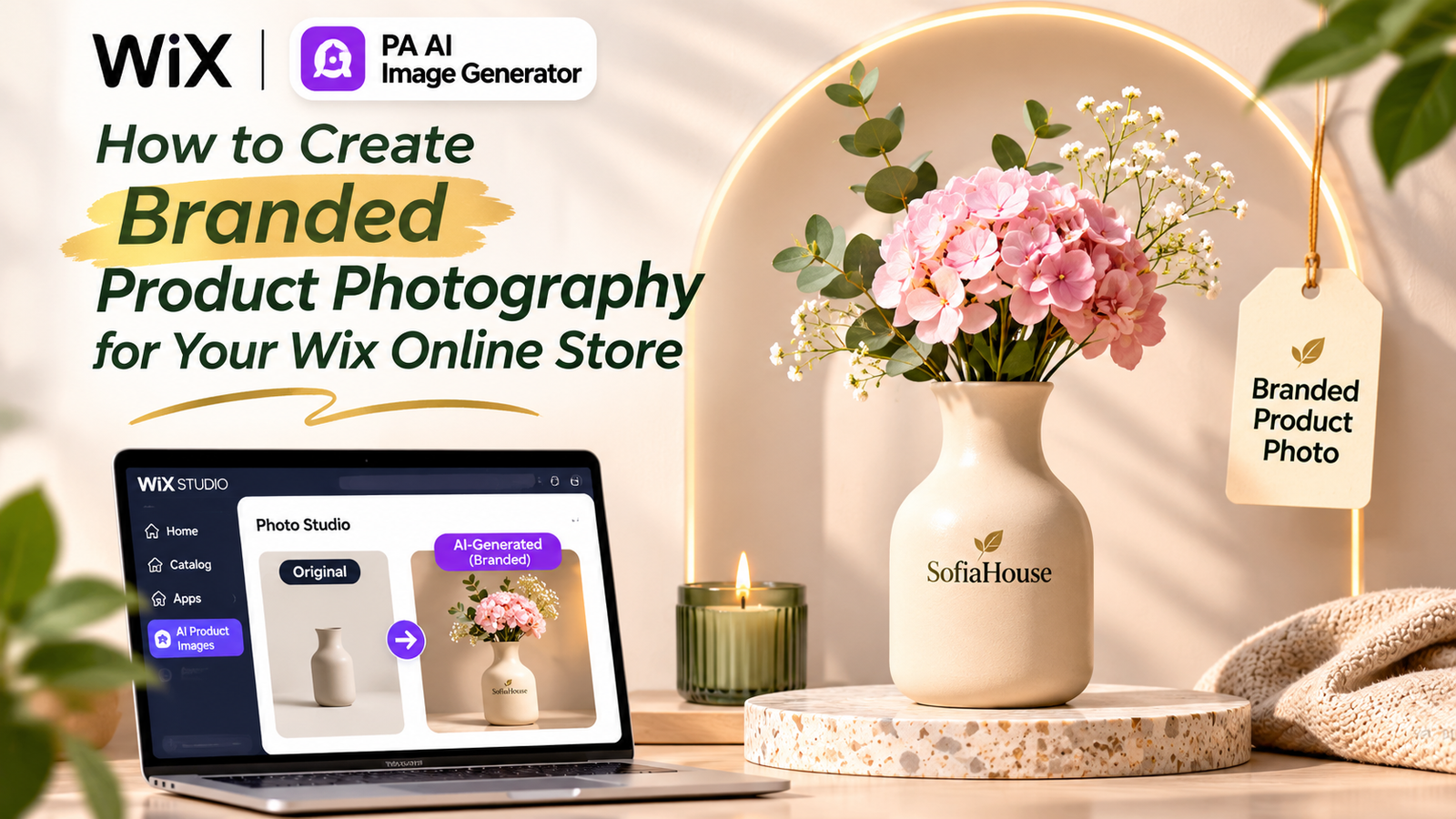
HOW TO CREATE BRANDED PRODUCT PHOTOGRAPHY FOR YOUR WIX ONLINE STORE
Introduction
Professional product photography is essential for building a recognizable ecommerce brand. When customers visit your Wix online store, your product images should not only look attractive but also reflect your brand’s colors, style, and identity.
However, many Wix merchants struggle to create consistent branded product photographs. Their product images may have different backgrounds, inconsistent lighting, or no recognizable brand elements.
Hiring photographers, arranging professional photoshoots, and manually editing product images can be expensive and time-consuming.
Fortunately, AI-powered product photography offers a more accessible solution.
With PA AI Image Generator, you can transform existing product photographs into professional-looking branded images using custom AI prompts, realistic lifestyle scenes, and attractive backgrounds.
In this guide, you’ll learn how to create branded product photography for your Wix online store, including step-by-step instructions and screenshots.
Why Branded Product Photography Matters
Branded product photography helps customers recognize your business and creates a more consistent shopping experience.
Benefits include:
-
Building a recognizable brand identity.
-
Creating professional-looking product pages.
-
Maintaining consistent photography styles.
-
Highlighting important product features.
-
Developing attractive marketing visuals.
-
Improving the visual consistency of product collections.
-
Supporting customer confidence.
For example, a home decor brand can use consistent lighting, elegant interiors, and a recognizable visual style throughout its product catalog.
Common Branded Photography Challenges
Inconsistent product images: Different backgrounds, camera angles, and lighting styles can make your product catalog appear disorganized.
Limited photography budgets: Professional branded photoshoots often require photographers, models, and expensive equipment.
Difficulty adding brand elements: Adding logos or brand names to product photographs can require editing skills.
Lack of lifestyle photography: Merchants may have simple product photos but need attractive scenes for their marketing campaigns.
Time-consuming manual editing: Maintaining consistent branding across numerous photographs can require significant effort.
What Is AI Branded Product Photography?
AI branded product photography uses artificial intelligence to create or edit product images according to a brand’s visual requirements.
For example, a merchant can provide an existing photograph of a ceramic vase and request a luxury studio environment with natural lighting and a minimalist background.
AI can also attempt to add text or branding to the generated image.
However, AI-generated brand names and logos should always be checked carefully. AI may introduce spelling errors, alter logos, or add branding that does not exist on the physical product.
For reliable product branding, it’s often better to use the AI-generated image as a base and apply official logos or text separately.
Introducing PA AI Image Generator for Wix
PA AI Image Generator is an AI-powered product photography application available on the Wix App Market.
Its features include background removal, background color replacement, custom AI scene generation, text-based photography prompts, predefined environments, before-and-after image comparisons, and publishing edited photos to Wix products.
The AI Scene feature is particularly useful for experimenting with branded product photography styles.
How to Create Branded Wix Product Photography: Step-by-Step Guide
Step 1: Open the Wix App Market
Open Google and search for Wix App Store.
Click the official Wix App Market result to access the marketplace.

Image 1: Search for the official Wix App Market through Google.
Step 2: Search for PA AI Image Generator
Once inside the Wix App Market, locate the search bar.
Type PA AI Image Generator and search for the app.

Image 2: Search for PA AI Image Generator in the Wix App Market.
Step 3: Select PA AI Image Generator
Find PA AI Image Generator by TheScriptFlow in the search results.
Click the application to view its details.

Image 3: Select PA AI Image Generator from the search results.
Step 4: Install PA AI Image Generator
On the app listing page, click Add to Site.
Follow the installation instructions to add the application to your Wix website.

Image 4: Click Add to Site to install PA AI Image Generator on your Wix store.
Direct app link: Install PA AI Image Generator
Step 5: Open the App in Your Wix Dashboard
After installing the application, open your Wix dashboard.
Navigate to Apps → AI Product Images.

Image 5: Open AI Product Images from the Apps section of your Wix dashboard.
The application displays the products available in your store.
Step 6: Select a Product
Browse the available products and select the item you want to use for branded photography.
For this tutorial, we’ll use a Ceramic Flower Vase.

Image 6: Select the Ceramic Flower Vase from your product catalog.
Step 7: Open Photo Studio
After selecting your product, open Photo Studio.
Choose the photograph you want to edit.

Image 7: Open Photo Studio and review the background editing and AI scene features.
Photo Studio provides several editing tools, including background removal, background replacement, and AI scene generation.
For this tutorial, we’ll use the AI scene feature to create branded product photographs.
Step 8: Enter a Branded Product Photography Prompt
Scroll to the AI scene section.
Your first new screenshot shows a custom prompt requesting premium photography of a ceramic vase with the brand name SofiaHouse.

Image 8: Enter a custom prompt requesting elegant branded photography. The application is shown processing the request.
For a similar result, use this prompt:
Replace SofiaHouse with your actual brand name.
Only add branding to the product itself if that branding genuinely appears on the item customers will receive.
Step 9: Generate and Review a Branded Lifestyle Scene
Your second screenshot shows a branded lifestyle photography example.
The original photograph features a ceramic vase with flowers. The AI-generated result shows a model holding the flower-filled vase, with a small brand name rendered on its surface.

Image 9: Compare the original flower vase photograph with an AI-generated lifestyle scene featuring a model and visible SofiaHouse branding.
This is a separate example from the image being processed in Step 8, not necessarily its completed result.
The generated image illustrates how a branded lifestyle scene can be created from an existing product photograph.
Before publishing, examine the brand lettering closely. The generated text may not reproduce the exact brand name, logo typography, or placement correctly.
Step 10: Review Product and Brand Accuracy
Before using the generated photograph, verify that:
-
The product’s original shape and design are preserved.
-
Colors and materials match the real item.
-
The brand name is spelled correctly.
-
Any logo follows your official branding.
-
Packaging and product labels are accurately represented.
-
The image does not suggest features that the actual product lacks.
For brand-sensitive product photography, consider applying the official logo as a separate design element after generating the image.
Step 11: Publish Your Branded Product Image
Once you’re satisfied with the result, click Publish to product (becomes main photo).
The edited image becomes the main product photograph.
According to the application interface, original photographs remain in the product gallery.
Check the updated product page to ensure the image displays correctly and accurately represents your brand and product.
Best Practices for Consistent Branded Product Photography
Use a consistent color palette
Choose background colors that complement your brand’s primary and secondary colors.
Maintain similar lighting
Use consistent lighting styles across related products to create a recognizable visual identity.
Use reusable AI prompts
Save successful prompts and apply similar instructions to other product photographs.
Choose appropriate lifestyle environments
Select settings that match your product category and intended audience.
Preserve product accuracy
Never rely on an AI-generated image without checking its important details.
Handle logos carefully
Use authentic brand assets where exact spelling, typography, and logo placement matter.
Recommended Photography Styles for Wix Brands
| Store category | Recommended branded style |
|---|---|
| Skincare | Clean studio, pastel colors, soft lighting |
| Jewelry | Luxury backgrounds, elegant reflections |
| Home decor | Natural interiors and warm lighting |
| Fashion accessories | Editorial lifestyle photography |
| Electronics | Minimal technology studio |
| Handmade products | Natural textures and botanical elements |
| Perfumes | Premium advertising-style photography |
Five AI Prompts for Branded Product Photography
1. Minimalist branding
Create a professional product photograph in a minimalist studio with soft lighting and a background matching my brand colors. Preserve all original product details.
2. Luxury lifestyle
Place my product in an elegant, realistic lifestyle setting with warm commercial lighting and a premium editorial photography style.
3. Brand color photography
Create a clean product photograph with a background in my brand’s primary color. Use realistic shadows and maintain accurate product colors.
4. Fashion campaign
Create a premium lifestyle photograph featuring an AI-generated adult model naturally presenting my product in a stylish modern setting.
5. Home decor branding
Place my product in a sophisticated modern living room with natural textures, warm lighting, and a consistent neutral color palette.
| Feature | AI-assisted photography | Traditional photography |
|---|---|---|
| Background creation | AI-generated | Physical or manually edited |
| Lifestyle environments | Generated from existing images | Requires real locations or sets |
| Photography variations | Easy to experiment with | May require additional setups |
| Brand text accuracy | Must be verified | Can use actual packaging and labels |
| Cost | May reduce additional photography expenses | Often higher |
| Product representation | Requires careful review | Captures the actual product |
Common Mistakes to Avoid
-
Using inconsistent brand colors.
-
Adding incorrectly spelled AI-generated logos.
-
Creating branded packaging that doesn’t exist.
-
Selecting backgrounds that distract from products.
-
Using unrealistic product proportions.
-
Publishing without comparing the generated result with the original.
-
Failing to check image quality on mobile devices.
Frequently Asked Questions
Can I create branded product photography for my Wix store using AI?
Yes. PA AI Image Generator allows merchants to create AI scenes using custom prompts and existing product photographs.
Can I include my brand name in AI-generated images?
You can request brand names through prompts, but AI may produce incorrect lettering or logo designs. Always verify the output.
Can I create lifestyle photos with models?
Yes. Your supplied screenshots demonstrate AI-generated lifestyle imagery with a model holding a product.
Can I choose a specific background color?
Yes. The application supports background replacement using preset colors and custom HEX values.
Do I need professional photography equipment?
No additional photography equipment is required to edit an existing product photo through the application.
How many credits does AI scene generation use?
The supplied Photo Studio interface indicates two credits per AI scene generation.
Can I publish AI-generated photos directly to my Wix products?
Yes. The application provides a Publish to product (becomes main photo) option.
Conclusion
Branded product photography helps Wix merchants establish a consistent visual identity and present products more professionally.
With PA AI Image Generator, you can create lifestyle scenes, customize photography styles, and experiment with branded imagery directly from your Wix dashboard.
For the best results, use consistent visual guidelines, accurate source photographs, and carefully written AI prompts.
Most importantly, verify all product details and brand elements before publishing.