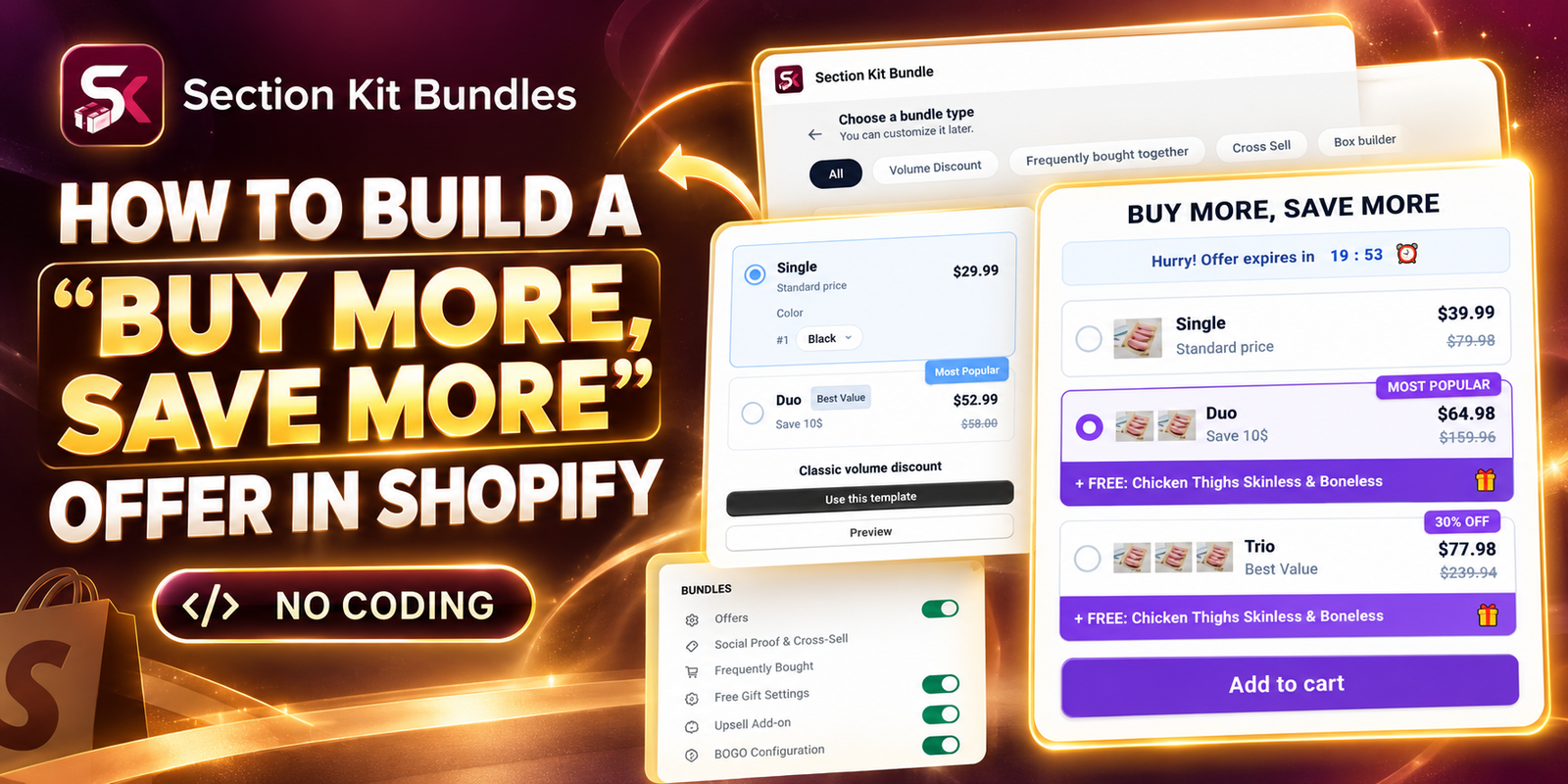
HOW TO BUILD A “BUY MORE, SAVE MORE” OFFER IN SHOPIFY
Introduction
A shopper who plans to buy one item may be willing to buy two or three when the extra value is easy to understand. A “buy more, save more” offer gives customers a clear reason to increase their quantity: a lower price per item, a larger discount, or a relevant bundle benefit.
This guide explains how to build a buy more, save more Shopify offer with Section Kit Bundles. The eight supplied images appear in their original order, from installation through enabling the offer in the theme editor.
The Main Problem: Customers Do Not See a Reason to Buy More
Many product pages present only a single price and a quantity selector. Customers can increase the quantity, but they may not see any benefit from doing so. A promotion hidden in a banner or revealed only at checkout can be easy to miss.
Merchants also need to keep the offer understandable, protect their margins, and ensure the amount charged matches the advertised savings. Editing a theme manually can add maintenance work, especially when the same promotion needs to appear on multiple product pages.
Why Use an App for a Buy More, Save More Offer?
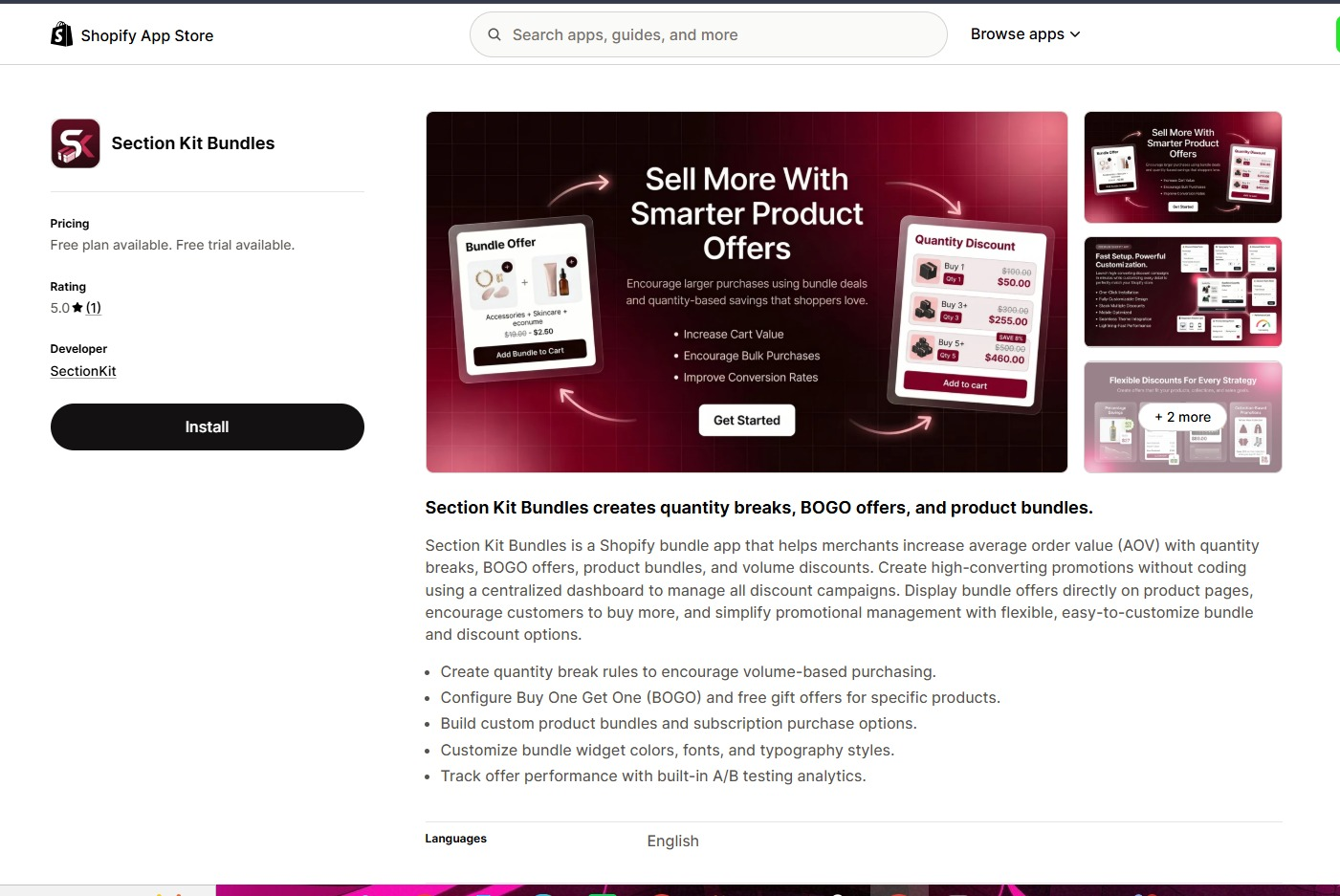
An app brings the offer choices and their presentation into one workflow. Section Kit Bundles supports quantity breaks, volume discounts, BOGO offers, and product bundles, with options to customize the widget’s appearance. Its Shopify App Store listing also describes built-in A/B testing analytics. Check the current plan details before choosing the features you need.
For this tutorial, use quantity-based savings as the main offer. BOGO and frequently bought together are alternative promotion formats; they are not required to create a simple volume discount.
Why the Offer Matters
Visible quantity tiers can help customers compare the cost of buying one item with the value of buying more. This can support a higher average order value when the product is suitable for repeat use, gifting, or stocking up. Results depend on your pricing, product demand, and audience; an offer should improve the customer’s value without removing your profit.
Plan Your Quantity Tiers Before You Start
Choose a product with sufficient stock and a sensible reason to purchase multiple units. Calculate the discount after product costs, payment fees, and fulfillment costs. Keep the first version simple with two or three choices.
| Quantity | Example discount | Total price | Price per item |
|---|---|---|---|
| 1 item | No discount | $30.00 | $30.00 |
| 2 items | 10% off | $54.00 | $27.00 |
| 3 items | 15% off | $76.50 | $25.50 |
These prices are an illustrative example, not the values shown in the supplied images. Use your own product prices and discount rules.
Step 1: Install Section Kit Bundles
Open Section Kit Bundles in the Shopify App Store, click Install, select your store, and review the installation permissions. Once installed, open the app from your Shopify admin.
Step 2: Open the Dashboard and Create a New Bundle
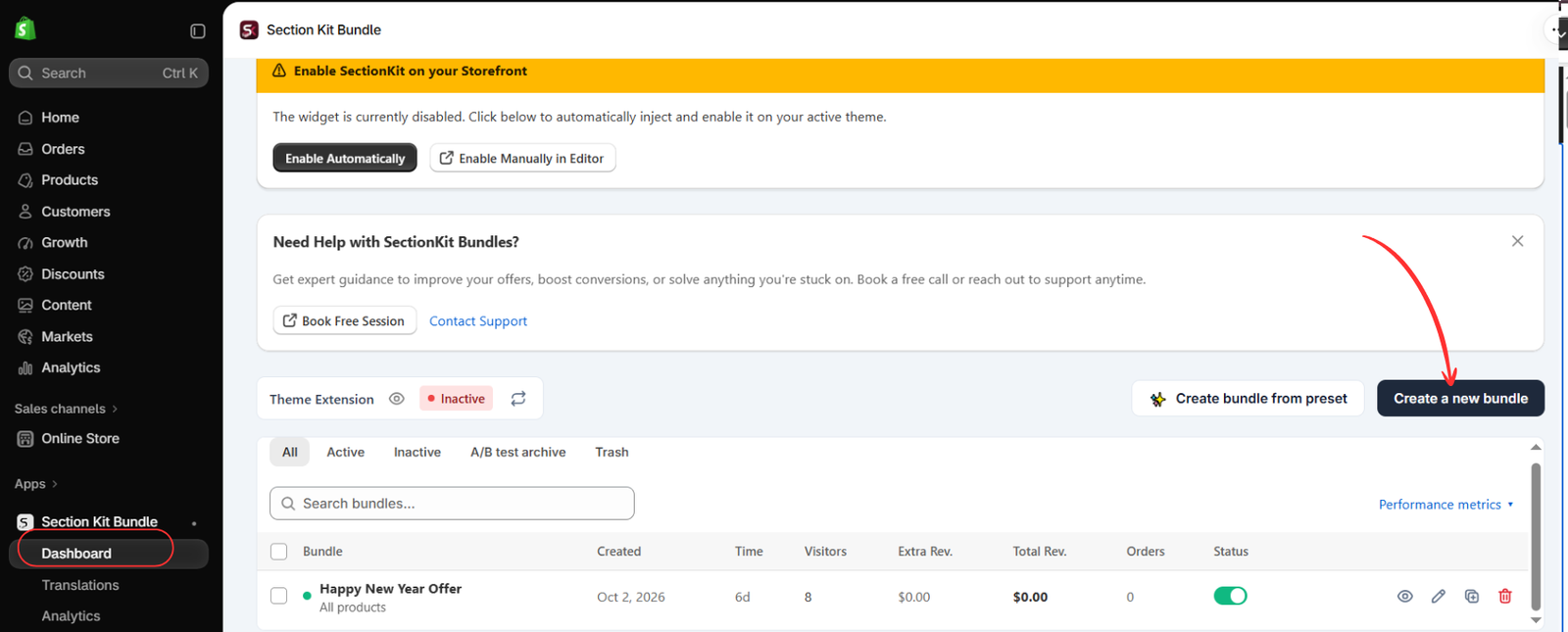
Open Apps → Section Kit Bundle → Dashboard. Click Create a new bundle, as highlighted in Image 2. The dashboard also offers a preset option and shows existing promotions.
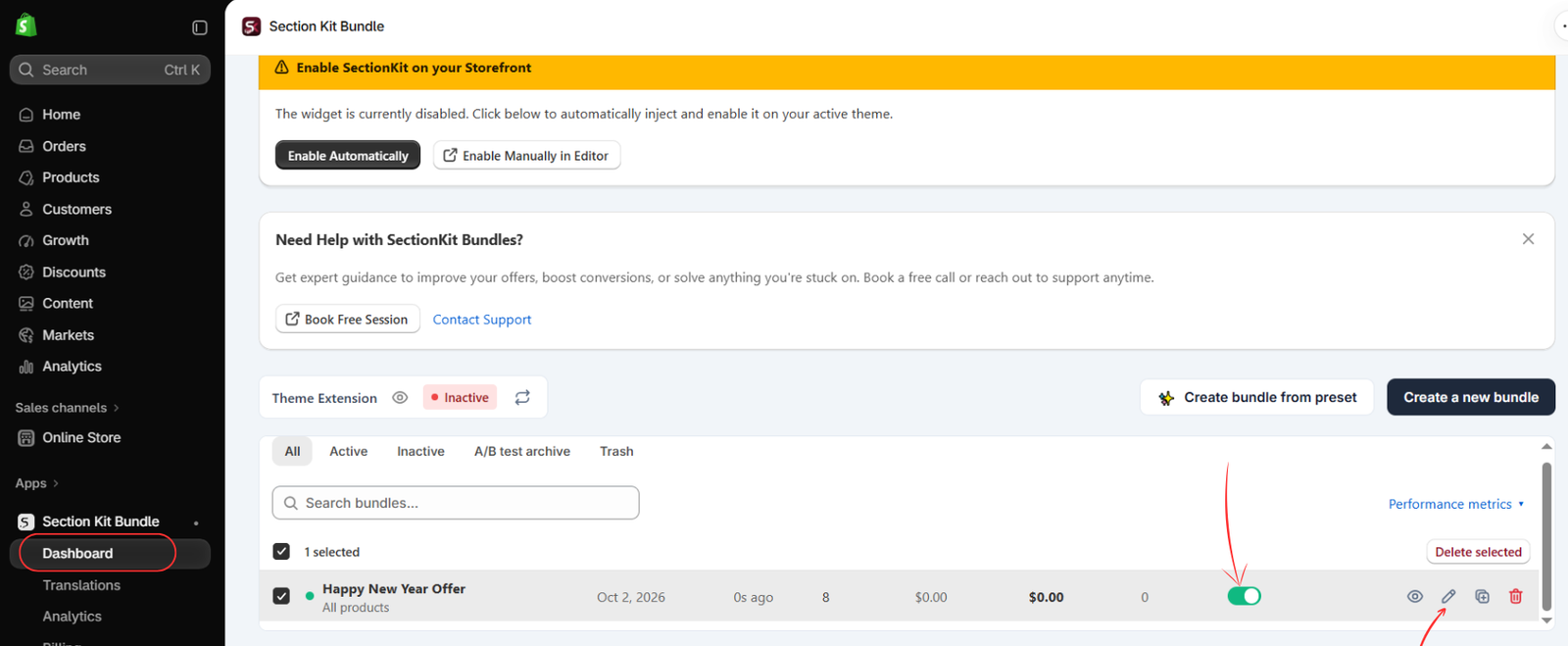
The image shows the theme extension as inactive. Creating or activating an offer and enabling its storefront integration are separate checks; complete the theme setup before expecting the widget to appear.
Step 3: Choose the Classic Volume Discount Template
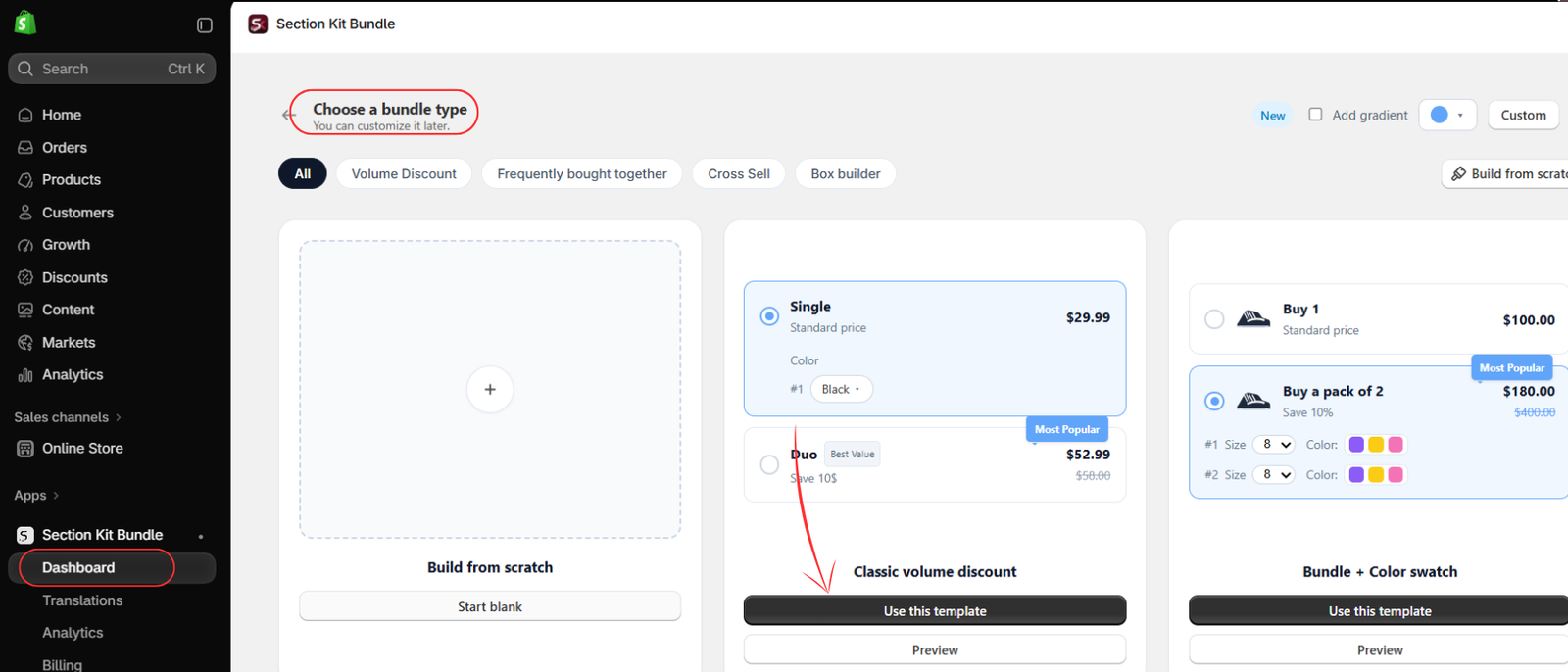
On the Choose a bundle type page, find Classic volume discount and click Use this template. This is the clearest starting point for an offer that rewards larger quantities. Use the preview option if you want to inspect its presentation first.
Step 4: Understand the Alternative Offer Templates
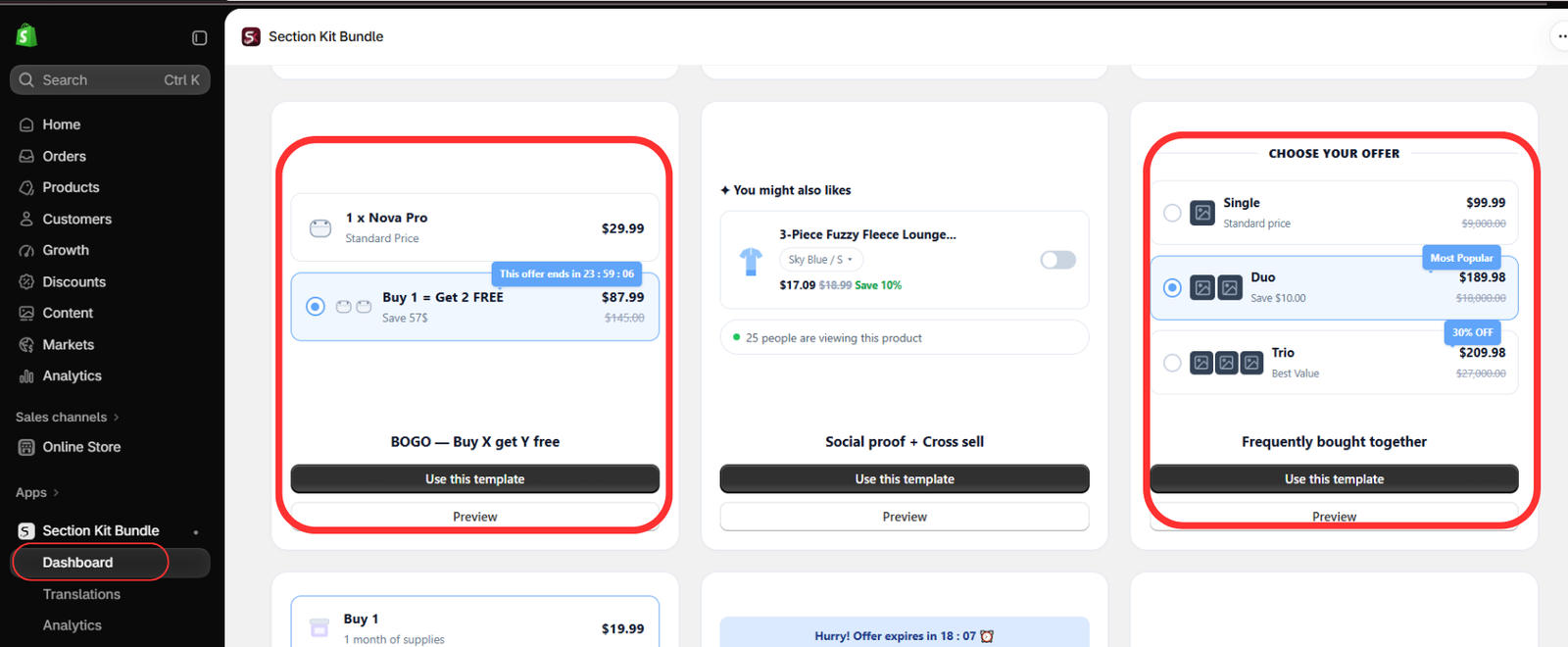
Image 4 highlights BOGO — Buy X get Y free and Frequently bought together. Choose BOGO when the benefit is a free item, or a related-product bundle when customers should purchase complementary products together. For the quantity-discount offer in this guide, continue with the classic volume discount template selected in Step 3.
Keep your offer wording consistent with the actual discount. A percentage discount should not be described as a free-item promotion.
Step 5: Find Your Offer and Open Its Editor
When your offer is saved and appears in the dashboard, locate its row and click the pencil icon to edit it. The highlighted status switch controls whether that offer is active. Finish reviewing its rules before enabling it for customers.
Image 5 shows an existing example named “Happy New Year Offer.” Give your own offer a descriptive name so it is easy to identify later. An active offer switch alone does not confirm that the theme extension is enabled.
Step 6: Configure the Savings and Preview the Widget
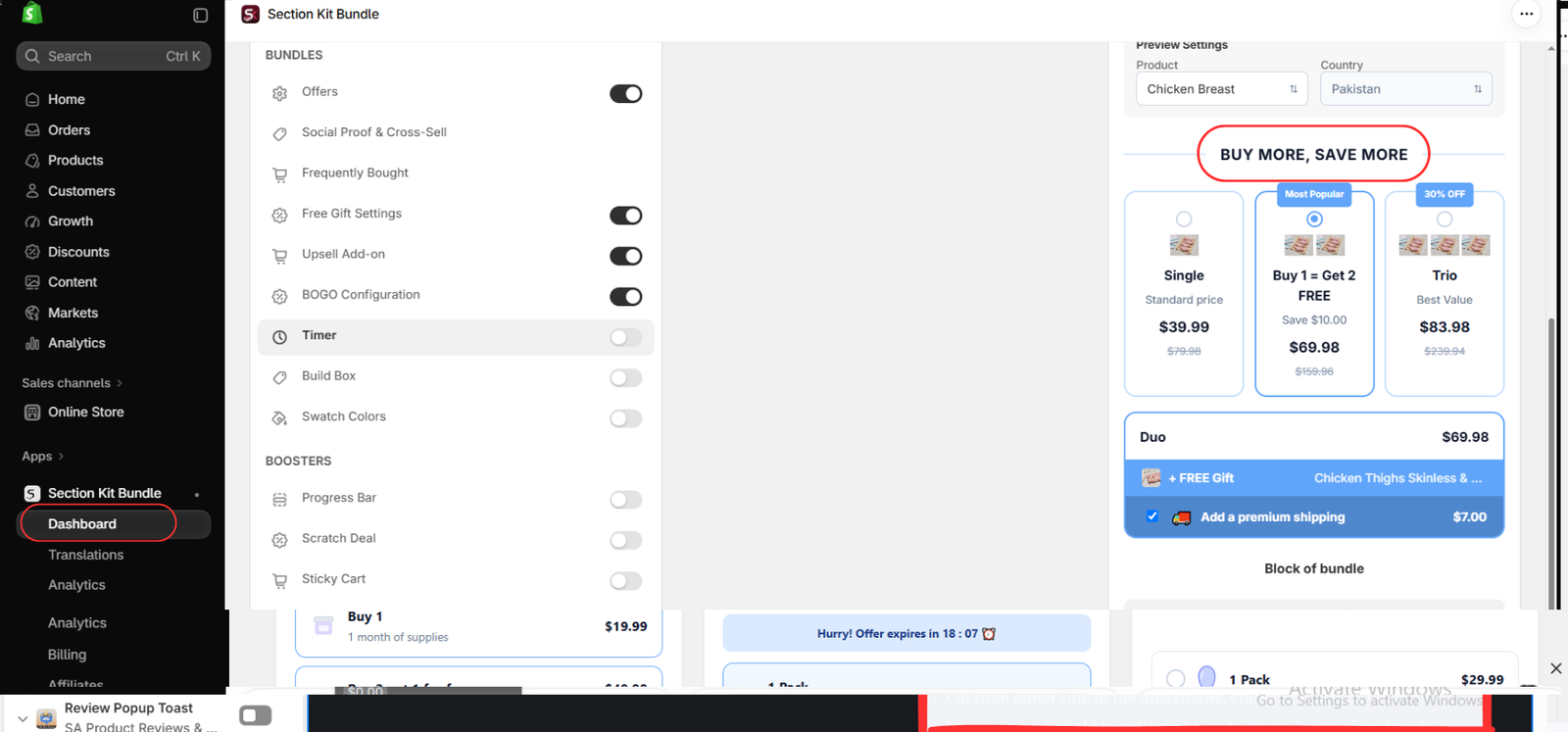
In the offer editor, set the eligible products, quantity choices, and discount values using the available offer controls. Enter a clear heading such as BUY MORE, SAVE MORE, and check the product preview as you adjust the configuration.
For a simple volume discount, use a standard-price single option and discounted choices for larger quantities. Show the total price clearly, and use labels such as “Save 10%” only when the calculation is accurate. Optional free gifts, upsells, or BOGO settings should be enabled only if they are part of your intended promotion.
Image 6 shows the editor’s feature toggles and a mixed example preview. Its free-item wording and prices demonstrate a layout, not a pricing model to copy. The image does not show every quantity or discount input; review those controls in your app before saving. Customize the widget’s colors and typography to fit your store, then save using the editor’s available save control.
Step 7: Open Your Shopify Theme Editor
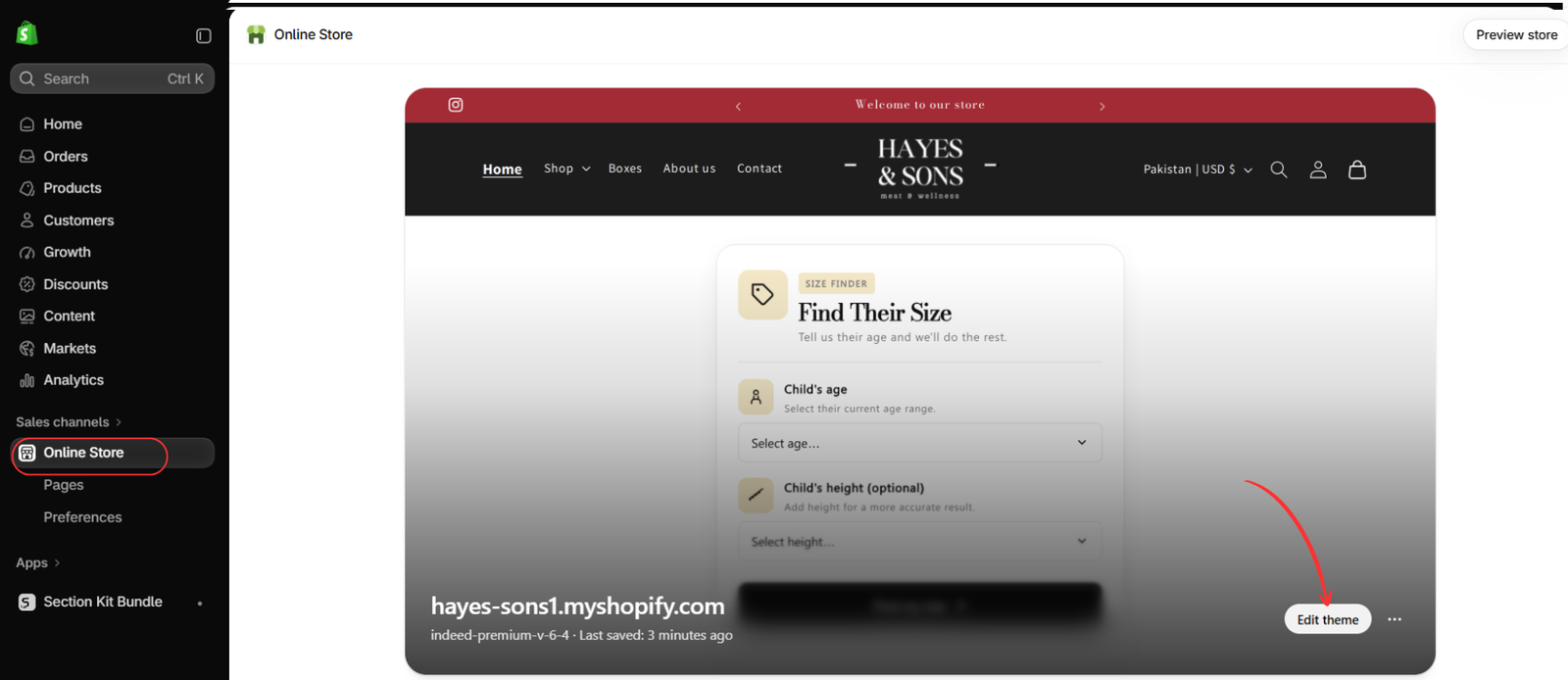
Go to Online Store → Themes and open the theme you want to use. In Image 7, the button is labeled Edit theme. Open the visual theme editor to configure the app embed.
Check that you are working on the intended theme. If you are preparing the promotion on a duplicate theme, preview it there before publishing it.
Step 8: Enable the App Embed and Save
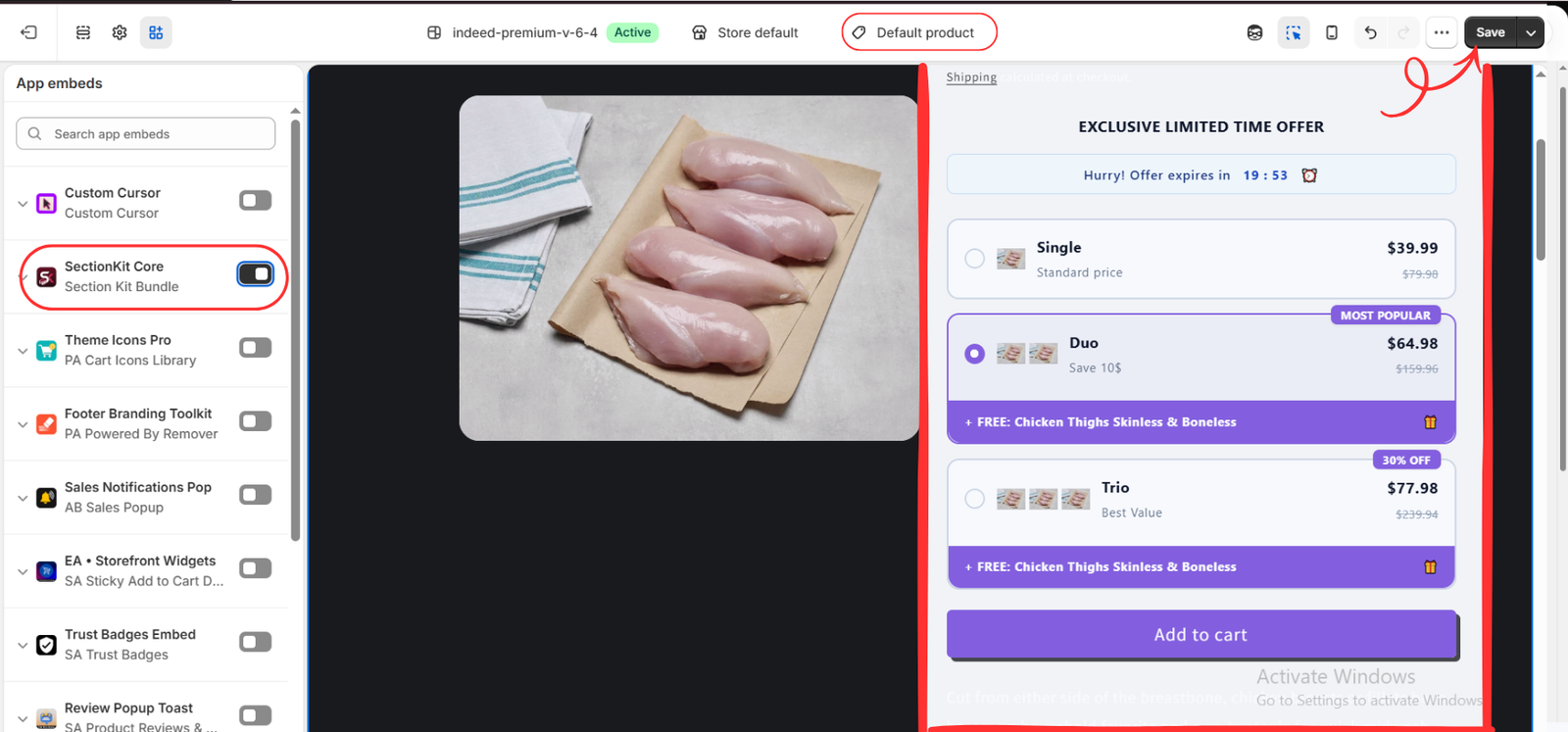
Inside the theme editor, open App embeds. Turn on SectionKit Core, shown under Section Kit Bundle in Image 8. Select the relevant product template—Default product is shown in the image—and verify that the offer widget appears on an eligible product. Click Save.
The final image displays a styled example with Single, Duo, and Trio options. Its values differ from the earlier editor preview, so validate your own final prices rather than copying the image’s numbers. If your products use a different template, check that template as well.
Test the Offer Before Promoting It
Open an eligible product on the storefront and select each quantity tier. Confirm that the cart receives the correct product variants and quantities, then check that the discount and total remain correct at checkout. Repeat the check on mobile and on a product that should not qualify.
Check whether other discounts can combine with this offer, whether free gifts are added only when intended, and whether your inventory supports the quantities offered. If you use a timer, make sure it reflects a real promotion deadline. Publish only after the displayed savings and checkout totals agree.
Improve the Offer After Launch
Monitor order value, offer use, and profit per order. Compare these with a period before the promotion, accounting for traffic and seasonal changes. Use the app’s available performance reporting, and test a single change at a time, such as a discount tier or label. A higher order total is useful only when the promotion also makes commercial sense.
Conclusion
A successful buy more, save more offer makes the value of a larger purchase easy to understand. Start with a product customers can reasonably buy in multiples, create clear quantity tiers, and verify the final discount at checkout.
Explore Section Kit Bundles to create your offer, customize its presentation, and enable it on your Shopify product pages without manually editing theme code.
App feature reference: official Section Kit Bundles Shopify App Store listing. Interface steps follow the supplied images; labels and available controls may vary as the app is updated.




