HOW TO CHANGE CART ICON COLOR AND SIZE IN ANY SHOPIFY THEME
Shopify Cart Customization Guide | Change Icon Colors & Sizes | No Coding Required | 2026

Introduction
Your Shopify store’s shopping cart icon is an essential part of the customer shopping experience. It helps visitors locate their shopping cart, review selected products, and move toward checkout.
However, the default cart icon included with your Shopify theme may not always match your brand’s colors, typography, or overall design.
For example, a minimalist fashion store might prefer a small black shopping bag, while a modern accessories store may want a larger purple cart icon. Other merchants might choose green, red, blue, or yellow icons to match their storefront branding.
Changing the cart icon’s color or size manually can require CSS editing, Liquid modifications, or custom SVG code.
Fortunately, you can change your Shopify cart icon color and size without coding using PA Cart Icons Library.
This application allows merchants to choose different cart icon styles, adjust icon dimensions, change colors using HEX codes, and preview the results before publishing.
In this guide, we’ll explain why cart icon customization matters and demonstrate the process using six real screenshots from PA Cart Icons Library.
Why Customize Your Shopify Cart Icon Color and Size?
1. Match your brand identity
Your cart icon should complement your store’s existing colors and design elements. A consistent visual style can make the storefront look more professional.
2. Improve icon visibility
An icon that blends into your header background may be difficult to recognize. Choosing an appropriate color can improve visibility.
3. Create a balanced header
Cart icons that are too large can dominate the navigation area, while icons that are too small may be difficult to locate or tap.
4. Improve mobile usability
Mobile storefronts have limited header space. An appropriate icon size helps maintain a clean layout while preserving usability.
5. Maintain consistency across header icons
Using coordinated sizes and colors for cart, search, and account icons creates a more unified storefront appearance.
Challenges of Changing Shopify Cart Icons Manually
Many Shopify themes control header icon styling through CSS, SVG files, and Liquid templates.
To customize icons manually, merchants may need to locate the relevant theme files, identify CSS selectors, change SVG colors, and test different screen sizes.
These changes can become complicated, particularly for merchants without coding experience.
A no-code customization app provides a simpler alternative.
Introducing PA Cart Icons Library
PA Cart Icons Library is a Shopify app designed to customize cart, search, and account header icons without manually modifying theme code.
Its Theme Icons Pro dashboard includes controls for icon styles, sizes, stroke widths, and colors.
Key features
- 300+ cart icon styles.
- Custom icon colors using a color picker or HEX codes.
- Adjustable icon sizes.
- Stroke-width customization.
- Cart, search, and account icon selection.
- Cart count badge styling on eligible plans.
- Live header preview.
- Theme app embed integration.
- Custom SVG uploads on eligible plans.
App Link: PA Cart Icons Library — Shopify App Store
Step-by-Step Guide: How to Change Cart Icon Color and Size in Shopify
The tutorial begins with installation and then follows your six actual screenshots in their original order.
Step 1: Search for the Shopify App Store
Open Google and search for Shopify App Store. Click the official Shopify App Store result to open the website.

Image 1: Google search results highlighting the official Shopify App Store.
Step 2: Search for PA Cart Icons Library
In the Shopify App Store search bar, type PA Cart Icons Library. Find the app with the turquoise shopping cart logo and click its name.
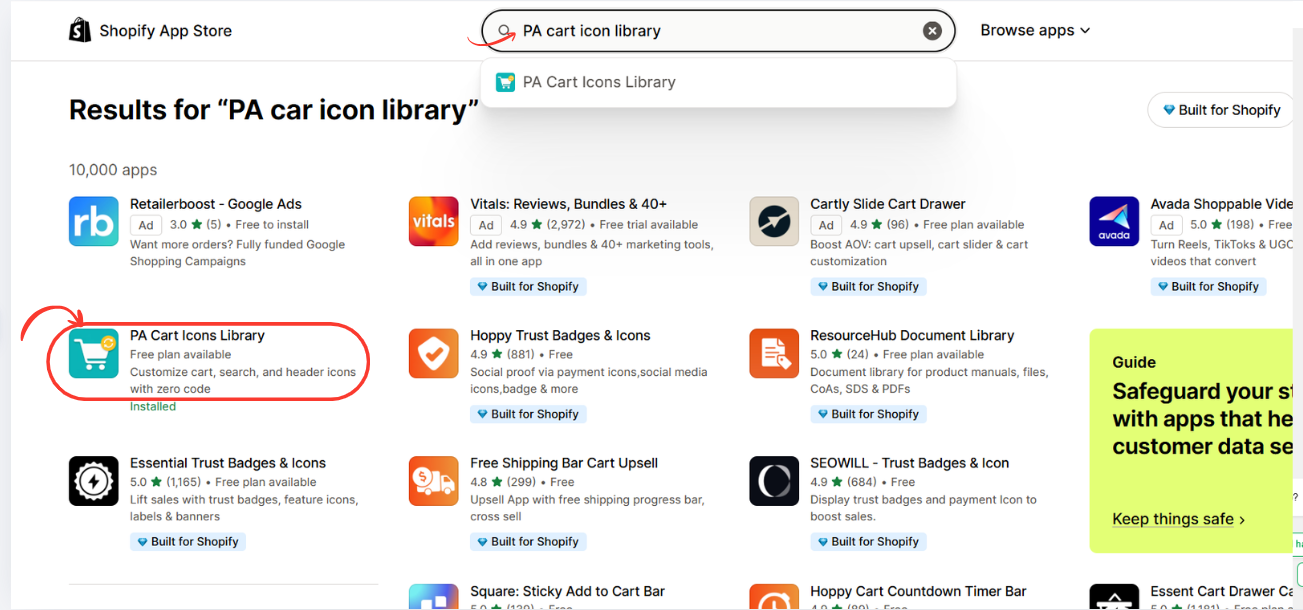
Image 2: PA Cart Icons Library appearing in Shopify App Store search results.
Step 3: Install and Open the App
Open the app listing, review its features, and click Install. If the app is already installed, click Open.

Image 3: Official app listing showing 300+ cart icon styles and customization features.
You can also access the app directly from the Shopify App Store.
Step 4: Open the Cart Icon Color Picker
In the Dimensions & Styling section, find the Icon Hex Color field.
Click the color swatch or color input to open the color picker.
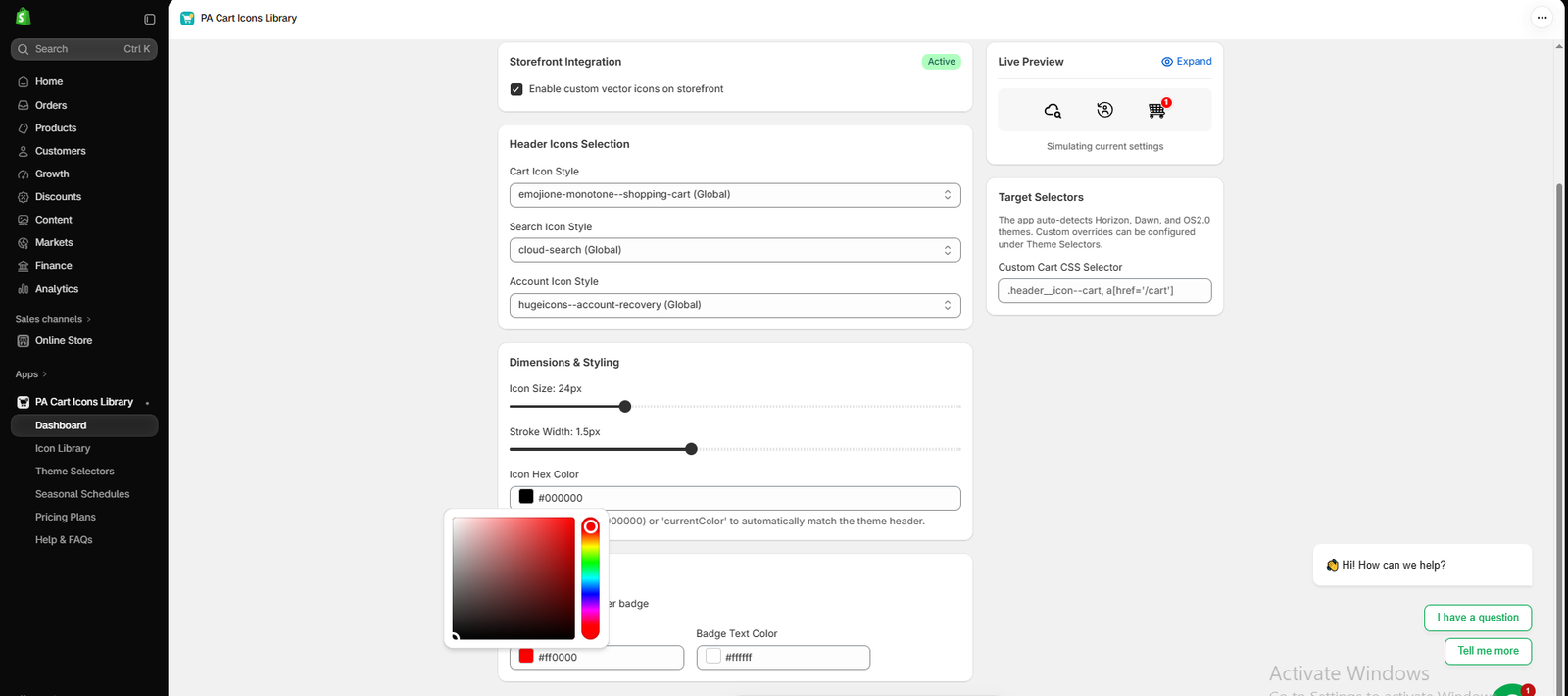
Image 1: PA Cart Icons Library dashboard showing the Icon Hex Color field and its built-in color picker.
Image explanation: Your screenshot shows the Theme Icons Pro dashboard with the color picker open.
The cart, search, and account icons are visible in the Live Preview panel on the right.
Below the size and stroke-width settings, the Icon Hex Color control allows you to choose a custom color.
The screenshot also shows a red cart count badge with white text, demonstrating that the badge’s colors can be configured separately.
What should merchants do? Click the Icon Hex Color field and select a color that matches your store’s branding.
Step 5: Choose a Custom Cart Icon Color
Use the color picker to choose your preferred color, or enter a HEX color code directly.
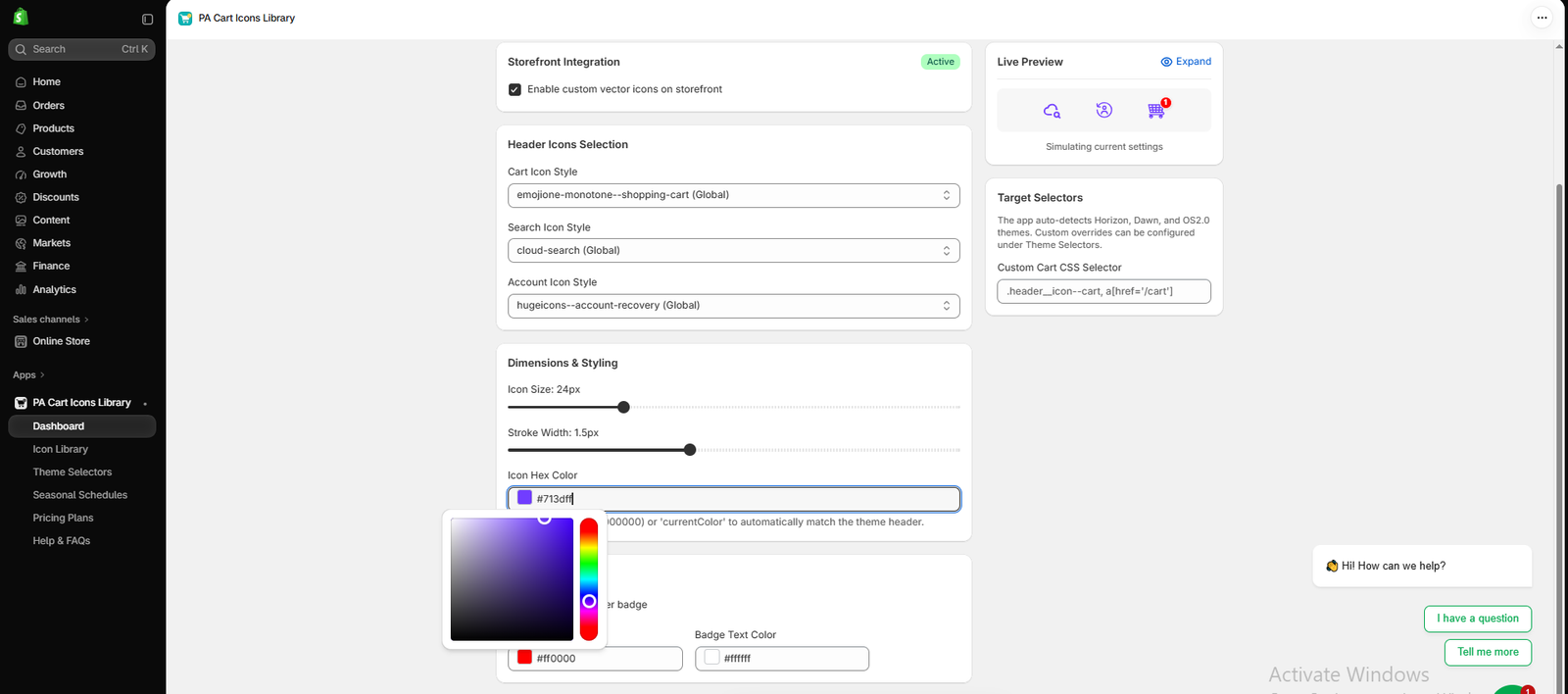
Image 2: Selecting purple (#713DFF) for the storefront header icons.
Image explanation: The screenshot shows the Icon Hex Color field set to #713dff, a vibrant purple color.
The Live Preview updates to show the selected cart, search, and account icons in purple.
This demonstrates how merchants can change their header icon colors without writing CSS.
Popular icon color ideas
| Color | HEX code | Suitable styling |
|---|---|---|
| Purple | #713DFF | Modern and creative |
| Black | #000000 | Minimalist |
| Dark green | #166534 | Natural and premium |
| Deep blue | #1D4ED8 | Corporate and technology |
| Red | #DC2626 | Bold and energetic |
| Golden yellow | #EAB308 | Bright and playful |
The best choice depends on your existing theme colors. Ensure the icons remain clearly visible against the header background.
Step 6: Preview Your New Cart Icon Color
After selecting a color, review the Live Preview panel.
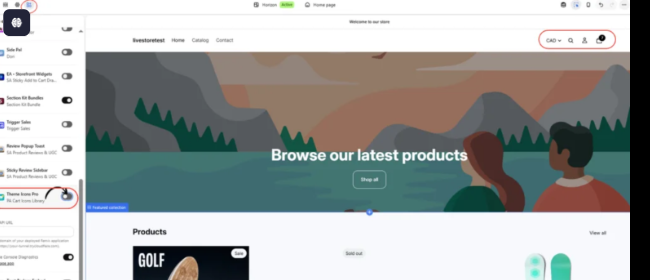
Image 3: Live Preview displaying coordinated purple cart, search, and account icons.
Image explanation: This screenshot shows the purple color applied to all three selected header icons.
The cart count badge remains red, demonstrating that badge styling is separate from the icon color setting.
The purple icons stand out against the preview’s light background.
If you are customizing your store’s entire header, consider using the same icon color to maintain a consistent visual appearance.
Step 7: Save the Cart Icon Color Configuration
Once you’re satisfied with the color, review the settings and click Save Configuration.
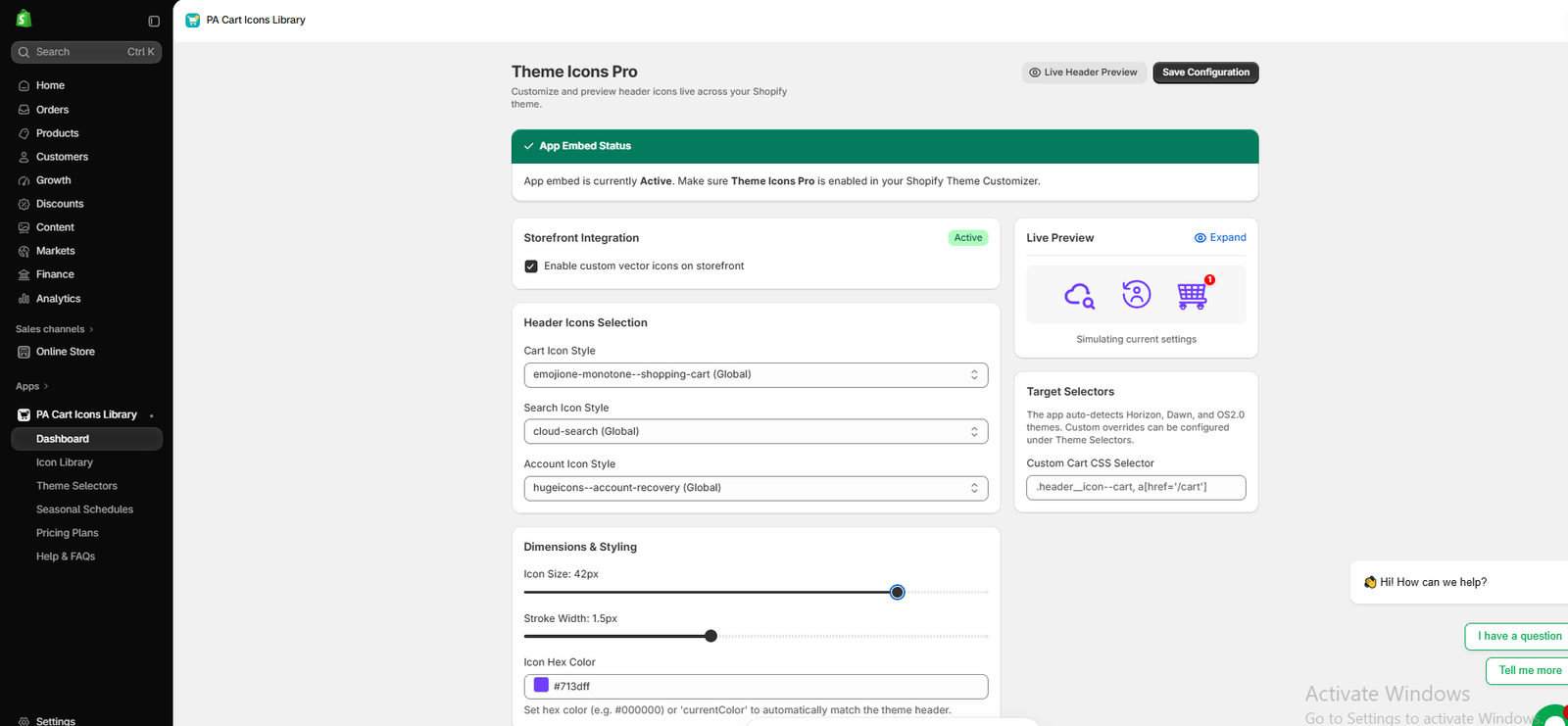
Image 4: Saving the newly selected purple icon color inside Theme Icons Pro.
Image explanation: The screenshot shows the Theme Icons Pro dashboard with purple icons displayed in the Live Preview.
At the top-right, the Save Configuration button allows merchants to save their selected styling.
Clicking this button stores the chosen color and icon settings in the app.
Step 8: Adjust Your Shopify Cart Icon Size
Next, scroll to the Dimensions & Styling section.
Find the Icon Size slider.
Move the slider to increase or decrease the icon size.
Image 5: Increasing the Shopify header icon size from 24px to 42px using the Icon Size slider.
Image explanation: Your screenshot shows the Icon Size slider adjusted to 42px.
The Live Preview displays larger purple header icons compared with the earlier configuration.
The Stroke Width remains at 1.5px in this example.
What should merchants do? Adjust the icon size according to the available space in your header.
For many storefronts, an icon around 20–28px can be a useful starting point. Larger sizes may work for particular designs, but they need to be tested carefully on mobile.
The 42px example demonstrates the app’s resizing capability rather than a recommended size for every store.
After choosing your preferred size, click Save Configuration again.
Step 9: Enable Theme Icons Pro in the Shopify Theme Editor
After saving your color and size settings, open your Shopify theme editor.
Navigate to:
Online Store → Themes → Edit theme → App embeds
Find Theme Icons Pro, provided by PA Cart Icons Library.
Enable the app embed if it is not already active.
Step 10: Preview the New Cart Icon Color and Size on Your Storefront
Return to the Shopify storefront preview and examine the header.
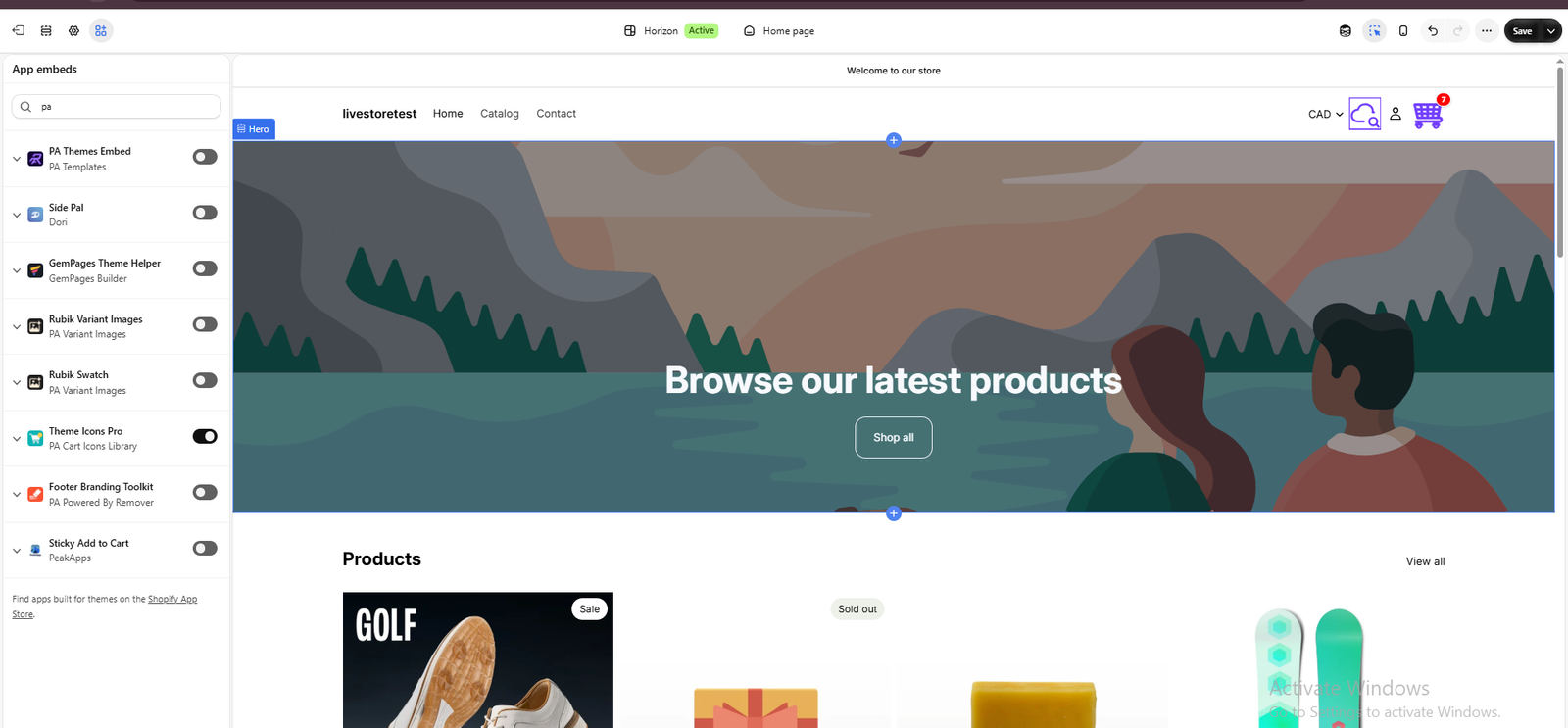
Image 6: Shopify Horizon theme preview displaying the enlarged purple cart and search icons with a red cart count badge.
Image explanation: This final screenshot shows the Shopify Horizon theme editor with Theme Icons Pro enabled.
In the top-right corner of the storefront, the customized cart and search icons appear in purple.
The cart icon is visibly larger than the other header elements, and the cart count badge remains red.
This confirms that the color and size customizations are visible in the theme editor preview.
Final checks: Verify that the icons fit within the header, remain easy to recognize, and do not overlap nearby elements. Test desktop and mobile layouts, confirm that the cart still opens correctly, and click Save in Shopify’s theme editor.
Your Shopify cart icon color and size are now customized without manually editing theme code.
What Is the Best Shopify Cart Icon Size?
The appropriate cart icon size depends on your Shopify theme, header layout, and device.
| Icon size | Possible use |
|---|---|
| 18–20px | Compact header designs |
| 22–24px | Standard minimalist headers |
| 26–28px | More prominent header icons |
| 30–36px | Larger custom header designs |
| 40–42px | Oversized or specialized layouts |
These are design starting points, not strict requirements.
Also ensure that the cart’s clickable area is sufficiently large for touch users, even when the visible icon itself is small.
How to Choose the Right Cart Icon Color
Match your primary brand colors
Choose a color that complements your store’s established visual identity.
Maintain sufficient contrast
The cart icon should remain clearly visible against the header background.
Avoid overly bright combinations
Very saturated colors may compete with other important elements in your store’s navigation.
Keep icons consistent
Where possible, use similar color styling for your cart, search, and account icons.
Test different screen sizes
Always preview your choices on desktop and mobile before publishing.
Cart Icon Color vs Cart Count Badge Color
PA Cart Icons Library provides separate styling controls for header icons and the cart count badge.
The Icon Hex Color changes the icon color, while the Badge Background and Badge Text Color fields control the cart quantity indicator.
For example, your screenshots demonstrate purple header icons combined with a red cart count badge.
This separation allows merchants to maintain coordinated icon styling while making the quantity notification more noticeable.
Common Problems and Solutions
The cart icon color is not changing
Confirm that the configuration has been saved and Theme Icons Pro is enabled in Shopify App embeds.
The icon is too large
Reduce the Icon Size slider and test the result on desktop and mobile.
The icon looks different in the live storefront
The result can depend on your theme’s header structure and existing styles. Check theme compatibility and any conflicting customizations.
The cart badge color is not changing
Use the Cart Count Badge settings rather than the general Icon Hex Color field.
The search and account icons also change color
The dashboard’s shared icon color setting affects the supported header icons shown together in Live Preview.
The updated icon is not visible
Check the app embed, saved configuration, storefront integration setting, and the theme you’re editing.
Frequently Asked Questions
1. Can I change my Shopify cart icon color without coding?
Yes. PA Cart Icons Library offers an Icon Hex Color setting that allows merchants to choose custom colors without manually editing theme CSS.
2. Can I increase the size of my Shopify cart icon?
Yes. The app includes an Icon Size slider for adjusting supported header icons.
3. Can I use any HEX color code?
The app provides a HEX color field and color picker for selecting custom colors.
4. Can I make my Shopify cart icon purple?
Yes. For example, you can use #713DFF, as demonstrated in your screenshots.
5. Does changing the icon color also change the cart badge color?
No. The dashboard provides separate controls for the icon color and the cart count badge colors.
6. Can I customize the search and account icons too?
Yes. PA Cart Icons Library supports cart, search, and account icon customization.
7. Does the app work with Shopify Dawn and Horizon?
The app dashboard indicates automatic selector detection for Dawn, Horizon, and Online Store 2.0 themes, although individual themes should be tested for compatibility.
8. Do I need to edit Liquid or CSS files?
The demonstrated workflow uses the app’s visual settings and Shopify theme app embed without requiring manual code editing.
Conclusion
Changing your Shopify cart icon’s color and size is a simple way to improve the consistency and appearance of your storefront header.
However, making these changes manually can require CSS or Liquid knowledge.
With PA Cart Icons Library, merchants can choose custom icon colors using HEX codes, adjust icon sizes with a slider, preview the results, and apply supported changes through Shopify’s theme editor.
The real screenshots in this tutorial demonstrate how to change the header icons from black to purple, increase their size from 24px to 42px, and review the results in the storefront preview.
For the best outcome, choose a color that complements your brand, use an appropriate icon size, and test the finished header on both desktop and mobile.
Ready to customize your Shopify cart icon without coding?Install PA Cart Icons Library on Shopify




