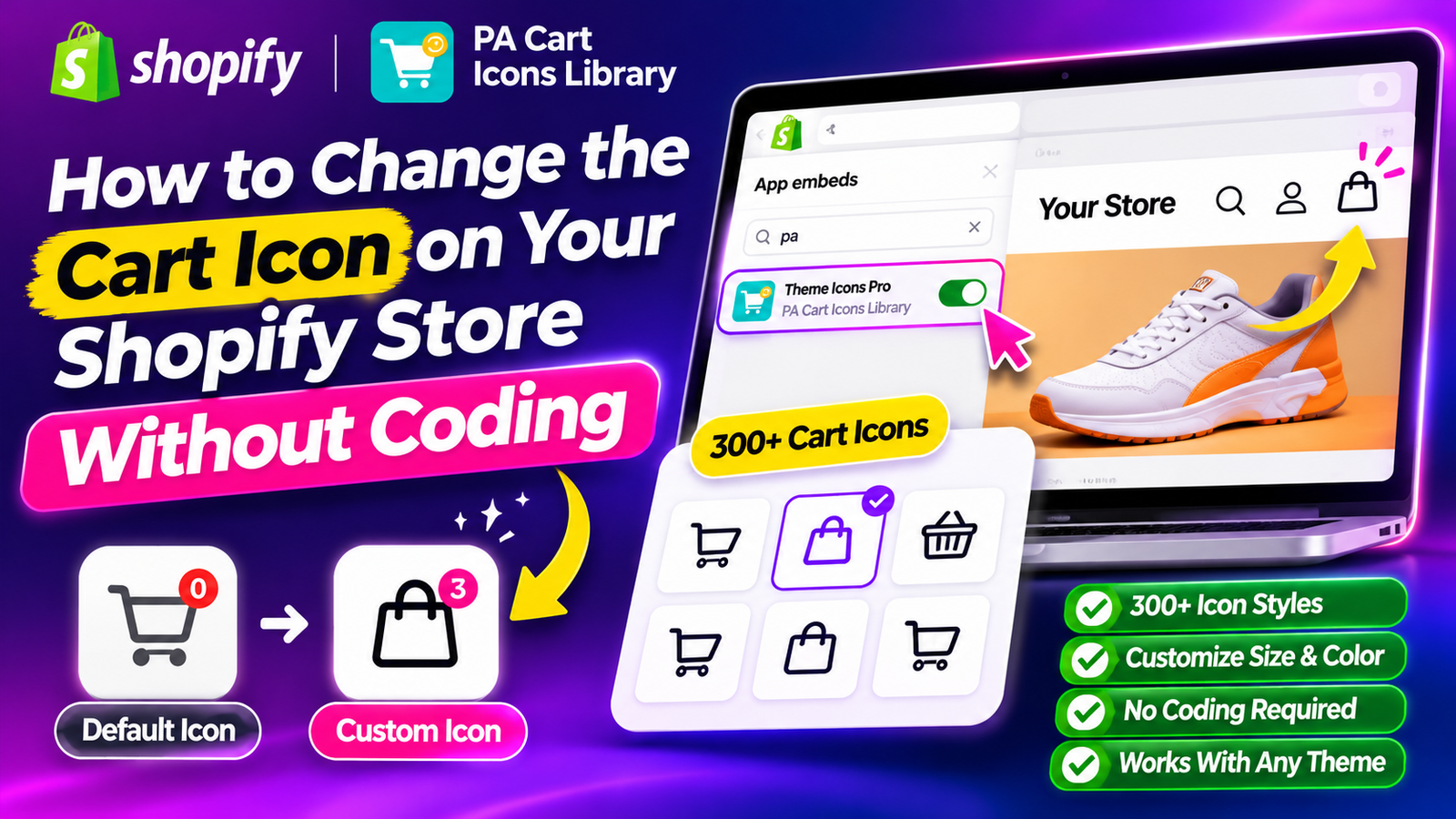
HOW TO CHANGE THE CART ICON ON YOUR SHOPIFY STORE WITHOUT CODING
Shopify Store Customization | Cart Icon Design | No-Code Tutorial | 2026
Introduction
Your Shopify store’s design plays an important role in creating a professional and enjoyable shopping experience. While merchants often focus on product photographs, banners, colors, and typography, smaller design elements such as the shopping cart icon are sometimes overlooked.
The cart icon is one of the most recognizable elements of an ecommerce website. Customers use it to view selected products, check their cart, and continue toward checkout.
However, many Shopify themes come with a default cart icon that may not match your brand’s visual identity.
Some stores use shopping bag icons, while others prefer baskets, minimalist carts, or custom designs. Changing these icons manually may require editing Shopify theme code, which can be challenging for merchants without development experience.
Fortunately, you can change your Shopify cart icon without coding using an application such as PA Cart Icons Library.
With this app, Shopify merchants can browse a library of 300+ cart icon styles, customize their appearance, and apply supported designs to their storefronts.
In this guide, we’ll explain why cart icon customization matters, explore different icon styles, and show you how to change your Shopify cart icon using PA Cart Icons Library, with real screenshots from the application.
What Is a Shopify Cart Icon?
A Shopify cart icon is a small graphical element typically displayed in your store’s header.
It allows customers to access their shopping cart and review products they have selected.
Depending on your Shopify theme, the icon may appear as a shopping bag, shopping basket, trolley, or another cart-related symbol.
Many Shopify stores also display a cart count badge showing how many items have been added.
While this icon may seem like a small part of your storefront, it contributes to the overall appearance and usability of the shopping experience.
Why Your Shopify Cart Icon Design Matters
1. Creates a consistent brand identity
Every visual element contributes to your store’s brand identity.
A minimalist fashion store may prefer a simple outline shopping bag, while a playful accessories store may choose a colorful cart icon.
Matching the cart icon to your store’s typography, colors, and design style creates a more cohesive appearance.
2. Helps customers recognize the shopping cart
The shopping cart should be easy to identify.
Familiar icons help customers locate their selected products and move toward checkout.
3. Improves visual consistency
An icon that matches your store’s header and navigation design can make the storefront feel more polished.
4. Supports mobile usability
Cart icons are especially important on smaller screens, where header space is limited.
Choosing an appropriately sized, recognizable icon helps maintain a usable mobile layout.
5. Allows seasonal branding
Some merchants prefer changing selected design elements during holidays or promotional events.
For example, a store might use a themed cart design during Christmas or another seasonal promotion.
Why Changing Cart Icons Manually Can Be Difficult
Shopify themes often define their cart icons through SVG files, Liquid code, snippets, or theme settings.
Changing these manually may involve locating the relevant theme file, modifying SVG markup, updating CSS, and testing the result.
For merchants unfamiliar with coding, this can introduce unnecessary complexity.
Incorrect changes may affect header layouts, cart behavior, or mobile styling.
A no-code icon customization app can simplify the process by providing ready-made styles and configurable options.
Introducing PA Cart Icons Library for Shopify
PA Cart Icons Library is a Shopify app designed to help merchants customize storefront header icons without manually editing theme code.
The app offers a collection of 300+ cart icon styles, along with customization options for other header icons.
Key Features
- 300+ cart icon styles.
- Cart, search, and account icon customization.
- Outline and solid SVG icon designs.
- Icon size and stroke-width adjustments.
- Color customization.
- Cart count badge styling.
- Custom SVG uploads on eligible plans.
- Live icon preview.
- Theme app embed integration.
- Seasonal styling options.
App Link: PA Cart Icons Library — Shopify App Store
Different Shopify Cart Icon Styles You Can Choose
Minimal Shopping Bag
A simple shopping bag icon works well for modern, minimalist, and fashion-oriented stores.
Modern Shopping Basket
A basket icon can be suitable for grocery stores, home essentials, and general ecommerce websites.
Traditional Shopping Cart
A recognizable trolley icon is useful for stores that prefer familiar shopping symbols.
Filled Shopping Bag
Solid icons can provide stronger visual emphasis in certain header designs.
Custom Brand Icon
For brands with a distinctive visual identity, a custom SVG icon may provide greater design flexibility.
The best cart icon is one that is recognizable, accessible, and consistent with the rest of your storefront.
Step-by-Step Guide: How to Change Your Shopify Cart Icon Without Coding
The following tutorial uses all eight of your original screenshots in the exact order provided.
Step 1: Open the Shopify App Store
First, open Google in your browser and search for Shopify App Store.
Click the official Shopify App Store result.
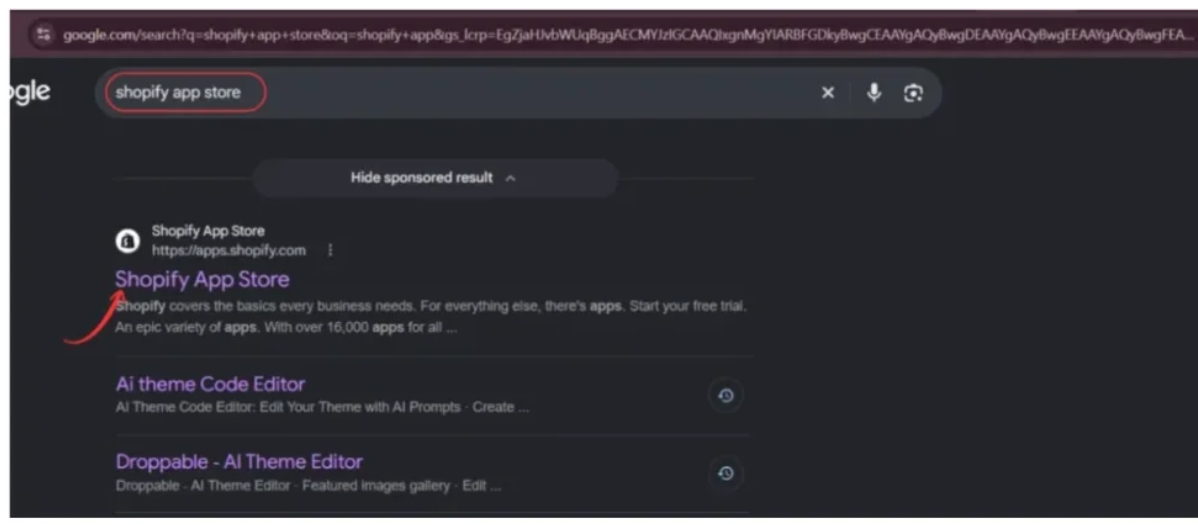
Image 1: Search for Shopify App Store on Google and open the official apps.shopify.com website.
Image explanation: The screenshot shows a Google search for “shopify app store,” with the official Shopify App Store result highlighted.
Make sure you open the official Shopify App Store website before looking for the application.
Step 2: Search for PA Cart Icons Library
Once you’ve opened the Shopify App Store, locate the search bar at the top of the page.
Type PA Cart Icons Library into the search field.
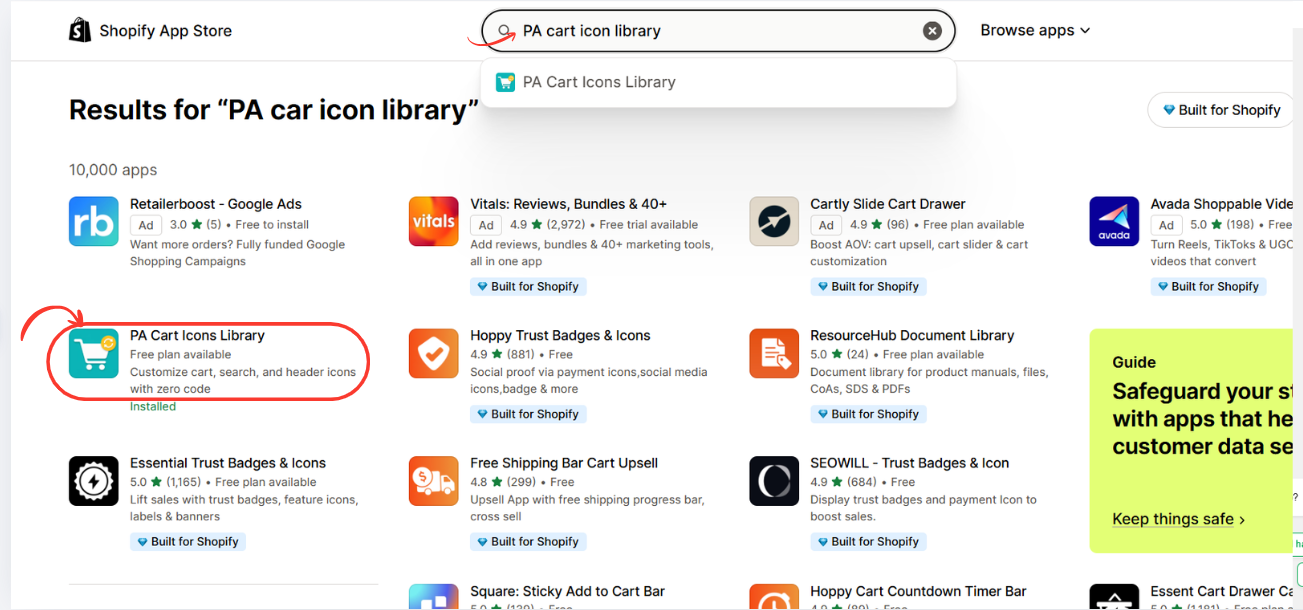
Image 2: Search for PA Cart Icons Library and locate the app in Shopify App Store results.
Image explanation: Your screenshot shows PA Cart Icons Library appearing in the search results, with its turquoise shopping cart icon highlighted.
The app listing describes its ability to customize cart, search, and header icons without coding.
Click PA Cart Icons Library to open the listing.
Step 3: Open and Install PA Cart Icons Library
On the app listing page, review the features, screenshots, pricing information, and description.
Click the Install or Open button displayed for your store.
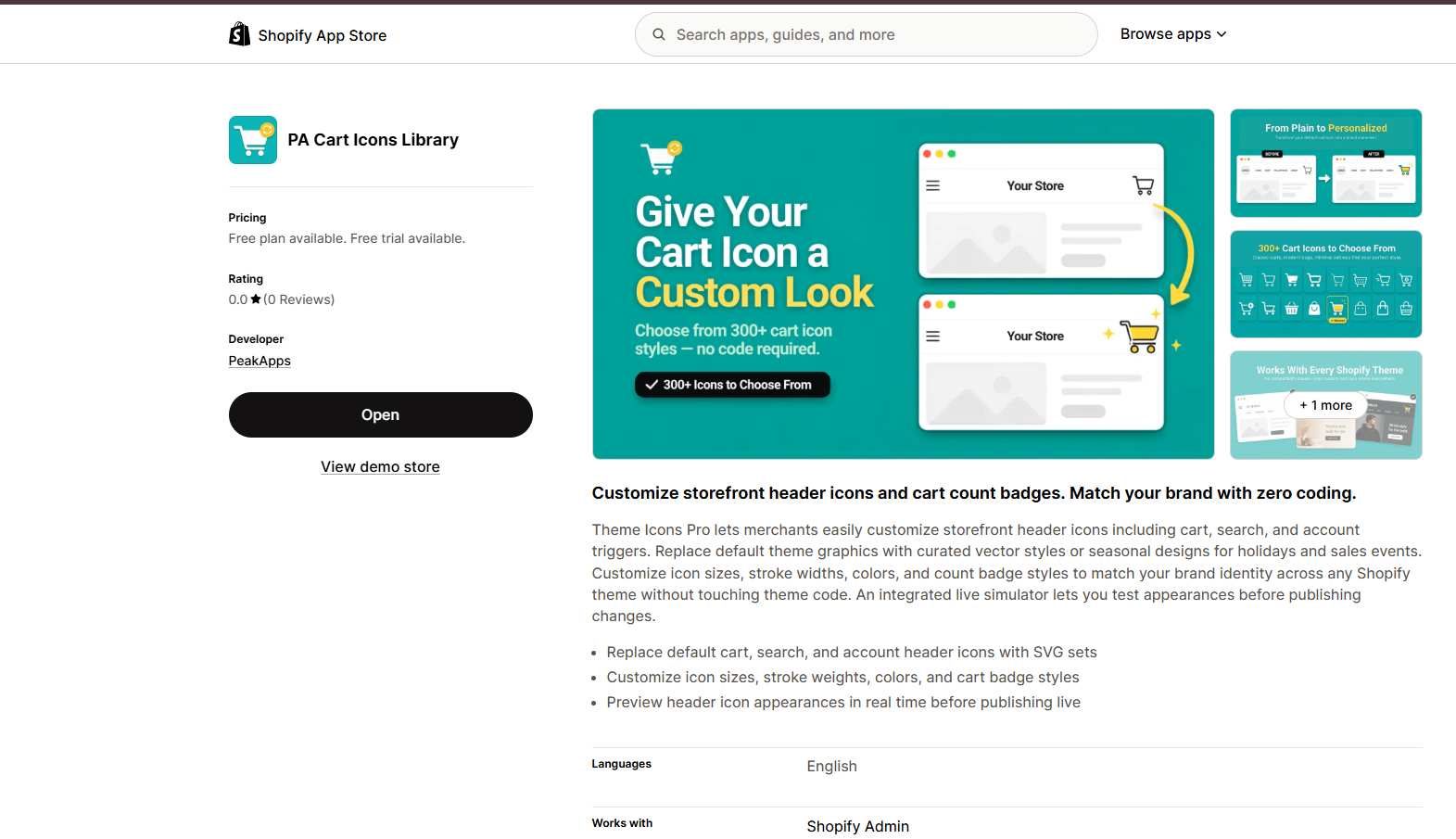
Image 3: Official PA Cart Icons Library listing showing its features, screenshots, and Open button.
Image explanation: The screenshot displays the app’s Shopify App Store listing.
Its main promotional banner highlights customizable cart icons and a library of 300+ designs.
The description also mentions changing cart, search, and account header icons without touching theme code.
Once the application has been installed and authorized, you can access it inside Shopify Admin.
Step 4: Review the Available Pricing Plans
Before customizing your icons, review the plans available for your store.
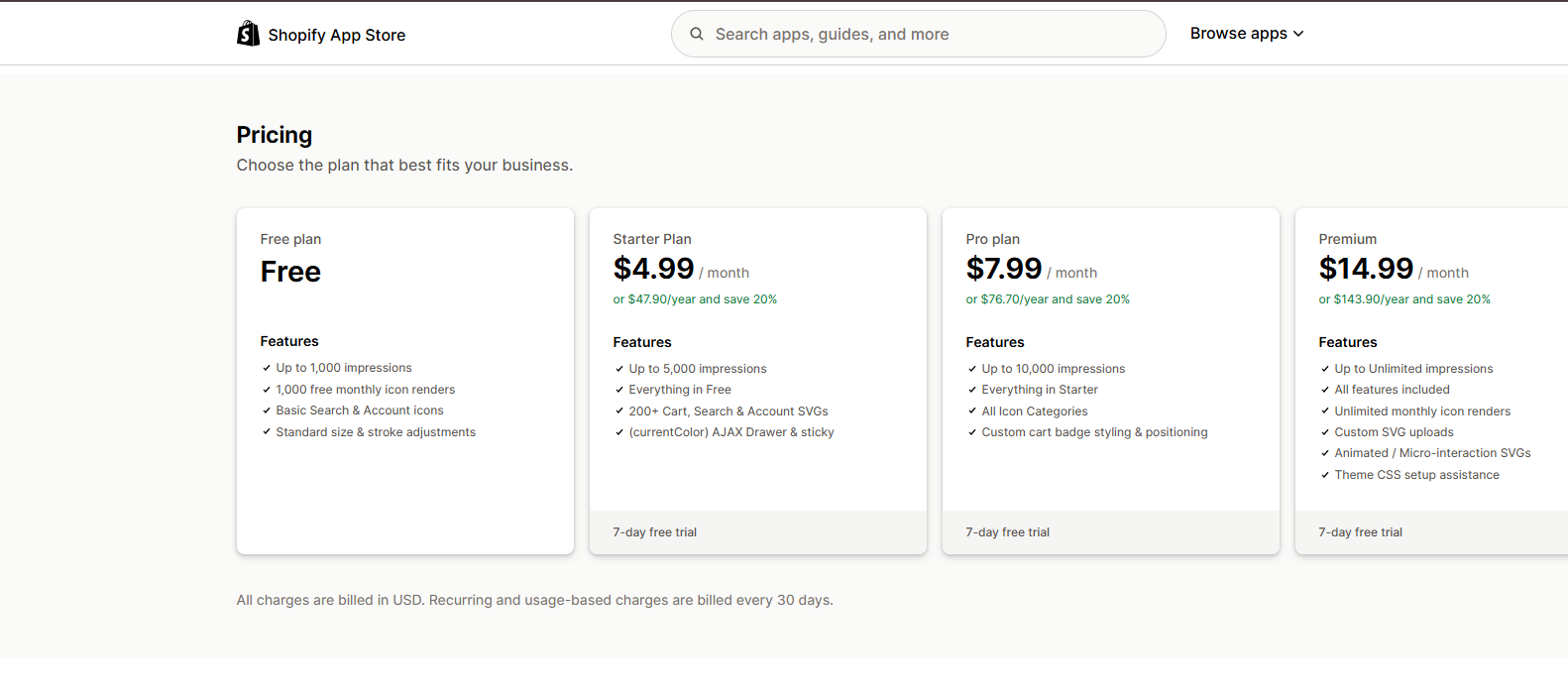
Image 4: PA Cart Icons Library pricing comparison, including Free, Starter, Pro, and Premium plans.
Image explanation: The screenshot shows four plans.
| Plan | Price shown | Selected features |
|---|---|---|
| Free | $0 | Basic search/account icons, standard adjustments |
| Starter | $4.99/month | Additional SVG icons and features |
| Pro | $7.99/month | All icon categories and cart badge customization |
| Premium | $14.99/month | Custom SVG uploads, animated icons, advanced features |
The screenshot also displays 7-day free trials for the paid plans and annual pricing options.
These are the prices shown in your provided screenshot; current plans and limits should be checked on the live listing.
Choose a plan based on the level of customization required for your store.
Step 5: Open the Icon Library and Choose a Cart Icon
After installing the app, open PA Cart Icons Library from your Shopify Admin.
Navigate to Icon Library in the app’s sidebar.
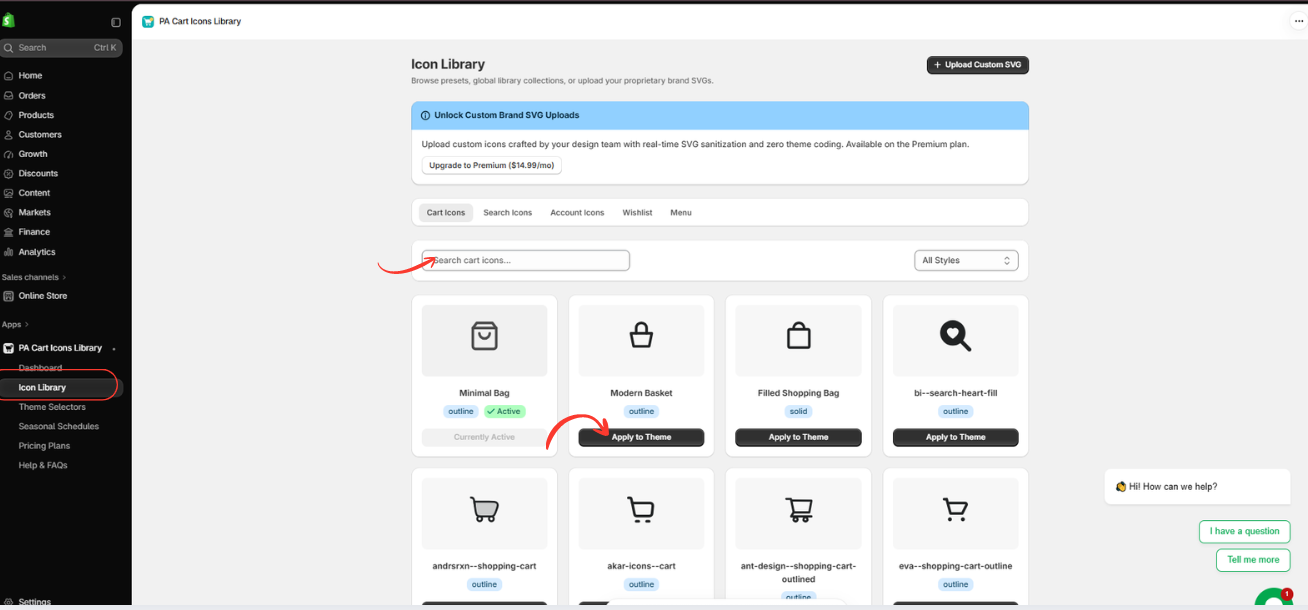
Image 5: Browse cart icon designs inside PA Cart Icons Library and select Apply to Theme.
Image explanation: This screenshot shows the actual Icon Library interface.
At the top, you’ll find categories including Cart Icons, Search Icons, Account Icons, Wishlist, and Menu.
A search field allows you to find specific icons, while the style filter helps narrow the choices.
Different cart designs are displayed as selectable cards.
In the screenshot, Minimal Bag is already marked Active, while another design called Modern Basket has an Apply to Theme button.
What should merchants do?
Browse the designs and choose the icon that best matches your brand.
Click Apply to Theme beneath the desired icon.
Remember to select a recognizable design that remains visible on desktop and mobile devices.
Step 6: Open Your Shopify Theme Editor
After selecting the icon, return to Shopify Admin.
Navigate to:
Online Store → Themes
Find the theme you want to customize.
Click Edit theme.
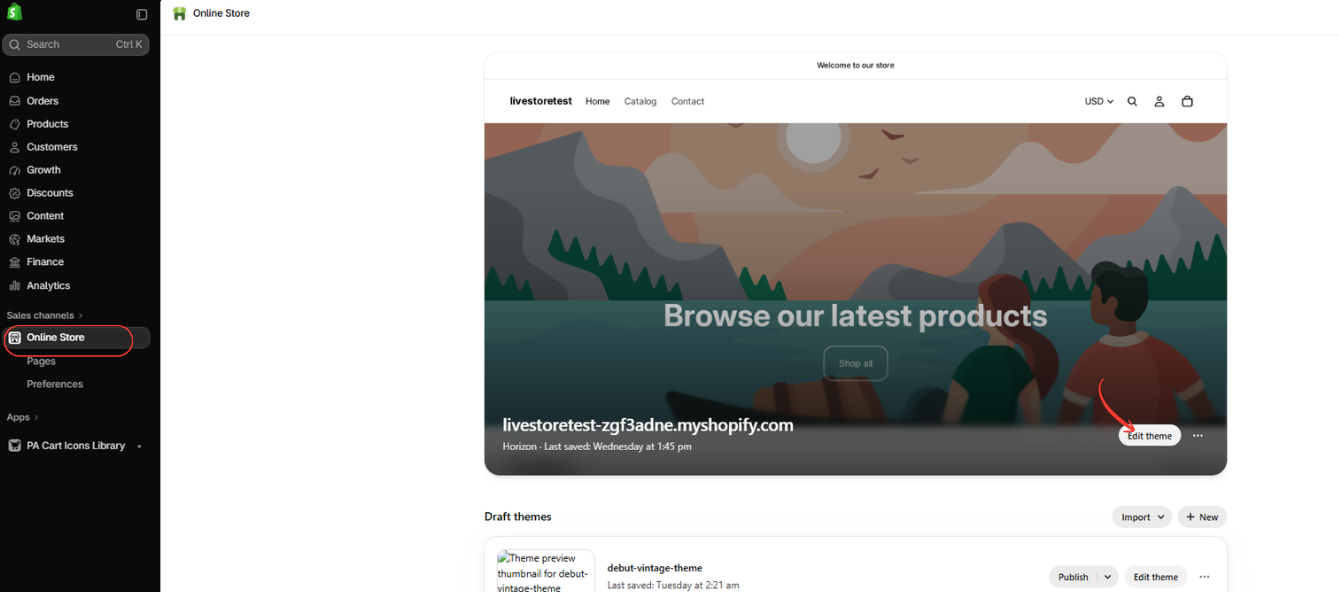
Image 6: Open Online Store → Themes and click Edit theme on the intended Shopify theme.
Image explanation: Your screenshot shows the Online Store page, with the active Horizon theme displayed.
The Edit theme button is highlighted.
Clicking this opens the Shopify theme editor, where you can manage the theme’s appearance and supported app embeds.
Make sure you’re editing the intended theme, particularly if your store has multiple draft themes.
Step 7: Enable the PA Cart Icons Library App Embed
Inside the Shopify theme editor, open the App embeds section.
You can find it using the app embeds icon in the editor’s left-side controls.
Search for PA to locate your installed applications.
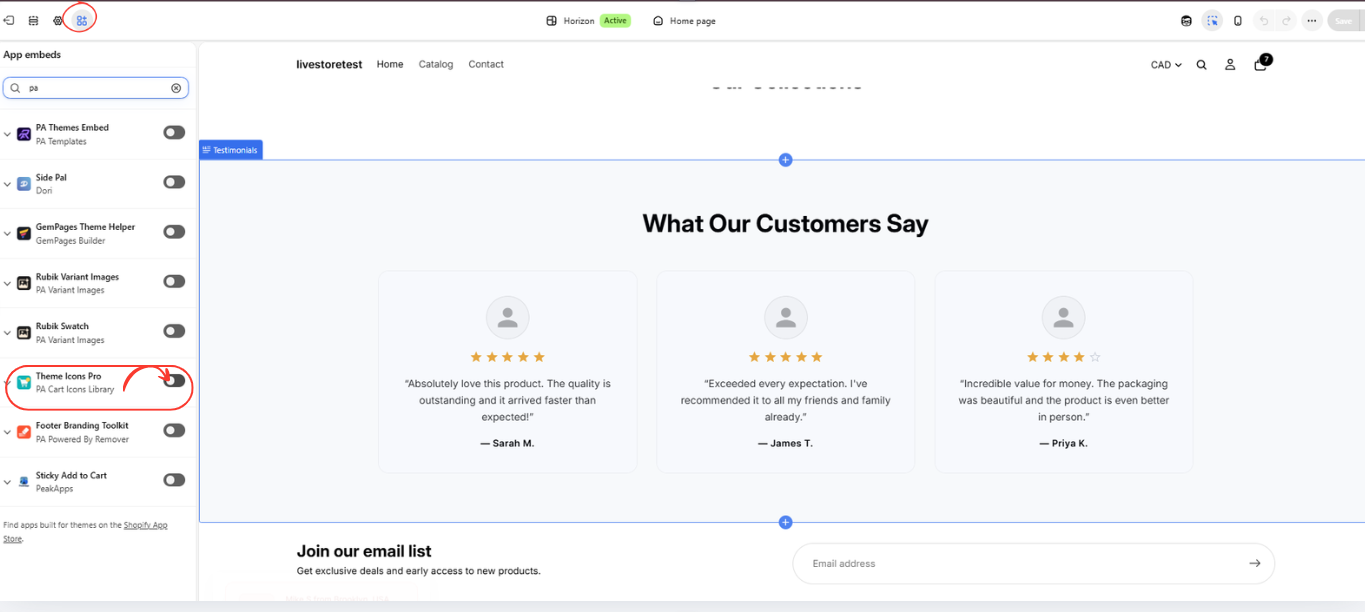
Image 7: Find Theme Icons Pro from PA Cart Icons Library inside App embeds and enable its toggle.
Image explanation: The screenshot shows Shopify’s App embeds panel.
Several installed applications are listed.
The relevant embed is named Theme Icons Pro, with PA Cart Icons Library displayed beneath it.
The toggle is highlighted to indicate where the integration can be enabled.
What should merchants do?
Find Theme Icons Pro, switch its toggle on, and click Save in the top-right corner of the editor.
This activates the app embed for the selected theme.
The application can then apply its supported icon customization to the storefront.
Step 8: Preview Your New Cart Icon
After enabling the app embed, check your storefront preview.

Image 8: The Shopify theme editor displaying the customized shopping bag icon in the storefront header.
Image explanation: Your final screenshot shows the Shopify theme editor after the Theme Icons Pro app embed has been enabled.
At the top-right of the storefront preview, the shopping cart icon appears as a shopping bag.
The custom icon is highlighted with a red circle.
The screenshot also shows the app embed toggle enabled on the left side.
What should merchants do next?
Check that the cart icon appears correctly, click it in the preview to verify expected cart behavior, and review the storefront on mobile.
If everything looks correct, save the theme settings.
Your Shopify cart icon has now been customized without manually editing theme code.
How to Choose the Best Cart Icon for Your Shopify Store
Match the icon with your brand personality
A luxury fashion store may benefit from a minimalist shopping bag, while a general merchandise store may prefer a traditional cart icon.
Keep the icon easy to recognize
Avoid overly complex or unfamiliar symbols that may confuse customers.
Use appropriate sizing
The icon should be large enough to recognize but small enough to fit comfortably within the header.
Maintain visual consistency
Cart, search, and account icons should ideally share similar stroke widths, proportions, and colors.
Make sure the icon works on mobile
Test the design on smaller screens and ensure the icon remains easy to tap.
Can You Customize More Than Just the Cart Icon?
Yes. PA Cart Icons Library includes options for several storefront header icon categories.
Depending on the selected plan and supported theme integration, merchants can customize cart icons, search icons, account icons, and other available icon styles.
The application also provides controls for customizing icon appearance, including options such as size, color, stroke width, and cart count badges.
This allows merchants to create a more coordinated header design.
Benefits of Using PA Cart Icons Library
No manual coding required
Merchants can choose supported icon designs through an app interface rather than manually editing Liquid, CSS, or SVG files.
Access to many icon designs
The library offers a large collection of cart icon styles for different brand aesthetics.
Flexible customization
The app offers appearance options that can help merchants match header icons with their brand identity.
Quick design changes
Merchants can browse alternative icons and apply supported changes without rebuilding their header.
Custom SVG support
Eligible plans allow custom SVG uploads for merchants who need brand-specific icons.
Shopify theme integration
The app uses a Shopify theme app embed, allowing supported storefront customizations to be enabled through the theme editor.
Common Problems When Changing Shopify Cart Icons
The custom cart icon does not appear
Check whether the Theme Icons Pro app embed is enabled in the correct Shopify theme.
The old icon is still visible
Verify that the selected icon was applied and saved correctly. Theme compatibility or other header customizations may affect the result.
The icon looks too small
Review the available sizing options and preview the storefront again.
The icon color does not match the header
Check the app’s color settings and ensure sufficient contrast between the icon and its background.
The cart icon works on desktop but not mobile
Test your mobile header layout and check whether your theme uses different header markup or behavior on smaller screens.
Frequently Asked Questions
1. Can I change the Shopify cart icon without coding?
Yes. Apps such as PA Cart Icons Library provide a no-code way to customize supported Shopify cart icons.
2. Does PA Cart Icons Library offer a free plan?
Yes. The provided app listing shows a free plan alongside paid options. Check the live listing for current limits.
3. Can I change my Shopify cart icon to a shopping bag?
Yes. The app includes shopping bag styles, including minimalist and solid designs.
4. Can I customize the color and size of my cart icon?
The app provides icon appearance controls, with available customization depending on the selected plan.
5. Can I upload my own custom cart icon?
Custom SVG uploading is listed as a Premium feature in the provided pricing screenshot.
6. Do I need to edit Shopify Liquid code?
The demonstrated workflow uses the app’s Icon Library and Shopify theme app embed, rather than manual Liquid code editing.
7. Does PA Cart Icons Library work with every Shopify theme?
The app is designed for Shopify storefront customization, but exact behavior can depend on the theme’s header structure and compatibility. Test it on your own theme.
8. Can I customize my Shopify search and account icons too?
Yes. The app includes search and account icon categories alongside cart icons.
Conclusion
Your Shopify cart icon may be a small design element, but it contributes to the overall appearance, consistency, and usability of your storefront.
A cart icon that matches your brand helps create a coordinated header design while keeping an important shopping control easy to recognize.
However, manually changing cart icons through theme code can be difficult for merchants without development experience.
With PA Cart Icons Library, Shopify merchants can browse 300+ cart icon designs, select their preferred style, configure supported appearance options, and enable the customization through Shopify’s theme editor.
As demonstrated in the step-by-step screenshots, the process involves selecting an icon in the app, opening the Shopify theme editor, enabling the Theme Icons Pro app embed, and previewing the result.
Whether you prefer a minimalist shopping bag, a traditional cart, or a custom design, the app offers a practical approach to storefront icon customization.
Ready to give your Shopify cart icon a fresh look?Install PA Cart Icons Library on Shopify




