HOW TO CHANGE THE SEARCH ICON IN YOUR SHOPIFY HEADER
Shopify Store Customization | Search Icon Design | No-Code Tutorial | 2026

Introduction
Your Shopify store’s header is one of the first elements customers interact with when visiting your website. It provides access to important functions such as product search, customer accounts, and the shopping cart.
Among these elements, the search icon plays an important role in helping customers quickly find the products they want.
However, many Shopify themes come with default search icons that may not match your brand’s appearance. Some merchants prefer minimalist magnifying-glass icons, while others want bold, modern, or uniquely styled search symbols.
Changing the search icon manually may require editing Shopify Liquid files, replacing SVG graphics, or modifying CSS.
Fortunately, you can change the search icon in your Shopify header without coding using PA Cart Icons Library.
This Shopify application allows merchants to choose from different search icon designs, customize their appearance, and preview the results before applying them to their storefront.
In this guide, we’ll explain why search icon customization matters and demonstrate how to change your Shopify search icon using real screenshots from PA Cart Icons Library.
What Is a Shopify Search Icon?
A Shopify search icon is a small graphical symbol displayed in the header of an online store.
It usually appears as a magnifying glass and provides customers with access to the storefront’s search functionality.
When customers click the icon, they can search for products, collections, or other searchable content, depending on the store’s theme and search configuration.
A recognizable search icon helps customers navigate larger product catalogs without browsing every collection.
Although it occupies only a small amount of space in the header, its design can affect the appearance and usability of your storefront.
Why Customize Your Shopify Search Icon?
1. Match your brand identity
Every visual element contributes to your store’s identity.
A minimalist fashion store might use a thin outline search icon, while a modern electronics store may prefer a bolder design.
2. Improve header consistency
Your search, cart, and account icons should ideally follow the same design language.
Matching their proportions, stroke widths, and colors creates a coordinated header appearance.
3. Make product search easy to recognize
A familiar search icon makes it easier for customers to find the search function.
4. Improve mobile navigation
Mobile storefronts have limited header space, making recognizable and appropriately sized icons especially important.
5. Create a more professional appearance
Consistent header icon styling contributes to a polished storefront design without requiring major changes to the theme.
Why Changing Search Icons Manually Can Be Difficult
Many Shopify themes define search icons using SVG files, Liquid snippets, or theme-specific components.
Changing these manually may involve locating the correct theme file, replacing SVG markup, adjusting CSS, and checking how the icon appears on desktop and mobile.
Editing these files incorrectly could affect the appearance or functionality of the search control.
For merchants without coding experience, using a visual customization application offers a simpler approach.
Introducing PA Cart Icons Library
PA Cart Icons Library is a Shopify application that helps merchants customize storefront header icons without manually editing theme code.
The app includes search icon selection, cart icon customization, account icon styling, and visual configuration options.
Key features
- Multiple search icon designs.
- Minimal, bold, outline, and solid styles.
- Additional SVG icon choices.
- Cart, search, and account icon customization.
- Adjustable icon size and stroke width.
- Custom icon colors using HEX codes.
- Live header preview.
- Shopify theme app embed integration.
- More than 300 cart icon styles.
Shopify App Link: PA Cart Icons Library
Step-by-Step Guide: How to Change the Search Icon in Shopify Without Coding
The following tutorial includes your eight original screenshots, in the exact order provided, with each image placed beneath the relevant instructions.
Step 1: Search for the Shopify App Store on Google
First, open your browser and search for Shopify App Store on Google.
Locate the official Shopify App Store result and click it.
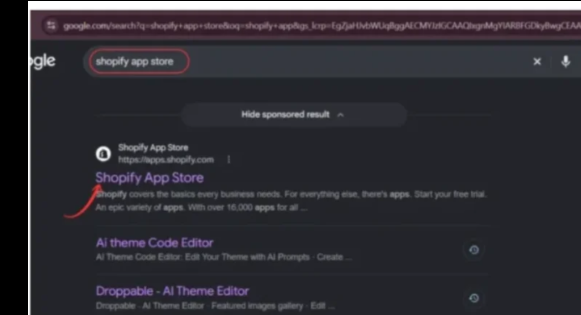
Image 1: Search for Shopify App Store on Google and open the official website.
Image explanation: The screenshot highlights the Google search query and the official Shopify App Store result.
Opening the official store ensures that you can find applications available for Shopify merchants.
Step 2: Search for PA Cart Icons Library
Once you’ve opened the Shopify App Store, locate the search bar at the top of the page.
Type PA Cart Icons Library and search for the application.
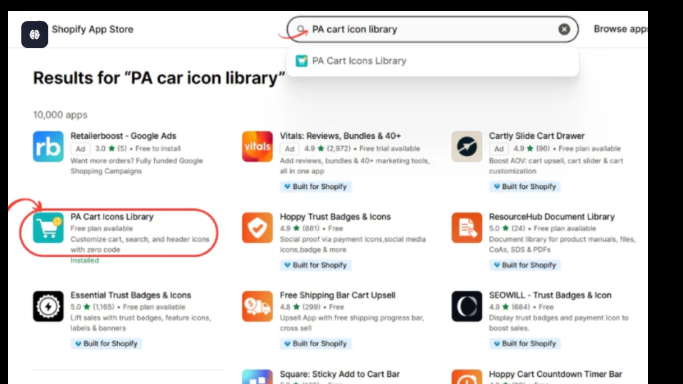
Image 2: Search for PA Cart Icons Library and locate its listing in the Shopify App Store.
Image explanation: Your screenshot shows the app in Shopify App Store search results, highlighted with a red circle.
You can recognize it by its turquoise shopping cart logo.
The listing describes customization for cart, search, and other header icons without coding.
Click the app name to open its official listing.
Step 3: Install and Open PA Cart Icons Library
After opening the app listing, review the description, available features, and screenshots.
Click Install to add the application to your Shopify store. If you’ve already installed it, click Open.
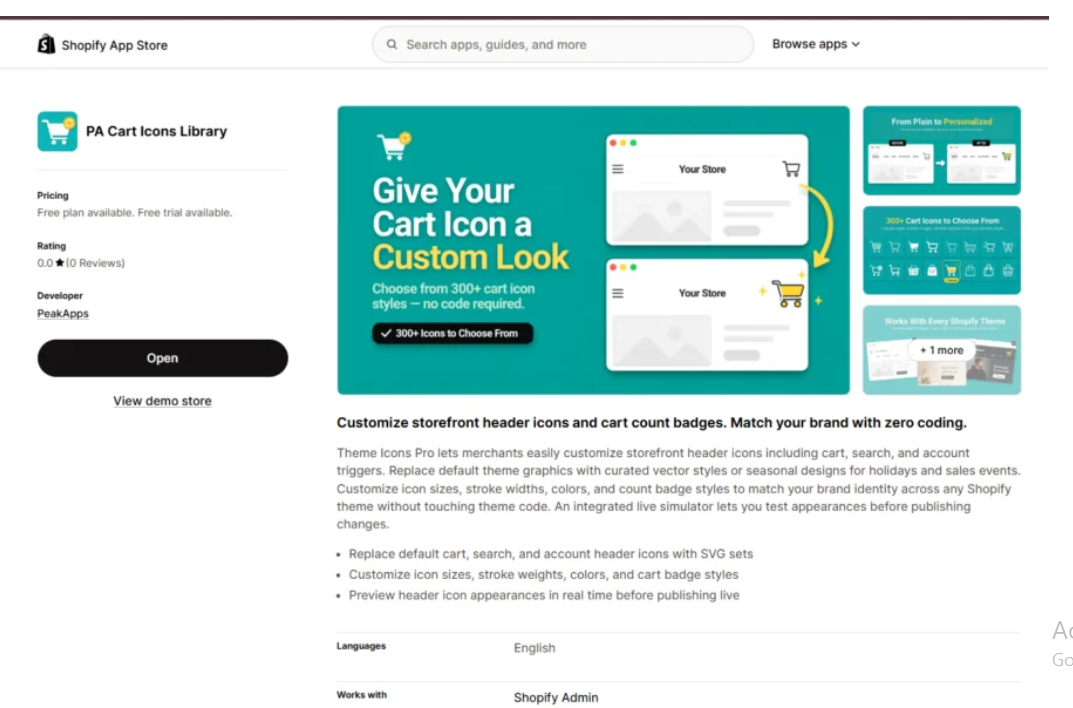
Image 3: Official PA Cart Icons Library listing showing the app’s features and Open button.
Image explanation: The screenshot displays the app’s listing, including its promotional banner describing customizable cart icons and header styling.
The description explains that merchants can customize cart, search, and account header icons without manually editing theme code.
Once installed, access the application through your Shopify Admin.
Step 4: Open the Theme Icons Pro Dashboard
Inside Shopify Admin, navigate to:
Apps → PA Cart Icons Library → Dashboard
The Theme Icons Pro dashboard contains the header customization settings.

Image 4: Theme Icons Pro dashboard showing Cart Icon Style, Search Icon Style, and Account Icon Style.
Image explanation: Your screenshot shows the dashboard with three dropdown menus highlighted:
- Cart Icon Style
- Search Icon Style
- Account Icon Style
The search icon setting currently displays Search Minimal.
On the right, the Live Preview panel shows the selected icons together.
The dashboard also provides controls for icon size, stroke width, and color.
Make sure the Storefront Integration option is enabled before customizing the icons.
Step 5: Choose Your Preferred Search Icon Design
Click the Search Icon Style dropdown to browse the available icons.

Image 5: Select a search icon from the available minimal, bold, outline, solid, and global SVG designs.
Image explanation: This screenshot shows several search icon options, including Search Minimal, Search Bold, Search Outline, and Search Solid.
It also shows additional global icon designs such as cloud-search, heart-search, and other variations.
What should merchants do?
Choose a familiar search icon that matches the overall look of your Shopify store.
For most stores, a simple magnifying-glass design is a practical option because customers can recognize it easily.
A decorative alternative can work for a particular brand, but it should still clearly communicate the search function.
Step 6: Preview Your Search Icon and Save Configuration
After choosing your preferred search icon, review the Live Preview panel.

Image 6: Review the selected search icon alongside the cart and account icons, then click Save Configuration.
Image explanation: Your screenshot highlights the Header Icons Selection section, the Live Preview, and the Save Configuration button.
The preview displays the three icons as they will appear together.
You can also adjust their size, stroke width, and color in the Dimensions & Styling section.
For example, the screenshot displays an icon size of 24px and a stroke width of 1.5px.
What should merchants do?
Check that the search icon is recognizable, visually consistent with the neighboring icons, and easy to see against your header background.
Once satisfied, click Save Configuration.
Step 7: Enable Theme Icons Pro in the Shopify Theme Editor
After saving the search icon settings, return to Shopify Admin.
Navigate to:
Online Store → Themes → Edit theme → App embeds
Find Theme Icons Pro, provided by PA Cart Icons Library.
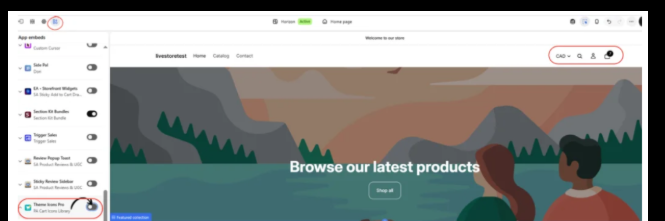
Image 7: Locate Theme Icons Pro in Shopify App embeds and enable the application.
Image explanation: This screenshot shows Shopify’s theme editor with the App embeds section open.
Theme Icons Pro is listed in the left sidebar, and its toggle is highlighted.
The storefront preview appears on the right, with the header icons circled.
Enable Theme Icons Pro if it is not already active.
This allows the app’s supported icon customizations to appear in your Shopify theme.
Step 8: Verify Your New Search Icon on the Storefront
Finally, review the storefront preview after enabling the app embed.

Image 8: Final Shopify storefront preview showing the customized search icon alongside the account and cart icons.
Image explanation: Your final screenshot shows the Shopify Horizon theme editor with Theme Icons Pro enabled.
The search, account, and cart icons are highlighted in the top-right corner of the storefront.
This allows you to verify the appearance of the customized search icon before publishing.
Final checks: Click the search icon and confirm that it opens the expected search interface. Check the icon’s appearance on mobile and desktop, ensure it doesn’t overlap other header elements, and click Save in Shopify’s theme editor.
Your Shopify search icon is now customized without manually editing theme code.
Best Shopify Search Icon Styles for Different Stores
Minimal Search Icon
A minimal magnifying-glass icon works well for fashion, beauty, and luxury stores that prefer clean navigation.
Bold Search Icon
A bold icon can be useful when a store needs stronger visual emphasis in its header.
Outline Search Icon
An outline icon can complement minimalist cart and account icons.
Solid Search Icon
Solid symbols may work well with particular header designs, especially when strong contrast is needed.
Custom Search Icon
Additional SVG styles allow merchants to explore more distinctive appearances, but recognizability should remain the priority.
How to Choose the Best Search Icon Color and Size
Use consistent icon colors
Try to match the search icon color with the other header icons.
Maintain sufficient contrast
Avoid choosing colors that blend into the header background.
Select an appropriate size
An icon around 20–28px can be a useful starting point for many Shopify headers, although the best size depends on your theme.
Consider stroke width
Thin icons may fit minimalist designs, while slightly thicker strokes can improve visibility.
Test mobile layouts
Make sure the search control is easy to tap and doesn’t interfere with nearby header elements.
Common Search Icon Customization Problems
The new search icon doesn’t appear
Verify that Theme Icons Pro is enabled in Shopify App embeds and that the configuration has been saved.
The search icon looks too small
Adjust the Icon Size slider and preview the result.
The search icon color doesn’t match the theme
Change the Icon Hex Color setting to match your brand or header background.
The search icon looks different on mobile
Check whether your Shopify theme uses a different mobile header structure.
The icon appears but search doesn’t open
Verify that the theme’s search functionality works correctly. An icon customization should preserve the underlying search behavior.
Frequently Asked Questions
1. Can I change the Shopify search icon without coding?
Yes. PA Cart Icons Library provides a visual method for selecting and applying supported search icon designs.
2. Can I replace the default magnifying-glass icon?
Yes. The app includes different search icon styles and additional SVG options.
3. Can I change the search icon color?
Yes. The Theme Icons Pro dashboard contains an Icon Hex Color field.
4. Can I resize my Shopify search icon?
Yes. The app provides an Icon Size slider.
5. Can I preview the new icon before saving?
Yes. The Live Preview panel displays the selected header icons.
6. Can I customize my cart and account icons too?
Yes. The same dashboard includes cart, search, and account icon selection.
7. Does PA Cart Icons Library work with Dawn and Horizon themes?
The app’s dashboard indicates support for automatic selector detection on Dawn, Horizon, and Online Store 2.0 themes. Exact behavior should be tested on each store’s theme.
8. Will changing the search icon improve my store’s conversion rate?
A clearer and more consistent interface may improve usability, but changing an icon alone does not guarantee higher conversions.
Conclusion
Your Shopify search icon is a small but important part of your storefront header.
It helps customers locate the search function and contributes to your store’s overall navigation design.
However, default Shopify search icons may not always match a merchant’s brand identity.
With PA Cart Icons Library, merchants can choose different search icon designs, adjust appearance settings, preview changes, and enable the customization through the Shopify theme editor.
As demonstrated in the eight screenshots, the process involves installing the app, opening Theme Icons Pro, choosing a search icon, saving the configuration, and activating the app embed.
For the best results, select a recognizable icon, maintain consistent styling across header elements, and test the search function on both desktop and mobile.
Ready to customize your Shopify search icon?Install PA Cart Icons Library on Shopify




