15 PROMPTS SHOPIFY STORE OWNERS CAN ASK CLAUDE ABOUT THEIR STORE DATA
Shopify AI Tutorial | Claude Prompts for Store Owners | PA Claude Connector by PeakApps | 2026

Introduction
Running a successful Shopify store requires making important decisions every day. From understanding sales performance and monitoring customer orders to improving product descriptions and managing inventory, store owners need accurate information to keep their businesses growing.
However, Shopify merchants often have access to more data than they know how to analyze.
Your Shopify dashboard may show total sales, order activity, product information, inventory levels, and other important metrics. But turning these numbers into meaningful business insights can be challenging, especially when you need to review multiple reports or compare different periods.
This is where AI assistants such as Claude can help.
Instead of spending hours manually reviewing data, merchants can ask specific questions in natural language and receive explanations based on the information available to the assistant.
With PA Claude Connector by PeakApps, Shopify merchants can access Claude-powered assistance directly from their Shopify admin.
In this article, we’ll explore 15 useful Claude prompts for Shopify store owners that can help with sales analysis, order management, inventory, SEO, marketing, and business reporting.
Each prompt is designed to be practical, easy to understand, and ready to copy into an AI assistant.
Why Shopify Store Owners Should Learn to Use AI Prompts
An AI prompt is an instruction or question that tells an AI assistant what you want it to do.
For example, instead of manually reviewing Shopify’s sales reports, you could ask:
Analyze my Shopify store’s total sales over the last 30 days and explain the most important findings.
If the assistant has access to your store’s sales information, it can use the available data to prepare an explanation.
However, asking vague questions may produce generic responses.
The more specific your prompt, the more useful the analysis can be.
A good Shopify AI prompt should include a clear objective, a reporting period, the information required, and the format of the desired answer.
The Merchant’s Challenge: Turning Shopify Data Into Useful Decisions
Too many metrics to monitor
Shopify merchants may need to review revenue, orders, average order value, inventory, product performance, and marketing results.
Difficulty interpreting data
A decline in revenue may have several possible explanations, including changes in traffic, conversion rates, average order value, or product availability.
Time-consuming reporting
Manually preparing business reports often involves switching between dashboards and spreadsheets.
Limited access to technical expertise
Not every merchant has a dedicated data analyst or developer who can investigate store performance.
Unclear next steps
Even after discovering a problem, merchants may be uncertain about which action to take.
Incomplete data
Some integrations provide aggregate store metrics but not detailed product-level or customer-level information. A reliable AI assistant should explain these limitations rather than guess.
Introducing PA Claude Connector for Shopify
PA Claude Connector by PeakApps provides Claude-powered tools for working with Shopify store information and content.
Based on the app interfaces demonstrated in your previous tutorials, its features include Claude Assistant, Description Studio, SEO Booster, Campaign Studio, and Growth Report.
These tools support different workflows:
| Feature | Main purpose |
|---|---|
| Claude Assistant | Ask questions and generate reports |
| Description Studio | Draft product descriptions and SEO content |
| SEO Booster | Review missing product metadata |
| Campaign Studio | Create marketing campaign drafts |
| Growth Report | Examine sales and inventory velocity |
The availability of specific data and actions depends on the integration’s permissions and the merchant’s subscription.
App Link: PA Claude Connector — Shopify App Store
15 Best Claude Prompts for Shopify Store Owners
1. Analyze My Shopify Store Sales
Analyze my Shopify store sales for the last 30 days. Show total revenue, number of orders, average order value, and key trends. Explain the findings in simple English and suggest ways to improve sales. Clearly identify any missing data.
2. Find My Best-Selling Products
Analyze my Shopify product sales for the last 90 days. Identify my top 10 best-selling products by revenue and units sold. Explain why they may be performing well based on available evidence and suggest opportunities for further growth.
3. Identify Products That Are Not Selling
Review my Shopify product catalog and identify products with no sales in the last 60 days. Show their available inventory, stock value if accessible, and possible reasons for low performance. Suggest practical actions without making unsupported assumptions.
4. Compare This Month’s Sales With Last Month
Compare my Shopify sales this month with the equivalent period last month. Show revenue, orders, average order value, and percentage changes. Highlight important differences and suggest areas for investigation.
5. Find Products Missing SEO Titles and Descriptions
Scan my Shopify product catalog and identify products missing SEO meta titles or descriptions. List the products that need improvements and draft unique, keyword-relevant SEO titles and descriptions using verified product information.
6. Analyze My Shopify Inventory
Review my Shopify inventory and identify low-stock, out-of-stock, and slow-moving products. Show available quantities and recent sales activity. Recommend which products may need restocking or additional promotion.
7. Improve My Average Order Value
Copy
Analyze my Shopify average order value for the last 30 days. Identify available opportunities to improve AOV through product bundles, cross-selling, upselling, and relevant product recommendations. Provide an actionable plan.
8. Find Out Why My Shopify Sales Dropped
Analyze my Shopify store performance over the last 90 days. Identify periods when sales declined and investigate possible causes using available traffic, order, product, and conversion data. Separate confirmed findings from hypotheses.
9. Improve My Shopify Product Descriptions
Review my Shopify product descriptions and identify products with weak, incomplete, or unclear content. Rewrite selected descriptions using accurate product specifications, compelling benefits, and a professional brand voice.
10. Create a Marketing Campaign Using My Store Data
Analyze my Shopify product catalog and available sales data. Recommend products for my next marketing campaign and draft email subject lines, newsletter copy, Facebook ad text, and Instagram captions. Do not invent discounts or product claims.
11. Analyze My Returning Customers
Review available Shopify customer and order data for the last 90 days. Compare new and returning customer activity, repeat purchase patterns, and average order values. Explain opportunities for improving customer retention using aggregated information.
12. Identify Products That Need Restocking
Analyze my Shopify stock quantities and product sales velocity. Identify products at risk of selling out and recommend which items may require restocking. Clearly state when supplier lead times or demand information are unavailable.
13. Audit My Shopify Store SEO
Audit the available SEO information for my Shopify product catalog. Identify missing meta titles, descriptions, and weak product content. Prioritize the most important improvements and provide practical recommendations.
14. Create My Weekly Shopify Performance Report
Create a professional weekly performance report for my Shopify store. Include total sales, order volume, average order value, available product insights, inventory issues, important risks, and recommended actions for next week.
15. Generate a Complete Shopify Growth Report
Analyze my Shopify store’s last 90 days of available data. Prepare a comprehensive growth report covering revenue, orders, product performance, inventory, SEO opportunities, and business recommendations. Separate verified findings from assumptions and generate a downloadable DOCX report if supported.
How to Get Better Answers From Claude
The quality of your questions can significantly affect how useful the responses are.
Be specific about what you want
Instead of asking “How is my store doing?”, ask for total revenue, order count, and average order value for a defined period.
Always specify a time frame
Use clear reporting periods such as the last 7, 30, 60, or 90 days.
Ask for comparisons
Comparing performance across equivalent periods can help identify changes that a single figure may not reveal.
Request practical recommendations
After reviewing a report, ask Claude what additional checks or actions might be appropriate.
Ask for data limitations
Tell the assistant not to guess when the necessary information is unavailable.
Request a downloadable report
For longer analyses, ask the assistant to prepare a DOCX document if the feature is supported.
How AI Can Improve Shopify Decision-Making
Claude can be helpful because it provides a conversational way to examine available store information.
Instead of focusing only on numbers, merchants can ask what those numbers mean and what additional information would help answer a business question.
For example, if an inventory report shows 50 units of a product in stock and no sales during the last 60 days, the merchant can ask whether the product should be reviewed for pricing, visibility, or purchasing decisions.
The assistant can outline relevant factors, but it should not assume that a lack of sales automatically means a product has poor demand.
Similarly, if a merchant asks which product is growing fastest but only aggregate sales information is available, a reliable assistant should explain that a product-level breakdown is needed.
These limitations matter because AI-generated recommendations should support business decisions rather than replace the merchant’s judgment.
Step 1: Search for the Shopify App Store
Open Google Chrome or your preferred web browser.
Type Shopify App Store into Google and press Enter.
Find the official Shopify App Store result and click it.

Image 1: Search for Shopify App Store on Google and open the official Shopify application marketplace.
Image explanation
The screenshot shows a Google search results page, with the phrase shopify app store highlighted in red.
A red arrow points toward the official Shopify App Store result.
Click this link to access Shopify’s app marketplace.
You can also open the marketplace directly by visiting https://apps.shopify.com.
This is where you’ll find PA Claude Connector and its official app listing.
Step 2: Search for PA Claude Connector
Once the Shopify App Store opens, locate the search bar.
Enter PA Claude Connector and search.
Find the application with the orange-and-white icon and open its listing.
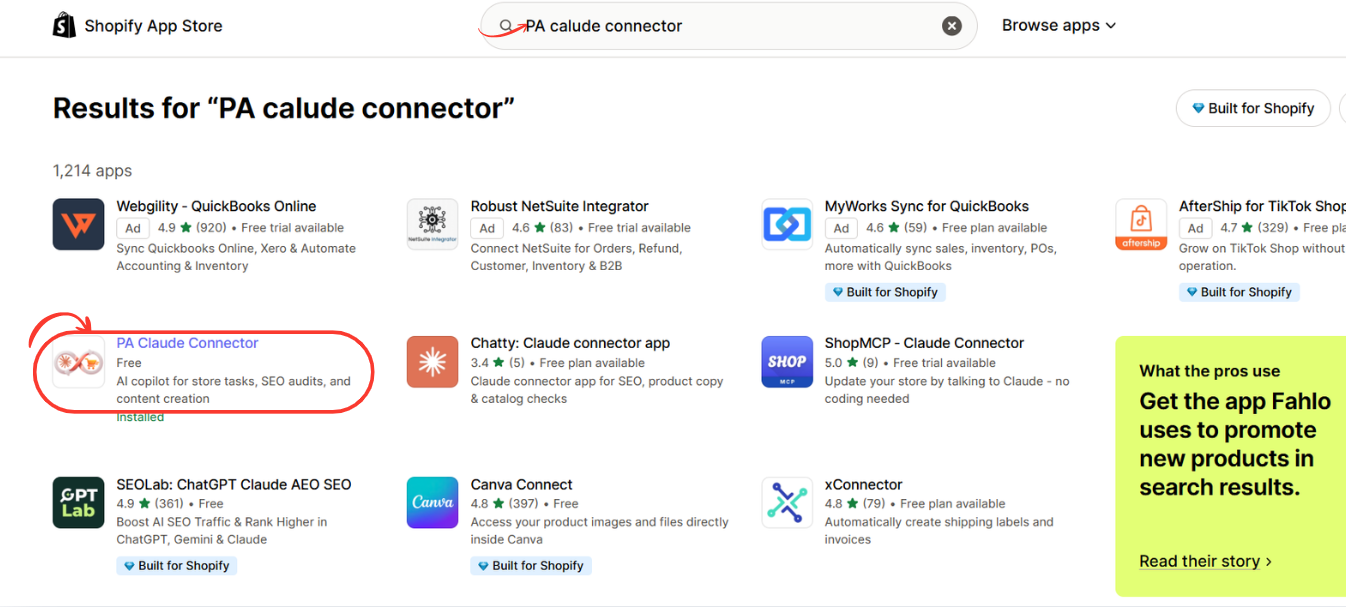
Image 2: Find PA Claude Connector in the Shopify App Store search results and click the highlighted application.
Image explanation
The screenshot displays multiple Shopify applications in the search results.
PA Claude Connector is circled in red.
Its description identifies it as an AI copilot for Shopify store tasks, SEO audits, and content creation.
The example also shows an Installed status, indicating that this Shopify store has already installed the application.
If you’re installing it for the first time, open the app listing to continue.
Step 3: Install PA Claude Connector in Shopify
After opening the application listing, review its description, pricing, and requested functionality.
Click Install to begin the installation process.
Shopify may ask you to sign in or select the store where you want to install the app.
Review the permissions requested by the application and authorize the installation if you’re comfortable with them.
If PA Claude Connector is already installed, click Open instead.

Image 3: Open the PA Claude Connector listing and click Install or Open to access the application in Shopify admin.
Image explanation
The screenshot shows the PA Claude Connector listing.
On the left, the application name, pricing information, developer name, and black Open button are displayed.
The right side contains promotional images explaining the application’s Claude-powered functionality.
The listed developer is PeakApps.
Once installation is complete, the app becomes accessible through your Shopify admin.
Why this step matters: Installing the app provides the foundation for using its Claude-powered tools. The exact connection and authorization process may vary depending on the app version and your store permissions.
Step 4: Open Claude Assistant Inside Shopify Admin
Return to your Shopify admin.
Under Apps, find PA Claude Connector.
Expand the application menu and click Claude Assistant.
This opens the AI chat interface, where you can begin asking questions and using the assistant.

Image 4: Open Claude Assistant from the PA Claude Connector sidebar and locate the AI chat input.
Image explanation
The screenshot shows the Claude Assistant interface inside Shopify.
The Claude Assistant navigation option is highlighted in red.
In the center, the application displays the heading:
How can I help you today?
Several suggested prompts are displayed underneath, including questions about product descriptions, sales performance, returns policies, and missing SEO titles.
A red arrow highlights the message input near the bottom.
This is where you can enter your first question.
Note: This screenshot confirms that the assistant interface is available. It does not independently show the initial Claude authentication or authorization screens.
Step 5: Check Your Claude Connection and Available Plan
Next, check the application status and subscription plan.
In the PA Claude Connector sidebar, click Pricing.
The pricing dashboard displays the available plans and features.
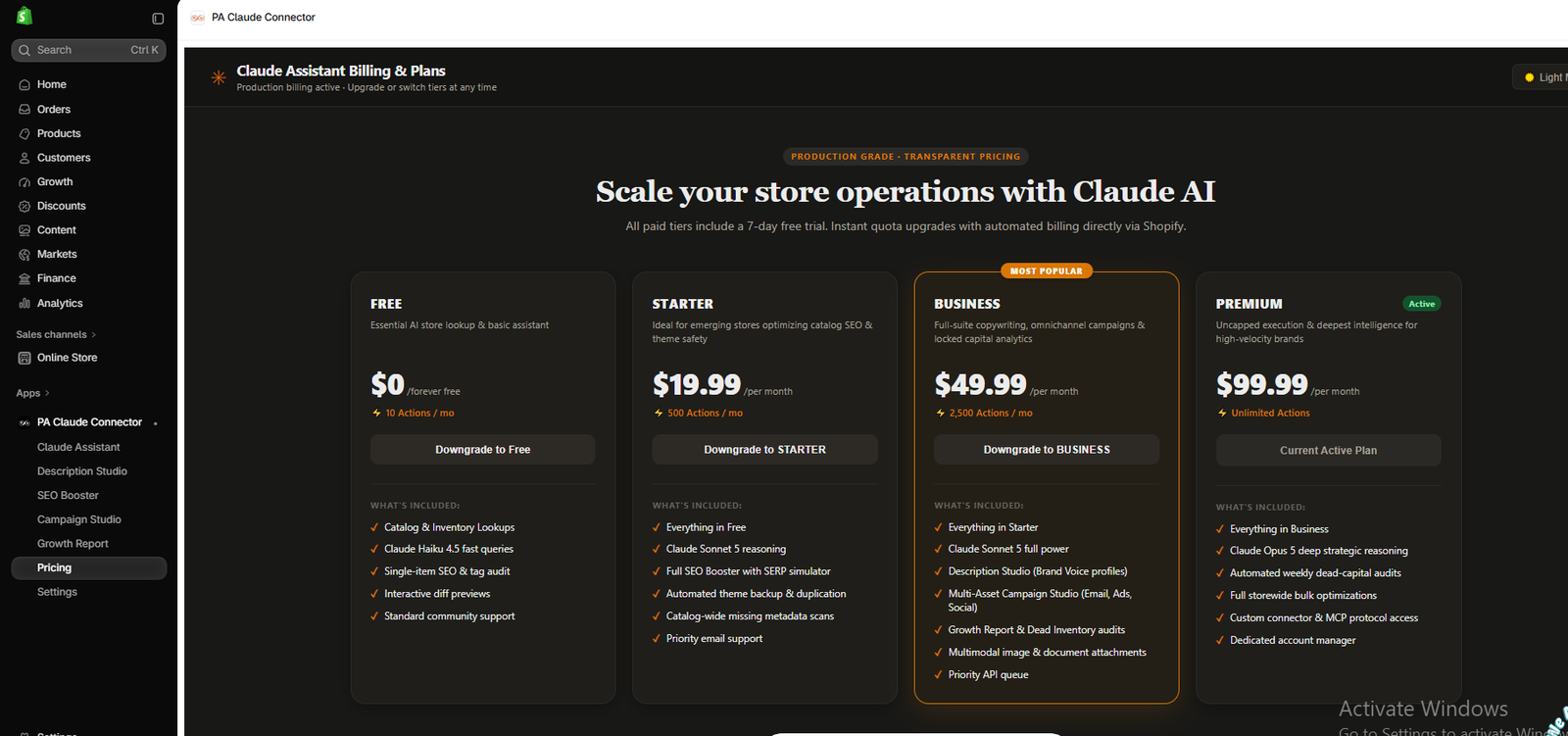
Image 5: Review PA Claude Connector’s subscription plans and the features available under each tier.
Image explanation
The screenshot shows Claude Assistant Billing & Plans, including Free, Starter, Business, and Premium tiers.
The example account has Premium marked as its active plan.
The displayed prices are $0, $19.99, $49.99, and $99.99 per month, respectively.
Different tiers list capabilities such as catalog lookups, SEO tools, Description Studio, Campaign Studio, and Growth Report.
These prices and features are from the supplied screenshot and may change.
How to verify your connection: Open a Claude-powered feature that shows its status. For example, your previous Campaign Studio screenshot displays a green Claude Connected indicator. Then test the connection by submitting a simple supported request.
A subscription being active does not, by itself, prove that every requested Shopify permission is available.
Step 6: Test the Connection by Asking Claude a Store Question
Return to Claude Assistant.
Click the chat field and enter a simple question, such as:
First test prompt Copy
Can you review my Shopify store’s total orders and gross sales for the last 30 days? Show only information you can access and explain any missing data.
If the assistant has access to the required information, it can return an analysis.
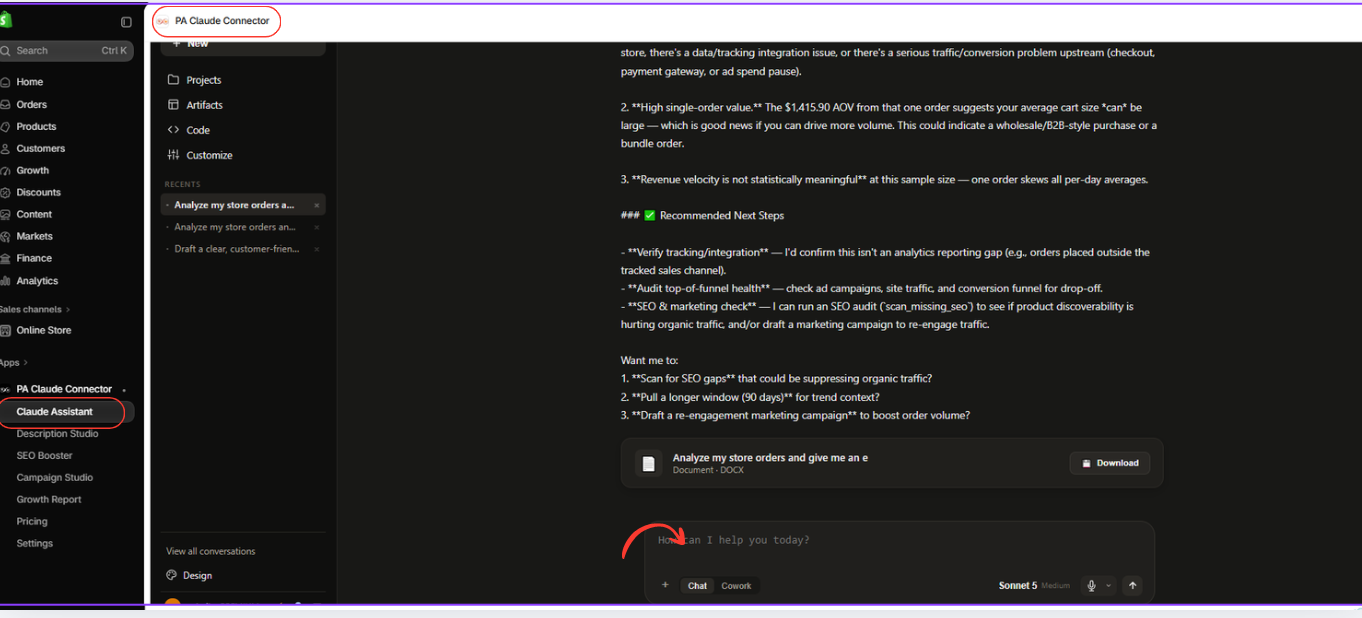
Image 6: Claude Assistant responds to a Shopify sales analysis request with findings, recommendations, and a downloadable DOCX report.
Image explanation
The screenshot shows Claude Assistant analyzing store sales information and generating recommendations.
The response discusses the limitations of having a small number of orders and suggests further checks.
At the bottom, a document card with a Download button is visible.
This illustrates a successful read-and-analyze workflow using available store data.
If you receive a permission error, it may mean the application does not have access to the required information. Review the app’s permission settings or contact its support team.
Conclusion
Understanding Shopify store performance is essential for making informed business decisions.
However, analyzing sales reports, inventory information, product performance, and SEO data manually can take time, especially as a store grows.
With PA Claude Connector, Shopify merchants can use Claude Assistant to ask questions about available business information, understand important metrics, explore product and inventory issues, and prepare structured reports.
The 15 Claude prompts in this article provide practical starting points for everything from sales analysis and inventory planning to SEO improvements and marketing campaign ideas.
The key is to ask clear questions, specify the information you need, and verify important findings before taking action.
By combining thoughtful AI prompts with accurate Shopify data, merchants can improve their reporting workflows and make better-informed decisions.
Start asking smarter questions about your Shopify store today.Install PA Claude Connector on Shopify




