HOW TO CONNECT CLAUDE TO YOUR SHOPIFY STORE, STEP BY STEP
Shopify Tutorial | PA Claude Connector by PeakApps | AI Store Management & Automation | 2026 Guide

Introduction
Managing a Shopify store involves many daily responsibilities, from updating product information and reviewing orders to analyzing sales, improving SEO, and preparing marketing campaigns.
As your store grows, handling these tasks manually can become time-consuming. Merchants often move between different dashboards and applications to find information or complete routine work.
But what if you could ask an AI assistant questions about your Shopify store and receive helpful responses in everyday language?
With AI-powered tools such as Claude, merchants can simplify many store management workflows, review available business information, and prepare content more efficiently.
PA Claude Connector by PeakApps brings Claude-powered assistance into the Shopify admin experience. The app includes Claude Assistant, Description Studio, SEO Booster, Campaign Studio, and Growth Report.
In this guide, you’ll learn how to connect Claude to your Shopify store step by step, open PA Claude Connector, access the AI assistant, and begin using its features.
We’ll also explain how to check your connection and what to do if an action requires additional permissions.
What Does Connecting Claude to Shopify Mean?
Connecting Claude to Shopify means allowing an AI-powered application to interact with certain information or functionality in your Shopify store.
Depending on the integration and the permissions you approve, Claude-powered tools may help with product information, sales analysis, SEO, store content, and other tasks.
For example, you might ask:
- How many orders did my store receive in the last 30 days?
- Which products are missing SEO descriptions?
- Can you draft a product description for this item?
- Can you create promotional copy for my next sale?
- Can you help me understand my inventory performance?
The available features depend on the specific connector or application you install.
Important distinction: PA Claude Connector is a third-party Shopify app by PeakApps. It is different from Shopify’s official connector for Claude, which is installed through Claude rather than the Shopify App Store. This tutorial focuses on the PA Claude Connector app shown in your screenshots. Shopify connector for Claude+1
Why Shopify Merchants Should Consider Using Claude AI
1. Simplify daily store management
Merchants can ask natural-language questions instead of manually searching through multiple reports.
2. Understand sales and order information
AI can help summarize available business metrics and explain what the numbers mean.
3. Prepare product descriptions
Claude-powered writing tools can help draft product descriptions using different brand voices and product details.
4. Identify SEO improvement opportunities
Merchants can use dedicated SEO tools to locate products with incomplete metadata and prepare content improvements.
5. Create marketing content
AI can assist with email newsletter copy, advertising headlines, and social-media campaign drafts.
6. Review inventory performance
Inventory analysis tools can help identify slow-moving products and areas that may require attention.
7. Reduce repetitive work
Instead of preparing every report or content draft manually, merchants can use AI to create an initial version and then review it.
Common Challenges Merchants Face When Connecting AI to Shopify
Understanding app permissions
Shopify integrations request access to store information based on the features they provide.
Merchants need to understand what information the app can read or change before authorizing it.
Selecting the correct application
Several Shopify apps and external connectors offer Claude-related functionality. Merchants should confirm that they are installing the intended product.
Choosing the appropriate subscription
Different app plans may include different tools, action limits, or usage allowances.
Knowing which tasks AI can perform
Some operations may be available directly through the app, while others require manual action or additional permissions.
Protecting store information
Merchants should use trusted applications, review permissions, and avoid submitting unnecessary sensitive information in prompts.
Understanding AI limitations
AI-generated content and analysis may be incomplete or inaccurate, so important recommendations should be verified.
Introducing PA Claude Connector by PeakApps
PA Claude Connector provides several Claude-powered workflows within Shopify admin.
Based on the app interfaces you shared, these include:
| Feature | What merchants can do |
|---|---|
| Claude Assistant | Ask questions and work with available store information |
| Description Studio | Draft product descriptions and SEO metadata |
| SEO Booster | Identify products missing SEO titles and descriptions |
| Campaign Studio | Create email, advertising, and social-media copy |
| Growth Report | Review inventory velocity and sales-related indicators |
| Pricing | Review subscription plans and usage allowances |
The available features and limits can vary by subscription plan.
Official app link: PA Claude Connector — Shopify App Store
What You Need Before Getting Started
Before installing the app, make sure you have access to your Shopify admin and permission to install applications.
You should also have a stable internet connection and be able to review and approve the requested app permissions.
If you are working on behalf of a merchant, make sure the store owner has authorized the installation.
For the tutorial below, we’ll use the PA Claude Connector workflow and application screenshots.
STEP-BY-STEP GUIDE: HOW TO CONNECT CLAUDE TO YOUR SHOPIFY STORE
The following guide uses your previously shared PA Claude Connector screenshots. The images are placed in the order of the installation and app-use workflow, with descriptions beneath each.
Step 1: Search for the Shopify App Store
Open Google Chrome or your preferred web browser.
Type Shopify App Store into Google and press Enter.
Find the official Shopify App Store result and click it.

Image 1: Search for Shopify App Store on Google and open the official Shopify application marketplace.
Image explanation
The screenshot shows a Google search results page, with the phrase shopify app store highlighted in red.
A red arrow points toward the official Shopify App Store result.
Click this link to access Shopify’s app marketplace.
You can also open the marketplace directly by visiting https://apps.shopify.com.
This is where you’ll find PA Claude Connector and its official app listing.
Step 2: Search for PA Claude Connector
Once the Shopify App Store opens, locate the search bar.
Enter PA Claude Connector and search.
Find the application with the orange-and-white icon and open its listing.
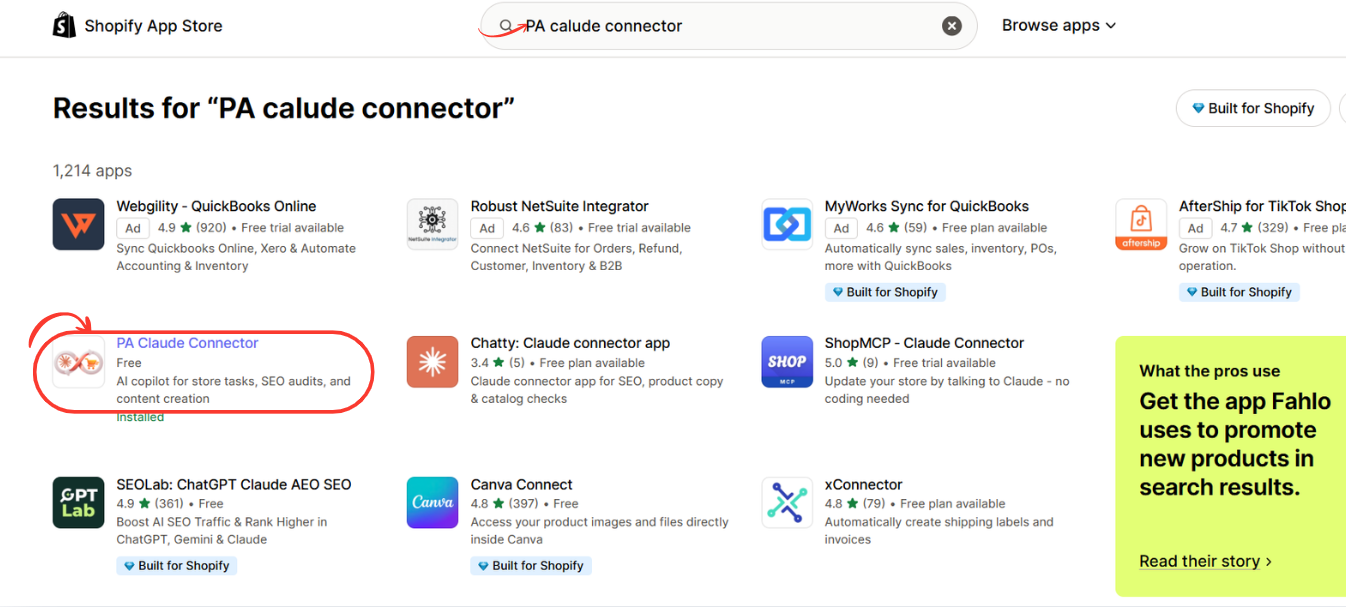
Image 2: Find PA Claude Connector in the Shopify App Store search results and click the highlighted application.
Image explanation
The screenshot displays multiple Shopify applications in the search results.
PA Claude Connector is circled in red.
Its description identifies it as an AI copilot for Shopify store tasks, SEO audits, and content creation.
The example also shows an Installed status, indicating that this Shopify store has already installed the application.
If you’re installing it for the first time, open the app listing to continue.
Step 3: Install PA Claude Connector in Shopify
After opening the application listing, review its description, pricing, and requested functionality.
Click Install to begin the installation process.
Shopify may ask you to sign in or select the store where you want to install the app.
Review the permissions requested by the application and authorize the installation if you’re comfortable with them.
If PA Claude Connector is already installed, click Open instead.

Image 3: Open the PA Claude Connector listing and click Install or Open to access the application in Shopify admin.
Image explanation
The screenshot shows the PA Claude Connector listing.
On the left, the application name, pricing information, developer name, and black Open button are displayed.
The right side contains promotional images explaining the application’s Claude-powered functionality.
The listed developer is PeakApps.
Once installation is complete, the app becomes accessible through your Shopify admin.
Why this step matters: Installing the app provides the foundation for using its Claude-powered tools. The exact connection and authorization process may vary depending on the app version and your store permissions.
Step 4: Open Claude Assistant Inside Shopify Admin
Return to your Shopify admin.
Under Apps, find PA Claude Connector.
Expand the application menu and click Claude Assistant.
This opens the AI chat interface, where you can begin asking questions and using the assistant.

Image 4: Open Claude Assistant from the PA Claude Connector sidebar and locate the AI chat input.
Image explanation
The screenshot shows the Claude Assistant interface inside Shopify.
The Claude Assistant navigation option is highlighted in red.
In the center, the application displays the heading:
How can I help you today?
Several suggested prompts are displayed underneath, including questions about product descriptions, sales performance, returns policies, and missing SEO titles.
A red arrow highlights the message input near the bottom.
This is where you can enter your first question.
Note: This screenshot confirms that the assistant interface is available. It does not independently show the initial Claude authentication or authorization screens.
Step 5: Check Your Claude Connection and Available Plan
Next, check the application status and subscription plan.
In the PA Claude Connector sidebar, click Pricing.
The pricing dashboard displays the available plans and features.
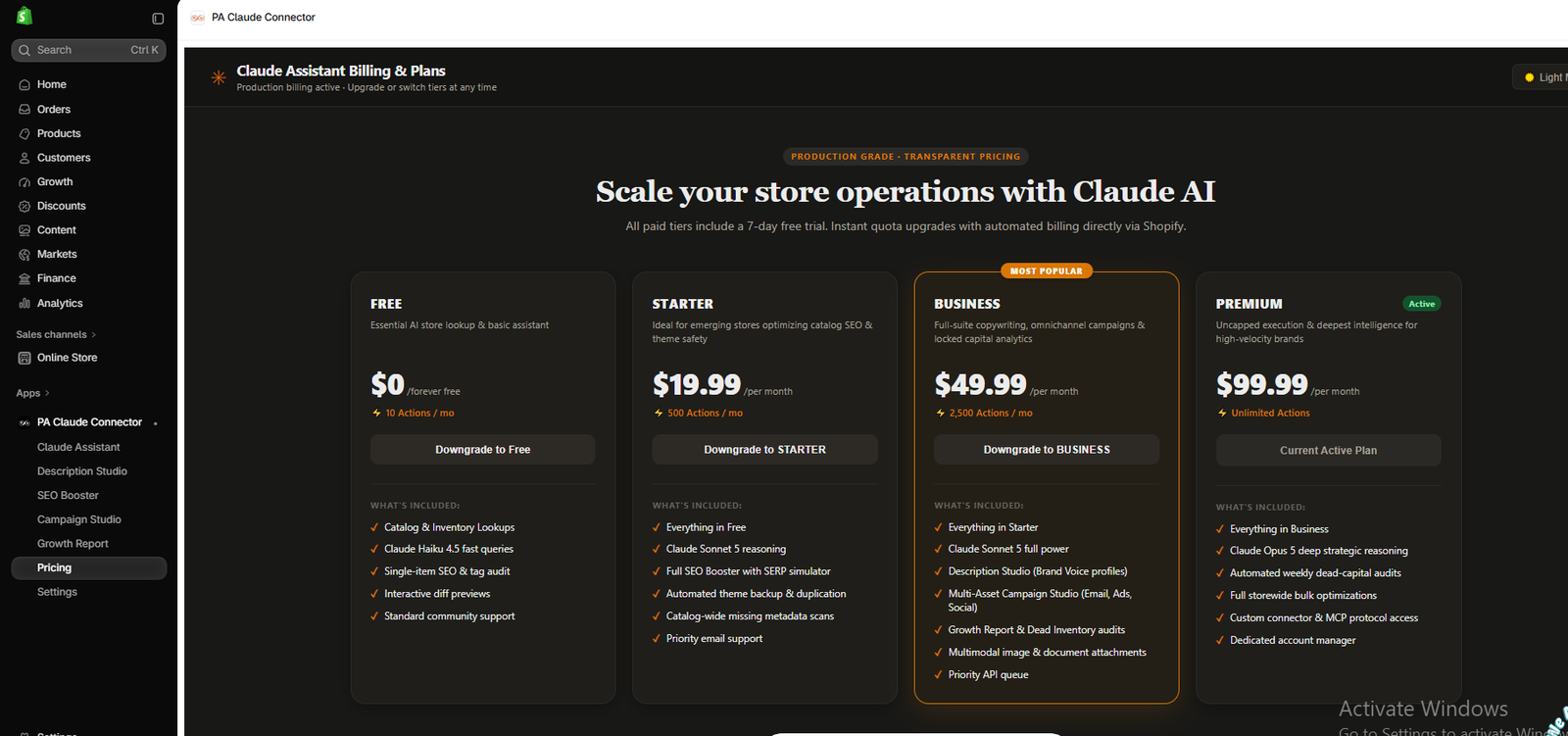
Image 5: Review PA Claude Connector’s subscription plans and the features available under each tier.
Image explanation
The screenshot shows Claude Assistant Billing & Plans, including Free, Starter, Business, and Premium tiers.
The example account has Premium marked as its active plan.
The displayed prices are $0, $19.99, $49.99, and $99.99 per month, respectively.
Different tiers list capabilities such as catalog lookups, SEO tools, Description Studio, Campaign Studio, and Growth Report.
These prices and features are from the supplied screenshot and may change.
How to verify your connection: Open a Claude-powered feature that shows its status. For example, your previous Campaign Studio screenshot displays a green Claude Connected indicator. Then test the connection by submitting a simple supported request.
A subscription being active does not, by itself, prove that every requested Shopify permission is available.
Step 6: Test the Connection by Asking Claude a Store Question
Return to Claude Assistant.
Click the chat field and enter a simple question, such as:
First test prompt Copy
Can you review my Shopify store’s total orders and gross sales for the last 30 days? Show only information you can access and explain any missing data.
If the assistant has access to the required information, it can return an analysis.
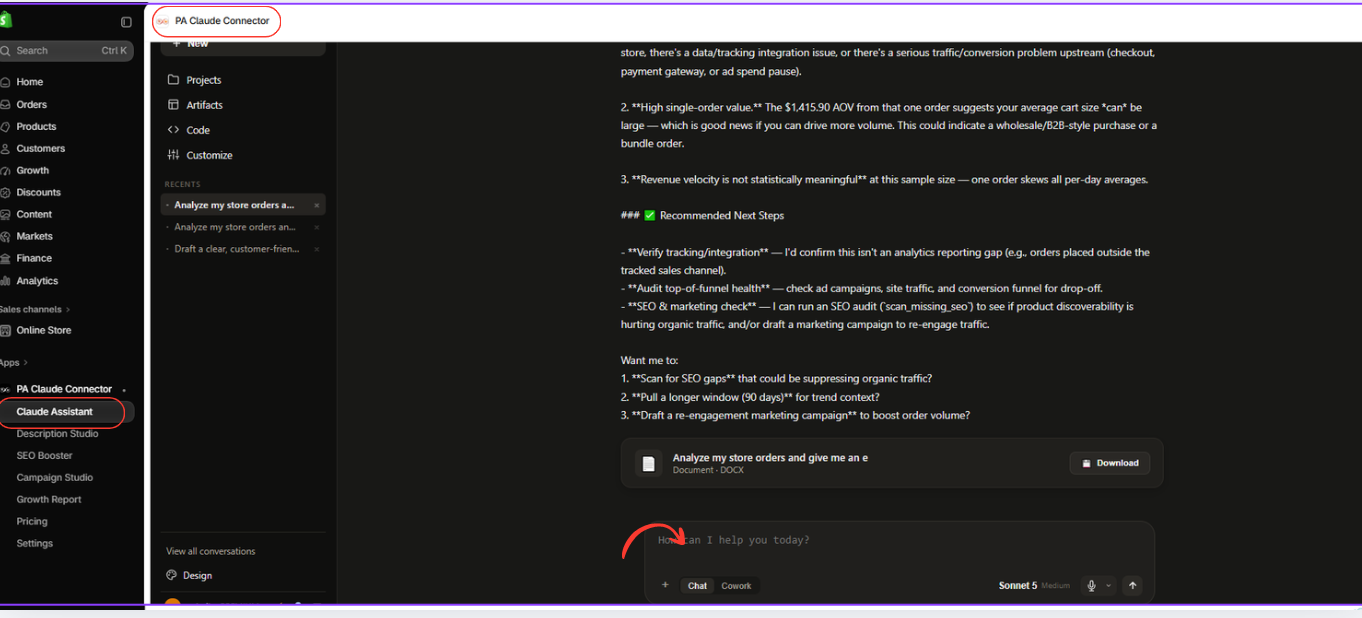
Image 6: Claude Assistant responds to a Shopify sales analysis request with findings, recommendations, and a downloadable DOCX report.
Image explanation
The screenshot shows Claude Assistant analyzing store sales information and generating recommendations.
The response discusses the limitations of having a small number of orders and suggests further checks.
At the bottom, a document card with a Download button is visible.
This illustrates a successful read-and-analyze workflow using available store data.
If you receive a permission error, it may mean the application does not have access to the required information. Review the app’s permission settings or contact its support team.
Step 7: Explore Claude’s Other Shopify Features
Once your Claude Assistant is working, explore the other tools inside PA Claude Connector.
For example, open Campaign Studio.

Image 7: Campaign Studio displays Claude Connected and provides settings for creating AI-assisted marketing campaigns.
Image explanation
This screenshot shows the Campaign Studio dashboard.
At the top-right, a green Claude Connected indicator is visible.
The campaign settings allow merchants to select products, promotional offers, tone, and campaign goals.
On the right, tabs for Email & Newsletter, Paid Ads, and Organic Social are available.
This demonstrates another part of the connected Claude-powered workflow.
You can also open SEO Booster to examine product search metadata.
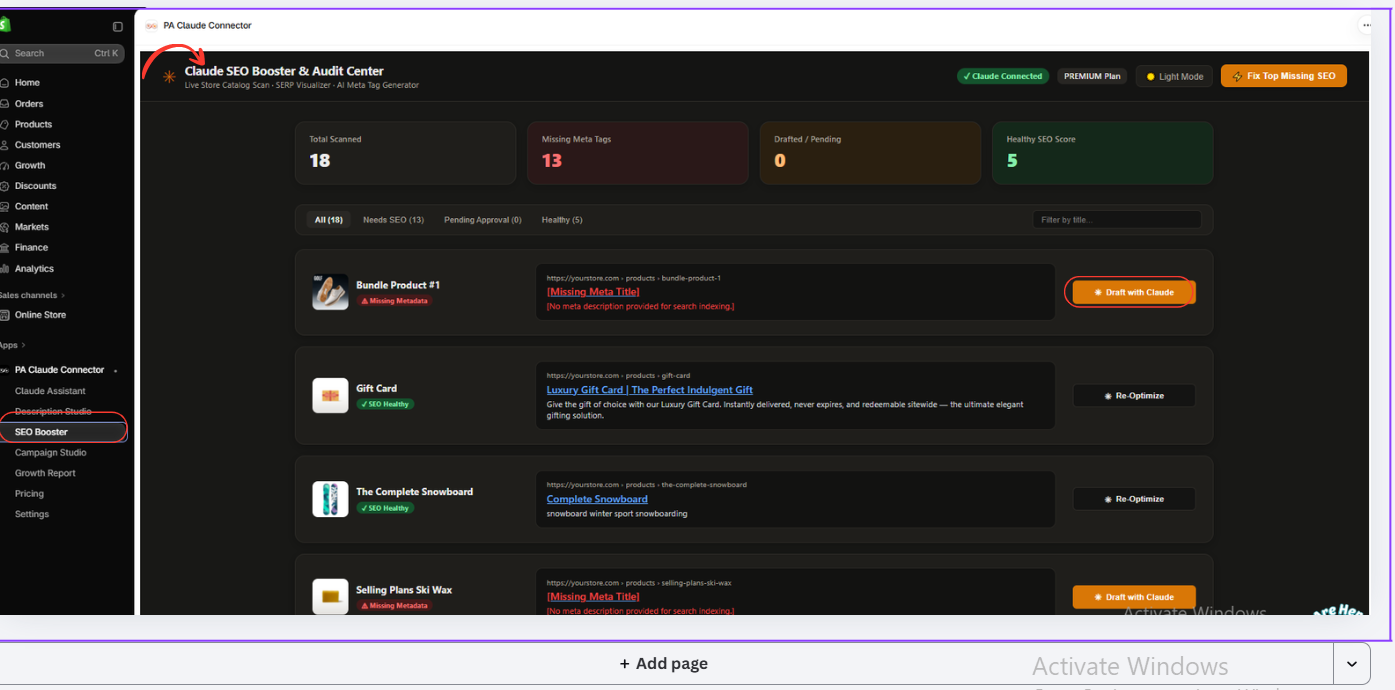
Image 8: Use SEO Booster to review product metadata and identify catalog items that may need SEO improvements.
Image explanation
The screenshot displays Claude SEO Booster & Audit Center.
It shows products scanned, missing metadata indicators, and a list of Shopify catalog items.
For products needing improvements, the interface includes Draft with Claude controls.
This illustrates how merchants can use Claude-related features for store management tasks beyond ordinary conversation.
What Can You Do After Connecting Claude to Shopify?
Once the app is installed and its Claude-powered functionality is available, you can explore several workflows.
AI-powered product descriptions
Use Description Studio to prepare product descriptions that match your brand’s writing style.
Shopify SEO optimization
Use SEO Booster to find missing product metadata and draft improvements.
Sales and order analysis
Ask Claude Assistant questions about accessible store metrics, including revenue and order activity.
Marketing campaign generation
Use Campaign Studio to draft newsletters, advertising messages, and social-media captions.
Inventory and growth reporting
Use Growth Report to examine slow-moving stock, inventory velocity, and sales-related information.
Downloadable reports
Where document generation is supported, request structured reports that you can download and review.
Is It Safe to Connect Claude to Your Shopify Store?
Connecting an AI-powered application to Shopify can be useful, but merchants should understand the permissions involved.
Review the access requested during installation and only authorize applications from developers you trust.
Shopify’s official guidance explains that connected AI tools operate within approved data permissions and applicable user permissions. Some actions may require additional authorization, while others may be restricted. Shopify Help Center+1
For PA Claude Connector specifically, the screenshots show that some actions may fail because of permission restrictions.
Before allowing AI to make significant store changes, verify what it intends to do and review the results.
PA Claude Connector vs. Shopify’s Official Claude Connector
These are two different ways of working with Claude and Shopify.
| PA Claude Connector | Official Shopify Connector for Claude |
|---|---|
| Third-party Shopify app by PeakApps | Shopify-developed integration |
| Installed from the Shopify App Store | Installed through Claude |
| Includes specialized app dashboards | Works through Claude conversations |
| Provides Description Studio, SEO Booster, and Campaign Studio | Provides supported Shopify store operations and analytics |
| Uses the app’s own features and subscription plans | Governed by Shopify access permissions and applicable Claude costs |
If you prefer to use Claude directly on Claude’s own website, Shopify also documents an official integration that connects an existing store through Shopify authorization. Shopify connector for Claude+1
Frequently Asked Questions (FAQs)
1. How do I connect Claude to my Shopify store?
For PA Claude Connector, open the Shopify App Store, install the application, approve its requested permissions, and open Claude Assistant inside Shopify admin. Complete any additional connection instructions presented by the app.
2. Do I need coding experience to use Claude with Shopify?
No. Many available workflows use conversational prompts or simple dashboard controls.
3. Can Claude analyze Shopify sales?
Yes, provided the selected integration has access to the necessary sales information.
4. Can Claude help write Shopify product descriptions?
Yes. PA Claude Connector includes Description Studio for AI-assisted product descriptions.
5. Can Claude help improve Shopify SEO?
The app’s SEO Booster provides tools for reviewing missing metadata and drafting SEO improvements.
6. Can Claude make changes to my Shopify theme?
Some integrations support certain theme operations, subject to Shopify permissions and restrictions. Do not assume that connecting an AI assistant grants unrestricted theme-editing access.
7. Is PA Claude Connector free?
Your supplied pricing screenshot shows a free plan as well as paid tiers. Check the current app pricing before selecting a subscription.
8. How do I know Claude is connected?
Look for a connection status such as Claude Connected in the relevant app interface, then test a supported request.
9. Why might Claude report a permission error?
The application may lack authorization for the requested operation, or Shopify may restrict that type of action.
10. Where can I install PA Claude Connector?
You can find the app at PA Claude Connector on Shopify.
Conclusion
Connecting Claude to your Shopify store can make everyday store management more convenient by bringing AI-assisted workflows closer to your products, sales information, SEO tasks, and marketing activities.
With PA Claude Connector by PeakApps, merchants can access Claude Assistant and explore specialized tools such as Description Studio, SEO Booster, Campaign Studio, and Growth Report.
The process begins by installing the application, approving the required Shopify permissions, opening Claude Assistant, and checking whether the app is connected and able to respond to your requests.
Once the connection is working, you can begin asking store-related questions, generating content drafts, reviewing accessible analytics, and preparing useful reports.
Remember that AI assistance works best when combined with accurate store data and careful human review.
Ready to start using Claude with your Shopify store?Install PA Claude Connector on Shopify




