HOW TO IMPROVE YOUR WIX PRODUCT CATALOG WITH CONSISTENT AI IMAGES
Introduction
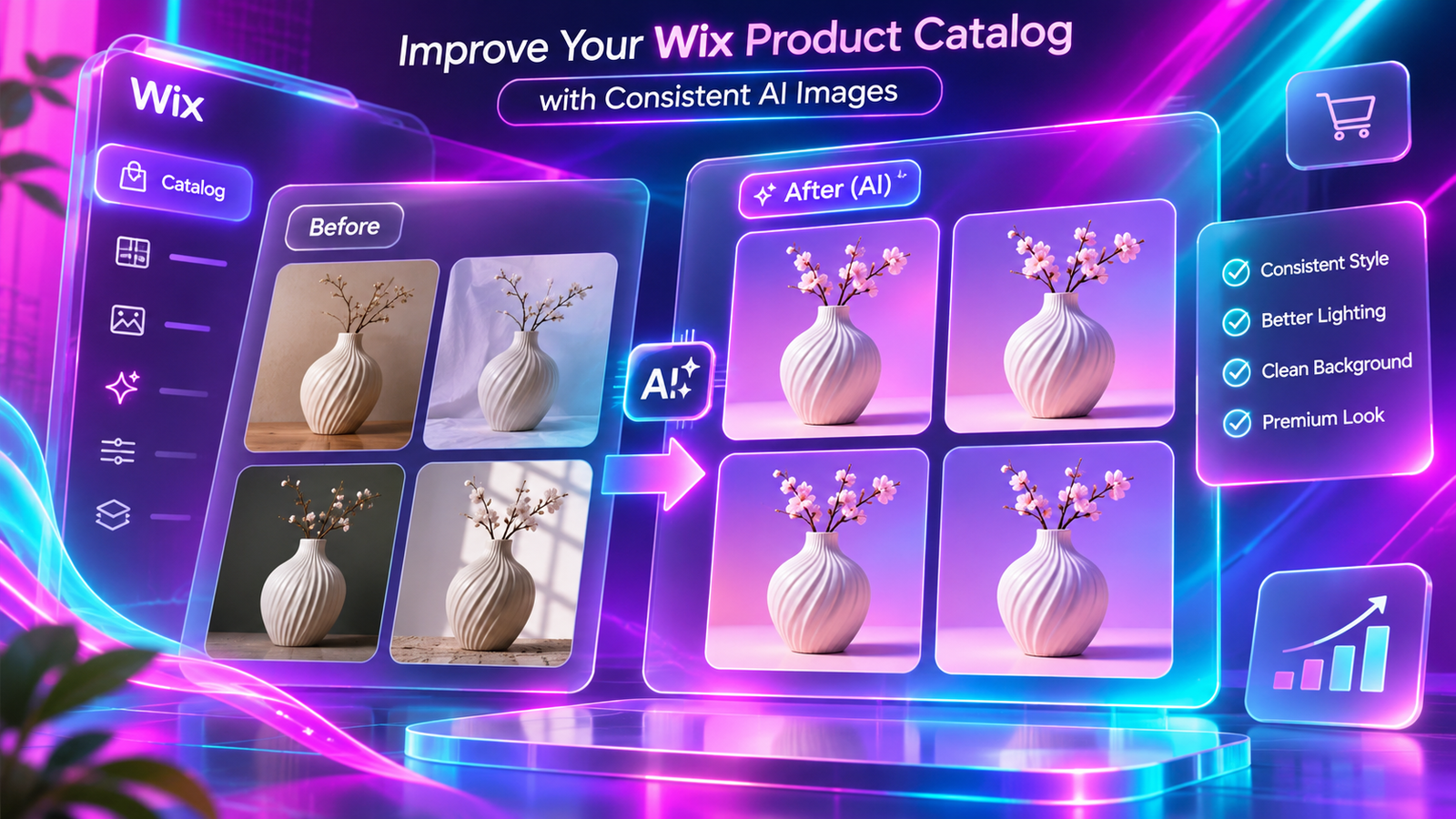
A professional Wix online store needs more than attractive products. Your product catalog should look organized, consistent, and visually appealing to customers.
However, many Wix merchants struggle with inconsistent product photography. Some images have white backgrounds, others have colorful backgrounds, and some use completely different lighting or photography styles.
These differences can make a product catalog appear less professional and distract customers from the products themselves.
Traditionally, maintaining consistent product images requires photo editing software, professional photographers, or considerable manual work.
With PA AI Image Generator, Wix merchants can improve existing product photographs, replace backgrounds, create AI lifestyle scenes, and develop a more consistent visual identity.
In this tutorial, you’ll learn how to improve your Wix product catalog with consistent AI images, using step-by-step instructions and your original screenshots.
Why Consistent Product Images Matter for Wix Stores
Consistent product photography helps create a unified shopping experience.
When customers browse a collection, photographs with similar backgrounds, compositions, and lighting make it easier to compare products.
Benefits include:
-
Creating a more professional-looking product catalog.
-
Strengthening your store’s visual identity.
-
Improving product visibility.
-
Making product collections easier to browse.
-
Reducing distracting backgrounds.
-
Supporting customer confidence.
-
Creating consistent marketing visuals.
For example, a home decor store might use cream backgrounds for its main product photographs and warm interior scenes for lifestyle images.
Common Product Catalog Problems Wix Merchants Face
1. Different background colors
Some products may appear against white backgrounds, while others use red, yellow, or other unrelated colors.
2. Inconsistent lighting
Photographs taken under different conditions may have uneven brightness, shadows, and color tones.
3. Different photography styles
Mixing basic product photographs with professional studio images can make a catalog look disorganized.
4. Poor product presentation
Distracting backgrounds and unclear photographs can make products harder to evaluate.
5. Expensive photo editing
Hiring photographers and editors for every product can increase business expenses.
6. Time-consuming catalog management
Updating several product photographs individually requires effort, particularly for large stores.
What Are Consistent AI Product Images?
Consistent AI product images are photographs edited or generated using a shared visual style.
This can include:
-
The same background colors.
-
Similar lighting conditions.
-
Consistent product positioning.
-
Matching image proportions.
-
Reusable photography prompts.
-
Similar lifestyle environments.
AI can help create consistent backgrounds and scenes, but merchants should also standardize image dimensions, camera angles, and product positioning where necessary.
Introducing PA AI Image Generator for Wix
PA AI Image Generator is an AI-powered product photography application available on the Wix App Market.
It provides tools for improving product photographs directly from your Wix dashboard.
Its features include background removal, custom background replacement, AI scene generation, text-based prompts, predefined scene options, before-and-after comparisons, and publishing edited photographs to products.
For this tutorial, we’ll focus on using background colors and lifestyle scenes to create a consistent product catalog.
How to Improve Your Wix Product Catalog With AI: Step-by-Step Guide
Step 1: Open the Wix App Market
Open Google and search for Wix App Store.
Select the official Wix App Market website from the search results.

Image 1: Search for Wix App Market on Google and open the official marketplace.
You can also visit the Wix App Market directly.
Step 2: Search for PA AI Image Generator
Inside the Wix App Market, locate the search field.
Enter PA AI Image Generator and search for the application.

Image 2: Search for PA AI Image Generator in the Wix App Market.
Step 3: Select PA AI Image Generator
Locate PA AI Image Generator by TheScriptFlow in the search results.
Click the application to open its listing page.

Image 3: Find PA AI Image Generator in the search results.
Step 4: Install PA AI Image Generator
On the application listing page, click Add to Site.
Follow the instructions to install the app on your Wix website.

Image 4: Click Add to Site to install PA AI Image Generator.
Direct installation link: Install PA AI Image Generator
Step 5: Open AI Product Images in Your Wix Dashboard
After installation, open your Wix website dashboard.
Navigate to Apps → AI Product Images.

Image 5: Open AI Product Images from the Apps section in Wix.
The application displays the products connected to your store.
Step 6: Select the Product You Want to Improve
Browse your product catalog and select an item whose photographs need improvement.
For this tutorial, we’ll use a Ceramic Flower Vase.

Image 6: Choose the product whose photographs you want to make more consistent.
Step 7: Open the Photo Studio
After selecting your product, open the Photo Studio.
Choose the product photograph you want to edit.

Image 7: Explore the Photo Studio and its background editing tools.
The Photo Studio provides three main editing options: Remove background, Replace background, and AI scene.
For consistent catalogs, solid-color background replacement and reusable AI scene prompts are particularly useful.
Step 8: Review Your Existing Product Images
Before making changes, review the photographs already available in your product gallery.
The screenshot below shows multiple images of the ceramic vase, including plain product photographs, colorful backgrounds, and lifestyle scenes.

Image 8: Review the available product photographs and identify inconsistencies in background colors and photography styles.
Decide which visual style you want to use for your main product photographs.
For example, you might choose a white background for every main image and reserve lifestyle scenes for additional gallery photographs.
Step 9: Select a Photograph and Choose a Consistent Background Color
Click the photograph you want to edit.
Scroll down to Replace background and open the color picker.
In this example, the selected photograph has a red background, and the color picker shows the HEX value #AF1818.

Image 9: Select a product photograph and use the color picker to customize its background.
When developing a consistent catalog, save the HEX codes associated with your brand.
Reusing the same colors helps create a recognizable visual style.
Step 11: Review AI Lifestyle Product Photography
Consistent catalogs do not always require plain backgrounds.
Lifestyle photography can also help establish a recognizable brand identity.
The following screenshot shows an AI-generated lifestyle scene featuring a person beside the ceramic vase.

Image 11: Review an AI-generated lifestyle product photograph with a person interacting with the vase.
The AI-generated scene uses a warm interior and a natural product presentation.
This type of image can work well as an additional photograph on a product page.
The person is AI-generated and should not be represented as a real customer or testimonial.
Step 12: Create a Consistent Lifestyle Environment
You can also use AI scene prompts to place products in environments matching your brand.
For example, a home decor store might consistently use wooden furniture, soft daylight, and neutral-colored interiors.
The following screenshot shows a ceramic vase displayed on a round wooden table.

Image 12: Compare the original vase photograph with an AI-generated home interior featuring a decorative wooden table.
This provides another example of using AI to create lifestyle photography.
For greater consistency, reuse similar prompts and lighting descriptions across related products.
Step 12: Create a Consistent Lifestyle Environment
You can also use AI scene prompts to place products in environments matching your brand.
For example, a home decor store might consistently use wooden furniture, soft daylight, and neutral-colored interiors.
The following screenshot shows a ceramic vase displayed on a round wooden table.
Image 12: Compare the original vase photograph with an AI-generated home interior featuring a decorative wooden table.
This provides another example of using AI to create lifestyle photography.
For greater consistency, reuse similar prompts and lighting descriptions across related products.
Step 13: Review and Publish Your Updated Product Image
Once you’re satisfied with the generated image, review it carefully.
Check that the product’s shape, colors, materials, and other important details remain accurate.
Then click Publish to product (becomes main photo).
According to the app interface, the edited image becomes the main product photograph while the original photographs remain in the product gallery.
Repeat the editing workflow for other products using the same backgrounds and photography styles.
The supplied screenshots demonstrate individual image editing. They do not show a confirmed one-click bulk-edit operation.
Best Ways to Maintain Consistent Wix Product Images
Use the same background colors
Choose a small number of background colors that complement your Wix website and apply them consistently.
Maintain similar lighting
Use similar lighting styles across related products, such as soft natural daylight or clean studio illumination.
Standardize image dimensions
Use consistent aspect ratios and product image dimensions to create organized product grids.
Keep product positioning similar
Try to maintain consistent product scale, camera angles, and spacing.
Reuse successful AI prompts
Save prompts that generate appropriate results and reuse them with similar products.
Separate main images from lifestyle images
Use clean, consistent images for product catalog thumbnails and lifestyle images for additional context.
Review photographs before publishing
AI-generated scenes should accurately represent the products being sold.
Recommended AI Image Styles for Different Wix Stores
| Store category | Main image background | Lifestyle photography |
|---|---|---|
| Skincare | White or cream | Minimal bathroom scenes |
| Jewelry | Black or light gray | Luxury studio settings |
| Fashion accessories | Beige or ivory | Editorial lifestyle scenes |
| Home decor | Cream or sage green | Warm modern interiors |
| Electronics | White or cool gray | Minimal office settings |
| Handmade products | Natural beige | Wooden surfaces and daylight |
| Kitchen products | White | Modern kitchen scenes |
How to Create a Consistent Wix Product Photography Style
A consistent photography style starts with a simple brand image guide.
Choose your primary background color, preferred lighting style, image dimensions, camera perspective, and lifestyle environment.
For example, a home decor brand could use white backgrounds for all primary catalog photographs and natural wooden surfaces for secondary lifestyle images.
Keeping these choices consistent helps the store feel more organized without making every photograph identical.
Five AI Prompts for Consistent Wix Product Catalog Images
1. Clean studio
Create a professional product photograph with a clean ivory background, soft shadows, and realistic studio lighting. Preserve the product’s original design and colors.
2. Home decor
Place my product on a natural wooden table inside a modern living room with warm daylight and neutral-colored decorations. Preserve the original product details.
3. Luxury
Display my product in a sophisticated studio with a dark background, elegant directional lighting, and a premium commercial photography style.
4. Organic
Create a natural lifestyle photograph with sage green accents, wooden textures, botanical elements, and soft sunlight.
5. Minimalist
Place my product in a minimalist studio using a light gray background, subtle shadows, and consistent centered composition.
AI Background Replacement vs. AI Lifestyle Scenes
| Feature | Background replacement | AI lifestyle scenes |
|---|---|---|
| Main purpose | Create consistent background colors | Generate realistic environments |
| Customization | Preset and custom HEX colors | Text prompts and scene presets |
| Best use | Main catalog photographs | Secondary product images and campaigns |
| Credits shown in app | 1 per operation | 2 per generation |
| Product accuracy | Requires review | Requires careful review |
Benefits of Consistent AI Product Images
Better product catalog organization
Consistent backgrounds, sizes, and photography styles create a cleaner shopping experience.
Stronger brand recognition
Using similar colors and visual styles helps customers recognize your brand.
Improved product visibility
Clean backgrounds make it easier for customers to focus on product details.
Reduced manual editing work
AI-assisted background replacement can simplify repetitive image editing tasks.
More flexible marketing visuals
Lifestyle scenes can provide additional imagery for product pages and promotional campaigns.
Common Mistakes to Avoid
-
Using unrelated background colors across the same collection.
-
Choosing backgrounds that make products difficult to see.
-
Mixing inconsistent image sizes and proportions.
-
Using unrealistic lifestyle environments.
-
Changing important product details with AI.
-
Publishing photographs without reviewing them.
-
Assuming that AI editing automatically fixes every lighting or composition problem.
Frequently Asked Questions
How can I make my Wix product catalog look more consistent?
Use similar background colors, image dimensions, lighting styles, and product positioning across related products.
Can I change Wix product image backgrounds using AI?
Yes. PA AI Image Generator supports background replacement using preset colors and custom HEX values.
Can I generate lifestyle product photographs?
Yes. The AI scene feature allows you to create product environments using text prompts.
Does PA AI Image Generator support multiple product images?
You can work with different photographs from your Wix product catalog. The screenshots in this tutorial demonstrate selecting and editing individual images.
How many credits does background replacement use?
The supplied app interface indicates that background replacement uses one credit per operation.
Can I publish AI-edited images directly to my Wix products?
Yes. The application provides a Publish to product option for setting the edited photograph as the main image.
Will consistent product images increase sales?
Consistent photography can improve the appearance of your catalog and support customer confidence, but higher sales are not guaranteed.
Conclusion
A consistent product catalog helps create a more professional and recognizable Wix online store.
By using matching backgrounds, similar lighting styles, standardized image dimensions, and carefully selected lifestyle scenes, merchants can improve their product presentation.
With PA AI Image Generator, you can replace distracting backgrounds, apply custom brand colors, generate realistic lifestyle scenes, and publish edited product photographs directly from your Wix dashboard.
For Wix merchants looking to improve catalog consistency without relying on complicated photo editing software, AI-powered photography offers a practical solution.