HOW TO CREATE STUDIO-QUALITY PRODUCT PHOTOS ON SHOPIFY WITHOUT A PHOTOGRAPHER
Shopify Product Photography Guide | AI Image Generation | 2026
Introduction
High-quality product photography is one of the most important elements of a successful Shopify store. Whether you sell fashion, accessories, cosmetics, electronics, or home decor, attractive product images can help customers understand your products and feel more confident about purchasing them.
However, professional product photography can be expensive. Hiring photographers, arranging studio lighting, purchasing equipment, and editing hundreds of images can require significant time and money.
For small Shopify businesses, producing consistent, professional-looking product images is often challenging.
Fortunately, artificial intelligence is changing how ecommerce merchants create visual content.
With AI-powered product photography tools, Shopify store owners can transform basic product images into polished studio-style photos, lifestyle scenes, and promotional visuals without organizing traditional photoshoots.
In this guide, you’ll learn how to create studio-quality product photos on Shopify without a photographer using PA AI Image Generator, including a complete step-by-step tutorial with real screenshots.
Why Studio-Quality Product Photography Matters for Shopify Stores
Product photography does more than make your online store look attractive. It helps communicate product quality, demonstrate features, and create a consistent brand identity.
1. Builds customer trust
Customers cannot physically examine products when shopping online. Clear, professional-looking images help them understand what they are considering purchasing.
2. Makes products more appealing
Lighting, backgrounds, and composition influence how customers perceive products. A clean studio-style photograph can make product details easier to see.
3. Supports conversion optimization
Relevant, high-quality product photos can help reduce uncertainty and support purchasing decisions. However, results depend on the product, audience, and overall shopping experience.
4. Creates a consistent brand appearance
Using coordinated backgrounds, lighting, and image styles helps create a recognizable visual identity across product and collection pages.
5. Improves marketing content
Professional-looking product images can be reused in email campaigns, social media content, advertisements, and promotional banners, provided they meet each platform’s requirements.
The Merchant’s Challenge: Traditional Product Photography Is Expensive
Professional ecommerce photography typically involves several separate activities.
Merchants need to prepare products, choose backgrounds, arrange lighting, capture photographs, edit images, and upload the final files to their stores.
For a business with hundreds of products, repeating this process can become expensive and difficult to manage.
Some common challenges include:
- High photography and studio costs.
- Time spent arranging photoshoots.
- Inconsistent backgrounds across product listings.
- Difficulty producing lifestyle photographs.
- Additional expenses for models and props.
- Limited resources for seasonal campaigns.
- The need to create new images when products or promotions change.
For example, a Shopify merchant selling handbags may want clean white-background photos for product pages, lifestyle images for advertising, and festive visuals for holiday campaigns.
Traditionally, these might require several different photography setups.
AI image generation can simplify much of this creative process.
What Is AI Product Photography?
AI product photography uses artificial intelligence to generate or enhance product visuals based on existing reference images and creative instructions.
Instead of photographing every product in multiple locations, merchants can upload an existing image and select a suitable visual style.
Depending on the tool and settings, AI can help create:
- Clean studio-style product images.
- Lifestyle scenes with realistic surroundings.
- On-model fashion photography.
- Seasonal promotional images.
- Product collection visuals.
- Marketing-ready product compositions.
- Alternative backgrounds and lighting styles.
The goal is to make professional-looking photography more accessible while reducing the need for repeated photoshoots.
AI-generated images should still be inspected carefully for inaccurate product shapes, logos, colors, and other details.
Introducing PA AI Image Generator for Shopify
PA AI Image Generator is a Shopify app designed to help merchants produce commercial-style product photography using artificial intelligence.
The application connects to a merchant’s product catalog, allowing existing Shopify product images to serve as references for new visual content.
Merchants can choose from different image-generation modes, select creative presets, configure output settings, and manage generated results through the app’s gallery.
Main Features of PA AI Image Generator
AI-powered studio photography: Create clean, professional-looking product visuals using existing product images.
Ready-made photography presets: Choose from studio, lifestyle, on-model, seasonal, and other visual styles.
Shopify product integration: Select existing products or collections from your catalog.
Bulk image generation: Prepare multiple product images using selected presets.
Customizable output settings: Configure image backgrounds, aspect ratios, resolution, and file formats.
Product publishing options: Choose whether generated images should be added to Shopify products.
Image gallery: Review, download, and manage generated assets.
App link: PA AI Image Generator — Shopify App Store
Why Use AI Instead of Hiring a Product Photographer?
AI image generation and professional photography serve different needs.
| Feature | Traditional photography | PA AI Image Generator |
|---|---|---|
| Studio setup | Usually required | Not required |
| Professional camera | Usually required | Not required |
| Existing product image | Helpful | Used as reference |
| Lifestyle backgrounds | Physical or edited scenes | AI-generated presets |
| Multiple visual styles | Additional setups or editing | Choose available presets |
| Bulk workflow | Depends on photographer | Supported in app |
| Image review | Photographer/editor | Merchant reviews AI outputs |
| Physical product accuracy | Directly photographed | Requires verification |
AI can be particularly helpful for small stores, seasonal promotions, and merchants who need multiple visual styles.
Traditional photography remains useful when exact product accuracy, intricate details, precise materials, or highly specialized imagery is essential.
Types of Product Photos You Can Create With AI
Studio-style product photos
Studio images emphasize the product with controlled lighting and a clean background. They work well for Shopify product detail pages and catalog listings.
Lifestyle product images
Lifestyle photography places products in realistic environments, helping customers imagine how they could use them.
On-model product photography
Fashion merchants can create AI-generated model imagery to present clothing and accessories in context, while carefully reviewing fit, appearance, and product accuracy.
Seasonal promotional photography
Seasonal presets can help merchants create visual content for Christmas, Valentine’s Day, Black Friday, and other promotional events.
Collection and campaign visuals
AI-generated compositions can help present several products within coordinated marketing scenes.
Step-by-Step Guide: How to Create Studio-Quality Product Photos on Shopify Using PA AI Image Generator
Follow these steps to generate product photography using the actual PA AI Image Generator interface.
Step 1: Search for PA AI Image Generator in the Shopify App Store
First, open the Shopify App Store.
Use the search bar to search for PA AI Image Generator.
The search results will display the app alongside other image generation and ecommerce photography applications.

Image 1: Search for PA AI Image Generator in the Shopify App Store.
Image explanation: The screenshot shows the Shopify App Store search results, with PA AI Image Generator highlighted. Its listing describes the app as a tool for creating studio and on-model AI product photography.
Click the app to open its listing.
Step 2: Install and Open PA AI Image Generator
On the app listing, review the description, available features, and pricing information.
Click Install if the app has not yet been installed, then approve the requested Shopify permissions.
Once installation is complete, select Open to launch the application.
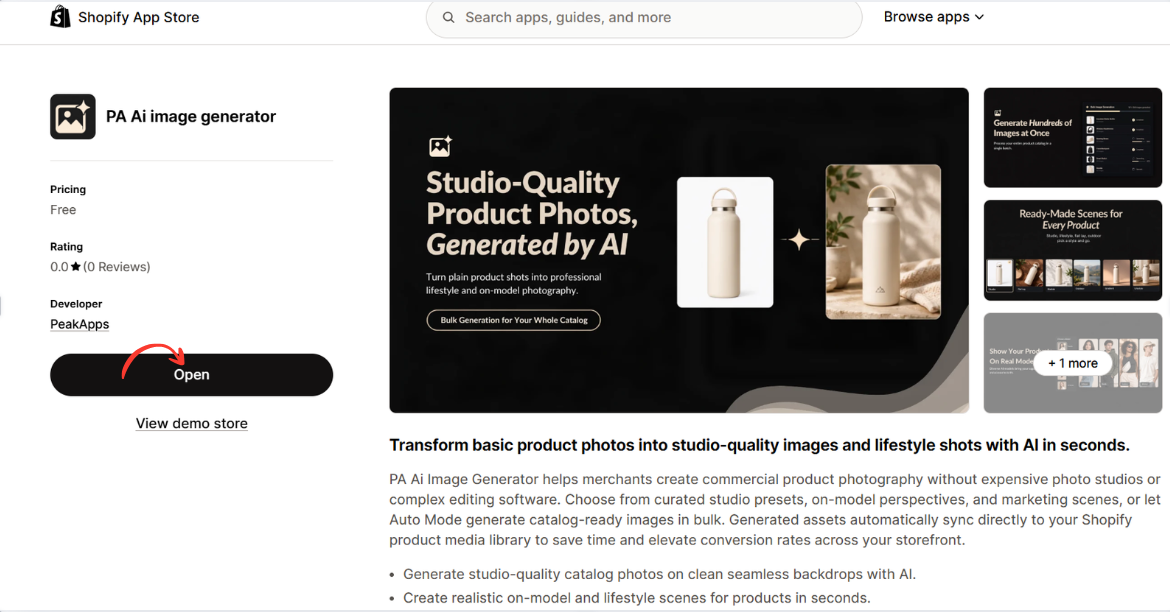
Image 2: Open PA AI Image Generator from its Shopify App Store listing.
Image explanation: The screenshot displays the app listing, including an illustration demonstrating how an ordinary product image can become a lifestyle-style photograph.
The Open button is highlighted, showing how merchants can access the installed app.
Step 3: Open the Generate Images Dashboard
After opening the app, locate Generate Images in the left navigation menu.
The image-generation workflow begins with selecting the products you want to use.
Click Browse Products to choose individual products from your Shopify catalog.
Alternatively, you can use Browse Collections to work with a collection.
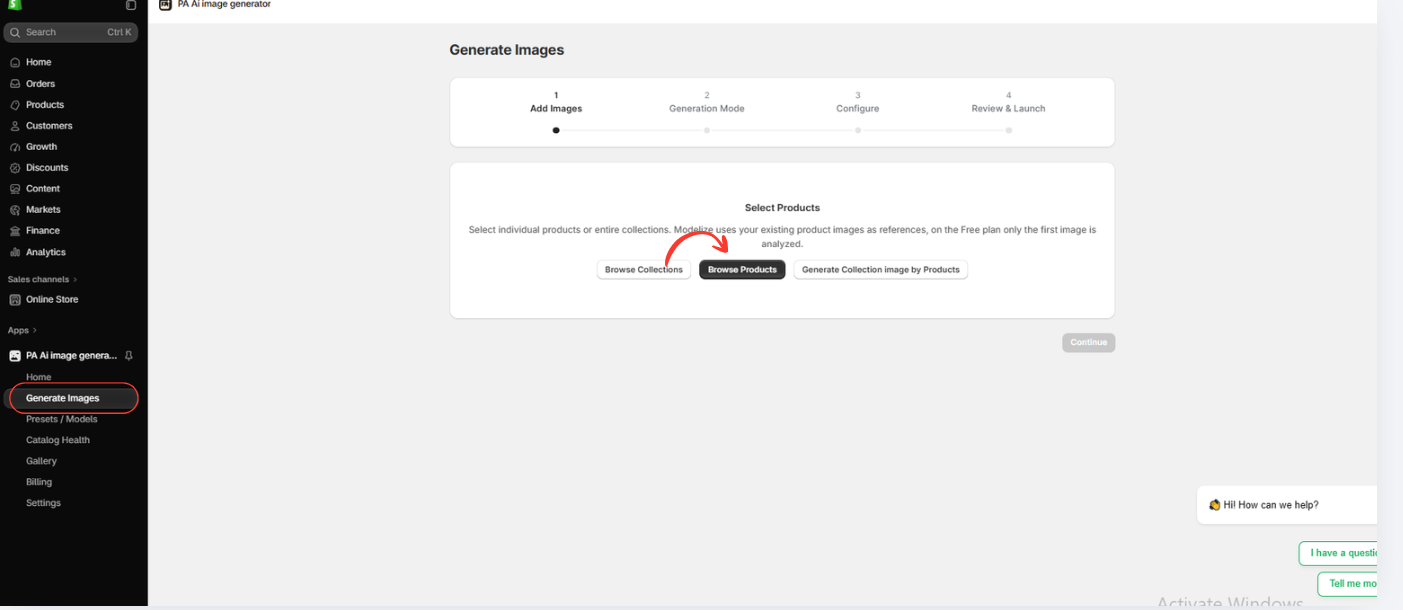
Image 3: Open Generate Images and select Browse Products.
Image explanation: The screenshot displays the image-generation interface with a progress indicator for selecting images, choosing a generation mode, configuring settings, and reviewing the generation request.
The Browse Products option allows merchants to use images already stored in Shopify.
Step 4: Select a Shopify Product
Clicking Browse Products opens a product selection window.
You can search for specific products or browse those available in your catalog.
Choose the product you want to enhance by selecting its checkbox.
For this tutorial, the example product is a Gift Card.
After selecting it, click Add.
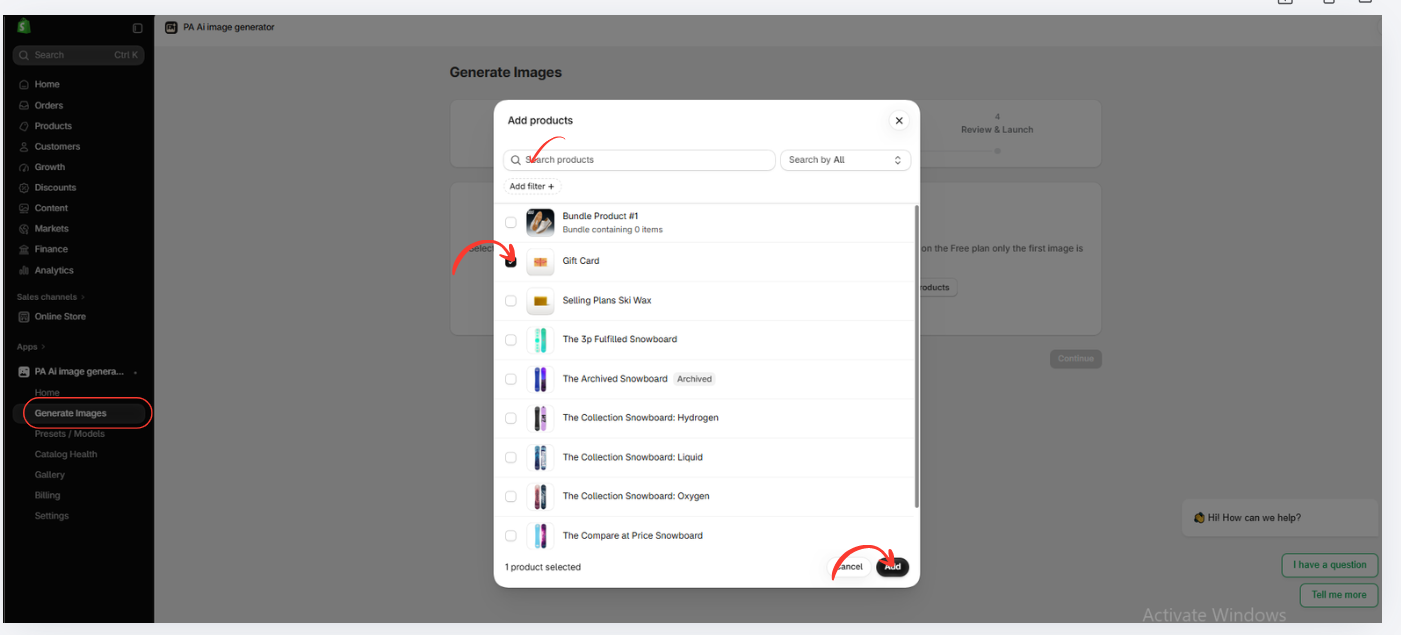
Image 4: Select the Gift Card product from the Shopify catalog and click Add.
Image explanation: The popup displays products such as Gift Card, Selling Plans Ski Wax, and several snowboard products.
The Gift Card selection is highlighted, and the Add button appears at the bottom-right corner.
This shows how merchants can select products directly from their existing catalog without separately uploading each reference image.
Step 5: Confirm Your Selected Products
After adding your product, the app displays it in the selected products list.
Confirm that the correct product appears.
You can add more products if needed or remove any selected products.
Once the selection is correct, click Continue.
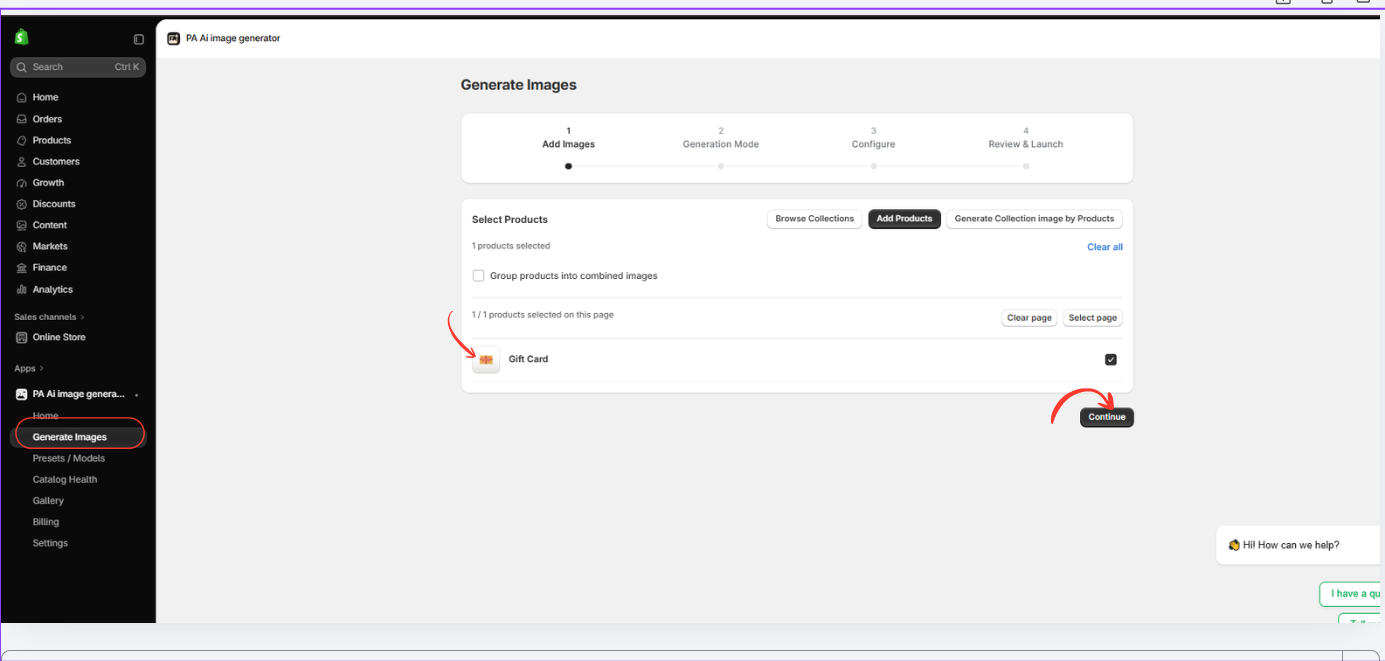
Image 5: Confirm the selected Shopify product before continuing.
Image explanation: The screenshot shows one selected product, Gift Card. The selected product has a checked box, and the Continue button is highlighted.
This step helps ensure you generate images for the intended Shopify product.
Step 6: Choose an AI Image Generation Mode
The next screen displays two generation approaches:
Auto Mode: Allows AI to create a set of optimized product images based on the available product references.
Choose Presets: Allows you to select specific photography styles and compositions.
For this tutorial, select Choose Presets.
This option gives you more control over the visual direction of your final product photographs.

Image 6: Select Choose Presets to customize the style of AI-generated product images.
Image explanation: The screenshot shows the available generation modes. The Choose Presets option is highlighted, with previews of different photography styles.
Click Continue to browse the preset library.
Step 7: Explore Professional Product Photography Presets
The app provides a library of presets organized into several categories.
You can browse photography types such as Studio, On Model, Ghost Mannequin, Floating, Lifestyle, Flat Lay, Detail/Macro, Packaging, and Seasonal.
Industry filters include fashion, beauty, electronics, home products, jewelry, and sports.
Choose presets based on your product category and intended use.

Image 7: Explore the photography presets and choose the visual styles for your product.
Image explanation: The screenshot displays preset thumbnails including Studio – Clean, Flat Lay – Front, Studio – Back View, and Lifestyle – Home.
Each preset contains a preview image showing the intended photography style.
For an ecommerce catalog, a clean studio preset is often a useful starting point. Lifestyle presets can then provide additional variety for marketing materials.
Step 8: Select Seasonal or Promotional Image Styles
The preset library also includes creative options for seasonal and promotional content.
These can help merchants prepare visuals for special events without arranging additional photoshoots.
For example, the tutorial shows the Seasonal – Christmas preset selected.
After choosing your desired presets, click Continue.
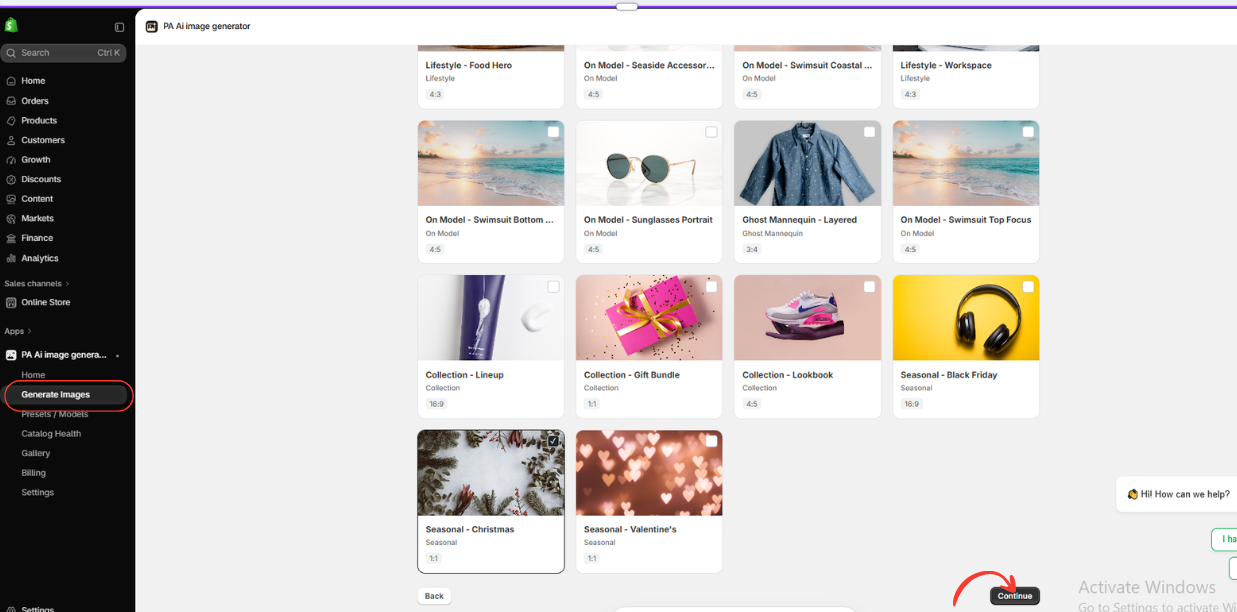
Image 8: Select a seasonal product photography preset and continue.
Image explanation: The screenshot displays presets such as Collection – Lineup, Collection – Gift Bundle, Seasonal – Black Friday, Seasonal – Christmas, and Seasonal – Valentine’s.
The Christmas option is selected, demonstrating how the app can prepare holiday-themed product visuals.
Selecting multiple appropriate presets allows you to generate different compositions from the same source product.
Step 9: Configure Image Settings Before Generation
After selecting presets, the app opens the Generation Settings screen.
Here, you can customize how the images should be generated and managed.
Available settings shown include:
- Auto-publish to product: Control whether generated images are automatically added to the Shopify product.
- How to add to product: Choose how images are added, including keeping existing images.
- Custom instructions: Provide additional visual requirements.
- Background color: Use the preset background.
- Aspect ratio: Choose preset, default, or custom proportions.
- Resolution: Use the recommended default or a custom resolution.
- Image format: Choose JPEG, PNG, or WebP.
For example, a merchant could enter:

Image 9: Configure product image generation settings before starting the process.
Image explanation: The screenshot shows the generation settings panel, including the selected auto-publish option, preset backgrounds, resolution, and image format.
At the bottom, the summary indicates one product, two presets, and two planned images.
For a first test, consider turning off auto-publish so you can inspect generated results before adding them to your live store.
After reviewing your settings, click Continue, review the final request, and launch image generation.
Step 10: Check Image Generation Progress in the Gallery
After submitting an image-generation request, open Gallery in the app’s sidebar.
The gallery shows recent generation jobs and their statuses.
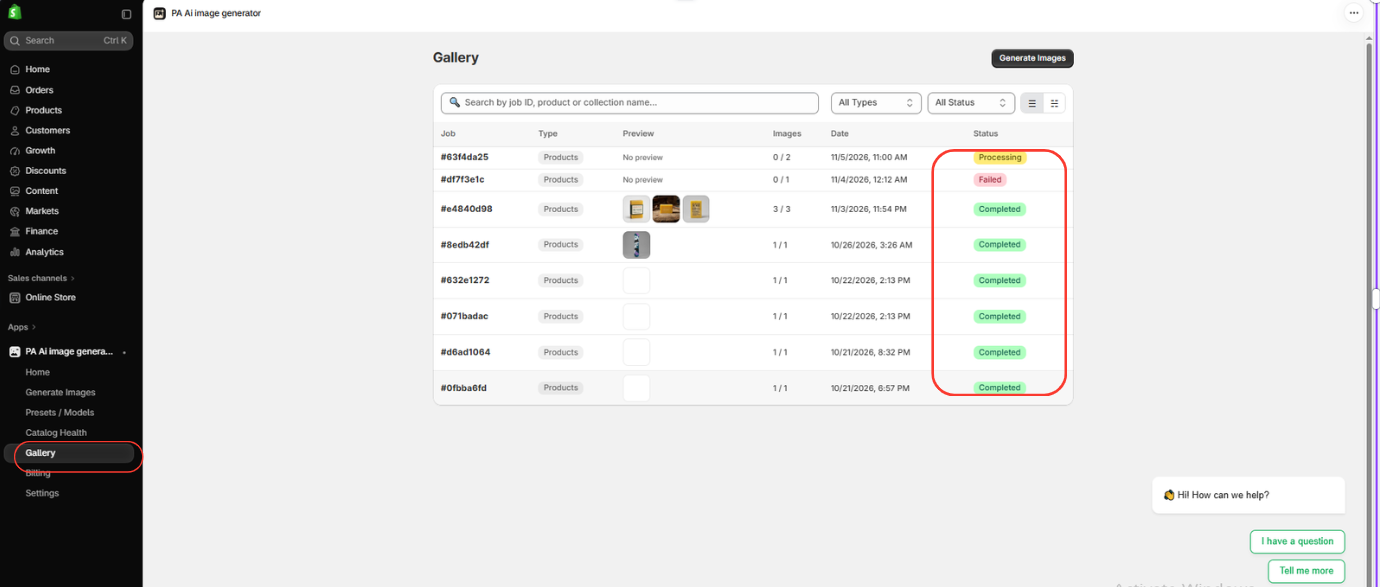
Possible statuses shown in the screenshot include:
- Processing
- Completed
- Failed
You can use the gallery to track generation results and identify jobs requiring further attention.
PA AI Image Generator gallery with processing, failed, and completed statusesImage 10: Track generated product images and check their completion status in Gallery.
Image explanation: The screenshot displays a table containing job identifiers, product image previews, dates, image counts, and status labels.
Several earlier jobs are marked Completed, while another is Processing and one is Failed.
This dashboard helps merchants manage image-generation jobs from a single location.
Step 11: Review, Download, and Publish Your Generated Product Photos
Once your generation job is complete, open its gallery details.
The app displays the generated images for the selected product.
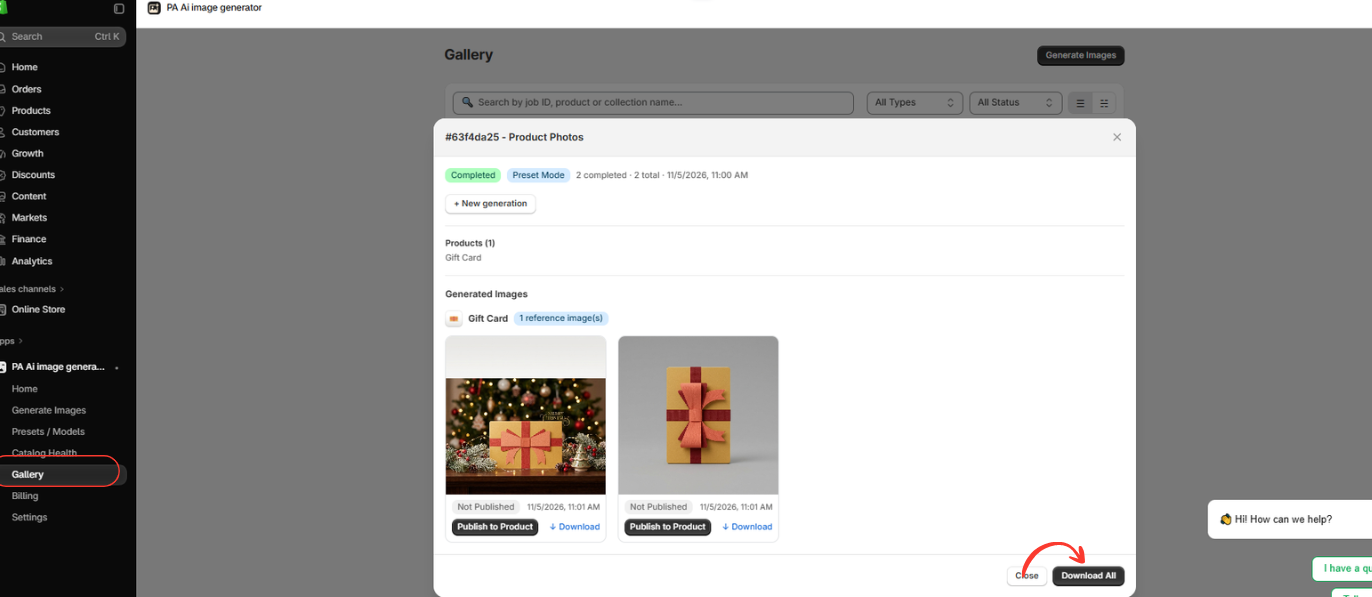
In this example, the Gift Card product has two generated visuals:
- A festive gift-box composition with Christmas decorations.
- A minimalist studio-style gift box on a neutral background.
You can review each image separately and choose the one that best suits your store.
Completed AI product photos for Gift Card in PA AI Image GeneratorImage 11: Review completed studio and seasonal product images, then download or publish them.
Image explanation: The screenshot shows a completed generation job with two Gift Card product images.
Both generated images are marked Not Published, indicating they have not yet been added to the Shopify product.
Below each image are Publish to Product and Download controls. A Download All button is also available.
You can download the images for review or publish approved images to the selected Shopify product.
Before publishing, verify that the product’s real-world appearance, colors, dimensions, and branding have been preserved.
Best Practices for Creating Professional Shopify Product Photos With AI
Use clear reference images
AI works best when the original product photographs show the item clearly. Avoid heavily blurred or obstructed source images.
Choose a consistent visual style
Use related backgrounds, lighting, and composition across products to maintain a cohesive store design.
Preserve product accuracy
Carefully inspect generated logos, textures, colors, labels, and physical details. AI may produce convincing images that do not perfectly represent the actual product.
Select the right aspect ratio
Square images are often practical for product catalogs, while landscape or portrait formats may better suit promotional placements.
Optimize the final image files
Use suitable image dimensions and compression so images remain clear without unnecessarily increasing page load times.
Review images before publication
For the first generation, manually review the outputs before enabling automated publishing.
Common Mistakes to Avoid When Using AI Product Photography
Creating attractive AI images is only part of the process. Merchants should also avoid common mistakes such as using inaccurate product representations, placing too many props around the product, selecting backgrounds that distract from important details, and uploading multiple images with inconsistent proportions.
AI-generated lifestyle images should complement accurate product photographs rather than replace essential views that customers need to evaluate the real item.
Frequently Asked Questions
1. Can I create professional Shopify product photos without a photographer?
Yes. AI product photography tools can create studio-style and lifestyle visuals from existing reference images without requiring a traditional photoshoot.
2. Can PA AI Image Generator use images already in my Shopify store?
Yes. The demonstrated workflow lets merchants select existing Shopify products and use their product images as references.
3. Can I create Christmas or Black Friday product images?
Yes. The preset library shown includes seasonal options for Christmas, Black Friday, and Valentine’s Day.
4. Can I generate multiple images for one Shopify product?
Yes. You can select multiple presets and generate more than one visual for a product, subject to the app’s available limits.
5. Does the app automatically publish generated images to Shopify?
The demonstrated settings include an auto-publish option. Merchants can also review completed images in Gallery and use the Publish to Product control.
6. Can I download generated images?
Yes. Gallery provides individual Download controls and a Download All option for the completed job shown.
7. Are AI-generated product photos always accurate?
No. AI can sometimes change product details. Merchants should inspect generated images before publishing them.
8. Is PA AI Image Generator free?
The supplied Shopify App Store listing shows the app as free. Check its current listing and in-app terms for usage allowances or potential charges.
Conclusion
Professional product photography helps Shopify merchants build more attractive product pages, improve visual consistency, and communicate product information effectively.
However, traditional photography can involve expensive equipment, studios, editing services, and repeated photoshoots.
With PA AI Image Generator, merchants can use their existing Shopify product images to create studio-style visuals, lifestyle scenes, seasonal campaigns, and other marketing assets.
The app brings product selection, photography presets, generation settings, and image management into one workflow.
For merchants looking to create professional-looking ecommerce images without arranging every photoshoot themselves, AI product photography offers a practical alternative.
Create professional-looking Shopify product photos with AI.Explore PA AI Image Generator on the Shopify App Store




