HOW TO CREATE URGENCY ON SHOPIFY WITHOUT FAKE COUNTDOWN TIMERS
Shopify Tutorial | Ethical Urgency Marketing | Real Stock Countdown | Limited-Time Offers | AB Sales Popup | 2026

Introduction
Creating urgency is a common marketing strategy for Shopify stores. When customers know an offer is ending soon or a product is genuinely running low on stock, they may decide to complete their purchase sooner.
However, there’s a major difference between genuine urgency and fake urgency.
Imagine visiting an online store and seeing a countdown timer displaying “Only 10 minutes left!” You return to the same product the next day, and the timer starts again at 10 minutes.
Instead of encouraging you to purchase, this could make you question whether the store is trustworthy.
Fake countdown timers, invented stock shortages, and misleading limited-time offers can damage customer confidence.
Fortunately, Shopify merchants can create urgency without using deceptive marketing tactics.
With AB Sales Popup, you can configure countdown timers based on real promotion deadlines, display stock countdown bars using actual inventory data, and show genuine sales activity.
In this guide, we’ll explain how to create authentic urgency on Shopify, why honesty matters, and how to configure urgency features using your AB Sales Popup application.
What Is Urgency Marketing in Shopify?
Urgency marketing encourages shoppers to make a purchase by communicating a genuine time-sensitive or availability-related reason.
For example:
- A Black Friday promotion that actually ends on a specified date.
- A seasonal product with limited inventory remaining.
- A discount that expires at midnight.
- A product with a confirmed final restock date or limited release.
- A shipping cutoff that genuinely affects delivery before a holiday.
These messages give customers useful information about the purchasing opportunity.
The most effective urgency marketing does not require inventing deadlines or manipulating shoppers with false claims.
What Is the Difference Between Real and Fake Urgency?
| Genuine urgency | Fake urgency |
|---|---|
| Sale ends at an actual deadline | Timer restarts whenever a customer visits |
| Stock count uses real inventory | Invented low-stock numbers |
| Discount expires as advertised | Discount continues after the timer expires |
| Limited release has a genuine quantity restriction | False claims that only a few items remain |
| Promotion terms are clear | Important conditions are hidden |
The key difference is accuracy.
A countdown timer should inform shoppers about a real deadline, not create the illusion of one.
Why Should Shopify Merchants Avoid Fake Countdown Timers?
1. They can damage customer trust
When shoppers discover that a countdown resets repeatedly, they may become skeptical of the store’s other claims.
2. They create unnecessary pressure
Artificial scarcity can make customers feel manipulated rather than informed.
3. They may lead to complaints
Customers may complain if a supposedly limited discount continues indefinitely.
4. They can undermine your brand image
A business aiming to build long-term customer relationships should prioritize trustworthy communication.
5. They can create consumer protection risks
Misleading countdown timers and scarcity claims may raise issues under advertising and consumer protection rules, depending on the country and circumstances.
Introducing AB Sales Popup for Genuine Shopify Urgency
AB Sales Popup provides multiple tools for communicating time-sensitive promotions and customer activity.
Relevant features include:
- Countdown Timer: Display a countdown to a configured promotion end date.
- Stock Countdown: Show remaining inventory using a stock-related notification and progress bar.
- Sold Counter: Display product purchase activity.
- Visitor Counter: Show recent visitor activity.
- Sales Notifications: Display genuine purchase information.
For this tutorial, we’ll primarily use the Countdown Timer and Stock Countdown features.
App link: AB Sales Popup — Shopify App Store
Step-by-Step Guide: How to Create Genuine Urgency on Shopify
Step 1: Open the Shopify App Store
Visit Google and search for Shopify App Store.
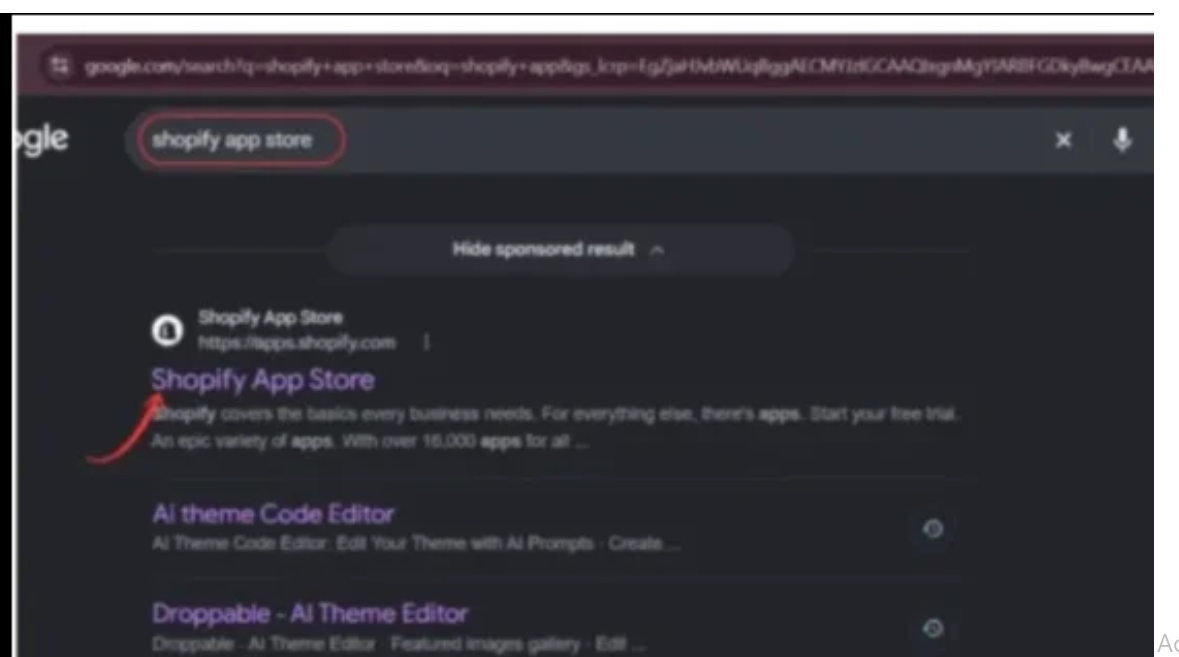
Image 1: Find the official Shopify App Store through Google search.
Image explanation: The screenshot highlights the Shopify App Store search result.
Click the official result or visit apps.shopify.com.
Step 2: Search for AB Sales Popup
Inside the Shopify App Store, search for AB Sales Popup.

Image 2: Search for AB Sales Popup and select the listing with the black-and-yellow bell icon.
Image explanation: Your screenshot shows AB Sales Popup highlighted in the search results.
Open its listing to access the app information and installation options.
Step 3: Install and Open AB Sales Popup
On the app’s listing page, click Install.
If the app has already been installed, click Open.

Image 3: The AB Sales Popup app listing, showing its sales notifications, visitor counters, and urgency features.
Image explanation: The application listing introduces its social proof and countdown features.
Once installed, you can access AB Sales Popup from your Shopify Admin.
Step 4: Open the Dashboard and Find Countdown Timer
Navigate to:
Shopify Admin → Apps → AB Sales Popup → Dashboard
Scroll down to Manage Features.

Image 4: AB Sales Popup dashboard showing the Countdown Timer, Stock Countdown, Sales Notifications, Visitor Counter, and Sold Counter.
Image explanation: Your screenshot highlights the Countdown Timer feature.
It has an enable/disable toggle, a Settings link, and an Enable App Block button.
Switch Countdown Timer On, then click Settings to configure it.
Step 5: Customize the Countdown Timer Heading and Time Units
The Countdown Timer configuration page will open.
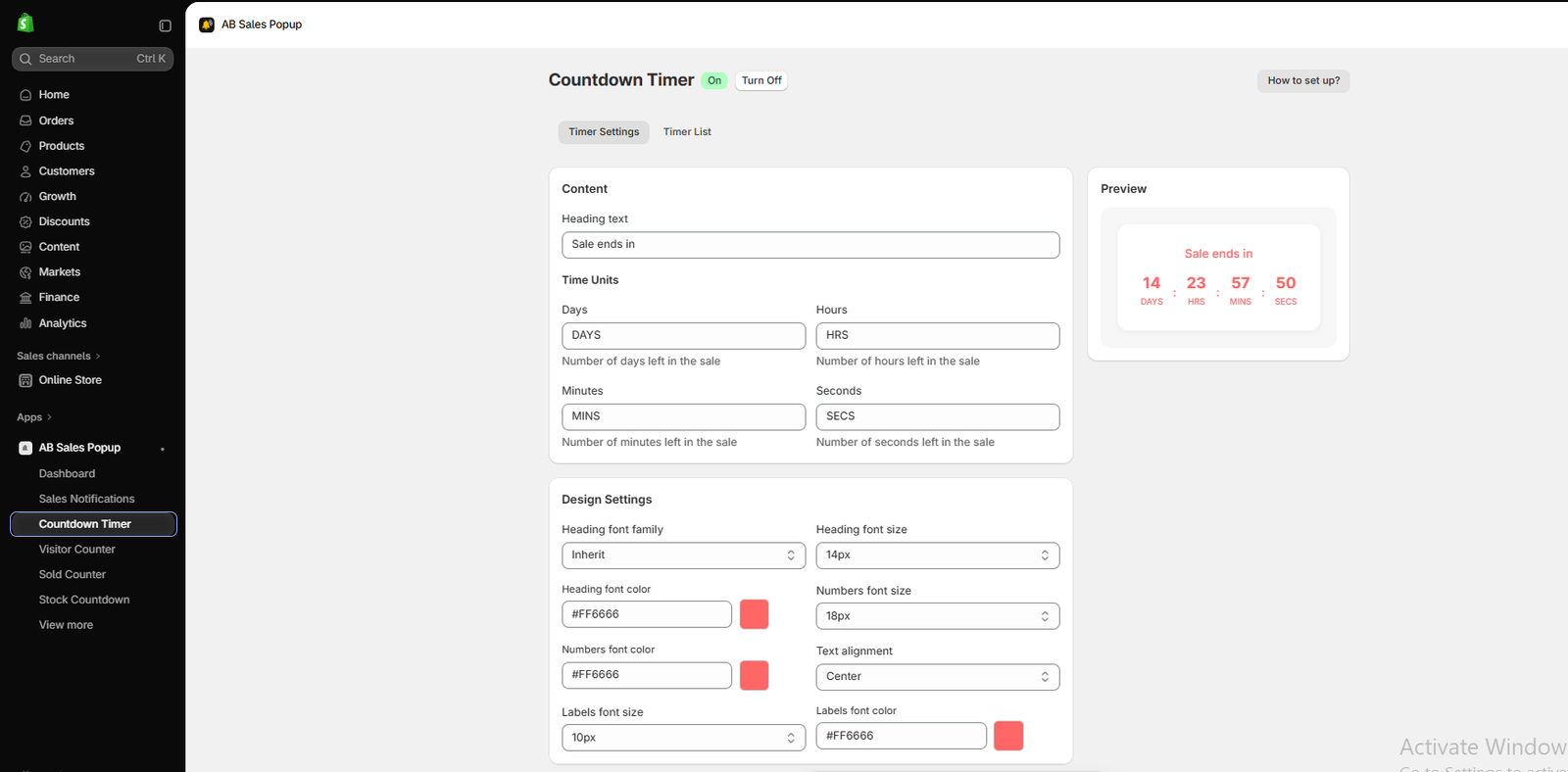
Image 5: Countdown Timer settings showing heading text, time units, typography, colors, and live preview.
Image explanation: Your screenshot shows the Countdown Timer enabled.
Under Content, the Heading text field contains:
Sale ends in
Below that, the app provides labels for Days, Hours, Minutes, and Seconds.
The Preview panel shows how the timer looks on the storefront.
You can customize the labels and heading to match your actual promotion.
For example, use “Black Friday Sale Ends In” when the timer refers to a genuine Black Friday promotion.
Avoid using “Last Chance” or similar claims unless they accurately describe the offer.
Step 6: Set a Real Promotion Deadline
Scroll down to Timer Settings.
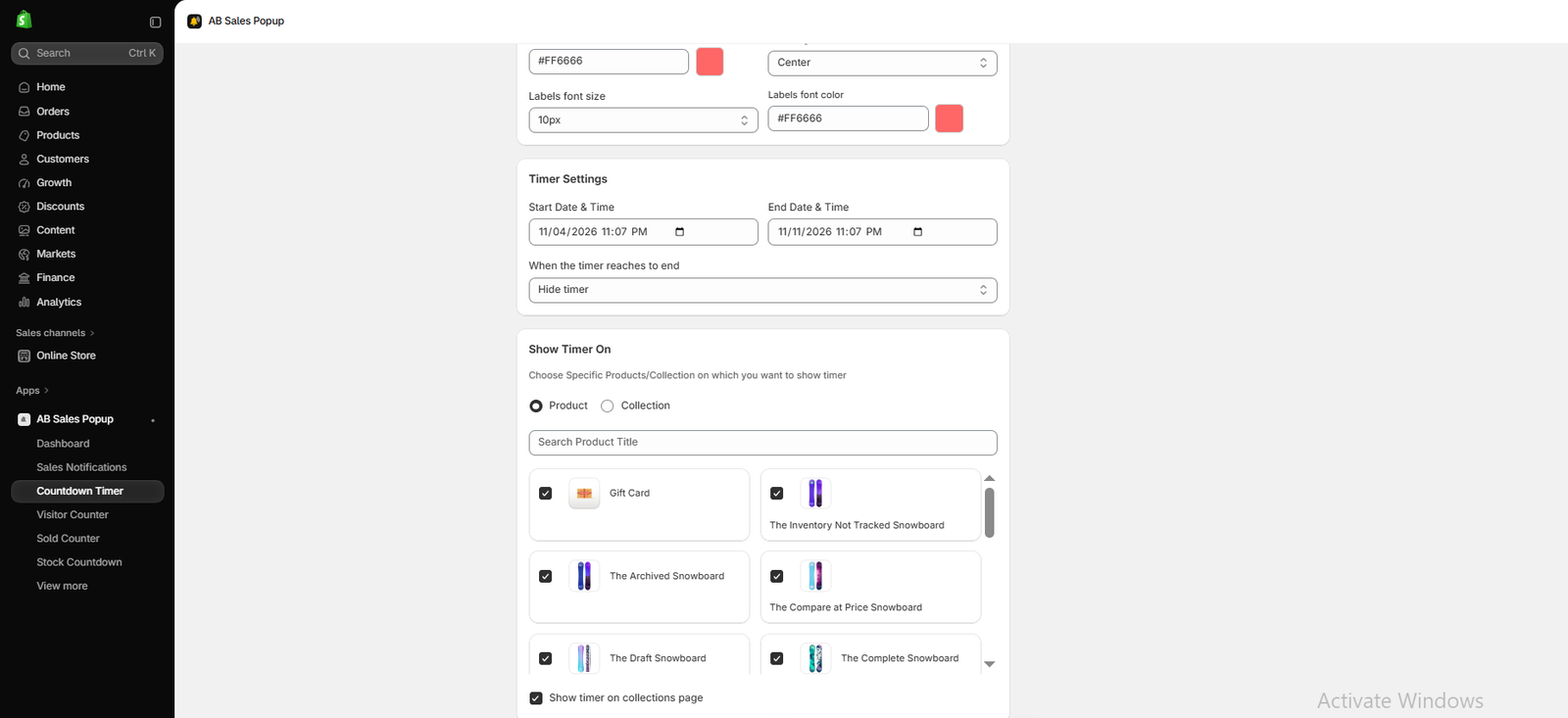
Image 6: Configure the promotion start date, end date, expiry behavior, and applicable products or collections.
Image explanation: This screenshot shows three important timer settings.
Start Date & Time: The date and time when the promotion begins.
End Date & Time: The actual deadline for the promotion.
When the timer reaches to end: A setting that determines what happens after the countdown finishes.
The example screenshot shows a November 4–11, 2026 campaign and the expiration option Hide timer. Those dates are example app settings, not a currently active promotion.
For genuine urgency, enter the actual end date of your campaign.
For example, if a discount is scheduled to end on November 30 at 11:59 PM in your intended store timezone, use that deadline and ensure the discount itself ends accordingly.
Important: Hiding a countdown does not automatically prove the discount has expired. Configure the corresponding discount or campaign to stop as advertised.
Step 7: Select Products or Collections for the Countdown
On the same settings page, scroll down to Show Timer On.
Your screenshot shows Product and Collection targeting options.
Under Product, you can select individual products.
You can also choose applicable collections and use the available option for displaying the timer on collection pages.
Display the countdown only where the promotion genuinely applies.
For example, a countdown for a clearance sale should not imply that unrelated full-price products are part of the offer.
Step 8: Customize Countdown Timer Colors and Design
Scroll back to Design Settings.

Image 7: Customizing countdown heading colors, number colors, and label colors to match the store’s branding.
Image explanation: Your screenshot demonstrates the countdown timer’s color customization.
The app supports options for:
- Heading font and font size.
- Heading text color.
- Numbers font size and color.
- Text alignment.
- Labels font size and color.
Choose colors that make the timer readable without making it more prominent than the product itself.
The promotional deadline should be easy to understand, but customers should still be able to inspect the product and make an informed decision.
Step 9: Save and Enable the Countdown Timer
After entering your promotion details, click Save.
Return to the dashboard and select Enable App Block for Countdown Timer.
Open the Shopify theme editor and add the countdown timer app block to the appropriate supported section or template.
Save your theme changes and preview the storefront.
Verify that the timer counts down to the intended deadline and behaves correctly after the deadline passes.
Part 2: How to Create Urgency With a Real Stock Countdown
A countdown timer isn’t the only way to communicate genuine urgency. You can also show customers how many units remain in stock.
Step 10: Open the Stock Countdown Feature
Return to:
AB Sales Popup → Dashboard → Manage Features
Locate Stock Countdown, turn it On, and open its settings.

Image 8: Stock Countdown settings showing the stock message, progress bar preview, typography, and styling options.
Image explanation: The screenshot shows the Stock Countdown feature enabled.
Under Content & Design, the example heading uses two variables:
{{stock_number}} — the remaining stock quantity.
{{sold_number}} — the number of units sold.
The preview displays a message such as “Only 24 items left in stock” alongside a visual progress bar.
This is useful when it represents actual inventory. Don’t manually inflate sold quantities or invent low-stock figures.
Step 11: Configure the Stock Countdown Display Rules
Scroll down to Stock Countdown Settings.
Image 9: Configuring low-stock display rules, sold-out messages, stock bar animation, colors, and product targeting.
Image explanation: Your screenshot shows several controls that can help create genuine inventory-based urgency.
Show the stock countdown when stock is equal to or less than: This option allows you to display the countdown only when inventory reaches a chosen threshold.
For example, if a product has 8 units left and your threshold is 10, the notification can appear.
Display a message when stock runs out: Your screenshot shows this option enabled, with “Sold out” as the message.
Show the stock countdown for variants: This option can be used when variant-specific stock information is relevant.
Stock bar animation: The screenshot shows Animated selected.
The app also offers stock bar background and foreground color controls.
Step 12: Choose Products or Collections
Under Stock Countdown Display On, select the products or collections where you want the stock countdown to appear.
Choose inventory-tracked products whose quantities are accurate and synchronized with Shopify.
Pay particular attention to variants, inventory distributed across locations, and products that allow overselling.
If inventory tracking is disabled or the stock number isn’t reliable, avoid showing a precise low-stock claim.
Save the settings and use Enable App Block to add the Stock Countdown to the appropriate Shopify theme template.
Part 3: How to Use Urgency Without Any Countdown Timer
Not every urgency message needs a ticking clock.
Use real limited-time discounts
Create promotions with a genuine start date and end date.
Shopify’s discount settings support active dates, including an optional end date. Amount off discounts
Highlight real low-stock products
If a product genuinely has limited inventory, communicate the current availability without exaggeration.
Promote genuine seasonal collections
A holiday collection can have an authentic selling window, particularly for seasonal inventory or delivery cutoffs.
Display authentic purchase activity
Genuine purchase notifications can communicate customer interest without creating a false deadline.
Show verified popularity
Sold counters and visitor counters can communicate real purchasing and browsing activity. Keep their measurement periods and data sources accurate.
Why Fake Urgency Is a Bad Long-Term Strategy
Regulators have specifically identified misleading countdowns and scarcity messages as problematic marketing practices.
The US Federal Trade Commission has discussed deceptive countdown timers as a form of dark pattern, while the UK’s Competition and Markets Authority warns against clocks that reset or promotions that continue beyond advertised deadlines. Federal Trade Commission+1
The better approach is to make every urgency claim verifiable.
Best Practices for Genuine Shopify Urgency
| Practice | Recommendation |
|---|---|
| Promotion end dates | Match the real discount deadline |
| Countdown expiration | Hide or end the timer as configured |
| Stock information | Use accurate inventory quantities |
| Low-stock thresholds | Display only when the actual threshold is reached |
| Sold-out messages | Reflect actual product availability |
| Product targeting | Show urgency only on eligible products |
| Timer design | Keep it readable and non-intrusive |
| Mobile experience | Avoid covering Add to Cart or checkout controls |
Frequently Asked Questions
1. Can I create urgency on Shopify without fake countdown timers?
Yes. Use real promotion deadlines, accurate stock quantities, limited seasonal availability, and genuine purchase activity.
2. Are countdown timers bad for Shopify stores?
Not inherently. Countdown timers can provide useful information when the deadline is real and the offer ends as advertised.
3. Can I add a real countdown timer without coding?
Yes. AB Sales Popup provides configurable Countdown Timer settings and Shopify app block integration.
4. Can I show the number of remaining products?
Yes. The Stock Countdown feature includes stock-related variables and low-stock display settings. Verify that the quantities reflect actual inventory.
5. What happens when a countdown reaches zero?
AB Sales Popup provides an expiration behavior setting. Your screenshot shows Hide timer selected.
6. Can I display a countdown on selected products?
Yes. The Countdown Timer interface includes product and collection targeting.
7. Can I change countdown timer colors?
Yes. The app includes typography, color, size, and alignment controls.
8. Do countdown timers guarantee more sales?
No. They may help communicate legitimate deadlines, but their effect on conversions depends on the offer, audience, and shopping experience.
Conclusion
Creating urgency on Shopify doesn’t require fake countdown timers or misleading scarcity claims.
Genuine urgency comes from meaningful information: real promotion deadlines, accurate inventory levels, and authentic customer activity.
When customers understand that an offer is genuinely time-sensitive, they can make informed purchase decisions.
With AB Sales Popup, merchants can configure countdown timers, display stock countdown bars, customize their appearance, and choose where urgency messages appear.
The most important principle is simple: make the deadline real, keep stock information accurate, and never create pressure using invented claims.
Ready to create genuine urgency on your Shopify store?Install AB Sales Popup on Shopify




