CUSTOM CURSOR IDEAS FOR SHOPIFY STORES BY NICHE (FASHION, JEWELRY, GAMING, TECH)
Introduction
Creating a memorable Shopify store involves more than choosing an attractive theme, uploading high-quality product images, and designing a professional homepage. Small interactive details can also contribute to how customers experience your brand.
One often-overlooked design element is the mouse cursor.
Most Shopify stores use the standard browser cursor. While this works perfectly well, merchants looking to create a distinctive storefront may want to introduce custom cursor designs that reflect their brand’s personality.
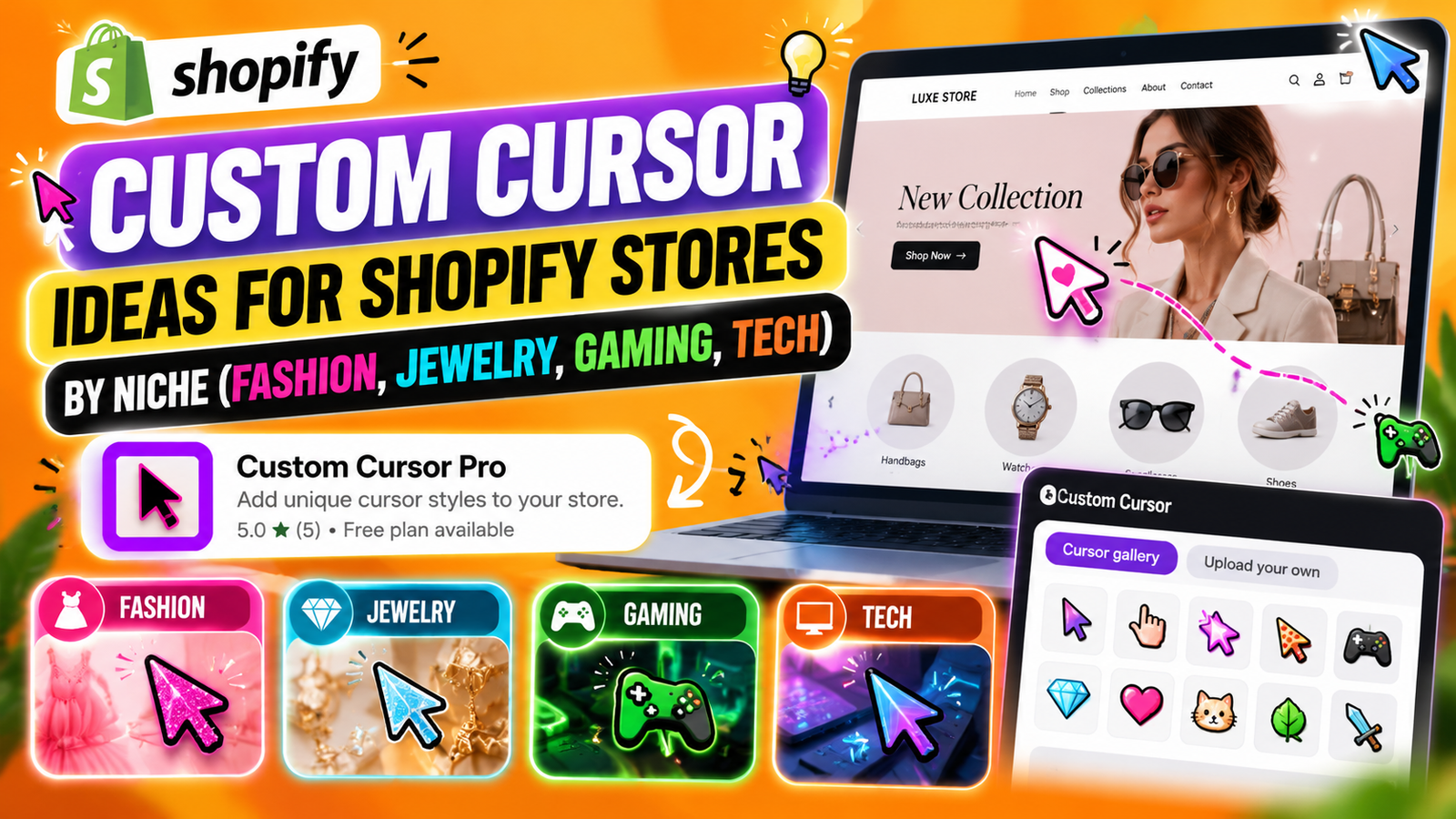
For example, a fashion store might use a stylish pink cursor, a jewelry brand could introduce a diamond-inspired pointer, a gaming store might choose a controller-themed cursor, and a technology store could use a futuristic neon design.
These small visual details can make a website feel more personalized when implemented thoughtfully.
However, selecting the right cursor is important. A design that works for a gaming store may not suit a luxury jewelry brand.
Fortunately, applications such as Custom Cursor Pro help Shopify merchants explore different cursor styles, customize their appearance, and add interactive effects without manually editing theme code.
In this guide, we’ll explore custom cursor ideas for fashion, jewelry, gaming, and technology stores. We’ll also explain how to install and configure custom cursors using Custom Cursor Pro, with a visual step-by-step procedure.
What is a custom cursor on Shopify?
A custom cursor is a personalized mouse pointer that replaces or enhances the default cursor displayed when visitors navigate a website using a mouse or compatible pointing device.
Instead of the traditional arrow, merchants can display themed graphics, colorful pointers, animated designs, or interactive cursor effects.
For example:
- A fashion boutique might use a pink sparkle cursor.
- A jewelry store could feature a diamond-shaped pointer.
- A gaming accessories store might display a controller icon.
- A technology brand could introduce a glowing futuristic cursor.
Some cursor applications also allow merchants to customize cursor size, upload their own designs, and apply visual effects that follow mouse movement.
Custom cursors are primarily a visual branding enhancement. They do not automatically increase conversions or improve SEO, and they should never make navigation harder for customers.
Common challenges Shopify merchants face
Although custom cursors can make a storefront more distinctive, merchants often encounter several challenges when implementing them.
1. Limited customization options in Shopify themes
Most Shopify themes focus on layout, typography, product displays, and other essential storefront elements. They generally do not provide extensive built-in cursor galleries.
2. Difficulty finding niche-specific designs
A merchant selling jewelry may want an elegant cursor, while a gaming store may prefer something playful and animated. Finding suitable designs can take time.
3. Lack of coding experience
Adding custom cursors manually may require CSS, JavaScript, and asset management. Merchants without development experience may find this complicated.
4. Maintaining brand consistency
A poorly chosen cursor can look out of place or distract from the products being sold.
5. Concerns about website usability
Oversized cursors, excessive animations, or difficult-to-see pointers can interfere with browsing.
6. Difficulty testing cursor effects
Merchants may want to preview different cursor styles before publishing them to their live storefront.
These challenges make a dedicated cursor customization application useful.
Why choosing the right cursor for your niche matters
Every eCommerce niche has a different visual identity.
A luxury jewelry store typically emphasizes elegance and refinement, while a gaming store may use energetic colors, animated graphics, and bold visual effects.
Choosing a cursor that complements your products and brand identity helps create a more consistent visual experience.
The key is to select a design that enhances your storefront without distracting customers from important actions such as viewing products, selecting variants, or completing checkout.
Best custom cursor styles by Shopify store niche
| Store niche | Recommended cursor style | Suggested colors |
|---|---|---|
| Fashion | Hearts, sparkles, stylish arrows | Pink, lavender, white |
| Jewelry | Diamonds, stars, elegant pointers | Gold, silver, champagne |
| Gaming | Controllers, pixel cursors, neon arrows | Green, purple, electric blue |
| Technology | Futuristic arrows, geometric pointers | Cyan, blue, black |
| Beauty | Flowers, soft hearts, pastel pointers | Peach, rose, lilac |
| Kids & toys | Cartoon icons, playful shapes | Yellow, orange, pink |
| Luxury accessories | Minimalist arrows, subtle effects | Black, cream, gold |
These are design suggestions rather than fixed rules. The best cursor depends on your brand’s visual identity and audience.
Introducing Custom Cursor Pro for Shopify
Custom Cursor Pro, listed as Custom Cursor on the Shopify App Store, is developed by SectionKit.
The application helps Shopify merchants personalize their storefronts with ready-made cursor designs, custom uploads, and interactive effects.
Instead of manually writing CSS or JavaScript, merchants can explore available designs through a visual dashboard.
The application includes a cursor gallery, customization settings, preview functionality, and options for applying cursor effects.View Custom Cursor Pro on the Shopify App Store
Key features of Custom Cursor Pro
Extensive cursor gallery
Explore different cursor designs organized into categories.
Custom cursor uploads
Upload your own cursor graphics where supported by your plan.
Cursor size customization
Adjust the pointer size to suit your storefront.
Cursor effects
Experiment with visual effects and particle animations.
Live preview
Preview selected cursor styles before publishing.
Save & Publish functionality
Apply your selected cursor configuration through the app dashboard.
Theme app embed integration
Enable the Custom Cursor app embed in Shopify’s theme editor.
Why use a dedicated custom cursor application?
Using a dedicated Shopify application can simplify cursor customization.
Merchants can explore designs, adjust settings, and preview changes without manually modifying their theme code.
This is particularly useful for store owners who frequently update their branding, experiment with seasonal designs, or manage multiple storefront styles.
A dedicated app can also make it easier to return to the default cursor when a custom design is no longer needed.
Step-by-step guide: How to add custom cursors to your Shopify store
Now that you understand which cursor styles work best for different niches, follow this guide to install Custom Cursor Pro and personalize your storefront.
The following procedure includes all 10 original images you shared, in the exact order provided, placed directly below their corresponding instructions.
Step 1: Search for the Shopify App Store
Start by opening Google in your web browser.
Type Shopify App Store into the search bar and press Enter.
Locate the official Shopify App Store website in the search results and click it.

The Shopify App Store contains applications that help merchants improve their storefront design, marketing, customer experience, and business operations.
Once the marketplace opens, you can search for a custom cursor application.
Step 2: Search for Custom Cursor
Inside the Shopify App Store, locate the search bar.
Enter:
custom cursor app
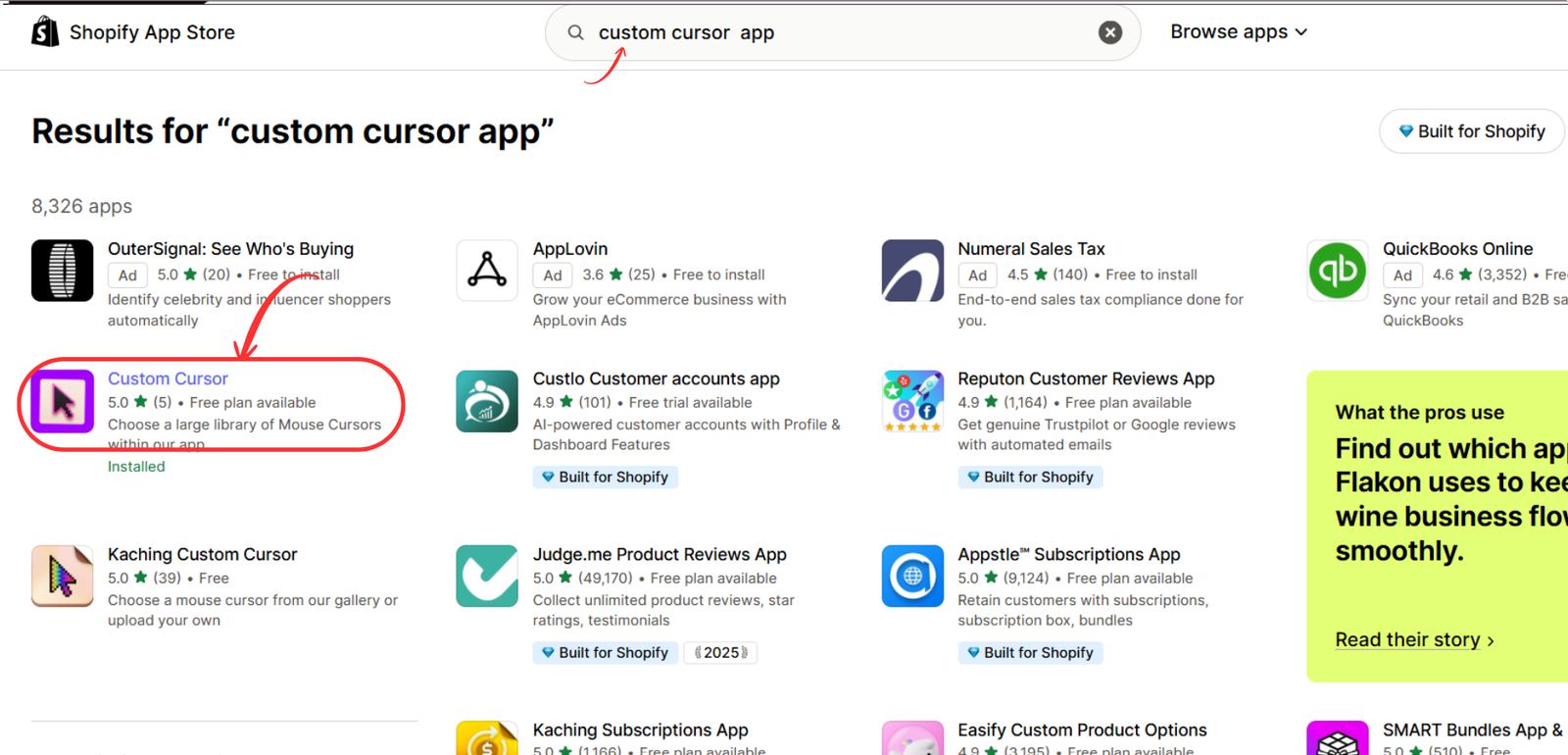
Press Enter to display the available applications.
Find Custom Cursor, developed by SectionKit, in the search results.
Custom Cursor application in Shopify App Store search resultsImage 2: Locate the Custom Cursor app in the Shopify App Store search results.
Click the application to open its listing page.
Make sure you select the correct app before continuing.
Step 3: Install and open Custom Cursor Pro
On the application listing page, review the available features, screenshots, pricing information, and description.
The app offers a gallery of custom cursor designs, along with additional customization options.
Click Install to add it to your Shopify store.
If you have already installed the application, Shopify may display an Open button instead.
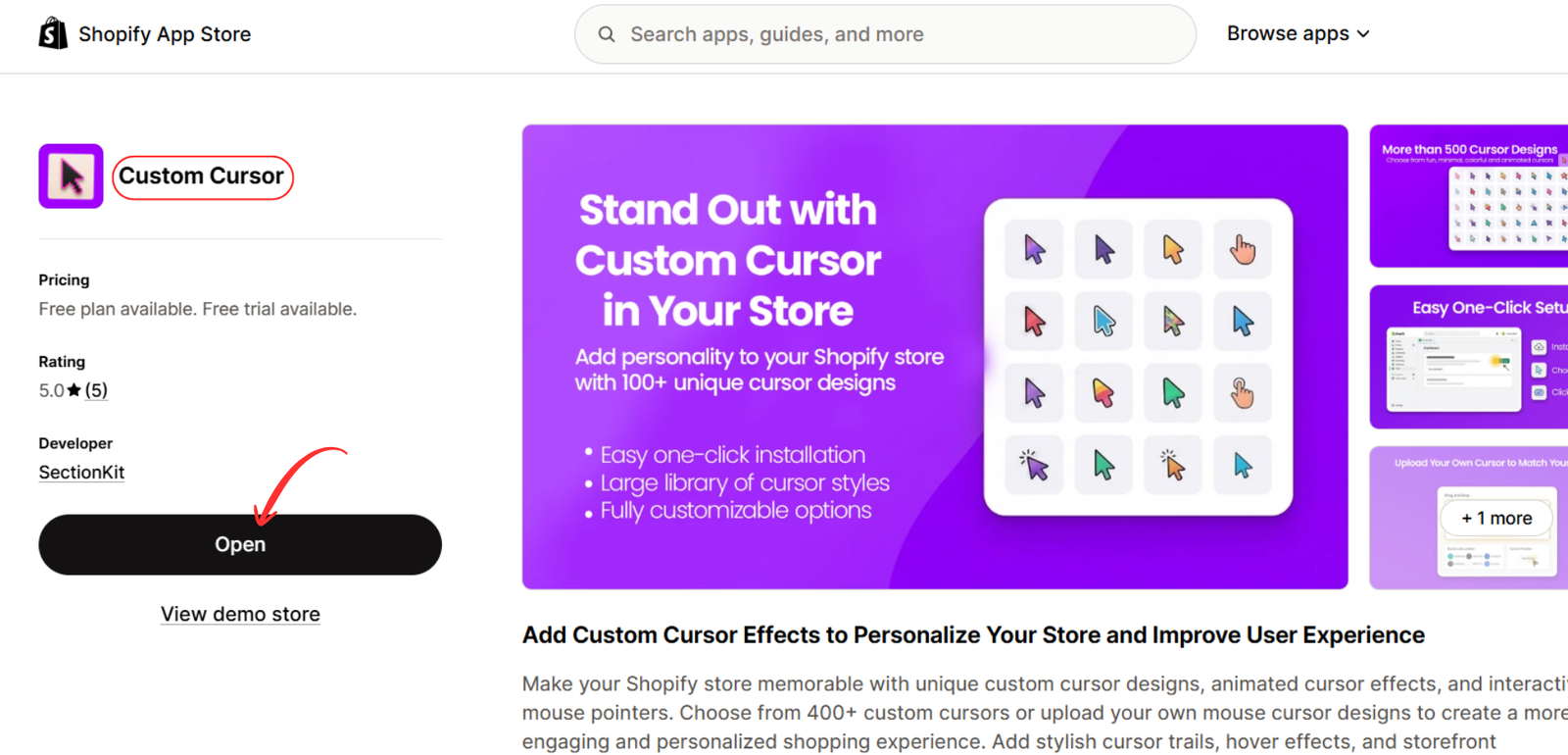
Custom Cursor Shopify App Store listingImage 3: Review the Custom Cursor app listing and install or open the application.
Follow Shopify’s authorization instructions to complete installation.
Once installed, the application becomes accessible through your Shopify admin dashboard.
Step 4: Review the available pricing plans
Before selecting your cursor, review the application’s pricing options.
Custom Cursor Pro offers several plans designed for different customization needs.
The pricing shown in your provided image is:
| Plan | Monthly price | Highlighted features |
|---|---|---|
| Free | $0 | 10 icons, up to 3 animated icons |
| Basic | $3 | 50 icons, up to 5 animated icons |
| Advanced | $6 | 100 icons, custom icon uploads |
| Premium | $9 | 200+ icons, custom uploads, more animation options |
Prices and plan limits are based on your provided image and may change. Confirm the current details inside the app before subscribing.
For a merchant experimenting with custom cursors for the first time, the free plan may be a suitable starting point.
Stores that require more cursor styles or custom uploads can consider the paid plans.
Step 5: Open the cursor gallery
After opening Custom Cursor Pro from your Shopify admin, navigate to the cursor gallery.
The application displays different cursor designs organized into categories.
These may include styles suited to aesthetics, animals, vehicles, and other interests.
You can explore the available designs and preview them before publishing.

If your plan supports custom uploads, you can select Upload your own to add a branded cursor graphic.
This can be useful for stores that want to display a cursor inspired by their logo or a specific product category.
For example, a jewelry store might upload a small diamond icon, while a gaming store could use a custom controller graphic.
Step 6: Select your preferred cursor design
Browse the available cursor styles and choose one that matches your brand.
For example:
A fashion store may choose a pink or purple pointer, while a technology store may prefer a modern blue or black cursor.
Click a cursor design to select it.
The preview area allows you to inspect how the pointer looks before applying it to your storefront.
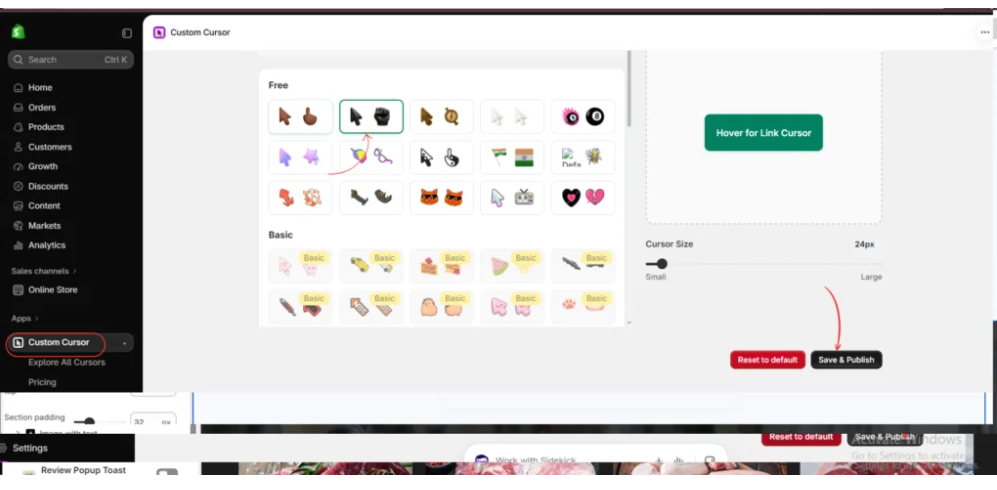
Image 6: Select a cursor design and use the preview panel to review its appearance.
You can also adjust the cursor size using the available slider.
Avoid selecting a size that makes the cursor difficult to use or blocks important storefront content.
Once you are satisfied, click Save & Publish.
Step 7: Experiment with different cursor styles
If you are unsure which cursor works best, experiment with several designs before settling on one.
For example, you could compare a playful illustrated cursor with a simple minimalist pointer.
The gallery allows you to switch between designs and preview your selection.
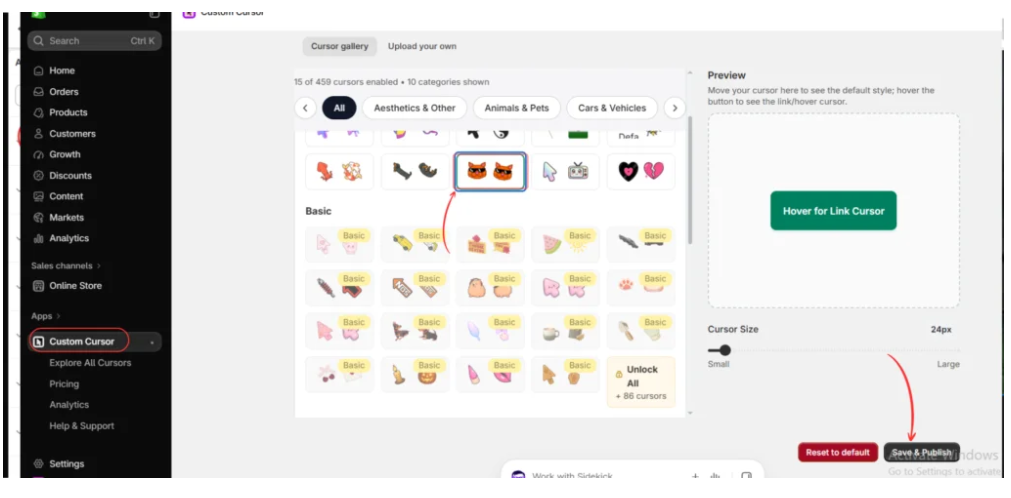
Image 7: Compare different cursor designs and save the option that best matches your Shopify store.
For a fashion or beauty store, a colorful cursor may complement the brand.
For a premium jewelry store, a subtle pointer may be more appropriate.
Always prioritize usability over decoration.
Step 8: Explore the free cursor collection
Custom Cursor Pro includes a selection of free cursor designs.
These allow merchants to experiment with customization before deciding whether additional features are necessary.
Inside the gallery, locate the Free section.
Browse the available icons and select a suitable design.
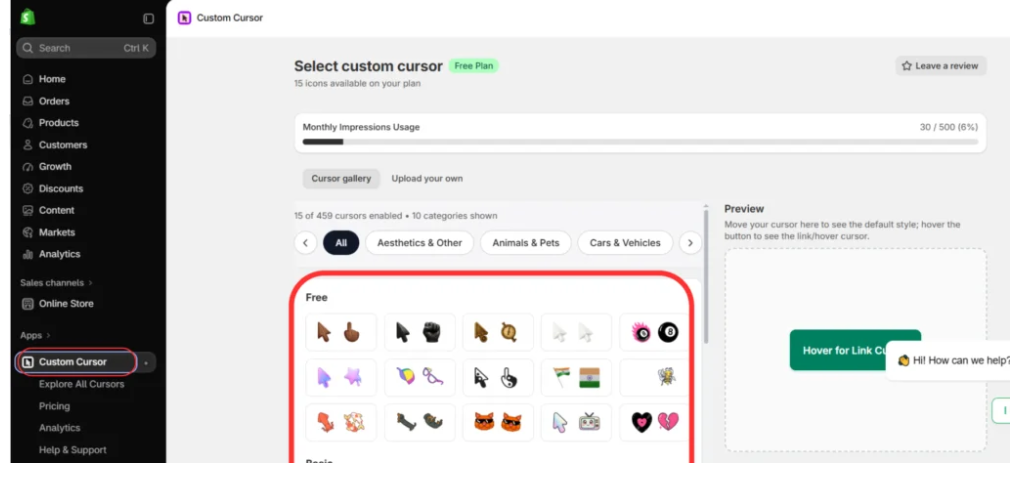
Image 8: Explore the free cursor collection and select a style for your storefront.
For merchants who want to test cursor customization without immediately purchasing a subscription, the free collection provides a convenient starting point.
Choose a design that remains visible against both light and dark areas of your website.
Step 9: Add custom cursor effects
After selecting a cursor, you can explore the application’s available visual effects.
Open the Custom Cursor Effects section.
This area displays different particle or animation effects that can accompany mouse movement.
For example, a gaming store may experiment with colorful particles, while a fashion store might prefer subtle sparkle effects.
Select the effect you want to use and review it in the preview area.
If the animation is too distracting, select a simpler effect or choose None.
Click Save & Publish to apply your configuration.
For best results, keep animations lightweight and avoid effects that interfere with product browsing.
Step 10: Enable the Custom Cursor app embed in Shopify
After configuring your cursor and effects, open the Shopify theme editor.
From your Shopify admin, navigate to:
Online Store → Themes → Customize
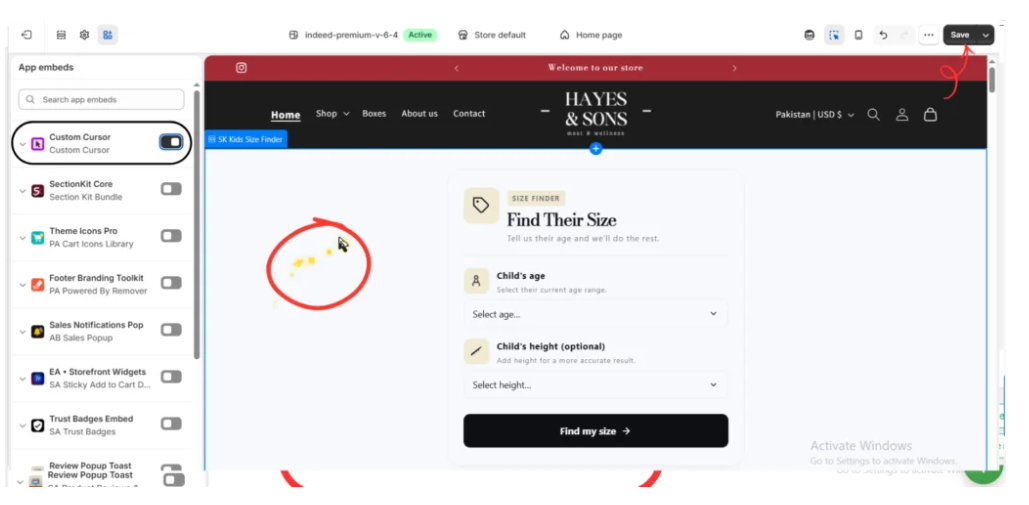
Once the theme editor opens, locate the App embeds icon in the left sidebar.
Find Custom Cursor in the list of available app embeds.
Enable the toggle beside the application.
Click Save in the upper-right corner.
Now preview your Shopify storefront and move your mouse across different sections.
Confirm that the selected cursor appears correctly and that any enabled effects behave as expected.
Test the cursor around product cards, navigation menus, buttons, and other interactive elements.
Remember that custom mouse cursors generally apply to devices with a pointer, not ordinary touchscreen interactions.
Additional tips for using custom cursors effectively
Keep the cursor visible
Choose colors that contrast with your store’s background.
Avoid oversized cursor designs
Large cursors may cover important product information or navigation elements.
Match your brand identity
A cursor should complement your store’s niche, colors, and overall design.
Limit excessive animation
Too many particles or animations can distract shoppers and may affect performance.
Test accessibility
Make sure the cursor remains easy to recognize and that interactive elements are still clear.
Check performance
Test storefront responsiveness after enabling cursor effects, particularly on lower-powered devices.
Review mobile behavior
Since most smartphones use touchscreens rather than mouse pointers, do not rely on custom cursor effects to communicate important information.
Frequently asked questions
Can I add a custom cursor to my Shopify store?
Yes. You can add custom cursor designs using an application such as Custom Cursor Pro or through custom theme development.
Do I need coding knowledge to use Custom Cursor Pro?
No. The app provides a visual dashboard for selecting cursor designs, adjusting settings, and publishing supported effects.
Which custom cursor is best for a fashion store?
Pink pointers, sparkles, hearts, and minimalist designs can work well, depending on the brand’s aesthetic.
What cursor should a jewelry store use?
Diamond-inspired pointers, gold cursors, subtle stars, and elegant minimalist designs are suitable options.
Are animated cursors good for gaming stores?
Animated cursors can complement gaming-themed branding, provided they do not interfere with navigation or website performance.
Can technology stores use neon cursors?
Yes. Neon blue, cyan, and futuristic cursor styles can complement technology-focused storefronts.
Can I upload my own cursor design?
Custom Cursor Pro supports custom uploads on eligible plans, as shown in the pricing information.
Does Custom Cursor Pro have a free plan?
Yes. The provided pricing image shows a free plan with a limited selection of cursor designs and features.
Will custom cursors work on mobile devices?
Custom cursors are primarily intended for devices with mouse or pointer input. Standard touchscreen interactions generally do not display a mouse cursor.
Do custom cursors improve Shopify conversions?
There is no guarantee that a custom cursor will increase conversions. Its primary purpose is visual personalization, and merchants should test whether it improves or distracts from the shopping experience.
Can I remove the custom cursor later?
Yes. You can change or reset your cursor configuration in the app or disable its theme app embed.
Conclusion
Custom cursors offer Shopify merchants an additional way to personalize their online stores and reinforce their brand identity.
Whether you operate a fashion boutique, jewelry brand, gaming accessories store, or technology business, choosing the right cursor can help create a more distinctive visual experience.
Fashion stores may benefit from stylish pastel pointers, jewelry brands can explore elegant diamond-inspired designs, gaming stores can experiment with playful icons, and technology stores can use modern futuristic cursors.
However, the best custom cursor is one that complements your storefront without making navigation more difficult.
Custom Cursor Pro simplifies the process by providing a gallery of ready-made cursor designs, preview options, customization settings, and interactive effects.
By following the steps in this guide, you can explore cursor styles, select a design suited to your niche, configure its appearance, and activate it through your Shopify theme editor.
Ready to give your Shopify store a more personalized look?Explore Custom Cursor Pro on the Shopify App Store




