HOW TO ADD A CUSTOM CURSOR TO THE SHOPIFY DAWN THEME
Introduction
The Shopify Dawn theme is a popular choice for merchants who want a clean, modern, and user-friendly online store. Its minimalist layout, responsive design, and product-focused presentation make it suitable for fashion, beauty, electronics, jewelry, and many other ecommerce businesses.
However, while Dawn provides various theme customization options, it does not include an extensive built-in library of custom mouse cursors.
Most Shopify stores using Dawn display the standard browser cursor. Although this works perfectly well, some merchants want to introduce a more personalized shopping experience that reflects their brand identity.
A custom cursor allows you to replace the traditional mouse pointer with a unique design, such as a colorful arrow, animated icon, branded symbol, or themed graphic.
For example, a fashion store might use a stylish pink cursor, a gaming store could feature a neon pointer, and a creative accessories shop might choose an illustrated cursor that matches its products.
The good news is that you can add a custom cursor to the Shopify Dawn theme without manually editing Liquid, CSS, or JavaScript code by using a compatible Shopify application.
In this guide, we’ll explain why merchants customize their cursors, introduce the Custom Cursor app, and walk through the complete installation process using the original images provided.
The merchant’s challenge: Customizing the Dawn theme
Shopify merchants often want their storefronts to look different from competitors using the same theme.
Although the Dawn theme offers flexibility in typography, colors, layouts, and sections, advanced cursor customization is not a standard theme-editor feature.
This creates several challenges.
Limited built-in cursor customization
The Dawn theme does not provide a dedicated cursor gallery where merchants can browse hundreds of pointer designs.
Technical knowledge requirements
Adding a custom cursor manually may involve CSS properties, image assets, and potentially JavaScript for advanced effects.
Maintaining theme compatibility
Custom theme code needs to be tested carefully, particularly when merchants update or change their themes.
Difficulty finding suitable designs
Merchants may struggle to create a cursor that matches their branding, especially if they do not have graphic design experience.
Concerns about performance and usability
Excessive cursor animations or poorly optimized graphics may distract customers or affect website performance.
These challenges explain why many merchants prefer an app-based approach.
Why add a custom cursor to your Shopify Dawn theme?
A custom cursor is a small visual detail, but it can help reinforce the personality of your online store.
It can complement your brand colors, match your product niche, and create a more distinctive desktop browsing experience.
For example, a jewelry store using Dawn might choose an elegant gold pointer, while a gaming accessories store could select a bright, futuristic cursor.
Custom cursors can also be used for seasonal storefront designs, such as Halloween, Christmas, or special promotional campaigns.
However, the purpose of a custom cursor should be visual personalization rather than making exaggerated promises about conversion rates.
A well-designed cursor should remain easy to see, comfortable to use, and compatible with your storefront.
The role of Shopify cursor customization apps
Shopify cursor applications simplify the process of changing mouse pointer designs.
Instead of manually modifying your theme files, merchants can browse a collection of cursor styles, preview designs, select their preferred options, and activate them through the Shopify theme editor.
Some applications also support custom cursor uploads, animated designs, cursor effects, and size adjustments.
This makes customization more accessible to merchants who want a personalized storefront without spending time writing code.
Introducing Custom Cursor Pro for Shopify
Custom Cursor Pro, listed as Custom Cursor in the Shopify App Store, is a cursor customization application developed by SectionKit.
The app allows Shopify merchants to explore a collection of cursor designs and personalize their online stores through an app-based interface.
Its features include ready-made cursor designs, categorized cursor collections, custom uploads on eligible plans, cursor previews, and optional effects.
For Dawn theme users, one of the most useful features is the ability to enable the cursor through a Shopify app embed.
This means merchants can configure their cursor without manually changing the Dawn theme’s source code.
App link: Custom Cursor Pro – Shopify App Store
Key benefits of using Custom Cursor Pro with Dawn
No manual coding required: Use the application interface and Shopify theme editor to configure the cursor.
Different cursor categories: Explore designs suited to different types of stores.
Brand personalization: Choose a cursor that complements your store’s branding.
Custom uploads: Create and upload your own cursor graphics on supported plans.
Theme editor integration: Enable or disable the app embed within the Dawn theme editor.
Flexible customization: Experiment with different styles before deciding which works best.
Step-by-step guide: How to add a custom cursor to the Shopify Dawn theme
The following tutorial uses the seven original images in the order provided.
Step 1: Search for the Shopify App Store
First, open your browser and visit Google.
In the search bar, type Shopify App Store and press Enter.
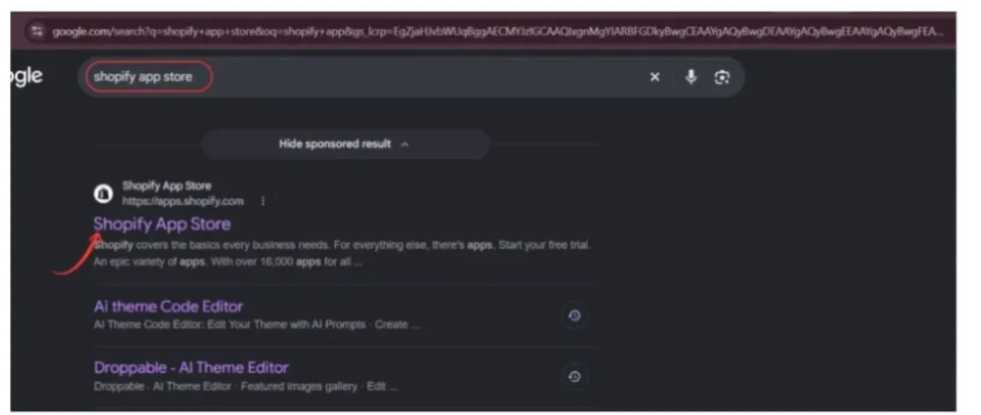
Find the official Shopify App Store result and open it.
Image 1: Search for the Shopify App Store using Google.
You can also visit the Shopify App Store directly at apps.shopify.com.
The Shopify App Store contains applications that help merchants extend their store’s functionality, including design and customization tools.
Step 2: Search for the Custom Cursor app
Once you’re inside the Shopify App Store, locate the search bar at the top of the page.
Enter the keyword custom cursor app.
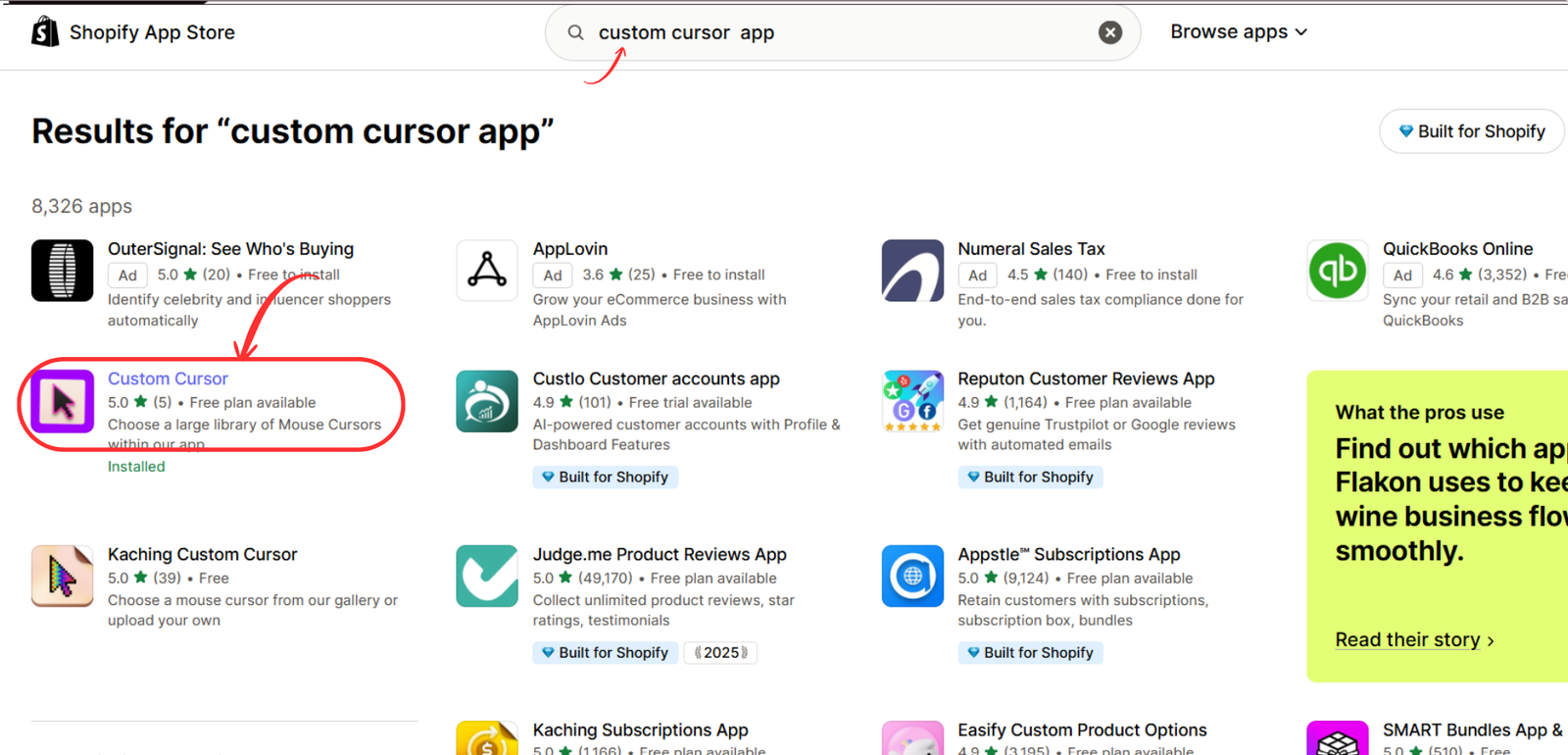
Review the search results and locate the application named Custom Cursor, developed by SectionKit.
Shopify App Store search results highlighting the Custom Cursor appImage 2: Search for “custom cursor app” and find the Custom Cursor listing.
Click the application to open its detailed listing.
Make sure you’re selecting the correct app before proceeding.
Step 3: Install or open Custom Cursor
On the app listing, review the description, available features, and pricing information.
If you haven’t installed the application, select Install and complete the Shopify authorization process.
If the application is already installed, click Open.
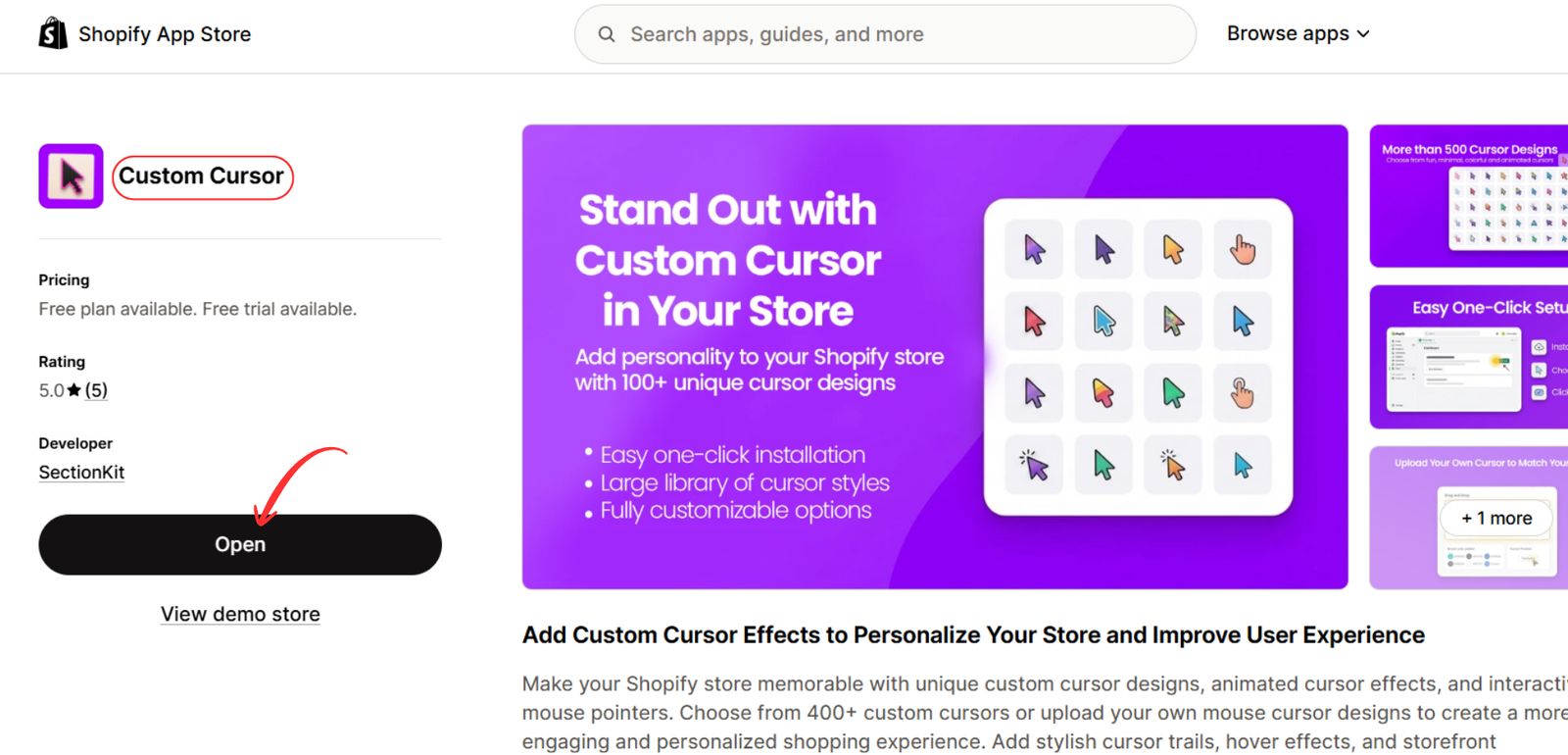
Custom Cursor Shopify app listing with Open buttonImage 3: Open the Custom Cursor application from its Shopify App Store listing.
After opening the application, you’ll be able to access its cursor customization features from your Shopify admin.
Step 4: Review the available pricing plans
Before selecting a cursor, review the available subscription plans.
Custom Cursor offers a free option alongside paid plans with additional features.
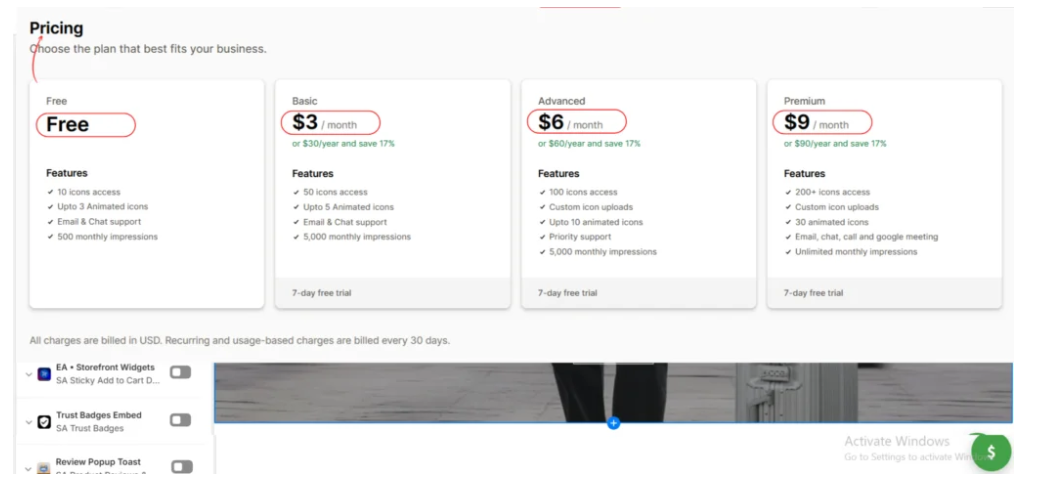
Image 4: Review the available plans and choose the one that suits your cursor customization needs.
The supplied image shows these pricing options:
| Plan | Monthly price | Suitable for |
|---|---|---|
| Free | $0 | Trying a limited cursor selection |
| Basic | $3 | Accessing additional cursor designs |
| Advanced | $6 | Using custom uploads and more options |
| Premium | $9 | Accessing an expanded cursor collection and features |
If you’re experimenting with cursor customization for the first time, the free plan can be a useful starting point.
If you want a cursor that uses your brand’s logo or a custom graphic, review the plans that include upload functionality.
Pricing and included features are subject to change. Check the app’s current pricing before subscribing.
Step 5: Explore the cursor gallery
After opening the application, select Explore All Cursors from the left navigation menu.
This opens the cursor gallery, where you can browse available designs.
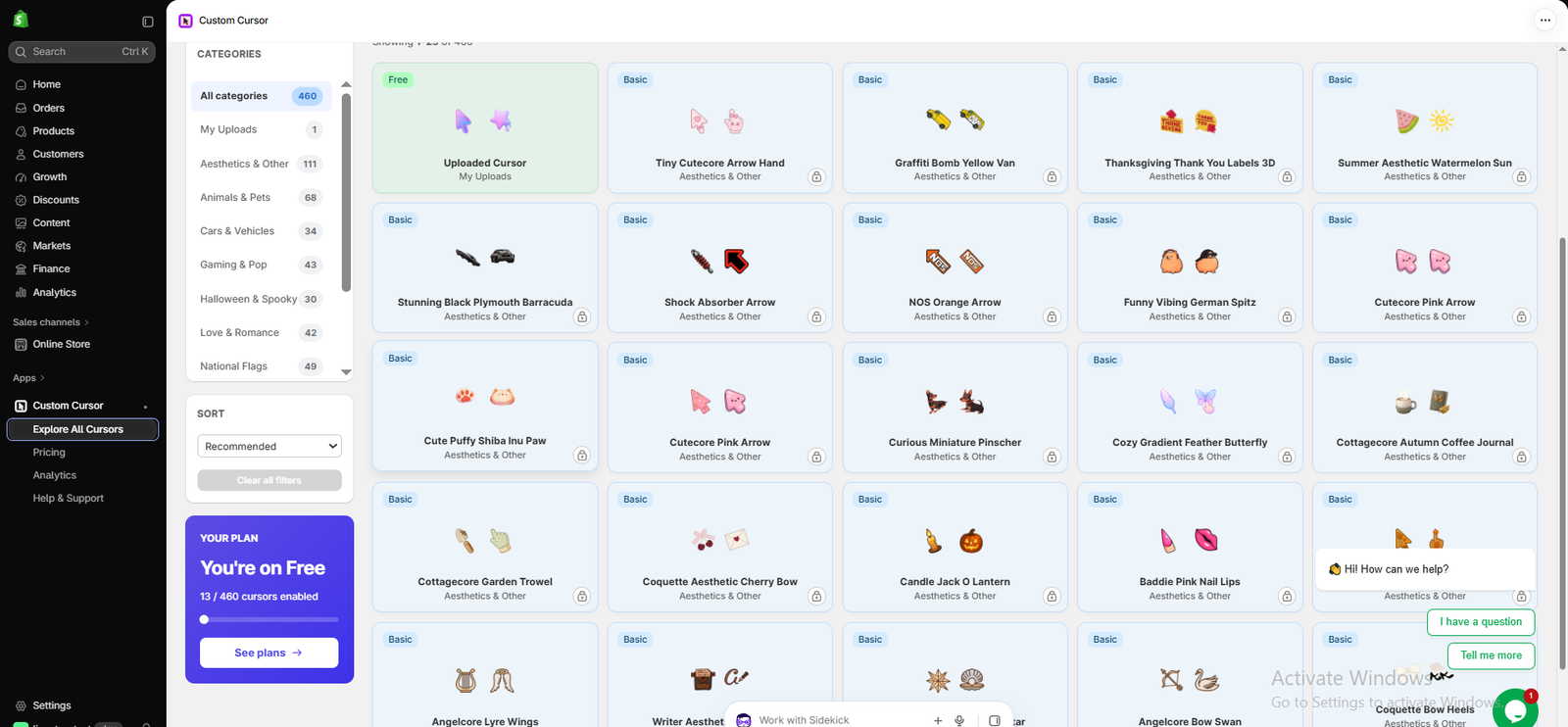
Image 5: Explore cursor designs and categories in the Custom Cursor app.
The gallery shown in the image includes categories such as Aesthetics & Other, Animals & Pets, Cars & Vehicles, Gaming & Pop, Halloween & Spooky, Love & Romance, and National Flags.
You can also review uploaded cursor designs under My Uploads.
Browse the gallery and select a design that fits your Shopify Dawn store.
For example, a fashion store might prefer a subtle pastel cursor, while a gaming store may choose a colorful design.
Pay attention to whether the cursor is available on your selected plan.
After choosing a cursor, open its customization options, preview its appearance, and save or publish the selection as prompted by the app.
Step 6: Locate your Shopify Dawn theme
Next, return to your Shopify admin.
Navigate to Online Store → Themes.
You’ll see your current published theme and any draft themes installed in your store.

Image 6: Locate the Dawn theme in the Shopify theme library.
In the provided image, Dawn appears under the Draft themes section.
This is important because merchants can have multiple themes installed, but only one theme is published at a time.
If Dawn is your published theme, open its theme editor.
If Dawn is a draft theme, select Edit theme to configure and preview it before publishing.
You do not need to publish a draft theme merely to test the cursor.
Step 7: Enable the Custom Cursor app embed in Dawn
Once the Dawn theme editor opens, locate the App embeds icon in the left-side toolbar.
Click it to view the available app embeds.
Find Custom Cursor in the list.

Image 7: Enable the Custom Cursor app embed in the Dawn theme editor.
Turn on the toggle next to Custom Cursor.
The toggle should appear enabled, as shown in the image.
After enabling the app embed, click Save in the upper-right corner of the theme editor.
This activates the configured Custom Cursor integration for that theme.
If Dawn is still a draft, the changes will remain on that draft until you publish it.
Step 8: Preview the custom cursor on your Dawn storefront
After saving the changes, open the Dawn theme preview.
Move your mouse across different sections of the storefront to check whether the selected cursor appears.
Test the cursor over your navigation menu, product images, buttons, and other interactive elements.
If the cursor doesn’t appear, return to Custom Cursor and confirm that you’ve selected and saved a cursor design.
Also check that the app embed is enabled on the same theme you’re previewing.
Step 9: Adjust the cursor if necessary
If your cursor is too large, too small, or difficult to see, return to the Custom Cursor application.
Choose a different design or adjust the available customization settings.
For best results, use a cursor that remains clearly visible against your storefront’s background.
Avoid cursor effects that cover important product information or interfere with the normal shopping experience.
Save your changes and preview the Dawn theme again.
Tips for using a custom cursor on the Dawn theme
Choose a design that matches your brand
Your cursor should complement your storefront’s existing colors, typography, and overall appearance. A minimalist store may benefit from a simple pointer, while a playful brand might prefer an illustrated cursor.
Prioritize visibility
Avoid selecting a cursor that blends into the background. Test it on light and dark sections of your storefront to ensure shoppers can easily locate the pointer.
Keep animations subtle
Animated cursors can make a storefront feel more interactive, but excessive effects may distract customers. Choose lightweight effects and avoid animations that interfere with navigation.
Check desktop and mobile behavior
Custom mouse cursors primarily apply to devices with a mouse or trackpad. Most touchscreen smartphones do not display a traditional pointer, so the cursor may not appear on mobile devices.
Test after theme updates
If you update or replace your Dawn theme, verify that the Custom Cursor app embed remains enabled and that the selected design still works correctly.
Avoid unnecessary theme-code modifications
When a compatible app can provide the functionality you need, using its app embed can reduce the need for manual code changes. Nevertheless, always test the integration before making changes to your live storefront.
Common problems and how to fix them
| Problem | Possible solution |
|---|---|
| Custom cursor not appearing | Check that a cursor is selected and saved in the app. |
| App installed but cursor inactive | Enable the Custom Cursor app embed in Dawn. |
| Cursor appears in preview but not live | Confirm that you configured the published theme. |
| Cursor is difficult to see | Select a higher-contrast design or adjust its size. |
| Custom upload unavailable | Review whether your subscription includes uploads. |
| Cursor doesn’t appear on a phone | Touchscreen devices generally do not display mouse cursors. |
Frequently asked questions
1. Can I add a custom cursor to the Shopify Dawn theme?
Yes. You can add a custom cursor to Dawn using compatible applications such as Custom Cursor Pro. You can also implement basic cursor styling manually with CSS, although that requires technical knowledge.
2. Do I need coding skills to add a custom cursor to Dawn?
No. Using Custom Cursor Pro, you can select a cursor and enable its app embed without manually editing your theme’s Liquid, CSS, or JavaScript files.
3. Is Custom Cursor Pro free to use?
The app offers a free plan with a limited selection of cursor designs. Additional features are available through paid subscriptions.
4. Can I upload my own cursor to the Dawn theme?
Yes. Custom Cursor Pro supports custom cursor uploads on eligible plans, allowing you to use branded graphics or designs that match your store’s identity.
5. Will a custom cursor slow down my Shopify store?
A lightweight custom cursor may have little noticeable impact, but performance depends on the image size, animation complexity, and implementation. Test your storefront after enabling the app, particularly if you use animated effects.
6. Does the custom cursor work on all pages?
A cursor may appear across supported storefront pages when the app embed is enabled. However, some embedded interfaces, third-party widgets, and checkout experiences may not support the same customization.
7. Can I use different cursors for different Shopify themes?
You can configure app embeds for individual themes. However, whether the app supports separate cursor designs for each theme depends on its settings. Test each theme before publishing.
8. Can I remove the custom cursor later?
Yes. You can disable the Custom Cursor app embed from the Shopify theme editor to stop using the cursor integration.
9. Does a custom cursor improve Shopify SEO?
A custom cursor is a visual enhancement, not a direct SEO ranking factor. Focus on maintaining good performance, accessibility, and navigation.
10. Can I add an animated cursor to Dawn?
Yes, provided the cursor design and effect are supported by your selected application plan. Keep animations subtle to avoid distracting shoppers.
Conclusion
Adding a custom cursor to the Shopify Dawn theme is a simple way to personalize your storefront and introduce a distinctive visual element.
Although Dawn offers many built-in design customization features, it does not include an extensive native cursor gallery.
With Custom Cursor Pro, merchants can explore different cursor styles, select designs that complement their branding, and enable cursor customization through the Shopify theme editor.
The process involves finding the app, selecting a cursor, locating your Dawn theme, enabling the Custom Cursor app embed, and saving your changes.
You can then preview the storefront and make adjustments to ensure your cursor remains visible, attractive, and comfortable to use.
Whether you operate a fashion boutique, jewelry store, gaming shop, or electronics business, a carefully chosen cursor can help reinforce your brand’s personality.
Ready to customize your Dawn theme? Explore the app and choose a cursor that suits your store.Install Custom Cursor Pro from the Shopify App Store




