HOW TO CUSTOMIZE A CART DRAWER TO MATCH YOUR SHOPIFY THEME
Introduction
Your Shopify store’s design plays an important role in how customers experience your brand. From product pages and navigation menus to checkout buttons, every element should feel consistent and easy to use.
However, one area that merchants frequently overlook is the shopping cart drawer.
A cart drawer is more than a place where customers see selected products. It is an important part of the purchasing journey, helping shoppers review items, adjust quantities, discover related products, and proceed toward checkout.
Learning how to customize Shopify cart drawer settings can help create a more professional and consistent storefront.
With SA Sticky Add to Cart Drawer, Shopify merchants can configure their side cart and adjust its appearance without building an entirely custom cart interface.
Common Problems Shopify Merchants Face
Cart Design Does Not Match the Store
Many merchants spend time selecting brand colors, fonts, and layouts for their Shopify theme. Yet the cart drawer may still have a different appearance.
An inconsistent design can make the cart feel disconnected from the rest of the shopping experience.
Limited Customization Options
Some Shopify themes provide only basic cart settings. Merchants may struggle to adjust the drawer’s position, border style, layout, or additional features.
Customers Cannot Easily Review Their Cart
A poorly organized cart can make it difficult for shoppers to check product quantities, prices, and other information before checkout.
Custom Development Takes Time
Building a cart drawer manually may require Shopify Liquid, JavaScript, CSS, and ongoing compatibility testing.
For merchants without development experience, this can become expensive and time-consuming.
Why Customizing Your Cart Drawer Is Important
A customized cart drawer helps maintain visual consistency between product pages and the purchasing experience.
It can also make important shopping information easier to find.
A well-designed cart drawer should:
- Display product images, names, and prices clearly.
- Make quantity adjustments easy to understand.
- Keep the checkout action visible.
- Match the store’s overall branding.
- Work comfortably on desktop and mobile.
- Avoid unnecessary visual distractions.
These improvements help create a smoother shopping experience, although conversion results will depend on the individual store.
Introducing SA Sticky Add to Cart Drawer
SA Sticky Add to Cart Drawer is a Shopify app designed to improve cart functionality and storefront purchasing interactions.
The app includes a configurable side cart, product upsell suggestions, sticky purchase controls, and additional cart enhancements.
Instead of building a cart drawer from scratch, merchants can use the app’s settings interface to configure their preferred experience.
App link: https://apps.shopify.com/sk-sticky-add-to-cart-drawer
Step-by-Step Guide to Customize a Shopify Cart Draw
Step-by-Step: Customize Your Shopify Cart Drawer
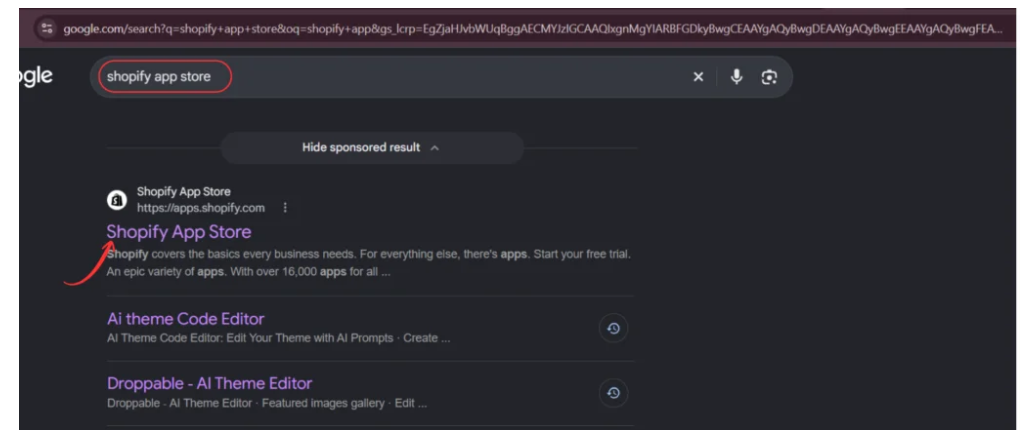
Step 1: Find the App in the Shopify App Store
Open the Shopify App Store and search for Sticky add to cart drawer. Locate SA Sticky Add to Cart Drawer in the results.
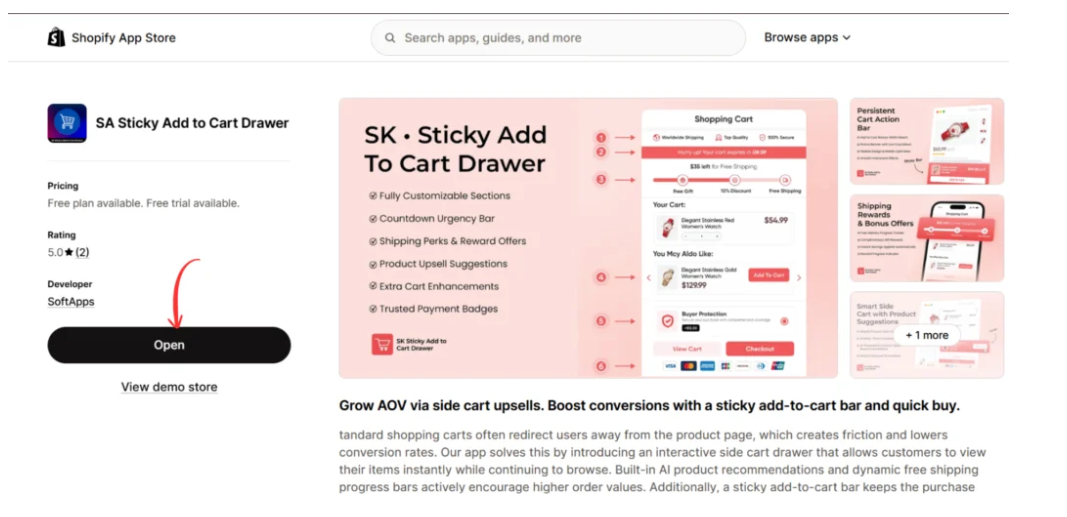
Step 2: Open the Application
Open the app listing and select Install if you are a new user, or Open if the app is already installed.
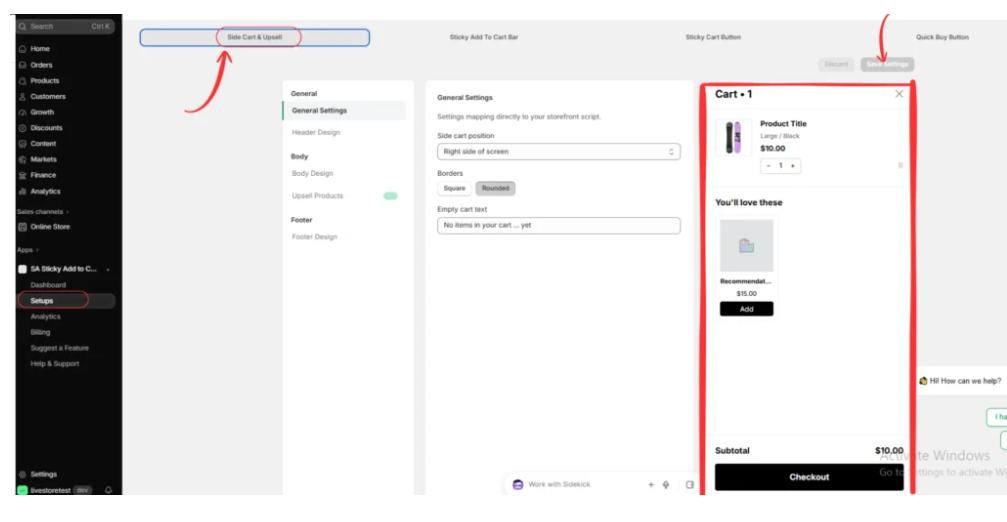
Step 3: Access Side Cart & Upsell Settings
Inside the app dashboard, navigate to Setups and select Side Cart & Upsell.
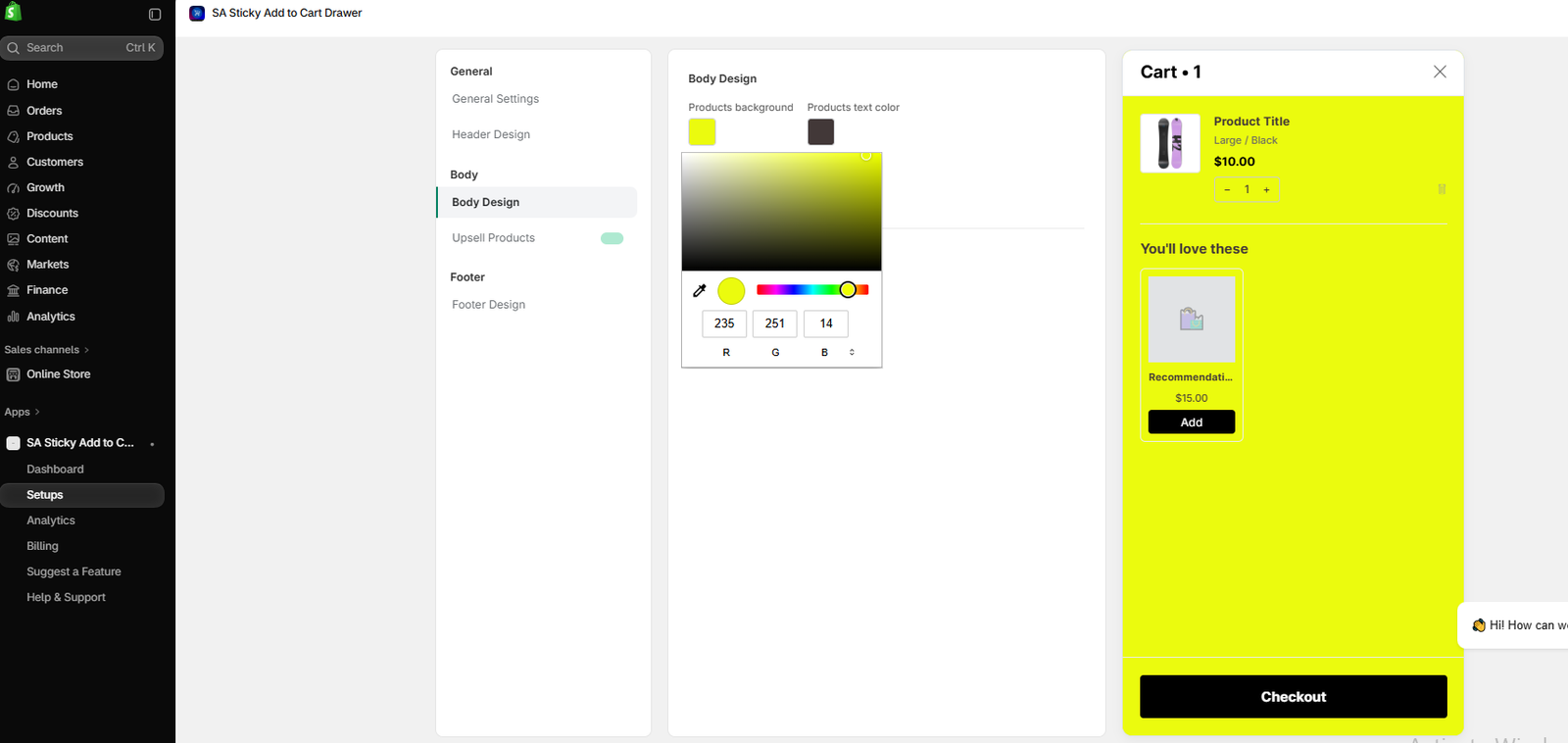
The settings interface includes options for the side cart’s position, border style, empty-cart message, and other design sections.
Use the preview panel to see how your changes affect the drawer.
Step 4: Match the Cart Drawer to Your Theme
Review the available design settings and select options that complement your storefront.
For example, choose a suitable cart position, use consistent corner styles, and keep important information such as product titles, quantities, and subtotal easy to read.
Avoid making the drawer so visually complex that the Checkout button becomes difficult to find.
Step 5: Enable the Storefront App Embed
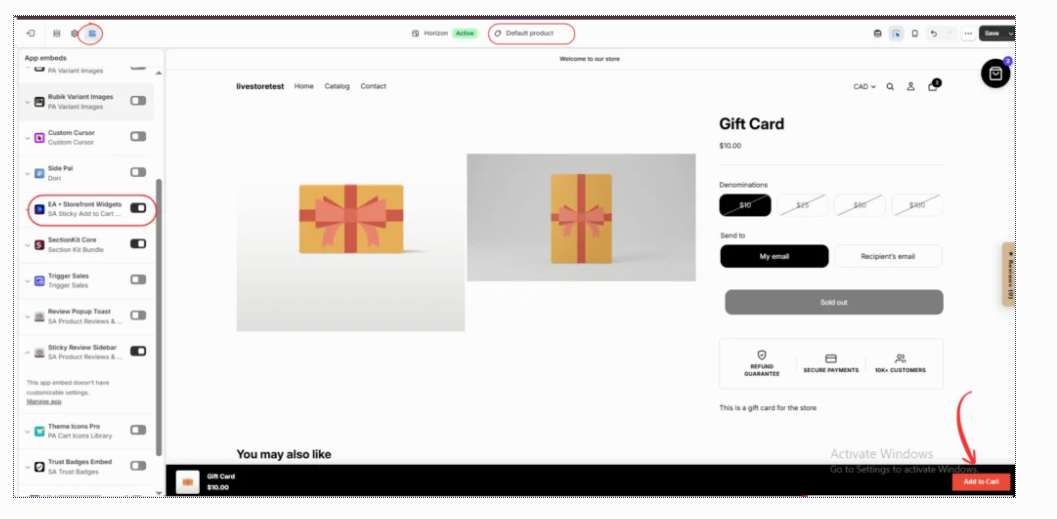
In Shopify admin, open Online Store → Themes → Customize → App embeds.
Locate EA • Storefront Widgets, associated with SA Sticky Add to Cart Drawer, and enable it.
Step 6: Preview the Drawer on Your Store
Open a product page and test adding an available item to the cart.
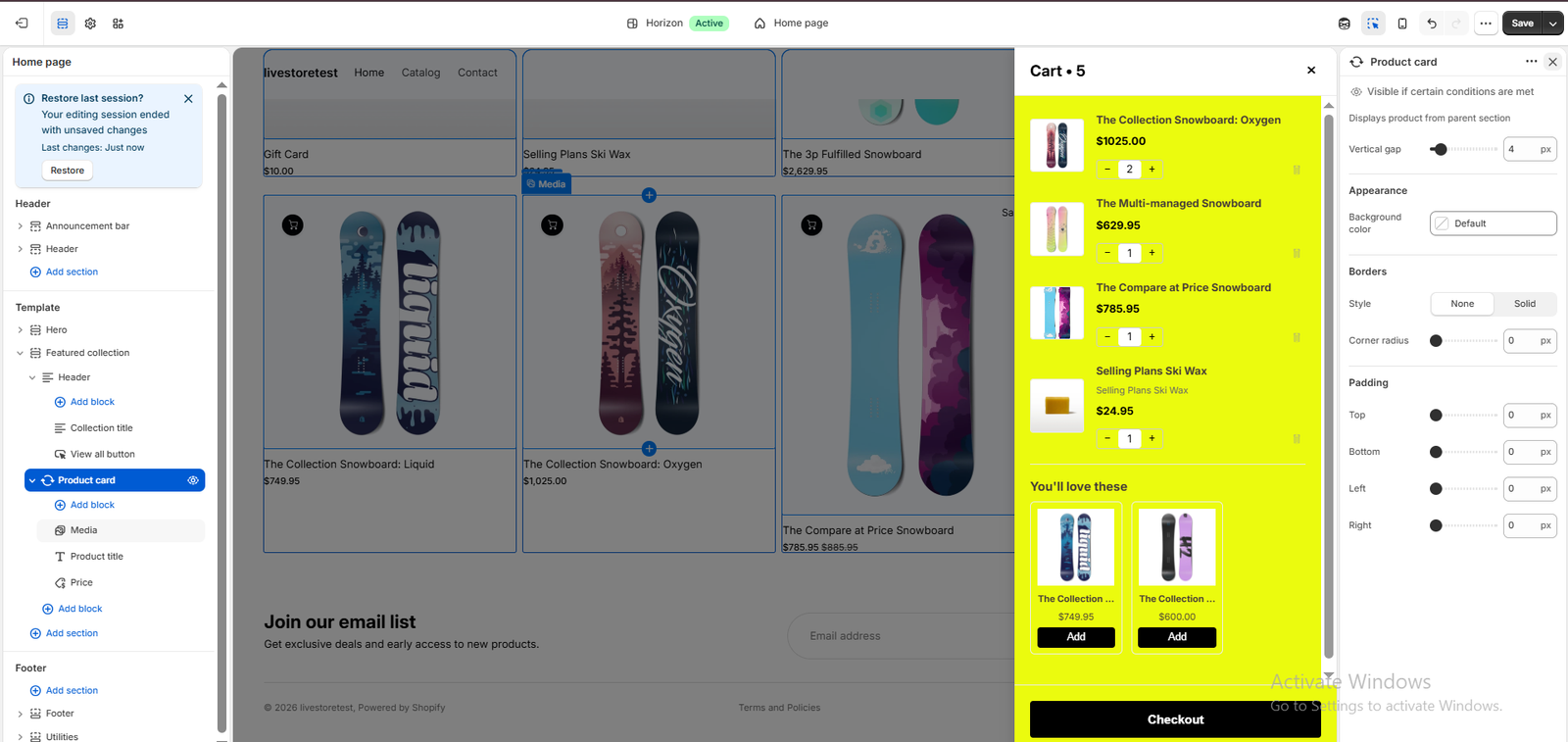
Check the product image, quantity controls, subtotal, checkout button, and overall drawer appearance.
Image 5: Review the side cart’s appearance within your storefront.
Save your settings and repeat the test on mobile.
Best Practices
Use consistent branding, maintain readable text, keep the Checkout button prominent, and avoid overcrowding the drawer. Test product variants and mobile screen sizes before publishing.
Conclusion
Customizing a Shopify cart drawer helps create a more consistent shopping experience. With SA Sticky Add to Cart Drawer, merchants can configure their cart interface and provide customers with a convenient way to review products.
Explore the app: https://apps.shopify.com/sk-sticky-add-to-cart-drawer




