HOW TO CUSTOMIZE SHOPIFY HEADER ICONS (CART, SEARCH AND ACCOUNT) WITHOUT CODING
Introduction
Your Shopify store’s header is one of the most important parts of your website. It helps customers navigate your store, search for products, access their accounts, and review items in their shopping carts.
Although merchants often focus on product photography, banners, fonts, and colors, they sometimes overlook smaller design elements such as cart, search, and account icons.
These icons appear across many pages of a Shopify store, making them an important part of the overall shopping experience.
However, the default header icons provided by Shopify themes may not always match your brand’s design.
For example, a luxury fashion store might prefer elegant outline icons, while a modern technology store may want bold, minimalist designs.
Changing these icons manually can require editing Liquid files, modifying SVG markup, or writing custom CSS.
Fortunately, you can customize Shopify header icons without coding using PA Cart Icons Library.
With this application, Shopify merchants can choose from a library of 300+ cart icon designs, customize supported search and account icons, adjust styling, and preview changes before applying them to their storefront.
In this guide, we’ll explain why header customization matters and walk you through the complete process using real screenshots from PA Cart Icons Library.
What Are Shopify Header Icons?
Shopify header icons are small visual elements displayed in the navigation area of an online store.
They help customers access important storefront functions quickly.
The most common header icons include the following.
Shopping Cart Icon
The cart icon allows customers to open their shopping cart and review the products they have selected.
Depending on the theme, it might appear as a shopping bag, basket, or traditional shopping cart.
Search Icon
The search icon allows customers to find products by entering keywords or product names.
It is commonly represented by a magnifying glass.
Account Icon
The account icon helps customers access sign-in, registration, and account-related functions.
It is usually represented by a person-shaped outline or a circular profile symbol.
These icons should be recognizable, accessible, and visually consistent with your store’s design.
Why Customize Shopify Header Icons?
1. Create a professional brand appearance
Every visual element contributes to your store’s branding.
Matching cart, search, and account icons can create a cleaner and more coordinated storefront header.
2. Improve visual consistency
Different icon styles may use different stroke widths, proportions, or shapes.
Using coordinated icons helps maintain a consistent appearance.
3. Make important features easy to find
Recognizable icons help customers identify shopping cart, search, and account functions.
Avoid unfamiliar symbols that may create confusion.
4. Improve mobile header design
Mobile storefronts have limited navigation space.
Properly sized icons help maintain a compact and usable layout.
5. Match your store’s theme
An elegant boutique, colorful accessories brand, and minimalist technology store may all benefit from different header icon styles.
6. Support seasonal branding
Some merchants may want to adjust their storefront’s visual appearance for holiday promotions or seasonal marketing campaigns.
Why Changing Shopify Header Icons Manually Can Be Difficult
Most Shopify themes use SVG graphics, Liquid snippets, and CSS to display header icons.
Changing them manually may involve locating theme files, replacing SVG markup, adjusting styles, and testing desktop and mobile layouts.
If changes are made incorrectly, they can affect the appearance or behavior of the header.
For merchants without coding experience, this can be unnecessarily complicated.
A no-code Shopify app provides a simpler way to manage supported header icon customizations.
Introducing PA Cart Icons Library for Shopify
PA Cart Icons Library is a Shopify application designed to help merchants customize storefront header icons without manually editing theme code.
The app provides a large icon library along with appearance settings and live preview options.
Key Features
- 300+ cart icon styles.
- Cart icon customization.
- Search icon customization.
- Account icon customization.
- Outline and solid icon variations.
- Icon size adjustments.
- Stroke-width customization.
- Custom icon colors.
- Cart count badge styling on eligible plans.
- Custom SVG uploads on eligible plans.
- Live header preview.
- Shopify theme app embed integration.
- Seasonal customization options.
App Link: https://apps.shopify.com/cart-icons-library
Which Shopify Header Icons Should You Customize?
Cart Icon Design
For fashion or accessories stores, a shopping bag icon may suit the visual identity.
For a general merchandise store, a familiar cart or basket can be more appropriate.
Search Icon Design
A minimal magnifying glass is easy to recognize and works well with many Shopify themes.
The main consideration is keeping the icon visible and understandable.
Account Icon Design
Simple person-shaped outline icons are common choices for storefront headers.
The account icon should match the visual weight and size of the other icons.
Matching All Three Icons
For a consistent appearance, use related design styles.
For example, if you choose outline cart icons, you may also want outline search and account icons.
This can help create a professional-looking header.
Step 1: Search for the Shopify App Store
Open Google and search for Shopify App Store. Click the official Shopify App Store result to open the website.

Image 1: Google search results highlighting the official Shopify App Store.
Step 2: Search for PA Cart Icons Library
In the Shopify App Store search bar, type PA Cart Icons Library. Find the app with the turquoise shopping cart logo and click its name.
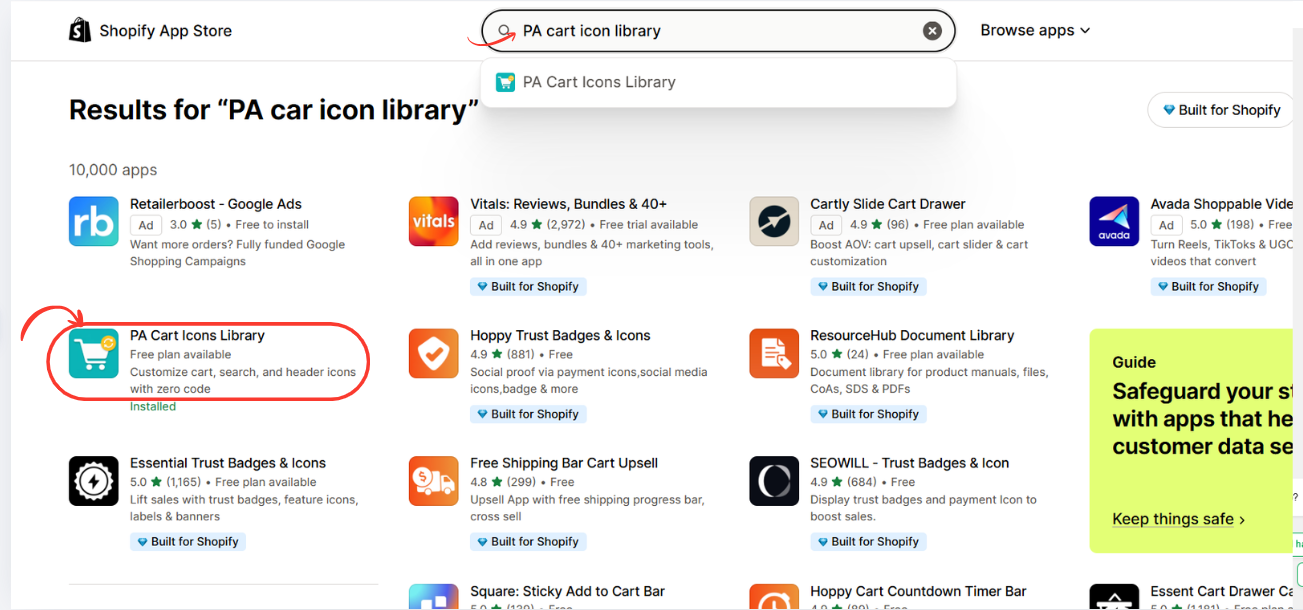
Image 2: PA Cart Icons Library appearing in Shopify App Store search results.
Step 3: Install and Open the App
Open the app listing, review its features, and click Install. If the app is already installed, click Open.

Image 3: Official app listing showing 300+ cart icon styles and customization features.
You can also access the app directly from the Shopify App Store.
Step 4: Open Theme Icons Pro Dashboard
Inside Shopify Admin, go to Apps → PA Cart Icons Library → Dashboard.

Image 4: Dashboard showing Cart Icon Style, Search Icon Style, Account Icon Style, and Live Preview.
The dashboard contains three dropdown menus that let you customize your cart, search, and account icons. It also provides dimensions, styling controls, and a preview.
Step 5: Select Your Cart Icon
Click the Cart Icon Style dropdown to explore different designs.

Image 5: Available shopping bag, basket, cart, and global SVG icon styles.
Choose a style that matches your brand. For example, fashion stores may prefer a Minimal Bag design, while general stores may choose a Modern Basket.
Step 6: Customize the Search Icon
Click Search Icon Style and browse the available search designs.
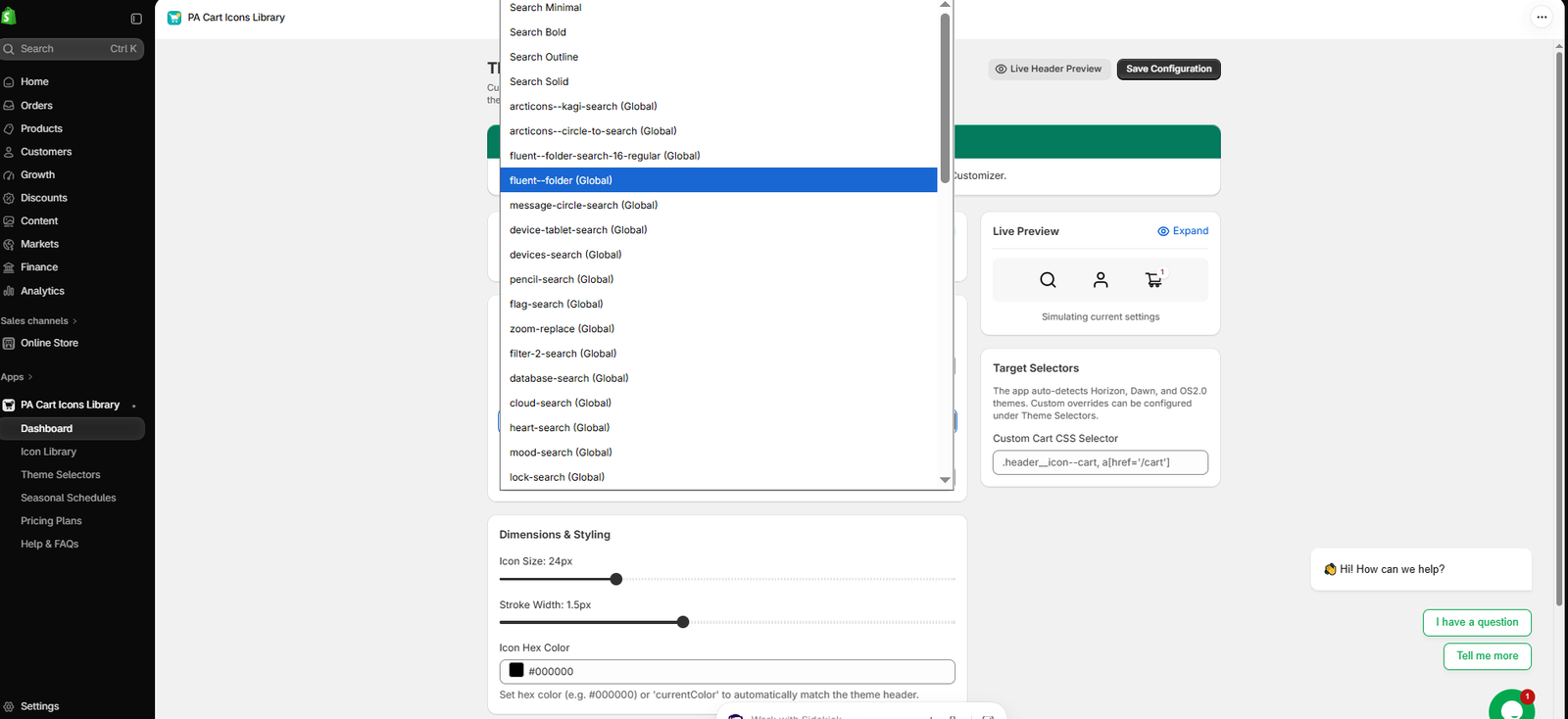
Image 6: Search Minimal, Search Bold, Search Outline, and additional icon choices.
Select a recognizable search icon that complements your cart icon. A simple magnifying-glass design is a practical option for many Shopify stores.
Step 7: Customize the Account Icon
Open Account Icon Style and choose the profile symbol you prefer.

Image 7: Account icon styles including User Outline, User Solid, User Circle, and global SVG options.
For a cohesive header, choose an account icon with similar proportions and stroke width to your selected cart and search icons.
Step 8: Preview and Save Your Icon Configuration
Adjust the available icon size, stroke width, and color settings. Review your three icons together in the Live Preview panel.
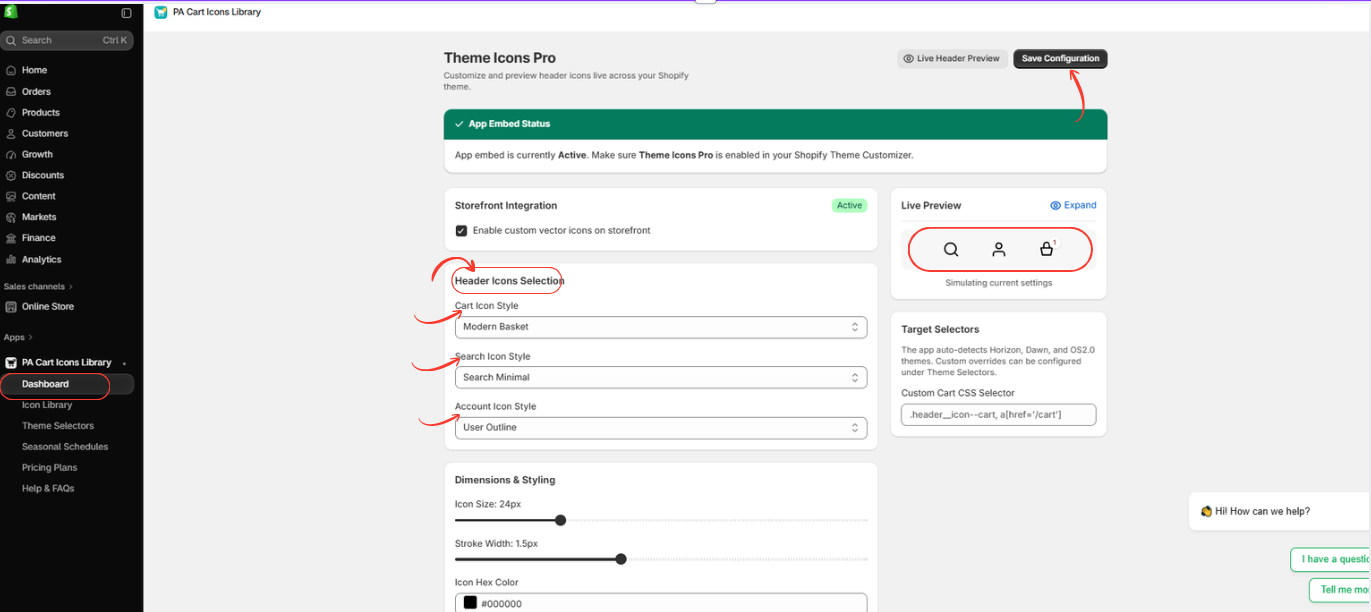
Image 8: Previewing the selected header icons and saving the configuration.
When the designs look correct, click Save Configuration at the top-right of the app dashboard.
Step 9: Enable Theme Icons Pro in Shopify
Open Online Store → Themes → Edit theme → App embeds.
Find Theme Icons Pro from PA Cart Icons Library.

Image 9: Shopify theme editor showing the Theme Icons Pro app embed toggle and storefront header.
Enable the app embed to activate your configured header icons on the selected Shopify theme.
Step 10: Verify the Updated Cart, Search, and Account Icons
Preview your storefront header after enabling the app embed.
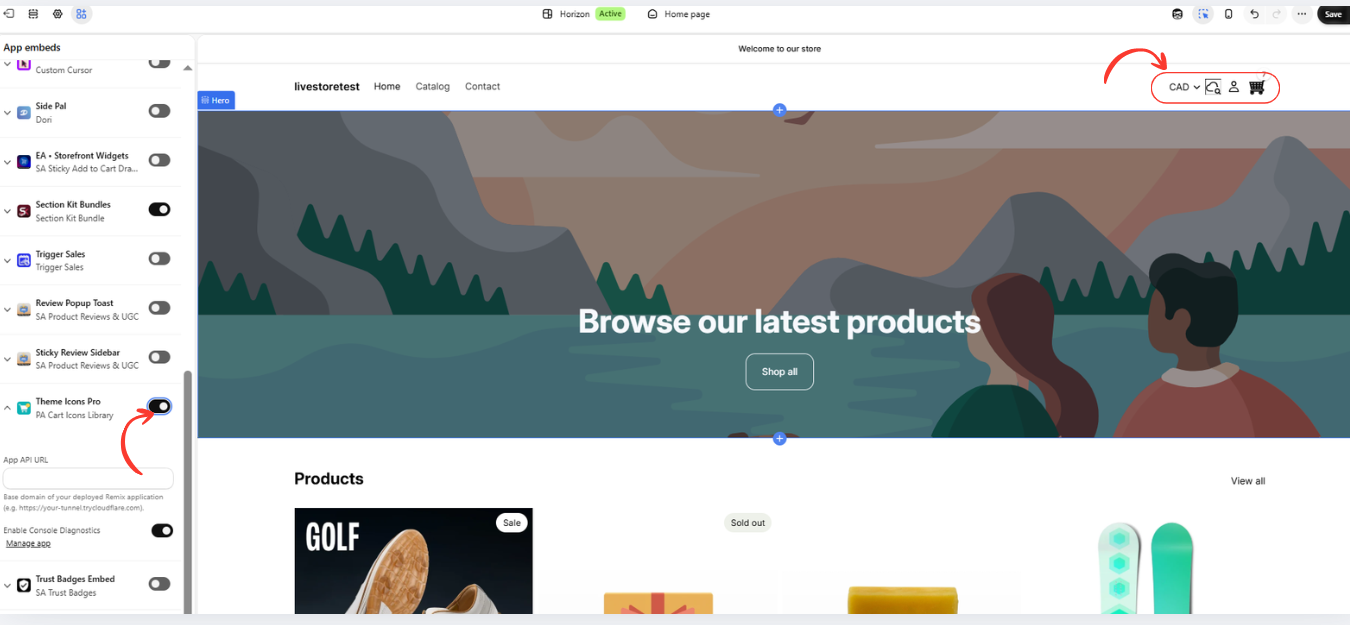
Image 10: Final storefront preview showing customized cart, search, and account icons.
Check that each icon appears correctly and that the cart, search, and account functions still work. Test the mobile layout as well.
Finally, click Save in the Shopify theme editor.
Your Shopify header icons are now customized without manually writing or editing theme code.
Conclusion
Customizing your Shopify header icons can help create a more consistent and professional storefront.
With PA Cart Icons Library, merchants can select cart, search, and account icon designs, adjust their styling, preview the results, and activate the customization through Shopify’s theme editor.
The process is straightforward and does not require manual Liquid or CSS editing for supported themes.Install PA Cart Icons Library




