How to Customize a Shopify Product Page Using AI
Introduction
Your Shopify product page is where customers decide whether an item meets their needs. Clear information, useful images, and a well-organized layout help shoppers understand what they are buying. Yet making that page feel right for your brand can become difficult when your theme does not include the layout you want.
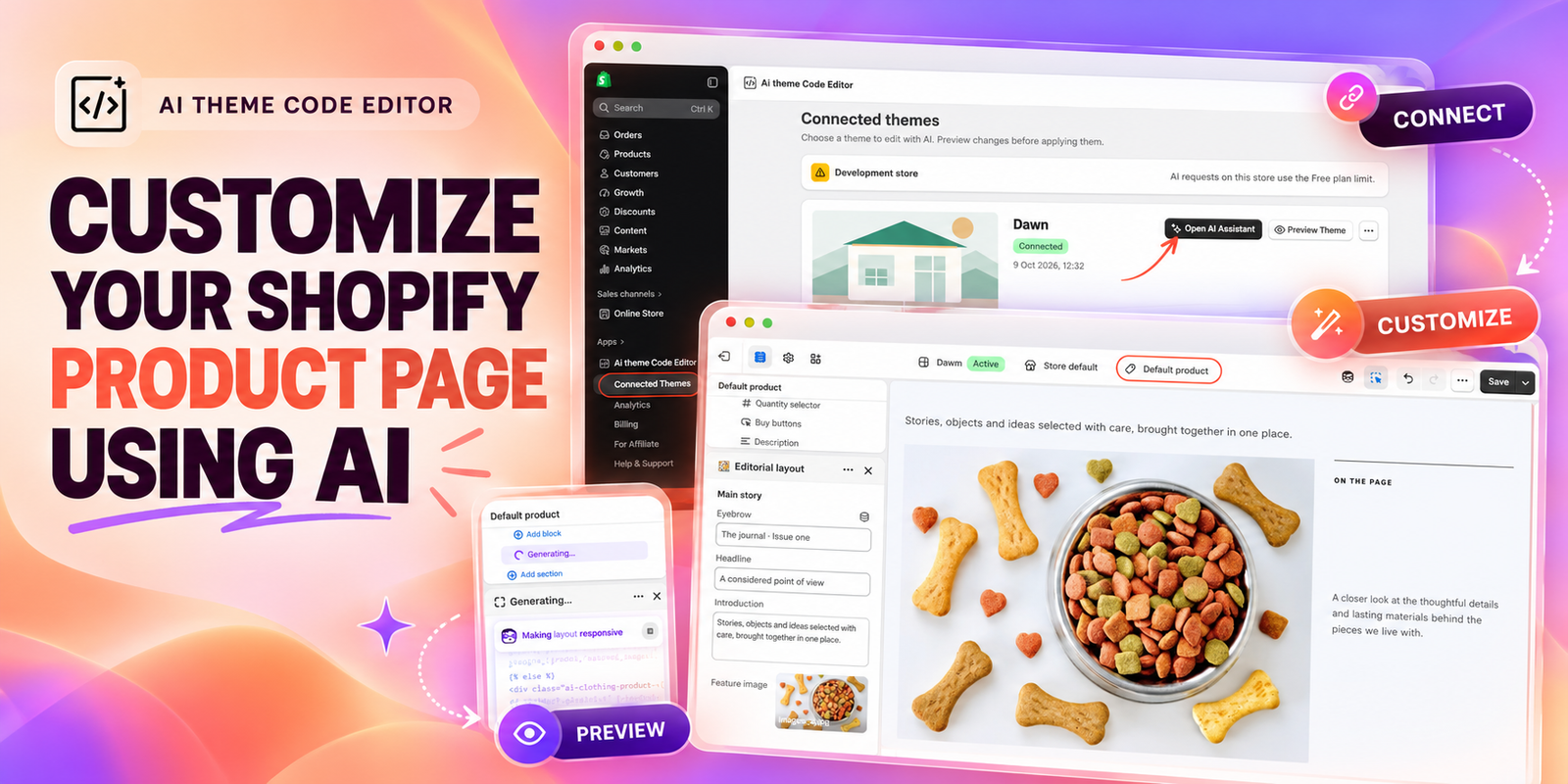
This guide explains how to customize a Shopify product page using AI, starting with AI Theme Code Editor and then following the product-template editing workflow shown in the supplied images. You will learn how to connect a theme, describe a change, customize an AI-generated layout, and check the result before saving.
The Main Headache: Your Theme Does Not Always Match Your Product
A standard product template gives you a starting point, but different products need different explanations. Clothing may need a size guide, food products may need ingredient details, and home accessories may need a visual story about materials and care.
Merchants often struggle with rigid layouts, limited section options, uneven spacing, and pages that look good on desktop but feel crowded on mobile. A small design adjustment can involve Liquid, CSS, or JavaScript. Finding the right files and understanding how they interact takes time, especially when you also manage products, orders, and marketing.
The challenge is to improve the page while keeping product information, variant selection, and buying controls working correctly.
Why Use AI Theme Code Editor?
AI Theme Code Editor lets merchants describe theme changes in natural language and generate or edit the code needed for them. Its Shopify listing describes support for custom sections, blocks, layout adjustments, and sandbox previews. This makes it useful when a requested change goes beyond your existing theme settings.
For example, you can ask for a compact benefits row, improved spacing around product information, or an expandable care-information area. The request should identify the product template, desired placement, and mobile behavior. AI can help implement the change, but you still need to review the outcome.
The images in this guide also show Shopify’s native Generate option inside the theme editor. That is a separate interface from AI Theme Code Editor’s assistant. The steps below distinguish the app setup from the native generation flow instead of treating them as the same tool.
Why Product Page Customization Matters
A useful product page answers questions in a sensible order. Customers should be able to see the product, understand its benefits, choose the right option, and find the purchase button without unnecessary searching.
Customization can improve readability, bring supporting information closer to the buying decision, and make the page feel consistent with your brand. A clear layout also gives you space for accurate care details, specifications, or product stories. These improvements can support a better shopping experience; they do not guarantee higher sales.
How to Customize a Shopify Product Page Using AI: Step-by-Step
Step 1: Install AI Theme Code Editor
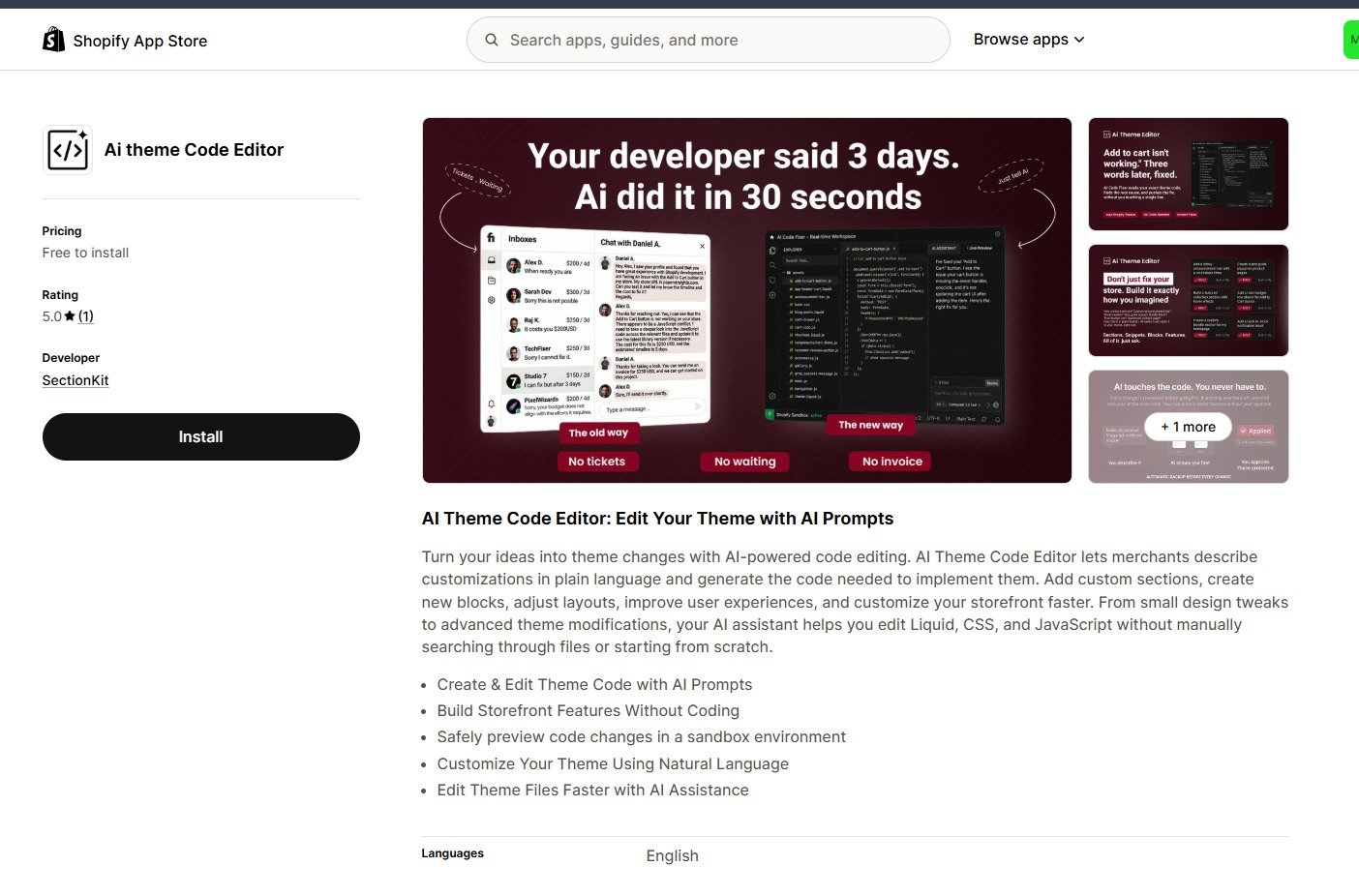
Open the app listing in the Shopify App Store and select Install. Review the requested access and complete installation for your store. The first image shows the app listing and its installation button. Plan details and the listing presentation may change over time.
Step 2: Connect the Theme You Want to Customize
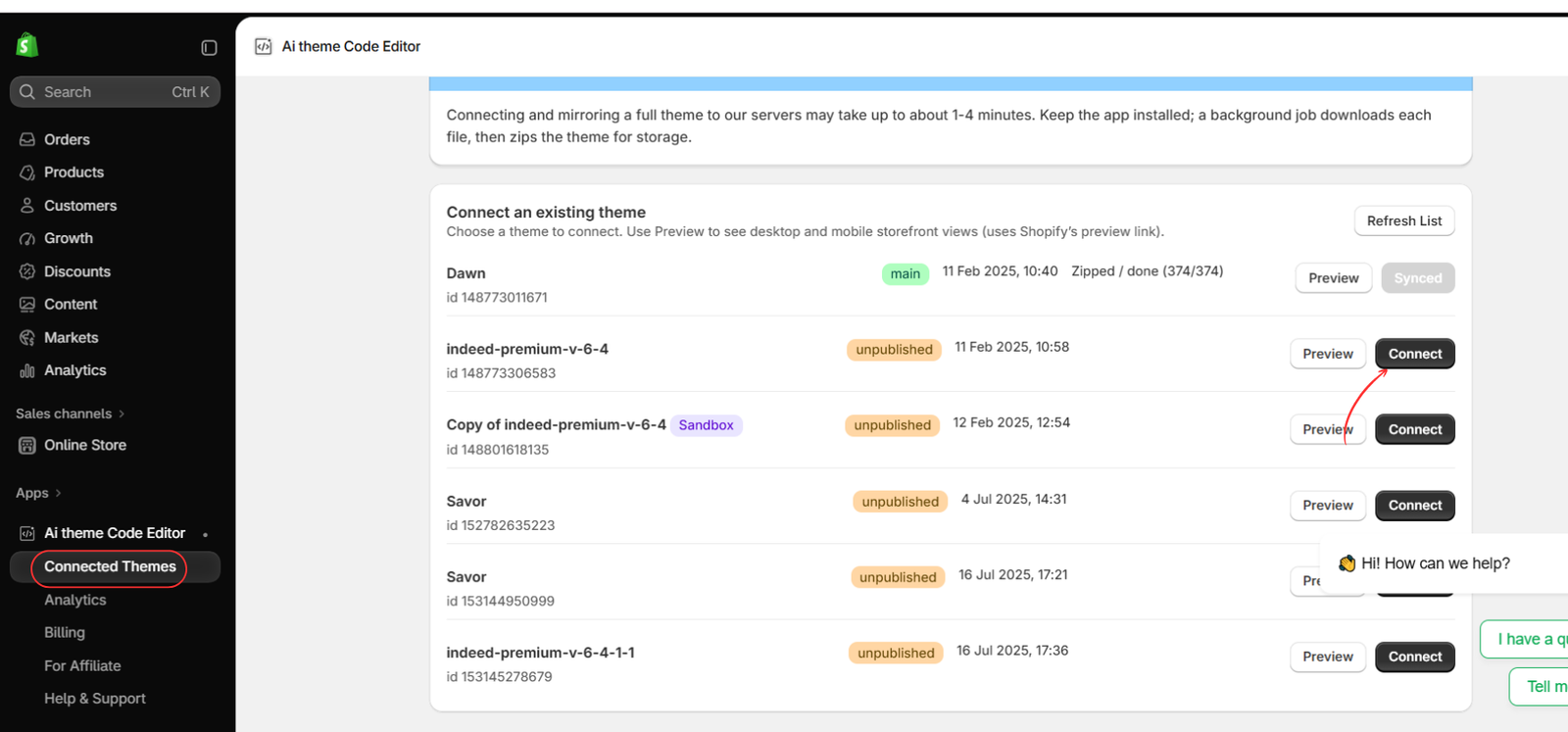
Open the app and go to Connected Themes. Choose the theme you want to work on and select Connect. The second image highlights this action beside an unpublished theme.
For a substantial layout change, work on an unpublished copy first. Wait for the connection and synchronization to finish before requesting edits, and confirm that you have selected the intended theme.
Step 3: Open the AI Assistant and Describe Your Change
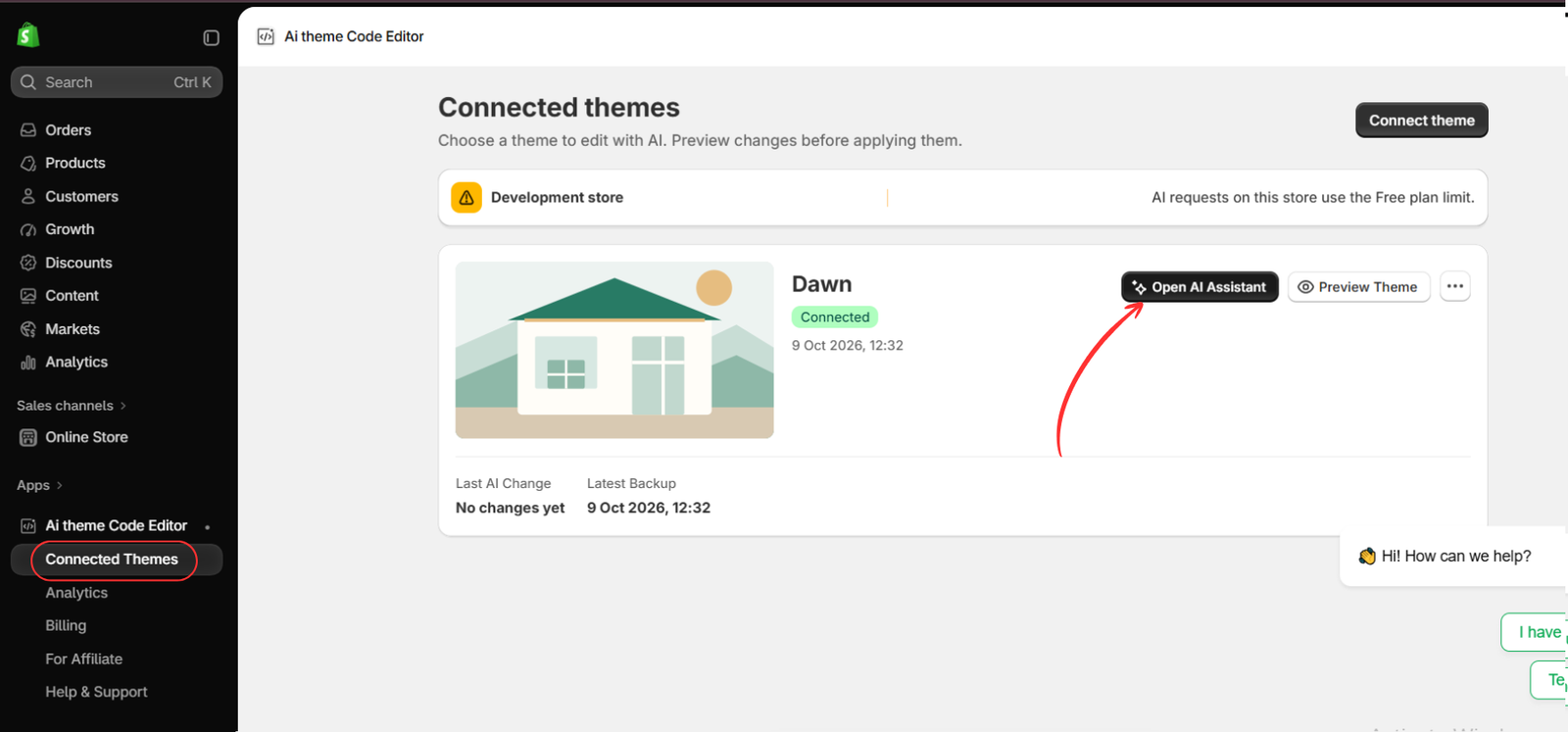
Once the theme is connected, select Open AI Assistant, as highlighted in the third image. Give the assistant a focused instruction that names the product page and explains the desired result.
For example:
Customize my default product page. Add a clean product story section below the product information, with an image on the left and editable heading and text on the right. Stack the content on mobile, match my theme’s fonts and colors, and keep the existing price, variants, quantity selector, and buy buttons working.
Review any proposed changes and use the available preview before applying them. Make one clear request at a time so you can assess each result.
Step 4: Open the Shopify Theme Editor
The supplied sequence now moves to Shopify’s theme editor. Open Online Store, find the intended theme, and select Edit theme, as shown in the fourth image.
Use the same theme you intend to customize. The example images show an active Dawn theme; if you are working on an unpublished copy, confirm its name before continuing
.
Step 5: Select the Product Template and Generate a Layout
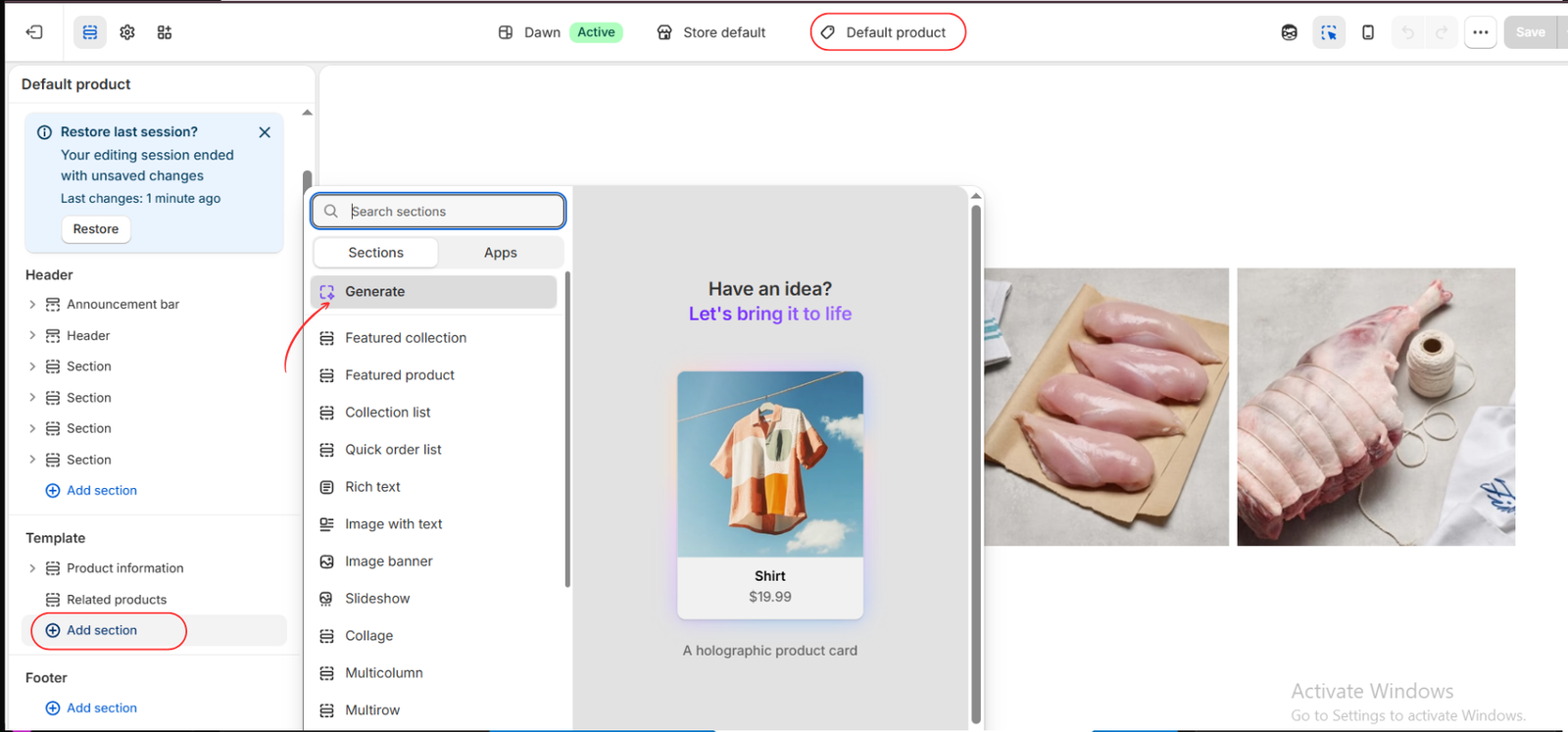
In the theme editor, select Products → Default product, or the specific product template you want to customize. Under the Template area, select Add section.
The fifth image shows a Generate option in the section picker. Where this native Shopify option is available, select it and describe the layout you need. Availability can differ by theme and store. If it is absent, use AI Theme Code Editor’s assistant for the code-based customization route.
A suitable layout request is:
Create an editorial product story layout with a large feature image, an editable heading and introduction, and a narrow supporting text column. Use spacious alignment and a white background. Stack the columns on mobile and make the content editable in the theme editor.
Adding the layout under Template keeps it in the product-page content area rather than the header or footer.
Step 6: Allow Generation to Finish and Review the Preview
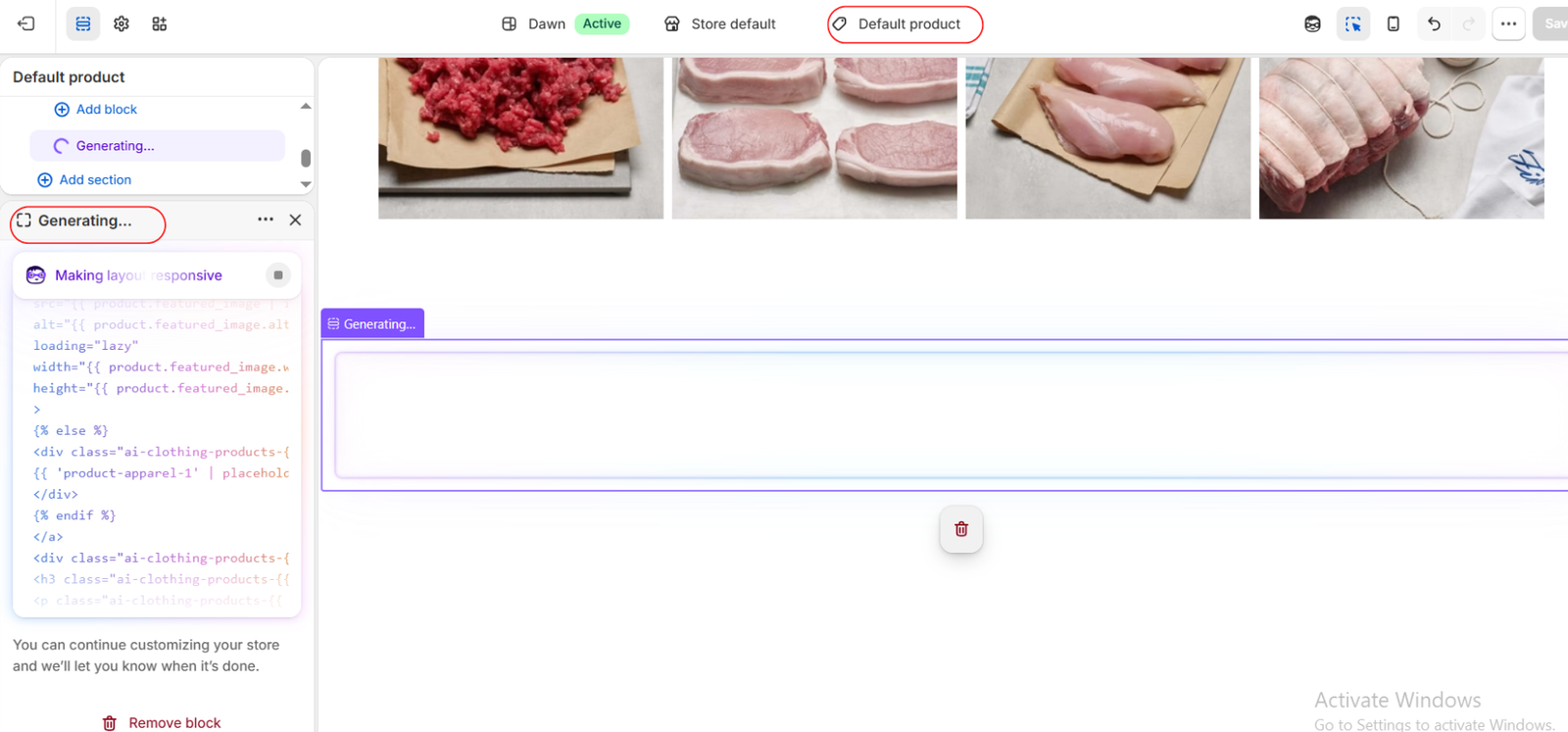
The sixth image shows the native generation process in progress, including a message about making the layout responsive. Wait until generation finishes before judging the result.
Review the completed layout for spacing, text alignment, image sizing, and its position among existing product-page sections. If the result does not match your request, give a specific follow-up instruction, such as reducing the image height or increasing the supporting text width. This image documents generation in progress, not a finished product page.
Step 7: Customize the Content, Test, and Save
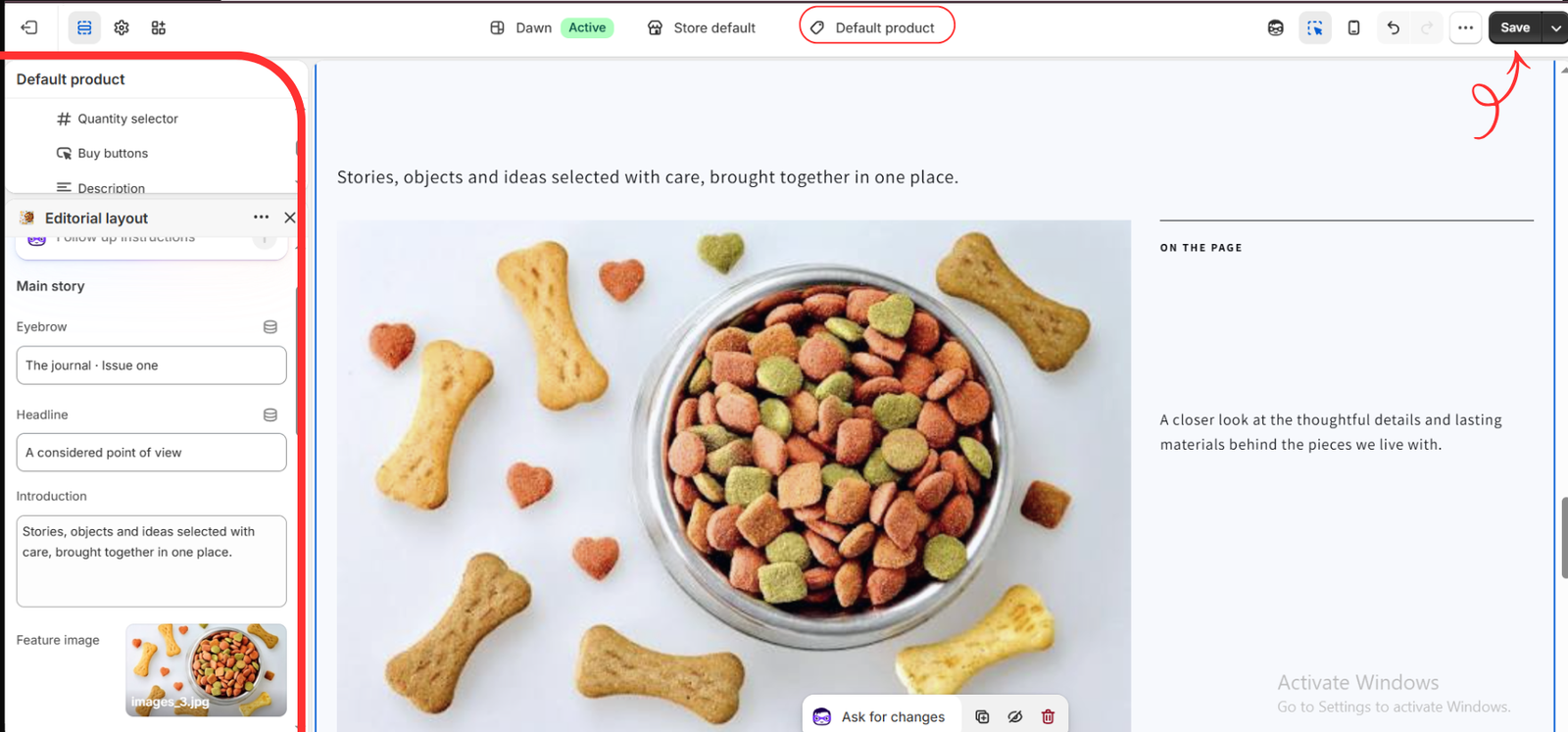
The final image shows a generated Editorial layout with fields for an eyebrow, headline, introduction, and feature image. Replace the example text and image with content relevant to your product. If a field supports a dynamic source, you can connect suitable product data instead of using the same fixed content everywhere.
Check the desktop and mobile previews. Confirm that text is readable, images fit neatly, and the original product controls still work. Test variant selection, quantity changes, and add to cart in the storefront preview.
Remember that changes to a shared product template can affect every product assigned to it. Use a separate template if the layout is intended for only some products. Select Save when the result is ready. Saving edits to an active theme can affect the live storefront; an unpublished theme remains separate until published.
Get Better Results with Clear AI Instructions
Name the template, describe the placement, and explain how the layout should behave on mobile. Include the colors, spacing, and editable content you need. Keep requests focused, and ask the AI to preserve existing purchase controls. A precise request is easier to review than a broad instruction such as “make my product page better.”
Conclusion
Customizing a Shopify product page with AI starts with a clear goal. Connect your theme, describe the change, review the generated layout, and adapt the content to your products. The supplied images show both AI Theme Code Editor setup and Shopify’s native generation interface, giving you two distinct routes to consider based on the change you need.
To explore prompt-based theme code customization, visit AI Theme Code Editor on the Shopify App Store.




