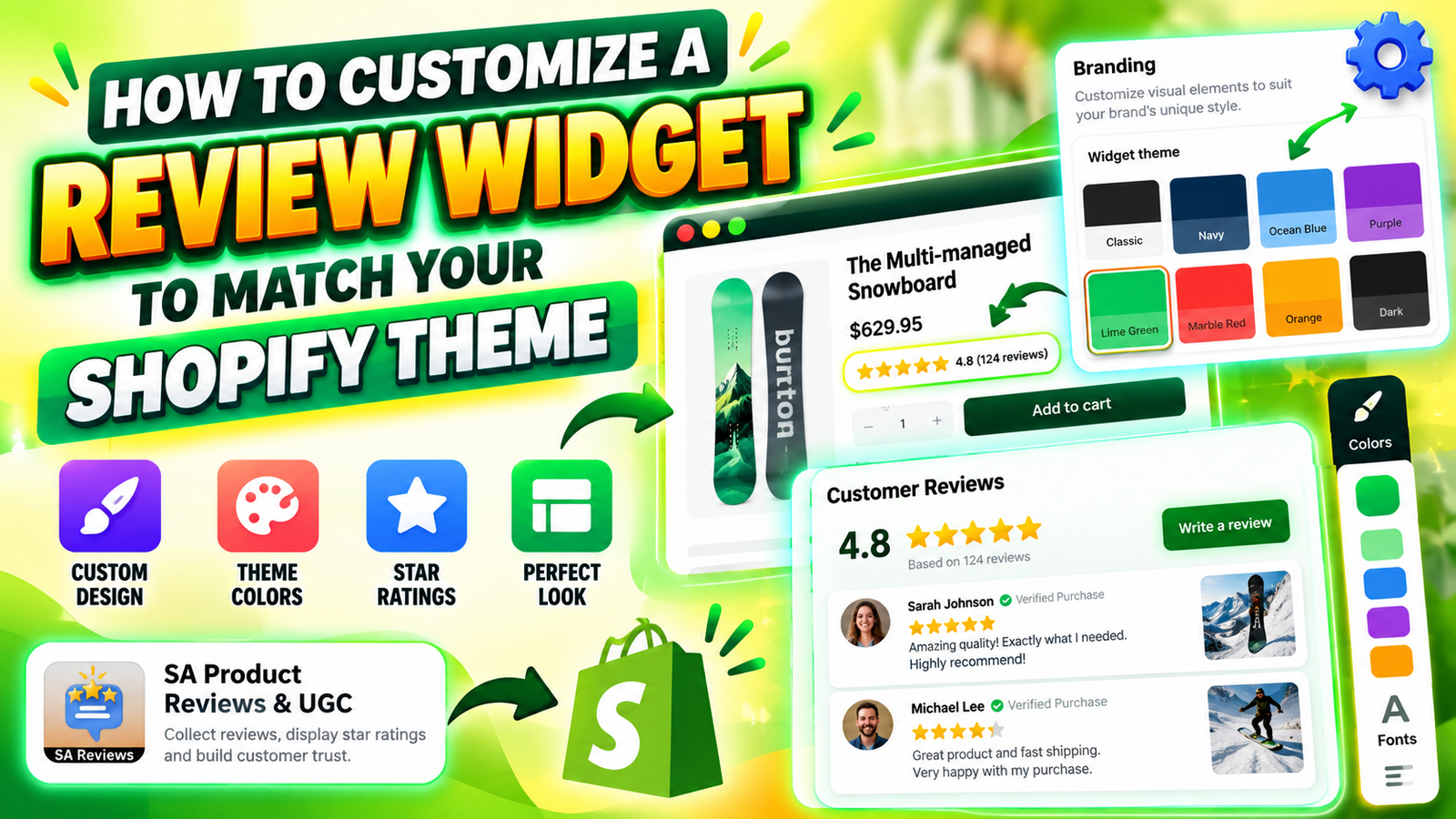
HOW TO CUSTOMIZE A REVIEW WIDGET TO MATCH YOUR SHOPIFY THEME
Introduction
Customer reviews are an essential part of a successful Shopify store. They help shoppers understand product quality, learn from previous buyers, and make more confident purchasing decisions.
However, displaying reviews is only one part of the process. Your review widget should also match your store’s colors, layout, and overall brand identity.
In this guide, you’ll learn how to customize a Shopify review widget using SA Product Reviews & UGC, from installing the app to choosing widget colors and displaying customer reviews on your Shopify product pages.
Common Problems Shopify Merchants Face
Many Shopify merchants install review apps only to discover that the default widget design does not match their storefront.
For example, a store using a minimalist white-and-green theme might display a review section with completely different colors. This can make the product page look inconsistent and less professional.
Other common challenges include poor widget placement, limited styling options, difficulty adding review blocks, and a lack of technical knowledge to customize the design manually.
Why You Need a Shopify Review Widget App
A dedicated review app can simplify the process of collecting, managing, and displaying customer feedback.
SA Product Reviews & UGC provides review display components and branding options, including color presets and a live preview.
With these tools, merchants can customize their review widget’s appearance and add it to their Shopify theme without building the entire feature from scratch.
Why Review Widget Customization Matters
A properly customized review widget helps create a consistent shopping experience. Matching colors and layouts makes the review section feel like a natural part of the website.
It can also make customer feedback easier to discover and read. When genuine reviews are clearly displayed, shoppers have more information to evaluate products before purchasing.
How to Customize a Shopify Review Widget: Step-by-Step
Step 1: Visit the Shopify App Store
Open Google and search for Shopify App Store. Select the official Shopify App Store website from the search results.

Step 2: Search for SA Product Reviews & UGC
Use the search bar in the Shopify App Store and enter SA Product Reviews & UGC.
Find the app in the search results and click its listing.

Step 3: Install the App
On the app listing page, click Install and follow the installation instructions to connect the app to your Shopify store.

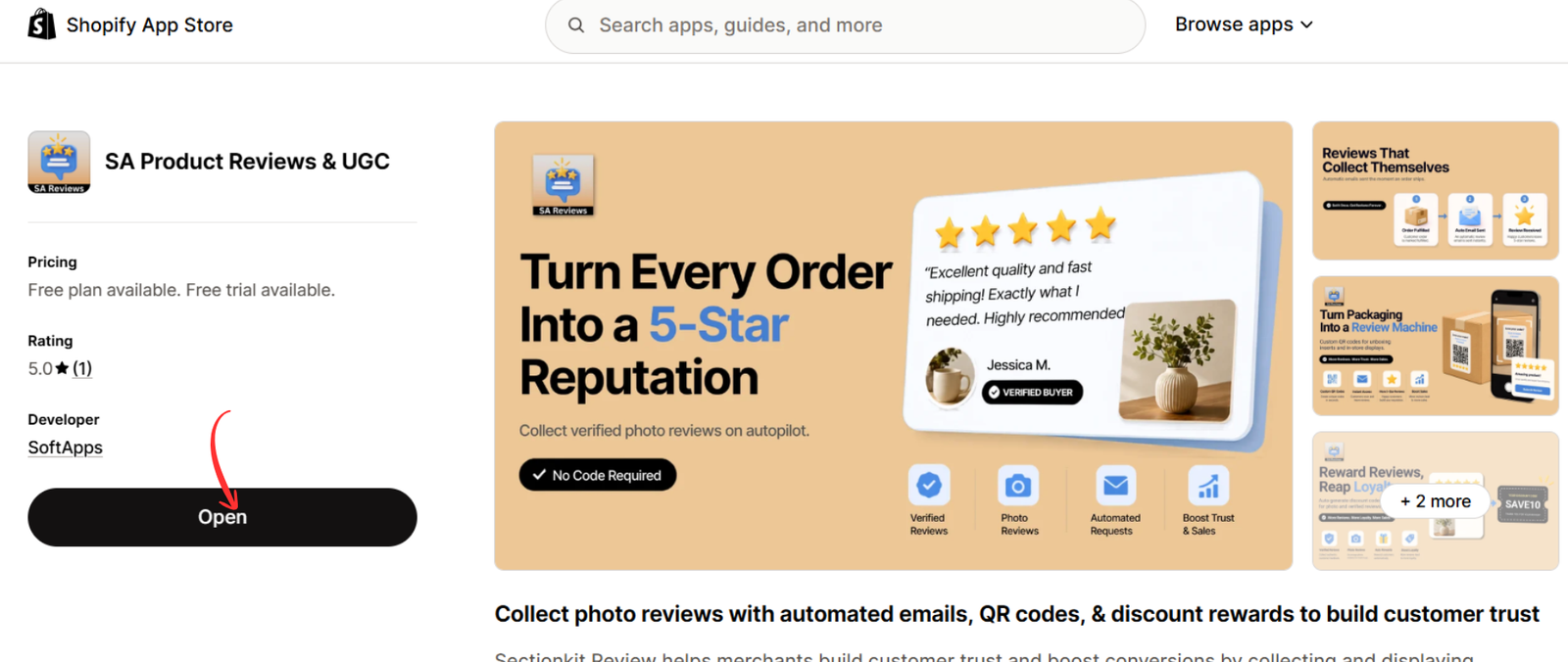
Step 4: Open the App Dashboard
After installation, click Open to access the app dashboard.
From here, you can manage review features and customize how customer feedback appears on your storefront.
Step 5: Customize the Widget Using Branding Settings
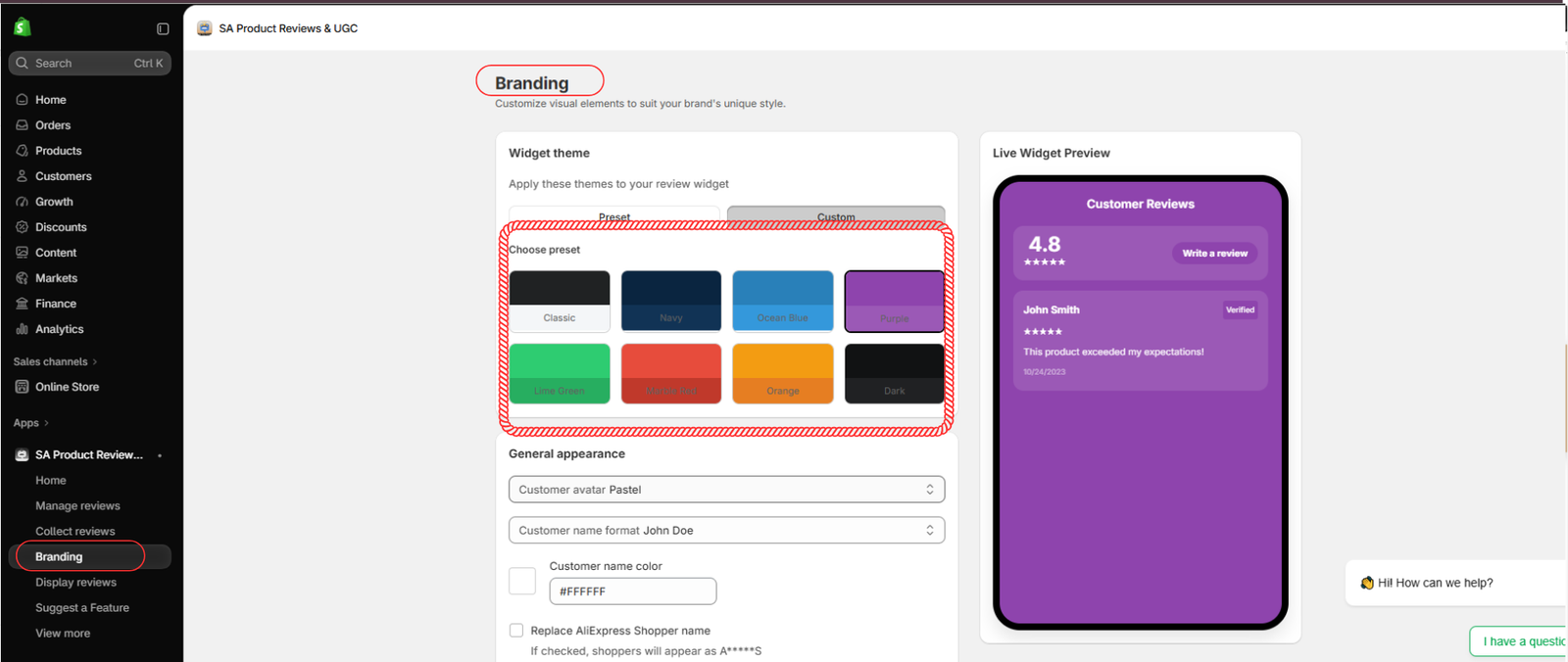
In the app dashboard, click Branding from the left-hand menu.
Under Widget theme, choose a color preset that complements your Shopify store. Available presets shown in the app include Classic, Navy, Ocean Blue, Purple, Lime Green, Marble Red, Orange, and Dark.
Use the Live Widget Preview to see how the selected design appears. You can also explore the available appearance settings to adjust the widget further.
Step 6: Open Your Shopify Theme Editor
Once you’ve selected your widget styling, go to Online Store → Themes → Customize in your Shopify admin.
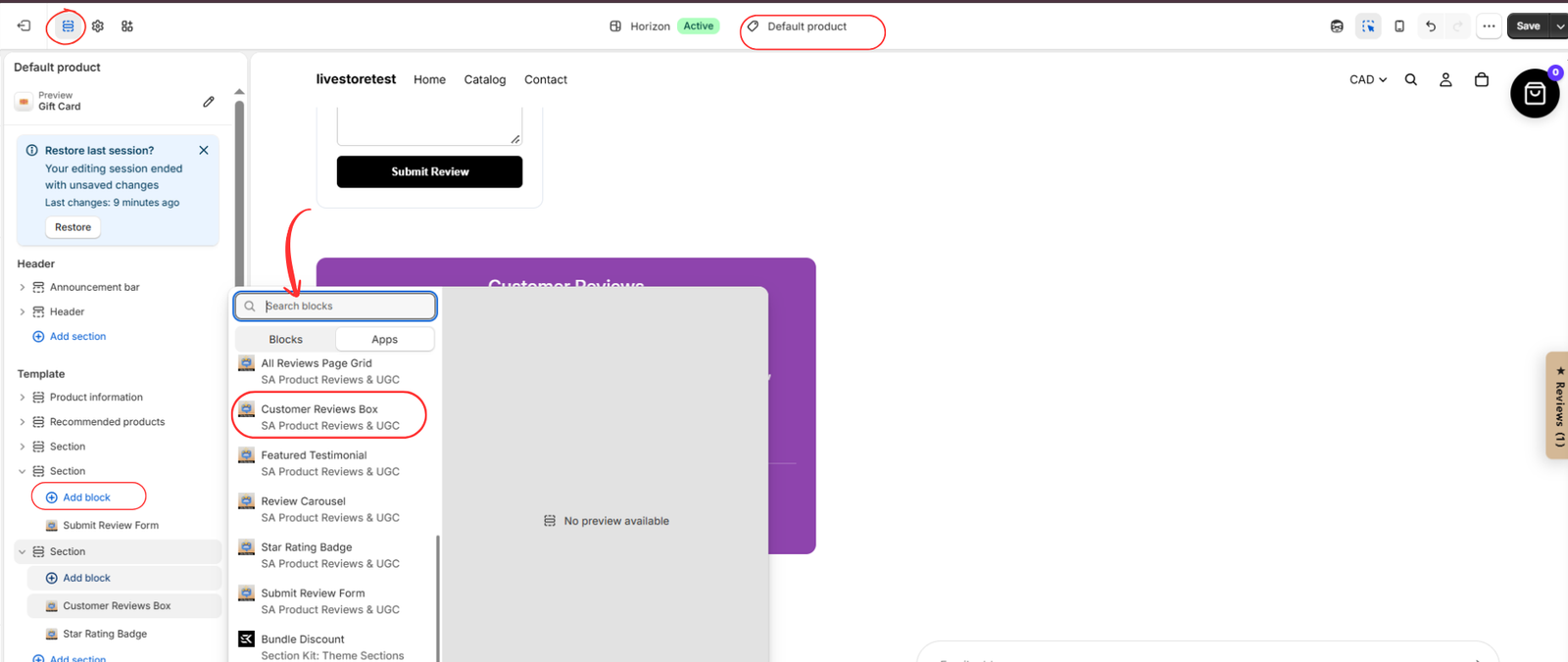
Choose the Default product template, then locate the section where you want to display customer reviews.
Click Add block and browse the app blocks provided by SA Product Reviews & UGC.
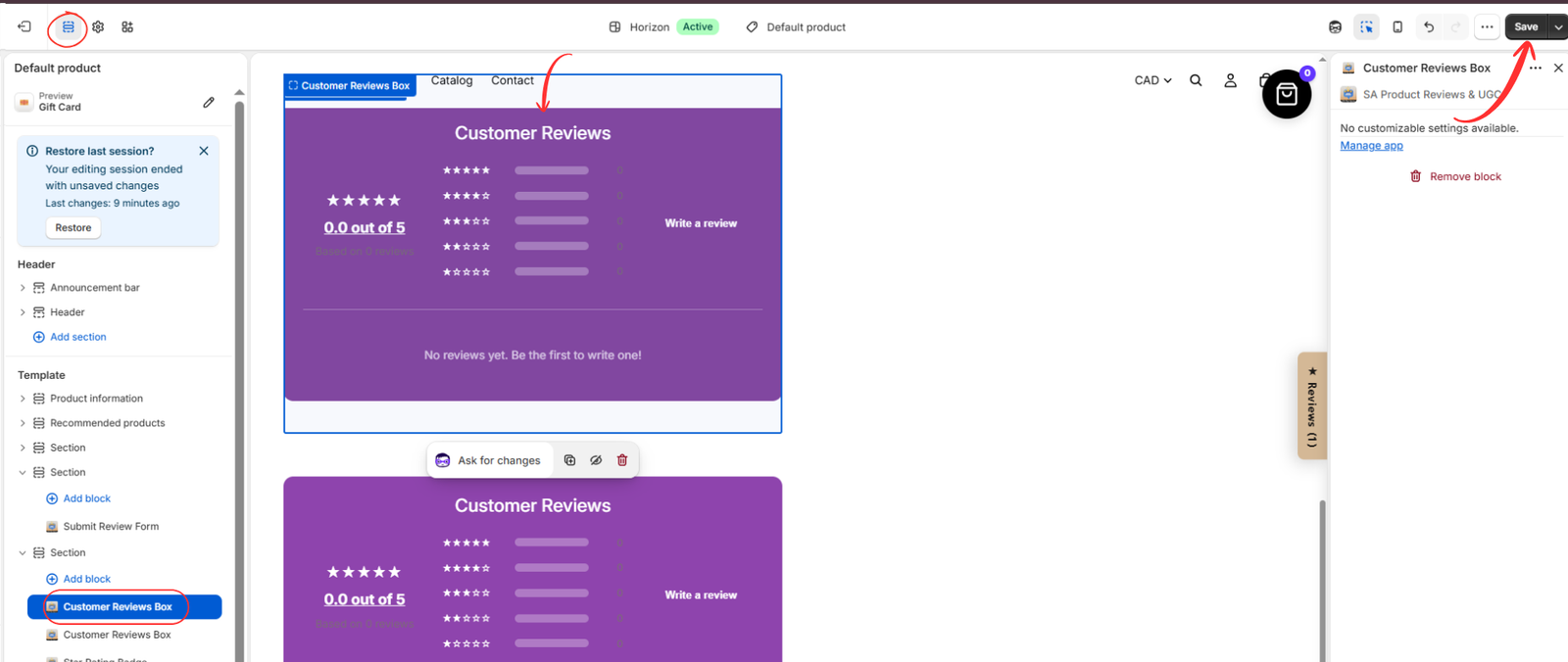
Step 7: Add the Customer Reviews Box
Select Customer Reviews Box from the available app blocks.
Place it in a suitable area of the product page, preferably near the product information or below the main product details.
The review section will use the styling configured through the app’s branding options.
Step 8: Preview and Save Your Changes
Review the Customer Reviews Box in the Shopify theme editor.
Check the widget’s appearance, colors, positioning, and readability. Make sure it looks consistent with the rest of your product page.
Finally, click Save in the upper-right corner to publish your theme changes.
The widget may display an empty-review state until genuine customer reviews are available for the product.
Best Practices for Customizing Review Widgets
Choose widget colors that complement your existing Shopify theme rather than introducing unrelated colors. Maintain enough contrast between text and background colors to keep customer reviews readable.
Place reviews where customers can easily find them, and check how the widget looks on mobile devices as well as desktop screens.
Most importantly, display authentic customer feedback to help shoppers make informed decisions.
Conclusion
Customizing your Shopify review widget helps create a more consistent and professional storefront.
With SA Product Reviews & UGC, you can select branding presets, preview widget designs, and add customer review blocks directly through Shopify’s theme editor.
A well-integrated review section makes it easier for shoppers to discover genuine customer experiences without disrupting your store’s design.
Get started: Install SA Product Reviews & UGC on Shopify.




