HOW TO DEBUG SHOPIFY LIQUID ERRORS USING AN AI CODE EDITOR

Introduction
Shopify Liquid is the templating language that powers much of a Shopify store’s theme. It controls how products, collections, sections, and dynamic storefront content are displayed.
Although Liquid provides powerful customization options, even a small coding mistake can cause problems with your store’s appearance or functionality.
You may encounter broken collection pages, missing product information, incorrectly displayed sections, Liquid syntax errors, or unexpected storefront behavior.
For merchants without coding experience, finding the source of these problems can be difficult. Shopify theme files often contain a combination of Liquid, HTML, CSS, JavaScript, and JSON, making troubleshooting even more complicated.
Fortunately, AI-powered tools can help merchants investigate and repair theme code problems more efficiently.
In this tutorial, you’ll learn how to debug Shopify Liquid errors using an AI code editor, with AI Theme Code Editor.
We’ll explain how to install the app, connect your Shopify theme, ask AI to investigate errors, review the suggested code changes, and preview your storefront before applying updates.
The Merchant’s Challenge: Why Shopify Liquid Errors Are Difficult to Fix
Shopify merchants frequently encounter technical challenges when customizing their storefronts.
1. Liquid syntax errors
Liquid templates rely on specific tags, filters, objects, and syntax.
A missing closing tag, invalid filter, or incorrect variable reference may cause errors or prevent sections from displaying properly.
2. Difficulty locating the source of an error
Shopify themes contain many files organized into folders such as sections, snippets, templates, assets, and layout.
Identifying the file responsible for a problem can be confusing, especially for merchants unfamiliar with theme development.
3. Broken layouts after customization
Changes to Liquid templates can affect the HTML structure and styling of a storefront.
For example, incorrect markup or conflicting CSS may cause product cards to become misaligned or sections to overlap.
4. Problems with JSON templates
Modern Shopify themes use JSON templates and section settings to configure storefront layouts.
Incorrect configuration or schema changes can create compatibility problems.
5. Risk of damaging existing functionality
Editing theme code without understanding its dependencies may affect important features, including product grids, filters, variant selectors, and cart functionality.
6. Developer costs and troubleshooting delays
Merchants often rely on developers to investigate relatively small theme issues.
Although some problems require professional assistance, AI can help merchants handle certain debugging tasks more independently.
Why Is Debugging Shopify Liquid Errors Important?
A Shopify theme error can affect more than the appearance of your storefront.
Depending on the issue, customers may experience missing content, broken product pages, navigation problems, or malfunctioning purchasing controls.
Resolving these problems helps maintain a reliable shopping experience.
Regular theme debugging is also important after installing new apps, modifying sections, adding custom features, or updating your Shopify theme.
By identifying errors early, merchants can reduce the risk of larger technical problems.
The Role of AI in Shopify Liquid Debugging
Traditionally, debugging Liquid errors involves manually examining theme files, interpreting error messages, checking syntax, and testing code changes.
AI-powered code editors can simplify parts of this process.
Instead of manually searching through every file, merchants can describe the problem using plain English.
An AI assistant can inspect relevant code, identify potential issues, and suggest or generate modifications.
For example, merchants can ask AI to investigate invalid Liquid syntax, incorrect variable references, broken HTML structures, conflicting CSS, or JSON schema problems.
However, AI-generated solutions are not guaranteed to be correct. Proposed changes should always be reviewed and tested before being applied to a live storefront.
Introducing AI Theme Code Editor by SectionKit
AI Theme Code Editor is a Shopify application that helps merchants inspect, modify, and troubleshoot their theme code using natural-language instructions.
The app provides an integrated workspace that combines a theme file explorer, code editor, AI assistant, and preview tools.
Instead of manually writing every code modification, merchants can describe their requirements and use AI to assist with the process.
Key Features
- AI-assisted debugging: Ask the assistant to investigate Liquid and other theme code errors.
- Theme file explorer: Browse your Shopify theme’s files from a centralized interface.
- Liquid, CSS, and JavaScript editing: Work with different types of Shopify theme code.
- JSON and schema troubleshooting: Investigate problems involving theme configuration.
- Natural-language instructions: Describe bugs or customization requests in plain English.
- Sandbox controls: Review and save proposed changes within the editing workflow.
- Live Preview: Inspect storefront changes through the preview option.
- Custom theme modifications: Use AI assistance to create or modify storefront features.
App Link: AI Theme Code Editor on the Shopify App Store
Step-by-Step Guide: How to Debug Shopify Liquid Errors Using AI
Follow these eight steps using the original screenshots from your AI Theme Code Editor app.
Step 1: Search for the Shopify App Store
First, open your browser and search Google for Shopify App Store.
Locate the official Shopify App Store result and click it.
You can also visit https://apps.shopify.com directly.
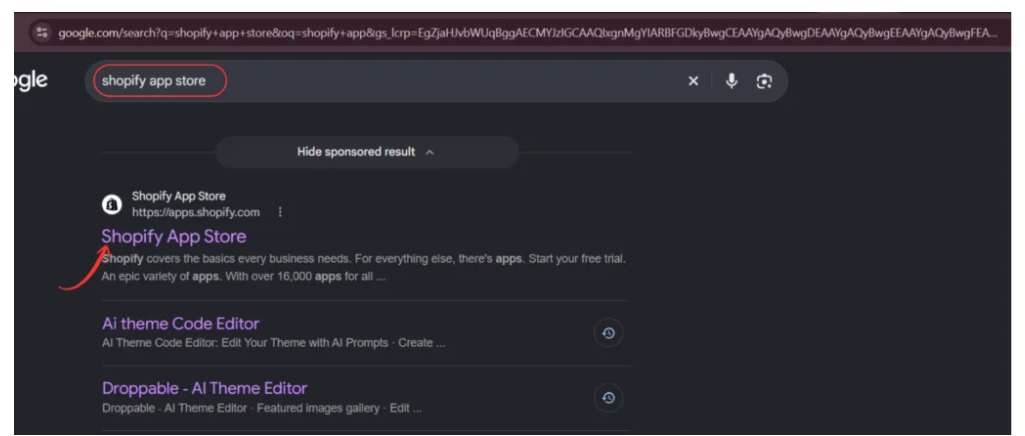
Image 1: Search for the official Shopify App Store on Google.
The Shopify App Store provides applications for store customization, marketing, design, automation, and theme development.
Step 2: Search for AI Theme Code Editor
Once you open the Shopify App Store, locate the search bar at the top.
Type AI Theme Code Editor and search.
Find the app named AI theme Code Editor, featuring a code-editor icon.
Select the app to open its listing.

Image 2: Search for AI Theme Code Editor and select the correct app from the results.
This application is designed to help merchants customize and troubleshoot their Shopify themes using AI-powered code editing.
Step 3: Install AI Theme Code Editor
After opening the app listing, review its description, functionality, and pricing information.
Click Install to begin adding the application to your Shopify store.
Follow the Shopify authorization process to complete installation.
If you have already installed the app, you may see an Open button instead.

Image 3: Review the app listing and click Install to add AI Theme Code Editor to Shopify.
Once installed, the application becomes accessible through your Shopify admin dashboard.
Step 4: Connect Your Shopify Theme
Open AI Theme Code Editor from your Shopify admin.
Navigate to Connected Themes from the app’s sidebar.
This page displays your connected themes and allows you to connect another theme.
Click Connect theme to choose the Shopify theme you want to inspect.
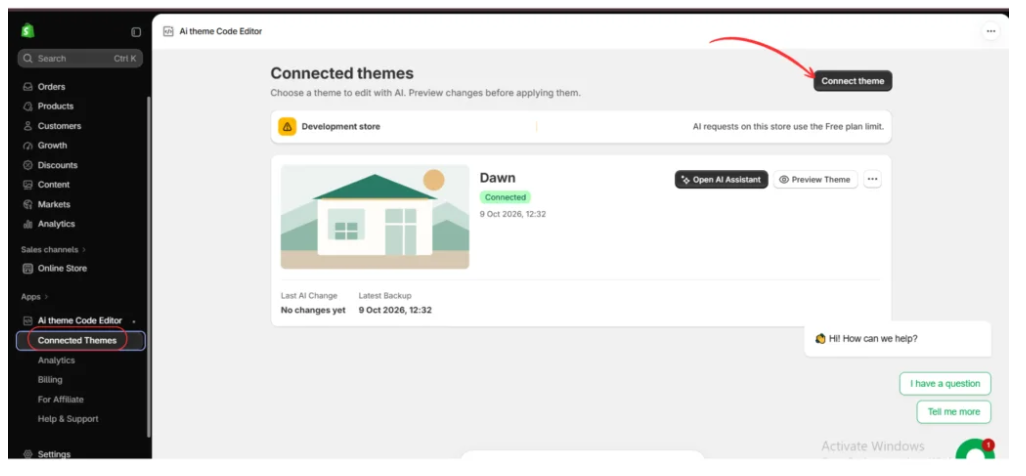
Image 4: Open Connected Themes and connect the Shopify theme you want to debug.
In the example screenshot, the Dawn theme is already connected.
Before making modifications, confirm you are working on the intended theme.
For important changes, consider duplicating your Shopify theme first so you have a backup available.
Step 5: Open the AI Assistant
Once your Shopify theme is connected, locate it on the Connected Themes page.
The theme card provides an Open AI Assistant button.
Click this button to launch the AI editing workspace.

Image 5: Click Open AI Assistant on the connected Dawn theme.
The editing workspace contains three important areas: the theme file explorer, the central code editor, and the AI Assistant panel.
You can now begin investigating your theme’s Liquid errors.
Step 6: Ask AI to Identify and Fix Liquid Errors
Inside the AI editing workspace, locate the chat input in the AI Assistant panel.
Describe the errors you want to investigate.
Your screenshot shows a request asking the AI to examine Shopify theme code, including Liquid, HTML, CSS, JavaScript, and JSON files.

Image 6: Enter a prompt asking the AI Assistant to identify and fix Shopify theme code errors.
Exact AI Prompt to Debug Shopify Liquid Errors
Copy this prompt into AI Theme Code Editor Copy
Find and fix all detectable Liquid errors in my Shopify theme. Check Liquid syntax, invalid variables, missing endif and endfor tags, incorrect filters, broken section references, and schema issues. Also inspect related HTML, CSS, JavaScript, and JSON where necessary. Preserve the existing design and functionality, make only necessary changes, and explain each fix so I can review it before applying.
This prompt tells the AI which errors to investigate and emphasizes the importance of preserving existing theme functionality.
If Shopify displays a specific Liquid error message, include that exact message in your prompt to help the assistant identify the problem.
Step 7: Review AI-Generated Fixes and Save Sandbox Changes
After submitting your request, the AI Assistant begins analyzing the relevant theme code.
In your screenshot, the assistant examines the file:
sections/main-collection.liquid
The assistant’s response discusses issues involving padding settings, schema IDs, and Liquid references.
For example, the screenshot identifies inconsistencies between a hyphenated setting ID and its underscore-based Liquid reference.
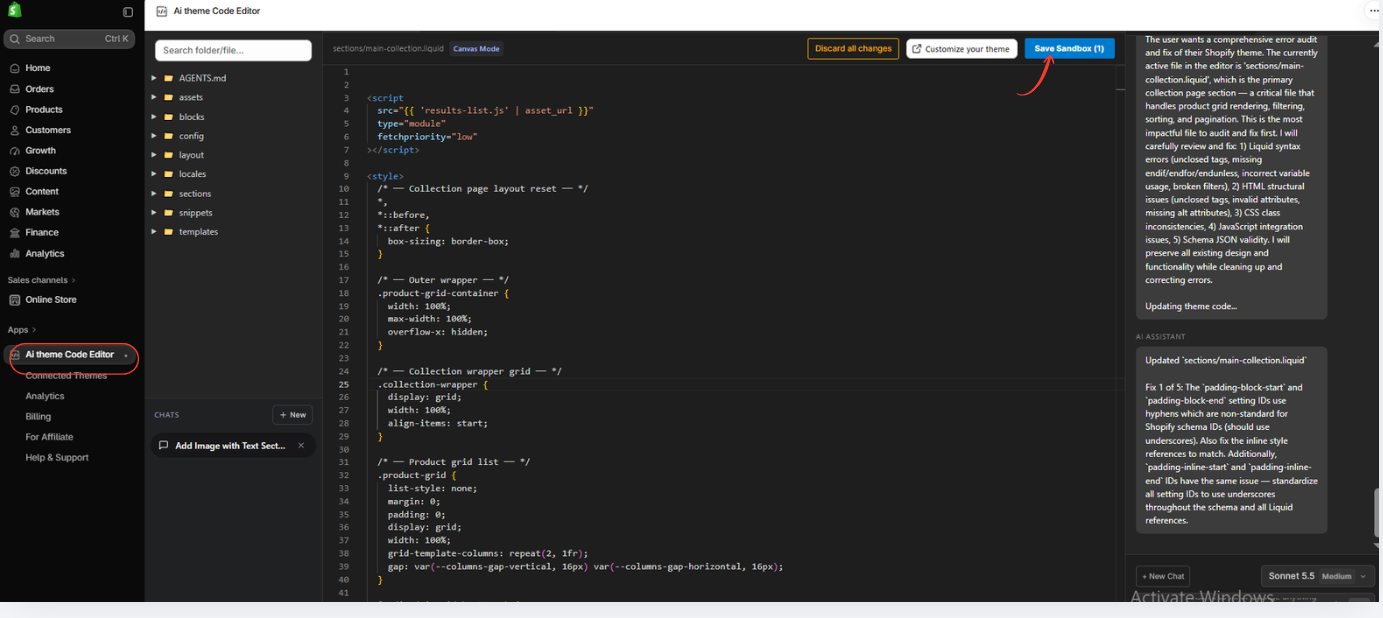
Image 7: Review the AI-generated code modifications and click Save Sandbox to save the proposed changes.
Incorrect references can prevent theme settings from being applied as intended.
The AI assistant proposes standardizing the relevant setting IDs and corresponding Liquid references.
Before proceeding, examine the generated modifications and confirm that they are appropriate for your theme.
You can also review whether existing sections, product grids, and other features remain unchanged.
When you are satisfied with the proposed modifications, click Save Sandbox.
This saves the changes within the app’s sandbox workflow for further review.
Step 8: Preview Your Shopify Theme After Debugging
Once your changes are saved in the sandbox, select the Live Preview tab.
The app provides an Open Live Preview button to help you inspect the storefront.
Click the button to open the Shopify preview.
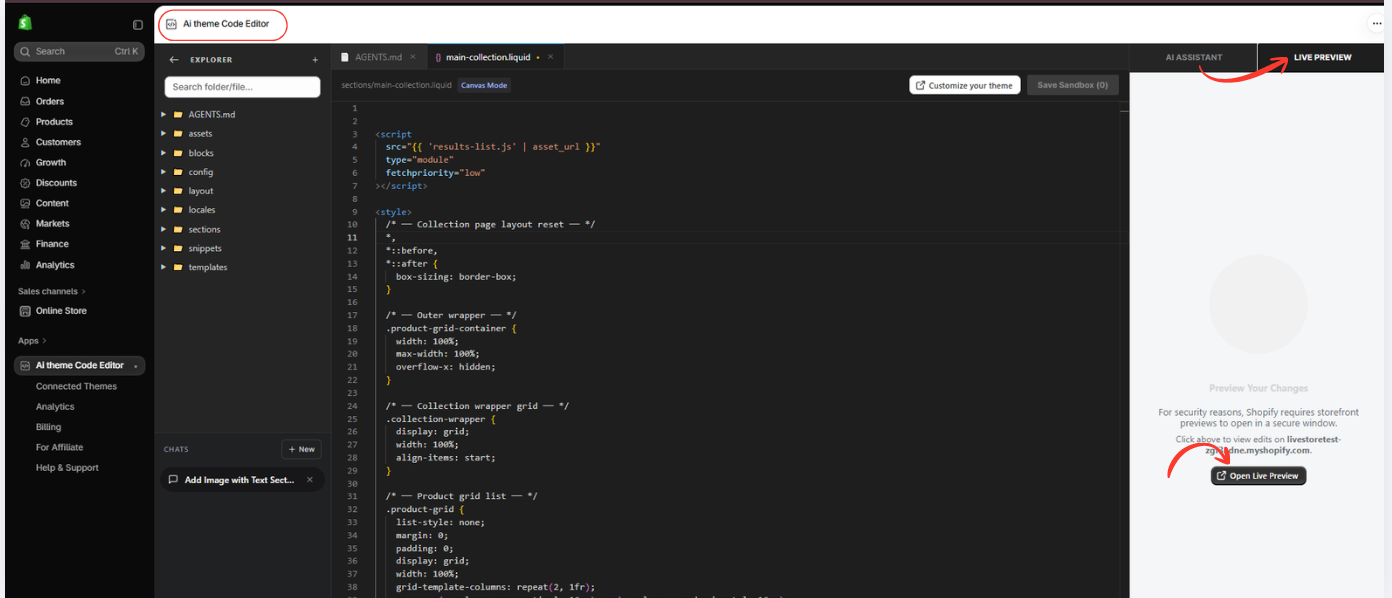
Image 8: Open Live Preview to inspect the updated Shopify theme and check whether the errors have been resolved.
Review the sections that were previously displaying errors.
Check product cards, collection grids, navigation menus, section settings, and other relevant storefront elements.
Test the changes on desktop and mobile.
If you are debugging a specific Liquid error, revisit the page where it originally appeared and confirm whether the issue has been resolved.
The supplied screenshot shows the preview-opening workflow, rather than a completed storefront test. You should verify the result before approving or applying changes to the live theme.
Common Shopify Liquid Errors AI Can Help Investigate
Liquid syntax errors
Incorrect tags or missing closing statements can prevent Liquid templates from rendering properly.
Undefined or incorrect variables
A template may reference an object, variable, or setting that is unavailable or incorrectly named.
Invalid Liquid filters
Using an unsupported filter or incorrect filter arguments may cause unexpected output or template errors.
Section schema issues
Incorrect setting IDs, invalid JSON, or mismatched schema references can affect section customization.
Broken product and collection templates
Problems in theme templates may cause missing product information, broken grids, or incorrect page layouts.
Liquid and HTML structure issues
Incorrect nesting or malformed markup can cause layout and rendering problems.
Conflicting CSS or JavaScript
Not every apparent Liquid problem originates in Liquid itself. Some issues require inspecting related stylesheets and scripts.
AI can help examine these areas, but the final result should be verified through testing.
Best Practices for Debugging Shopify Liquid Errors
Duplicate your theme before editing
Create a backup copy of your Shopify theme before applying major code changes.
Provide the exact error message
If Shopify displays an error, copy the message into the AI Assistant for more targeted troubleshooting.
Make focused requests
Rather than changing unrelated files, ask the assistant to investigate the specific problem and the files involved.
Review generated code
AI suggestions can be incorrect or incomplete. Examine the changes before approving them.
Test your storefront
Verify product pages, collections, cart functionality, filtering, navigation, and mobile layouts.
Avoid unnecessary modifications
Ask the AI to maintain your existing theme architecture and preserve the functionality that is already working.
Frequently Asked Questions (FAQs)
1. Can AI fix Shopify Liquid errors?
AI can help identify and correct many Liquid syntax, reference, and template issues. However, successful debugging depends on the specific error and the quality of the proposed changes.
2. How do I debug Shopify Liquid errors without coding?
Install AI Theme Code Editor, connect your theme, open the AI Assistant, describe the error, review the proposed fixes, and test them using the available sandbox and preview workflow.
3. Does AI Theme Code Editor work with the Dawn theme?
Your screenshots show the Dawn theme connected to AI Theme Code Editor, with the assistant editing a collection-related theme file.
4. Can I debug HTML, CSS, and JavaScript errors?
The app provides AI assistance for Shopify theme code, including Liquid, CSS, and JavaScript. You can also ask it to inspect related HTML and JSON problems.
5. Can AI detect missing Liquid closing tags?
AI can inspect Liquid templates for mismatched or missing closing tags, such as endif and endfor, and propose corrections.
6. Can AI fix Shopify section schema errors?
AI can help investigate invalid setting references, schema inconsistencies, and related configuration problems.
7. Is AI Theme Code Editor free?
The supplied listing shows the application as free to install. Paid plans and token usage charges may apply, so check the latest pricing details on the Shopify App Store.
8. Will the AI automatically change my live Shopify store?
The app includes sandbox and preview functionality. Review the available approval and application controls before applying changes to your published theme.
9. Can I undo changes if something goes wrong?
Keeping a duplicate theme provides a backup. The app also displays backup-related information, but you should verify the available restoration options before making significant changes.
10. Do I need to hire a Shopify developer?
For certain routine issues, AI-assisted debugging may reduce the need for manual developer work. Complex problems, integrations, and critical storefront functions may still require professional review.
Conclusion
Shopify Liquid errors can make theme customization frustrating, especially when merchants are unfamiliar with Liquid syntax and theme file structures.
A missing tag, incorrect setting reference, or broken template can affect how your storefront behaves and appears to customers.
With AI Theme Code Editor by SectionKit, merchants can use natural-language instructions to investigate errors, generate code modifications, and review their work using sandbox and preview functionality.
Instead of manually searching through every file, you can ask AI to help identify the source of a problem and suggest relevant corrections.
For the best results, always review proposed modifications, create backups, and test your storefront before publishing changes.
If you want to simplify Shopify Liquid debugging and gain more control over your theme, explore AI Theme Code Editor.Install AI Theme Code Editor on Shopify




