DO CUSTOM CURSORS SLOW DOWN A SHOPIFY STORE?
Shopify Tutorial | Store Performance | Custom Cursor Optimization
Introduction
Website speed plays an important role in the success of an online Shopify store. Customers expect product pages to load quickly, navigation to feel responsive, and the shopping experience to remain smooth across different devices.
To make their storefronts more distinctive, many merchants experiment with visual enhancements such as animated banners, interactive effects, custom fonts, and personalized mouse cursors.
One increasingly popular customization is the custom cursor, which allows store owners to replace the standard mouse pointer with a unique design that reflects their brand.
A fashion boutique might use a pink cursor, a gaming store may prefer a glowing pointer, and a technology brand could introduce futuristic mouse effects.
However, before enabling these features, merchants often ask an important question:
Do custom cursors slow down a Shopify store?
The answer depends on how the custom cursor is implemented.
A lightweight cursor image or a simple CSS-based customization usually has a small performance impact. However, poorly optimized animations, excessive particle effects, large image assets, and inefficient JavaScript can increase browser workload and reduce responsiveness.
Fortunately, merchants can personalize their storefronts while taking practical steps to protect website performance.
In this guide, we’ll explain how custom cursors affect Shopify speed, the problems merchants commonly encounter, and how to configure Custom Cursor Pro responsibly.
What is a custom cursor in Shopify?
A custom cursor is a personalized mouse pointer that changes the appearance of the standard browser cursor on a Shopify storefront.
Instead of using the default arrow, merchants can display themed icons, branded graphics, or interactive cursor effects.
Common examples include fashion-inspired pointers, gaming icons, heart-shaped cursors, minimalist arrows, and animated effects.
Custom cursor applications may provide additional options such as cursor size adjustment, custom image uploads, hover effects, and mouse-following animations.
These features can make a store feel more personalized, but their performance impact varies depending on how they are built and configured.
Do custom cursors actually slow down Shopify stores?
Not necessarily. A custom cursor does not automatically make a Shopify store slow.
The performance impact depends on several factors.
| Cursor implementation | Potential performance impact |
|---|---|
| Small static cursor image | Usually low |
| Simple CSS cursor customization | Usually low |
| Lightweight hover effect | Low to moderate |
| Animated cursor graphics | Depends on implementation |
| Continuous JavaScript mouse tracking | Can increase main-thread work |
| Multiple particle effects | Can increase rendering workload |
| Large or unoptimized cursor assets | Can increase download and rendering costs |
These are general expectations, not measured results for any particular app.
A custom cursor can be visually appealing without causing noticeable problems, especially when it uses optimized assets and efficient rendering.
However, animations that continuously track pointer movement or create many visual elements may require more processing.
The goal is to balance customization with a responsive shopping experience.
Why Shopify store speed matters
Store speed affects how comfortably customers can browse your products and interact with your website.
A slow storefront can create several problems.
Delayed interactions
Customers may experience sluggish menus, buttons, and product selectors.
Reduced browsing comfort
Animations that stutter or lag can make the website feel less polished.
Mobile performance concerns
Mobile devices may have more limited processing power, although ordinary touchscreens generally do not display mouse cursors.
Additional browser workload
Unoptimized scripts can compete with other storefront functionality for processing resources.
Potential SEO implications
Google uses Core Web Vitals as part of its page experience considerations. However, improving individual performance scores does not guarantee higher rankings.
For these reasons, visual customization should be tested rather than assumed to be harmless or harmful.
Common challenges merchants face with custom cursors
1. Excessive animation
Some cursor effects continuously generate particles or follow the pointer across the screen. Complex implementations may increase rendering work.
2. Large cursor files
Oversized images and animations can add unnecessary download weight.
3. Multiple storefront applications
Shopify stores often use several apps. Their combined scripts and assets can affect performance, even when each app appears lightweight individually.
4. Poorly optimized JavaScript
A script that performs expensive calculations on every mouse movement can cause interaction delays.
5. Inconsistent behavior across devices
Cursor effects may behave differently on desktops, tablets, and touch-enabled laptops.
6. Difficulty measuring performance
Merchants sometimes judge speed by appearance alone without comparing actual performance measurements.
How custom cursor effects can affect website performance
There are three important areas to consider.
Page loading
If a custom cursor app downloads additional JavaScript, stylesheets, images, or animation assets, those resources can contribute to the page’s loading workload.
Interaction responsiveness
When a customer moves the mouse, cursor scripts may need to update visual elements. Inefficient event handling can compete with other browser tasks.
Rendering and animation
Particle trails, shadows, and continuously moving graphics may increase the work needed to paint or composite the page.
This does not mean merchants should avoid animated cursors entirely. It means they should use effects selectively and test their impact.
Introducing Custom Cursor Pro
Custom Cursor Pro, listed as Custom Cursor on the Shopify App Store, is developed by SectionKit.
The app helps merchants personalize their storefronts with ready-made cursor designs, custom uploads, and optional interactive effects.
It provides a visual interface for selecting cursor styles, adjusting their size, previewing designs, and configuring effects.
Merchants can experiment with simple cursor designs before introducing more elaborate animations.Explore Custom Cursor Pro on the Shopify App Store
Why use Custom Cursor Pro?
The application provides several useful customization features:
- A gallery of ready-made cursor designs.
- Different cursor categories for various store niches.
- Cursor size adjustment.
- Preview functionality before publishing.
- Custom cursor uploads on eligible plans.
- Optional animated cursor effects.
- Save & Publish controls.
- Shopify theme app embed integration.
These features can simplify customization compared with manually implementing cursor code.
However, using an app does not automatically guarantee better performance. Merchants should still measure their storefront before and after enabling it.
Step-by-step guide: How to add custom cursors without unnecessarily slowing down Shopify
Follow this procedure to install Custom Cursor Pro, select a suitable cursor, limit unnecessary visual effects, and check your store’s performance.
The following images are the 10 original screenshots from your previous Custom Cursor tutorial, arranged in the same order.
Step 1: Open the Shopify App Store
Start by opening Google and searching for Shopify App Store.
Click the official Shopify App Store website to access Shopify’s marketplace.
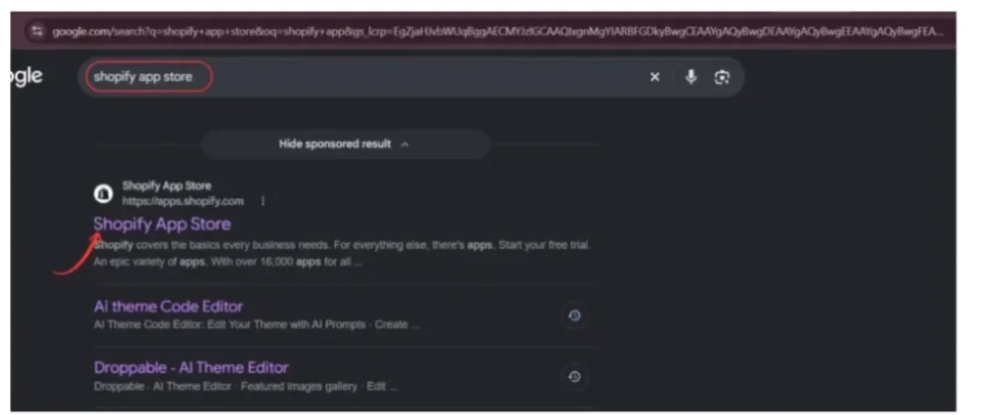
Image 1: Search for the official Shopify App Store on Google.
Using the official marketplace helps you locate the correct application and review its available features before installation.
Step 2: Search for Custom Cursor
Once the Shopify App Store opens, locate the search bar.
Enter:
custom cursor app
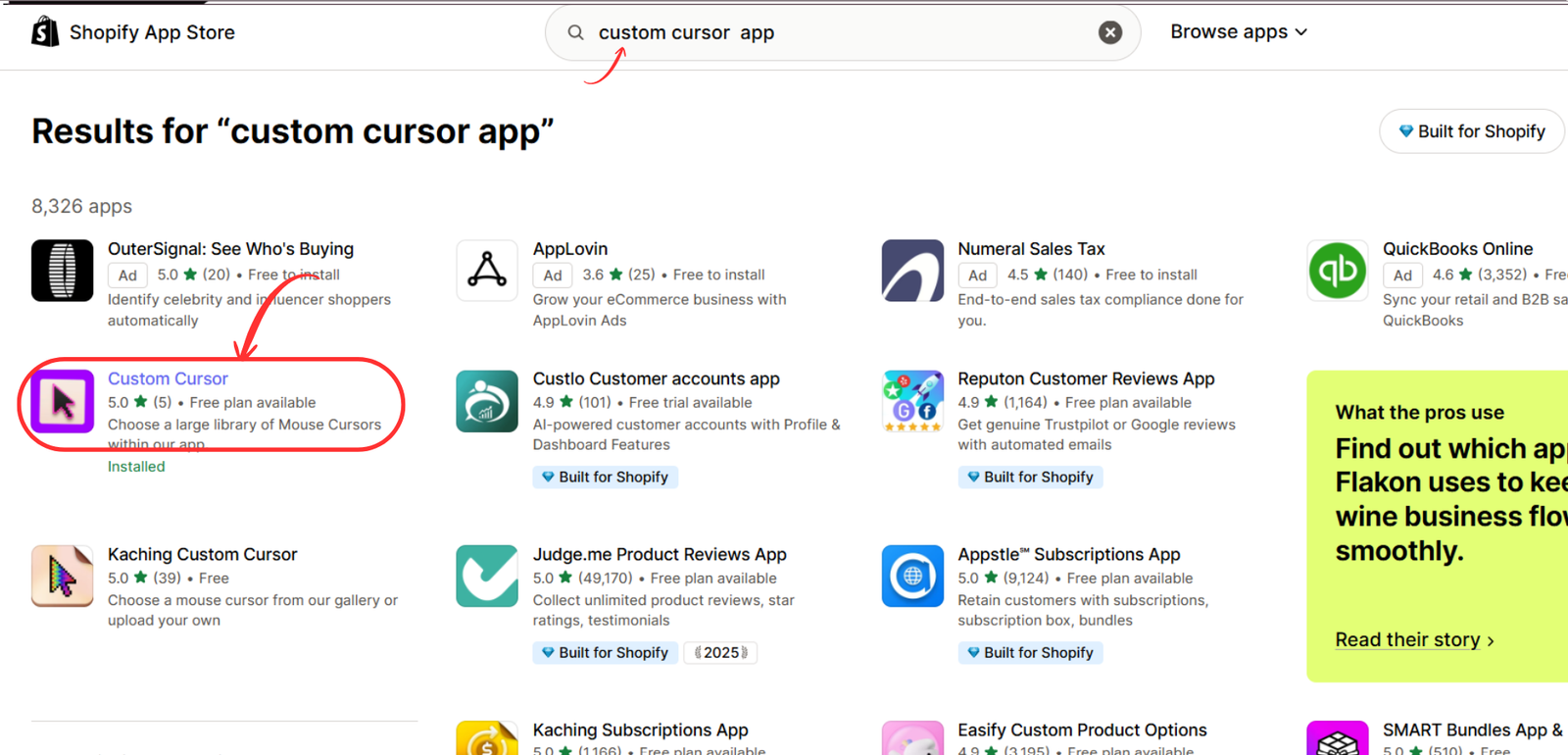
Press Enter to display the results.
Find Custom Cursor, developed by SectionKit.
Custom Cursor search results on Shopify App StoreImage 2: Locate the Custom Cursor application in Shopify App Store search results.
Click the application to open its listing.
Step 3: Install and open Custom Cursor Pro
Review the app’s description, available features, screenshots, and pricing information.
Click Install if the app is not already installed.
If you have previously installed it, click Open.
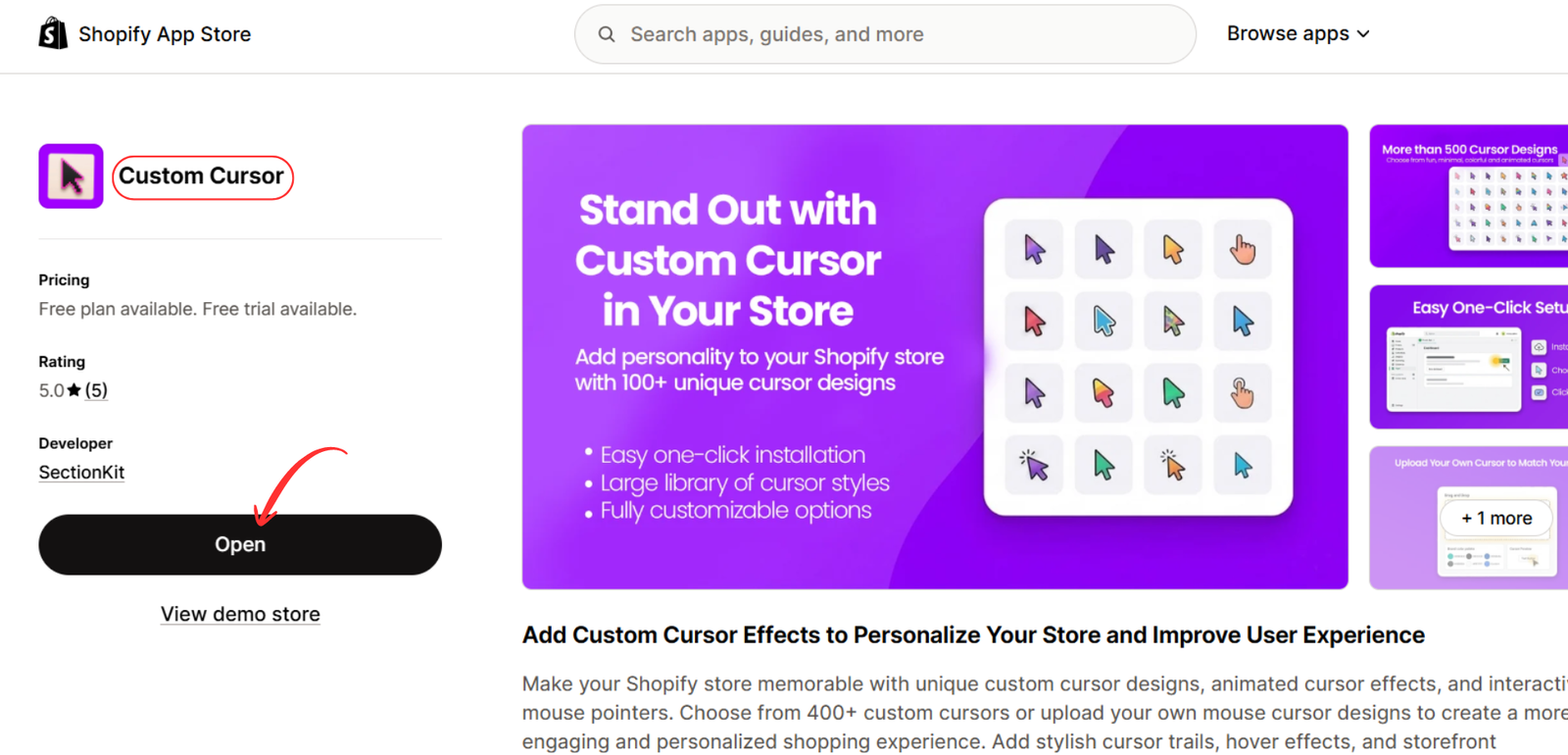
Custom Cursor Pro app listingImage 3: Open the Custom Cursor application listing and proceed with installation.
Once installed, open the application from your Shopify admin.
Before activating the cursor on your live theme, consider testing it on a duplicate or draft theme.
Step 4: Choose a suitable pricing plan
Custom Cursor Pro offers different subscription plans based on the number of available designs and customization features.
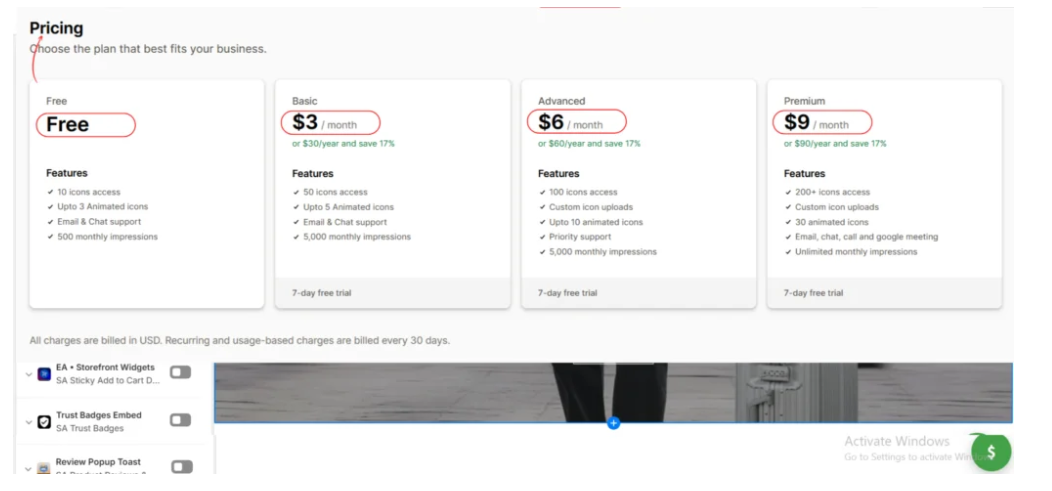
Image 4: Compare Custom Cursor’s Free, Basic, Advanced, and Premium plans.
According to your provided image, the plans include:
| Plan | Monthly price | Cursor access |
|---|---|---|
| Free | $0 | 10 icons |
| Basic | $3 | 50 icons |
| Advanced | $6 | 100 icons |
| Premium | $9 | 200+ icons |
These are the prices displayed in your supplied image; current plans and limits should be checked in the app.
For merchants concerned about performance, starting with a simple cursor design is sensible.
A higher-priced plan does not necessarily mean a slower storefront. Performance depends on the selected features and their implementation, not the subscription price.
Step 5: Open the cursor gallery
After opening the application, navigate to the cursor gallery.
The gallery displays different cursor designs and categories.
Browse the available options and identify a design that suits your store’s branding.
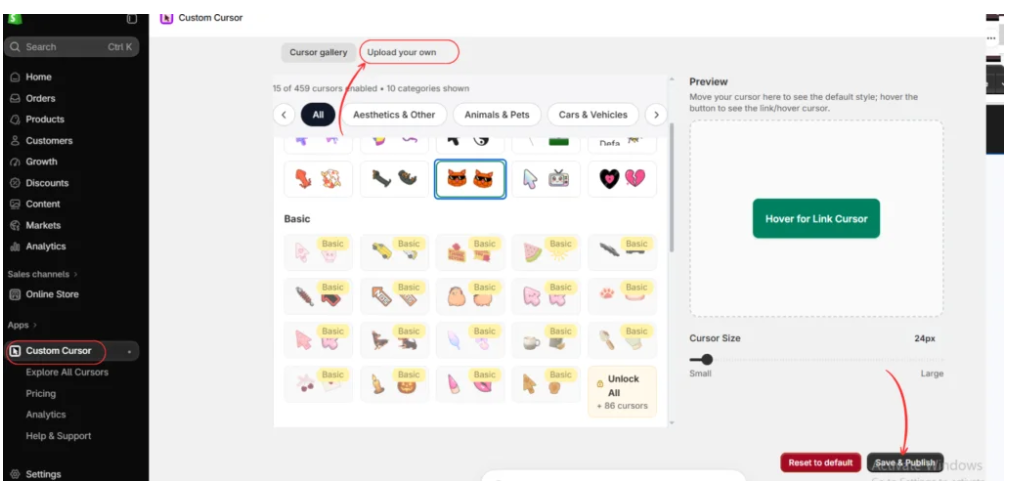
Image 5: Explore the cursor gallery and locate the custom upload option.
For better performance, consider using a simple static cursor rather than immediately selecting an elaborate animated effect.
If you upload your own cursor image, keep its dimensions appropriate and optimize the file before uploading.
Step 6: Select a lightweight cursor design
Browse the available designs and click the cursor you want to use.
The app’s preview area allows you to inspect the selected pointer.
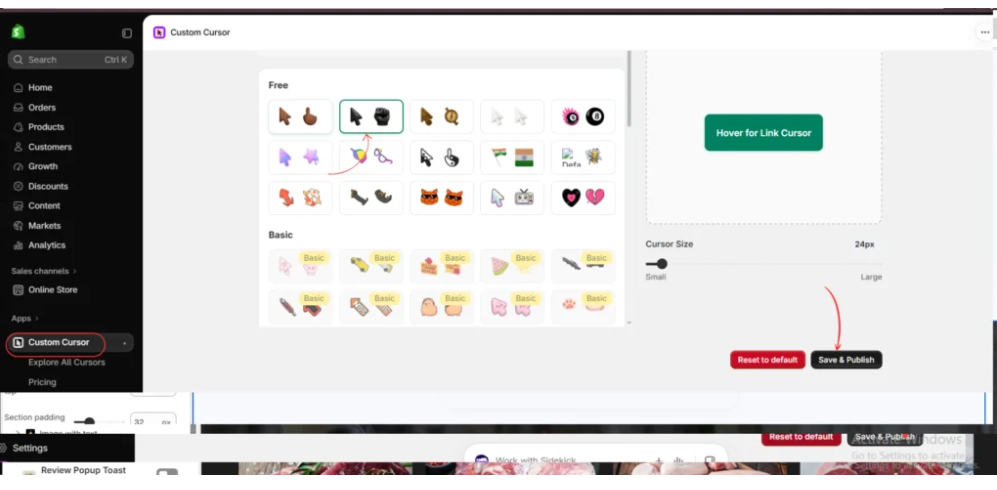
Image 6: Select a cursor design, review its preview, and adjust its size.
Use the Cursor Size slider to choose a comfortable pointer size.
A cursor that is too large may cover important product information or interfere with navigation.
Start with a simple design and click Save & Publish when you are satisfied.
Step 7: Compare different cursor styles
If you are unsure which design to use, experiment with a few alternatives.
Compare how each cursor appears against your store’s background, product images, and navigation elements.
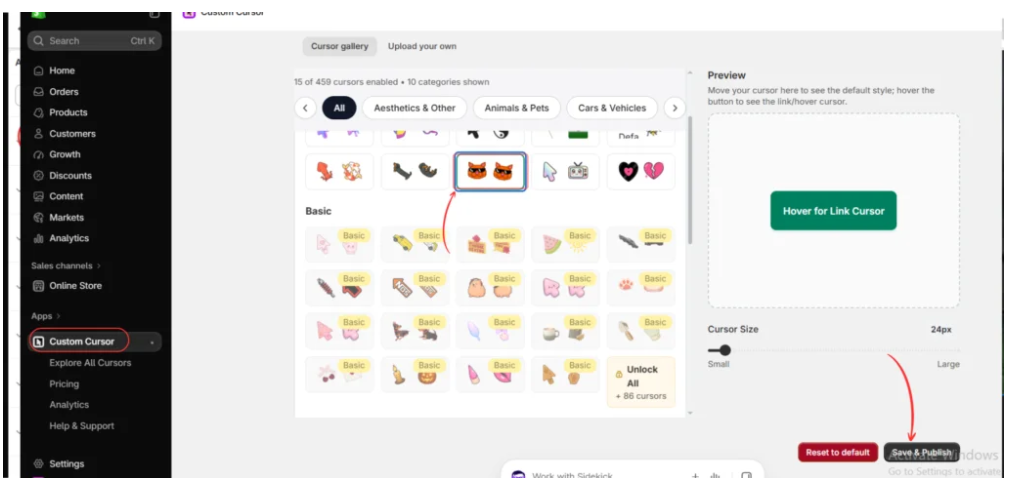
Image 7: Preview different cursor designs and save your preferred option.
For example, a minimalist black cursor may suit a luxury storefront, while a colorful illustrated pointer may complement a gaming or fashion brand.
Keep the design recognizable and easy to use.
Step 8: Start with free cursor designs
Inside the app, locate the Free cursor collection.
These designs provide a useful starting point for merchants who want to experiment with cursor customization.
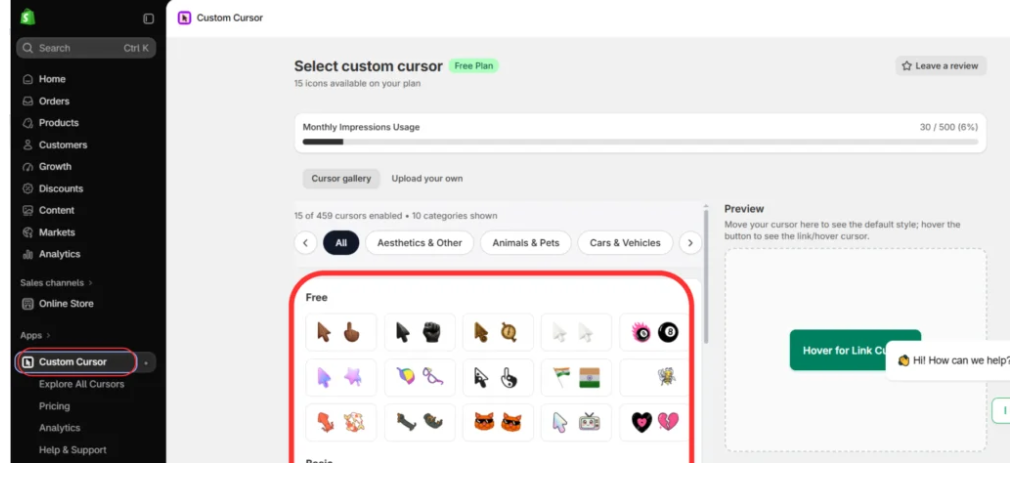
Image 8: Explore free cursor designs before experimenting with more advanced customization.
Select a simple cursor and test it on your storefront.
Remember that free does not automatically mean faster, just as premium does not automatically mean slower. The actual implementation determines the performance impact.
Step 9: Limit unnecessary cursor effects
Navigate to the Custom Cursor Effects section.
This area contains optional effects that can add visual animations to cursor movement.
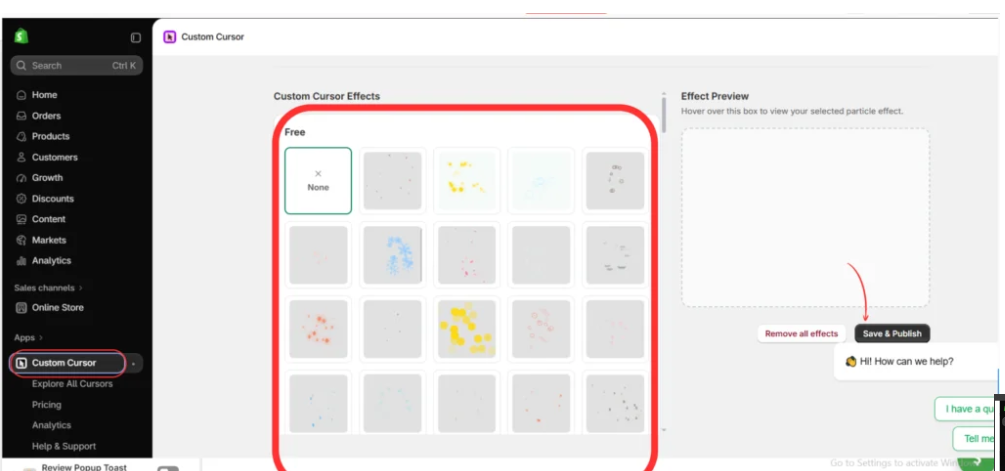
Image 9: Review available cursor effects and select a simple option when prioritizing performance.
If your main priority is maintaining a lightweight storefront, begin with None, which disables the optional effect shown in the gallery.
You can then test an animated effect separately to see whether it affects responsiveness.
Avoid enabling visual effects solely because they are available. Choose features that contribute meaningfully to your brand’s design.
Click Save & Publish after configuring the effect.
Step 10: Enable the Custom Cursor app embed
After saving your cursor configuration, open the Shopify theme editor.
Navigate to:
Online Store → Themes → Customize
Select the App embeds icon in the left sidebar.
Locate Custom Cursor and enable its toggle.
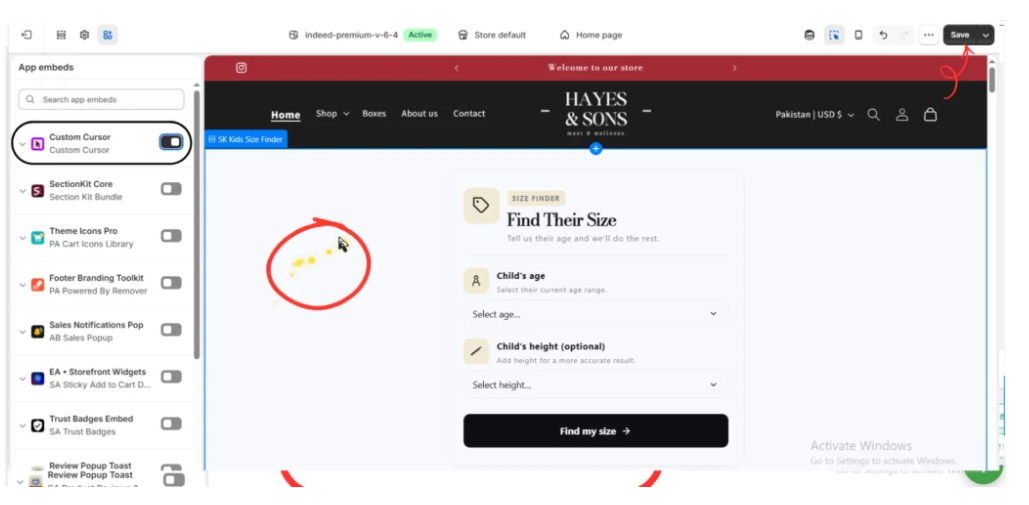
Image 10: Enable the Custom Cursor app embed and save your Shopify theme.
Click Save in the upper-right corner.
The cursor should now be available on the selected storefront theme, subject to the app’s settings and theme compatibility.
Shopify supports enabling and disabling app embeds directly through its theme editor. Extend your theme with apps
Step 11: Test your Shopify store’s performance
After activating the custom cursor, check whether it has a measurable effect on your storefront.
Use Google PageSpeed Insights to test your store.
Enter your storefront URL and run a performance report.
For a meaningful comparison, test the same page under similar conditions with the cursor app embed enabled and disabled.
Review your homepage, a representative product page, and a collection page.
Pay particular attention to the following Core Web Vitals:
| Metric | What it measures | Good threshold |
|---|---|---|
| Largest Contentful Paint (LCP) | Main content loading speed | 2.5 seconds or less |
| Interaction to Next Paint (INP) | Responsiveness to interactions | 200 ms or less |
| Cumulative Layout Shift (CLS) | Unexpected layout movement | 0.1 or less |
These are Google’s commonly used Core Web Vitals thresholds. Overview of web performance+1
Run several tests rather than relying on a single score, because test results can fluctuate.
Step 12: Compare performance before and after enabling the cursor
A simple testing table can help you identify any differences.
Shopify cursor performance comparison
Enter your own PageSpeed Insights results. Lower values are generally better for all three metrics.
| Metric | Before | After |
| LCP | ||
| INP | ||
| CLS |
Copy comparison results
If your performance remains similar and the storefront feels responsive, your cursor configuration may be acceptable.
If you observe consistent slowdowns, disable optional effects and retest.
Shopify recommends evaluating the performance impact of apps, animations, and other third-party functionality rather than assuming they are performance-neutral. Improving your online store performance
How to optimize custom cursors for better Shopify performance
Choose smaller image assets
Use appropriately sized cursor graphics rather than unnecessarily large images.
Avoid excessive animations
Use particle effects selectively and disable them if they interfere with browsing.
Test on real devices
A cursor may behave differently across browsers and computers. Test on a range of desktop devices where possible.
Prioritize interaction responsiveness
Make sure customers can interact smoothly with navigation menus, product variants, and Add to Cart buttons.
Avoid unnecessary overlapping functionality
Review whether other apps or theme scripts are already adding similar animation effects.
Respect accessibility preferences
Where possible, reduce nonessential motion for customers who prefer reduced animation.
Measure instead of guessing
Use PageSpeed Insights and Shopify’s web performance reports to compare results.
Frequently asked questions
Do custom cursors slow down Shopify stores?
Not always. Lightweight cursors may have little noticeable impact, while complex animations and inefficient scripts can increase browser workload.
Are animated cursors slower than static cursors?
They can be, particularly if they require continuous JavaScript execution or complex rendering. The actual difference depends on the implementation.
Can Custom Cursor Pro affect my Shopify speed?
Like other storefront applications, it may add resources or processing work. The specific impact should be measured on your store rather than assumed.
Are custom cursors bad for SEO?
Custom cursors are not inherently bad for SEO. However, performance problems or usability issues caused by any storefront customization can be undesirable.
Should I disable cursor animations?
If performance is your primary concern, beginning with a static cursor and no optional effects is a sensible approach.
Can I use custom cursors on mobile?
Ordinary touchscreen interactions do not use a visible mouse pointer. Some devices support external mice or trackpads, so behavior can vary.
Can I remove my custom cursor later?
Yes. You can change the cursor configuration or disable the Custom Cursor app embed in Shopify’s theme editor.
How can I check whether a cursor is affecting performance?
Compare PageSpeed Insights results and real-world responsiveness before and after enabling the cursor, using the same pages and similar testing conditions.
Conclusion
Custom cursors can be an attractive addition to a Shopify store, but their performance impact depends on how they are implemented.
A simple cursor graphic may have little noticeable effect, while complex animations, excessive particles, and inefficient scripts can increase browser workload.
The most effective approach is to balance visual customization with usability and performance.
Custom Cursor Pro provides merchants with a convenient way to explore cursor designs, adjust their appearance, preview effects, and activate supported features through Shopify’s theme editor.
By starting with a simple cursor, limiting unnecessary animations, and measuring performance before and after activation, merchants can make better decisions about their storefront customization.
A personalized cursor should complement the shopping experience—not compete with it.
Ready to explore custom cursor designs for your Shopify store?Install Custom Cursor Pro from the Shopify App Store




