DO SALES POPUPS INCREASE CONVERSIONS? WHAT SHOPIFY STORE OWNERS SHOULD KNOW
Shopify Conversion Optimization | Sales Notifications | Social Proof | AB Sales Popup | 2026

Introduction
Getting visitors to your Shopify store is only half the challenge. The real challenge is convincing them to trust your business and complete a purchase.
Customers may visit your product pages, explore your collections, and add items to their carts but still leave without buying anything.
This is where sales popups can become useful.
Sales popups are small notifications that display purchase activity on your Shopify store. They provide evidence that other customers are buying products, helping new visitors evaluate your store’s credibility.
But an important question remains:
Do sales popups actually increase Shopify conversions?
The answer is that they can, but not for every store.
Their effectiveness depends on factors such as genuine purchase data, popup design, timing, placement, and the customer’s overall shopping experience.
In this guide, we’ll explore how sales popups affect conversion rates, what research suggests, when they might hurt performance, and how to configure them using AB Sales Popup, with your actual app screenshots included in the setup steps.
What Are Sales Popups on Shopify?
Sales popups are small notifications that appear on an online store to display recent customer purchase activity.
For example, a Shopify store selling footwear might display:

These notifications are designed to communicate social proof: evidence that other customers have purchased from the store.
When the information is authentic, it can make an unfamiliar business feel more credible to new visitors.
Why Shopify Store Owners Use Sales Popups
1. Build customer trust
First-time visitors may hesitate to purchase from stores they don’t recognize. Seeing genuine purchasing activity can provide additional reassurance.
2. Highlight product popularity
Sales notifications can bring attention to products that customers have actually purchased.
3. Reduce purchase hesitation
Relevant social proof may help customers feel more confident when evaluating a product.
4. Support product discovery
Notifications that reference real purchases can introduce shoppers to other products in your catalog.
5. Make the storefront more engaging
Subtle purchase notifications can add activity to an online store without requiring major design changes.
However, these benefits depend on how the notifications are implemented.
Do Sales Popups Really Increase Conversion Rates?
Sales popups can improve conversions in some situations, but there is no universal percentage increase that merchants should expect.
A useful example comes from a 2026 analysis by DTC Pages of 170 social-proof A/B tests conducted on Shopify stores between 2021 and 2026.

Results from 170 social-proof A/B tests reported by DTC Pages, October 2026. These include several types of social proof, not just sales popups. DTC Pages
The same analysis reported that purchase-activity popups won two of six tests, but the sample was too small to establish a reliable benchmark.
Importantly, one mobile experiment found that removing a purchase popup improved conversions, while displaying similar purchase information inline produced a better result.
This suggests that how social proof is displayed can matter as much as the information itself. DTC Pages
The practical takeaway is to test sales popups on your own Shopify store rather than assuming they will automatically increase sales.
When Can Sales Popups Hurt Conversions?
Poorly configured notifications can create the opposite effect.
Popups appear too frequently
Customers may become frustrated when notifications repeatedly interrupt them.
Notifications cover important elements
Popups can interfere with Add to Cart buttons, navigation menus, and product information, especially on mobile devices.
Notifications contain misleading information
Fake purchases, invented customer names, or inaccurate timestamps can damage trust.
The design doesn’t match the store
Large or distracting notifications can make an otherwise professional storefront feel cluttered.
Notifications appear too early
A customer who has just opened a product page may want to inspect the product before receiving additional promotional messages.
Research on mobile ecommerce usability also recommends limiting unnecessary popups and using them carefully to avoid disrupting shoppers. conversionxl.com
Introducing AB Sales Popup
AB Sales Popup is a Shopify application that allows merchants to display purchase notifications and customize how they appear.
The application also includes visitor counters, sold counters, stock countdown bars, and promotional countdown timers.
For sales notifications specifically, it offers:
- Festive, Basic, and Custom themes.
- Light Mode and Dark Mode.
- Dynamic customer and product information.
- Custom popup colors.
- Border and corner-style controls.
- Desktop and mobile positioning.
- Display timing and notification frequency.
- Product and collection targeting.
- A Verified Orders Feed interface.
- Shopify app embed integration.
App link: Install AB Sales Popup on Shopify
How to Add and Optimize Sales Popups on Shopify Without Coding
Step 1: Open the Shopify App Store
Open Google and search for Shopify App Store.
Click the official Shopify App Store search result.
You can also visit apps.shopify.com directly.
Step 2: Search for AB Sales Popup
Inside the Shopify App Store, search for AB Sales Popup.
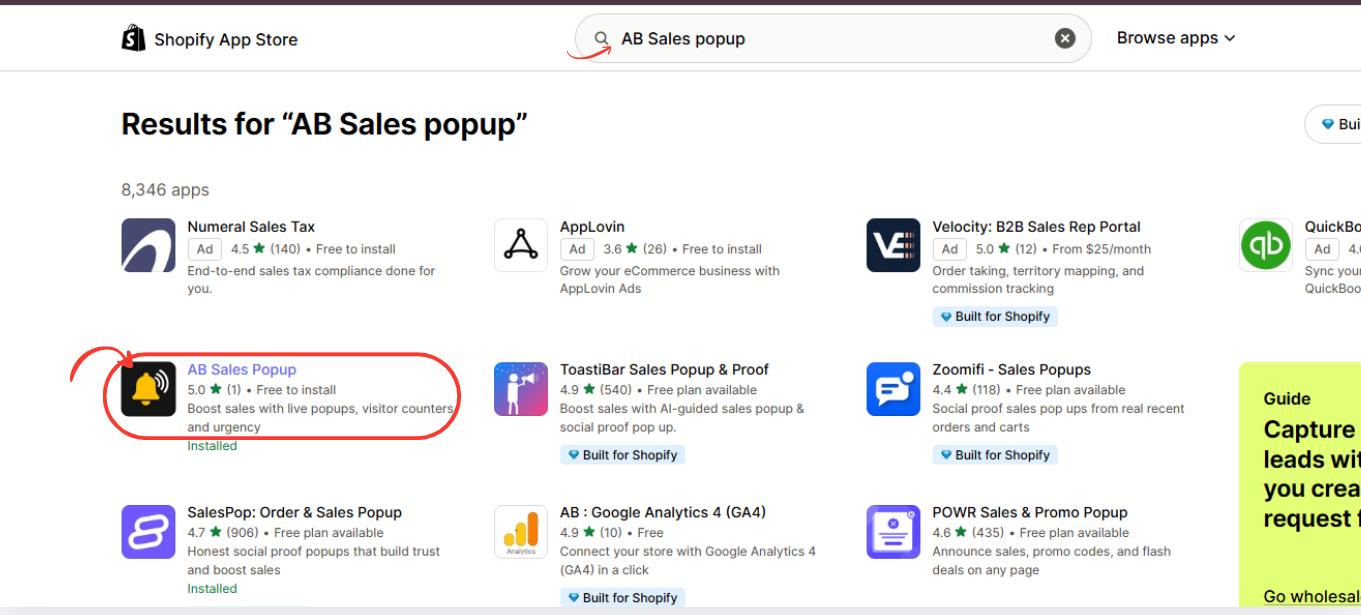
Image 1: Search for AB Sales Popup in the Shopify App Store and identify the app with the black-and-yellow bell icon.
Image explanation: The screenshot shows AB Sales Popup highlighted in the search results.
Click its name to open the official app listing and review its features.
Step 3: Install and Open AB Sales Popup
On the application listing, click Install.
If the app is already installed, click Open.

Image 2: The AB Sales Popup listing showing its sales notification and social proof features.
Image explanation: This screenshot shows the app’s promotional preview and Open button.
After installation, you can access it through your Shopify Admin.
Step 4: Enable Sales Notifications
Navigate to:
Shopify Admin → Apps → AB Sales Popup → Dashboard
Scroll to Manage Features and locate Sales Notifications.

Image 3: AB Sales Popup dashboard showing the Sales Notifications feature and its enable controls.
Image explanation: The screenshot shows Sales Notifications alongside Countdown Timer, Stock Countdown, Visitor Counter, and Sold Counter.
Make sure Sales Notifications is switched On.
Click Settings to configure the feature, or use Sales Notifications in the left sidebar.
Step 5: Choose Your Sales Popup Theme
Inside Sales Notifications, open the Popup Content tab.

Image 4: Sales Notifications settings showing Festive, Basic, and Custom theme options with a live preview.
Image explanation: Your screenshot shows the Festive popup theme selected.
Under Set Appearance, you can switch between Light Mode and Dark Mode.
A preview of the notification appears on the right.
For most storefronts, choose a theme that complements the design of the website rather than selecting the most visually prominent option.
Step 6: Try a Minimal Popup Design
Select Basic under Popup Theme.
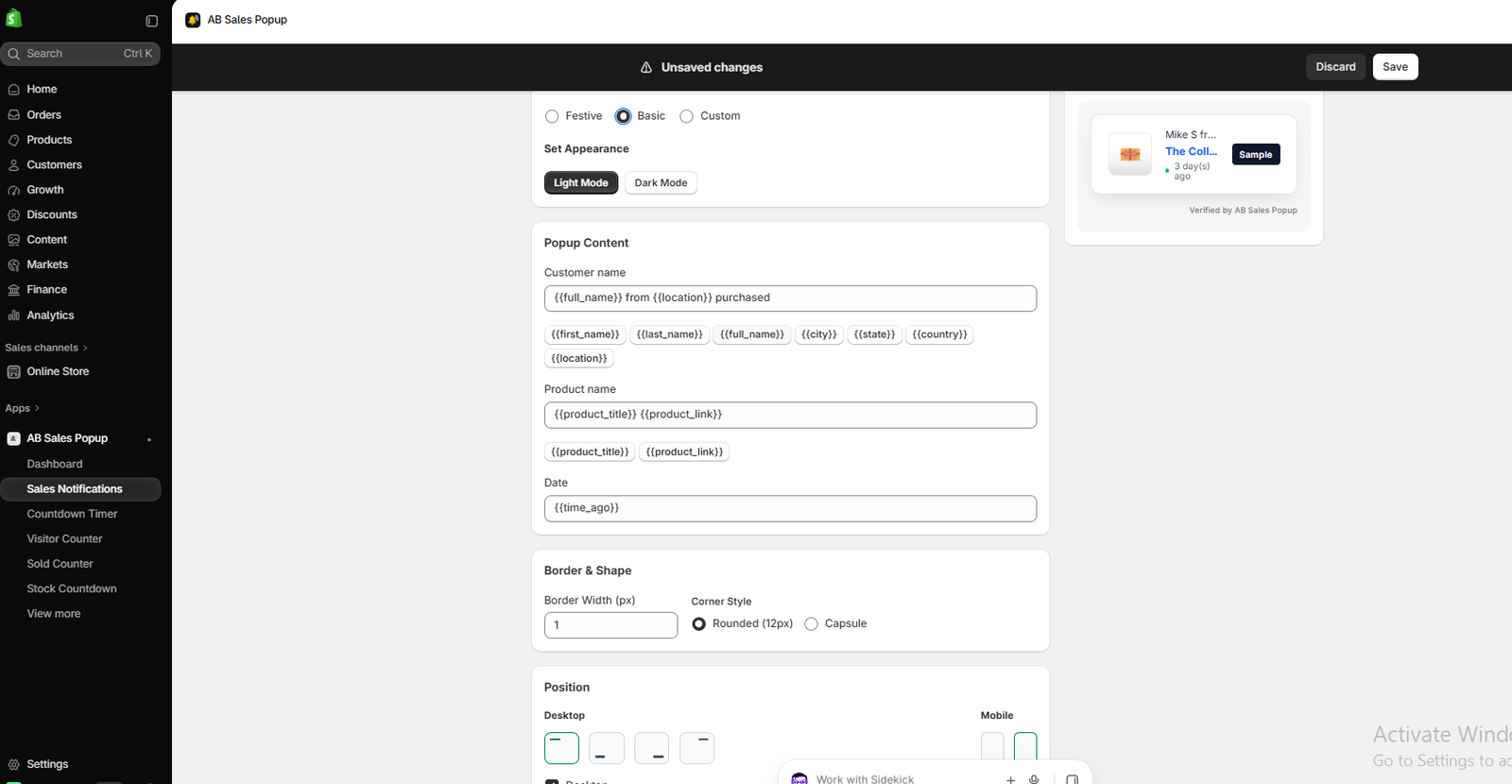
Image 5: Basic popup theme showing a simpler notification appearance.
Image explanation: The Basic theme displays purchase-related information in a more minimal notification design.
The screenshot shows the customer information, product information, and purchase time within the preview.
A clean popup design may be a good starting point for Shopify stores that prioritize a minimalist shopping experience.
Test whether customers respond better to Basic or another theme rather than assuming one style will always convert better.
Step 7: Customize Sales Popup Colors
For additional design control, select Custom under Popup Theme.
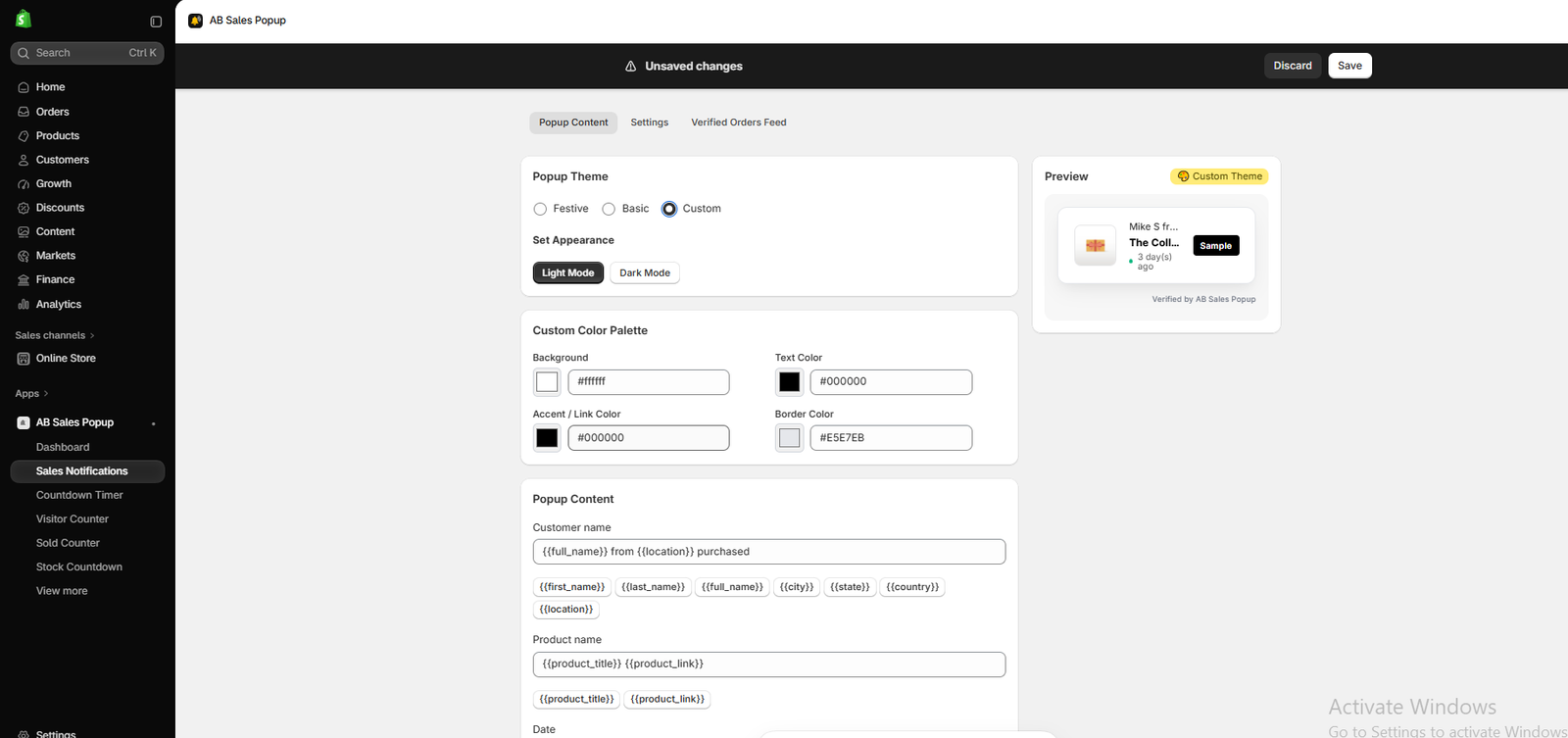
Image 6: Custom popup theme showing background, text, accent, and border color settings.
Image explanation: The Custom Color Palette section contains the following controls:
| Setting | Screenshot value |
|---|---|
| Background | #FFFFFF |
| Text Color | #000000 |
| Accent / Link Color | #000000 |
| Border Color | #E5E7EB |
Choose colors that match your brand and provide adequate text contrast.
Avoid using too many competing colors, as this may make notifications more distracting than helpful.
Step 8: Use Real Customer and Product Information
Scroll to Popup Content.
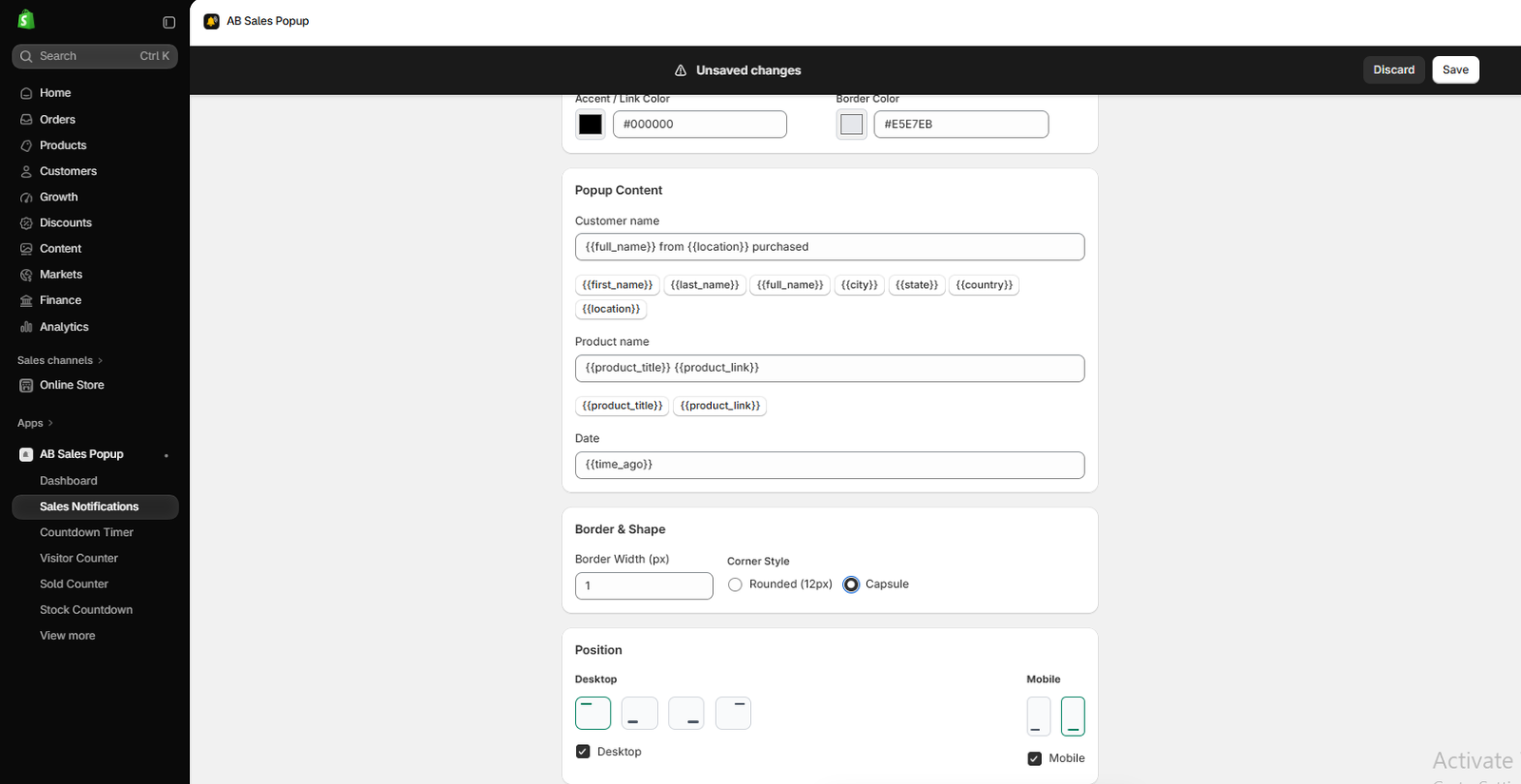
Image 7: Customizing sales notification content, purchase variables, border width, and popup shape.
Image explanation: Your screenshot shows the Customer name, Product name, and Date fields.
The customer information field includes:
{{full_name}} from {{location}} purchased
The product field includes:
{{product_title}} {{product_link}}
And the Date field includes:
{{time_ago}}
These placeholders allow the app to populate notification messages with order-related information.
For trustworthy social proof, ensure the displayed information matches genuine customer purchases.
Use privacy-conscious wording, avoiding unnecessary disclosure of customer names or locations.
Your app also includes a Verified Orders Feed tab that merchants can inspect when reviewing their purchase activity.
Step 9: Optimize Sales Popup Display Timing
Click the Settings tab.

Image 8: Configuring the initial popup delay, display duration, delay between notifications, and product targeting.
Image explanation: The screenshot displays these example settings:
| Setting | Example |
|---|---|
| Initial delay | 2 seconds |
| Display duration | 5 seconds |
| Delay between notifications | 5 seconds |
| Randomize delay | Off |
| Random notification order | Off |
The Initial delay controls when the first popup appears.
The Display duration controls how long the popup stays visible.
The Delay between notifications controls the time between consecutive notifications.
To improve usability, test different delays rather than displaying notifications immediately or continuously.
For example, a merchant could compare a 2-second initial delay against a more relaxed 8-second delay.
Step 10: Choose Where Sales Popups Appear
Scroll to Show Notification On.
This section allows you to select Product or Collection targeting.
Use the product picker to choose which storefront pages can display notifications.
For example, you might test sales popups on best-selling product pages before expanding them to the entire store.
Make sure the purchase activity displayed is genuine and does not imply that an unrelated product was purchased.
Step 11: Configure Advanced Settings
Scroll to Advanced Settings.

Image 9: Advanced settings for cart page visibility, notification close button, branding, and UTM tracking.
Image explanation: Your screenshot shows options including:
- Disable popups on cart page.
- Hide the close button.
- Remove branding, subject to plan availability.
- Enable UTM code.
For conversion optimization, consider disabling notifications on pages where they might interrupt purchasing.
Also consider allowing customers to dismiss notifications.
An easily dismissible popup generally provides customers with more control over the shopping experience.
Step 12: Save and Activate Sales Notifications
After customizing the settings, click Save at the top-right of the page.
Return to AB Sales Popup → Dashboard → Sales Notifications and select Enable App Embed.
In the Shopify theme editor, activate the sales notification app embed and save the theme.
Once enabled, preview your storefront to check the popup’s appearance.
When Should You Use Sales Popups?
Sales popups may be worth testing when your store already has genuine purchase activity, visitors need additional reassurance, and notifications can be displayed without interrupting shopping.
They may be less appropriate when your store has almost no order history, its pages are already crowded with widgets, or customers are primarily browsing on small mobile screens.
The most important factor is not the number of notifications you display. It is whether the notifications provide useful and accurate information.
Sales Popup Optimization Checklist
Before publishing your sales popups
0 of 8 checkedPurchase notifications are based on genuine ordersCustomer information is privacy-consciousPopup theme matches the Shopify store designInitial delay and display duration have been reviewedDesktop and mobile positions have been testedPopups do not cover Add to Cart or checkout controlsCustomers can dismiss notifications where appropriateConversion impact is measured through a controlled test
Frequently Asked Questions
1. Do sales popups really increase Shopify conversions?
They can improve conversions for some stores, but results vary. Authentic information, relevant placement, and appropriate timing are important.
2. Can sales popups reduce conversion rates?
Yes. Distracting or poorly positioned notifications may hurt the shopping experience and decrease completed purchases.
3. How many sales popups should I display?
There is no ideal universal number. Start with a small number of genuine notifications and test their frequency.
4. Can I customize sales popup timing?
Yes. AB Sales Popup provides initial delay, display duration, and delay between notifications.
5. Can I use sales popups on mobile?
Yes. The app provides mobile positioning controls. Always test the layout on smaller screens.
6. Should I display fake purchases on Shopify?
No. Purchase notifications should reflect authentic transactions. Fabricated activity can mislead customers and undermine trust.
7. Are sales popups better than visitor counters?
Not necessarily. Sales popups communicate completed purchases, while visitor counters communicate browsing activity. Their value depends on the store’s available data and audience.
8. How can I measure the performance of sales popups?
Use a controlled A/B test and measure completed purchase conversion rate, revenue per visitor, and relevant customer experience metrics.
Conclusion
Sales popups can be a valuable social proof tool for Shopify merchants, but they should never be treated as a guaranteed way to increase conversions.
When notifications communicate genuine purchases, use a professional design, and appear at appropriate times, they may help build trust and reduce uncertainty.
However, excessive or misleading notifications can hurt the shopping experience.
With AB Sales Popup, Shopify merchants can customize purchase notifications, control their appearance and timing, configure product targeting, and test their performance.
The best approach is to start with authentic order activity, keep notifications subtle, and measure whether they genuinely improve results.
Want to test sales popups on your Shopify store?Install AB Sales Popup on Shopify




