HOW TO EDIT MULTIPLE WIX PRODUCT IMAGES WITHOUT EDITING THEM ONE BY ONE
Introduction
Managing product images can be challenging when your Wix online store has dozens or hundreds of products. Different background colors, inconsistent photography styles, and distracting surroundings can make your product catalog look unprofessional.
Editing every image manually using Photoshop can take considerable time, especially when you want all your product photographs to follow a consistent visual style.
Fortunately, AI-powered tools can simplify the process.
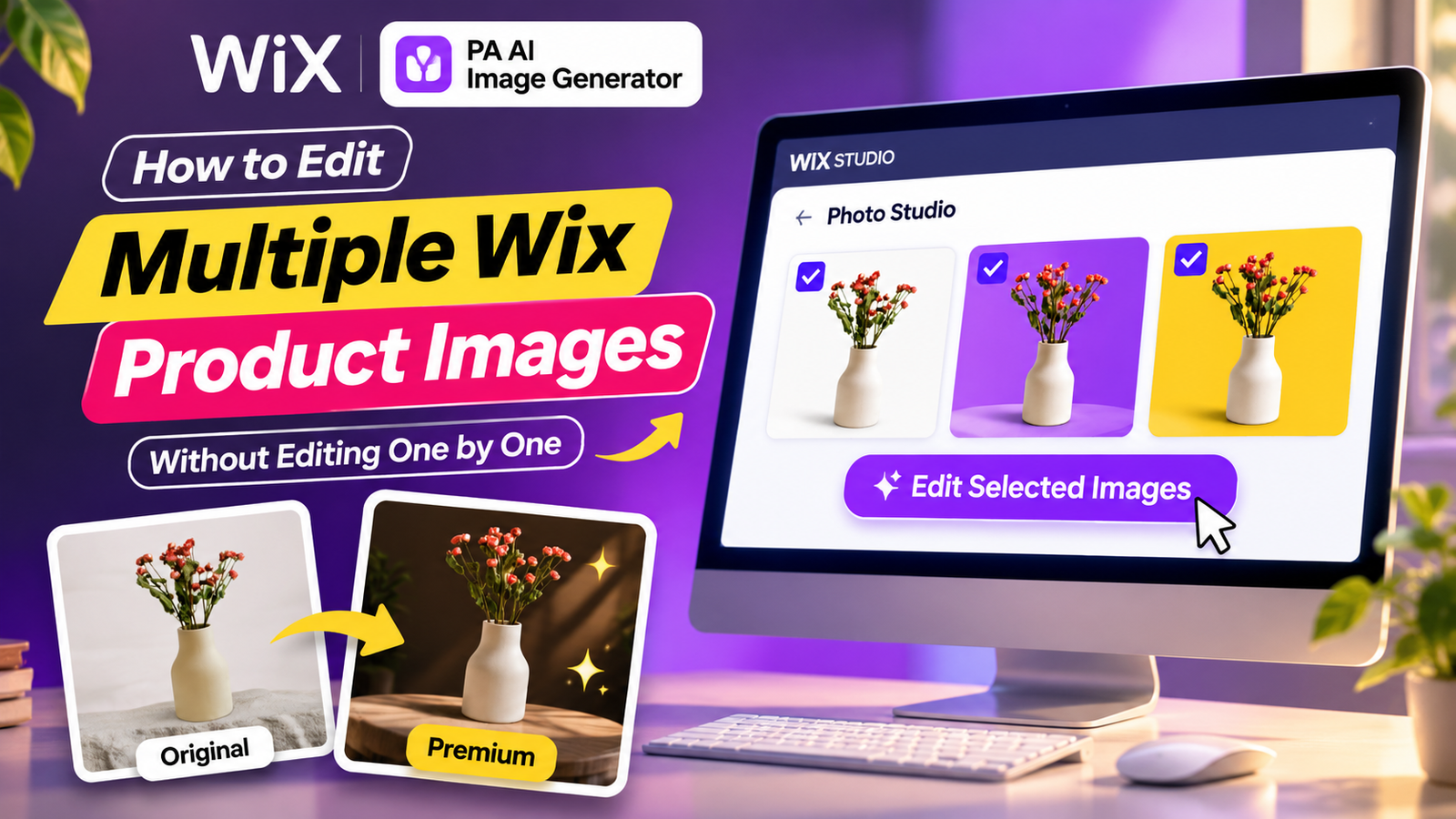
With PA AI Image Generator, you can remove unwanted backgrounds, replace background colors, and generate professional lifestyle scenes directly from your Wix dashboard.
In this guide, you’ll learn how to edit multiple Wix product images more efficiently, establish a consistent photography style, and reuse editing techniques across your products.
Why Wix Merchants Need a Faster Product Image Editing Workflow
Product photography becomes harder to manage as your online store grows.
A store with 100 products and five images per product already has 500 photographs to maintain.
Common challenges include:
- Different product image backgrounds.
- Inconsistent photography styles.
- Time-consuming manual editing.
- Expensive photo editing services.
- Difficulty maintaining brand consistency.
- Repeated editing tasks.
- Limited photography budgets.
An organized AI-assisted workflow can help reduce repetitive manual work.
Can You Edit Multiple Wix Product Images at Once?
There is an important difference between batch editing and editing images individually with AI assistance.
Batch editing means applying changes to several selected images in one operation.
PA AI Image Generator’s Wix App Market listing has advertised batch-editing capabilities. However, the Photo Studio screenshots used in this tutorial show selecting and editing one photograph at a time.
This guide demonstrates the confirmed Photo Studio workflow and explains how to repeat the same editing style across several images. It does not demonstrate one-click bulk processing.
Introducing PA AI Image Generator for Wix
PA AI Image Generator is a product photography application available on the Wix App Market.
It helps merchants improve existing product photographs using features such as:
- AI background removal.
- Solid-color background replacement.
- Custom HEX background colors.
- AI lifestyle scene generation.
- Predefined scene options.
- Custom AI photography prompts.
- Before-and-after comparisons.
- Direct publishing to Wix products.
App link: PA AI Image Generator – Wix App Market
Step 1: Open the Wix App Market

Step 2: Search for PA AI Image Generator

Step 3: Select PA AI Image Generator

Step 4: Install PA AI Image Generator

Step 5: Open the App in Your Wix Dashboard

Step 6: Select Your Product

Step 7: Open Photo Studio

Step 8: Review the Existing Product Photos

Step 9: Select a Photo and Choose the Background Color

Step 10: Change the Background to Yellow

Step 11: Review an AI Lifestyle Photograph

Step 12: Review Another AI-Generated Product Scene

How to Make Product Image Editing Faster Across Your Wix Store
1. Organize Products by Category
Group your products into categories such as skincare, home decor, fashion, and electronics.
This makes it easier to choose appropriate photography styles.
2. Create a Consistent Background Palette
Choose two or three background colors that match your brand.
For example, use white for general product images and a selected brand color for promotional photographs.
3. Reuse the Same HEX Colors
Save your background color codes rather than selecting new colors for every photograph.
4. Create Reusable AI Prompts
Keep a collection of successful prompts for lifestyle scenes and studio-style product photography.
5. Edit Important Products First
Prioritize your bestselling products, homepage collections, and newly launched items.
6. Review Every Generated Image
AI editing can occasionally change product details. Always inspect the results before publishing.
7. Track Your Editing Progress
Maintain a simple checklist of completed products to avoid repeating work unnecessarily.
Best Background Colors for Different Product Categories
| Product category | Recommended background |
|---|---|
| Skincare | White, cream, pastel pink |
| Jewelry | Black, charcoal, elegant gray |
| Fashion accessories | Beige, ivory, light gray |
| Home decor | Warm cream, sage green |
| Electronics | White, graphite, cool gray |
| Handmade products | Natural brown, linen, sage |
| Promotional products | Brand colors, yellow, red |
Background Replacement vs. AI Lifestyle Photography
| Feature | Background replacement | AI lifestyle scenes |
|---|---|---|
| Main purpose | Change solid background colors | Create realistic environments |
| Customization | HEX colors and presets | Text prompts and scene presets |
| Best for | Consistent catalogs | Product storytelling |
| Editing credits shown | 1 | 2 |
| Result | Solid-color background | AI-generated setting |
| Product verification | Required | Required |
Benefits of AI-Assisted Product Image Editing
Save time on manual editing
AI-powered tools reduce the need to manually isolate products and create new backgrounds.
Improve product catalog consistency
Using similar colors and photography styles creates a more organized appearance.
Reduce additional photography expenses
Existing product photographs can be reused for new visual presentations.
Create promotional image variations
Different background colors can support seasonal campaigns and product promotions.
Improve your workflow
Editing directly from your Wix dashboard reduces the need to switch between multiple applications.
Common Mistakes to Avoid
- Using too many unrelated background colors.
- Editing photographs without a consistent brand style.
- Starting with blurry product images.
- Selecting backgrounds that reduce product visibility.
- Publishing AI-generated images without checking product accuracy.
- Assuming individual image selection is the same as bulk processing.
- Failing to track which photographs have already been edited.
Frequently Asked Questions
Can I edit multiple Wix product images using AI?
Yes. PA AI Image Generator allows you to edit product photographs using AI. The screenshots in this tutorial demonstrate editing individual images in sequence.
Can I change backgrounds without Photoshop?
Yes. PA AI Image Generator provides background replacement directly from your Wix dashboard.
Can I reuse the same background color across products?
Yes. You can enter the same HEX code when editing additional images.
Can I create AI lifestyle product photographs?
Yes. The AI scene feature supports custom prompts and predefined environments.
Does PA AI Image Generator support true bulk editing?
Its Wix App Market listing has advertised batch editing. However, the screenshots provided here do not show the batch controls, so this tutorial does not claim that the demonstrated process edits multiple photographs simultaneously.
How many credits does background replacement use?
The supplied application screenshots indicate that background replacement uses one credit per operation.
Will my original product images remain available?
According to the app’s interface, original photographs remain in the product gallery when an edited image becomes the main photo.
Conclusion
Managing product photography can become time-consuming as your Wix store grows.
With PA AI Image Generator, you can replace product backgrounds, reuse custom brand colors, generate lifestyle scenes, and improve existing photographs without complicated manual editing.
By organizing your products, saving background color codes, and reusing photography prompts, you can make your image editing workflow more efficient and maintain a consistent product catalog.
Try PA AI Image Generator on the Wix App Market