HOW TO FIND LOW-SELLING PRODUCTS AND DECIDE WHAT TO DO WITH THEM USING AI CHAT

Introduction
Every Shopify store owner wants to increase sales, attract more customers, and grow revenue. However, not every product in an online store performs equally well. Some products sell consistently, while others remain in inventory for weeks or months without generating significant sales.
Low-selling products can create several challenges for ecommerce businesses. They tie up inventory investment, occupy storage space, and make it more difficult to decide which products deserve additional marketing attention.
But how can merchants identify products that are not selling and determine whether they should discount, promote, bundle, or discontinue them?
This is where artificial intelligence can help.
With PA Claude Connector, Shopify merchants can use AI-powered analytics and chat to review product performance, investigate slow-moving inventory, and generate recommendations based on available store data.
In this guide, we’ll explain how to find low-selling Shopify products using AI chat, understand inventory performance, and make informed decisions about products that need attention.
We’ll also walk through the process using real screenshots from PA Claude Connector.
What Are Low-Selling Products in Shopify?
Low-selling products are items that generate relatively few sales over a particular period.
A product might be considered a slow seller when it has significant available inventory but little or no recent sales activity.
For example, imagine your Shopify store has the following products:
| Product | Available stock | Units sold in 60 days |
|---|---|---|
| Product A | 100 | 5 |
| Product B | 50 | 45 |
| Product C | 75 | 0 |
| Product D | 25 | 20 |
In this hypothetical example, Product C deserves further investigation because it has 75 units in stock but recorded no sales during the last 60 days.
However, a product with few sales is not necessarily unsuccessful. Some products are seasonal, newly launched, expensive, or intended for a smaller customer segment.
The important goal is to identify slow-moving inventory and understand why it may not be selling.
Why Low-Selling Products Are a Problem for Shopify Merchants
1. Inventory investment remains tied up
Money invested in unsold products cannot be used as easily for other business opportunities.
If a store holds large quantities of slow-moving inventory, cash flow may become more difficult to manage.
2. Storage and operational expenses increase
Physical products may require storage, handling, and inventory management.
Keeping unnecessary stock for extended periods can increase operational costs.
3. Marketing budgets may be misallocated
Merchants sometimes spend money advertising products without first checking whether the products have sufficient demand or attractive margins.
4. Product catalogs become difficult to manage
A large catalog containing many inactive products can make merchandising and inventory planning more complicated.
5. Merchants may miss growth opportunities
Without analyzing product performance, store owners may overlook products that deserve more visibility or additional stock.
6. Manual inventory analysis takes time
Reviewing hundreds of Shopify products individually can be repetitive and inefficient.
How AI Helps Identify Slow-Selling Shopify Products
AI-powered tools can make inventory analysis easier by organizing available business information into understandable insights.
Instead of manually examining every product, merchants can ask questions such as:
- Which products have not sold in the last 60 days?
- Which products have the most inventory investment tied up?
- What products should I consider promoting?
- Which slow-moving products could work in a bundle?
- What additional information is needed before discounting a product?
AI assistants can help interpret available data and provide recommendations.
However, the quality of the answers depends on the information the assistant can access. Sales history, inventory quantities, pricing, and product-level reporting all influence how accurately low-selling products can be identified.
Introducing PA Claude Connector for Shopify
PA Claude Connector by PeakApps is a Shopify application that provides Claude-powered tools for store management, SEO, content generation, marketing, and business analysis.
One of its useful capabilities is the combination of Growth Report and Claude Assistant.
Growth Report displays available inventory and sales-related indicators, while Claude Assistant allows merchants to ask questions about their store and request structured business recommendations.
The app’s demonstrated features include:
- Inventory velocity breakdowns
- Slow-moving product identification
- Available inventory information
- Estimated inventory value tied up in stock
- Product SEO reviews
- AI-generated business recommendations
- Downloadable reports
These features can help merchants investigate inventory problems without building every report manually.
App Link: https://apps.shopify.com/claude_connecter_-app
Why Combining Inventory Reports With AI Chat Is Useful
Inventory reports tell merchants what is happening.
AI chat can help merchants investigate what the available information might mean and what actions are worth considering.
For example, a report might identify several products with high stock levels and zero recent sales.
The merchant can then ask Claude to recommend possible actions.
Instead of automatically discounting every product, the assistant might suggest reviewing search visibility, analyzing margins, improving descriptions, or testing product bundles.
This two-part process is useful because it combines numerical reporting with business-oriented analysis.
How to Decide What to Do With Slow-Selling Products
Improve product visibility
Before discounting a product, check whether customers can discover it.
Review product titles, descriptions, collection placement, and search-engine metadata.
Create product bundles
A low-selling product may become more attractive when paired with a relevant popular product.
However, bundle pricing must account for product costs and profit margins.
Test promotional campaigns
Limited discounts, targeted emails, and relevant social-media content may help generate interest.
Avoid creating unnecessary urgency or advertising unsupported offers.
Improve product descriptions
Incomplete or confusing product descriptions can prevent customers from understanding the value of an item.
Review pricing
Compare the product’s price with its features, costs, and relevant market alternatives.
Investigate product demand
A product with little sales activity might have weak demand, but it could also be suffering from poor visibility or insufficient traffic.
Reduce future purchasing quantities
If repeated analysis shows low demand, consider reducing future stock orders.
Discontinue unsuitable products
Some products may no longer fit the store’s positioning or commercial goals.
Before discontinuing an item, review profitability, seasonality, and historical sales trends.
STEP-BY-STEP GUIDE: HOW TO FIND LOW-SELLING SHOPIFY PRODUCTS USING AI CHAT
Here is the illustrated tutorial using all six of your original screenshots in the exact order provided, with explanations of what merchants should click, what each screen shows, and how to use the results.
Step 1: Open PA Claude Connector and Review the SEO Dashboard
First, sign in to your Shopify admin and open PA Claude Connector from the Apps sidebar.
Select SEO Booster to access the Claude SEO Booster & Audit Center.

Image 1: The SEO Booster dashboard showing all products, missing meta tags, and SEO health indicators.
What this image shows:
The dashboard provides an overview of the SEO status of your Shopify products. In this example, the app displays 18 scanned products, 13 products with missing meta tags, zero pending drafts, and five SEO-healthy products.
Below the summary, merchants can review product names, existing metadata, and missing SEO fields. Products such as Bundle Product #1 and Selling Plans Ski Wax are flagged for missing metadata.
Why this step matters: Poor product visibility can contribute to weak sales. Reviewing SEO information helps identify a possible area for improvement before considering discounts or discontinuing products.
Step 2: Find Products That Need SEO Improvements
Click the Needs SEO tab at the top of the product list.
This filters the catalog to show products that the app has identified as needing SEO attention.
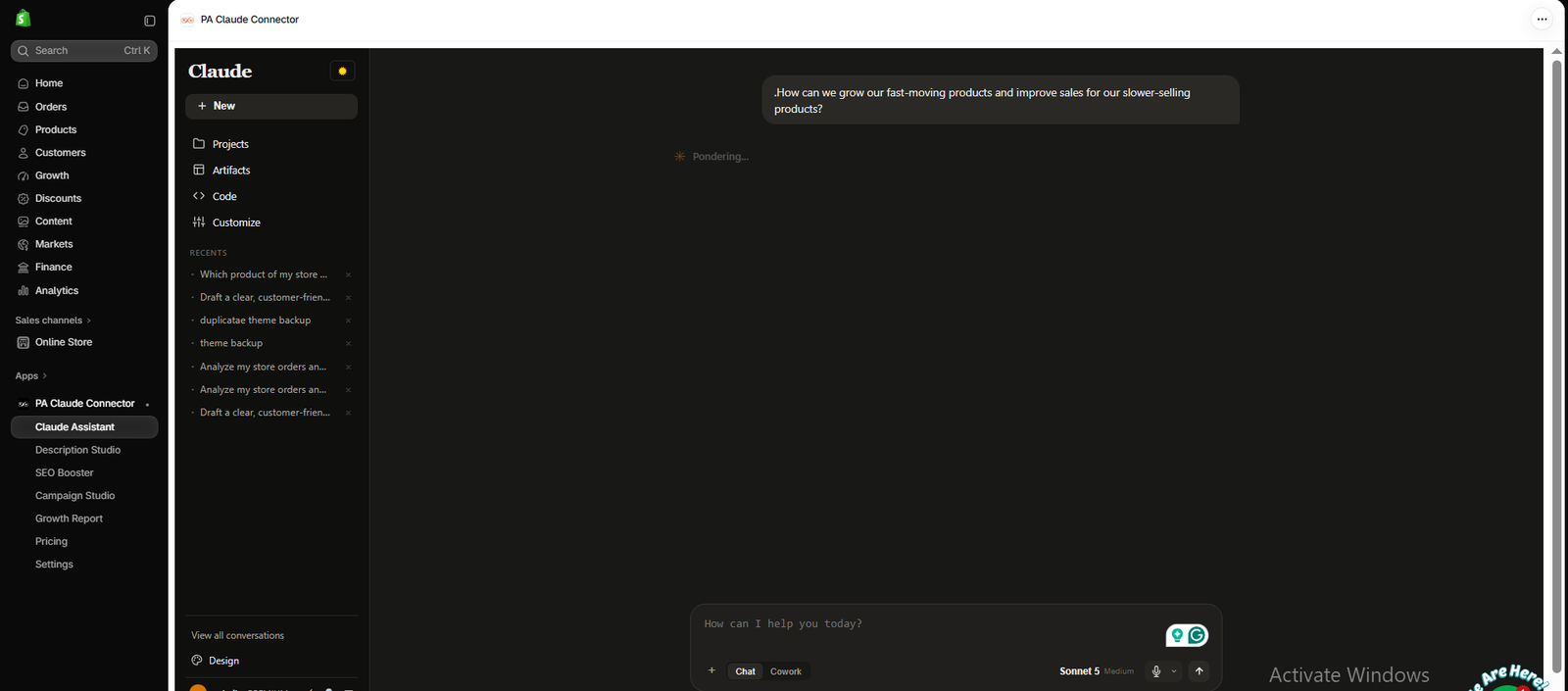
Image 2: The Needs SEO tab displays products missing metadata, with a Draft with Claude button for each affected product.
What this image shows:
The selected Needs SEO (13) tab displays products that do not have complete SEO metadata.
Each affected product has an orange Draft with Claude button on the right side.
Merchants can select a product and use this feature to begin preparing a more relevant SEO title and description.
For example, if a slow-selling snowboard product is missing its SEO description, the merchant can generate a draft that explains the product’s verified features and benefits.
Why this step matters: Improving missing metadata may help search engines understand product pages, although it does not guarantee better search rankings or increased sales.
Step 3: Compare Products With Healthy SEO Information
Next, select the Healthy tab to view products that already have SEO metadata.
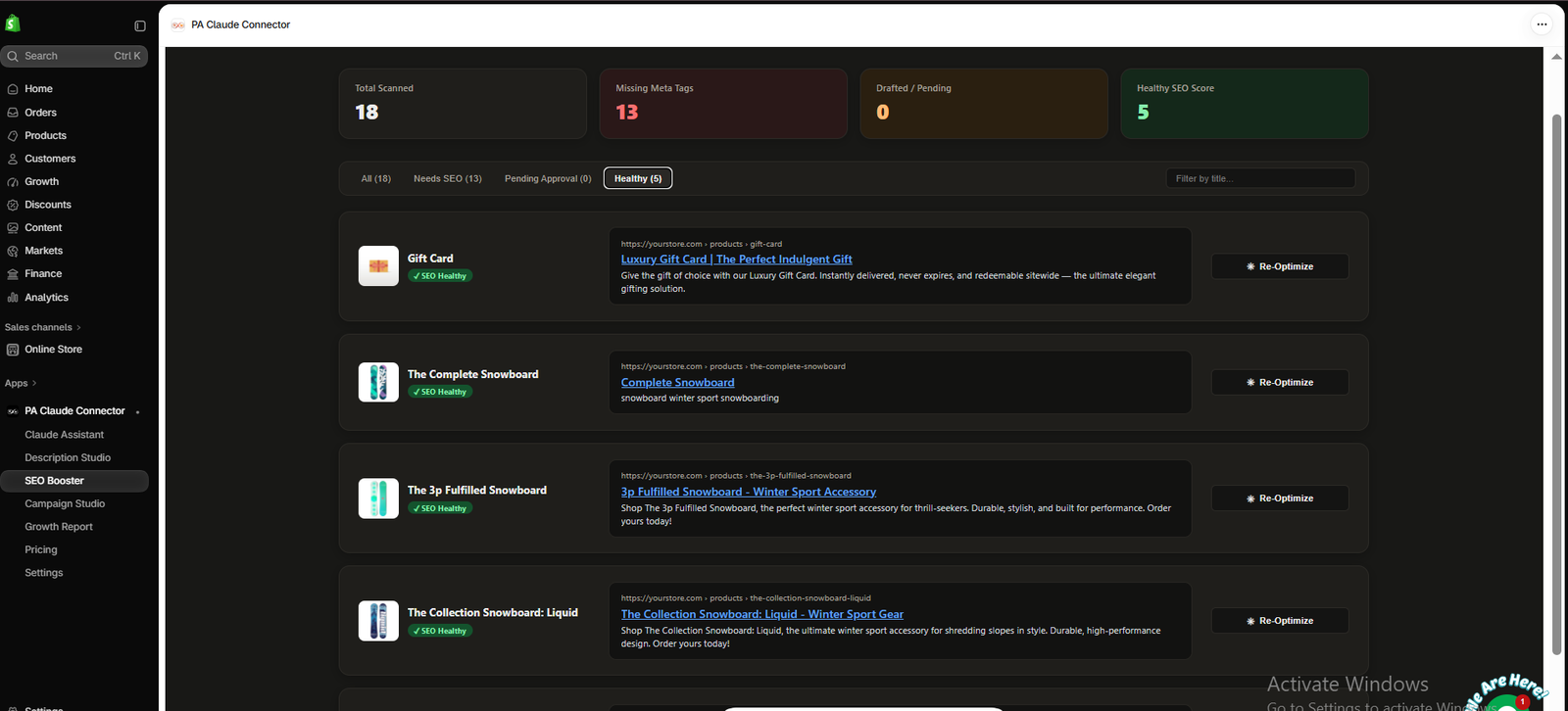
Image 3: The Healthy tab displays existing SEO titles, descriptions, and Re-Optimize options.
What this image shows:
The screenshot displays five products classified as SEO Healthy by the app, including Gift Card, The Complete Snowboard, and The 3p Fulfilled Snowboard.
Each product listing shows an SEO title and description, along with a Re-Optimize button.
Merchants can use this screen to compare products with complete metadata against products requiring attention.
Why this step matters: Even when a product has healthy metadata, it may still have low sales. SEO status should be considered alongside inventory quantities, pricing, and actual customer demand.
Step 4: Identify Low-Selling Products With Growth Report
Now open Growth Report from the app’s left sidebar.
This is the primary dashboard for investigating slow-moving inventory in the supplied screenshots.
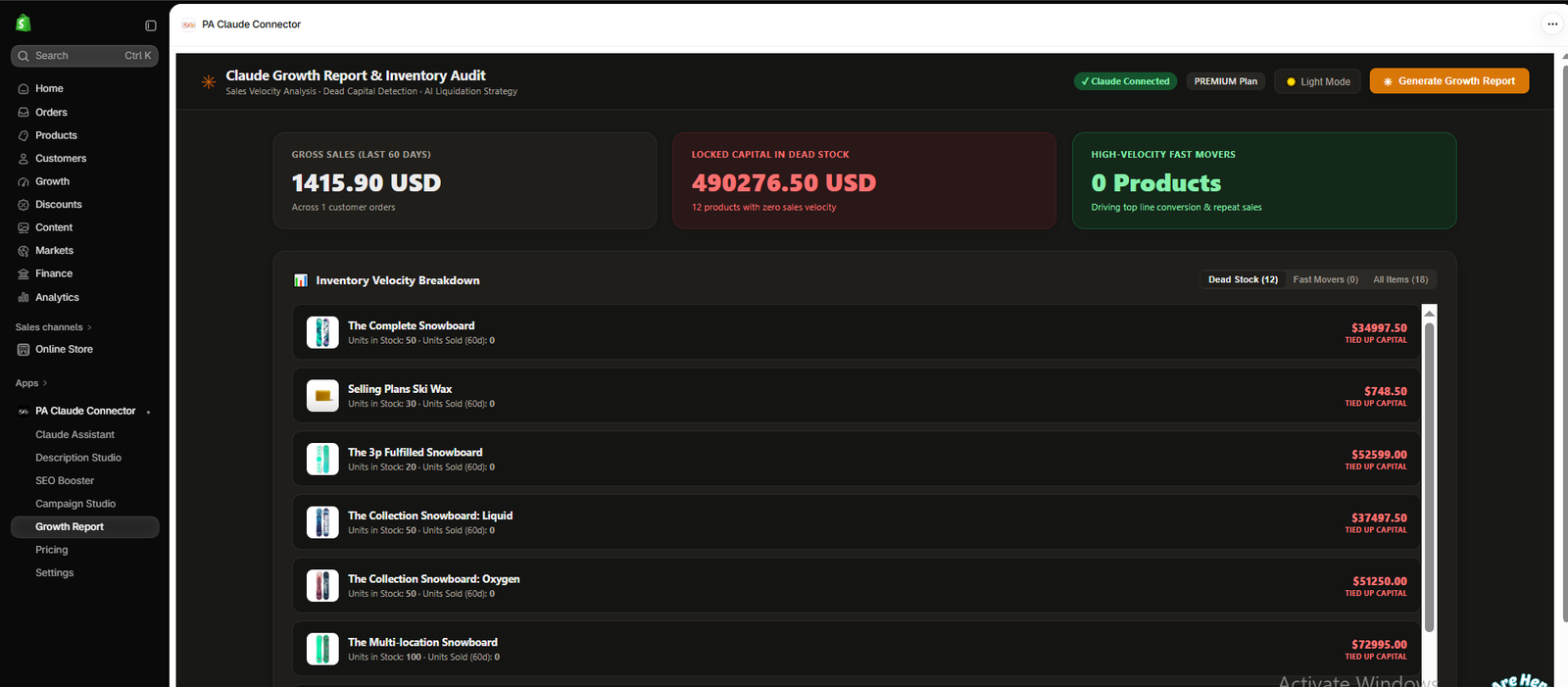
Image 4: The Growth Report displays gross sales, estimated capital tied up in dead stock, and inventory velocity.
What this image shows:
The dashboard displays three major metrics from the example store:
Gross sales

Products identified
Under these summary cards, the Inventory Velocity Breakdown provides three filters: Dead Stock, Fast Movers, and All Items.
The screenshot shows Dead Stock (12) selected. Individual product rows display stock quantities, units sold in the last 60 days, and estimated tied-up capital.
For example, The Complete Snowboard has 50 units in stock and zero recorded sales over the displayed period.
What merchants should do: Examine products flagged as dead stock, especially those with substantial inventory value. Check their margins, sales history, listing quality, and seasonality before taking action.
The app’s estimated tied-up capital should be verified against actual inventory costs before making financial decisions.
Step 5: Ask Claude AI What to Do With Low-Selling Products
After reviewing Growth Report, select Claude Assistant from the sidebar.
Click the chat input and enter a question about improving the sales performance of your products.
Image 5: Claude Assistant receives a merchant’s question about improving sales of fast-moving and slower-selling products.
What this image shows:
The merchant has entered the following question:
“How can we grow our fast-moving products and improve sales for our slower-selling products?”
Claude Assistant is processing the request, indicated by the Pondering message.
This demonstrates that merchants can ask questions in ordinary English instead of manually building complex reports.
For a more detailed analysis, use this ready-to-copy prompt:
AI Prompt for Low-Selling Products Copy
Analyze my Shopify store’s inventory and sales data for the last 60 days. Identify low-selling products, products with high inventory but no recent sales, and potential fast movers. Recommend which products I should improve, promote, bundle, discount, or restock. Explain each recommendation using available data, distinguish assumptions from facts, and prepare a structured report.
Why this step matters: AI can help merchants move beyond identifying underperforming products and start evaluating practical business options.
Step 6: Review Claude’s Recommendations and Download the Report
Once Claude completes its analysis, review the recommendations and any generated report.
Image 6: Claude Assistant suggests actions for fast- and slow-moving products and provides a downloadable business report.
What this image shows:
The screenshot shows Claude providing recommendations for two product groups.
For potentially fast-moving products, it suggests reviewing restocking opportunities, considering back-in-stock marketing campaigns, and investigating pricing.
For slow-moving products, it recommends exploring SEO improvements, product bundles, promotional offers, and refreshed descriptions.
The response also provides proposed next steps and a downloadable document labeled tell me report in DOCX format.
On the right side, the generated report displays a store performance snapshot, catalog observations, and product-level examples.
How to use the report:
- Read the AI-generated recommendations.
- Check whether each recommendation is supported by actual sales and inventory records.
- Decide which products need SEO updates, better visibility, bundles, or pricing reviews.
- Click Download to save the DOCX report.
- Use the report to plan your next merchandising and marketing actions.
Important: The example report itself warns that the store has very low order volume and that some fast- and slow-mover classifications rely on proxy indicators. Products with zero inventory are not automatically proven best sellers. Verify demand before restocking or increasing advertising spend.
How to Turn AI Recommendations Into a Practical Action Plan
After downloading your report, review each recommendation before applying it to your store.
For products with high inventory and few sales, investigate search visibility, product descriptions, traffic, pricing, and profit margins.
For products with strong verified sales velocity, review stock availability and replenishment requirements.
For seasonal products, compare performance with the appropriate previous season rather than relying only on a recent 30- or 60-day period.
Prioritize actions based on evidence, potential business impact, and implementation cost.
AI can help organize these decisions, but it should not automatically determine your pricing, purchasing, or discontinuation strategy.
Frequently Asked Questions
1. How do I find low-selling products in Shopify?
Review product-level sales reports and inventory quantities over a defined period. PA Claude Connector’s Growth Report can help identify items categorized as slow-moving or dead stock.
2. Can AI identify products that are not selling?
Yes, when the assistant has access to appropriate sales and inventory information.
3. What is dead stock in Shopify?
Dead stock generally refers to inventory that has not sold over a meaningful period and may be unlikely to sell without intervention.
4. Can Claude recommend which products to discount?
Claude can suggest products worth reviewing for discounts, but merchants should examine margins, demand, and inventory costs before deciding.
5. Can AI help create product bundles?
AI can suggest complementary products to bundle. The merchant should validate customer relevance and profitability.
6. Does low sales velocity always indicate poor product performance?
No. Seasonal products, new launches, and products targeting small customer segments may have low recent sales without being commercially unsuccessful.
7. Can PA Claude Connector generate inventory reports?
The provided screenshots demonstrate Growth Report and downloadable DOCX analysis through Claude Assistant.
8. Can AI improve my Shopify SEO?
AI can assist with identifying missing metadata and drafting improvements. Better SEO content does not guarantee higher rankings or sales.
9. How often should I review slow-selling products?
A monthly review is a useful starting point for many merchants
What Should You Do After Finding Low-Selling Products?
| Product situation | Suggested next action |
|---|---|
| High inventory, very low sales | Investigate visibility, demand, and pricing |
| Missing SEO titles or descriptions | Improve metadata using verified product information |
| Low sales but strong profit margin | Consider targeted promotion or bundles |
| Seasonal product | Compare performance with the relevant season |
| Product receiving traffic but few orders | Review product page quality, pricing, and customer objections |
| Consistently poor demand | Consider reducing future stock or discontinuing the product |
Conclusion
Finding low-selling products is an important part of managing a profitable Shopify store.
With PA Claude Connector, merchants can investigate product SEO, review inventory velocity, identify slow-moving stock, ask Claude AI for recommendations, and generate business reports.
The process demonstrated in the six screenshots shows how merchants can move from identifying potential problems to developing a practical action plan.
Instead of discounting every product that is not selling, merchants can make more informed decisions about improving visibility, refreshing product content, testing bundles, adjusting marketing strategies, and managing inventory.
App Link: PA Claude Connector — Shopify App Store




