How to Find Which Theme Your Shopify Store Is Using
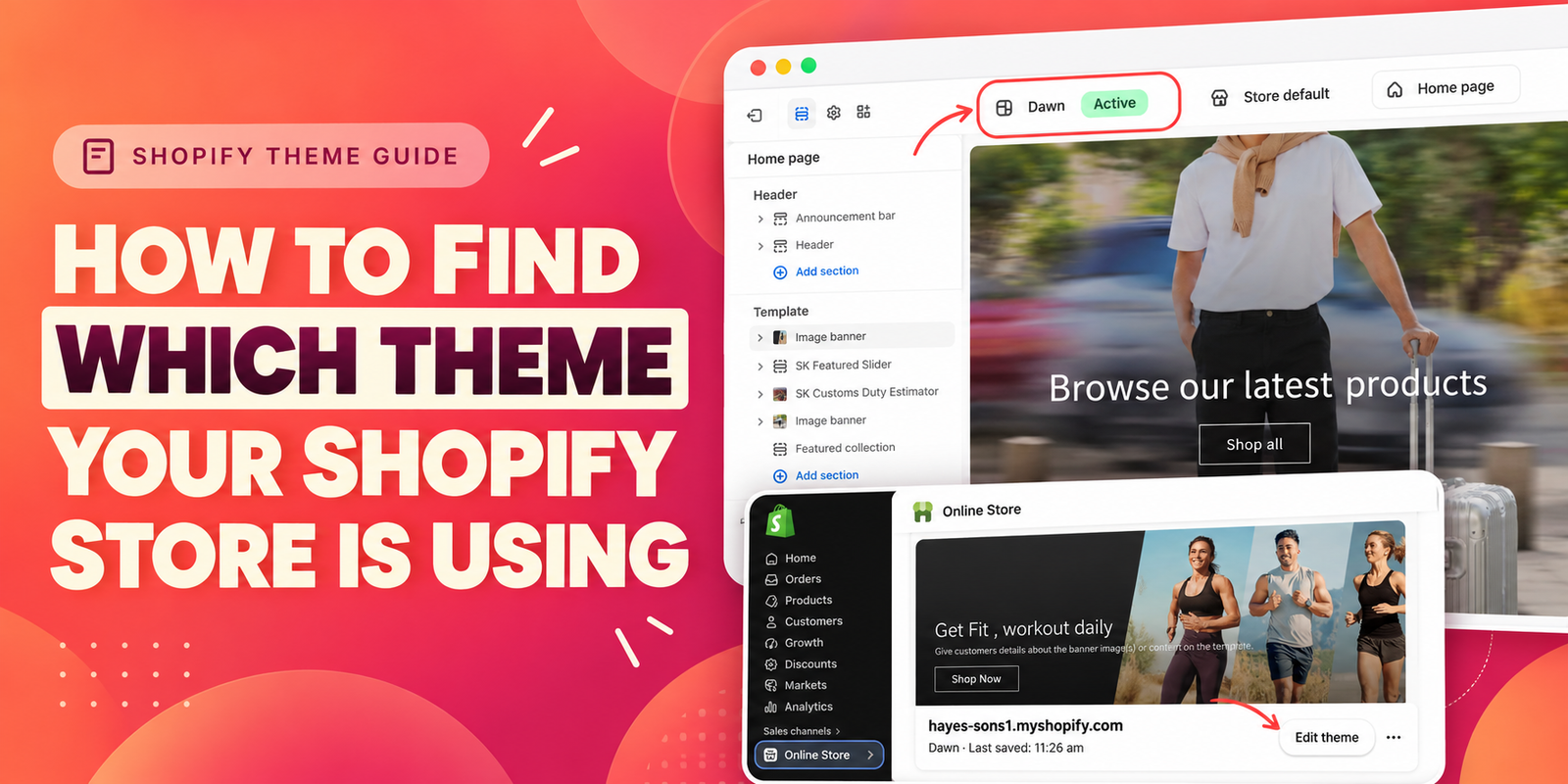
Your Shopify theme shapes the appearance and structure of your storefront, from the homepage banner to product pages and navigation. Before changing your design, following a tutorial, or asking for technical support, it helps to know which theme your store is using.
You can identify your active theme directly in Shopify admin. This guide explains where to look, how to confirm the theme in the editor, and how to review its customization options. The screenshots use Dawn as the example and also show what you can do after identifying your theme.
The Common Problem: A Store Looks Familiar, but Its Theme Is Unclear
Many merchants inherit a store built by a developer, work with several saved themes, or make design changes long after the original setup. As a result, they may know how their storefront looks without knowing the theme behind it.
This creates confusion when a tutorial mentions settings that are missing, a developer asks which theme is installed, or a merchant edits a draft expecting the live store to change. A customized storefront can also look very different from the theme’s original demo, making appearance alone an unreliable guide.
The practical solution is to check your theme in the admin and confirm that you are looking at the published version. Theme discovery cards and saved alternatives should not be mistaken for the theme currently serving customers.
When Do You Need a Theme Sections App?
You do not need an app to find your Shopify theme. Shopify provides the information in its own admin. An app becomes relevant afterward, when you know your theme but need a layout or section it does not already provide.
For example, you might want an additional testimonial layout, FAQ, comparison table, or slider while keeping the rest of your storefront. Section Kit: Theme Sections offers premade sections that can be customized in Shopify’s native theme editor. Its listing describes a library of 500+ sections, including testimonials, FAQs, trust badges, and other storefront elements.
This makes Section Kit an option for extending an existing design rather than starting a complete redesign. Choose sections that support your products and customer questions, then check how they fit your store.
Why Knowing Your Theme Matters
- Follow relevant instructions: Theme settings and supported layouts can differ.
- Communicate clearly: Give your developer or support team the theme name and explain your intended change.
- Choose the right place to edit: Confirm whether you are working on the active storefront or a saved draft.
- Plan design improvements: Review existing sections before deciding what to add.
Step-by-Step: Identify Your Theme and Review Its Design
Step 1: Understand the Role of Section Kit Before You Begin
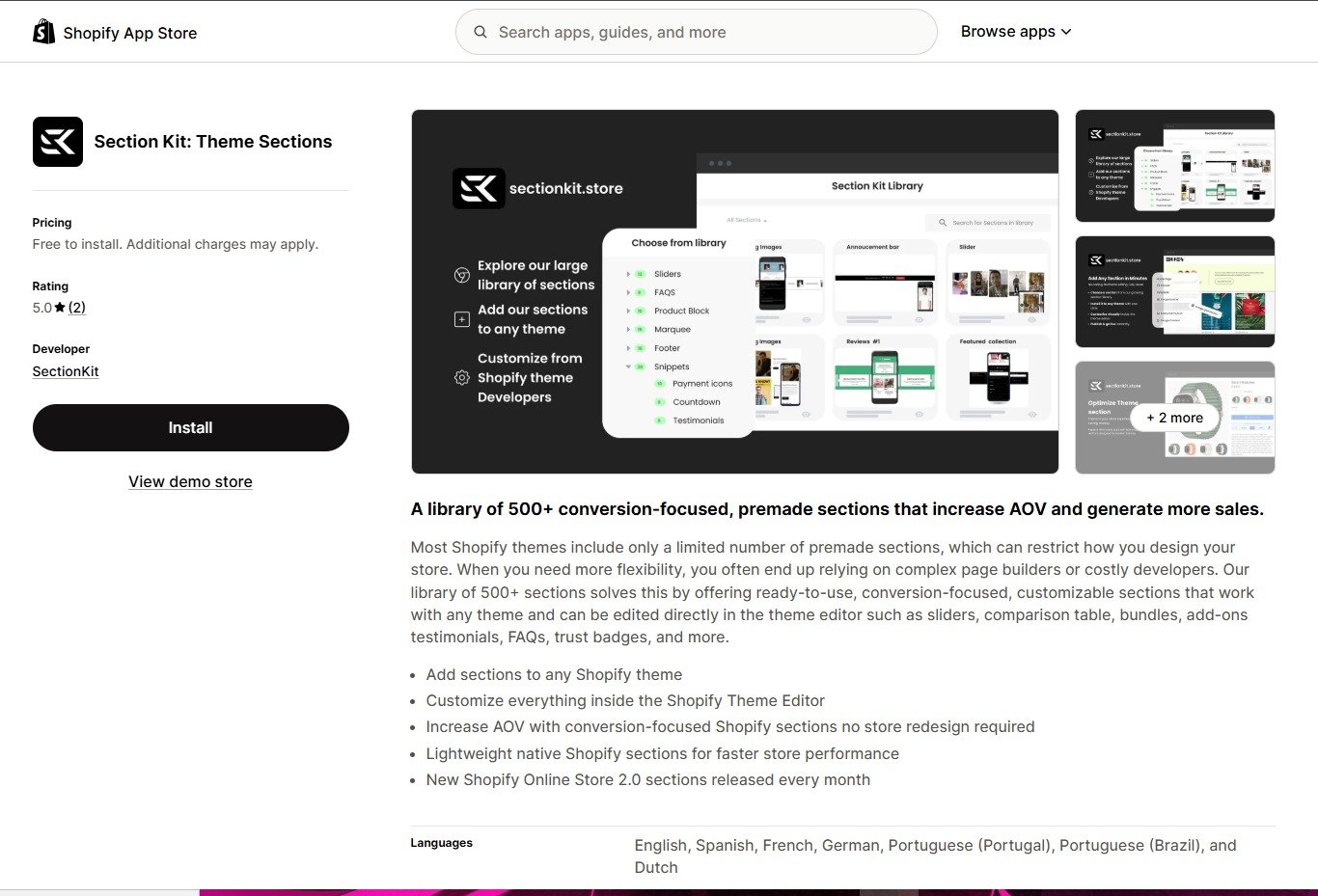
The first image shows the Section Kit app listing. Use it as a reference for the optional design improvements discussed in this guide. You do not need to install Section Kit to identify your theme; the theme check happens directly in Shopify admin in the next steps.
If you later need additional premade sections, you can review the app and decide whether its available layouts suit your store. For now, continue to Online Store to find the theme already in use.
Step 2: Open Online Store and Check the Current Theme
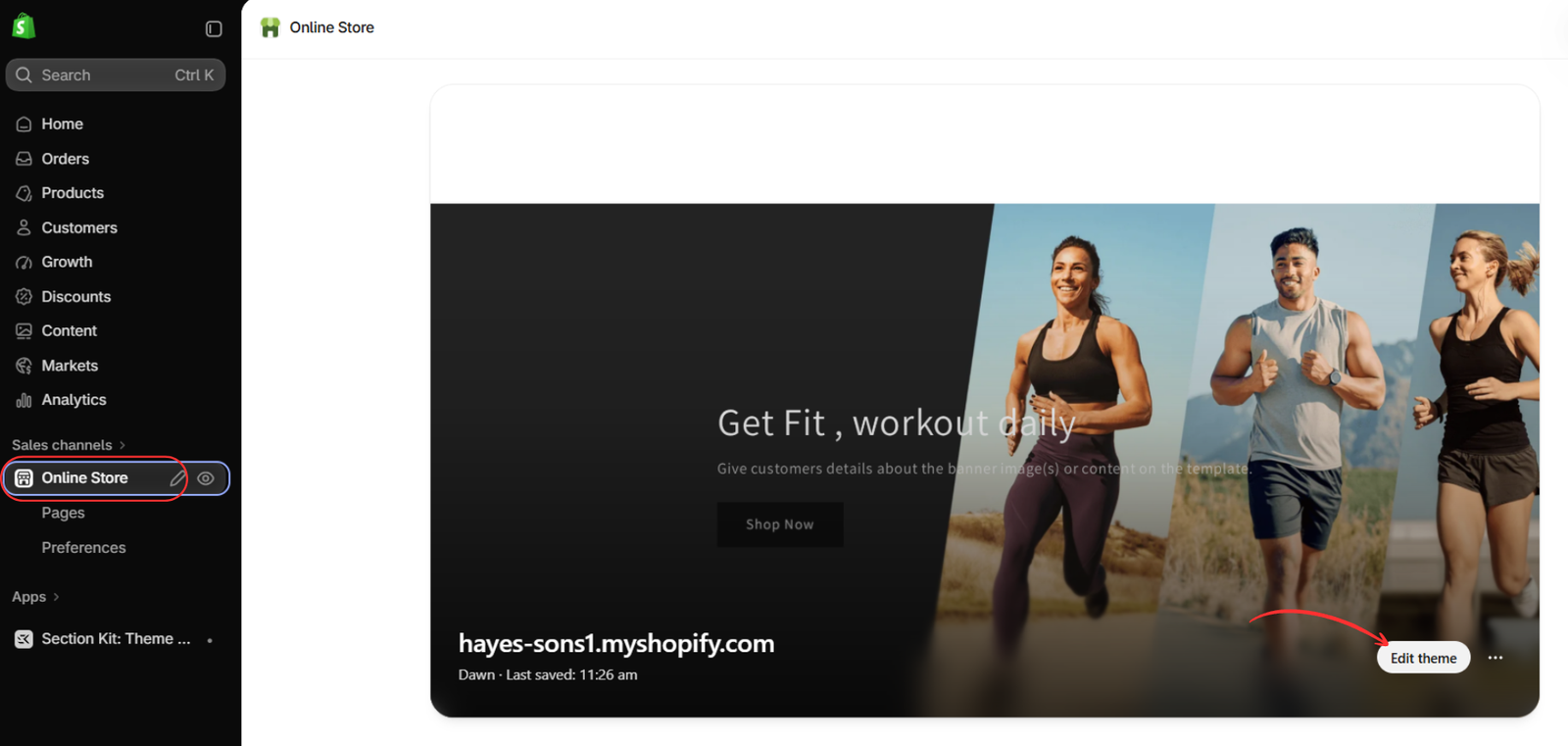
Log in to your Shopify admin and open Online Store → Themes. Locate the current or published theme area near the top of the page. In the screenshot below, Dawn appears beneath the store address.
This is the first place to check which theme your store is using. Select Edit theme to open its visual editor; your interface may label this action Customize.
read the Dawn theme label, and select Edit theme.
Step 3: Distinguish Theme Suggestions from Your Active Theme
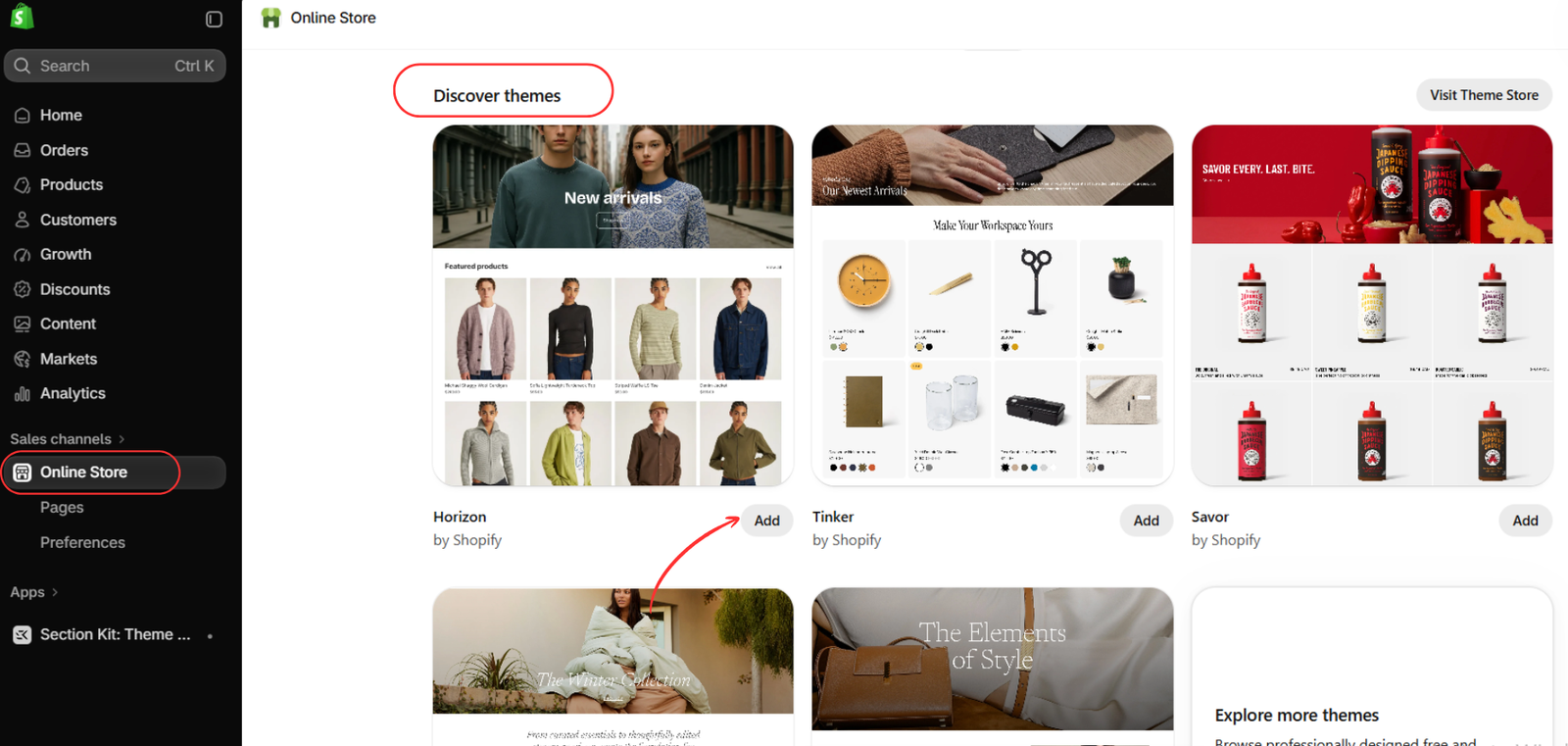
The next screenshot shows the Discover themes area, including Horizon, Tinker, and Savor. These are themes available to explore. Their presence on this page does not identify the theme currently used by your store.
You can skip this area if your only goal is identification. You do not need to click Add or install a different theme to find the existing one. Keep the current-theme information from Step 2 as your reference.
Page 3: Discover themes displays alternatives, rather than confirming the active theme.
Step 4: Confirm the Theme Name in the Editor
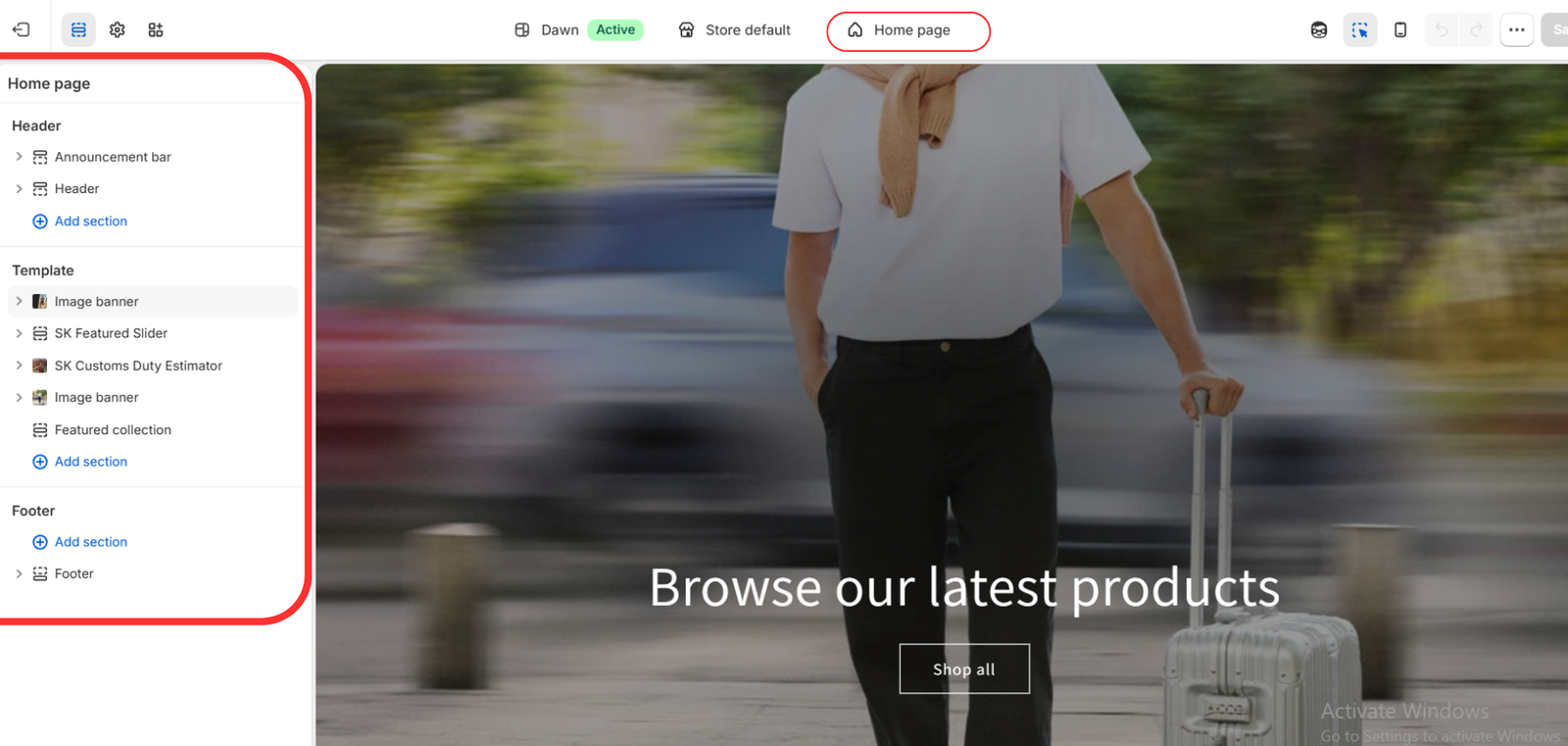
Open the editor for your current theme and check the top bar. This screenshot displays Dawn beside an Active badge, confirming the theme being edited in this example.
The Home page selector identifies the template being previewed. The left sidebar lists its sections, including the header, image banners, featured collection, and footer. Entries starting with SK are section names; they do not change the theme’s name.
At this point, the theme identification is complete. The remaining steps demonstrate how to inspect and customize that theme using the rest of the supplied screenshots.
Step 5: Inspect a Section’s Available Settings
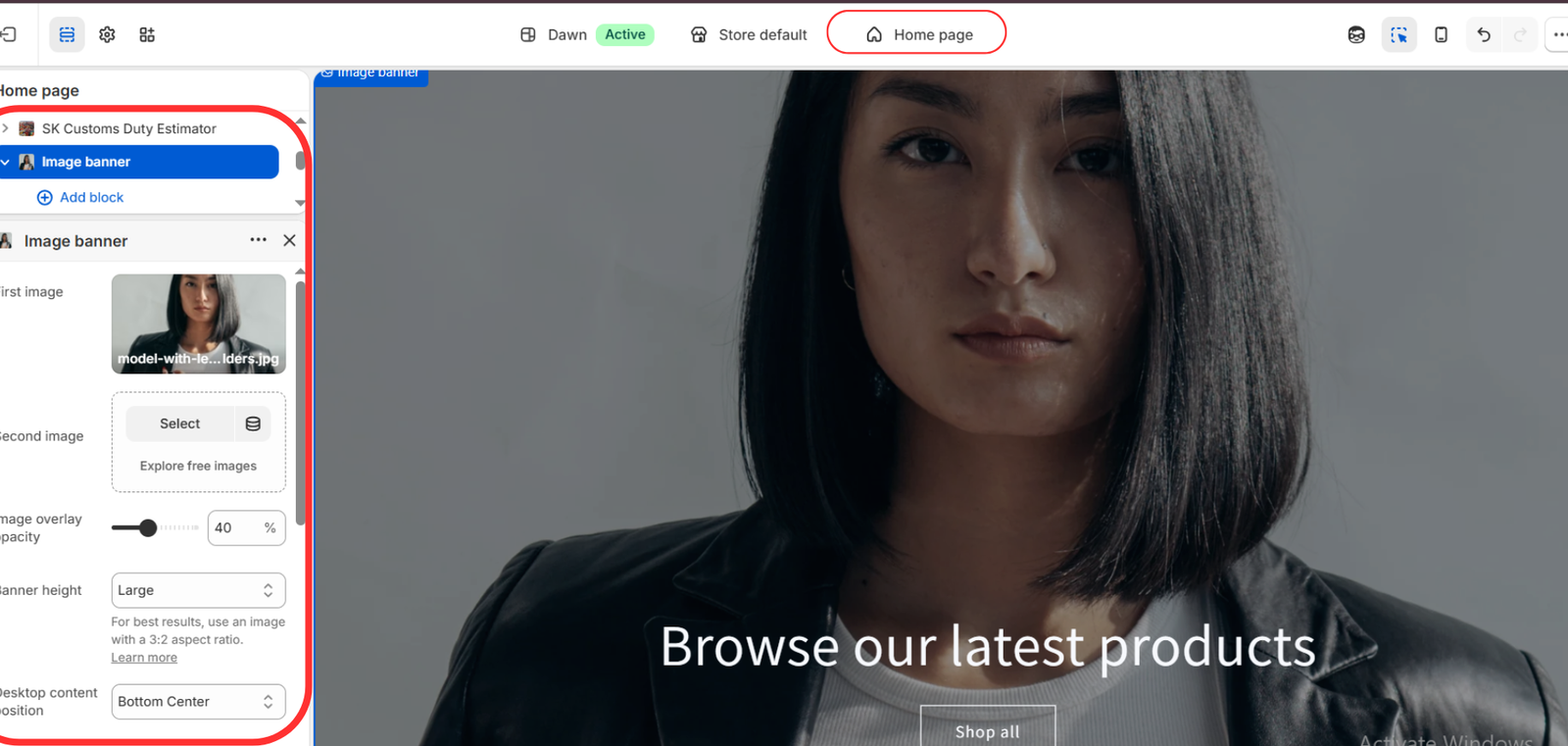
Click an existing section to see what you can change. In this example, selecting Image banner opens controls for images, overlay opacity, banner height, and content position.
Use this panel to understand the design options your theme provides. If it already supports your intended change, you can work with its built-in controls. If a needed layout is missing, consider an additional section that meets that specific requirement.
Step 6: Save Any Intentional Changes
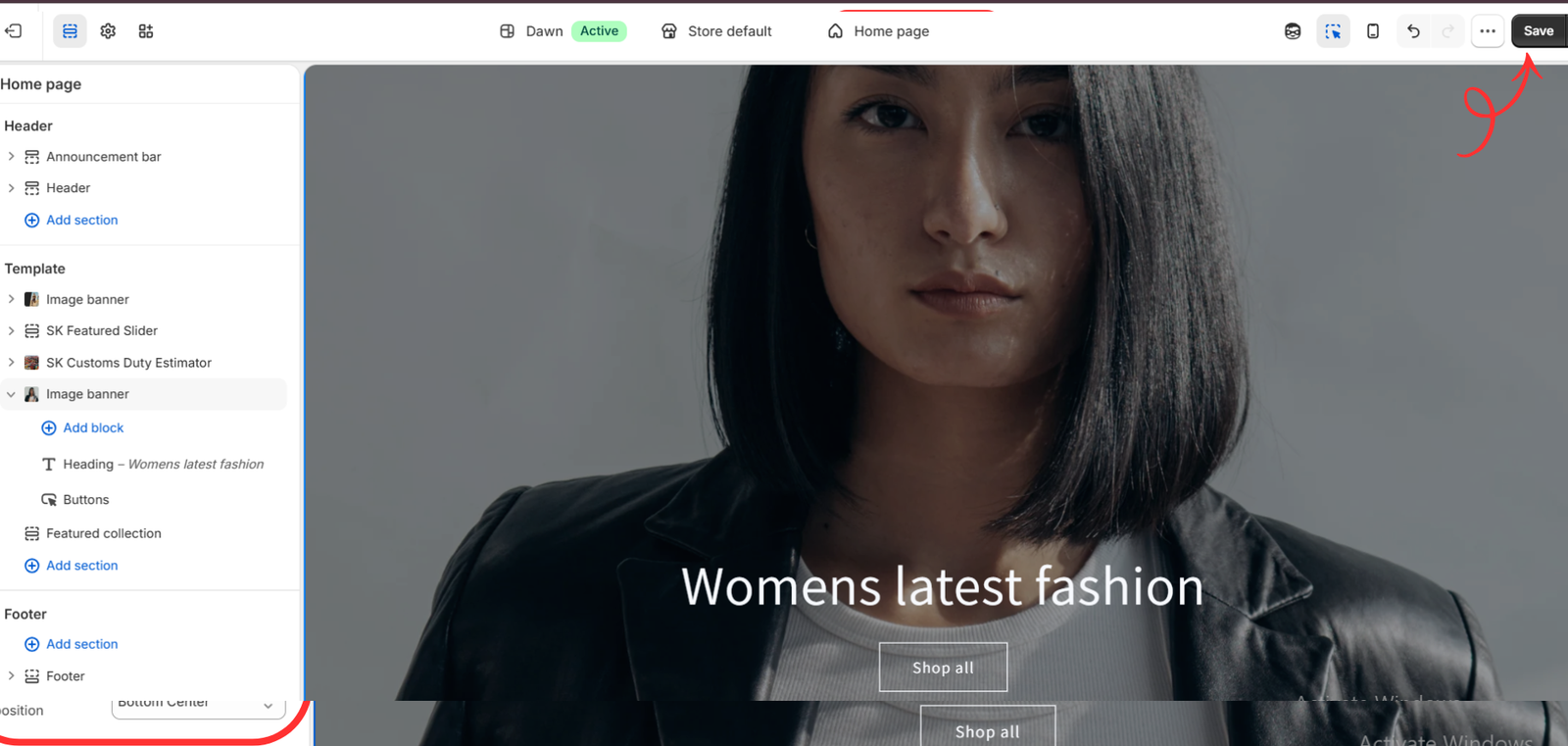
If you have made a design change you want to keep, select Save in the top-right corner. The screenshot highlights this button after a banner update.
Simply checking your theme name does not require changing or saving anything. For larger edits, duplicate the theme first so you can work on a copy and review the result before publishing. Saving edits to an active theme can affect the live storefront.
Step 7: Review the Heading Block
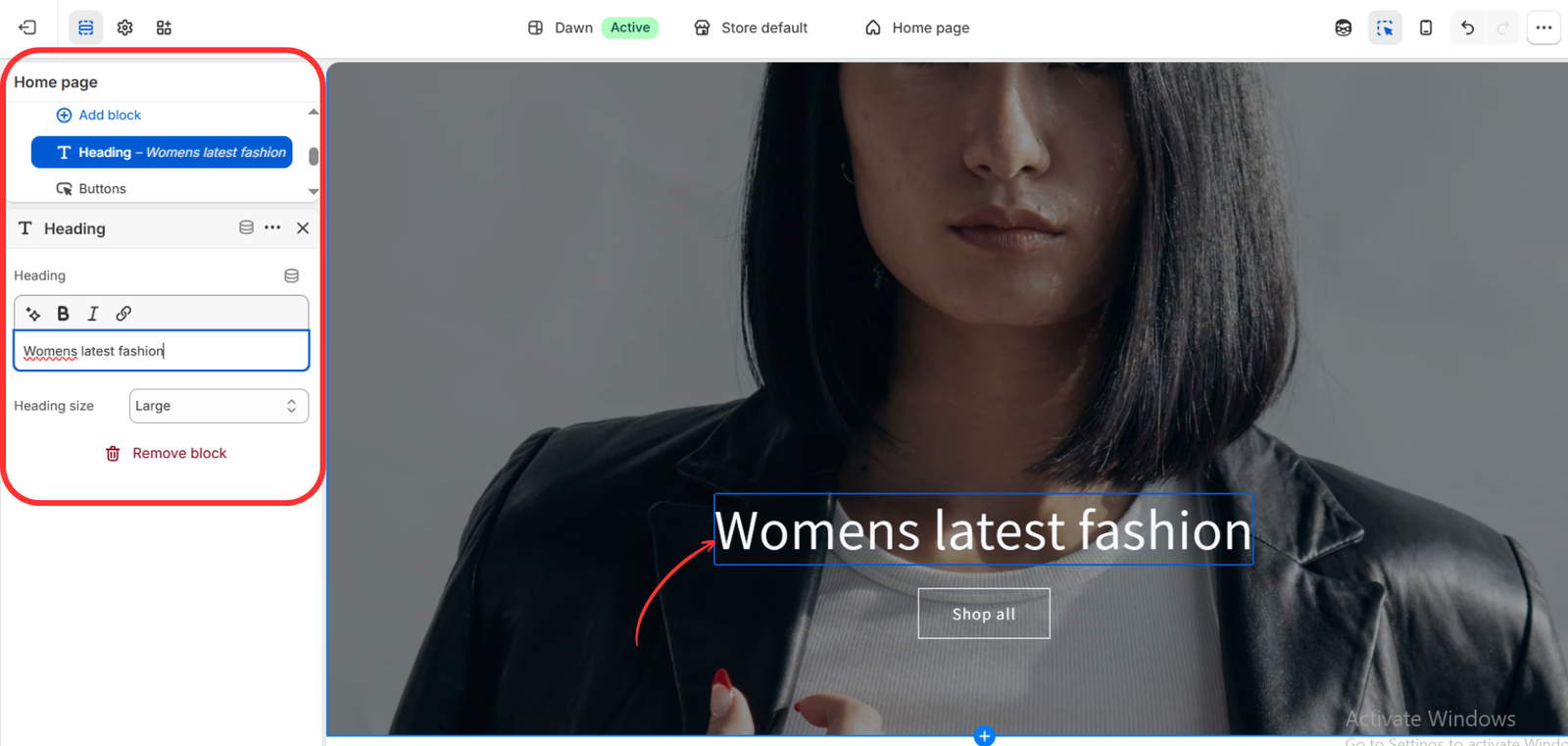
The final screenshot shows the banner’s Heading block. Selecting it reveals the heading text field and size setting, with the updated text visible in the preview.
This illustrates the relationship between a section and its blocks: the image banner controls the broader area, while the heading block controls a particular piece of content inside it. If you make another adjustment here, save again after finishing. Review the mobile preview as well as desktop before considering the design complete.
What If the Theme Name Is Unfamiliar?
A theme may have been renamed by the person who built or managed the store. If the displayed name does not clearly identify its original source, check any available theme information and ask your developer or previous store manager for the original theme name and version. Avoid assuming its identity from the storefront’s appearance.
When requesting support, share the displayed theme name, whether it is active, and a screenshot of the issue. This gives the support team a clearer starting point.
Improve Your Store After Identifying the Theme
Finding your theme is the first step toward making informed design changes. Review the sections already available, decide what your customers need, and add only the elements that serve a clear purpose.
If your theme needs more layout options, Section Kit provides premade sections you can customize within the familiar Shopify theme editor. You can build on your existing storefront while keeping your design workflow manageable.
References: Shopify: Managing themes · Shopify: Customizing themes. Screenshots supplied for this guide; interface labels may vary.
Explore Section Kit: Theme Sections:
https://apps.shopify.com/sectionkit




