HOW TO FIX A BROKEN SHOPIFY THEME LAYOUT WITH AI
Introduction
A well-designed Shopify theme is essential for creating a professional online shopping experience. Your store’s layout determines how customers navigate product pages, explore collections, interact with buttons, and complete purchases.
But what happens when your Shopify theme layout suddenly breaks?
You might notice overlapping product images, misaligned collection grids, disappearing buttons, uneven spacing, or sections that display incorrectly on mobile devices.
These problems can make your store look unprofessional and create frustration for shoppers.
Traditionally, fixing a broken Shopify theme layout required manually inspecting Liquid templates, CSS stylesheets, and JavaScript files. Merchants often needed to hire developers or spend hours identifying the source of the issue.
Fortunately, AI-powered Shopify editing tools now provide a more accessible way to investigate and repair theme problems.
In this tutorial, we will explain how to fix a broken Shopify theme layout with AI using AI Theme Code Editor.
You’ll learn how to connect your theme, describe your layout problem, review AI-generated code changes, and preview the result before applying updates to your storefront.
The Merchant’s Challenge: Why Shopify Theme Layouts Break
Shopify merchants can experience layout issues for several reasons.
1. CSS conflicts
Custom CSS or app-generated styles can interfere with existing theme layouts.
This may cause incorrect spacing, overlapping content, unexpected alignment, or broken mobile layouts.
2. Theme updates
Updating a Shopify theme can sometimes create compatibility problems with existing customizations.
Modified sections or snippets may not behave as expected after the update.
3. Broken collection page layouts
Collection pages are particularly important because they display multiple products.
Common problems include product cards appearing at different sizes, uneven grids, incorrect column spacing, and product images overflowing their containers.
4. Mobile responsiveness problems
A layout that looks correct on desktop may not display properly on smartphones.
Oversized images, fixed-width elements, and incorrect breakpoints can cause horizontal scrolling or misplaced buttons.
5. Liquid and JavaScript errors
Incorrect Liquid code or JavaScript behavior may affect how theme sections render and function.
6. Difficulty finding the correct theme file
Shopify themes contain multiple folders, including sections, snippets, assets, templates, and layout files.
Merchants unfamiliar with this structure may struggle to identify which file controls a broken section.
Why Is Fixing a Broken Shopify Theme Important?
A broken Shopify layout can affect the appearance and usability of your store.
Customers may struggle to find products, read descriptions, select variants, or use essential purchasing controls.
Fixing layout issues helps maintain a consistent shopping experience across desktop and mobile devices.
It can also improve the visual presentation of your product collections and reduce friction while customers browse your store.
For these reasons, identifying and resolving theme layout problems should be a priority for Shopify merchants.
The Role of AI Apps in Fixing Shopify Theme Problems
AI-powered theme editing apps can make troubleshooting more accessible.
Instead of manually searching through every Liquid, CSS, or JavaScript file, merchants can describe their problem in natural language.
An AI assistant can then inspect relevant theme code, suggest modifications, and help identify possible causes.
For example, instead of writing a custom CSS solution yourself, you could provide an instruction such as:
Fix the broken layout of my Shopify collection page. Identify and correct any CSS, Liquid, or JavaScript issues causing misaligned elements, overlapping content, incorrect spacing, or broken sections. Make the layout responsive on desktop and mobile while preserving the original design and functionality.
The AI can use this request to investigate the theme and generate proposed changes.
However, AI-generated fixes should always be reviewed and tested before being applied to a live storefront.
Introducing AI Theme Code Editor by SectionKit
AI Theme Code Editor is a Shopify app designed to help merchants modify and troubleshoot their theme code using natural-language instructions.
Instead of manually editing complex code files, you can explain what you want to change and use the AI assistant to help implement those changes.
The app includes a theme file explorer, code editing workspace, AI assistant, sandbox controls, and preview functionality.
Key Features of AI Theme Code Editor
- AI-powered theme editing: Describe theme modifications in plain English.
- Theme code assistance: Work with relevant Liquid, CSS, and JavaScript files.
- Broken layout troubleshooting: Ask AI to investigate layout problems and propose repairs.
- Theme file explorer: Browse your Shopify theme’s files from one workspace.
- Sandbox environment: Review and save proposed changes before applying them.
- Theme preview: Inspect changes using the available preview workflow.
- Custom section creation: Request new sections, layouts, and storefront features.
The app is useful for merchants who want more control over their storefront without manually writing every line of code.
App Link: Install AI Theme Code Editor on Shopify
Step-by-Step Guide: How to Fix a Broken Shopify Theme Layout With AI
Step 1: Open the Shopify App Store
First, open your browser and search Google for Shopify App Store.
Locate the official Shopify App Store result and click it.
You can also visit the store directly at https://apps.shopify.com.
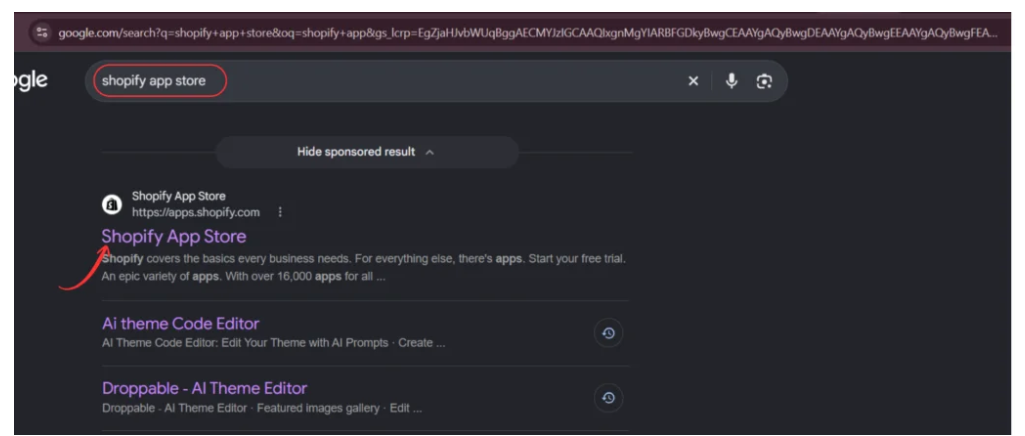
Image 1: Search for the official Shopify App Store using Google.
The Shopify App Store contains applications that help merchants customize, manage, and improve their stores.
Step 2: Search for AI Theme Code Editor
Once you have opened the Shopify App Store, locate the search bar.
Type AI Theme Code Editor and search.
Find the application named AI theme Code Editor in the results.
The listing uses a code-editor icon and describes the app as an AI developer that can help fix theme bugs.

Image 2: Search for AI Theme Code Editor and select the app from the Shopify App Store results.
Click the correct app listing to continue.
Step 3: Install AI Theme Code Editor
After opening the app listing, review its description, features, and installation information.
The app explains how merchants can describe storefront customizations in natural language and use AI to modify their theme code.
Click Install and complete Shopify’s authorization process.
If the app is already installed, Shopify may display an Open button instead.
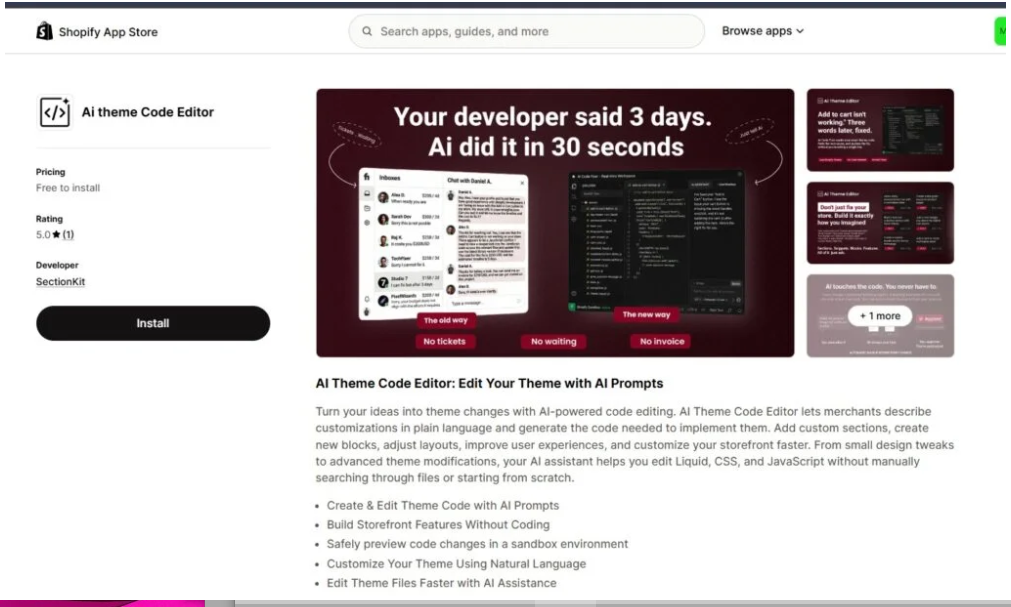
Image 3: Review the AI Theme Code Editor listing and install the application.
After installation, you can access AI Theme Code Editor directly from your Shopify admin.
Step 4: Connect Your Shopify Theme
Open AI Theme Code Editor from your Shopify admin dashboard.
Navigate to Connected Themes in the app sidebar.
This page displays your connected themes and provides the option to connect another theme.
Click Connect theme if the theme you want to edit has not already been connected.
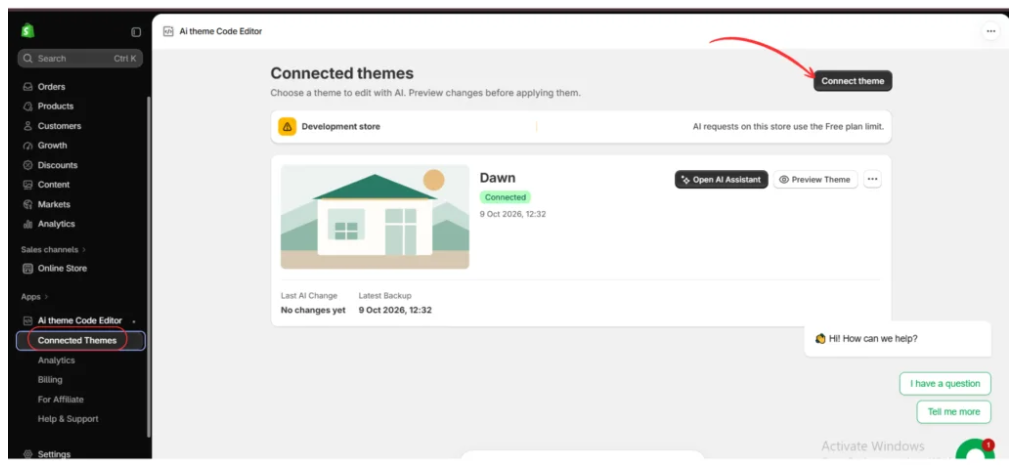
Image 4: Open Connected Themes and use the Connect theme option to select the Shopify theme you want to troubleshoot.
In the screenshot, the Dawn theme is already connected.
If multiple themes are available, verify that you are selecting the correct theme before making changes.
When possible, work on a duplicate or unpublished theme first.
Step 5: Open the AI Assistant
Once your Shopify theme is connected, locate it in the Connected Themes dashboard.
The theme card displays options such as Open AI Assistant and Preview Theme.
Click Open AI Assistant to launch the code editing workspace.

Image 5: Select the connected Dawn theme and click Open AI Assistant.
This opens the editing interface where you can ask AI to investigate problems with your Shopify theme.
Step 6: Describe Your Broken Theme Layout to AI
Inside the AI Theme Code Editor workspace, you will see the theme’s file structure on the left, the code editor in the center, and the AI Assistant on the right.
Locate the AI chat input and describe your layout problem.
For example, you can ask AI to fix overlapping product cards, broken collection grids, incorrect spacing, or mobile responsiveness issues.

Image 6: Enter a natural-language prompt asking AI to fix broken Shopify theme layout issues.
Exact AI Prompt to Fix a Broken Shopify Theme Layout
Copy this prompt into AI Theme Code Editor Copy
Fix the broken layout of my Shopify theme, especially the collection page. Identify and correct any CSS, Liquid, or JavaScript issues causing misaligned elements, overlapping content, incorrect spacing, or broken sections. Make the layout fully responsive on desktop and mobile. Keep the original design, features, and functionality unchanged. Make only the necessary fixes.
This prompt clearly communicates the problem, the expected result, and the requirement to preserve your existing storefront design.
For better results, mention the exact page or section where the problem appears.
Step 7: Review the AI-Generated Code Changes
After submitting your prompt, the AI assistant analyzes the request and identifies relevant theme files.
In the provided example, the AI assistant targets the file:
sections/main-collection.liquid
This file controls part of the collection page layout in the selected theme.
The screenshot shows AI-generated changes addressing collection grid structure, product card layout, spacing, image behavior, and mobile responsiveness.
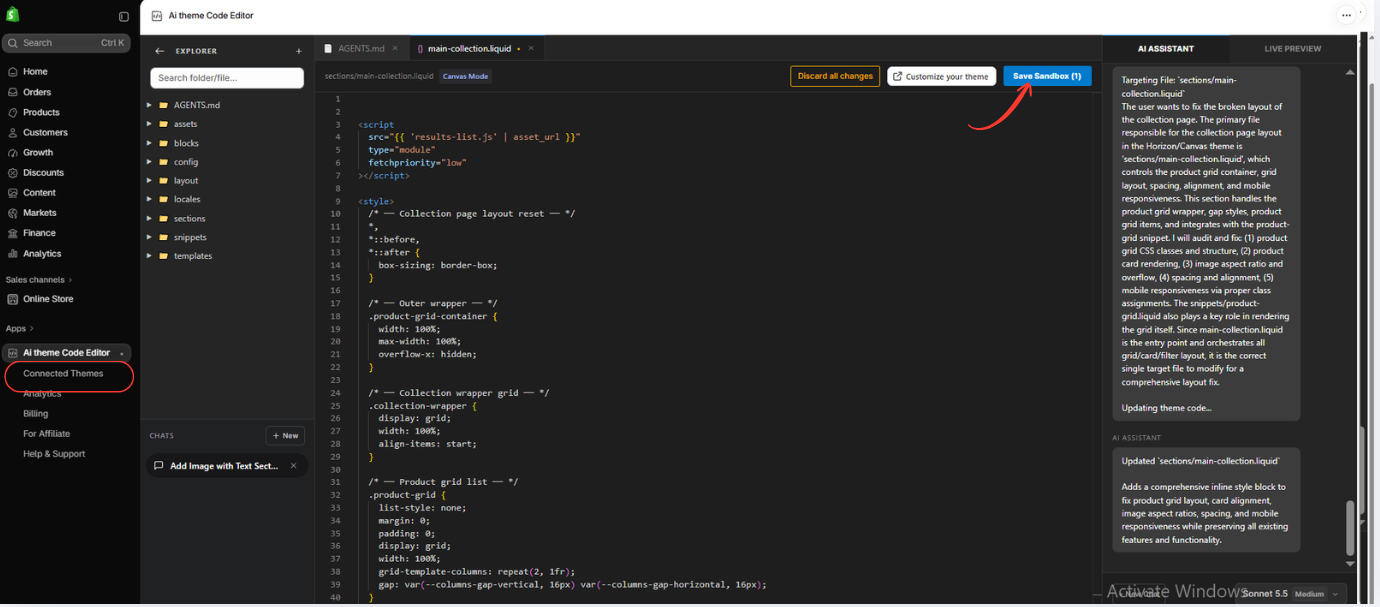
Image 7: Review the generated modifications to main-collection.liquid and locate Save Sandbox.
The editor displays the proposed code and includes a Save Sandbox option.
Before saving, review the modifications and check that they are relevant to your layout issue.
You should also make sure the proposed changes do not remove important existing storefront functionality.
Click Save Sandbox to save the available changes in the app’s sandbox workflow.
Saving sandbox changes should not be confused with publishing the modifications to your live store.
Step 8: Preview Your Shopify Theme Layout
After reviewing and saving your sandbox changes, open the Live Preview tab.
The screenshot shows the Live Preview option in the app’s right-hand panel.
Click Open Live Preview to view the storefront in the secure preview window supported by Shopify.

Image 8: Open Live Preview to inspect the Shopify theme after the proposed layout changes.
Check the areas that were previously broken.
For a collection page, inspect product card alignment, image sizing, column spacing, mobile layout, and product links.
Also verify that filtering, sorting, and add-to-cart functionality continue to work where applicable.
Important: The screenshots show the AI modification and preview workflow, but they do not demonstrate a completed visual comparison proving that every layout issue was resolved.
Once you have verified the result, follow the app’s available approval or application workflow to apply the changes to the intended theme.
Common Shopify Theme Layout Problems You Can Investigate With AI
Broken collection page grid
If product cards are displaying incorrectly, AI can help inspect the relevant grid styles and collection template structure.
Overlapping images and text
AI can investigate CSS positioning, element widths, and overflow properties.
Mobile layout problems
For mobile issues, AI can examine responsive styling, grid breakpoints, and fixed-width elements.
Missing spacing between sections
AI can help identify conflicting margins, padding values, and section settings.
Incorrect product image sizing
AI can investigate image containers, aspect ratios, and CSS sizing rules.
Broken theme sections
If a section stops displaying correctly after customization, AI can inspect its Liquid markup and related scripts.
Different issues may require different solutions, so always describe the specific problem rather than applying a generic fix to every theme.
Best Practices Before Fixing a Shopify Theme With AI
Always work on a backup theme
Before making significant modifications, duplicate your Shopify theme so you have a separate version available if something goes wrong.
Describe the problem clearly
A detailed request helps the AI identify the relevant issue. Include the affected page, device type, and observed behavior.
Avoid unnecessary changes
Ask the AI to preserve existing features and modify only the code necessary to resolve the problem.
Preview the results
Check desktop and mobile views before applying changes to your published storefront.
Test important store functions
Make sure menus, product variants, cart controls, filters, and other interactive elements continue working.
Review AI-generated code
AI can make mistakes or misunderstand a theme’s architecture. Review important changes and repeat testing after modifications.
Frequently Asked Questions (FAQs)
1. How can I fix a broken Shopify theme layout without coding?
You can use AI Theme Code Editor to connect your theme, describe the broken layout, generate proposed code changes, and preview the result before applying it.
2. Can AI fix a broken Shopify collection page?
AI can help identify and repair collection page layout issues involving CSS, Liquid, and JavaScript. The success of a fix depends on the underlying problem and the quality of the generated changes.
3. Does AI Theme Code Editor work with Shopify Dawn?
The provided screenshots show the Dawn theme connected to AI Theme Code Editor, with an editing workflow involving its collection template.
4. Can AI fix mobile responsiveness problems?
Yes. You can ask the AI to inspect and modify responsive CSS, grid settings, spacing, and layout behavior. Test the changes on different screen sizes.
5. Do I need to understand Liquid or CSS?
You do not need to write the code manually to submit an AI request. However, reviewing proposed changes and testing the results remains important.
6. Can I preview changes before applying them?
The app provides a sandbox workflow and Live Preview functionality, as shown in your screenshots.
7. Is AI Theme Code Editor free?
The provided Shopify App Store screenshot shows the app as free to install. Paid plans and token-based usage options may apply, so check the latest pricing on the app listing.
8. Can AI fix every Shopify theme issue?
Not necessarily. Some problems involve external apps, missing assets, unsupported theme behavior, or other factors that require additional troubleshooting.
9. Can I use AI Theme Code Editor to create new Shopify sections?
Yes. The app also supports requesting theme customizations and new storefront sections through natural-language instructions.
10. Will AI-generated changes affect my live Shopify store?
Sandbox changes are intended to support review and testing. Before applying any changes to your live theme, verify the app’s controls and follow the appropriate approval workflow.
Conclusion
A broken Shopify theme layout can create serious usability problems for online shoppers. Misaligned product cards, overlapping content, incorrect spacing, and mobile responsiveness issues can affect the professional appearance of your storefront.
Traditionally, fixing these problems required manually inspecting theme files or hiring a Shopify developer.
With AI Theme Code Editor by SectionKit, merchants can describe layout issues in plain English and use AI to help investigate and modify the relevant theme code.
The app provides a connected theme workspace, AI assistant, code editor, sandbox controls, and Live Preview functionality to support a more accessible troubleshooting process.
By reviewing proposed changes and testing them before publication, merchants can approach theme customization with greater confidence.
If you want to fix a broken Shopify theme layout or customize your storefront without manually writing every line of code, AI Theme Code Editor is worth exploring.
Start customizing your Shopify theme with AI:Install AI Theme Code Editor on Shopify




