HOW TO FIX INCONSISTENT PRODUCT PHOTOS ACROSS YOUR WIX STORE
Introduction
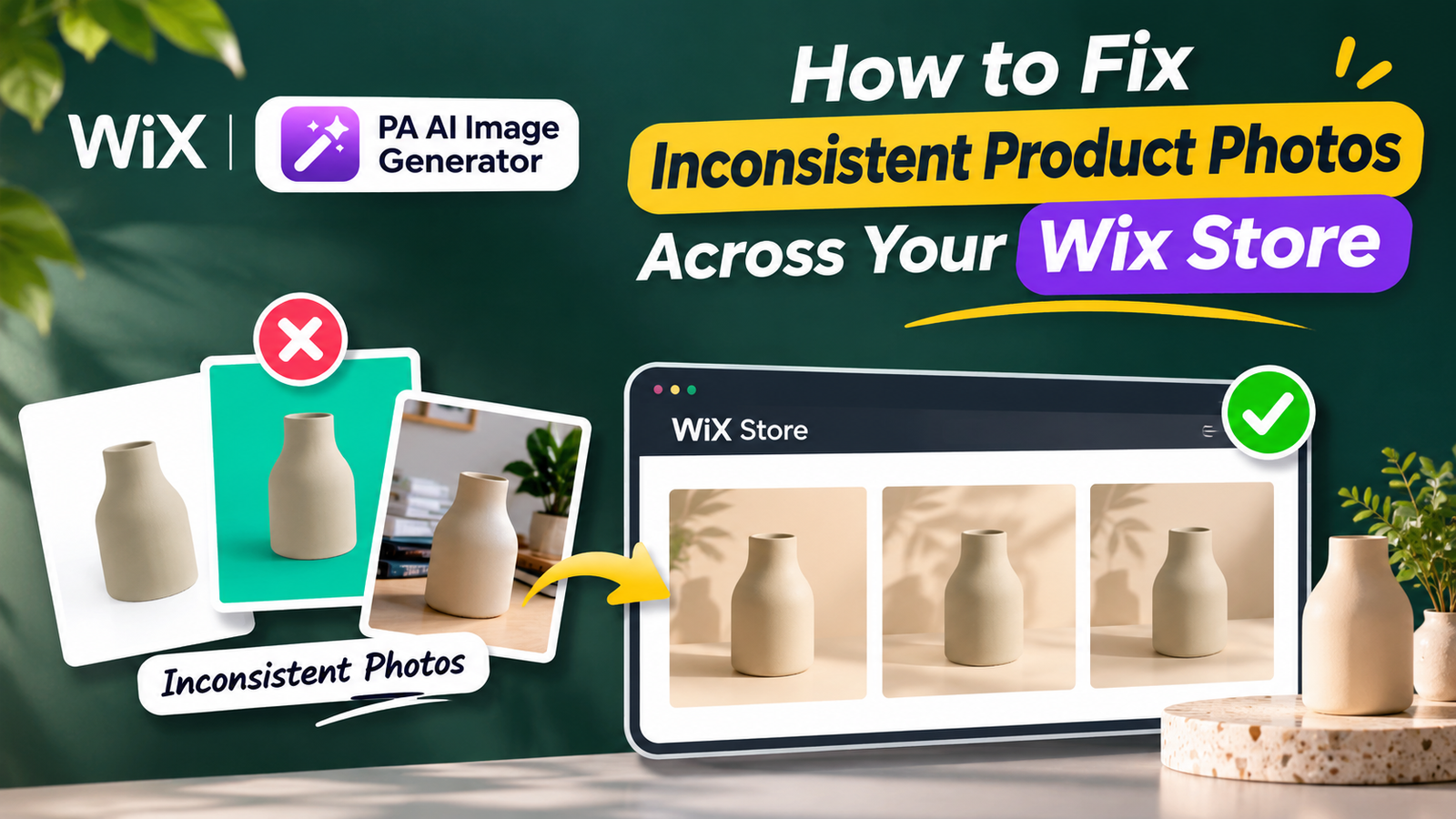
Inconsistent product photography is a common challenge for Wix store owners. Some product images have white backgrounds, others use colorful environments, and some contain different lighting, image sizes, or photography styles.
These differences can make an online store look disorganized, even when the products themselves are high quality.
Customers expect a consistent and professional shopping experience. When product images follow a similar visual style, your store can appear more polished, recognizable, and trustworthy.
Fortunately, you don’t need to arrange new photoshoots or manually edit every photograph using Photoshop.
With PA AI Image Generator, you can remove distracting backgrounds, apply consistent colors, and create professional AI lifestyle scenes directly from your Wix dashboard.
Why Consistent Product Photography Matters for Wix Stores
Consistent product images help create a recognizable visual identity for your online business.
When shoppers browse different products, similar photography styles make it easier to compare items and focus on their features.
Benefits include:
-
Creating a more professional-looking storefront.
-
Building a consistent brand identity.
-
Improving product catalog organization.
-
Reducing unnecessary visual distractions.
-
Highlighting important product details.
-
Supporting customer confidence.
-
Creating cohesive marketing materials.
Common Reasons Wix Product Photos Look Inconsistent
1. Different background colors
Some products may have white backgrounds, while others use colorful or distracting environments.
2. Uneven lighting
Product photographs captured under different lighting conditions can have inconsistent shadows, brightness, and color tones.
3. Different image dimensions
Using different image proportions can create an uneven product grid.
4. Inconsistent camera angles
Some photographs may show products from the front, while others use side angles or unusual perspectives.
5. Different photography styles
Mixing lifestyle photography, studio images, and basic phone photographs without a consistent design system can make your catalog appear disorganized.
6. Limited editing resources
Merchants with large product catalogs may struggle to edit individual photographs manually.
How AI Helps Fix Inconsistent Wix Product Images
AI-powered photography tools can help merchants create a more consistent visual appearance using existing product images.
For example, you can replace different background colors with the same brand color, remove distracting backgrounds, or generate similar lifestyle environments.
However, background consistency is only one part of product photography. Image dimensions, lighting, composition, and product positioning also require attention.
Introducing PA AI Image Generator for Wix
PA AI Image Generator is an AI-powered product photography application available on the Wix App Market.
The app supports background removal, solid-color background replacement, AI scene generation, custom prompts, before-and-after comparisons, and publishing edited photos to Wix products.
These features help Wix merchants create a more consistent product photography style.
HOW TO FIX INCONSISTENT PRODUCT PHOTOS IN WIX: STEP-BY-STEP GUIDE
Step 1: Open the Wix App Market
Open Google and search for Wix App Store.
Click the official Wix App Market search result.

Image 1: Search for the Wix App Market on Google and open the official marketplace.
Step 2: Search for PA AI Image Generator
Once inside the Wix App Market, locate the search bar.
Type PA AI Image Generator and press Enter.

Image 2: Search for PA AI Image Generator using the Wix App Market search bar.
Step 3: Select PA AI Image Generator
Locate the application in the search results.
Click PA AI Image Generator to open its official listing page.

Image 3: Find PA AI Image Generator from the available search results.
Step 4: Install PA AI Image Generator
On the application listing page, click Add to Site.
Follow the instructions to install the app on your Wix website.

Image 4: Click Add to Site to install PA AI Image Generator.
Direct app link: PA AI Image Generator – Wix App Market
Step 5: Open the Application in Your Wix Dashboard
After installing the app, navigate to your Wix dashboard.
Open Apps → AI Product Images.

Image 5: Access AI Product Images from the Apps section of your Wix dashboard.
Step 6: Choose the Product You Want to Edit
Browse the available products and select the item whose photograph needs improvement.
For this tutorial, we’ll use a Ceramic Flower Vase.

Image 6: Select the product whose image background you want to standardize.
Step 7: Open the Photo Studio
After selecting your product, the Photo Studio displays its available photographs and editing tools.
Select the photograph you want to edit.

Image 7: Select a product photo and locate the background editing tools.
The app offers different editing options. To fix inconsistent backgrounds, you can use Replace background to apply a uniform color or AI scene to create a realistic lifestyle environment.
Step 8: Review Your Original Product Photo
Before making changes, review your original product image.
Identify what needs improvement, such as background color, lighting, or presentation.
In the screenshot below, the ceramic vase has a simple light-colored background. The AI scene field also shows a prompt describing a bright modern studio.

Image 8: Review the original product photograph and identify the photography style you want to achieve.
For a consistent catalog, decide whether your products should use simple studio backgrounds or realistic lifestyle scenes.
Step 9: Choose a Consistent Brand Background Color
Scroll to Replace background and open the color picker.
You can select white, light gray, cream, black, or a custom color.
In this example, we’ll use a bright turquoise background with the HEX code #12EDB6.

Image 9: Select the custom turquoise color #12EDB6 to create a consistent product background.
Using the same color across related products can help create a recognizable visual style.
Step 10: Apply the Background Color and Preview the Result
Once you’ve selected the color, click Replace background.
The application processes your photograph and displays a before-and-after comparison.

Image 10: Compare the original ceramic vase image with the turquoise background replacement result.
In this screenshot, the original light-colored background has been replaced with turquoise.
The screenshot also shows the AI scene operation working. The visible turquoise result is the completed background replacement, not the final lifestyle scene.
Step 11: Generate a Consistent AI Lifestyle Scene
For merchants who prefer lifestyle photography, the AI scene feature offers another option.
Enter a descriptive prompt that defines the desired environment and asks AI to maintain the product’s original details.
For example:
Click Create AI scene, then review the finished image.
Image 11: Compare the original vase photograph with the final AI-generated lifestyle image featuring a wooden table and indoor decorative elements.
The generated image shows the ceramic vase on a natural wooden surface with plants and warm interior lighting.
This provides an alternative to a plain-color background and can serve as a visual reference for other products in the same collection.
Step 12: Publish the Updated Product Image
After reviewing the completed photograph, click Publish to product (becomes main photo).
According to the app’s interface, the edited image becomes the main product photograph, while the original images remain in the product gallery.
Before publishing, confirm that the product’s shape, color, texture, and important design details remain accurate.
Repeat the process with other products, using the same background colors or similar AI scene prompts.
Best Ways to Maintain Consistent Wix Product Photography
Use one photography style per collection
Avoid mixing multiple unrelated backgrounds within the same product collection.
Create a brand color palette
Choose a limited set of background colors that complement your Wix website.
Maintain consistent image proportions
Use similar aspect ratios to make product grids appear more organized.
Keep product positioning consistent
Try to maintain similar camera angles, product scale, and spacing.
Reuse successful AI prompts
Save prompts that generate results matching your brand’s photography style.
Review photographs before publishing
AI may occasionally alter product details, so always inspect the result carefully.
Recommended Background Styles for Different Wix Stores
| Store category | Recommended background style |
|---|---|
| Beauty and skincare | White, cream, pastel colors |
| Jewelry | Black, charcoal, luxurious marble |
| Fashion accessories | Beige, gray, minimal studio |
| Home decor | Warm interiors, wooden surfaces |
| Electronics | White, cool gray, minimal studio |
| Organic products | Sage green, natural materials |
How Consistent Product Photos Support Your Wix Store
Improve brand recognition
A consistent visual style helps customers recognize your business across product pages and marketing materials.
Create professional product collections
Using similar backgrounds, lighting, and image dimensions makes a store appear more organized.
Improve product comparison
Customers can focus on product details when images have consistent layouts.
Save time on photo editing
AI-powered editing reduces manual background replacement work.
Support customer confidence
Clear and accurate product photographs help shoppers evaluate what they are purchasing.
Common Mistakes to Avoid
-
Using unrelated background colors across similar products.
-
Applying inconsistent image dimensions.
-
Generating unrealistic lifestyle scenes.
-
Using excessively complicated prompts.
-
Changing important product details with AI.
-
Publishing photographs without reviewing them.
-
Assuming that background replacement automatically corrects lighting, image resolution, and camera angle.
Frequently Asked Questions
How can I fix inconsistent product photos in Wix?
Use consistent background colors, similar image dimensions, appropriate lighting, and AI-powered editing tools such as PA AI Image Generator.
Can I replace Wix product image backgrounds with custom colors?
Yes. PA AI Image Generator supports solid-color background replacement using predefined colors and custom HEX codes.
Can I create lifestyle scenes using AI?
Yes. The AI scene feature allows you to create realistic product environments with custom prompts.
Does the app automatically fix every photography issue?
No. Background editing can improve visual consistency, but it does not automatically standardize product sizing, camera angles, or all lighting differences.
Can I keep my original product photographs?
The app’s publishing interface indicates that original photographs remain in the product gallery when an edited image becomes the main photo.
Does AI background editing require credits?
The supplied screenshots indicate that background replacement uses one credit and AI scene generation uses two credits.
Can consistent product photography improve sales?
Professional-looking product photos can support customer confidence and improve browsing experiences, but sales increases are not guaranteed.
Conclusion
Inconsistent product photography can make a Wix online store look less professional, even when the products themselves are high quality.
By maintaining similar background colors, photography styles, image dimensions, and product positioning, merchants can create more organized and attractive catalogs.
With PA AI Image Generator, you can replace distracting backgrounds, create custom brand colors, generate AI lifestyle scenes, and improve your existing product photography directly from your Wix dashboard.