HOW TO FIX A MISALIGNED OR HIDDEN CART COUNT BADGE IN SHOPIFY
Shopify Cart Customization | Cart Badge Troubleshooting | No-Code Guide | 2026

Introduction
Your Shopify store’s shopping cart icon is one of the most important navigation elements in your storefront. It allows customers to access the products they’ve added to their cart and continue toward checkout.
Many Shopify themes display a small number beside or above the cart icon. This number is called the cart count badge, and it shows how many items are currently in the customer’s shopping cart.
However, merchants sometimes experience problems with their cart count badge.
The badge might appear too far from the cart icon, overlap another header element, disappear completely, or become difficult to read because of its color.
These issues can make your storefront look unprofessional and confuse customers.
Fixing them manually may require editing Shopify Liquid, CSS, or theme-specific cart components.
Fortunately, PA Cart Icons Library provides visual settings for customizing the appearance of your shopping cart icon and its count badge.
In this guide, we’ll explain why Shopify cart count badges become hidden or misaligned, how to troubleshoot the problem, and how to adjust supported settings using PA Cart Icons Library.
What Is a Shopify Cart Count Badge?
A cart count badge is a small visual indicator displayed near the shopping cart icon in your Shopify store’s header.
For example, when a customer adds one item to their cart, the badge may show the number 1. When they add additional items, the count may update.
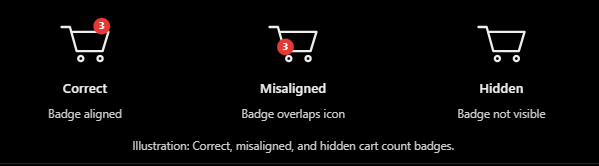
The cart count badge helps customers confirm that products have been added successfully.
Some themes display the total quantity of items, while others may use a different counting approach.
A properly displayed badge should be easy to read and positioned consistently beside the shopping cart icon.
Why Is Your Shopify Cart Count Badge Hidden or Misaligned?
1. Incorrect CSS positioning
Many Shopify themes use CSS positioning to place the badge near the cart icon.
If the positioning values are incorrect, the badge may appear too far away or overlap nearby elements.
2. Theme compatibility issues
Different Shopify themes use different header structures and CSS selectors.
A customization that works in one theme may not behave identically in another.
3. Cart badge disabled
Some themes or third-party apps allow merchants to disable the cart counter.
If this setting is turned off, the badge may disappear.
4. Low-contrast colors
A white badge on a white background may appear invisible even though it is technically present.
5. Icon size changes
Increasing the cart icon size without adjusting the badge positioning can sometimes create alignment problems.
6. Conflicting Shopify apps
Multiple apps modifying the header or cart icon can introduce duplicate elements, styling conflicts, or positioning problems.
7. Mobile layout issues
A badge may look correct on desktop but become clipped or misplaced on mobile because of a smaller header container.
Why Fixing Your Cart Count Badge Matters
A visible and correctly positioned cart count badge contributes to a clearer shopping experience.
It helps customers identify their cart, provides feedback when products are added, and contributes to a polished storefront header.
Although fixing a badge alone does not guarantee increased conversions, avoiding confusing navigation elements can reduce unnecessary shopping friction.
Introducing PA Cart Icons Library
PA Cart Icons Library is a Shopify application that helps merchants customize cart, search, and account header icons without manually editing theme code.
Its Theme Icons Pro dashboard includes controls for icon styles, sizes, stroke widths, colors, and cart count badge appearance.
Key features
- Cart count badge visibility toggle.
- Custom badge background color.
- Custom badge text color.
- Live cart badge preview.
- Shopping cart icon customization.
- Adjustable icon size.
- Header icon stroke-width settings.
- Shopify app embed integration.
- Theme selector configuration for supported themes.
App Link: PA Cart Icons Library — Shopify App Store
Step 1: Search for Shopify App Store on Google
Open your browser and type Shopify App Store in the Google search bar.
Click the official Shopify App Store result to open the website.

Image 1: Google search results showing the official Shopify App Store website.
The screenshot highlights the search query and the official Shopify App Store result.
This is where you can discover and install applications for customizing your Shopify store.
Step 2: Search for PA Cart Icons Library
Once you’re on the Shopify App Store, locate the search bar at the top.
Enter PA Cart Icons Library and search for the application.

Image 2: PA Cart Icons Library appearing in Shopify App Store search results.
The screenshot shows the application highlighted in the search results.
Look for its turquoise shopping cart logo and the description mentioning cart, search, and header icon customization.
Click the application name to open its listing.
Step 3: Install and Open PA Cart Icons Library
On the application’s listing page, review the features and available customization options.
Click Install to add it to your Shopify store, or Open if you’ve already installed it.

Image 3: Official PA Cart Icons Library listing displaying its customization features and Open button.
The application page highlights its large cart icon library and its ability to customize storefront header elements.
Once the app is installed, open it from Shopify Admin.
Step 4: Explore the Cart Icon Library
Once the app opens, select Icon Library from the left sidebar.

Image 1: PA Cart Icons Library showing Minimal Bag, Modern Basket, Filled Shopping Bag, and additional cart icon options.
Image explanation: Your screenshot displays the main Icon Library interface.
At the top, merchants can switch between Cart Icons, Search Icons, Account Icons, Wishlist, and Menu categories.
Below those tabs, the search field allows users to look for specific icons, while the style filter helps narrow the available designs.
The first visible options include Minimal Bag, Modern Basket, and Filled Shopping Bag.
Each card contains a preview, icon name, style label, and Apply to Theme button.
For merchants comparing cart, bag, and basket icons, this is a useful starting point.
Step 5: Compare Different Shopping Cart Styles
Scroll down through the Cart Icons collection to discover additional designs.

Image 2: Different shopping cart variations, including filled carts, outlined carts, and specialized cart symbols.
Image explanation: The screenshot shows a selection of cart icons with different shapes and visual styles.
Some use solid cart silhouettes, while others use thin outlines.
A green Active label identifies the icon currently selected in the example.
You can also find specialized designs showing cart checkmarks, download arrows, and other symbols.
For a standard shopping cart control, choose a recognizable cart shape rather than an icon that suggests a different action.
Step 6: Explore Bag and Package-Inspired Icons
Continue scrolling to view other options within the library.
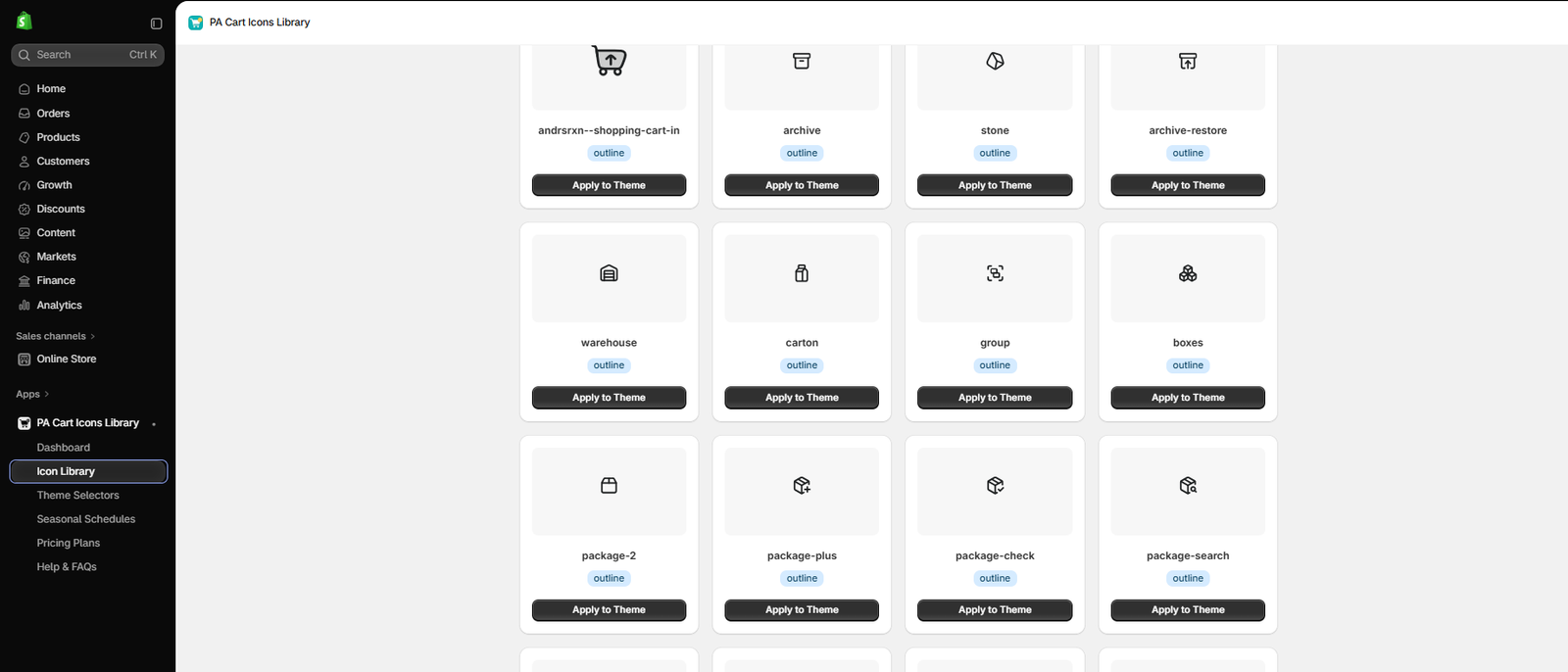
Image 3: Browsing bag, warehouse, carton, package, and other shopping-related symbols.
Image explanation: This screenshot shows a broader range of icons, including Warehouse, Carton, Boxes, Package, and Package Check.
These designs demonstrate how varied the icon library is.
However, not every icon is ideal for the primary shopping cart button.
A package icon might communicate shipping or order fulfillment more strongly than shopping-cart access.
When choosing a storefront icon, prioritize customer recognition over decorative novelty.
Step 5: Compare Minimalist Icons for Fashion and Beauty Stores

Image 4: Minimalist outline icons including Paper Bag, Package, and Box designs.
The screenshot shows simple outline designs with consistent black strokes.
For fashion and beauty brands, a minimalist bag icon can complement an elegant storefront.
If you choose an unconventional symbol, test whether customers still recognize its function.
For many stores, a familiar shopping bag outline is a safer choice than a generic package or box icon.
Step 6: Select a Shopping Cart, Bag, or Basket Icon
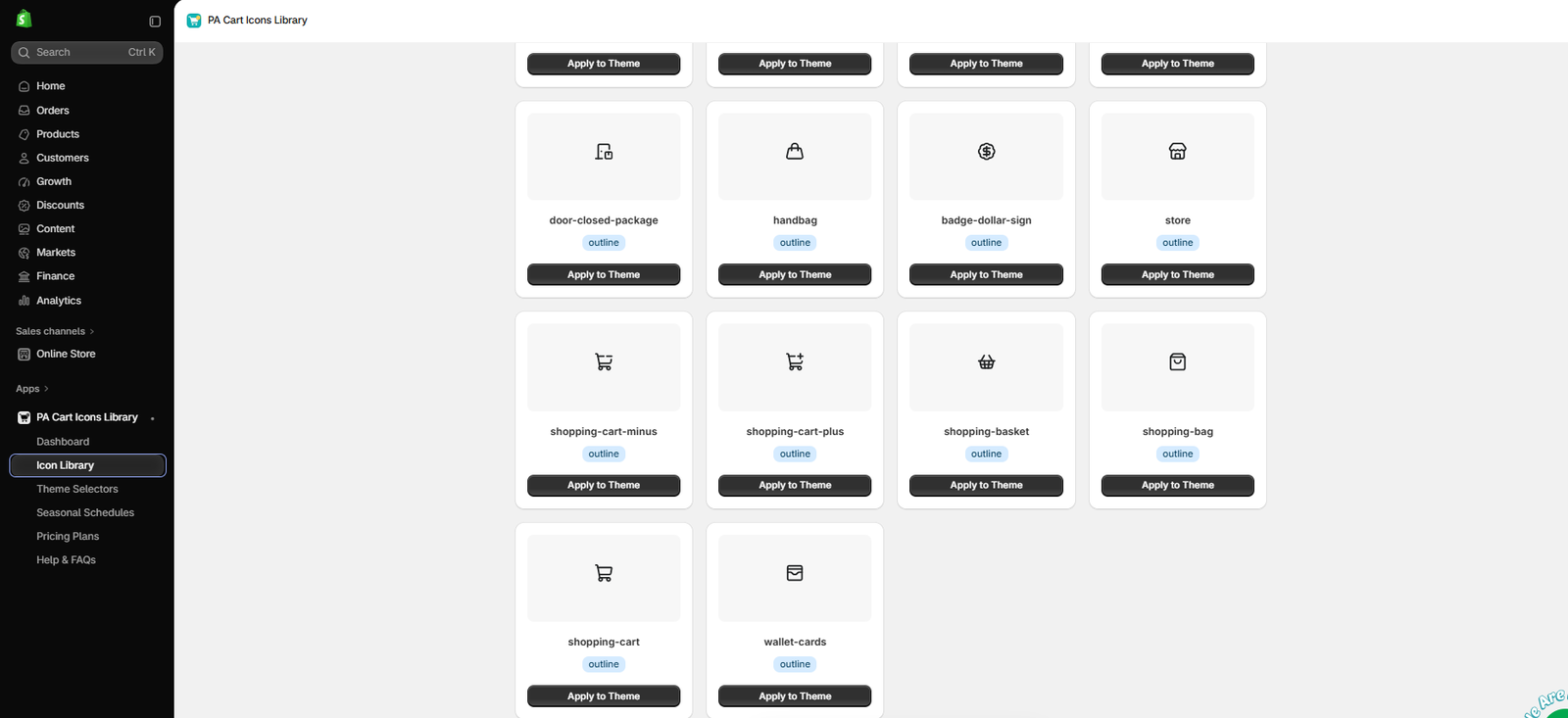
Image 5: Comparing shopping basket, shopping bag, shopping cart, and related icon designs.
This screenshot displays several relevant options, including Handbag, Shopping Basket, Shopping Bag, and Shopping Cart.
Consider how each design matches your niche.
A boutique fashion brand may choose Shopping Bag, a grocery or home essentials store may prefer Shopping Basket, and a technology retailer may select Shopping Cart.
Once you’ve chosen an icon, click Apply to Theme.
Step 7: Open the Theme Icons Pro Dashboard
Inside Shopify Admin, navigate to:
Apps → PA Cart Icons Library → Dashboard
The Theme Icons Pro dashboard contains the header customization settings.

Image 4: Theme Icons Pro dashboard showing Cart Icon Style, Search Icon Style, and Account Icon Style.
Image explanation: Your screenshot shows the dashboard with three dropdown menus highlighted:
- Cart Icon Style
- Search Icon Style
- Account Icon Style
The search icon setting currently displays Search Minimal.
On the right, the Live Preview panel shows the selected icons together.
The dashboard also provides controls for icon size, stroke width, and color.
Make sure the Storefront Integration option is enabled before customizing the icons.
Step 8: Choose Your Preferred Search Icon Design
Click the Search Icon Style dropdown to browse the available icons.

Image 5: Select a search icon from the available minimal, bold, outline, solid, and global SVG designs.
Image explanation: This screenshot shows several search icon options, including Search Minimal, Search Bold, Search Outline, and Search Solid.
It also shows additional global icon designs such as cloud-search, heart-search, and other variations.
What should merchants do?
Choose a familiar search icon that matches the overall look of your Shopify store.
For most stores, a simple magnifying-glass design is a practical option because customers can recognize it easily.
A decorative alternative can work for a particular brand, but it should still clearly communicate the search function.
Step 9: Verify Your New Search Icon on the Storefront
Finally, review the storefront preview after enabling the app embed.

Image 8: Final Shopify storefront preview showing the customized search icon alongside the account and cart icons.
Image explanation: Your final screenshot shows the Shopify Horizon theme editor with Theme Icons Pro enabled.
The search, account, and cart icons are highlighted in the top-right corner of the storefront.
This allows you to verify the appearance of the customized search icon before publishing.
Final checks: Click the search icon and confirm that it opens the expected search interface. Check the icon’s appearance on mobile and desktop, ensure it doesn’t overlap other header elements, and click Save in Shopify’s theme editor.
Your Shopify search icon is now customized without manually editing theme code.
How to Fix Cart Badge Positioning When App Settings Are Not Enough
Some Shopify stores require additional troubleshooting because of theme-specific CSS or conflicting cart components.
Check for duplicate cart badges
If two counters appear, the theme and an app may both be rendering cart badges. Review which component should control the display.
Check for clipping
A header container using CSS overflow: hidden may cut off a badge positioned outside the cart icon’s boundaries.
Check CSS positioning
Cart count badges are commonly positioned relative to a parent cart icon container. If that positioning context is missing, the badge can appear in the wrong place.
Check whether the cart count updates
If the badge only updates after a refresh, this is likely a cart state or JavaScript synchronization issue rather than a simple appearance problem.
Check theme selectors
PA Cart Icons Library includes a Theme Selectors section. The dashboard indicates automatic selector detection for Horizon, Dawn, and Online Store 2.0 themes, with options for custom overrides.
For heavily customized themes, a developer may need to verify the correct cart elements.
Important: The app’s demonstrated controls support badge visibility and colors, but the provided screenshots do not establish a dedicated badge-position adjustment feature. Exact alignment problems may require a theme-level fix.
Cart Badge Design Best Practices
| Design element | Recommendation |
|---|---|
| Visibility | Enable the badge when appropriate |
| Background | Choose a contrasting color |
| Text color | Keep count numbers readable |
| Icon size | Match the theme’s header proportions |
| Badge placement | Keep it clearly associated with the cart |
| Mobile layout | Avoid clipping and overlap |
| Cart functionality | Verify that the count updates correctly |
Frequently Asked Questions
1. Why is my Shopify cart count badge not showing?
Possible causes include disabled badge settings, an empty cart, low-contrast styling, theme incompatibility, or conflicts with other apps.
2. Can I change the Shopify cart count badge color without coding?
Yes. PA Cart Icons Library provides badge background and text color settings.
3. Can I enable or disable the cart counter badge?
Yes. The app includes a Show cart counter badge checkbox.
4. Why is my badge overlapping the cart icon?
This may happen because of incorrect positioning rules, oversized icons, or theme-specific CSS.
5. Does changing the cart icon size fix badge alignment?
It may help with visual proportions, but it will not necessarily correct an underlying CSS positioning issue.
6. Why is my cart badge visible on desktop but hidden on mobile?
The mobile header may use different styles, containers, or cart components.
7. Does PA Cart Icons Library work with Shopify Dawn and Horizon?
The app’s interface indicates automatic selector detection for Dawn, Horizon, and Online Store 2.0 themes. The final behavior should be tested on your specific store.
8. What if the cart badge updates only after refreshing the page?
That suggests a possible cart JavaScript or state synchronization problem. Changing badge colors or sizes will not fix that underlying behavior.
Conclusion
A hidden or misaligned Shopify cart count badge can make your storefront navigation less clear and create an inconsistent header appearance.
Common causes include disabled badge visibility, incorrect color combinations, oversized icons, CSS positioning problems, and conflicts between theme components or third-party applications.
With PA Cart Icons Library, merchants can check badge visibility, customize badge colors, adjust supported icon styling, and preview their changes without manually editing theme code.
For simple visibility or color problems, these controls provide a convenient starting point.
For more complex positioning problems, additional theme-level troubleshooting may be necessary.
The most important goal is to ensure that your cart badge remains visible, readable, correctly positioned, and functional across desktop and mobile devices.
Customize your Shopify cart icon and badge appearance with PA Cart Icons Library.Install PA Cart Icons Library on Shopify




