WHERE TO FIND FREE SVG CART AND SEARCH ICONS FOR YOUR SHOPIFY STORE
Shopify Store Customization | Free SVG Icons | Cart & Search Icon Library | 2026

Introduction
Your Shopify store’s header is one of the first things customers notice when visiting your website. It contains essential navigation elements such as the shopping cart, search button, and customer account icon.
Although these icons are small, they play an important role in how customers navigate your store.
A shopping cart icon helps visitors access their selected products, while a search icon makes it easier to find items across your catalog.
However, not every Shopify merchant wants to use the default icons included with their theme.
Some stores prefer minimalist shopping bags, others use bold shopping carts, and many brands want clean, modern search icons that match their overall design.
One way to customize these elements is by using free SVG icons.
SVG icons are scalable, customizable graphics that can maintain their sharp appearance across different screen sizes.
But where can you find high-quality, free SVG cart and search icons, and how can you use them on your Shopify store?
In this guide, we’ll explore some of the best free SVG icon libraries and explain how PA Cart Icons Library makes it easier to choose and apply header icons without manually editing Shopify theme code.
What Are SVG Icons?
SVG stands for Scalable Vector Graphics.
Unlike typical raster images, SVG graphics use vector-based shapes and paths. This allows them to scale without the pixelation associated with enlarging small raster images.
SVG icons are commonly used for website navigation, buttons, menus, shopping carts, search controls, and customer account symbols.
Cart icon
Bag icon
Search icon
Examples of clean, scalable vector-style icons used in Shopify storefront headers.
Why Use SVG Icons for Your Shopify Store?
1. Sharp appearance on different screens
SVG graphics can remain clear on desktop monitors, tablets, and mobile devices.
2. Flexible colors and sizes
Many SVG icons can be customized to match your store’s visual identity.
3. Consistent header design
Using icons from the same design family helps maintain consistent stroke widths, dimensions, and proportions.
4. Lightweight graphics
Simple, well-optimized SVG icons are often small files, making them suitable for storefront navigation.
5. Professional appearance
A coordinated set of cart, search, and account icons can make your Shopify header look more polished.
How to Find and Apply Free SVG-Style Cart and Search Icons Using PA Cart Icons Library
The screenshots below are your actual PA Cart Icons Library screenshots from the earlier demonstrations, placed directly beneath the relevant steps.
Step 1: Open the Shopify App Store
Open your browser and visit the Shopify App Store.
Search for PA Cart Icons Library and open the app listing.

Image 1: The PA Cart Icons Library app listing showing its icon customization features.
The listing explains that the app helps merchants customize cart, search, and account header icons.
Click Install to add it to your Shopify store, or Open if it is already installed.
Step 2: Open the Icon Library
After installation, navigate to:
Shopify Admin → Apps → PA Cart Icons Library → Icon Library

Image 2: The built-in Icon Library displaying cart, search, and account categories alongside individual icon cards.
The screenshot shows the main Icon Library interface, including category tabs for Cart Icons, Search Icons, Account Icons, Wishlist, and Menu.
It also displays a search field and style filter.
Merchants can browse available designs directly from this page.
Step 3: Explore Different Cart SVG Designs
Click Cart Icons and browse through the available styles.
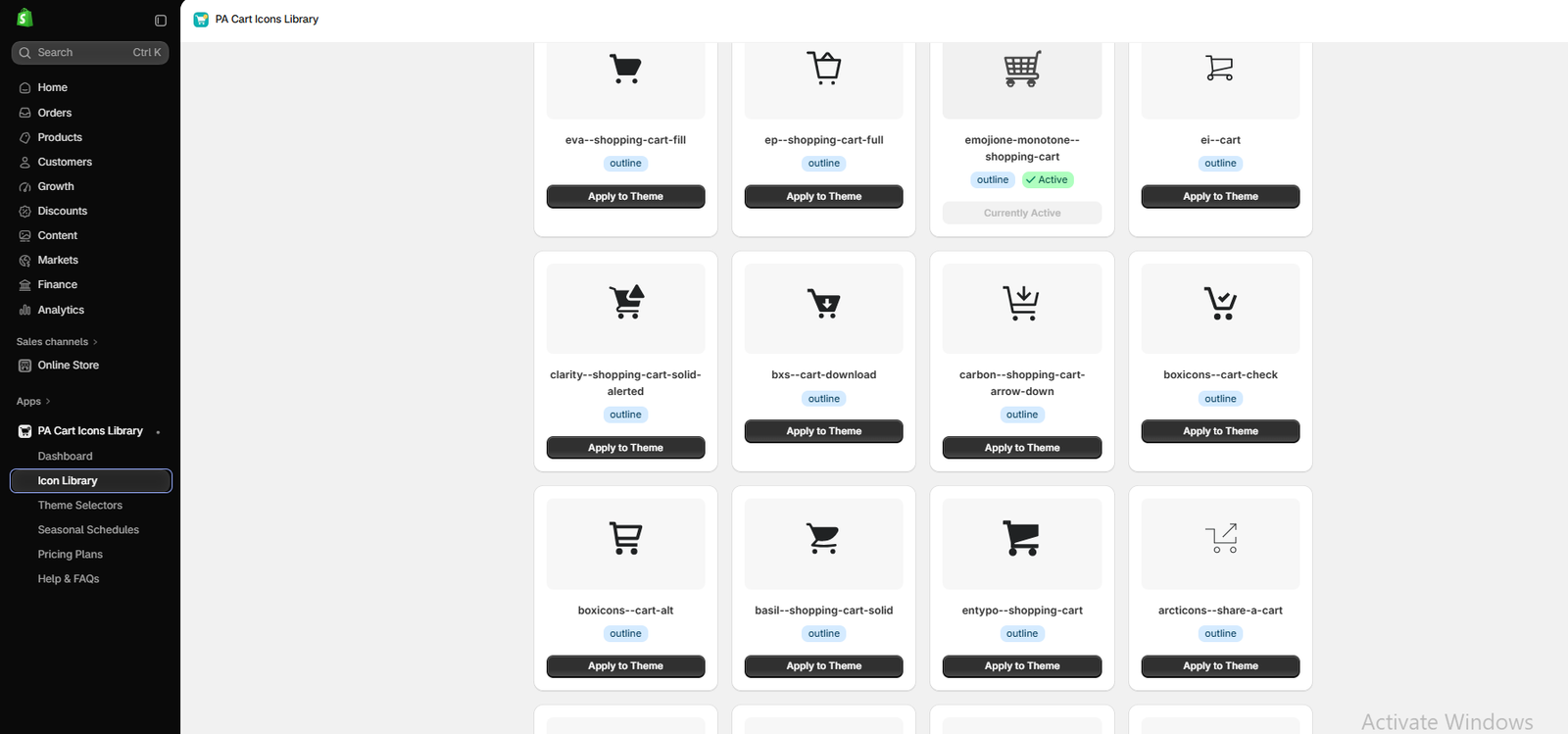
Image 3: Multiple shopping cart SVG-style designs, including outline and solid variations.
Your screenshot demonstrates different shopping cart symbols with varying shapes and visual weights.
Each card includes an Apply to Theme button.
The green Active label shows which icon is currently selected.
For most stores, a familiar shopping cart design is easier to recognize than an unusual decorative symbol.
Step 4: Compare Cart, Bag, and Basket Icons
Scroll through the icon library to compare different shopping styles.
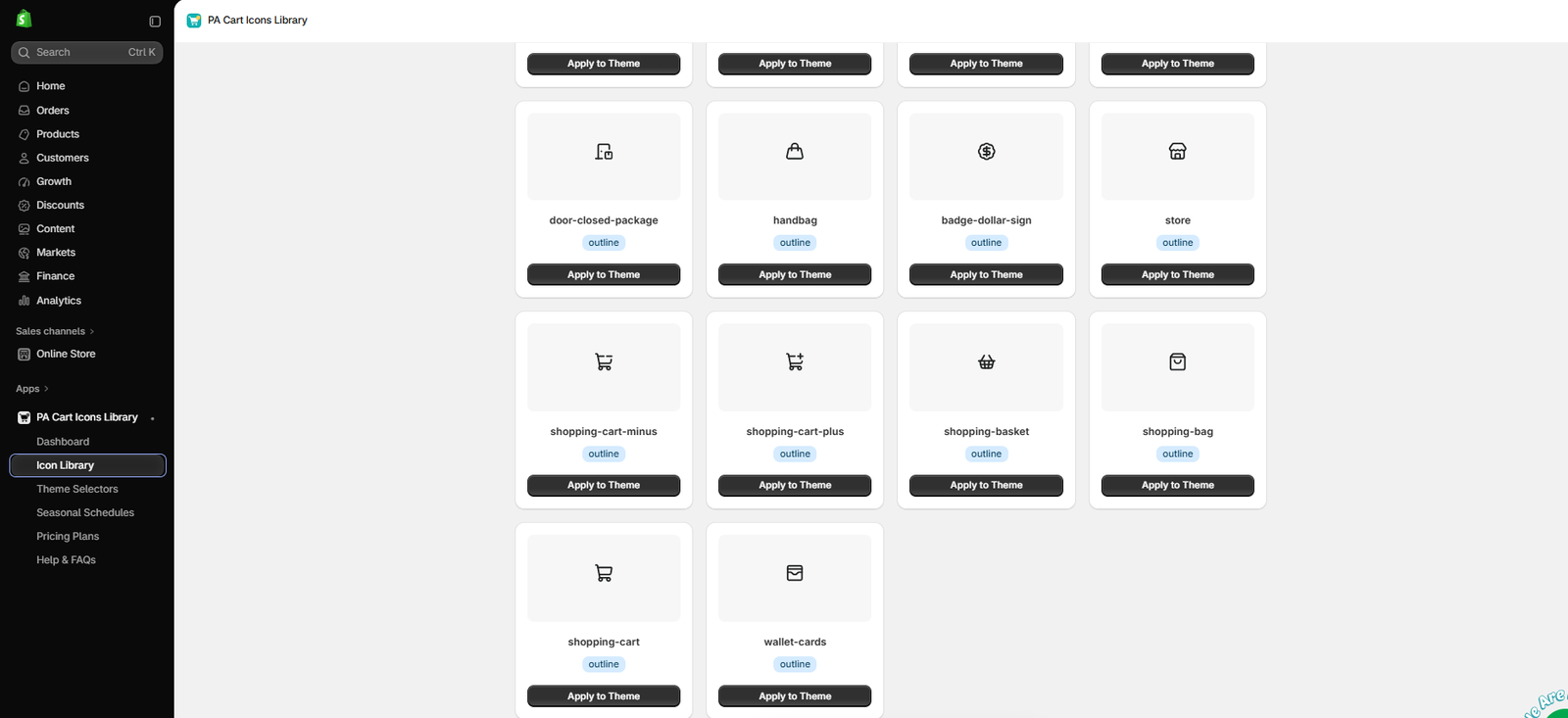
Image 4: Shopping cart, shopping bag, handbag, and shopping basket designs available in the icon library.
The screenshot shows shopping-related symbols including Handbag, Shopping Basket, Shopping Bag, and Shopping Cart.
The best choice depends on your Shopify niche.
A shopping bag can complement a fashion store, a basket may suit a grocery or home essentials brand, and a traditional cart is often a good fit for general eCommerce.
Step 5: Choose a Search Icon
At the top of the Icon Library, switch to Search Icons, or open the app’s Dashboard and locate Search Icon Style.

Image 5: Search icon options, including minimal, bold, outline, and additional global vector styles.
The screenshot shows a selection of search icon styles.
Choose a recognizable magnifying-glass design that matches the rest of your header icons.
A minimal outline search icon may complement fashion or beauty stores, while a slightly thicker version might work better for a bold technology storefront.
Step 6: Apply the Preferred Icon to Your Theme
Select a design and click Apply to Theme beneath the chosen card, where available.
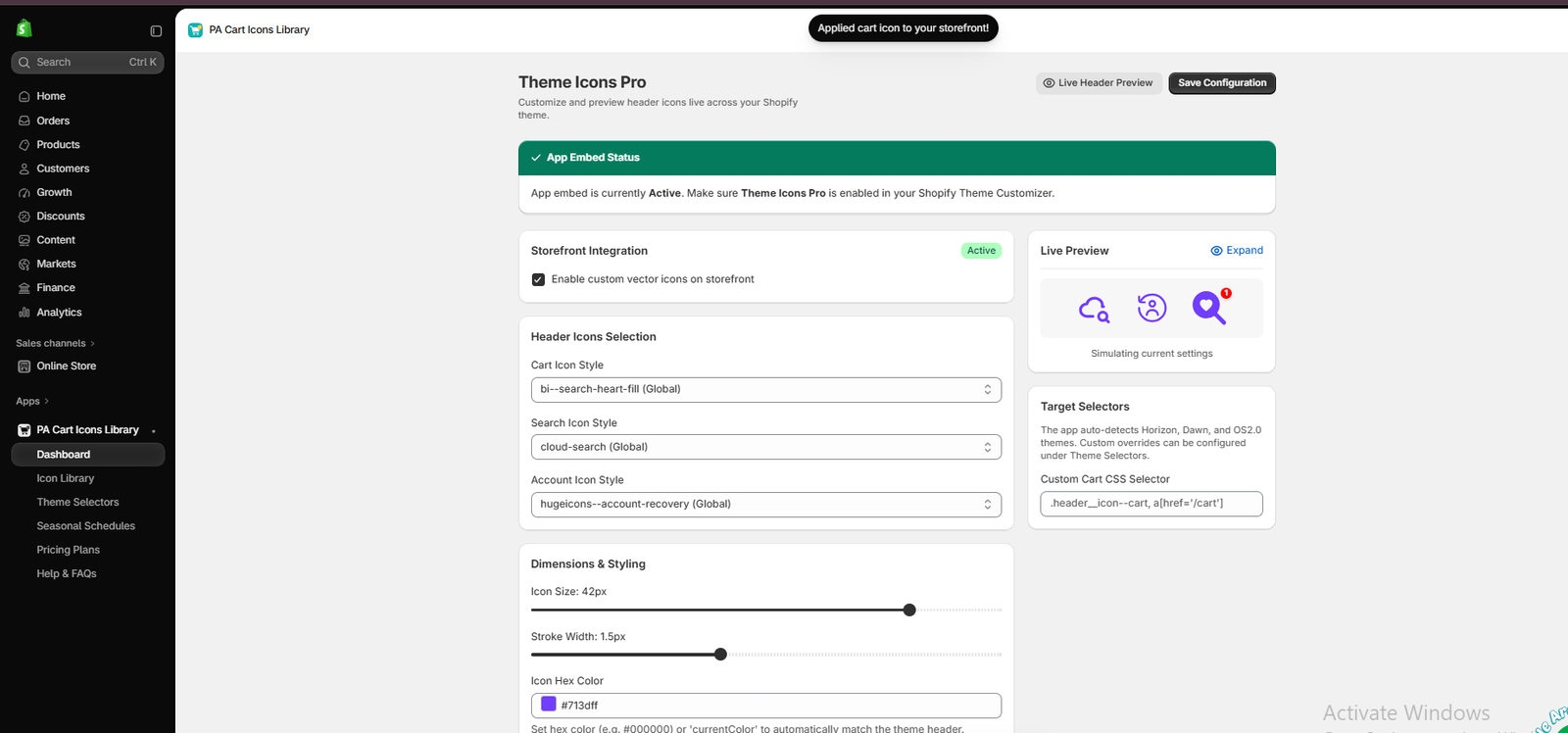
Image 6: Theme Icons Pro dashboard showing the selected icons and their appearance in the Live Preview.
The screenshot demonstrates the selected icon configuration after an icon has been applied.
The example uses a decorative heart-search symbol as the cart icon. For most real storefronts, a standard cart or bag symbol would communicate its purpose more clearly.
The Live Preview lets merchants compare the three header icons together.
Step 7: Adjust Icon Size, Color, and Stroke Width
Inside Theme Icons Pro, locate Dimensions & Styling.
You can adjust the size, line thickness, and HEX color of supported icons.
For example, a minimalist fashion store may prefer thin black icons, while a modern electronics store might use bold navy or blue icons.
Always maintain sufficient contrast between your icons and the header background.
Step 8: Save Your Configuration
After choosing your icon styles, check the Live Preview and click Save Configuration.
Remember that if the app is already active on a published theme, saved settings may affect the live storefront. Test on a duplicate theme if you need an unpublished approval workflow.
Step 9: Enable the Shopify Theme App Embed
Navigate to:
Online Store → Themes → Edit theme → App embeds
Image 7: Shopify theme editor showing Theme Icons Pro in the App embeds panel.
Locate Theme Icons Pro and enable it if it is not already active.
Save the theme editor settings.
Step 10: Test the Icons on Your Storefront
Open your store preview and inspect the header.
Confirm that the cart icon opens the shopping cart, the search icon opens the search interface, and the account icon directs customers to the correct account experience.
Test the icons on desktop and mobile before finalizing your changes.
Can You Upload Your Own SVG Icons to PA Cart Icons Library?
Yes, but this feature has a plan requirement.
Your app screenshot shows Upload Custom SVG and a notice stating that custom brand SVG uploads are available on the Premium plan.
The screenshot advertises Premium at $14.99 per month; verify the current price on the live listing before upgrading.
This is useful for merchants who already have a custom SVG icon designed by their team or downloaded from a licensed source.
You can use the built-in library for supported icon selections or consider the Premium upload feature when you need your own brand-specific SVG assets.
Free SVG Libraries vs PA Cart Icons Library
| Feature | External SVG library | PA Cart Icons Library |
|---|---|---|
| Find cart and search icons | Yes | Yes |
| Download raw SVG files | Yes | Not established for built-in icons |
| Icon selection inside Shopify Admin | No | Yes |
| Apply icon without manual code editing | Not by itself | Supported themes |
| Live header preview | Depends on tool | Yes |
| Customize size and color | Depends on implementation | Yes |
| Upload custom SVG | Not applicable | Premium feature |
Free SVG libraries are excellent for sourcing graphics. PA Cart Icons Library is particularly useful when the merchant’s goal is to configure supported storefront header icons without working directly with theme code.
Tips for Choosing the Best Free SVG Icons
Choose icons from a consistent design family
Mixing unrelated icon styles can create an uneven header appearance.
Use familiar shopping symbols
Cart, bag, basket, and magnifying-glass designs are generally easier to recognize than abstract alternatives.
Check commercial usage rights
Even when an icon library describes its assets as free, review the license terms before using them in a commercial store.
Avoid excessively detailed icons
Simple icons often remain clearer at small sizes.
Keep file sizes reasonable
Use optimized SVG assets and avoid unnecessary complexity.
Test mobile layouts
An icon that looks attractive on a desktop screen may be difficult to recognize on mobile.
Frequently Asked Questions
1. Where can I find free SVG cart icons for Shopify?
Lucide, Heroicons, Tabler Icons, and Bootstrap Icons are useful places to find free SVG shopping icons.
2. Are free SVG icons suitable for commercial Shopify stores?
Many open-source libraries permit commercial use, but merchants should review each collection’s license and any notice requirements.
3. Can I change Shopify cart icons without coding?
Yes. PA Cart Icons Library provides a visual customization workflow for supported Shopify themes.
4. Can I customize search icons too?
Yes. The app includes search icon selections alongside its cart and account icon settings.
5. Can I change the SVG icon color?
Yes. Theme Icons Pro includes a HEX color field for supported header icons.
6. Can I upload a custom SVG file?
The app’s interface identifies custom SVG uploads as a Premium plan feature.
7. What is better: an outline cart icon or a solid icon?
It depends on your branding. Outline icons may suit minimalist stores, while solid icons can provide stronger visual emphasis.
8. Do SVG icons slow down Shopify stores?
Simple, optimized SVGs are usually lightweight. However, unnecessarily complex SVGs or inefficient integration can still affect performance.
Conclusion
Free SVG cart and search icons can help Shopify merchants create a cleaner and more consistent storefront header.
Open-source collections such as Lucide, Heroicons, Tabler Icons, and Bootstrap Icons provide a wide variety of designs suitable for different eCommerce businesses.
However, downloading an icon is only part of the process. Merchants must still integrate it into their Shopify themes, preserve functionality, and ensure the final design works across devices.
For store owners who prefer a visual customization experience, PA Cart Icons Library provides built-in icon selections, styling controls, and a live preview.
Whether you’re running a fashion boutique, electronics shop, beauty store, or general retail business, choosing recognizable and visually consistent icons can improve your storefront’s overall presentation.
Explore cart, bag, basket, and search icon styles for your Shopify store.Explore PA Cart Icons Library on Shopify




