HOW TO USE GENUINE PURCHASE NOTIFICATIONS AS SOCIAL PROOF ON SHOPIFY
Shopify Tutorial | Real Purchase Notifications | Customer Trust | Social Proof Marketing | AB Sales Popup | 2026
Introduction
When a new customer visits your Shopify store, one of the first questions they may have is whether other people have purchased from your business before.
Even when your store has beautiful product images, detailed descriptions, and competitive pricing, first-time visitors may hesitate to place an order.
This is where genuine purchase notifications can help.
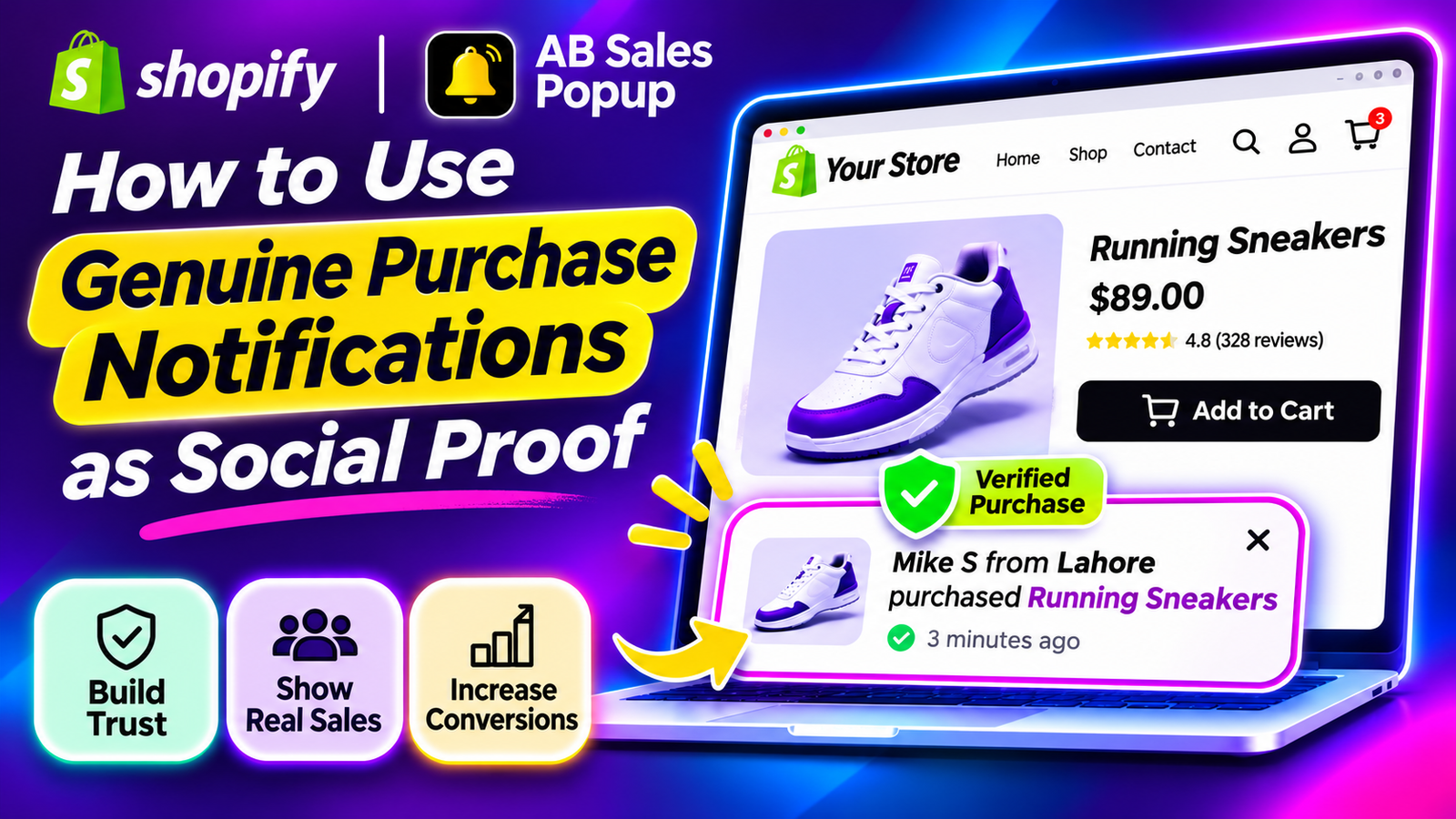
A purchase notification is a small popup that shows a customer that someone recently purchased a product from your store.
For example, a notification might display:
Someone from Lahore purchased
Classic Running Sneakers
12 minutes ago
Illustrative purchase notification. The customer, location, product, and purchase time are examples, not a real order.
When these notifications reflect actual transactions, they provide authentic social proof without relying on fake customer activity or artificially inflated sales numbers.
With AB Sales Popup, Shopify merchants can configure sales notifications using order-related information, customize their appearance, and control where and when they appear.
In this guide, you’ll learn how to use genuine purchase notifications as social proof on Shopify, why authenticity matters, and how to configure your notifications using AB Sales Popup.
What Are Genuine Purchase Notifications?
Genuine purchase notifications are small storefront messages that communicate real purchases made by customers.
They typically display information such as a product name, a purchase timestamp, and sometimes a limited amount of customer or location information.
Unlike fake sales popups, genuine notifications are based on authentic purchase records.
A properly configured notification might read:
“Someone from London purchased a Leather Handbag 15 minutes ago.”
That message should only appear if a corresponding purchase actually happened and the information is accurate.
The purpose of these notifications is to help new customers see credible evidence that other shoppers have purchased from your business.
Why Is Social Proof Important for Shopify Stores?
1. Build trust with first-time shoppers
Visitors may feel more confident when they can see genuine evidence of previous purchases.
2. Make product popularity more visible
Purchase notifications can highlight products that customers are actually buying.
3. Reduce uncertainty
Authentic buying activity can help shoppers assess whether a store has an established purchase history.
4. Complement customer reviews
Notifications work alongside verified reviews, star ratings, testimonials, and other trust-building elements.
5. Support conversion optimization
Social proof can be tested as part of a conversion optimization strategy, although displaying purchase notifications does not guarantee higher sales.
The Problem With Fake Sales Notifications
Some online stores display notifications that imitate real purchases without having corresponding orders.
For example, a store might show that someone purchased a product a few seconds ago even when no transaction took place.
This approach can mislead customers and damage credibility.
Fake notifications can also create problems when customers notice repetitive names, identical product details, or unrealistic purchase activity.
The better approach is to use authentic purchase data, accurate timestamps, and privacy-conscious notification messages.
Introducing AB Sales Popup
AB Sales Popup is a Shopify application designed to help merchants display sales notifications and other social proof tools.
Its Sales Notifications feature includes customizable popup themes, dynamic order-related variables, timing controls, product targeting, and a Verified Orders Feed tab.
Key features
- Purchase notification customization.
- Verified Orders Feed interface.
- Dynamic customer and product placeholders.
- Customer location and purchase-time variables.
- Festive, Basic, and Custom popup themes.
- Light Mode and Dark Mode.
- Custom border shapes and colors.
- Desktop and mobile placement controls.
- Initial delay and notification display duration.
- Product and collection targeting.
- Shopify theme app embed integration.
App link: AB Sales Popup — Shopify App Store
Step-by-Step Guide: How to Display Genuine Purchase Notifications on Shopify
Step 1: Open the Shopify App Store
Open Google and search for Shopify App Store.

Select the official Shopify App Store website.
You can also open it directly at apps.shopify.com.
Step 2: Search for AB Sales Popup
Once you’re inside the Shopify App Store, locate the search bar and type AB Sales Popup.

Find the app with the black-and-yellow notification bell icon.
Open its listing to review the app features and installation options.
Step 3: Install and Open the Application
Click Install to add AB Sales Popup to your Shopify store.
If you have already installed the app, click Open.
Navigate to:

Shopify Admin → Apps → AB Sales Popup
The app dashboard provides access to Sales Notifications, Countdown Timer, Visitor Counter, Sold Counter, and Stock Countdown.
Step 4: Open the Sales Notifications Feature
Inside the AB Sales Popup dashboard, click Sales Notifications from the left sidebar.
The Sales Notification configuration page will appear.
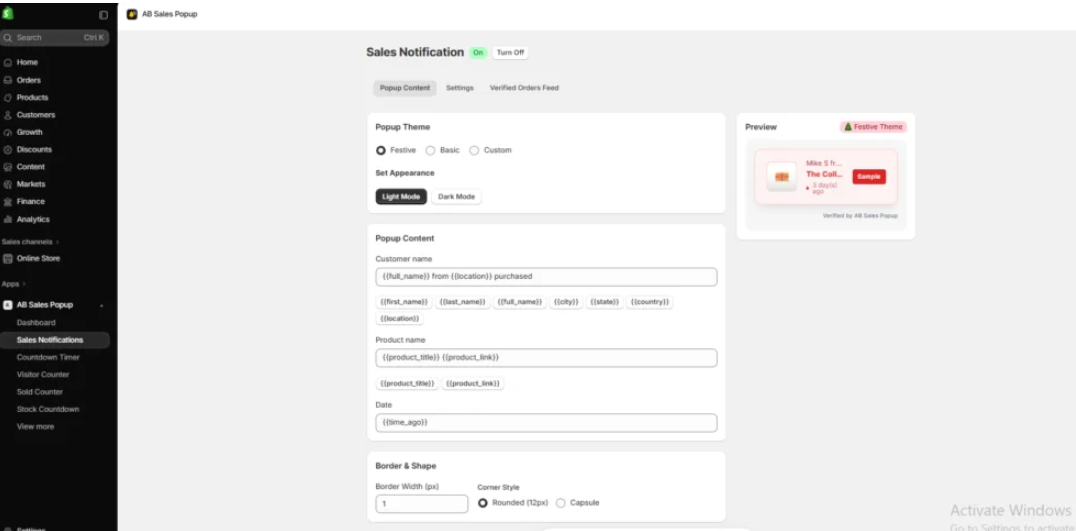
Your previously supplied screenshot shows the feature enabled, with three tabs at the top:
Popup Content, Settings, and Verified Orders Feed.
The main screen also contains popup theme selection, customer information fields, product information, and a preview panel.
The first step is to make sure that Sales Notification is switched On.
Step 5: Review the Verified Orders Feed
At the top of the Sales Notification page, click Verified Orders Feed.
This is the relevant section to inspect when you want notifications based on genuine purchases
.
Check how the app obtains and presents order information, which orders are eligible, and whether refunds, cancellations, and test orders are excluded.
The screenshots provided so far show the Verified Orders Feed tab but not its contents, so the exact available filters cannot be confirmed.
Before launching notifications, verify that the configured feed reflects authentic customer purchases.
Step 6: Choose a Sales Notification Theme
Return to Popup Content.
Your screenshots show three available theme options:
- Festive: A colorful notification style that may suit holiday promotions.
- Basic: A simpler notification design suitable for minimal storefronts.
- Custom: A theme that allows additional color customization.
You can also switch between Light Mode and Dark Mode.
For most stores, a simple theme that matches the existing brand design is a useful starting point.
Step 7: Customize the Customer Information
Under Popup Content, locate the Customer name field.
The example shown in your app dashboard is:

{{full_name}} from {{location}} purchased
The app interface displays dynamic customer-related variables, including:
{{first_name}}, {{last_name}}, {{full_name}}, {{city}}, {{state}}, {{country}}, and {{location}}.
These placeholders are designed to insert relevant information into the message.
However, you should be mindful of customer privacy.
For example, it may be better to display a first name and a broad location rather than a complete customer name.
Only display personal information when there is a valid basis to do so under applicable privacy requirements and your store’s customer disclosures.
Step 8: Customize the Product Information
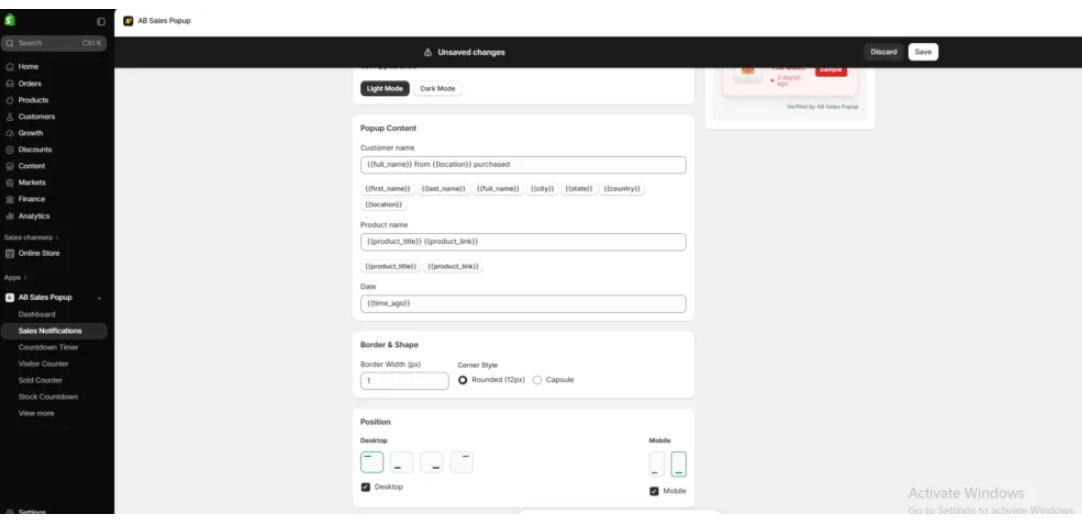
Next, locate the Product name field.
Your screenshot shows:
{{product_title}} {{product_link}}
These variables allow the notification to refer to the purchased product.
Including a product title can make the notification more useful for shoppers who are interested in discovering popular products.
Make sure the product information reflects the actual order, rather than a manually selected product unrelated to the purchase.
Step 9: Display Accurate Purchase Timing
Under the Date section, your screenshot shows the variable:
{{time_ago}}
This is used to communicate how long ago a purchase occurred.
A notification may describe a purchase as having happened minutes, hours, or days earlier.
Accurate timestamps help distinguish authentic purchase notifications from artificially repeated activity.
Avoid displaying an old purchase as if it happened moments ago.
Step 10: Customize the Notification’s Appearance
Under the Custom theme, the app offers controls for:
| Setting | Example |
|---|---|
| Background color | #FFFFFF |
| Text color | #000000 |
| Accent / Link color | #000000 |
| Border color | #E5E7EB |
| Border width | 1px |
| Corner style | Rounded or Capsule |
Your previous screenshots show both Rounded and Capsule styles.
Choose colors and shapes that complement your storefront without making the popup excessively prominent.
Step 11: Configure Notification Timing
Click the Settings tab.
Under Display settings, you can configure how frequently purchase notifications appear.
The previously supplied screenshots show these example values:
| Setting | Value |
|---|---|
| Initial delay | 2 seconds |
| Display duration | 5 seconds |
| Delay between notifications | 5 seconds |
| Randomize delay | Off |
| Random notification order | Off |
These settings control the notification presentation, not whether a purchase actually occurred.
Consider using a longer interval between notifications if your store has several widgets or a busy layout.
Step 12: Select Products or Collections
Scroll to Show Notification On.
The app provides Product and Collection options.
Use these settings to choose the storefront pages where notifications should appear.
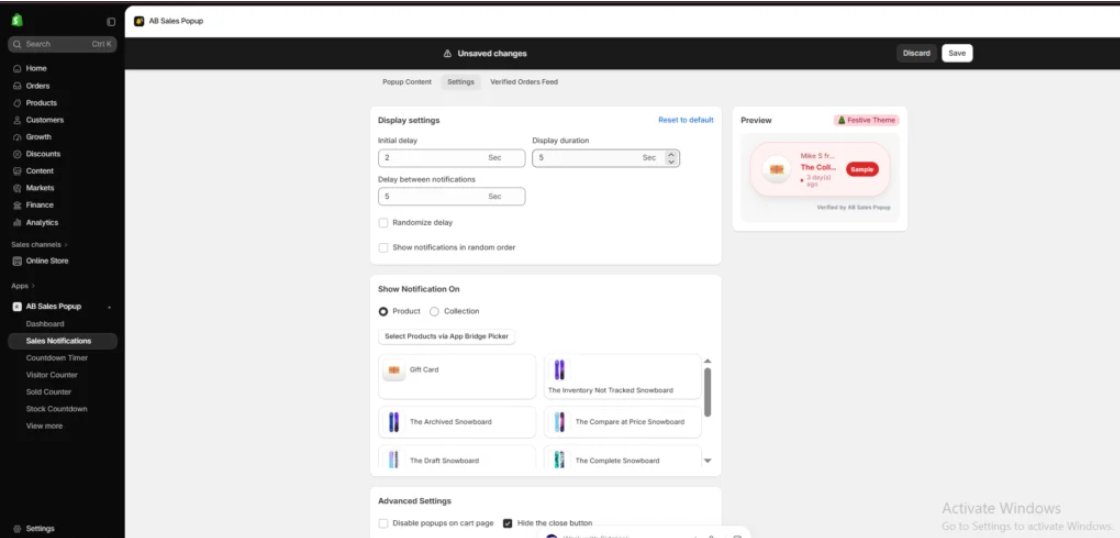
You can also use the product picker displayed in the interface.
Keep in mind that targeting a product page should not change the facts of the purchase notification itself.
Step 13: Configure Advanced Notification Settings
Continue to Advanced Settings.
Your screenshots show controls for disabling popups on the cart page, hiding the close button, enabling UTM code, and removing app branding where supported by the plan.
Consider allowing shoppers to close notifications easily.
Also avoid displaying popups on pages where they might interrupt checkout-related activity.
Step 14: Save and Enable the Sales Notification App Embed
After configuring the popup, click Save.

Return to the AB Sales Popup dashboard and select Enable App Embed for Sales Notifications.
In the Shopify theme editor, enable the relevant sales notification app embed and save the theme.
Step 15: Test Genuine Purchase Notifications
Open your Shopify storefront and verify how notifications appear.
Check their desktop and mobile positioning, timing, customer information, product details, and purchase timestamps.
Most importantly, ensure displayed purchase notifications are traceable to legitimate orders.
Do not use invented purchases simply to make your store appear busier.
Genuine vs Fake Purchase Notifications
| Genuine notifications | Fake notifications |
|---|---|
| Based on real orders | Based on invented purchases |
| Use accurate purchase times | May use misleading timestamps |
| Reflect actual product sales | May advertise nonexistent sales |
| Can strengthen credibility | Can damage customer trust |
| Respect customer privacy | May expose or fabricate personal details |
Best Practices for Using Purchase Notifications as Social Proof
Use verified order information
Make sure the notifications correspond to actual purchases, and review how the app handles canceled and refunded orders.
Protect customer privacy
Limit personal information to what is appropriate and legally permitted. A first name or general location may be preferable to a full name.
Keep notifications subtle
Choose compact designs that don’t interrupt browsing or cover important storefront controls.
Avoid notification overload
Showing repeated popups too frequently can distract shoppers. Configure reasonable delays.
Be transparent about purchase timing
If an order happened several days ago, don’t present it as a purchase from a few seconds ago.
Measure actual results
Compare conversion rates, engagement, bounce rates, and customer feedback before and after enabling notifications. This helps determine whether they improve your store’s shopping experience.
Frequently Asked Questions
1. What are genuine purchase notifications on Shopify?
They are storefront messages that display information about authentic customer purchases, such as the purchased product and time of purchase.
2. Can I show purchase notifications without coding?
Yes. AB Sales Popup provides a visual notification configuration interface and Shopify app embed integration.
3. Does AB Sales Popup have a Verified Orders Feed?
Yes. Your screenshots show a Verified Orders Feed tab within the Sales Notification interface.
4. Can I customize the customer name and location?
Yes. The interface provides dynamic placeholders for customer names and locations. Merchants should use these responsibly and protect customer privacy.
5. Can I customize purchase notification colors?
Yes. The Custom theme includes options for background, text, accent, and border colors.
6. Can I control how frequently purchase notifications appear?
Yes. You can configure the initial delay, display duration, and delay between notifications.
7. Can I choose where purchase notifications appear?
Yes. The app supports desktop and mobile placement controls, along with product and collection targeting.
8. Do genuine purchase notifications guarantee more sales?
No. Authentic notifications can provide useful social proof, but their impact on conversions depends on your audience, store design, and overall shopping experience.
Conclusion
Genuine purchase notifications can be an effective way to make authentic customer activity visible on your Shopify store.
When shoppers see evidence that other customers have purchased products, it may help reduce uncertainty and strengthen confidence in your business.
However, authenticity is essential. Notifications should represent real orders, use accurate purchase information, and respect customer privacy.
With AB Sales Popup, Shopify merchants can configure sales notifications, customize popup themes, control their placement and timing, and review the Verified Orders Feed interface.
For the best results, keep notifications accurate, subtle, relevant, and consistent with your storefront design.
Want to display genuine purchase notifications on your Shopify store?Install AB Sales Popup on Shopify




