How to Add a Custom Section to Your Shopify Theme Editor Without Any Coding
Introduction
Every Shopify merchant reaches the same point. Your theme looks fine, but you want something it doesn’t include: a comparison table, a testimonial slider, a trust badge strip, a bundle offer block, or an FAQ that matches your brand. You open the theme editor, click “Add section,” and the list is short and generic. The section you actually need isn’t there.
For years, getting a custom section meant choosing between two bad options: learning Liquid, HTML, and CSS, or paying a developer. This guide shows a third option. You can add a polished, custom section to your theme editor in a few minutes, with no code, using Section Kit: Theme Sections.
The Headache: What Merchants Usually Go Through
Before a tool like Section Kit: theme sections, adding one custom section usually looked like this:
1. Hunting for a developer. You post on freelance sites, compare quotes, and wait for replies. Custom work often costs hundreds or even thousands of dollars for something that looks simple on the page.
2. Explaining what you want. You describe the layout, send screenshots, and go back and forth on revisions. Every round costs time.
3. Risking your live theme. Pasting code into your theme files is risky if you don’t know what you’re doing. One wrong edit can break your layout, slow down your store, or cause problems when you update the theme.
4. Using heavy page builders. Some merchants turn to page builders instead. These can add extra scripts and complexity, and they often mean learning a whole new editor.
5. Paying again for every small change. Need another section next month? You start the process over.
The real problem isn’t that merchants can’t design. The tools available just aren’t built for people who want results without code.
The Solution: Section Kit: Theme Sections
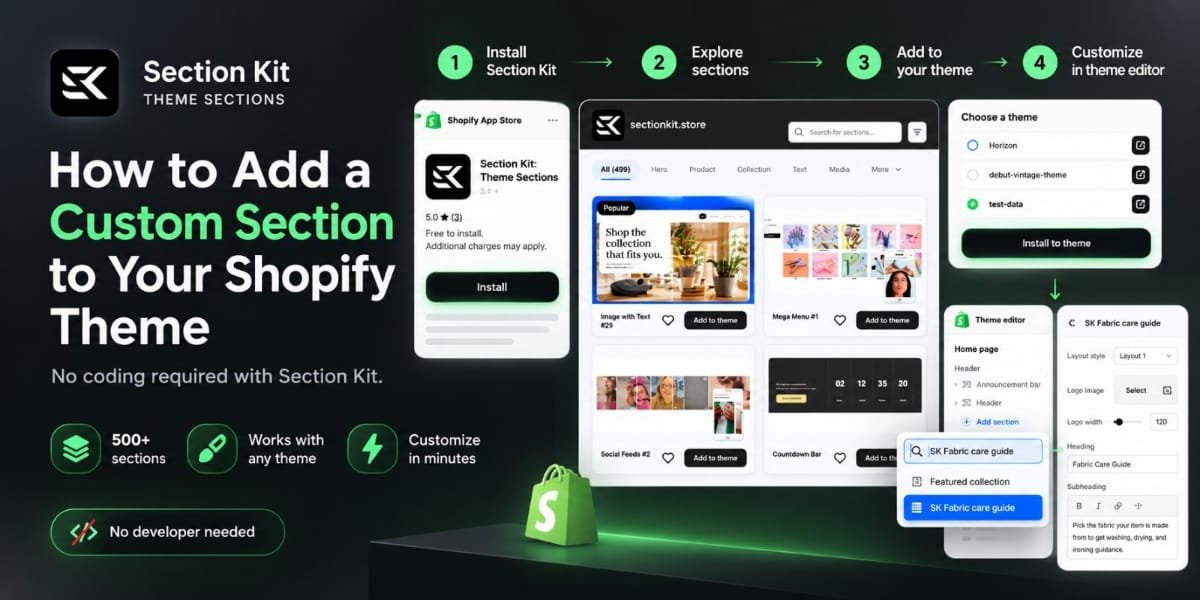
Section Kit: Theme Sections is a Shopify app that gives you a library of 500+ ready-made, conversion-focused sections that work with any theme. You install a section and customize it directly inside the Shopify theme editor, the same place you already edit your store.
Here’s why it fits merchants who don’t want to code:
- No code required. You pick a section, add it, and edit it with the theme editor’s settings panel.
- Works with any theme. You don’t need to redesign your store or switch themes.
- Lightweight native sections. They’re built as native Shopify sections, which helps keep your store fast.
- Everything is customizable in the theme editor. Change text, images, colors, and layouts without leaving Shopify.
- New sections every month. The library keeps growing, and the sections are built for Online Store 2.0.
- Sections for real store needs. That includes sliders, comparison tables, bundles, add-ons, testimonials, FAQs, trust badges, and more.
And since the goal is to stop overspending on custom work, the pricing is simple: Section Kit: theme sections is free to install, with free sections available and one-time charges for premium sections, with no recurring payments.
Step-by-Step: How to Add a Custom Section Without Coding
Step 1: Install Section Kit from the Shopify App Store
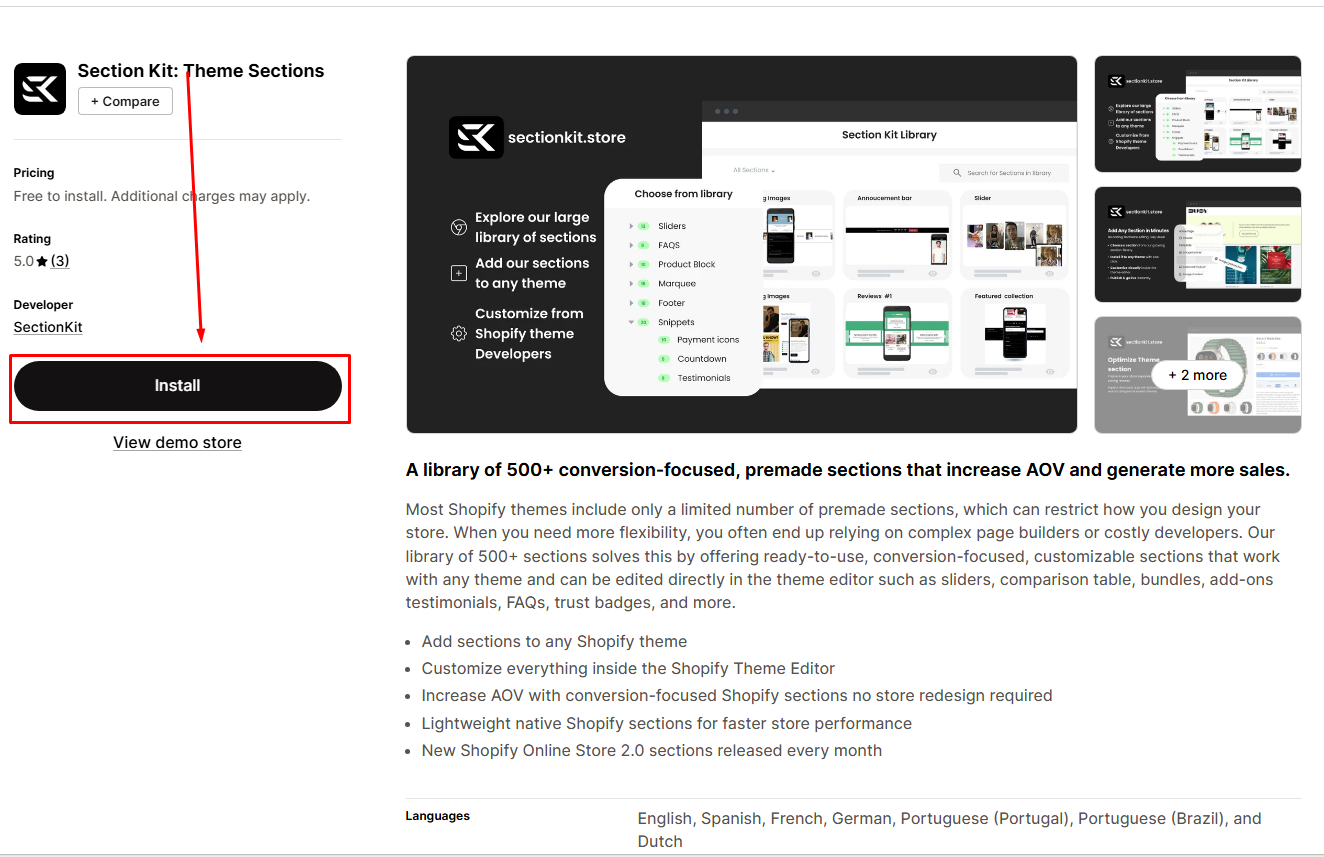
Go to the Section Kit: Theme Sections listing on the Shopify App Store and click Install. Choose your store, review the permissions, and approve the installation. The app needs access to your Online Store theme so it can add sections to it.
Step 2: Open the App and Go to “Explore Sections”
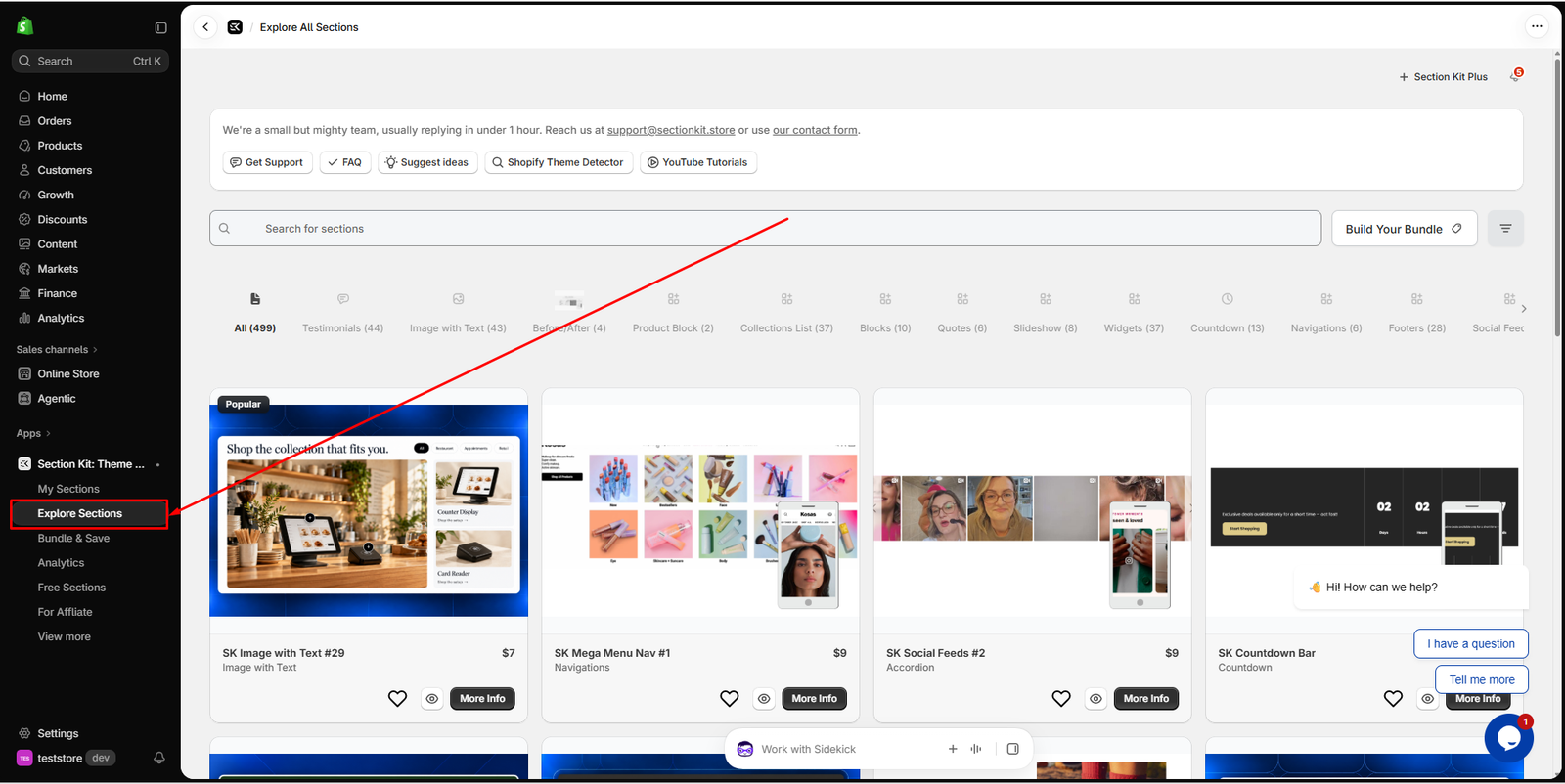
Once installed, open Section Kit from your Shopify admin. From the dashboard, go to Explore Sections. This is the full library, where you can browse everything available for your store.
Step 3: Browse the Library and Pick Your Section
Look through the categories and find the section that solves your problem. Some ideas:
- Want to build trust? Try trust badges or testimonial sections.
- Want to increase average order value? Look at bundles, add-ons, and comparison tables.
- Want to answer customer questions? Add an FAQ section.
- Want a stronger homepage? Browse sliders and homepage sections.
- Want a better product page? Use the product page blocks.
Section Kit also has a demo store, so you can see how a section looks live before you decide.
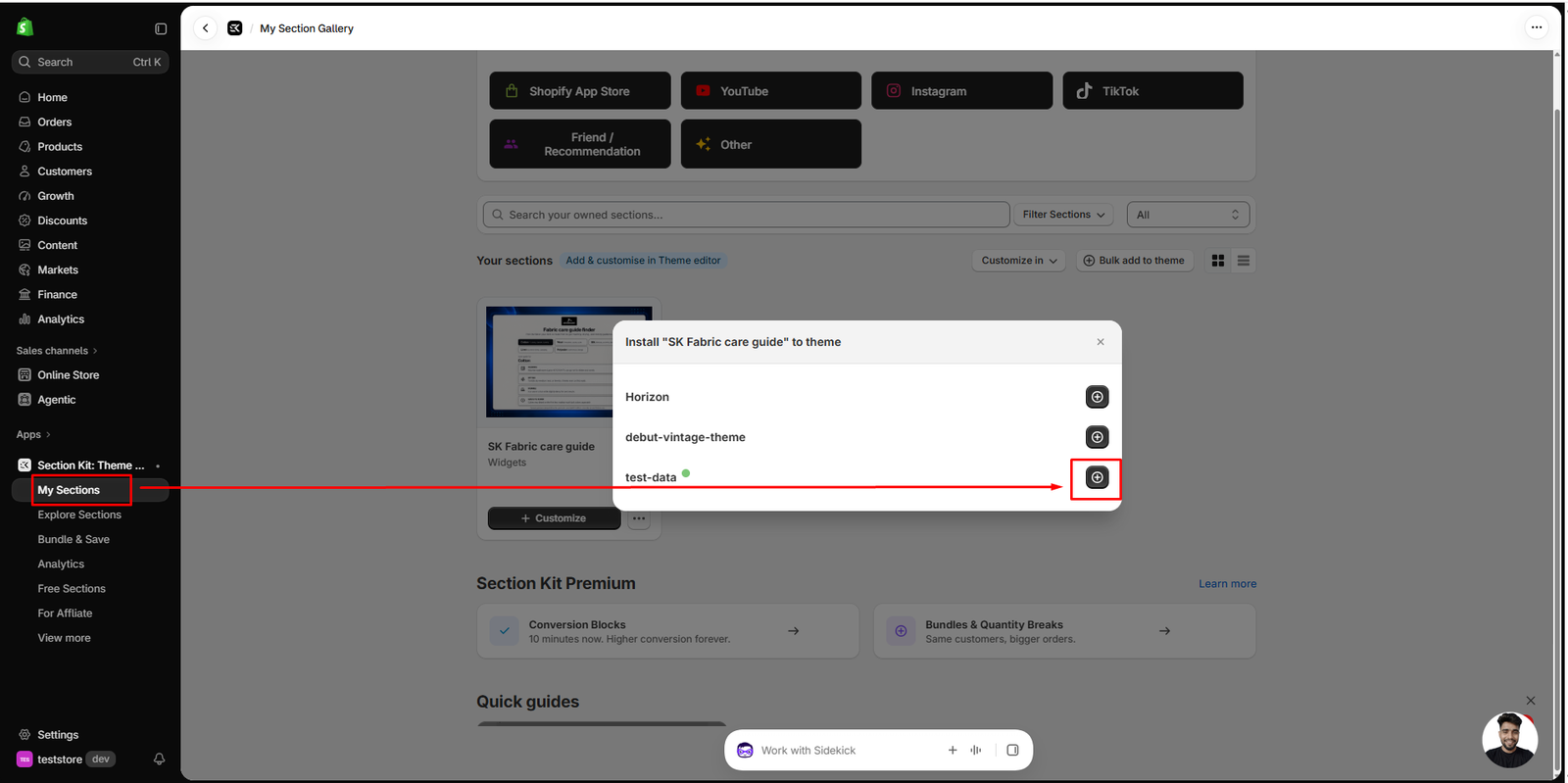
Step 4: Add the Section to Your Theme
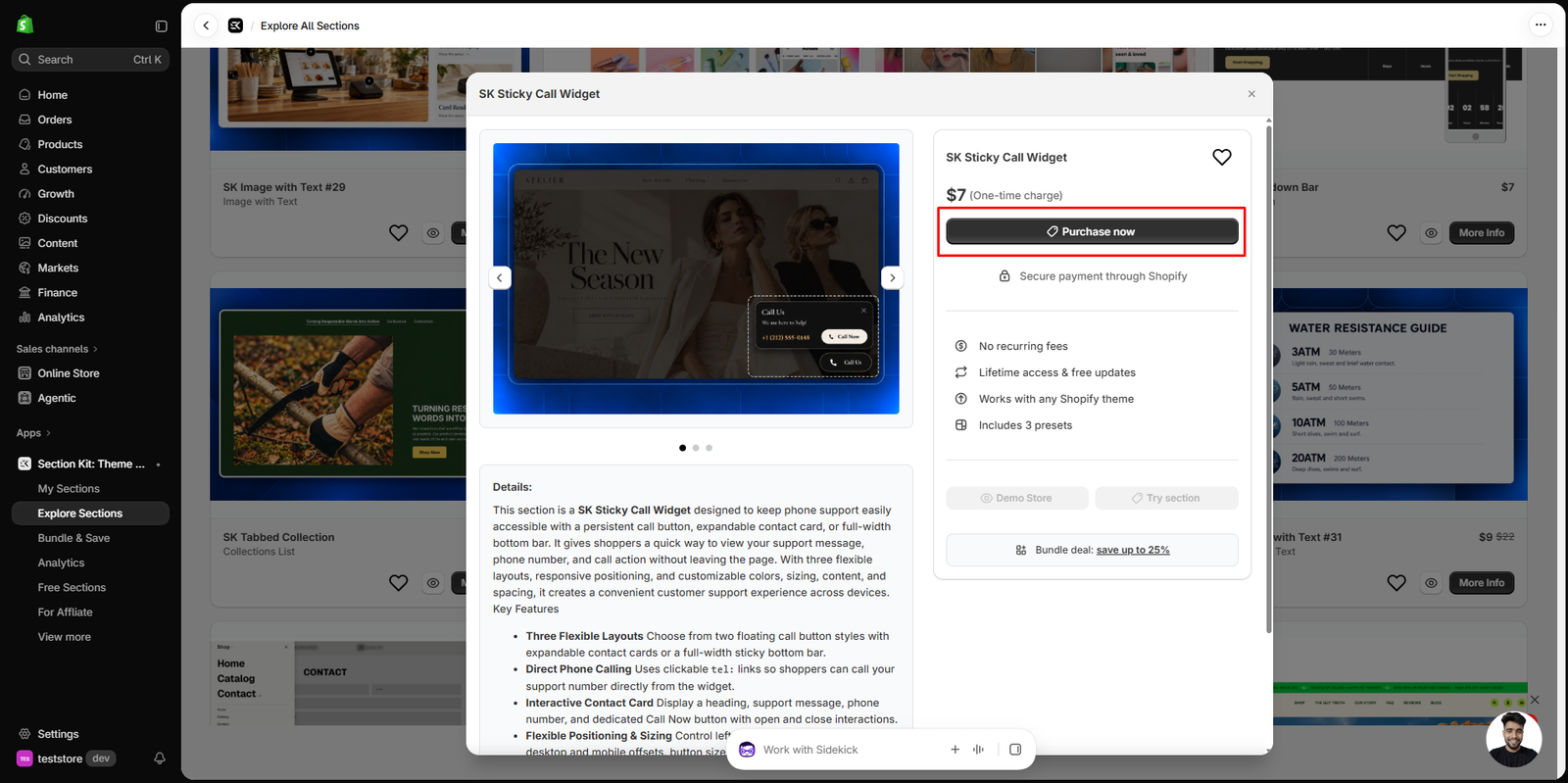
Choose the section and select the theme you want to add it to. Section Kit installs it into your theme in seconds. If it’s a free section, you can add it right away. If it’s a premium section, you pay a one-time charge and keep it for good.
Step 5: Open the Shopify Theme Editor
Go to Online Store → Themes → Customize in your Shopify admin. This opens the theme editor you already know.
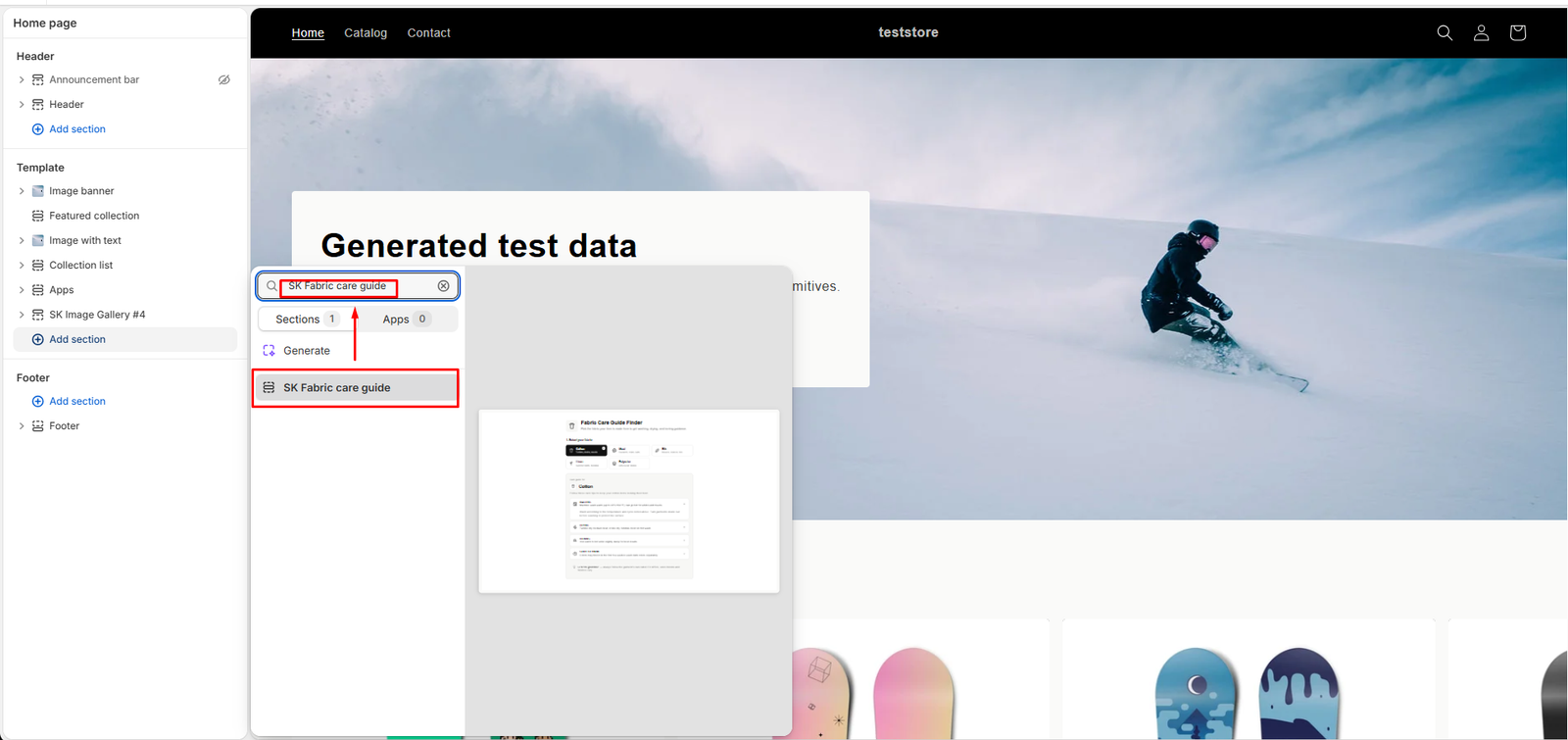
Step 6: Add the Section to Your Page
In the theme editor, choose the page you want to edit (Home, Product, Collection, or any other). Click Add section, and your new Section Kit section will be in the list alongside your theme’s default sections. Select it, and it appears on the page.
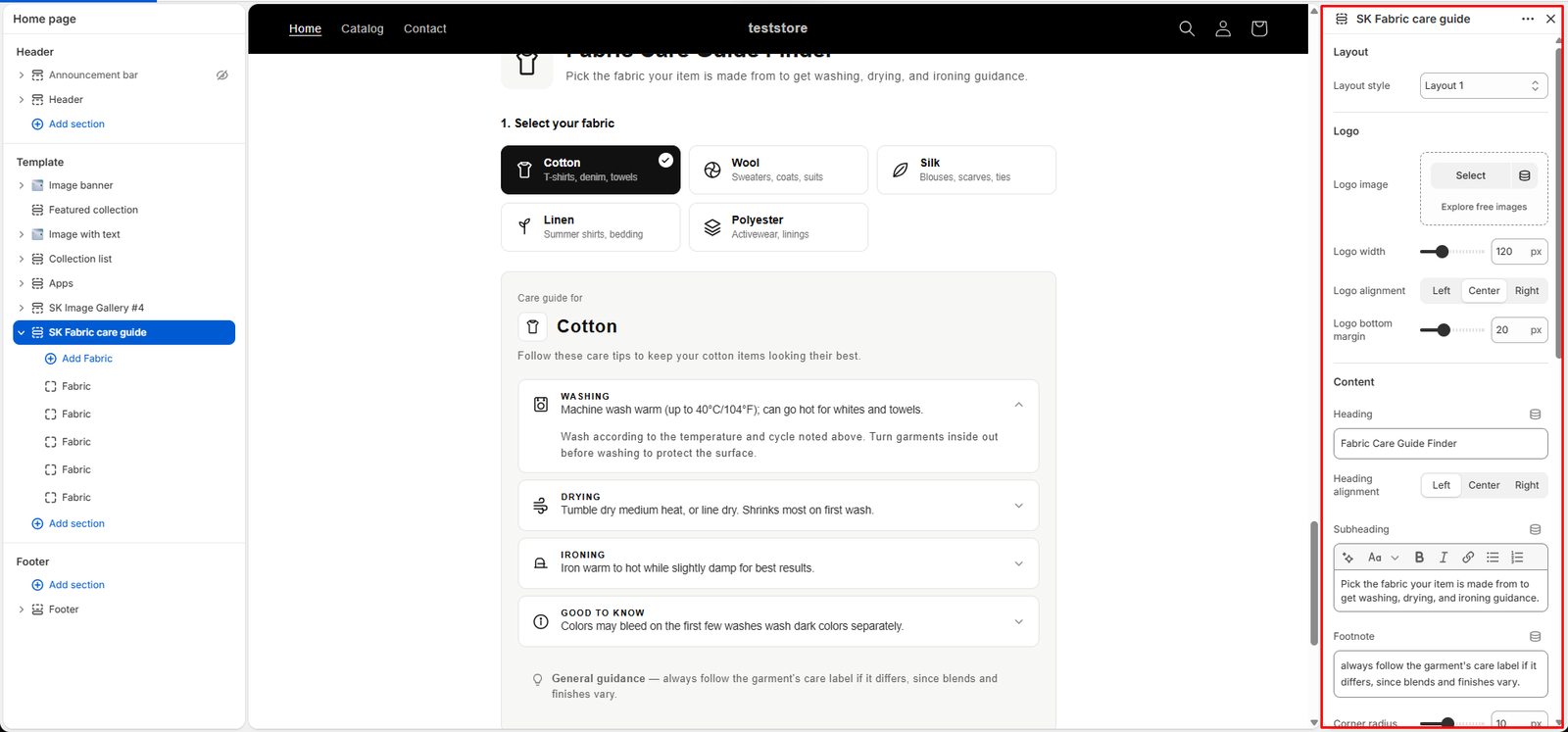
Step 7: Customize Everything Visually
Now make it yours. Using the settings panel on the left, you can:
- Edit headings, text, and buttons
- Upload your own images
- Change colors and spacing to match your brand
- Add, remove, or reorder blocks
- Check the mobile view and adjust it
It works like any native section in your theme, so there’s nothing new to learn.
Step 8: Preview and Publish
Preview on both desktop and mobile. When you’re happy, click Save. The section is live on your store. The whole process usually takes a few minutes.
Why This Beats the Old Way
| The Old Way | With Section Kit: Theme Sections |
|---|---|
| Hire a developer, wait days or weeks | Install and add a section in minutes |
| Pay hundreds or thousands per custom section | Free sections, or a one-time charge for premium |
| Risk breaking theme code | No code touched |
| Re-hire for every change | Edit anytime in the theme editor |
| Heavy builders that add complexity | Lightweight native sections |
Merchants who have tried it say the same thing. One reviewer on the App Store said the setup takes minutes and improved their site’s look and function without any coding skills. Another said they no longer need a developer for small changes.
Tips for Getting the Best Results
- Start with your biggest conversion gap. If shoppers drop off on product pages, begin with trust badges, bundles, or comparison tables.
- Keep your design consistent. Use the same brand colors and fonts across every section.
- Check mobile first. Most Shopify traffic comes from phones, so review each section on mobile before publishing.
- Add sections gradually. Add one, check its effect, then add the next.
- Come back often. New sections are released every month, so the library keeps giving you fresh options.
Frequently Asked Questions
Do I need to know how to code to use Section Kit?
No. Everything is done through the Shopify theme editor.
Will it work with my theme?
Section Kit sections are designed to work with any theme.
Will it slow down my store?
The sections are lightweight and built natively for Shopify, which helps keep performance in check.
Is there a monthly subscription?
No. Section Kit is free to install. Free sections cost nothing, and premium sections are a one-time charge with lifetime use.
Can I customize the sections after adding them?
Yes. You can edit them any time in the theme editor, just like any other section.
Conclusion
Adding a custom section to your Shopify theme used to mean developer fees, risky code edits, and long waits. With Section Kit: Theme Sections, it comes down to a few clicks: install the app, open Explore Sections, pick what you need, add it to your theme, and customize it in the theme editor.
You don’t need a developer or any code. You just need the right section for your store.
👉 Install Section Kit: Theme Sections on the Shopify App Store and add your first custom section today.




