HOW TO ADD A SECURITY BADGE TO A SHOPIFY FOOTER
Introduction
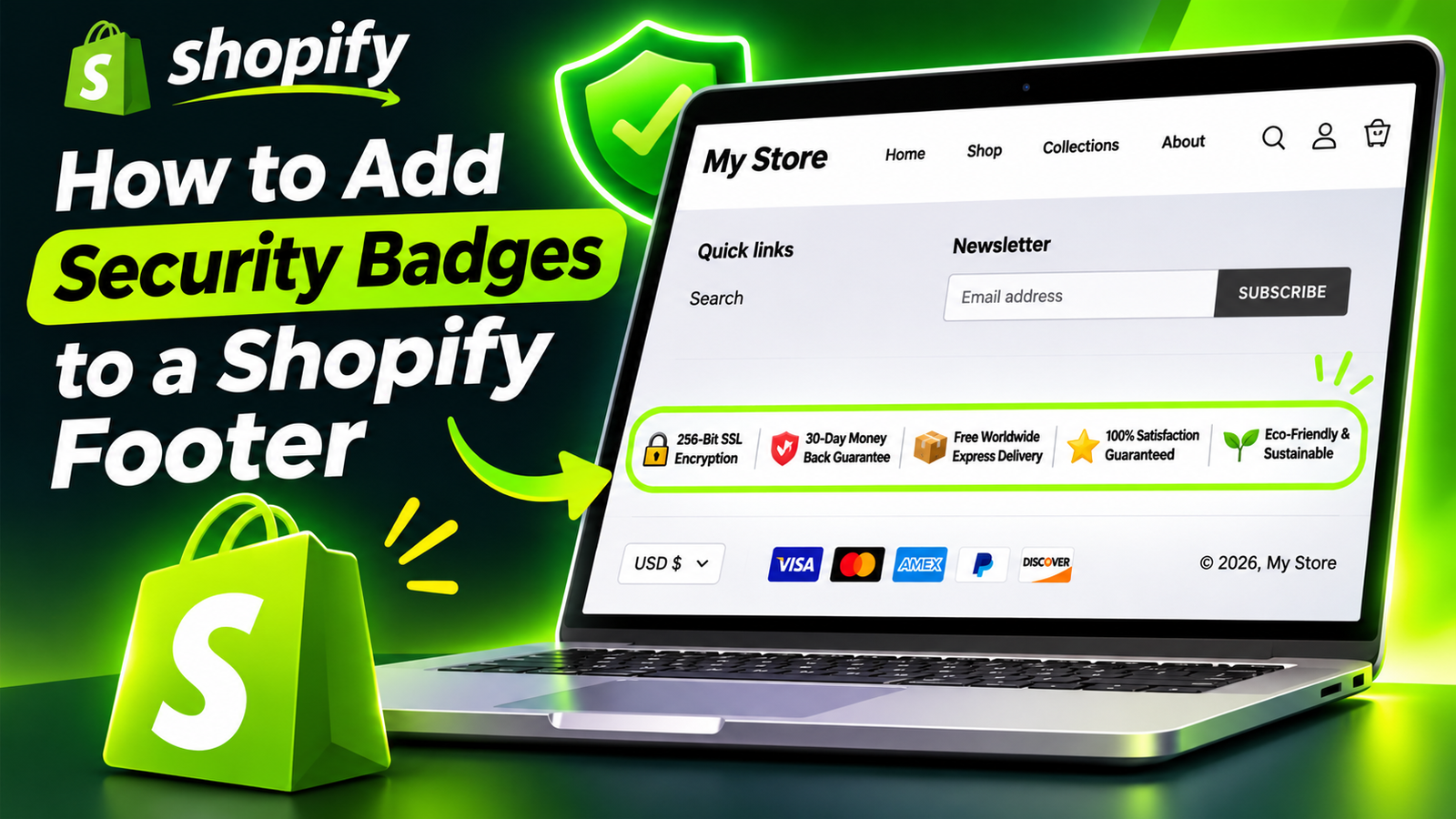
When customers visit an online store for the first time, they often look for signs that the business is trustworthy before making a purchase. A professional footer can help communicate important information about payment security, return policies, delivery options, and customer guarantees.
Adding security and trust badges to your Shopify footer is one way to make this information easier to find.
In this guide, you’ll learn how to add security badges to a Shopify footer using PA Powered By Remover, without manually editing your theme’s code.
We’ll walk through the process using the actual screenshots, from finding the app to displaying the badges on your storefront.
Why Add Security Badges to Your Shopify Footer?
Your store’s footer appears across many pages, making it a useful location for customer reassurance.
Security and trust badges can help you:
- Communicate supported security and checkout features.
- Highlight genuine money-back guarantees and return policies.
- Make shipping and customer-service promises easier to find.
- Give your storefront a more professional appearance.
- Reduce uncertainty for first-time shoppers.
However, badges should always represent claims your business can actually support. For example, only display an SSL encryption badge if your storefront uses the stated encryption, and only advertise a 30-day money-back guarantee if that is genuinely part of your policy.
How to Add Security Badges to a Shopify Footer: Step-by-Step Guide
We’ll use the PA Powered By Remover app for this tutorial.
Step 1: Open the Shopify App Store
Shopify App Development: A Beginner’s Guide
Open your browser and search for Shopify App Store on Google, or go directly to apps.shopify.com.
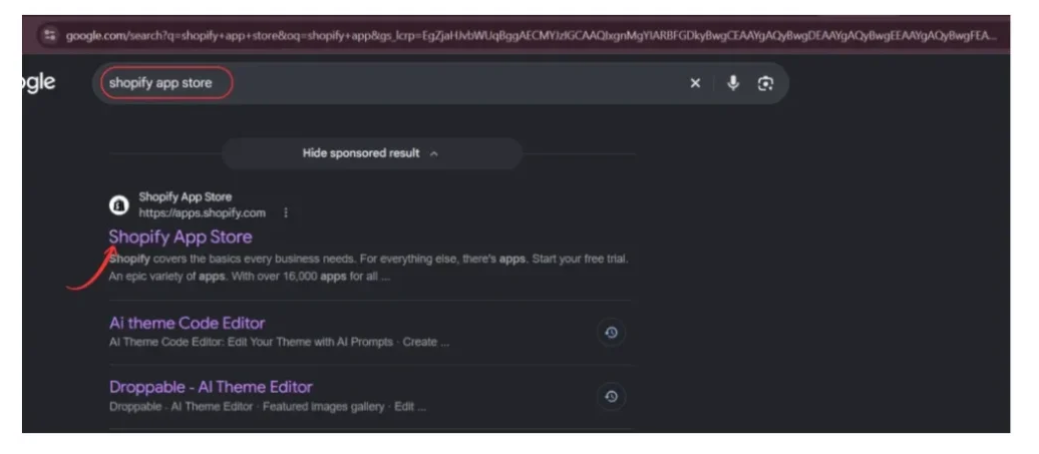
Select the official Shopify App Store result. This is where you can find apps that extend your Shopify store’s functionality.
Step 2: Search for PA Powered By Remover
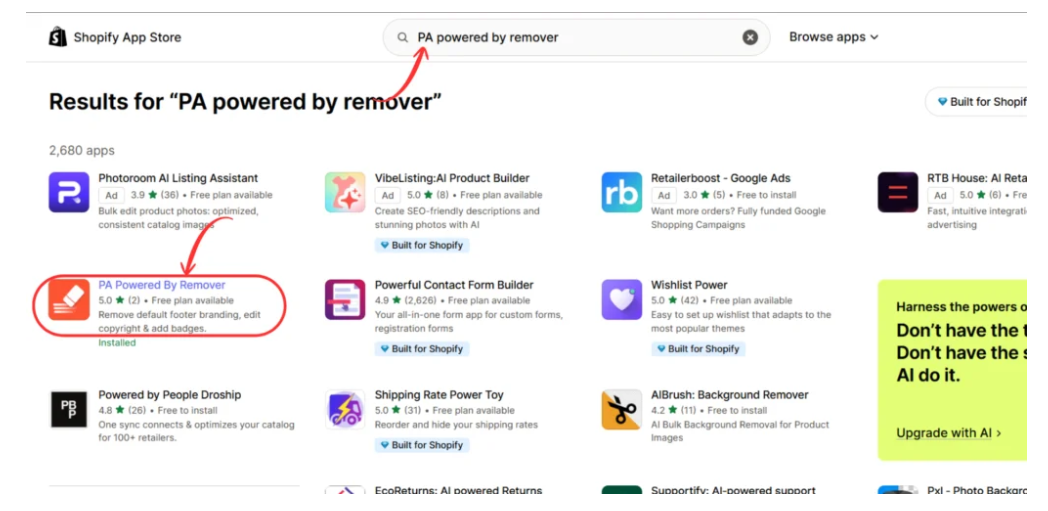
Once you’re inside the Shopify App Store, enter PA Powered By Remover in the search bar.
Locate the app in the search results and select its listing. The screenshot highlights the app so you can identify it easily.
Step 3: Open or Install the App
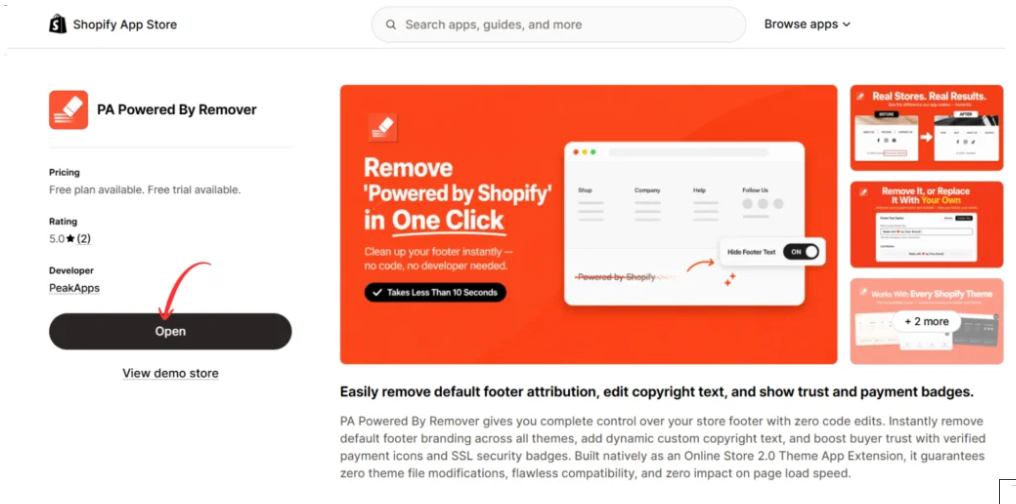
On the app listing page, click Install to add it to your Shopify store. If the app is already installed, you’ll see an Open button instead.
Follow Shopify’s installation prompts, then open the app from your Shopify admin.
Step 4: Open the Footer Toolkit and Select Security Badges

Inside the app, select Footer Toolkit from the left-hand menu.
Find the Trust & Security Seals section. Here, you can choose which badges you want to display.
The screenshot shows five available badge examples:
- 256-Bit SSL Encryption
- 30-Day Money Back Guarantee
- Free Worldwide Express Delivery
- 100% Satisfaction Guaranteed
- Eco-Friendly & Sustainable
Check the boxes beside the badges that accurately describe your store.
On the right side, the Storefront Mockup gives you a preview of how the selected badges may appear.
When you’re satisfied, click Save & Sync Metafields at the top of the page.
Important: The screenshot also shows Preview Mode Active. You may need to upgrade to the app’s Pro plan to display these security badges on your live storefront. Saving the configuration alone does not necessarily make them visible to customers.
Step 5: Enable the App Embed in Your Shopify Theme
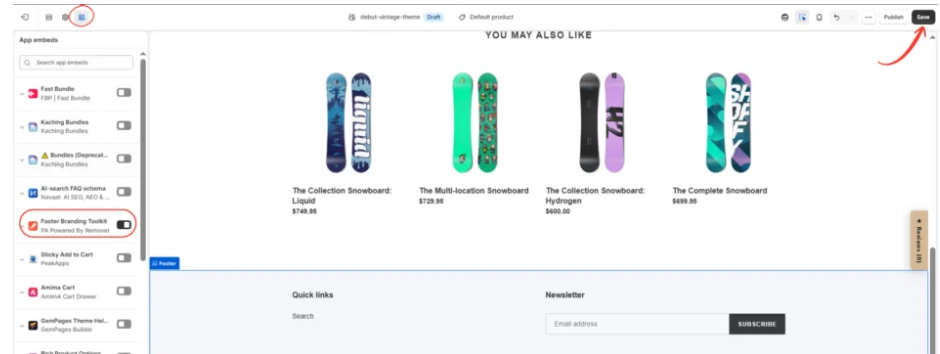
Next, open your Shopify admin and navigate to Online Store → Themes → Customize.
In the theme editor:
- Select the App embeds icon from the left toolbar.
- Find Footer Branding Toolkit — PA Powered By Remover.
- Turn on the app embed.
- Click Save in the upper-right corner.
This activates the app’s storefront integration for the selected theme. Make sure you are editing the theme that customers actually use, rather than only a draft theme.
Step 6: Check the Security Badges in Your Store Footer
Example Shopify footer showing security badges and payment icons
After enabling the app embed and ensuring the required plan is active, open your storefront preview and scroll down to the footer.

Your security badges should appear in the configured footer area if the app’s live display is enabled.
The example image illustrates a clean footer with security and guarantee badges, payment icons, newsletter signup, and copyright information.
Check the layout on both desktop and mobile devices. Make sure the badges are readable, correctly aligned, and do not crowd your existing footer content.
Note: This final image is an illustrative footer mockup, not proof that the badges have been activated on the live store.
Best Practices for Displaying Security Badges
Keep the footer simple and avoid displaying too many badges at once. Choose the badges that are most relevant to your customers and position them where they remain visible without distracting from other footer information.
Use consistent badge sizes, check the mobile layout, and ensure every guarantee or certification is accurate. A badge is a visual communication tool, not independent proof of security or certification.
Frequently Asked Questions
Can I add security badges to Shopify without coding?
Yes. PA Powered By Remover provides a Footer Toolkit and theme app embed, allowing eligible merchants to configure badges without manually editing Liquid code.
Can I display multiple security badges together?
Yes. You can select several badges from the available options, provided they reflect your store’s actual policies and capabilities.
Why aren’t my security badges appearing?
Check whether the app embed is enabled, the correct theme is being edited, changes have been saved, and the required app plan is active.
Do security badges guarantee more sales?
No. They may help communicate trust-related information, but conversion results depend on factors such as your products, prices, policies, store design, and customer experience.
Conclusion
Adding security badges to your Shopify footer can make your store look more professional while helping customers find important information about security, shipping, and guarantees.
With PA Powered By Remover, you can configure trust and security seals, preview their appearance, and integrate them into your Shopify theme without manual code changes.
Remember to display only genuine, verifiable claims and test your footer on both desktop and mobile.
Ready to customize your Shopify footer? Explore PA Powered By Remover on the Shopify App Store




