How to Add Social Sharing Buttons to WordPress
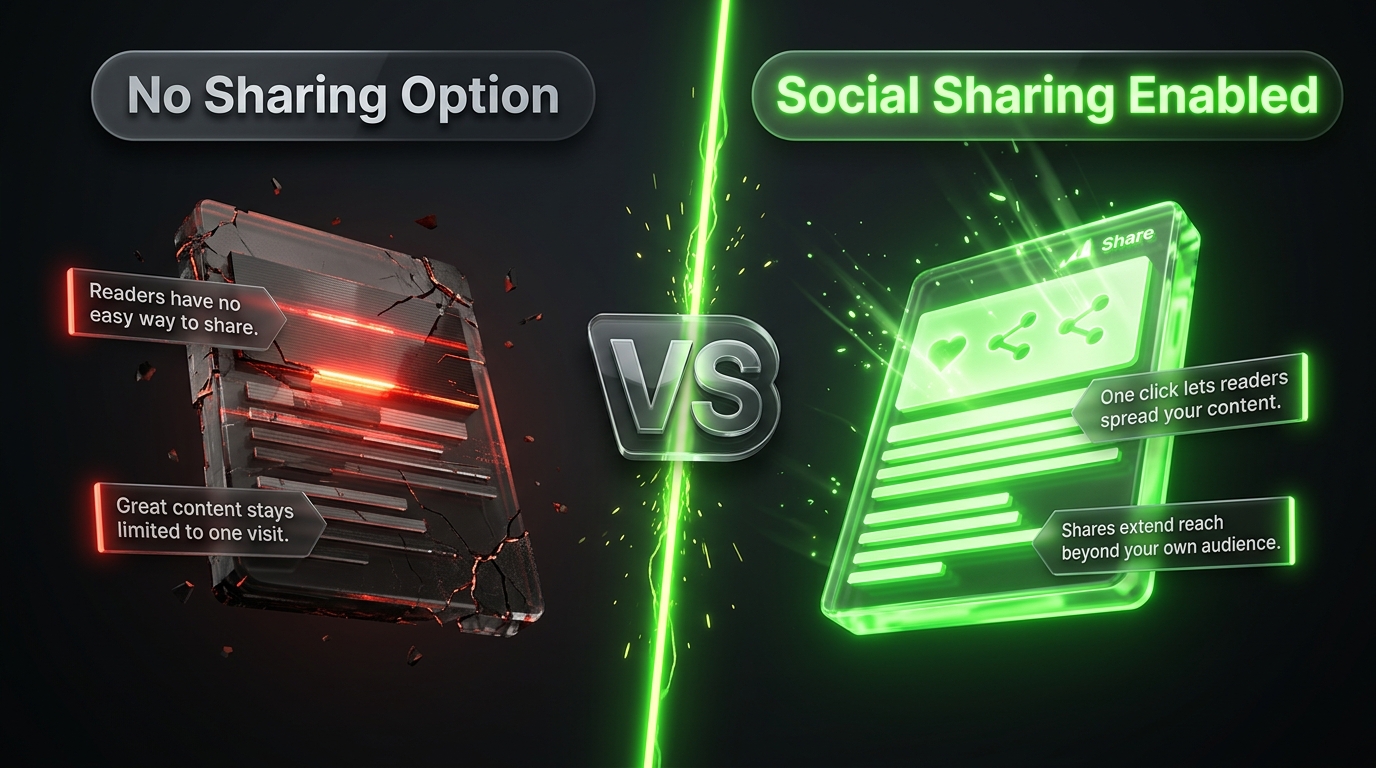
Every piece of content you publish on WordPress has the potential to reach far beyond your immediate audience, but only if visitors have an easy way to spread it. Social sharing buttons remove the friction between reading something valuable and passing it along to friends, followers, or colleagues. Instead of asking readers to manually copy a link and open a new tab, a single click sends your content directly to the platform of their choice.
This guide walks through everything involved in adding social sharing buttons to a WordPress site, covering plugin options, manual methods, placement strategy, customization, and performance considerations. By the end, you will have a clear roadmap for implementing sharing buttons that actually get used rather than ignored.
Why Social Sharing Buttons Still Matter
Some site owners assume that social sharing buttons are an outdated relic from an earlier era of the internet, but the reality is more nuanced. While overall click through rates on sharing buttons have declined compared to the early days of social media, they still serve an important function by lowering the barrier to sharing for the visitors who are genuinely inclined to do so.
Sharing buttons also provide subtle social proof. When a post displays a visible share count, even a modest one, it signals to new visitors that other people have found the content valuable enough to pass along. This can influence how readers perceive the credibility and usefulness of your content, even if they never click the button themselves.
Beyond direct clicks, sharing buttons contribute to a broader content distribution strategy. Every share represents a potential new visitor discovering your site through a trusted recommendation rather than a cold search result, and referral traffic from personal shares often converts at a higher rate than traffic from other sources.
Choosing Between a Plugin and a Manual Method
There are two general approaches to adding sharing buttons on WordPress, using a dedicated plugin or manually inserting the necessary code yourself. Each approach comes with tradeoffs worth understanding before you commit to one path.
Plugins offer convenience, a visual settings panel, and typically require no coding knowledge at all. They also tend to include additional features such as analytics, customizable icon styles, and support for a wide range of platforms beyond just the major ones. The tradeoff is that plugins add some amount of code to your site, which can affect loading speed if the plugin is poorly optimized or bloated with unnecessary features.
Manual methods, which involve adding simple HTML links or short code snippets directly into your theme files or individual posts, offer more control and typically load faster since there is no additional plugin overhead. However, this approach requires more technical comfort and does not include the built in analytics or automatic updates that a maintained plugin provides.
For most WordPress users, especially those without development experience, a lightweight, well reviewed plugin remains the most practical choice. Developers or highly performance focused site owners may prefer the manual route for maximum control.
Installing a Social Sharing Plugin
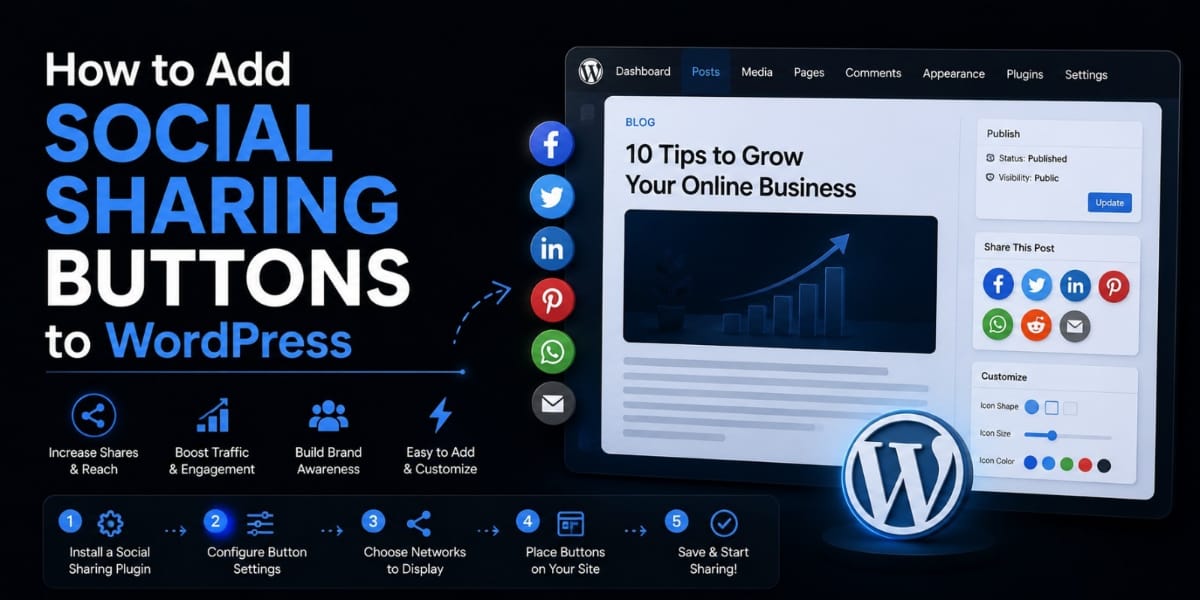
The most common way to add sharing buttons is through the WordPress plugin directory. From your WordPress dashboard, navigate to the Plugins section, select Add New, and search for a social sharing plugin. Several well established options exist, each offering slightly different features, icon styles, and customization depth.
Once you find a plugin that fits your needs, click Install and then Activate. Most sharing plugins will automatically add a settings page to your dashboard, typically found under Settings or as its own dedicated menu item, where you can begin configuring how and where the buttons appear.
Take time during setup to select only the platforms genuinely relevant to your audience. Including every possible platform, from major networks down to obscure regional ones your visitors have likely never heard of, creates unnecessary visual clutter and can actually reduce the effectiveness of the buttons by overwhelming readers with too many choices.
Configuring Button Placement
Where you place sharing buttons significantly influences how often they get used. Common placement options include above the content, below the content, floating alongside the content as the reader scrolls, or a combination of these positions.
Floating sidebar buttons, which remain visible as visitors scroll through longer articles, tend to perform particularly well on desktop devices because they stay accessible without requiring the reader to scroll back up after finishing the post. On mobile devices, where sidebar space is limited or nonexistent, a sticky bar fixed to the bottom of the screen often works better, staying within thumb reach throughout the reading experience.
Placing buttons both above and below the content is a common strategy as well, catching readers who decide to share immediately after skimming the introduction, along with those who only feel compelled to share after finishing the entire piece. Testing different combinations and monitoring your analytics over a few weeks can help identify what layout resonates most with your specific audience.
Customizing Button Appearance
Generic, default styled sharing buttons can look out of place against a carefully designed WordPress theme. Most quality plugins allow you to customize colors, shapes, sizes, and even whether share counts are displayed alongside each icon.
Matching your sharing buttons to your overall site branding creates a more polished, professional appearance. If your theme uses rounded design elements throughout, choosing circular button icons rather than sharp edged squares helps maintain visual consistency. Similarly, adjusting button colors to complement rather than clash with your color palette makes the buttons feel like an intentional part of the design rather than an afterthought bolted on top.
Displaying share counts can be a double edged decision. On a well established site with genuinely high share numbers, visible counts reinforce social proof and can encourage further sharing. On a newer site with low counts, however, displaying the numbers might actually discourage sharing, since low visible numbers can suggest a lack of popularity. Many site owners choose to hide counts until they reach a more substantial, encouraging threshold.
Adding Sharing Buttons Without a Plugin
For those comfortable editing theme files or working with the WordPress code editor, manual sharing buttons can be added using simple HTML links that point to each platform’s share URL format, combined with the current post’s link and title dynamically inserted through WordPress template tags.
This method typically involves editing your theme’s single post template file, inserting a small block of code within the loop where you want the buttons to appear. While specific syntax varies depending on your theme structure, the general approach involves generating a URL for each platform that automatically includes the correct post link and title, then styling the resulting links with basic CSS to resemble clickable icons rather than plain text links.
This manual approach eliminates plugin overhead entirely, resulting in noticeably faster loading times, particularly beneficial for sites where performance is a top priority. The downside remains the added complexity and the need to manually update the code if you ever change themes or want to add support for additional platforms down the road.
Optimizing for Mobile Devices
A significant portion of social sharing happens on mobile devices, so ensuring your buttons work smoothly on smaller screens is essential. Buttons that are too small or placed too close together can lead to frustrating misclicks, while oversized buttons can take up valuable screen real estate needed for the actual content.
Test your sharing buttons across multiple device sizes to confirm they remain easily tappable without accidental clicks on neighboring elements. Sticky bottom bars, mentioned earlier, tend to work particularly well for mobile because they stay within natural thumb reach throughout the scrolling experience, without requiring the reader to reach toward the top or sides of the screen.
Tracking Performance and Making Adjustments
Simply adding sharing buttons is not the end of the process. Most quality plugins include basic analytics showing which platforms generate the most shares and clicks, giving you valuable insight into where your audience actually spends their time.
Pairing this data with a broader website analytics tool allows you to trace the full journey, from an initial share through to the referral traffic and engagement that results from it. Over time, this information can guide broader content and platform decisions, such as prioritizing a particular social network for promotion if it consistently drives the strongest results from your existing sharing buttons.
If certain platforms consistently receive minimal engagement despite being prominently displayed, consider removing them to reduce clutter and streamline the remaining options. A focused selection of two or three genuinely relevant platforms often outperforms a crowded row of a dozen icons that dilute attention across too many choices.
Balancing Functionality With Site Speed
Every sharing button added to your site carries some performance cost, whether through additional plugin code, external scripts loaded from social platform servers, or extra images for custom icons. While a single, well optimized sharing plugin rarely causes noticeable slowdown, stacking multiple redundant tools or choosing a poorly coded option can meaningfully impact page speed.
Regularly test your site’s loading performance after adding or updating any sharing plugin, watching for any significant increase in load time. If you notice a slowdown, consider switching to a lighter alternative or exploring the manual, code based method discussed earlier for maximum control over performance impact.
Bringing It All Together
Adding social sharing buttons to WordPress is a straightforward process that can meaningfully expand the reach of your content when implemented thoughtfully. Whether you choose the convenience of a dedicated plugin or the performance benefits of a manual coding approach, the core principles remain the same, choose relevant platforms, place buttons where readers naturally look for them, customize their appearance to match your site, and continuously monitor performance to refine your approach over time.
Sharing buttons alone will not transform mediocre content into something people want to spread, but for genuinely valuable posts, they remove a small but meaningful barrier between a satisfied reader and a new visitor discovering your site through a trusted personal recommendation.
Frequently Asked Questions
Which social platforms should I include in my sharing buttons? Focus on the platforms your specific audience actually uses most actively rather than including every option available. Reviewing your existing analytics for referral traffic sources can reveal which networks already send visitors to your site, offering a useful starting point for prioritizing your sharing button selection.
Do social sharing buttons slow down my WordPress site? They can, depending on the plugin or method chosen. Lightweight, well coded plugins typically have minimal impact, while poorly optimized options loaded with unnecessary features can noticeably affect loading speed. Manual, code based implementations generally offer the fastest performance.
Should I display share counts next to my buttons? This depends on your current share volume. High, growing counts can reinforce social proof and encourage further sharing, while very low counts might have the opposite effect. Many site owners choose to hide counts until they reach a more substantial number.
Can I add different sharing buttons to different types of content? Yes, most plugins allow granular control over where buttons appear, letting you enable them only on blog posts while excluding pages, or customize which platforms appear based on content category. This flexibility allows for a more tailored approach across different sections of your site.
Is it worth adding sharing buttons for images and individual sections within a post? For visually driven content, particularly blogs centered around photography, recipes, or design inspiration, adding dedicated share buttons on individual images can encourage readers to share specific visuals rather than only the full page link. This tends to work especially well for platforms like Pinterest, where users frequently save individual images rather than entire articles. For text heavy content, this level of granularity is usually unnecessary and can add visual clutter without a meaningful increase in shares.
What should I do if my sharing buttons stop working after a theme update? Occasionally, updating a WordPress theme can disrupt sharing buttons added through manual code, since theme updates sometimes overwrite customized template files unless changes were made in a proper child theme. If you rely on a plugin instead, this issue is far less common, since plugins operate independently from theme files and typically continue functioning normally through theme updates. This is one of the practical advantages of choosing a plugin based approach for readers who are less comfortable regularly maintaining custom code.