HOW TO ADD A SOLD COUNTER TO A SHOPIFY STORE
Shopify Tutorial | Product Sales Counter | Social Proof Marketing | AB Sales Popup | 2026

Introduction
When customers visit your Shopify store, they often look for signs that your products are trustworthy and worth buying.
Even if your store has attractive product images, detailed descriptions, and competitive prices, first-time visitors may hesitate before purchasing.
One way to communicate genuine product popularity is by displaying a sold counter.
A sold counter shows customers how many units of a product have been sold, helping them understand its sales history.
items sold
Illustrative sold counter — not live sales data
A sold counter is a form of social proof that can make genuine sales activity more visible to shoppers.
However, building and updating a Shopify sold counter manually may require custom Liquid code, access to order data, and theme customization.
With AB Sales Popup, Shopify merchants can configure sold counters, customize their messages and appearance, and add them to their storefront using supported theme app blocks.
In this guide, you’ll learn how to add a sold counter to Shopify without manually writing code, using the actual AB Sales Popup dashboard screenshots.
What Is a Shopify Sold Counter?
A Shopify sold counter is a storefront element that displays the number of products sold over a particular period or across the store’s recorded sales history.
It can help shoppers understand how popular a product has been.
For example, a counter might display 18 items sold or 25 units sold this month, provided the selected tracking data supports the claim.
Sold counters differ from stock counters. A sold counter communicates past purchases, while a stock counter indicates remaining inventory.
The important point is that the displayed sales number should be based on authentic order data, not an invented or artificially inflated figure.
Why Add a Sold Counter to Your Shopify Store?
1. Build customer trust
New customers may feel more comfortable shopping when they can see genuine evidence of previous purchases.
2. Highlight product popularity
A sold counter can help communicate how frequently customers purchase a particular product.
3. Support product-page engagement
Displaying meaningful purchase data may encourage shoppers to explore the product further.
4. Communicate social proof
Real sales numbers can complement product reviews, testimonials, ratings, and other trust elements.
5. Support conversion optimization
A sold counter can be tested as part of a broader conversion strategy, although it does not guarantee an increase in sales.
Common Problems With Adding Sold Counters Manually
Shopify merchants sometimes encounter difficulties when attempting to build their own sales counters.
These include accessing accurate sales figures, updating counts after orders, excluding canceled or refunded transactions where appropriate, and maintaining the counter across different product templates.
Other challenges include styling the counter, maintaining mobile compatibility, and ensuring the information remains accurate.
A dedicated app can simplify the configuration and storefront integration process.
Introducing AB Sales Popup
AB Sales Popup is a Shopify application designed to provide sales notifications, visitor counters, sold counters, stock countdowns, and countdown timers.
The app’s Sold Counter feature allows merchants to display sales-related information with customizable text and styling.
Key features
- Sold counter based on recorded orders.
- Dynamic sales count placeholder.
- Basic and Custom appearance themes.
- Light Mode and Dark Mode.
- Custom heading text.
- Font family and size options.
- Text alignment settings.
- Icon selection.
- Flat and Capsule display styles.
- Sales counting configuration.
- Shopify theme app block integration.
App Link: AB Sales Popup — Shopify App Store
Step 1: Search for Shopify App Store
Open Google and type Shopify App Store in the search bar.
Click the official Shopify App Store website.

Image 1: Search Google for Shopify App Store and open the official website.
Image Explanation: The screenshot highlights the Shopify App Store search result. Click it to access Shopify’s collection of applications.
Step 2: Search for AB Sales Popup
Once you are inside the Shopify App Store, locate the search bar.
Type AB Sales Popup and select the app with the black-and-yellow notification bell logo.
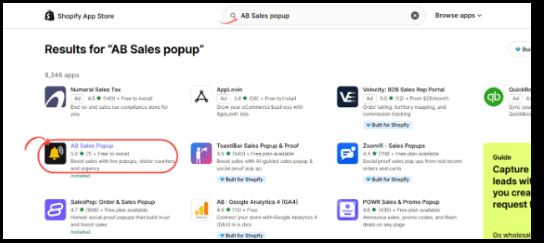
Image 2: AB Sales Popup highlighted in the Shopify App Store search results.
Image Explanation: The red circle highlights AB Sales Popup. Select this listing to open the application’s official page.
Step 3: Install and Open AB Sales Popup
On the app listing, review its features and click Install. If it is already installed, click Open.
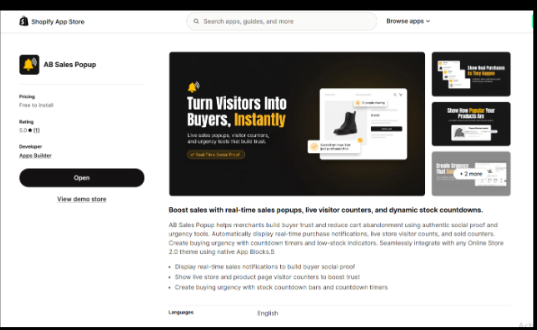
Image 3: AB Sales Popup’s official listing showing its sales notification, visitor counter, and urgency features.
Image Explanation: This screenshot displays the app listing and its main features, including real-time sales notifications, visitor counters, and stock countdowns.
You can access the app directly:Install AB Sales Popup on Shopify
Step 4: Open and Enable the Sold Counter
Navigate to Shopify Admin → Apps → AB Sales Popup → Dashboard.
Scroll down to the Manage Features section.
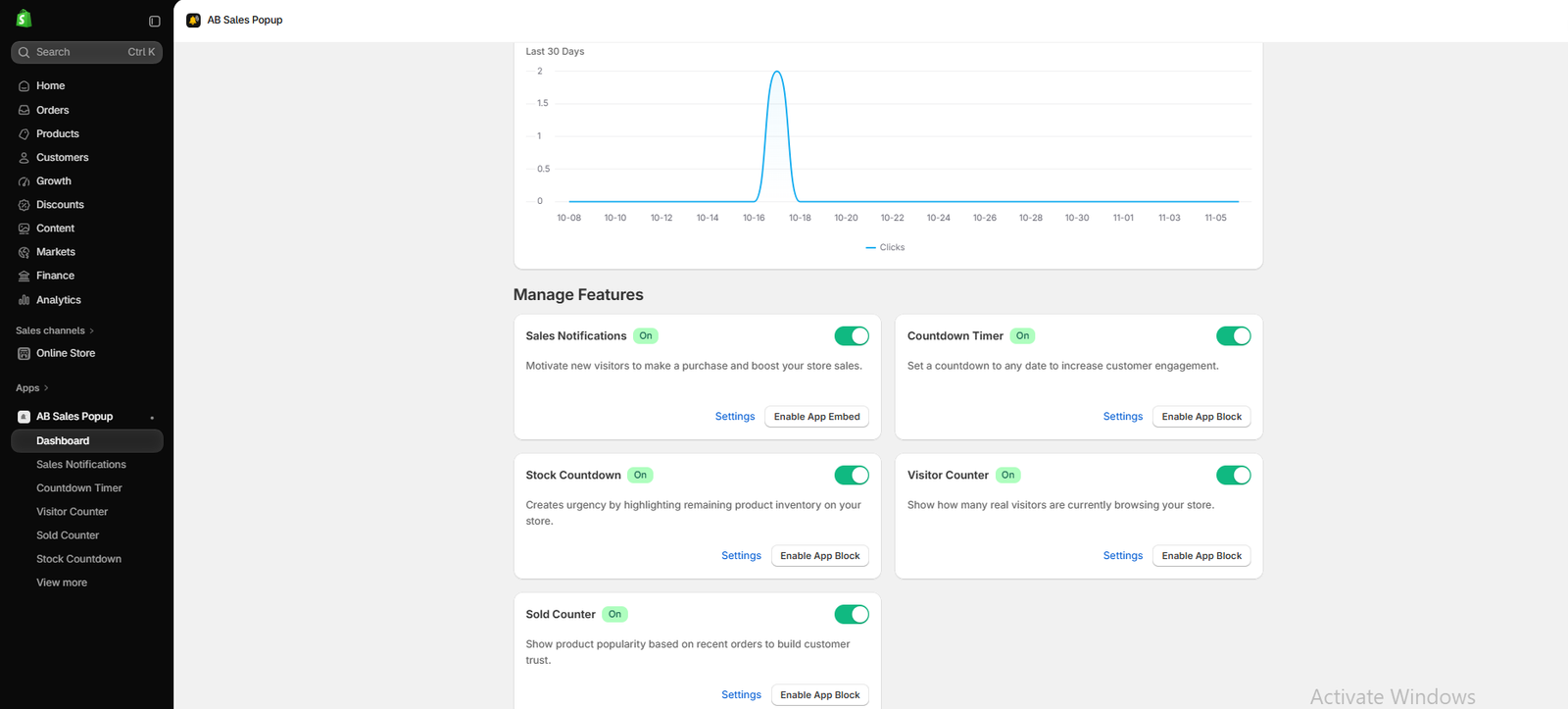
Image 4: AB Sales Popup dashboard showing the Sold Counter feature and its settings.
Image Explanation: The dashboard displays five features: Sales Notifications, Countdown Timer, Stock Countdown, Visitor Counter, and Sold Counter.
Locate the Sold Counter card at the bottom-left. Make sure its toggle is turned on, then click Settings.
You can also select Sold Counter from the left sidebar.
Step 5: Customize the Sold Counter Design and Content
After opening Sold Counter, the configuration page appears.
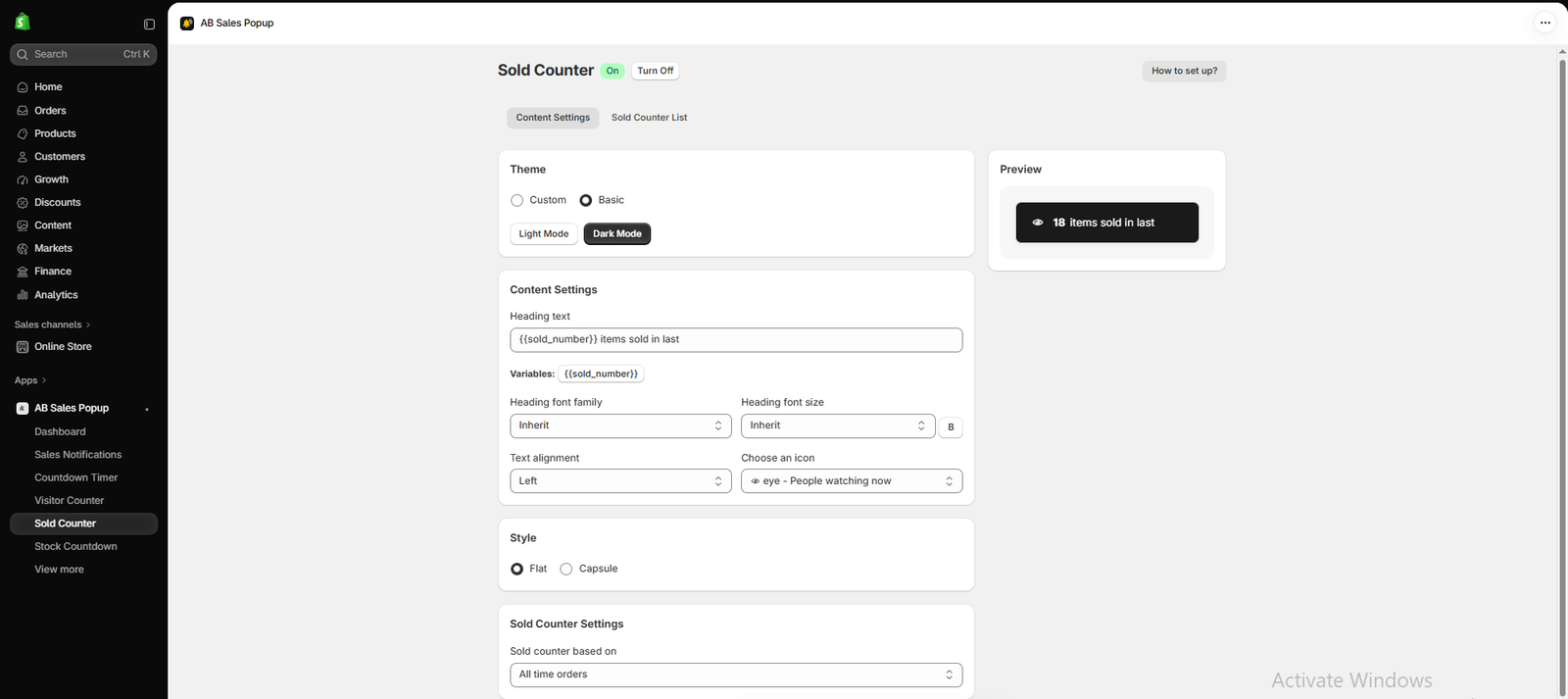
Image 5: Sold Counter settings displaying theme selection, text customization, style options, sales tracking, and live preview.
Image Explanation: Your screenshot shows the Sold Counter feature turned On, along with the following controls.
Theme: Choose Basic or Custom. Your screenshot shows Basic selected.
Appearance: Choose between Light Mode and Dark Mode. Dark Mode is selected in your screenshot.
Heading text: Customize the message using the dynamic {{sold_number}} placeholder.
Typography: Adjust the heading font family, font size, text alignment, and icon.
Style: Select Flat or Capsule depending on your store’s design.
Sold Counter Settings: Choose the sales counting period. Your screenshot shows All time orders.
On the right side, the Preview panel displays an example counter showing 18 items sold. This is a preview example, not a verified live sales total.
Step 6: Add the Sold Counter to Your Shopify Theme
Return to AB Sales Popup → Dashboard → Manage Features → Sold Counter.
Click Enable App Block.
In the Shopify theme editor, open your product page template and add the Sold Counter app block to a supported section.
Place it near the product title, price, or Add to Cart button, then click Save.
You haven’t provided a screenshot of the Sold Counter app block inside the Shopify theme editor, so I have not substituted a generic screenshot for this step.
Step 7: Preview the Sold Counter on Your Storefront
Open your Shopify product page to verify that the counter displays correctly.
Best Practices for Shopify Sold Counters
Use genuine sales information
Avoid invented sales figures or exaggerated numbers.
Keep the message concise
Messages such as “18 items sold” are generally easier to understand than lengthy promotional claims.
Match your brand style
Use typography, colors, and shapes that complement your existing Shopify theme.
Avoid excessive urgency
A sales counter should communicate genuine demand rather than pressure shoppers through misleading claims.
Maintain a clean product page
Avoid placing too many counters, badges, notifications, and other widgets close together.
Test your design on mobile
Ensure the counter fits smaller screens without covering important shopping controls.
Frequently Asked Questions
1. What is a sold counter in Shopify?
A sold counter displays sales activity based on a configured order or product sales metric.
2. Can I add a sold counter without coding?
Yes. AB Sales Popup provides a visual Sold Counter configuration page and an Enable App Block option.
3. Can I customize the sold counter message?
Yes. The app supports editable heading text and the {{sold_number}} placeholder.
4. Can I display all-time sales?
Yes. Your screenshot shows All time orders as an available counting option.
5. Can I change the sold counter’s design?
Yes. The app includes Basic and Custom themes, Light and Dark Mode, and Flat and Capsule styles.
6. Can I display the sold counter on product pages?
The app includes an Enable App Block control. Product-page placement depends on your Shopify theme’s supported app block locations.
7. Does a sold counter automatically increase sales?
No. It can support social proof, but the impact on conversions depends on your store, customers, and implementation.
8. Is AB Sales Popup free to install?
The Shopify App Store listing you shared shows Free to install. Check the live listing for current plan limits and charges.
Conclusion
A sold counter is a simple way to show customers genuine product sales activity on your Shopify store.
It can complement product reviews and other social proof elements while helping visitors understand which products have a history of purchases.
With AB Sales Popup, merchants can enable a sold counter, customize its appearance, edit the displayed message, select sales counting settings, and integrate it with supported Shopify themes.
For the best results, keep the counter accurate, visually consistent with your storefront, and positioned where customers can easily see it.
Want to add a sold counter to your Shopify store without coding?Install AB Sales Popup on Shopify




