HOW TO ADD A WHATSAPP CHAT BUTTON SECTION TO YOUR SHOPIFY STORE

Introduction
Customer communication plays an important role in the success of any Shopify store. When customers have questions about products, delivery times, payment options, or returns, they want an easy way to contact the store owner.
One of the easiest ways to improve customer communication is to add a WhatsApp chat button to your Shopify store.
A WhatsApp chat button gives visitors a convenient way to start a conversation with your business. Instead of searching for contact details or filling out lengthy forms, shoppers can contact you directly through WhatsApp.
However, many Shopify themes do not include a built-in WhatsApp chat button, and adding one manually may require coding knowledge.
Fortunately, Section Kit: Theme Sections provides a simple way to add a customizable WhatsApp chat button without editing your theme’s code.
In this guide, we will explain how to add a WhatsApp chat button to your Shopify store using Section Kit, with step-by-step instructions and screenshots.
The Merchant’s Challenge: Why Adding a WhatsApp Button Can Be Difficult
Shopify merchants often face several challenges when trying to add customer support features to their stores.
Limited built-in features
Not every Shopify theme includes WhatsApp chat functionality. Merchants may need additional tools to provide direct messaging support.
Coding requirements
Manually adding a WhatsApp button may involve editing Liquid, CSS, or JavaScript files, which can be challenging for beginners.
Limited customization
Some solutions provide only basic chat buttons without flexible controls for appearance, positioning, text, or animation.
Missed customer inquiries
If visitors cannot easily ask questions about products or shipping, they may leave the store without making a purchase.
These challenges make it important to choose a solution that is simple to install and easy to customize.
The Role of Shopify Apps
Shopify apps help merchants add additional storefront features without building everything from scratch.
Instead of manually developing a WhatsApp chat interface, merchants can use a ready-made section with built-in customization settings.
A suitable app should allow merchants to configure the WhatsApp phone number, customize button colors and text, adjust the appearance, and manage the feature through the Shopify theme editor.
Introducing Section Kit: Theme Sections
Section Kit Casestudy | TheScriptFlow
Section Kit: Theme Sections is a Shopify app that helps merchants improve their storefronts using ready-made, customizable sections.
Create and customize storefront features without manually writing theme code.
Explore Section Kit on Shopify App Store
With Section Kit, merchants can explore sections such as FAQs, testimonials, banners, footers, product showcases, and customer support widgets.
One available section is the SK Whatsapp Chat Button.
Based on the app interface shown in your screenshots, this section offers customizable colors, button sizing, positioning, animation, and chat dialog content.
The screenshot also shows it as a free section, with three included presets and no recurring fees for that section.
Step-by-Step Guide: How to Add a WhatsApp Chat Button to Shopify
Follow these nine steps to add and customize the WhatsApp chat button using Section Kit.
Step 1: Search for the Shopify App Store
Open your browser and search Google for Shopify App Store.
Click the official Shopify App Store result to access Shopify’s app marketplace.

Image 1: Search Google for the official Shopify App Store.
The Shopify App Store provides apps for adding new features to Shopify stores.
Step 2: Find Section Kit: Theme Sections
Once you open the Shopify App Store, locate the search bar at the top.
Type Section Kit Theme Sections and search.
Find the app named Section Kit: Theme Sections, identified by its black-and-white SK logo.
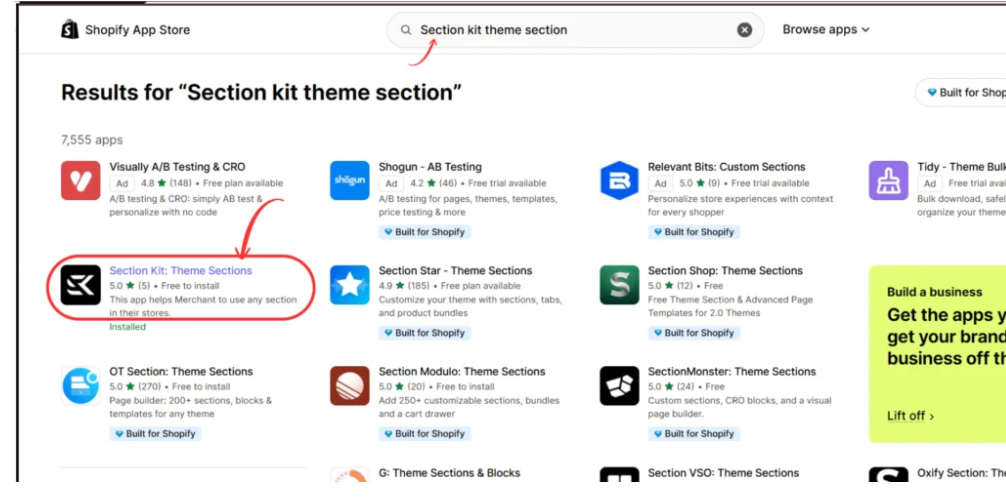
Image 2: Find Section Kit: Theme Sections in Shopify App Store search results.
Select the correct app from the search results to open its listing.
Step 3: Install or Open Section Kit
On the app listing page, review the app description and available features.
If you have not installed Section Kit, use the installation option and follow the Shopify authorization process.
If the app is already installed, click Open to launch it inside your Shopify admin.
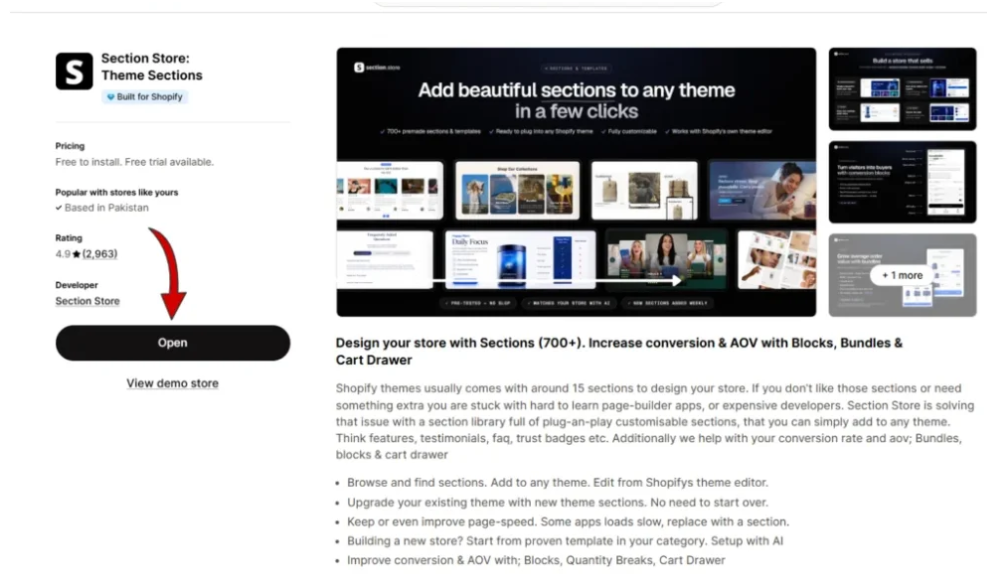
Image 3: Open the Section Kit app from its Shopify App Store listing.
After opening the app, you can explore its available sections and begin customizing your storefront.
Step 4: Search for the WhatsApp Chat Button Section
Inside Section Kit, navigate to Explore Sections from the left sidebar.
Locate the search bar and type WhatsApp.
The app displays a section named SK Whatsapp Chat Button.
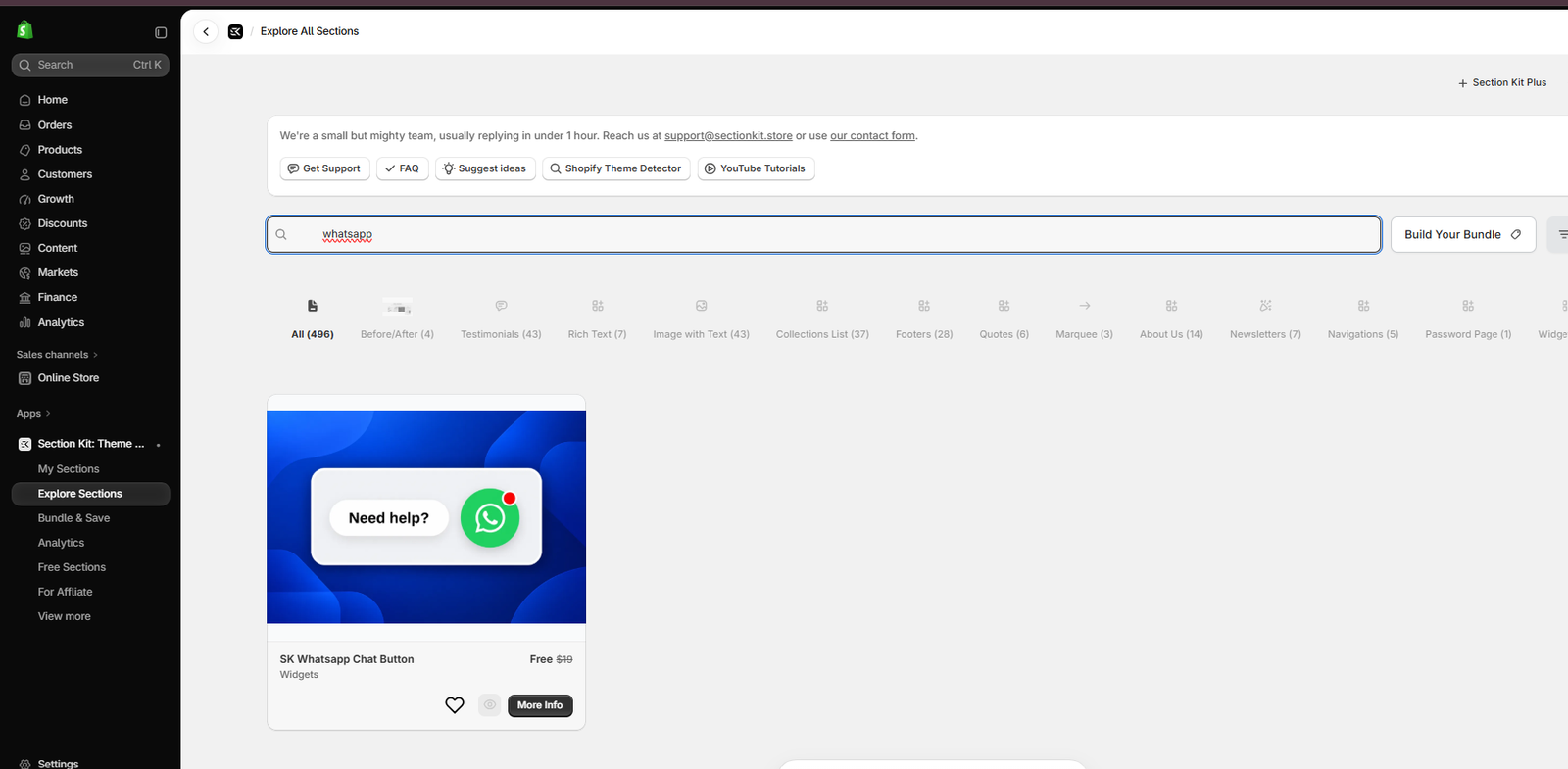
Image 4: Search for WhatsApp in the Explore Sections library.
Click More Info on the section card to review its features and available options.
Step 5: Review the WhatsApp Button Details and Add It to Your Sections
After opening the section details, a popup displays information about the SK Whatsapp Chat Button.
The available customization features include:
- Button background and icon colors
- Button text and icon sizing
- Left or right positioning
- Optional attention-grabbing animation
- Customizable chat dialog content
- Header image, name, subtitle, and initial message

Image 5: Review the WhatsApp Chat Button features and click Add to My Sections.
Click Add to My Sections to add the section to your personal library inside the Section Kit app.
Step 6: Open My Sections
Next, click My Sections in the Section Kit sidebar.
This area displays the sections you have added to your collection.
Locate SK Whatsapp Chat Button among your saved sections.

Image 6: Find the newly added WhatsApp Chat Button in My Sections.
From this screen, click Customize on the WhatsApp button card to continue adding it to your theme.
Step 7: Choose Your Shopify Theme
After selecting Customize, Section Kit displays a popup where you can choose the Shopify theme to which the section should be added.
You may see your published theme and other available themes.
Select the theme you want to customize and use the available installation or customizer option.
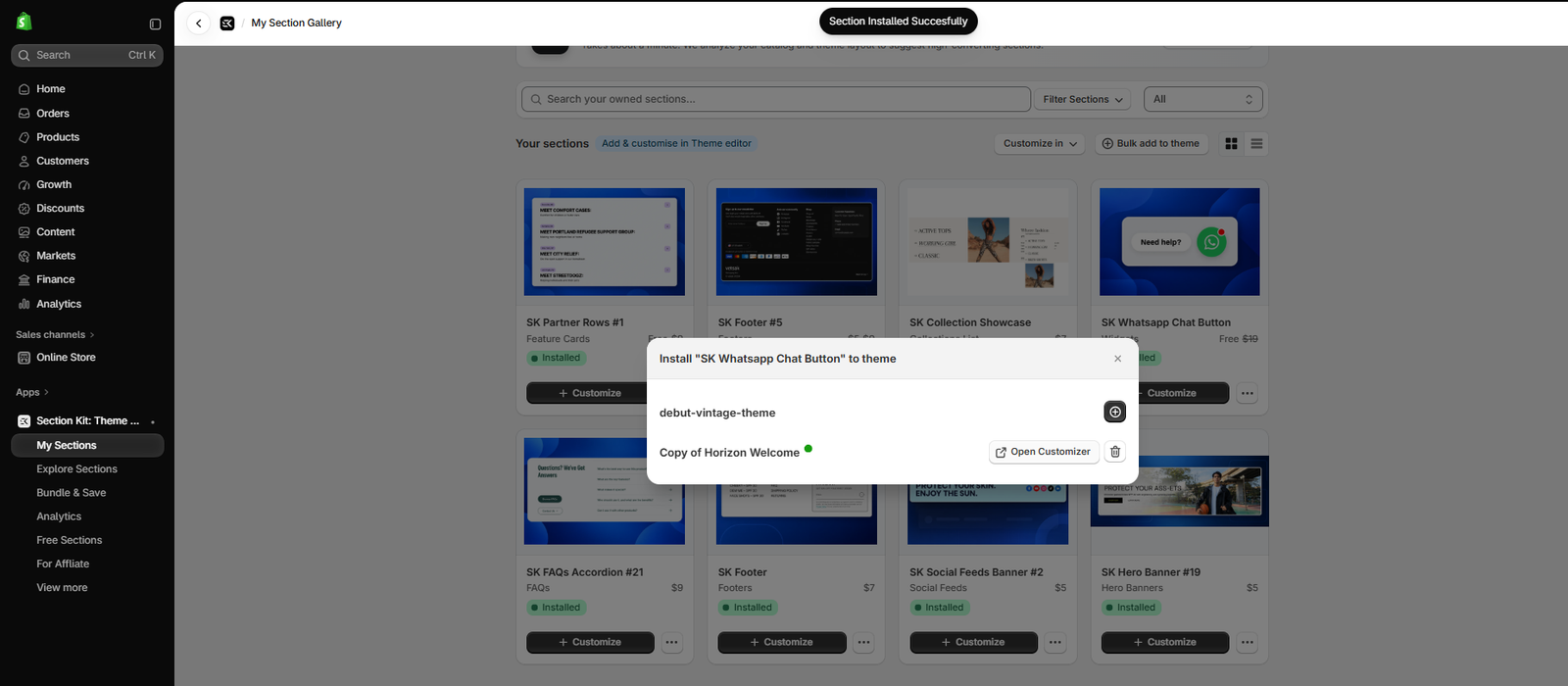
Image 7: Choose the Shopify theme for installing the WhatsApp Chat Button section.
If you are experimenting with a new layout, consider testing the section on a draft theme before publishing the changes to your live store.
Step 8: Add the WhatsApp Chat Button in the Shopify Theme Editor
Once the Shopify theme editor opens, select the page template where you want to add the section.
Then follow these instructions:
- Click Add section in the left sidebar.
- Type WhatsApp into the section search field.
- Find SK Whatsapp Chat Button in the search results.
- Click the section to add it to the selected template.

Image 8: Search for and select SK Whatsapp Chat Button inside the Shopify theme editor.
After selecting the section, Shopify adds it to your theme editor, where you can configure its settings.
Step 9: Customize and Save Your WhatsApp Chat Button
This is the final and most important step.
After adding the WhatsApp chat section, its customization settings appear in the Shopify theme editor.

Image 9: Customize the WhatsApp phone number, colors, and appearance in Shopify’s theme editor.
Configure your WhatsApp number
Enter the phone number that customers should use to contact your business.
Include the country code without symbols or spaces, as indicated in the app.
For example, a number using Pakistan’s country code could be entered in international format beginning with 92.
Customize button colors
Choose colors that match your Shopify store branding.
The settings shown include the icon background color, WhatsApp icon fill color, dialog header background, text colors, and other interface elements.
Configure the chat appearance
Adjust the button size, positioning, dialog appearance, and available animation options to match your storefront’s design.
Enable the widget
Use the Enable Widget Globally setting according to how you want the widget to appear.
Save your changes
Once you have finished customizing the WhatsApp chat button, click Save in the top-right corner of the Shopify theme editor.
Visit your storefront and test the WhatsApp button to confirm that it opens a conversation with the correct phone number.
If you edited a draft theme, the changes will not appear on your live storefront until that theme is published.
Why Add a WhatsApp Chat Button to Your Shopify Store?
Faster customer communication
WhatsApp gives customers a familiar channel for asking questions about products, orders, and store policies.
Better shopping experience
A visible contact option helps customers find support without navigating away to a separate contact page.
Potentially fewer abandoned purchases
When customers can get answers before checkout, some purchasing concerns may be resolved. The actual conversion impact depends on your store and how quickly inquiries are handled.
Easy customization
With Section Kit, merchants can customize the chat button’s appearance directly in the theme editor.
No manual coding required
The ready-made section avoids the need to build a custom WhatsApp interface from scratch.
Frequently Asked Questions (FAQs)
1. How do I add a WhatsApp chat button to Shopify without coding?
Install Section Kit: Theme Sections, search for SK Whatsapp Chat Button, add it to My Sections, install it into your theme, and customize it using the Shopify theme editor.
2. Is the WhatsApp Chat Button section free?
The provided Section Kit screenshot shows the SK Whatsapp Chat Button as free, with the original $19 price crossed out. Check the current app interface for the latest pricing.
3. Can I change the WhatsApp button color?
Yes. Section Kit provides settings for changing the button background, icon fill, dialog colors, and other visual elements.
4. Can I use my business WhatsApp number?
Yes. Enter the phone number that should receive your customers’ WhatsApp messages, including its international country code.
5. Does the WhatsApp Chat Button work with all Shopify themes?
Section Kit describes the section as compatible with Shopify themes. However, you should test it with your specific theme to ensure correct appearance and functionality.
6. Can I display the WhatsApp button across my entire store?
The section includes an Enable Widget Globally setting. Configure it and test the button on the pages where you want it displayed.
7. Do I need a developer to install the WhatsApp Chat Button?
No. The process shown uses Section Kit and Shopify’s built-in theme editor without manually editing theme code.
8. Will the WhatsApp button automatically reply to customers?
The chat button provides customers with a way to initiate conversations through WhatsApp. Automated replies depend on your WhatsApp Business setup or other messaging tools.
Conclusion
Adding a WhatsApp chat button to your Shopify store can make customer communication easier and improve the overall shopping experience.
Instead of requiring technical knowledge or custom theme development, Section Kit: Theme Sections offers a ready-made solution that merchants can install and customize through the Shopify theme editor.
With flexible settings for colors, positioning, sizing, and dialog content, the SK Whatsapp Chat Button can be adapted to match your store’s design.
Whether you are starting a new Shopify store or improving an existing one, adding an accessible contact option is a practical way to support shoppers and answer their questions.
Ready to add a WhatsApp chat button to your Shopify store?Install Section Kit: Theme Sections on Shopify




