HOW TO CREATE A “BUY X GET Y FREE” OFFER ON SHOPIFY: A COMPLETE GUIDE

Introduction
Everyone loves getting something for free, especially when shopping online. For Shopify store owners, offering a free product with a qualifying purchase can be an effective way to encourage customers to buy more.
One popular promotional strategy is Buy X Get Y Free, also known as a BOGO offer.
Instead of simply reducing the price of a product, this strategy rewards customers with an additional item when they meet a specific purchase condition.
For example, you might offer Buy 1 Get 1 Free, Buy 2 Get 1 Free, or Buy 3 Get 2 Free.
In this guide, we’ll explain what Buy X Get Y Free offers are, why they matter, how to create them on Shopify, and how to make your promotions more effective.
At the end, we’ll also introduce Section Kit Bundles, a Shopify app that helps merchants create and display attractive product bundle offers.
What Is a Buy X Get Y Free Offer?
A Buy X Get Y Free offer is a promotional discount where customers purchase a qualifying number of products and receive an additional eligible product for free.
Here, X represents the quantity customers must purchase, while Y represents the quantity they receive as a reward.
For example:
| Offer | Customer purchases | Customer receives |
|---|---|---|
| Buy 1 Get 1 Free | 1 item | 2 items |
| Buy 2 Get 1 Free | 2 items | 3 items |
| Buy 3 Get 2 Free | 3 items | 5 items |
These offers are commonly used in fashion, beauty, skincare, accessories, food, and other e-commerce categories.
They can help customers discover more products while encouraging larger orders.
Why Buy X Get Y Free Offers Matter for Shopify Stores
1. Encourage Customers to Purchase More
When customers see an opportunity to receive an additional product for free, they may be more willing to increase their purchase quantity.
For example, someone planning to buy one skincare product may consider purchasing two if a third product is included free.
2. Help Increase Average Order Value
Average order value (AOV) measures how much customers spend per order.
By encouraging customers to purchase additional qualifying products, BOGO promotions can help increase the amount spent in a single transaction.
However, the effect depends on the promotion. A Buy 1 Get 1 Free offer may increase units sold without increasing the customer’s payment.
3. Promote Selected Products
BOGO offers can help introduce customers to products they might not otherwise purchase.
For example, a beauty store might offer a free lip balm when customers purchase two skincare products.
This gives customers an opportunity to try another product from the same brand.
4. Support Seasonal Promotions
Buy X Get Y Free offers can work well during Black Friday, Cyber Monday, holiday campaigns, and product launches.
These promotions give merchants a simple message to communicate across their websites, emails, and social media channels.
5. Help Move Selected Inventory
If you have excess inventory of certain products, a carefully planned BOGO promotion may help increase their sales.
However, always consider product costs and margins before including items in free-product promotions.
Popular Types of Buy X Get Y Free Offers
Buy 1 Get 1 Free
Customers purchase one qualifying product and receive another eligible product free.
This offer is easy to understand and works well for selected products with suitable profit margins.
Buy 2 Get 1 Free
Customers purchase two qualifying items and receive one additional item free.
This approach encourages customers to purchase more units before receiving the reward.
Buy 3 Get 2 Free
Customers purchase three qualifying items and receive two eligible items free.
This type of promotion can be useful for products commonly purchased in larger quantities.
Buy One Product, Get Another Product Free
Not every BOGO promotion needs to involve identical products.
For example, a customer could purchase a shampoo and receive an eligible conditioner free.
This can be useful for promoting complementary products.
Best Practices for Creating Successful BOGO Offers
A successful Buy X Get Y Free promotion should be simple, relevant, and financially sustainable.
Use clear promotional text such as BUY 2, GET 1 FREE so customers understand the offer immediately.
Choose products that customers genuinely want to purchase together. Avoid combining unrelated products simply to increase the number of items in an order.
Make sure your promotional pricing is accurate, and explain any restrictions before checkout.
You should also test different offers. A Buy 2 Get 1 Free promotion may perform differently from a Buy 1 Get 1 Free promotion, depending on your products and customers.
Finally, track the results. Monitor order value, units sold, conversion rate, discount costs, and profit margins to understand whether the promotion is helping your business.
Common Mistakes to Avoid
Some merchants create BOGO offers without clearly explaining the qualifying purchase conditions.
Others select free products that make the promotion unprofitable.
Avoid these mistakes by ensuring customers understand exactly what they need to buy, which product they will receive, and whether the promotion can be combined with other discounts.
Test the full cart and checkout experience before advertising your offer.
Step 1: Open the Shopify App Store

Image 1: Search for Shopify App Store on Google and open the official website.
Open your browser and search for Shopify App Store. Select the official result to access Shopify’s app marketplace.
The Shopify App Store contains tools for product bundling, store design, marketing, inventory management, and more.
Step 2: Search for Section Kit Bundles
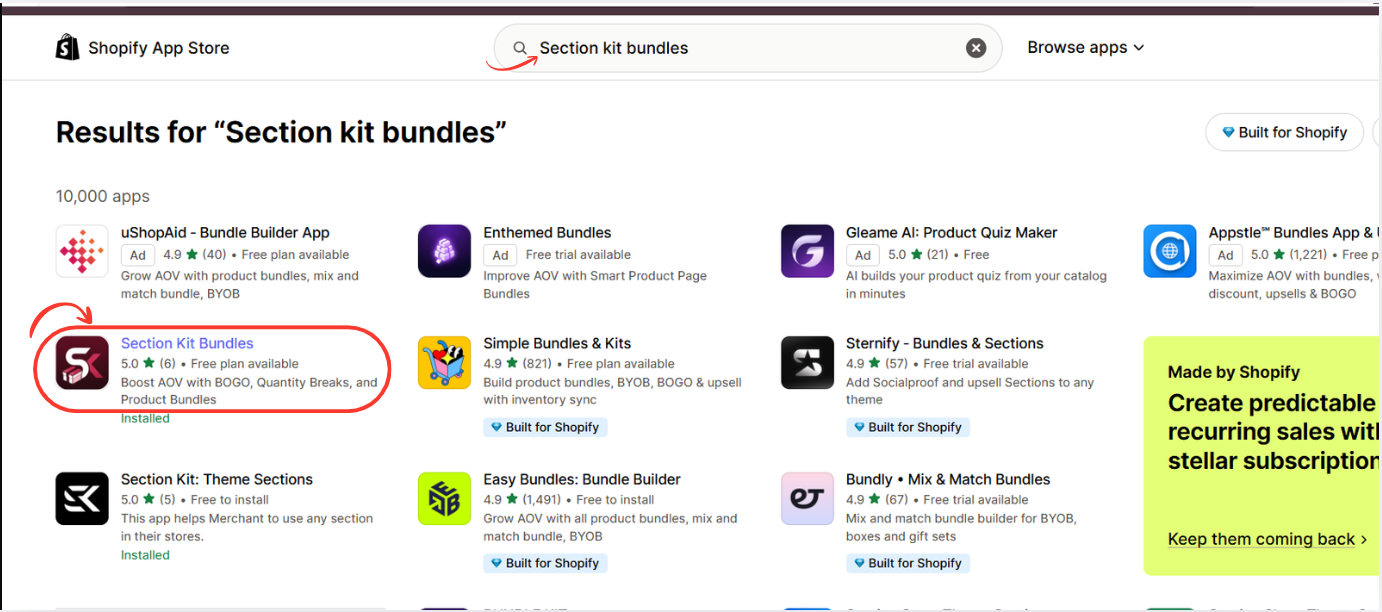
Image 2: Search for Section Kit Bundles and select the highlighted app.
In the Shopify App Store search bar, type Section Kit Bundles.
Find the app in the results and click its listing. The app supports BOGO promotions, quantity breaks, product bundles, and volume discounts. Shopify App Store
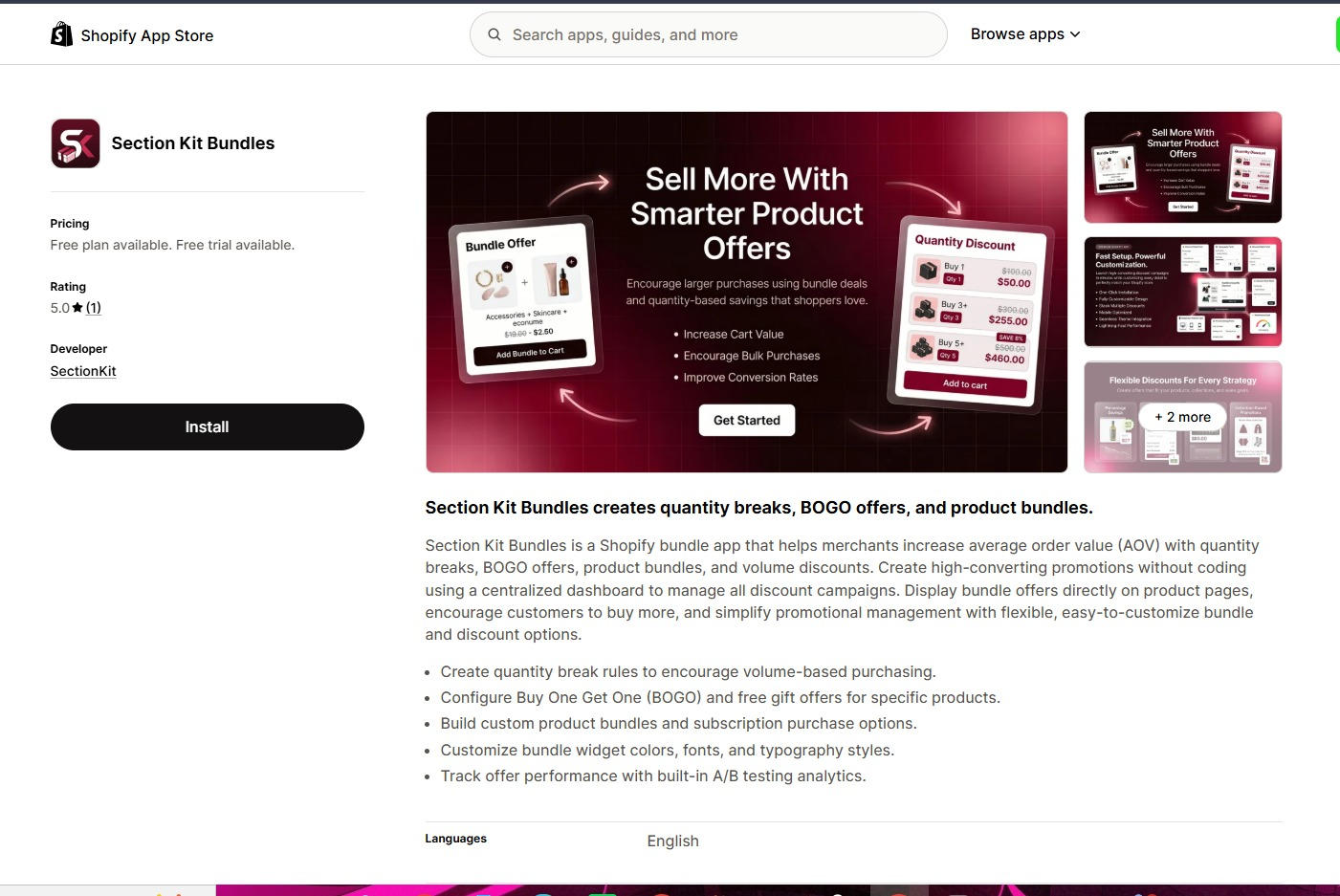
Open the app listing, review the available plans, and click Install. Once installation is complete, open the app from your Shopify admin.
You can also visit the app directly: Section Kit Bundles on the Shopify App Store.
Step 3: Install Section Kit Bundles
Open Section Kit Bundles in the Shopify App Store, click Install, select your store, and review the installation permissions. Once installed, open the app from your Shopify admin.
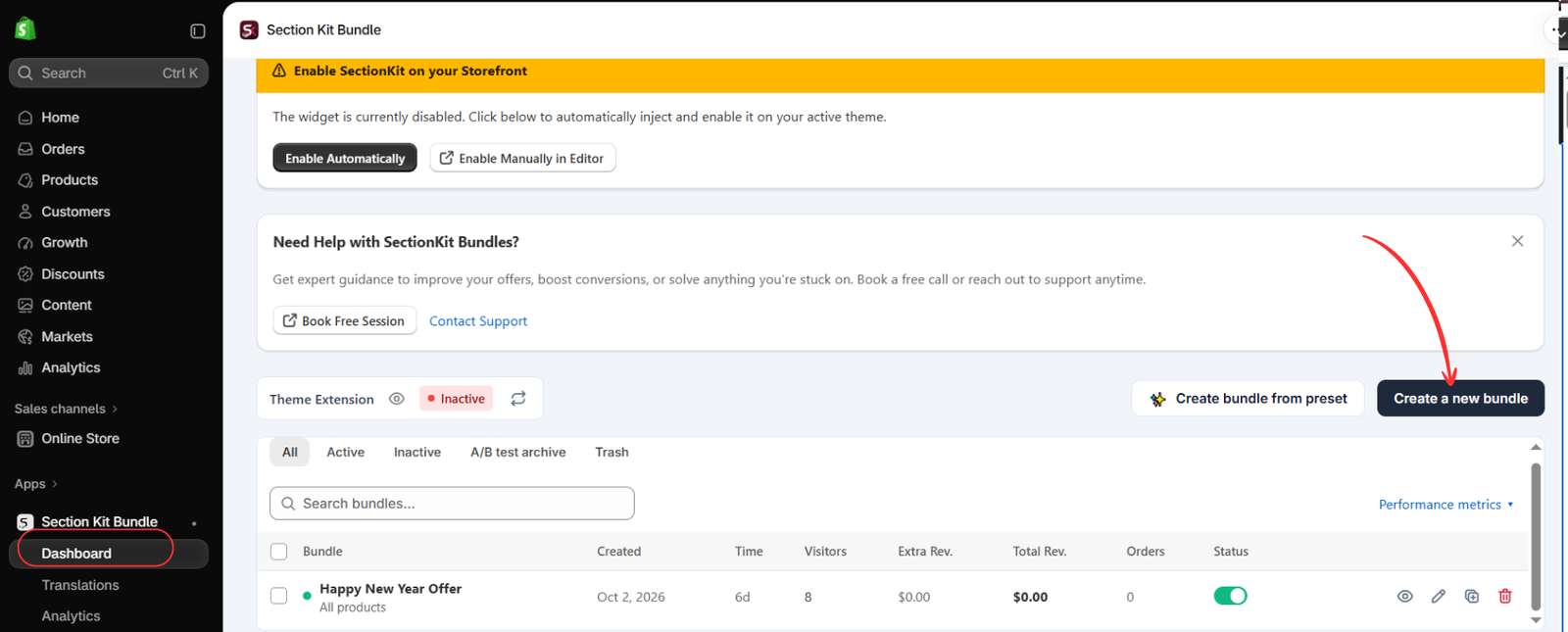
Step 4: Open the Dashboard and Create a New Bundle
Open Apps → Section Kit Bundle → Dashboard. Click Create a new bundle, as highlighted in Image 2. The dashboard also offers a preset option and shows existing promotions.
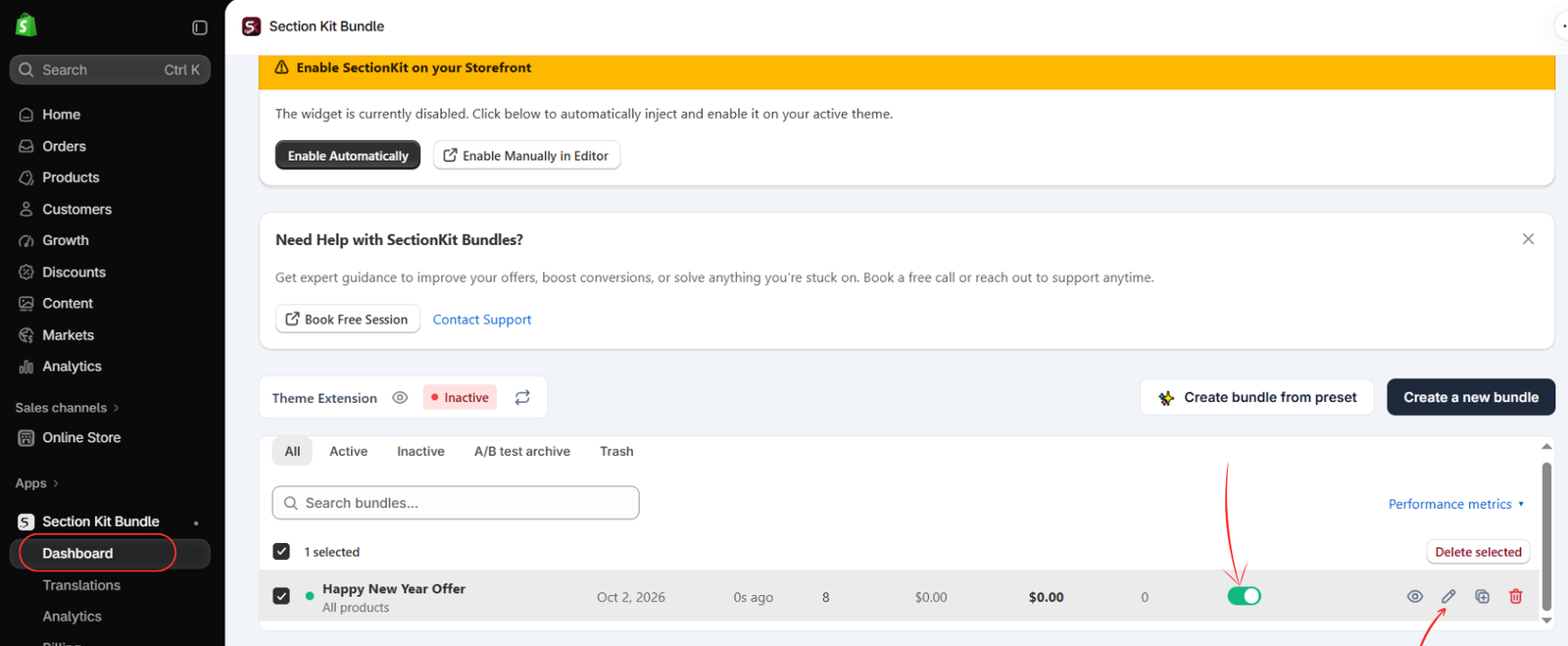
The image shows the theme extension as inactive. Creating or activating an offer and enabling its storefront integration are separate checks; complete the theme setup before expecting the widget to appear.
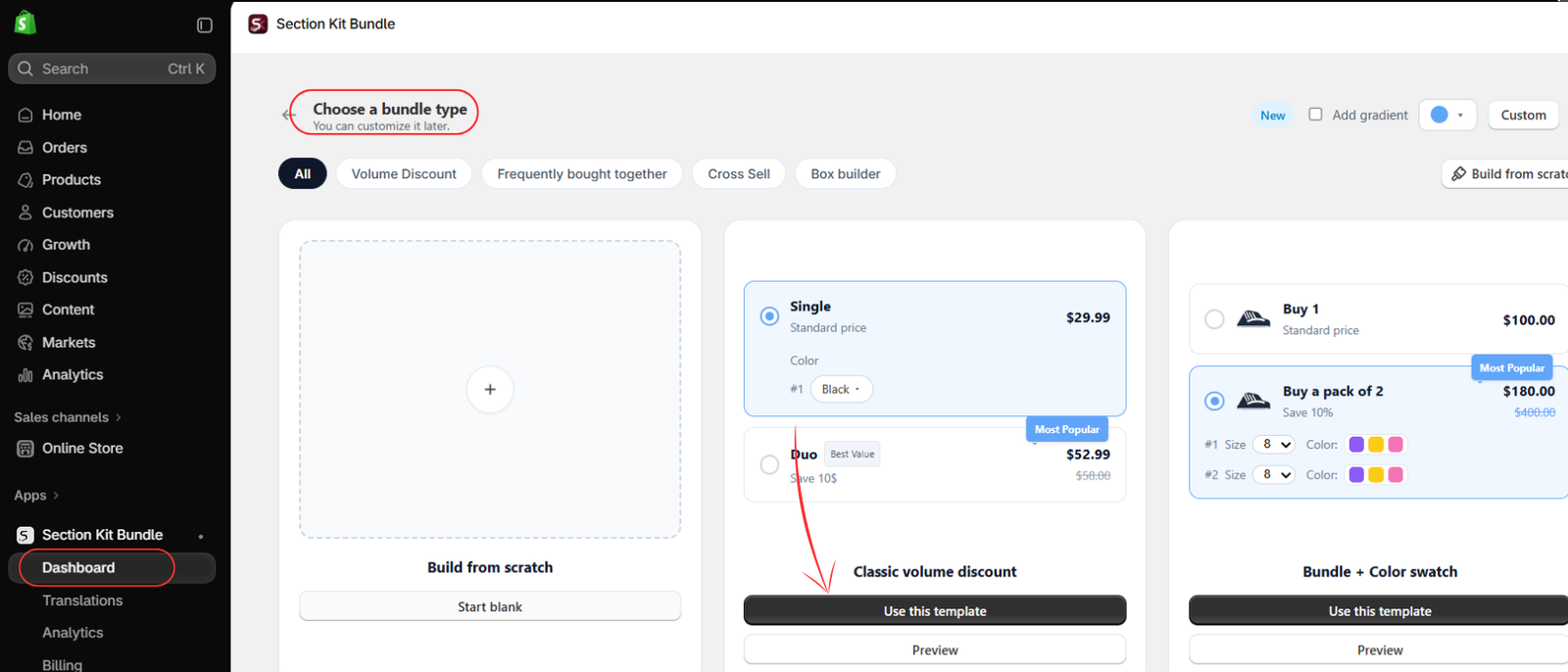
Step 5: Choose the Classic Volume Discount Template
On the Choose a bundle type page, find Classic volume discount and click Use this template. This is the clearest starting point for an offer that rewards larger quantities. Use the preview option if you want to inspect its presentation first.
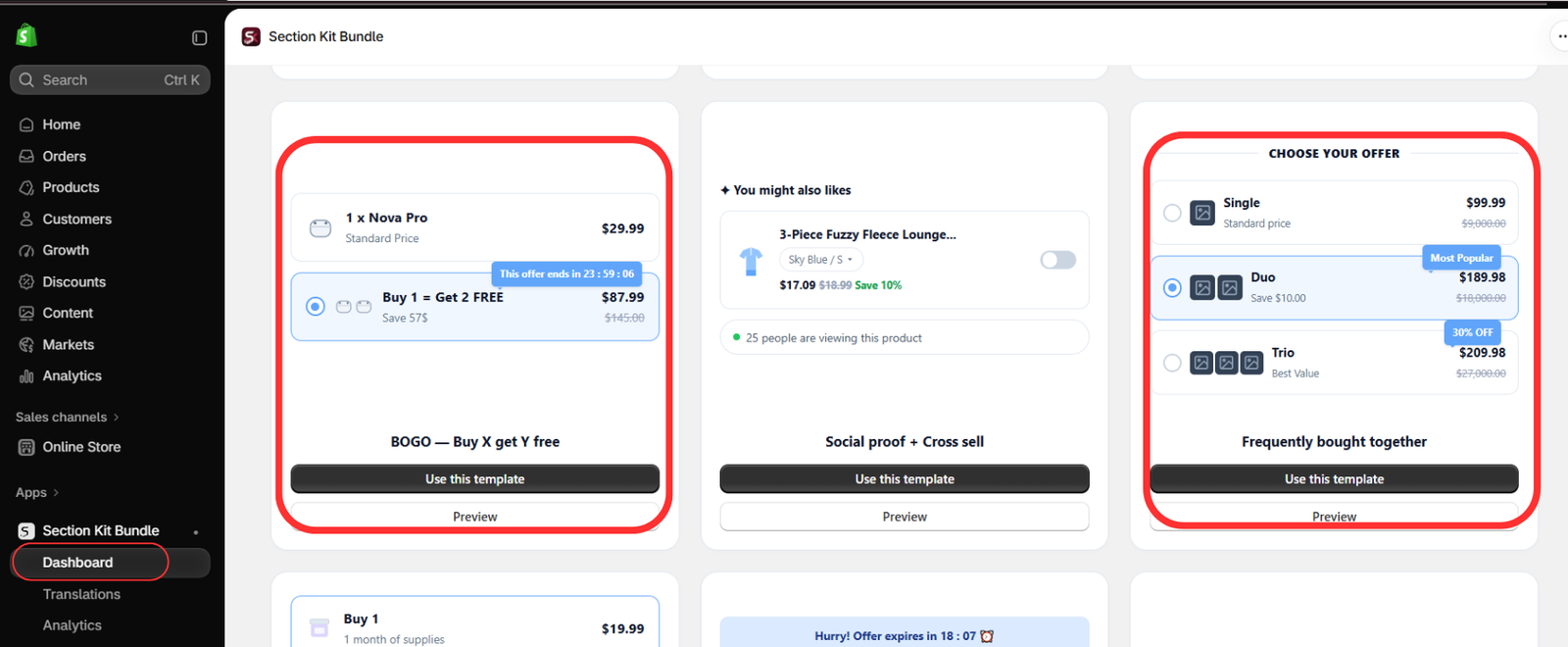
Step 6: Understand the Alternative Offer Templates
Image 4 highlights BOGO — Buy X get Y free and Frequently bought together. Choose BOGO when the benefit is a free item, or a related-product bundle when customers should purchase complementary products together. For the quantity-discount offer in this guide, continue with the classic volume discount template selected in Step 3.
Keep your offer wording consistent with the actual discount. A percentage discount should not be described as a free-item promotion.
Step 7: Find Your Offer and Open Its Editor
When your offer is saved and appears in the dashboard, locate its row and click the pencil icon to edit it. The highlighted status switch controls whether that offer is active. Finish reviewing its rules before enabling it for customers.
Image 5 shows an existing example named “Happy New Year Offer.” Give your own offer a descriptive name so it is easy to identify later. An active offer switch alone does not confirm that the theme extension is enabled.
Step 8: Configure the Savings and Preview the Widget
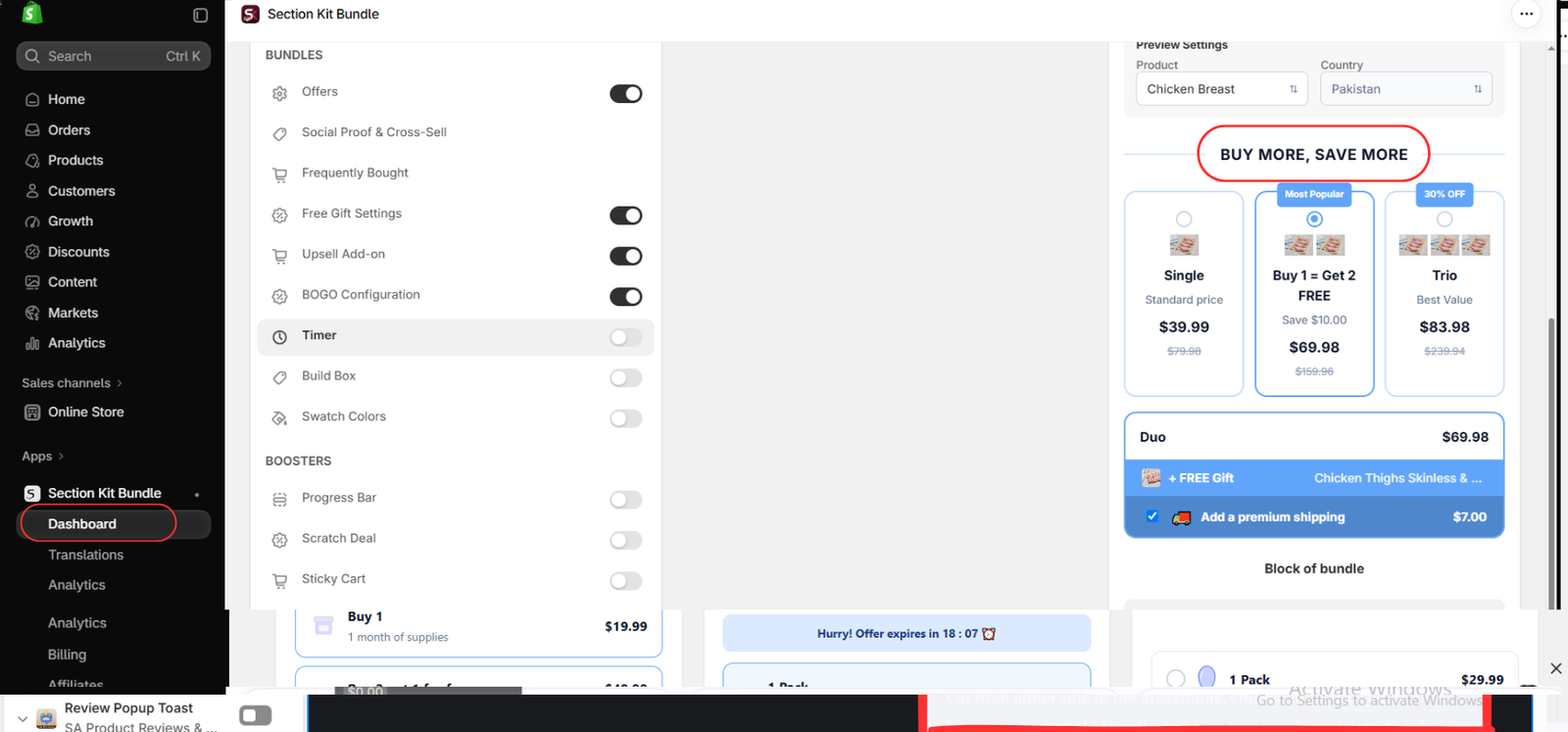
In the offer editor, set the eligible products, quantity choices, and discount values using the available offer controls. Enter a clear heading such as BUY MORE, SAVE MORE, and check the product preview as you adjust the configuration.
For a simple volume discount, use a standard-price single option and discounted choices for larger quantities. Show the total price clearly, and use labels such as “Save 10%” only when the calculation is accurate. Optional free gifts, upsells, or BOGO settings should be enabled only if they are part of your intended promotion.
Image 6 shows the editor’s feature toggles and a mixed example preview. Its free-item wording and prices demonstrate a layout, not a pricing model to copy. The image does not show every quantity or discount input; review those controls in your app before saving. Customize the widget’s colors and typography to fit your store, then save using the editor’s available save control.
Step 9: Open Your Shopify Theme Editor
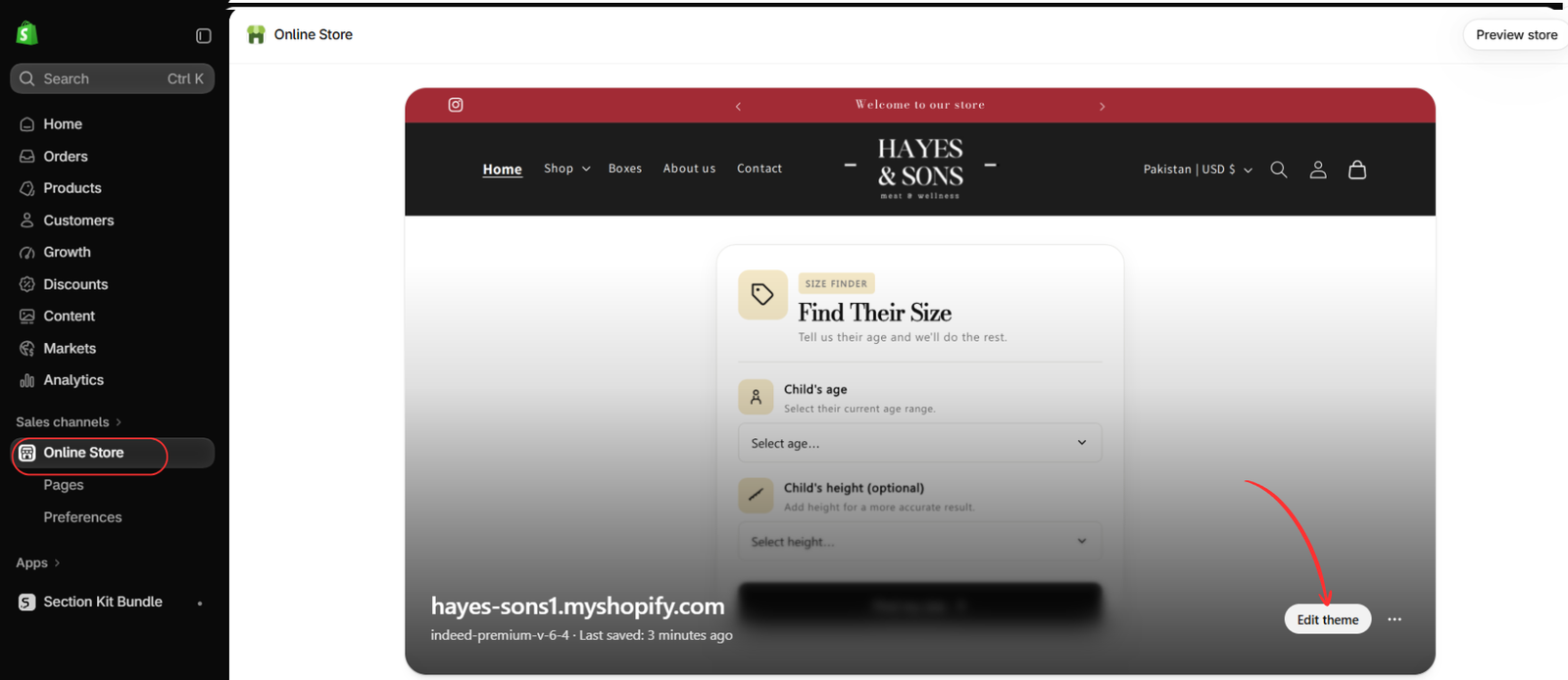
Go to Online Store → Themes and open the theme you want to use. In Image 7, the button is labeled Edit theme. Open the visual theme editor to configure the app embed.
Check that you are working on the intended theme. If you are preparing the promotion on a duplicate theme, preview it there before publishing it.
Step 10: Enable the App Embed and Save
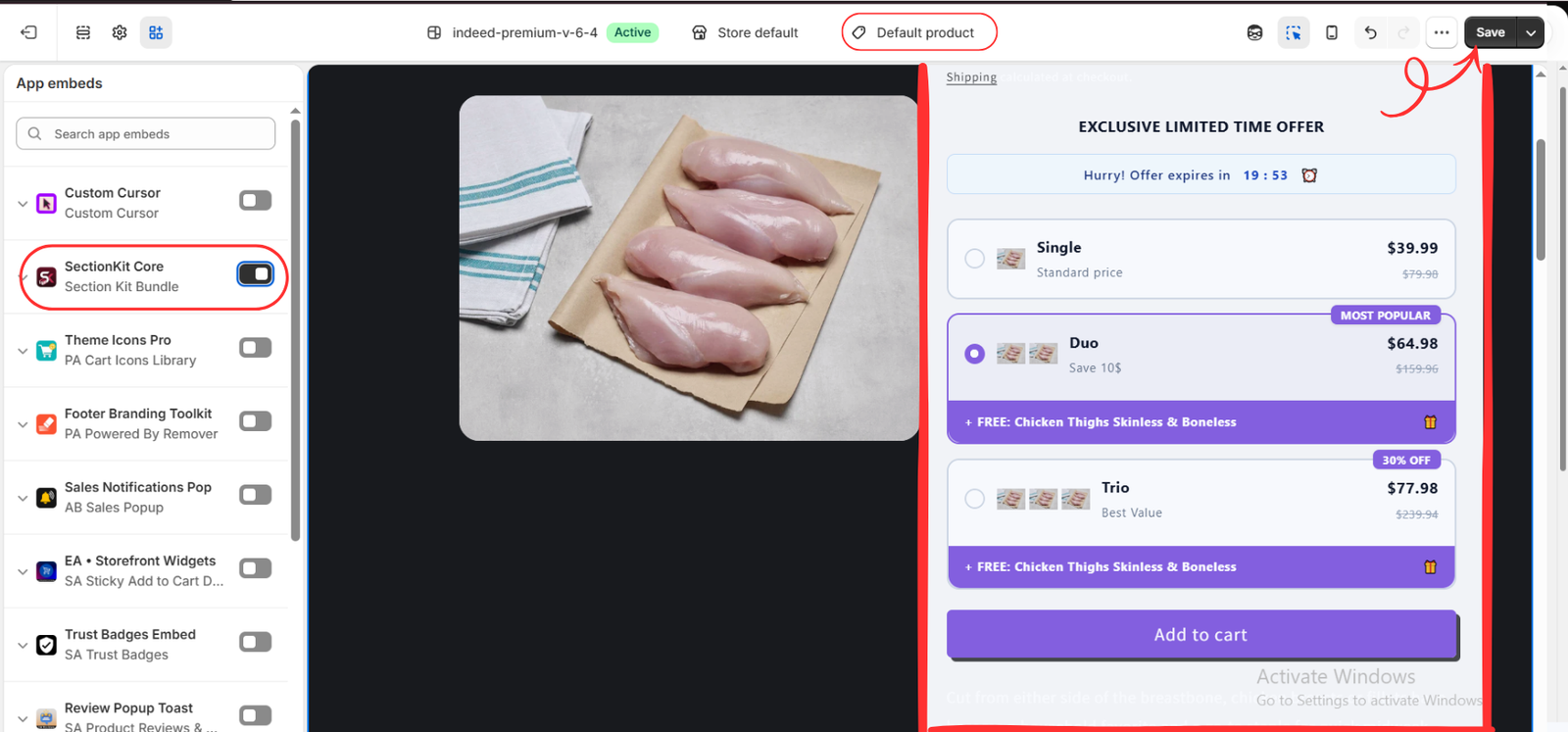
Inside the theme editor, open App embeds. Turn on SectionKit Core, shown under Section Kit Bundle in Image 8. Select the relevant product template—Default product is shown in the image—and verify that the offer widget appears on an eligible product. Click Save.
The final image displays a styled example with Single, Duo, and Trio options. Its values differ from the earlier editor preview, so validate your own final prices rather than copying the image’s numbers. If your products use a different template, check that template as well.
Test the Offer Before Promoting It
Open an eligible product on the storefront and select each quantity tier. Confirm that the cart receives the correct product variants and quantities, then check that the discount and total remain correct at checkout. Repeat the check on mobile and on a product that should not qualify.
Check whether other discounts can combine with this offer, whether free gifts are added only when intended, and whether your inventory supports the quantities offered. If you use a timer, make sure it reflects a real promotion deadline. Publish only after the displayed savings and checkout totals agree.
Improve the Offer After Launch
Monitor order value, offer use, and profit per order. Compare these with a period before the promotion, accounting for traffic and seasonal changes. Use the app’s available performance reporting, and test a single change at a time, such as a discount tier or label. A higher order total is useful only when the promotion also makes commercial sense
Conclusion
Buy X Get Y Free offers are a practical way to encourage customers to purchase additional products and discover more items in your Shopify store.
Whether you’re running a Buy 1 Get 1 Free promotion or offering a free product with a qualifying purchase, the most important factors are clear messaging, relevant products, and sustainable pricing.
Shopify’s built-in discount tools can help you create basic BOGO promotions. If you want more visual promotional layouts and additional bundling features, Section Kit Bundles offers an alternative approach.




