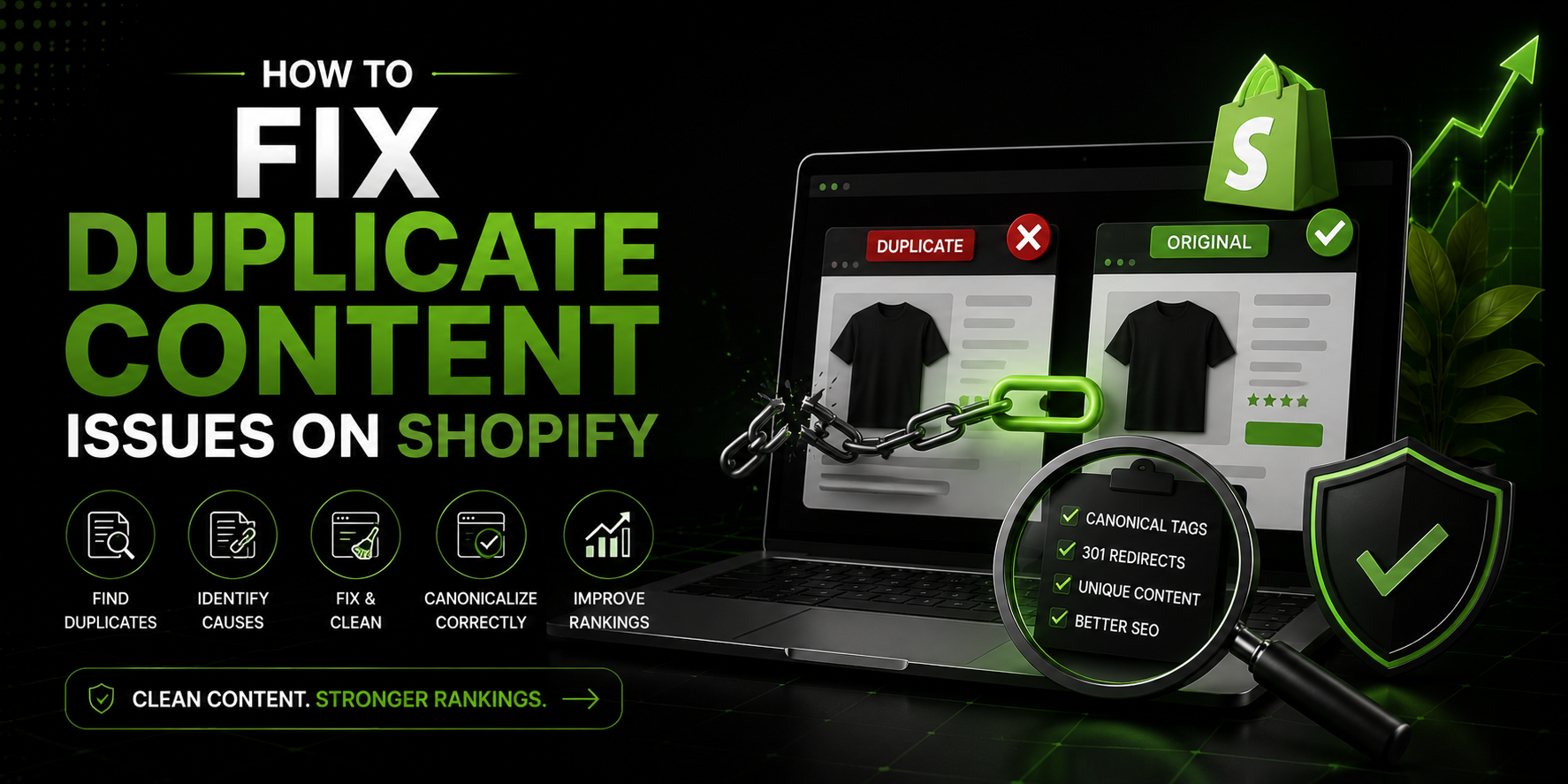
How to Fix Duplicate Content Issues on Shopify
Let me ask you something.
Have you ever copied a product description from your supplier’s website and pasted it directly onto your Shopify store? Or maybe you have the same product listed in three different collections, and it shows up under three slightly different URLs? Or perhaps you never really thought about whether Google is seeing the same content twice, three times, or even more across your store?
If any of that sounds familiar, you might be dealing with duplicate content and it could be quietly destroying your SEO without you even knowing it.
Duplicate content is one of the most common and most damaging SEO problems on Shopify stores. And the frustrating part is that a lot of it isn’t even your fault. Some of it is just baked into the way Shopify works. But that doesn’t mean you’re stuck with it.
In this blog, I’m going to explain exactly what duplicate content is, why it hurts your Shopify store, and most importantly, how to fix it step by step.
What Is Duplicate Content Exactly?
Let’s start with the basics so we’re all on the same page.
Duplicate content is when the same piece of content or very similar content appears on more than one URL. It could be on two different pages of your own store, or it could be content that exists on your site and also on another website somewhere on the internet.
Google’s job is to find the best and most relevant result for every search query. When it finds the same content in two different places, it gets confused. It doesn’t know which version to show in the search results. So it has to make a choice and it often doesn’t choose the one you want it to choose.
Worse, Google sometimes sees duplicate content as a sign of low quality or even manipulation, and it can push all the affected pages down in the rankings as a result.
For Shopify store owners, this is a really serious issue because the platform creates duplicate content in several ways automatically. You don’t have to do anything wrong it just happens.
But once you know what to look for, you can fix it.
Why Shopify Creates Duplicate Content Without You Realizing It
This is the part that surprises most Shopify store owners when they first learn about it.
Shopify has a structural quirk that creates duplicate URLs for your product pages. Here’s how it works.
When you add a product to a collection in Shopify, the platform creates two different URLs for that same product. One is the standard product URL, which looks like yourstore.com/products/your product name. The other is a collection specific URL, which looks like yourstore.com/collections/your collection name/products/your product name.
Both of these URLs show the exact same product page. Same title, same description, same images, same everything. But to Google, they look like two completely different pages with identical content.
Now imagine you have that product in three different collections. Suddenly you have four versions of the same product page the standard URL plus one for each collection. That’s four identical pages competing against each other in the search results. None of them will rank as well as a single strong, unified page would.
And this happens automatically with every product in every collection on your store. If you have a large store with hundreds of products spread across multiple collections, this could be creating thousands of duplicate URLs.
That’s a big problem. But it’s also fixable.
The Canonical Tag Your First Line of Defence
The most important tool for dealing with Shopify’s URL duplication problem is something called the canonical tag.
A canonical tag is a small piece of code that you add to a web page to tell Google which version of a URL is the “real” one the one you want it to index and rank. It’s basically a way of saying, “Hey Google, I know this content exists in multiple places, but this specific URL is the one that matters. Please treat all the others as copies of this one.”
The good news is that Shopify actually adds canonical tags automatically to your product pages. By default, Shopify sets the canonical URL to the main /products/ URL, not the /collections/ version. This means it’s already telling Google to treat the main product URL as the primary one.
But here’s the problem — not all Shopify themes implement canonical tags correctly. Some themes have bugs or inconsistencies that cause canonical tags to point to the wrong URL, or to be missing entirely on certain pages. And some apps or customizations can accidentally override or break the canonical tags that Shopify sets up.
So the first thing you need to do is check whether your canonical tags are working properly. You can do this by going to any product page on your store, right-clicking, selecting “View Page Source,” and then using Ctrl+F to search for the word “canonical.” You should see a line of code that looks something like this: link rel=”canonical” href=”https://yourstore.com/products/your-product-name.”
If the URL in that canonical tag matches your main product URL, you’re good. If it’s pointing to a collection URL, or if there’s no canonical tag at all, you have a problem that needs to be fixed.
If your theme is handling canonical tags incorrectly, you may need to edit your theme’s code or use an SEO app to override it. This is where getting some professional help can be really valuable if you’re not comfortable with code.
Duplicate Content From Product Variants
Here’s another way Shopify can create duplicate content that most people don’t think about.
If you have products with multiple variants different sizes, colors, materials, and so on Shopify sometimes creates separate URLs for each variant. So your “Blue Running Shoes” might have one URL for the blue version, another for the red version, and another for the black version. And if the product description is the same for all three, you now have three pages with nearly identical content.
For most stores, the best approach is to make sure that variant URLs all point back to the main product page using canonical tags. You don’t need a separate page for each color of the same shoe — you need one strong, well-optimized product page that covers all the variants.
In some cases, if your variants are different enough to justify their own pages for example, if they have meaningfully different descriptions, features, or use cases — you might want to actually create separate product listings for them. But for standard size and color variants, consolidating everything onto one page is almost always the better SEO move.
Copied Product Descriptions The Duplicate Content You’re Creating Yourself
Okay, now let’s talk about the duplicate content that store owners create on their own without realizing it.
This one is extremely common, especially among dropshippers and stores that source products from suppliers or wholesalers.
When you get a product from a supplier, they often provide you with a ready made product description. It’s tempting to just copy and paste that description directly into your Shopify store. It saves time. The description is usually decent. And there are so many products to list that writing unique descriptions for all of them feels overwhelming.
But here’s what happens when you do that.
That same product description from your supplier is probably on dozens, maybe hundreds, of other websites. Every other store that carries that product and copies the supplier’s description is putting the exact same content online. Google sees this and categorizes all of those pages as duplicates.
When Google decides which version of that content to show in the search results, it’s usually going to pick the supplier’s original website, or the most established store that has been using that description the longest. Your newly launched Shopify store is almost certainly not going to be the one Google chooses.
This means all of those copied product pages are practically invisible in search results. You’re not getting ranked for them. You’re not getting organic traffic from them. They’re just sitting there, doing nothing for your SEO.
The fix here is simple in theory, though time-consuming in practice write your own unique product descriptions. Every single one.
I know that sounds like a lot of work, especially if you have a large catalog. But you don’t have to do it all at once. Start with your best selling products, your highest-margin products, and the products you most want to rank for. Write genuinely helpful, original descriptions for those first. Then work through the rest of your catalog over time.
Even a moderately unique description that uses your own words and voice is infinitely better than a copied one from an SEO perspective.
Pagination and Filtered Pages Creating Duplicate Content
This is a more technical one, but it’s worth knowing about.
If you have a large collection on your Shopify store, it probably spans multiple pages. Page one of your Women’s Shoes collection, page two, page three, and so on. Shopify adds parameters to the URL to handle this, so you end up with URLs like yourstore.com/collections/womens-shoes?page=2.
Now, each of those paginated pages has the same collection title, the same description at the top, and very similar overall structure. Google can see this as duplicate or near-duplicate content.
Similarly, if your store has filters like sorting by price, by color, by size Shopify often creates new URLs for each filter combination. So yourstore.com/collections/womens-shoes?sort_by=price ascending is a different URL from yourstore.com/collections/womens shoes, but they show very similar content.
The standard way to handle pagination is to make sure that paginated pages are either using rel=”next” and rel=”prev” tags to help Google understand the relationship between them, or that they have canonical tags pointing back to the first page of the collection.
For filter URLs, the best approach is usually to add a “noindex” tag to those filtered pages so Google doesn’t try to index them as separate pages. You can often do this through your Shopify theme settings or through an SEO app.
Your Blog Content and Duplicate Content
If you run a blog on your Shopify store which you absolutely should for SEO purposes there are a couple of ways duplicate content can sneak in here too.
First, if you ever post the same article on your store’s blog and also on an external site like Medium or LinkedIn, you’re creating duplicate content. Google will index both versions and likely rank the external platform over your own store, because platforms like Medium typically have more authority.
If you want to republish your content on other platforms, the right way to do it is to publish the original on your store first, let Google index it, and then when you republish elsewhere, ask the other platform to add a canonical tag pointing back to your original post. Medium, for example, allows you to do this when you import a story.
Second, tags in your Shopify blog can create duplicate content issues. When you tag a blog post, Shopify sometimes creates a separate URL for each tag that shows a list of posts with that tag. If multiple posts share the same tag, those tag pages can end up showing very similar content.
The fix is to either use canonical tags on tag pages or add a noindex tag so Google doesn’t try to rank them.
How to Find Duplicate Content on Your Shopify Store
Now that you know where duplicate content comes from, let’s talk about how to actually find it on your store.
The most thorough way is to use a dedicated SEO tool. Screaming Frog is one of the most popular options it crawls your entire store the way Google would and flags duplicate content, missing canonical tags, and other issues. It’s free for up to 500 URLs, which is enough for many smaller stores.
Google Search Console is another free tool that can give you valuable information. If Google is indexing multiple versions of the same page, you’ll often see signs of it in your Search Console data pages with very low impressions, pages that Google has chosen to “de-index” in favor of a duplicate, or a coverage report showing more indexed pages than you’d expect.
Ahrefs and SEMrush both have site audit features that will flag duplicate content issues as part of a broader technical SEO audit. These are paid tools but very powerful.
You can also do a simple manual check. Take a unique sentence from one of your product descriptions and put it in quotes in Google’s search bar. If Google returns multiple results showing that same sentence — especially from your own store at different URLs you know you have a duplicate content problem on that page.
Going through this process for your whole store might feel tedious, but it’s genuinely eye opening. Most store owners are shocked by how much duplicate content they find once they actually look.
301 Redirects Cleaning Up Old Duplicate URLs
When you start fixing duplicate content issues, one of the most important tools you have is the 301 redirect.
A 301 redirect is a permanent redirect that sends anyone who visits an old URL to a new URL instead. More importantly for SEO, it also tells Google to transfer the ranking power from the old URL to the new one.
Here’s when you need to use redirects in the context of duplicate content.
If you had two versions of a page say, one with “www” in the URL and one without and you’ve decided to make the non-www version the canonical one, you need to set up a 301 redirect from the www version to the non www version. This ensures that any links or traffic going to the old version automatically gets sent to the right one.
Similarly, if you’ve been cleaning up your product URLs and changing them to be more SEO friendly, every old URL needs a 301 redirect to the new one. Without it, anyone who bookmarked or linked to the old URL hits a dead end, and all the SEO value that URL had built up simply disappears.
Shopify has a built-in redirect tool in the admin panel under Online Store and then Navigation. You can add redirects one by one or import them in bulk via CSV if you have a lot to set up.
Getting your redirects right is not glamorous work, but it is essential. Think of it as making sure all roads lead to the right place.
What About Duplicate Content Across Different Websites?
So far we’ve mainly talked about duplicate content within your own Shopify store. But what about when your content appears on other websites too?
This can happen in a few different ways.
As we talked about earlier, copying supplier descriptions puts your content on dozens of other sites. But other things can cause this too. Scrapers automated bots that copy content from websites can take your original content and post it elsewhere without your permission. Guest posts you’ve written for other sites that you’ve also published on your own blog create duplicates. Product reviews or press coverage that quotes large chunks of your content word for word can also be flagged.
The first step is figuring out where your content is appearing without your permission. You can do this by taking a unique sentence or paragraph from your product description or blog post, putting it in quotes in Google, and seeing where it shows up.
If you find scraped copies of your content on other sites, you can submit a DMCA takedown request to Google asking them to remove the copied content from their index. Google has a straightforward form for this, and it usually works for clear cases of content theft.
For legitimate syndication situations — like if you’ve published a guest post that also appears on your own blog make sure you add canonical tags pointing back to the original version on your own site. Communicate with the site that published your content and ask them to either remove their copy or add a canonical tag pointing to yours.
The goal is to make absolutely sure that when Google encounters your content, it knows your store is the original source.
The Role of Thin Content in Duplicate Content Problems
Here’s something a lot of people don’t realize thin content and duplicate content are closely related problems, and they often show up together.
Thin content is content that doesn’t offer much value. A product page with only one sentence of description is thin content. A collection page with no description at all is thin content. A blog post that’s just 150 words and covers nothing in depth is thin content.
When you have lots of thin content pages, they tend to look very similar to each other from Google’s perspective. Two product pages that both have a title, one sentence of description, and a bunch of images look almost identical in terms of the text content Google can read. Even if they’re different products, the lack of meaningful content makes them look like duplicates or near duplicates.
So part of fixing your duplicate content problem is also about enriching your content. Adding real, unique, meaningful descriptions to your product pages. Adding genuine introductions to your collection pages that explain what’s in the collection and who it’s for. Creating blog content that goes deep on topics relevant to your products and your customers.
Richer content doesn’t just reduce duplicate content issues it actively helps you rank better across the board.
Consolidating Similar Products
Here’s a practical tip that can make a real difference for some stores.
If you have multiple products that are almost identical maybe slightly different versions of the same item that you listed separately consider consolidating them into a single product with variants.
For example, if you have “Black Ceramic Mug 300ml,” “White Ceramic Mug 300ml,” and “Blue Ceramic Mug 300ml” all as separate products, and they all have basically the same description, you’ve got three nearly duplicate pages. Combining them into one product listing with color variants gives you one strong, well optimized page instead of three weak, near duplicate ones.
This also makes for a better customer experience, which is always a bonus. Nobody wants to click through three separate product listings to see the same mug in different colors.
Using Noindex Tags Wisely
Sometimes the best solution for a duplicate or low-value page isn’t to rewrite it or redirect it it’s to just tell Google not to index it at all.
This is what a noindex tag does. When you add a noindex tag to a page, you’re telling Google, “Please don’t include this page in your search results.” The page still exists and people can still visit it directly, but Google won’t try to rank it for anything.
Good candidates for noindex tags on a Shopify store include filtered collection pages, paginated pages beyond the first page, internal search result pages, and any other pages that exist for functional reasons but don’t have unique, valuable content worth ranking.
Be careful with noindex tags though. You don’t want to accidentally add them to pages you actually want Google to rank. Always double-check before adding noindex to any page, and keep a record of which pages you’ve added it to so you can remove it easily if needed.
Making This a Regular Habit, Not a One Time Fix
Here’s something really important that I want you to take away from this.
Fixing duplicate content on your Shopify store is not a one time task. It’s an ongoing responsibility.
Every time you add new products, there’s potential for new duplicate content if you’re not careful about descriptions and canonical tags. Every time you restructure your collections, you might be creating new URL conflicts. Every time you install a new app, it might affect how your pages are indexed.
The stores that stay clean from a duplicate content perspective are the ones that make SEO hygiene a regular part of their workflow. They check their Google Search Console coverage report monthly. They run a site audit with a tool like Screaming Frog every quarter. They write original descriptions for every new product from day one rather than copying from suppliers.
Building these habits takes a little time upfront but saves you a massive amount of trouble in the long run.
A Quick Summary of Everything to Fix
Let me bring it all together for you in a simple, clear way.
The main sources of duplicate content on Shopify stores are the /collections/ URL duplication that the platform creates automatically, copied product descriptions from suppliers or other websites, product variant URLs that create multiple pages with the same content, paginated and filtered collection pages, blog tag pages, and mismatched www versus non www versions of your domain.
The main tools you use to fix these problems are canonical tags that tell Google which URL is the authoritative one, 301 redirects that consolidate old or duplicate URLs into the right destination, noindex tags for pages that exist for function but shouldn’t be ranked, and original content that replaces anything copied or thin.
And the way you find these problems is through tools like Google Search Console, Screaming Frog, Ahrefs, SEMrush, or simply doing manual checks using Google search.
Final Thoughts
Duplicate content is one of those problems that sounds technical and intimidating at first, but once you understand what’s causing it and what the fixes are, it becomes very manageable.
The important thing is not to ignore it. A lot of Shopify store owners know vaguely that duplicate content is bad but assume it’s not really affecting them, or that Shopify handles it automatically. The reality is that for most stores, it’s one of the biggest barriers to ranking well on Google.
Fix your canonical tags. Write original product descriptions. Clean up your URLs. Redirect the old stuff properly. Add noindex to the pages that don’t need to be ranked. And then keep an eye on things regularly so new issues don’t pile up.
Do all of that consistently, and you’ll be giving your Shopify store a genuinely strong SEO foundation one that most of your competitors simply don’t have.
And in SEO, that kind of edge matters more than almost anything else.